# mimoLive: complete user manual and blog
The full mimoLive user manual, followed by the blog, as a single document. Section index: https://mimolive.com/llms.txt
Generated 2026-10-21 23:13 UTC from 315 manual pages and 186 blog posts.
---
# Introduction & Installation
Source: https://mimolive.com/user-manual/introduction-installation/
Last updated: 2025-06-12
_This page has no body text; it groups the pages below._
---
## Introduction
Source: https://mimolive.com/user-manual/introduction-installation/introduction/
Last updated: 2025-06-12
### About mimoLive
mimoLive is a powerful live video production software that allows you to create professional-quality live streams, broadcasts, presentations, and more. Whether you're a content creator, live streamer, broadcaster, or educator, mimoLive offers a range of features and tools to enhance your productions.
### Purpose of the Manual
This manual serves as a comprehensive guide to help you navigate and utilize the various features of mimoLive effectively. It is designed to provide step-by-step instructions, tips, and insights to maximize your experience with the software. Whether you're a beginner or an experienced user, this manual will assist you in creating engaging and professional live video productions.
### Target Audience
The manual is intended for users of mimoLive at all skill levels. It caters to individuals and organizations involved in live streaming, broadcasting, event production, education, and other related fields. Whether you're using mimoLive for personal projects or professional endeavors, this manual will help you make the most of the software's capabilities.
### Navigating the Users Manual
To help you navigate through the manual easily, we have divided the content into sections based on specific aspects of mimoLive's functionality. Each section focuses on a different set of features, providing clear instructions and examples. You can refer to the table of contents for a quick overview of the manual's structure and find the relevant sections based on your needs.
### Contact and Support
Should you encounter any difficulties or have questions while using mimoLive, there are resources available to assist you. Please visit [https://mimolive.com/support/](https://mimolive.com/support/) for support.
---
## Technical Overview
Source: https://mimolive.com/user-manual/introduction-installation/overview/
Last updated: 2025-06-12
As a powerful live video production software, mimoLive offers a wide range of capabilities for connecting different inputs and outputs. Our chart provides an overview of (almost) all the options available, including cameras, microphones, video sources, and more.
### mimoLive – the "Many-In, Many-Out LIve Video Engine"
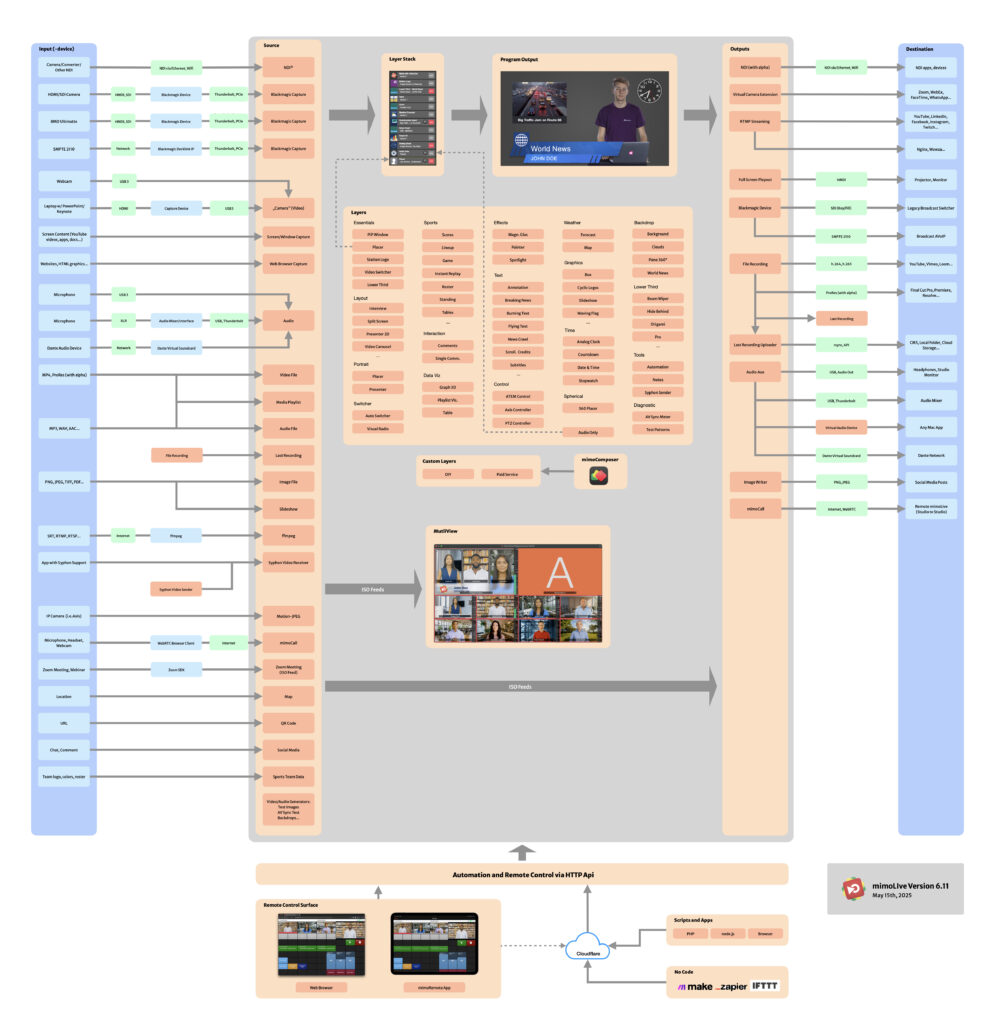
(Click image to [download PDF file](https://mimolive.com/wp-content/uploads/2025/05/mimoLive-Overview-6.11.pdf))
### Inputs
mimoLive offers a variety of input methods, including video sources, audio streams, and data from your local hard drive or the internet.
Some inputs are routed to sources, while others go directly to a layer in the layer stack.
### Sources
mimoLive provides a wide range of sources to bring different kinds of content into your production. Each source type is designed for a specific purpose, giving you flexibility and creative control. [Read more about source types](https://mimolive.com/user-manual/sources-input/).
Sources act as the bridge between your inputs and the layers that render the program output. For example, a camera source combines a video input and an audio input into a single source, which can then be used in a layer within the layer stack.
### Layers
The program output in mimoLive is created by rendering multiple layers on top of each other, similar to how layers work in Adobe Photoshop. Each layer type serves a specific purpose, but layers are highly customizable, allowing you to use them in many creative ways for different results. [Learn more about Layers.](https://mimolive.com/user-manual/using-mimolive/layers-and-variants/)
Layers can receive video or audio sources as inputs, giving you control over what each layer renders in the final output.
During production, layers can be switched on or off in real time — bringing your production to life!
### Outputs
Outputs in mimoLive define where your final program is sent after it is rendered. Just like layers build your show visually, outputs deliver it to your audience. You can stream live to platforms like YouTube, Facebook, or Twitch, record to a file for post-production, send video to a virtual camera for use in video calls, or output to a connected display or SDI device.
Each output type is highly configurable, allowing you to optimize settings such as resolution, bitrate, or platform-specific requirements. You can activate or deactivate outputs individually during production, giving you full control over how and where your content is delivered. [Discover how Output Destinations work](https://mimolive.com/user-manual/using-mimolive/output-destinations/).
---
## mimoLive Installation Guide
Source: https://mimolive.com/user-manual/introduction-installation/mimolive-installation-guide/
Last updated: 2026-08-19
Follow these simple steps to install mimoLive and activate it with your license key.
### System Requirements
mimoLive requires a Mac (Intel or Apple Silicon) running macOS 10.14 or higher. We highly recommend using macOS 15 Squoia or newer.
### Installing mimoLive
#### Step 1: Download mimoLive
- Visit the mimoLive download page at [https://mimolive.com/download](https://mimolive.com/download)
- Click on the "Download" button to start downloading the latest version of mimoLive.
> **Important:** Use the Boinx Software Download Server!
>
> Please download mimoLive from [mimolive.com/download](https://mimolive.com/download) only!
#### Step 2: Unzip the Downloaded File
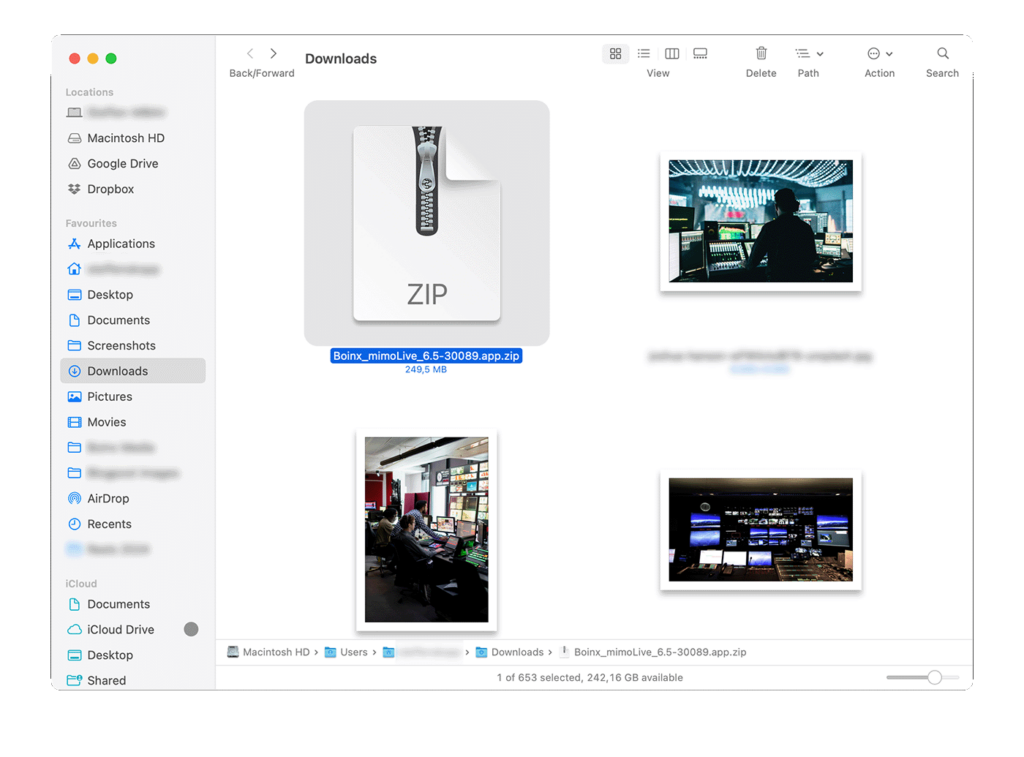
- Once the download is complete, locate the downloaded app file in your Downloads folder.
- If the app isn't automatically unzipped, simply double-click the `.zip` file to extract the mimoLive application.
#### Step 3: Install mimoLive
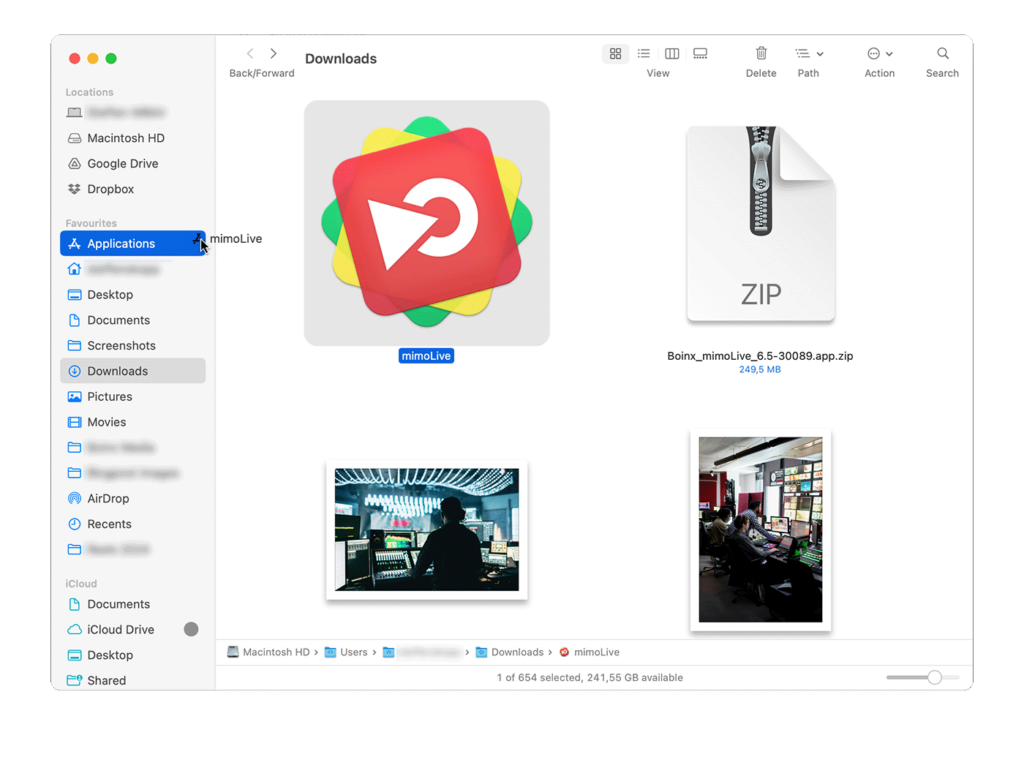
- Drag the mimoLive application icon to your Applications folder to install it.
- Navigate to your Applications folder and double-click on the mimoLive icon to launch the app.
> **Important:** Using different versions at the same time
>
> It is possible and sometimes useful, for example for testing new releases, to have multiple versions of mimoLive installed. Just rename the application before dragging it to the Applications folder in order to avoid overwriting the already installed version.
>
> For best performance, make sure that only one copy is running at the same time.
#### Step 4: Activate Your License
- Click the provided License Installation Link in your purchase confirmation email.
- The link will open a web page containing a button to install the license in the mimoLive app.
- Once you clicked the button your browser will ask you to confirm the launch of mimoLive.
**Alternative activation method:** If you prefer, you can manually enter your license information:
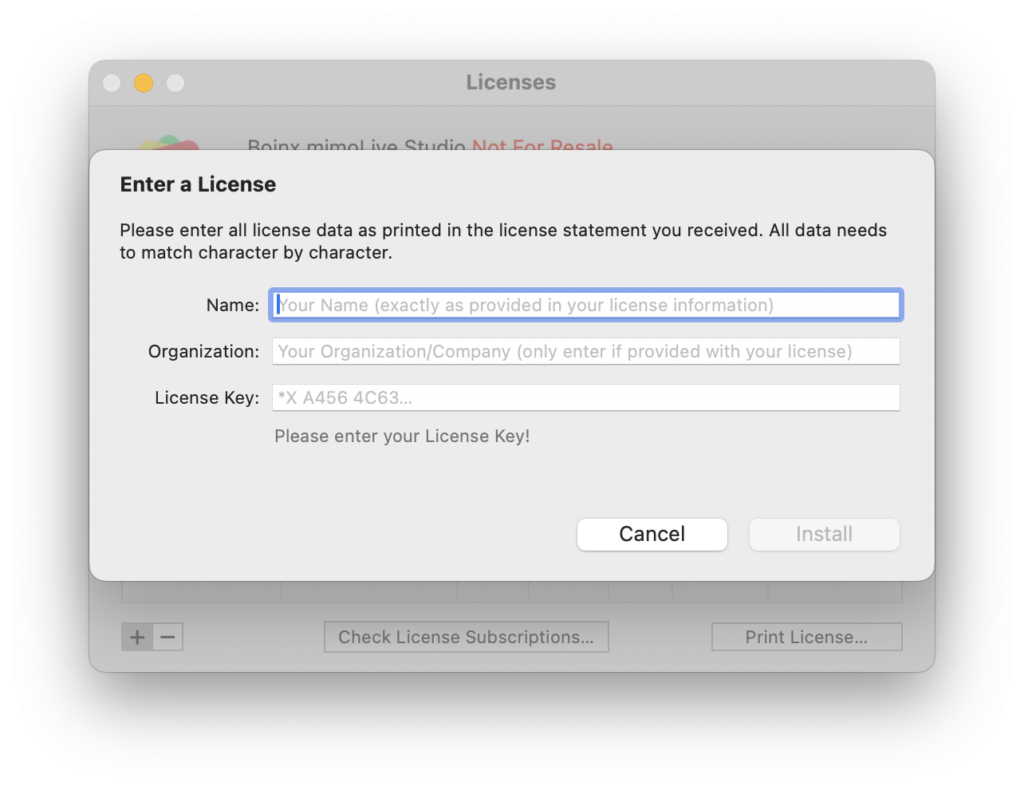
- Open mimoLive and select *mimoLive > Licenses…* from the menu bar. The licenses window will open.
- Click on the "+" button in the lower left corner to enter your licenses key manually.
- Because the license key contains many random characters, you can simply copy and paste the entire license email into the form. mimoLive will automatically parse the clipboard content and extract the necessary information.
#### Step 5: Connect additional Accounts
mimoLive seamlessly integrates with various platforms and services for broadcasting, streaming, and social media engagement. To connect your accounts, please check out the [Accounts](https://mimolive.com/user-manual/using-mimolive/accounts/) page in this manual.
> **Note:** Add your free Boinx Connect account in the mimoLive settings!
>
> In order to use the integrated video call feature mimoCall, you must add a free Boinx Connect Account to mimoLive.
#### Step 6: Explore mimoLive
Congratulations, you're all set! Best start with watching the [Tutorials](https://mimolive.com/user-manual/video-tutorials/).
### Need Help?
If you encounter any issues or have questions, the support team is ready to assist you. Visit the [support website](https://mimolive.com/support/) for details.
---
# Video Tutorials
Source: https://mimolive.com/user-manual/video-tutorials/
Last updated: 2025-09-13
These video tutorials are designed to help you get the most out of mimoLive, whether you’re just starting or looking to master advanced features. Step by step, they guide you from the basics of setting up your first project to in-depth workflows and professional tips. By following along, you’ll save time, avoid common pitfalls, and quickly gain the skills you need to produce polished live video with confidence.
---
## Getting Started with mimoLive
Source: https://mimolive.com/user-manual/video-tutorials/getting-started/
Last updated: 2025-10-04
https://www.youtube.com/playlist?list=PLqmpupU7CLwjeX4bA-7edagZPdSlFs2WQ
Get started with mimoLive and learn how to create your first live video production! In this tutorial, we’ll guide you through setting up a show document, adding sources, and using layers to enhance your video with graphics, logos, and lower thirds. You’ll also discover how to record your show and set up a remote control surface for flexible live production.
---
## Audio Basics
Source: https://mimolive.com/user-manual/video-tutorials/audio-basics/
Last updated: 2025-11-29
https://youtu.be/A_v576CwurM
In this tutorial, you'll learn the essentials of managing audio in Mimo Live for producing high-quality live shows. We cover the basic audio workflow, setting up independent audio routing, monitoring audio, creating custom audio mixes, and remote audio control. You'll be guided through adjusting audio levels, configuring output destinations, and building a custom audio mixer for remote access, ensuring you can fully control your show's sound from any device.
### Layers used in the video
- [Audio Only Layer](https://mimolive.com/user-manual/live-editing/layers/audio/audio-only/)
The Audio Only layer injects audio input from any source thats provides audio, like an Audio Source,
a Video Source, a Media File Source or a Media Playlist Source, into the program output.
- [Placer Layer](https://mimolive.com/user-manual/live-editing/layers/layout/placer/)
When starting with mimoLive®, the first tool you should familiarize yourself with is the Placer Layer. This basic yet pivotal layer is the cornerstone of creating visually engaging and professionally structured broadcasts. In this guide, we will explore why the Placer Layer is foundational, its capabilities, and how it enhances your video production process. The Placer Layer is the most basic representation of your footage in the layer stack. It enables you to perform basic edits to the appearance.
- [Video Switcher Layer](https://mimolive.com/user-manual/live-editing/layers/switcher/video-switcher/)
The Video Switcher layer in mimoLive is a powerful tool that allows you to easily switch between up to 9 different video sources with smooth cut or dissolve transitions. One of the great benefits of this layer is that it can seamlessly transition between sources with different pixel resolutions or different FPS (frames per second).
---
## Sources Repository Overview
Source: https://mimolive.com/user-manual/video-tutorials/sources-repository-overview/
Last updated: 2025-10-23
https://youtu.be/NNi56R83a0g
In this tutorial, you'll learn how to effectively manage your sources repository in mimoLive. We cover the types of sources available, how to add and configure them, and tips for organizing them using source groups. You'll also discover useful practices like renaming sources for better identification and collapsing sources to keep your workspace tidy.
---
## Layer Stack Overview
Source: https://mimolive.com/user-manual/video-tutorials/layer-stack-overview/
Last updated: 2025-10-28
https://www.youtube.com/watch?v=zMtWnZMsRO0
Learn about different layer types, adding layers, and effectively working with them. Follow along as we guide you through adding sources, configuring layer settings, and organizing your layers with color codes and favorites.
---
## Layer Parameters
Source: https://mimolive.com/user-manual/video-tutorials/layer-parameters/
Last updated: 2026-02-10
https://youtu.be/muu9DmjueK0
Learn how to set up the look and behavior of each layer in your stack with precision. We'll cover defining keyboard shortcuts, organizing parameter groups, adjusting layer appearance, managing sources and media files, and mastering interactive controls. Follow along with our simple mimoLive document setup, including a lower third, a placer, and a stopwatch layer to enhance your live video production skills.
---
# Quick-Start Projects & Templates
Source: https://mimolive.com/user-manual/quick-start-projects-templates/
Last updated: 2025-06-13
_This page has no body text; it groups the pages below._
---
## Templates (Overview)
Source: https://mimolive.com/user-manual/quick-start-projects-templates/tutorials-templates/
Last updated: 2025-06-13
### What are Templates in mimoLive?
Templates in mimoLive are pre-configured documents designed to help you quickly set up professional live video productions. Each template includes a layout of layers, sources, and settings tailored to specific use cases—such as podcasting, virtual presentations, or live event coverage. Instead of building a show from scratch, you can start with a template, customize it to your needs, and go live in minutes. Templates are a great way to learn how mimoLive works and to streamline your production workflow.
### Template Categories at a Glance
To help you quickly find the right starting point for your production needs mimoLive templates are organized into categories:
- [Quick Start Templates](https://mimolive.com/user-manual/quick-start-projects-templates/quick-start/)
Quick Start templates are pre-built mimoLive documents designed for specific use cases, such as recording or switching video sources. They provide a fast way to get started and also serve as practical examples for learning how to set up your own mimoLive productions.
- [Tutorials Templates](https://mimolive.com/user-manual/quick-start-projects-templates/tutorials/)
The Tutorials section offers step-by-step guides to help you learn mimoLive quickly and effectively. Whether you're setting up your first live stream, exploring advanced layering techniques, or configuring audio/video sources, these tutorials walk you through each process with clear instructions and practical examples. Ideal for both newcomers and seasoned users, the tutorials are designed to build your confidence and accelerate your production skills in mimoLive.
- [Genres Templates](https://mimolive.com/user-manual/quick-start-projects-templates/genres/)
The Genres section showcases a variety of pre-configured mimoLive project templates tailored to specific production types—such as news broadcasts, sports coverage, gaming streams, and event recordings. Each template is optimized for its genre, including appropriate layers, graphics, and audio/video settings, helping you get started faster and produce polished results with minimal setup.
- [Layer Designs Templates](https://mimolive.com/user-manual/quick-start-projects-templates/layer-designs/)
The Layer Designs section introduces a collection of ready-made layer configurations that enhance the visual style and functionality of your mimoLive productions. These pre-designed layers—such as lower thirds, picture-in-picture layouts, tickers, and overlays—are optimized for various broadcast scenarios and can be easily adapted to your brand or format. Layer Designs help streamline your creative workflow, enabling you to build professional-looking shows quickly and consistently.
### Creating a mimoLive Document from a Template
1. Open the template browser by selecting **File → New…**. This will open the **Template Chooser** window.
2. At the top of the window, make sure the **Templates** tab is active by clicking the **Templates** button.
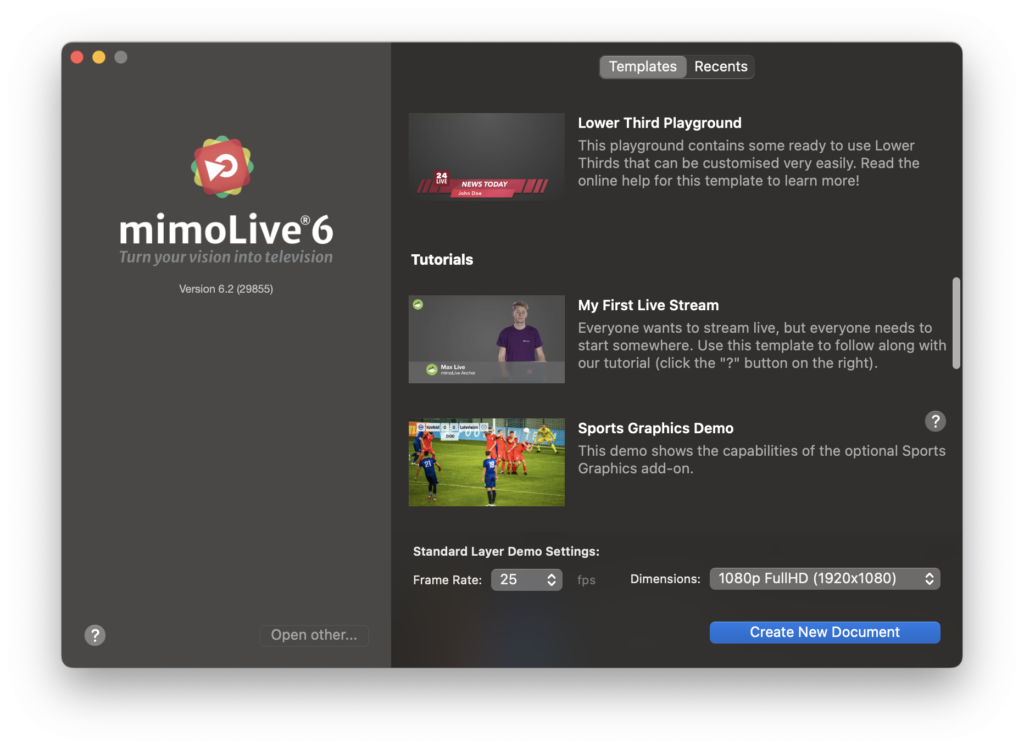
3. Browse and select the template you'd like to use as the foundation for your new mimoLive document. For details on the available templates, refer to the corresponding subsections in this manual.
4. At the bottom of the window, configure the **frame rate** and **Program Out** **video dimensions** to match your production needs.
5. Click **Create New Document** in the lower-right corner to generate your new mimoLive document.
---
## Quick Start Templates
Source: https://mimolive.com/user-manual/quick-start-projects-templates/quick-start/
Last updated: 2025-06-13

**Quick Start templates** are pre-built mimoLive documents designed for specific use cases, such as recording or switching video sources. They provide a fast way to get started and also serve as practical examples for learning how to set up your own mimoLive productions.
---
### Video Switcher with Multiview Template
Source: https://mimolive.com/user-manual/quick-start-projects-templates/quick-start/video-switcher-with-multiview-template/
Last updated: 2026-08-19
### About the Video Switcher Template
The **Video Switcher Template** enables seamless switching between up to **9 video sources** during your production. It’s designed for maximum flexibility and ease of use, especially in live scenarios.
##### Key Features:
- **Multiview Monitoring**: Watch all 9 sources at once using a **Multiview display**, ideal for keeping track of inputs. This can be shown on a separate screen for easy monitoring.
- **NDI® Output**: Output your program feed over the local network via **NDI**, making integration into professional workflows smooth and efficient.
- **Remote Control Surface**: Operate the switcher from a **touchscreen device** using mimoLive’s **Remote Control Surface**, giving you intuitive and mobile control over your live switch.
Because the Video Switcher focuses solely on switching **video**, using an **Audio Only Layer** ensures consistent and centralized audio, especially in professional setups where an external audio mixer handles all microphones and sound sources.
This setup is perfect for live streaming, event production, or studio-based broadcasts where source switching and visibility are essential.
### Template Elements
#### Sources
- [Camera Source (Video Source)](https://mimolive.com/user-manual/sources-input/local-sources/video/)
The Camera Source in mimoLive is a versatile input that supports a wide range of video and audio devices, from built-in webcams and USB capture dongles to professional HDMI and SDI interfaces. This section of the manual guides you through connecting and configuring video sources—including DSLRs, webcams, screen grabbers, and capture cards—to integrate live video into your production.
- [Audio Source](https://mimolive.com/user-manual/sources-input/audio-sources/audio/)
The Audio Source provides audio input from a microphone, a camera with an integrated microphone or some kind of audio interface that is connected to your Mac. Bringing Audio into mimoLive Audio devices can be connected to the Mac in several ways: USB, Thunderbolt, and FireWire. Some devices are even virtual devices that receive data […]
#### Layers
- [Video Switcher Layer](https://mimolive.com/user-manual/live-editing/layers/switcher/video-switcher/)
The Video Switcher layer in mimoLive is a powerful tool that allows you to easily switch between up to 9 different video sources with smooth cut or dissolve transitions. One of the great benefits of this layer is that it can seamlessly transition between sources with different pixel resolutions or different FPS (frames per second).
- [Placer Layer](https://mimolive.com/user-manual/live-editing/layers/layout/placer/)
When starting with mimoLive®, the first tool you should familiarize yourself with is the Placer Layer. This basic yet pivotal layer is the cornerstone of creating visually engaging and professionally structured broadcasts. In this guide, we will explore why the Placer Layer is foundational, its capabilities, and how it enhances your video production process. The Placer Layer is the most basic representation of your footage in the layer stack. It enables you to perform basic edits to the appearance.
- [Audio Only Layer](https://mimolive.com/user-manual/live-editing/layers/audio/audio-only/)
The Audio Only layer injects audio input from any source thats provides audio, like an Audio Source,
a Video Source, a Media File Source or a Media Playlist Source, into the program output.
#### Output Destinations
- [NDI® Output](https://mimolive.com/user-manual/playout-output-destinations/nditm-playout/)
The NDI® Output Destination sends video data to any NDI® receiver on your local network. NDI® also transports the alpha channel which gives you the opportunity to use mimoLive as a graphics generator in NDI® enabled environments. Adding a NDI® Output Destination Add a new NDI® Output Destination to your Output Destination list by clicking […]
- [Audio Aux Output](https://mimolive.com/user-manual/playout-output-destinations/audio-aux/)
Send audio output to audio devices New documents created with mimoLive automatically add an Audio Aux Output Destination, named Audio Monitor, that allows you to route audio mixes to a specific audio output device. You can add additional Audio Aux Output Destinations to route any desired audio mix to the same audio output device using […]
### Adapting the Video Switcher Template to Your Needs
To customize the Video Switcher Template for your specific setup, follow these steps:
1. **Inspect Camera Sources**
Review all sources labeled **“Camera 1”** through **“Camera 9”** in the *Sources* panel.
2. **Assign Video Devices**
For each source, click the **“Video Device”** popup menu and choose the appropriate input device from the list.
3. **Verify Input Preview**
Ensure that each selected device displays a live preview in the Video Switcher layer preview confirming the connection.
> **Note:** You can show or hide the content panel of any source by simply double-clicking the empty space inside its tile. This is helpful to keep your workspace clean and focused.
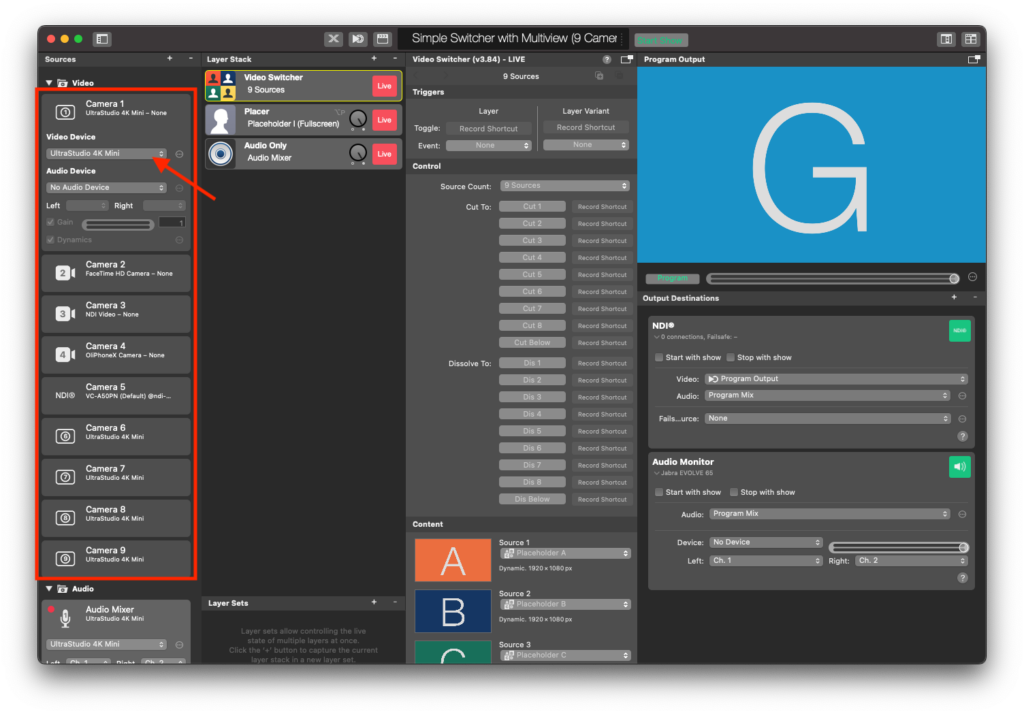
he **Video Switcher Layer** is designed for flexible video switching but **does** **not route audio from the camera sources** to the program output by default. Instead, you'll need to configure a dedicated **Audio Only layer** to handle the sound from your external audio mixer board.
- Plug the **main output** of your audio mixer board into an available **audio input device** connected to your Mac (e.g., via USB audio interface).
- Look for the existing **“Audio Mixer”** item.
- Choose the correct input device from the **Audio Device** dropdown menu (this should match your mixer’s connected interface).
### Controlling the Video Switcher layer
#### **Switching via Multiview**
This template usetelize the external Multiview of mimoLive which you can put on an external screen if available. To open the Multiview, find the Multiview button in the upper right corner of the mimoLive document window and click on it:
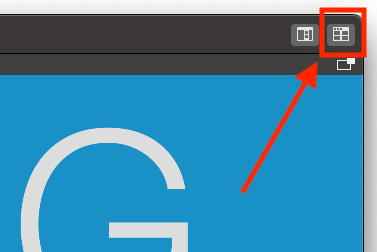
The external Multiview will open. Now you can position it on the secondary monitor if you want to and click the green button in the upper left corner of the window to make it full screen.
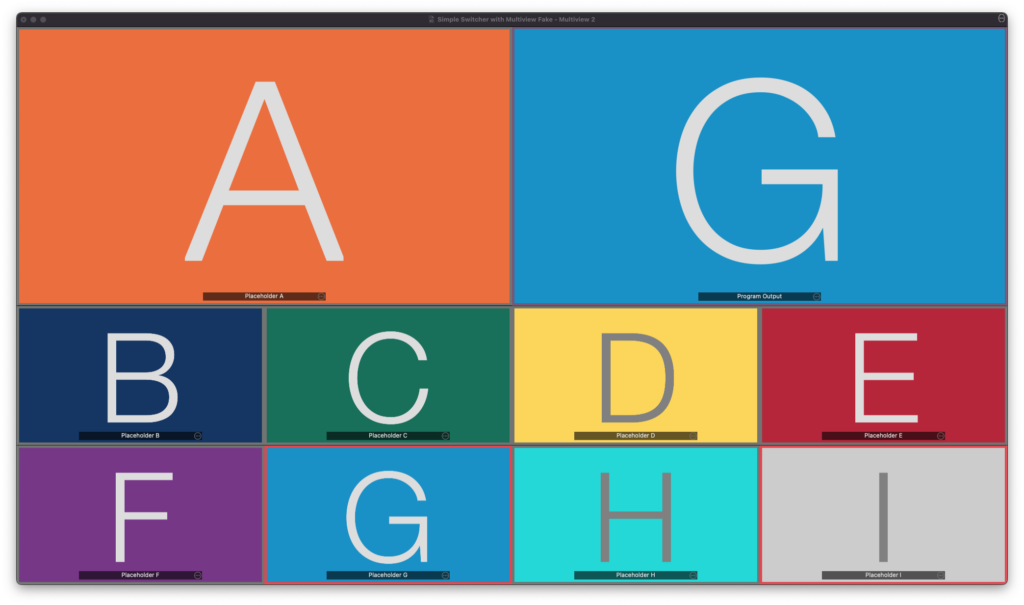
Now you can click on the video previews to initialte a cut to this video source. The telly light will be refelcted in the boarder of the video source. it will turn red if the video switcher switched to it.
#### **Switching via Remote Control Surface**
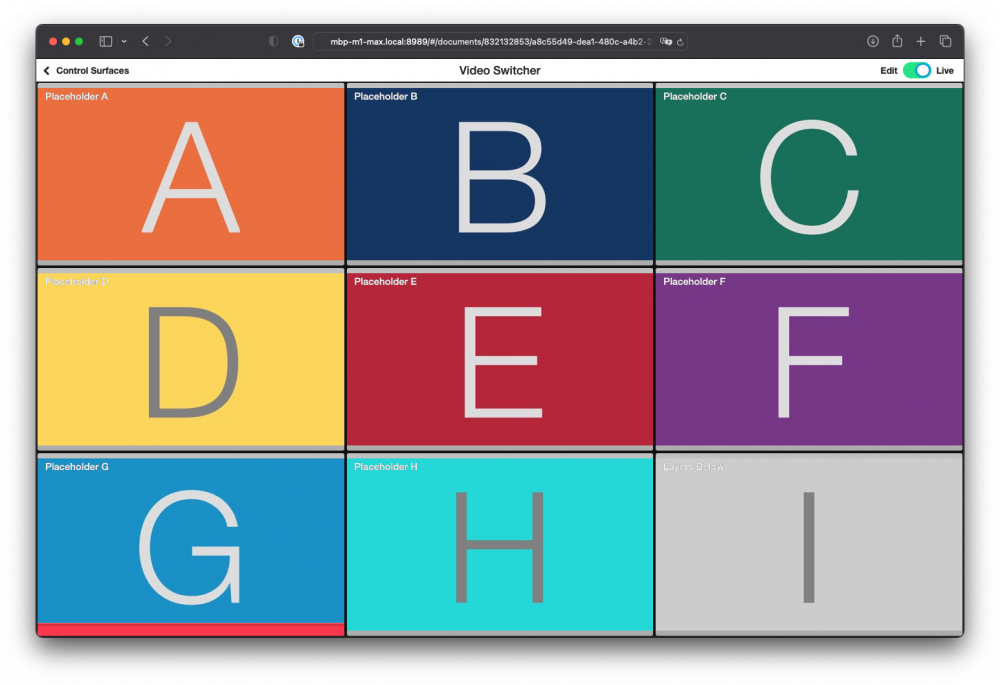
Controlling the Video Switcher layer is easier via the Remote Control Surface. This template got a predefined Remote Control Surface to get you started quickly. As the Remote Control Surface is basically a web page, it works on an iPad, an iPhone, a webbrower on a laptop or a tablet.
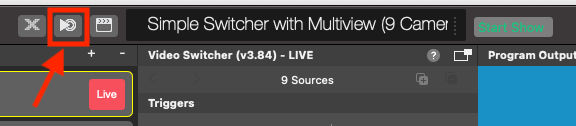
Find the “Open Remote Control Surface” button on the left of the HUD on top of the mimoLive document window to open it:
> **Note:** Enable the Remote Control Surface in the mimoLive Settings.
>
> When you use the Remote Control Surface the first time, you’re asked to go to the mimoLive Settings and enable it.
The Remote Control Surface included with the Video Switcher with Muliview template lets you control the switcher remotely:
---
### Overlay Graphics Generator Template
Source: https://mimolive.com/user-manual/quick-start-projects-templates/quick-start/overlay-graphics-generator-template/
Last updated: 2026-08-19
### About the Overlay Graphics Generator Template
The **Overlay Graphics Generator Template** is purpose-built for creating and playing out graphic elements—such as lower-thirds, logos, and animations—on a transparent background. This allows the resulting video signal to be **superimposed** over other video feeds in external **hardware switchers** or **video editing software** like *Final Cut Pro* or *Adobe Premiere Pro*.
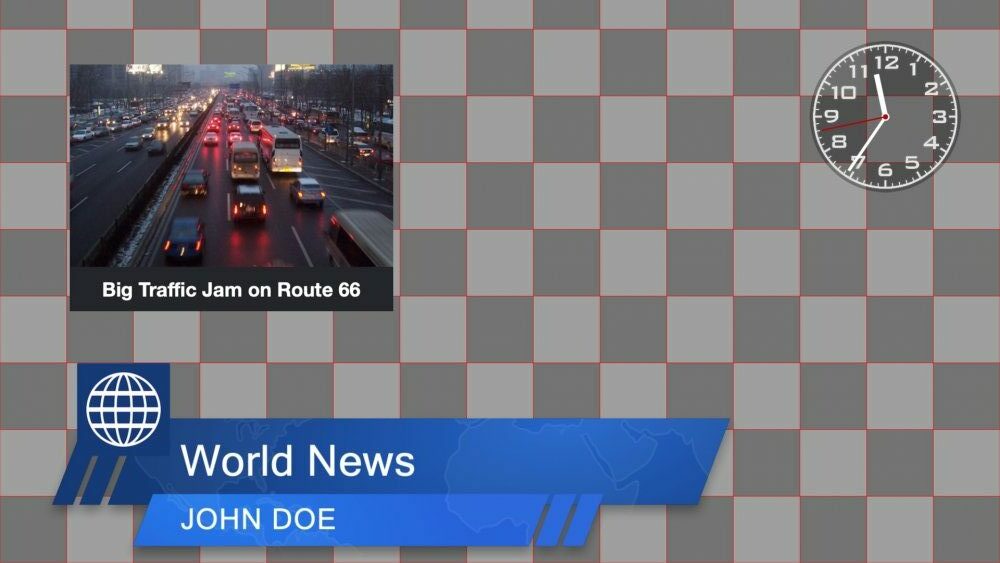
With this template, you can:
- **Export rendered graphics to a video file** with an alpha channel by using the **Apple ProRes 4444** codec—ideal for use in post-production environments.
- **Output key/fill signals** via a compatible **Blackmagic Design device** to an external broadcast switcher.
- **Transmit the graphics over the network** using **NDI® (Network Device Interface)** for seamless integration into IP-based video workflows.
This template is especially useful for broadcast environments or any production workflow that requires professional-grade overlay graphics with transparency support.
> **Note:** Use Transparent Media Files in Slides and Overlays
>
> When playing out with SDI key/fill or NDI, mimoLive preserves transparency. You can use transparent PNGs or video files in ProRes4444 as backgrounds or other media that support transparency. For an example on how to create transparent ProRes4444 with Adobe After Effects for use with mimoLive, read [Creating Animated Lower Thirds With Adobe After Effects.](https://mimolive.com/user-manual/creating-animated-lower-thirds-with-after-effects)
### Template Elements
This template includes a curated selection of mimoLive’s most commonly used graphic layers, allowing you to quickly test your setup and begin integrating dynamic overlays into your production workflow.
#### Layers
- [Analog Clock Layer](https://mimolive.com/user-manual/live-editing/layers/time/analog-clock/)
The Analog Clock layer in mimoLive provides a simple yet elegant solution to display the current time during live broadcasts. With a variety of customization options, including the ability to change the clock face and hand styles, the Analog Clock layer can be seamlessly integrated into any live video production.
- [Graph 3D Layer](https://mimolive.com/user-manual/live-editing/layers/data-viz/graph-3d-layer/)
The Graph 3D layer in mimoLive allows you to present data visually in three-dimensional space. This layer supports different graph types and customizable appearance options to suit various presentation needs.
- [News Crawl Layer](https://mimolive.com/user-manual/live-editing/layers/text-layers/news-crawler/)
Whether you’re using it to share breaking news or additional information about your show, the News Crawler Layer is an essential element for any news or live production. With the ability to pull information from the internet, a local file, or text you type directly into your mimoLive document, you can easily customize your news crawler to fit your specific needs.
- [Overshoulder Insert (OTS) Layer](https://mimolive.com/user-manual/live-editing/layers/layout/overshoulder-insert/)
Within mimoLive, the OTS layer provides an efficient and user-friendly method to integrate this effect into your live broadcasts or recordings.
- [Weather Forecast Layer](https://mimolive.com/user-manual/live-editing/layers/weather/weather-forecast/)
Use clear and intuitive weather icons to ensure easy understanding. Limit the forecast to 3-5 days to maintain clarity and avoid overwhelming the audience. Set smooth animation timing for a polished, professional broadcast. The Weather Forecast layer helps you deliver a concise, visually engaging weather segment, tailored to the needs of your audience.
- [Stingers and Outros](https://mimolive.com/user-manual/quick-start-projects-templates/layer-designs/stingers-outros/)
In mimoLive 6 you will find a set of pre-designed stingers and outros which are free to use. We have designed a set of animations and they come for free with a mimoLive subscription.
- [Sports Player Table Layer](https://mimolive.com/user-manual/live-editing/layers/sports/sports-graphics-overview/sports-graphic-layers/sports-player-table/)
With the Sports Player Table, you can show up to 12 players of a team in a chart. Configuring the content In the Content parameter group of the layer, you can specify how many players should be visible. with the Titles text field, you define how many columns you want to show. Use a comma […]
- [Lower Third Layer](https://mimolive.com/user-manual/live-editing/layers/lower-third-2/lower-third/)
The Lower Third layer lets you create, animate and control all kinds of lower thirds. Usually, it’s used to introduce a person with their name and a description such as a job title or position. Often a lower third contains a combination of a company logo, name, and title.
- [Station Logo Layer](https://mimolive.com/user-manual/live-editing/layers/layout/station-logo/)
The Station Logo layer displays a branding image, such as a network or channel logo, on top of your video output. This ensures consistent branding throughout your show. The layer can be easily positioned, scaled, and faded in or out using various transitions.
- [Made with mimoLive Layer](https://mimolive.com/user-manual/live-editing/layers/graphics/made-with-mimolive-layer/)
The Made with mimoLive layer is a simple way to add a "Made with mimoLive" badge to your live broadcasts, showcasing the software used for production.
There are also a lot more things to explore, from complex [sports graphics](https://mimolive.com/user-manual/sports-graphics-overview) to [automation](https://mimolive.com/user-manual/automation).
#### Output Destinations
- [Blackmagic Design SDI Playout](https://mimolive.com/user-manual/playout-output-destinations/sdi-playout/)
Play out to SDI or HDMI. mimoLive implements the Blackmagic Design API for playing out to SDI or HDMI via Blackmagic Design hardware like Blackmagic Design DeckLink series . Adding an Blackmagic Design Output Destination Add a new Blackmagic Design Playout Output Destination to your Output Destination list by clicking the + button on top […]
- [NDI® Output](https://mimolive.com/user-manual/playout-output-destinations/nditm-playout/)
The NDI® Output Destination sends video data to any NDI® receiver on your local network. NDI® also transports the alpha channel which gives you the opportunity to use mimoLive as a graphics generator in NDI® enabled environments. Adding a NDI® Output Destination Add a new NDI® Output Destination to your Output Destination list by clicking […]
### Adapting the Overlay Graphics Template to Your Needs
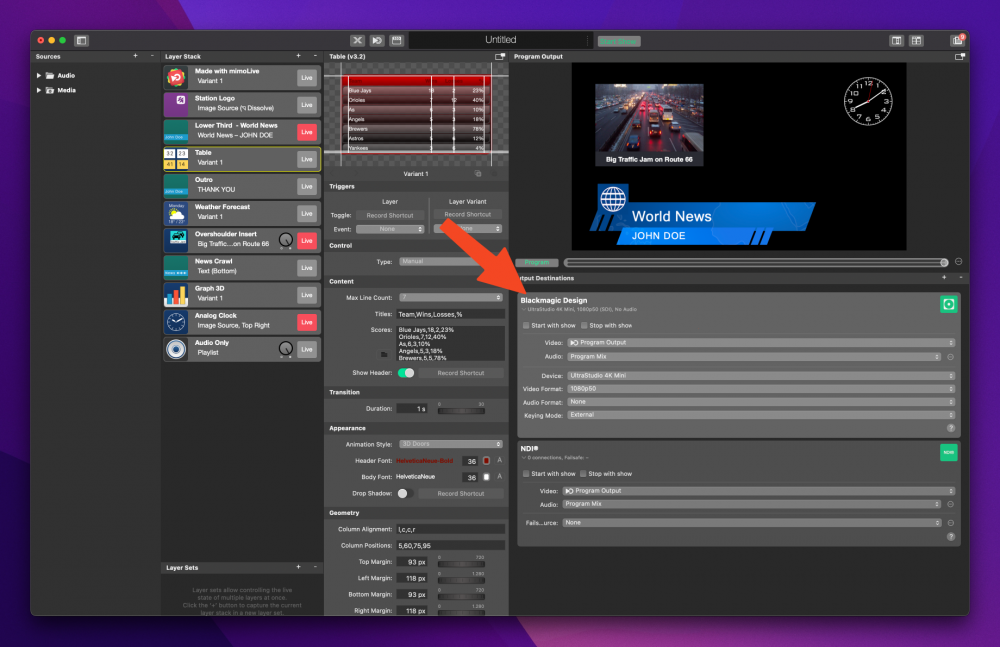
To play out with a Blackmagic Design device, simply install the Blackmagic Desktop Video software, connect the device and select the proper settings in the [Blackmagic Design Output Destination](https://mimolive.com/user-manual/sdi-playout):
### Starting the Playout
> **Important:** Don’t Forget to Activate the Output Destination!
>
> Make sure to click the “Live” button in the top-right corner of the Output Destination to start playout.
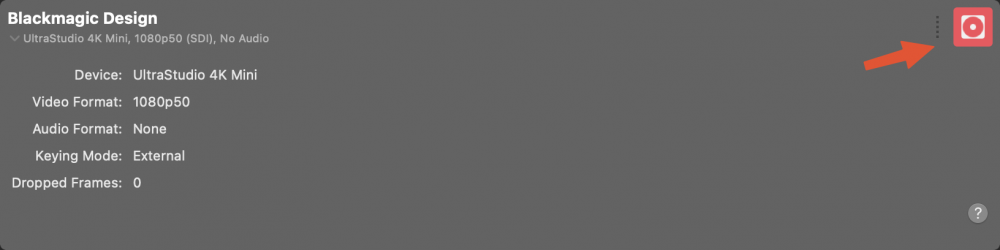
Click the **“Live”** button located in the top-right corner of the Output Destination panel.
Check the Status:
- **Red Button**: The output is actively running.
- **Green Button**: The output destination is correctly configured and ready to go live.
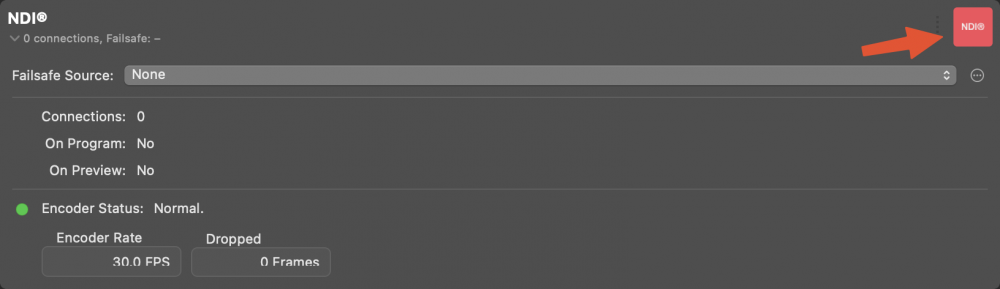
To make your transparent output stream available on the local network via NDI, simply click on the live button in the **NDI®** Output Destination.
### Explore the Layers
To understand what each layer can do for your production:
- Try activating them **one by one**.
- Experiment with their **settings** to see how they affect your scene.
This hands-on approach is the best way to discover the creative possibilities mimoLive has to offer.
---
### Recording Template
Source: https://mimolive.com/user-manual/quick-start-projects-templates/quick-start/recording-template/
Last updated: 2026-08-19
### About The Recording Template
The **Recording Template** in mimoLive provides a streamlined setup for capturing video and audio from a wide range of sources, including RTMP, NDI, SDI, USB webcams, mimoCall, and screen capture. The template is configured to record in high-quality formats such as H.264 or ProRes 422.
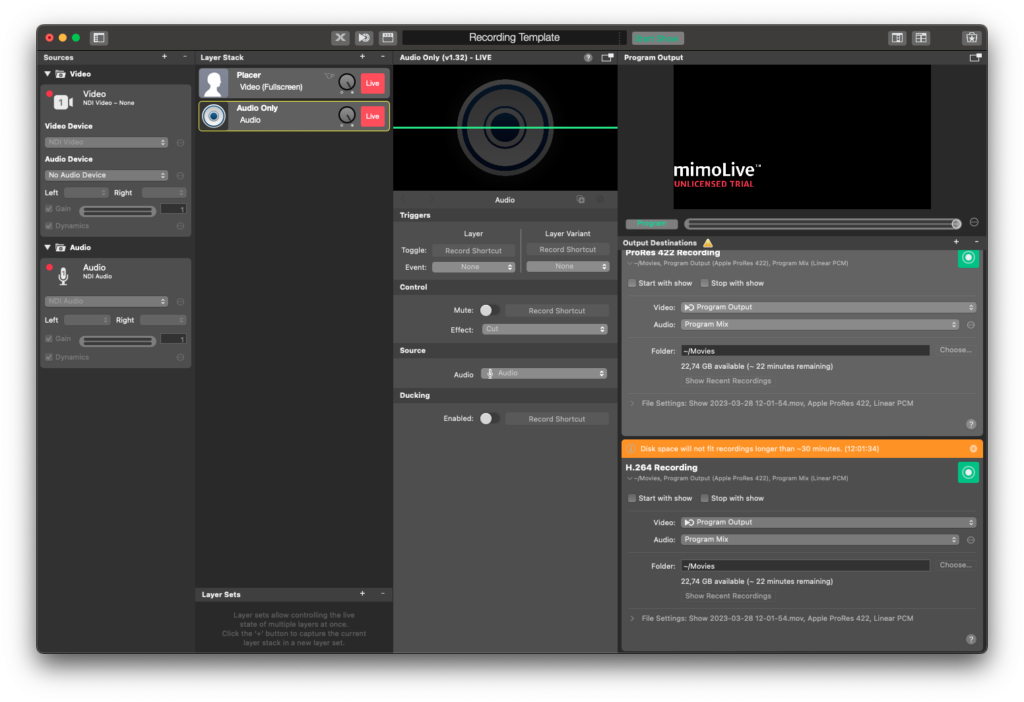
This template is well-suited for various use cases, such as recording webinars, live events, tutorials, or other types of video content. It serves as a practical starting point for users who want to quickly configure mimoLive for local recording with minimal setup effort.
### Creating a mimoLive Document from the Recording Template
For instructions on how to create a mimoLive document from a template, please refer to the [Templates (Overview)](https://mimolive.com/user-manual/quick-start-projects-templates/tutorials-templates/)section of this manual.
### Template Elements
#### Sources
- [Camera Source (Video Source)](https://mimolive.com/user-manual/sources-input/local-sources/video/)
The Camera Source in mimoLive is a versatile input that supports a wide range of video and audio devices, from built-in webcams and USB capture dongles to professional HDMI and SDI interfaces. This section of the manual guides you through connecting and configuring video sources—including DSLRs, webcams, screen grabbers, and capture cards—to integrate live video into your production.
- [Audio Source](https://mimolive.com/user-manual/sources-input/audio-sources/audio/)
The Audio Source provides audio input from a microphone, a camera with an integrated microphone or some kind of audio interface that is connected to your Mac. Bringing Audio into mimoLive Audio devices can be connected to the Mac in several ways: USB, Thunderbolt, and FireWire. Some devices are even virtual devices that receive data […]
#### Layers
- [Placer Layer](https://mimolive.com/user-manual/live-editing/layers/layout/placer/)
When starting with mimoLive®, the first tool you should familiarize yourself with is the Placer Layer. This basic yet pivotal layer is the cornerstone of creating visually engaging and professionally structured broadcasts. In this guide, we will explore why the Placer Layer is foundational, its capabilities, and how it enhances your video production process. The Placer Layer is the most basic representation of your footage in the layer stack. It enables you to perform basic edits to the appearance.
- [Audio Only Layer](https://mimolive.com/user-manual/live-editing/layers/audio/audio-only/)
The Audio Only layer injects audio input from any source thats provides audio, like an Audio Source,
a Video Source, a Media File Source or a Media Playlist Source, into the program output.
#### Output Destination
- [File Recording to Disk (ISO Recording)](https://mimolive.com/user-manual/playout-output-destinations/recording-to-disk/)
With the Recording to Disk feature, you can easily record your mimoLive productions to your local disk. This is especially useful for users who want to have a backup of their live streams, or for those who want to edit their videos later. You can choose between various output codecs such as h.264, multiple Apple […]
### Adapting the Recording Template to Your Needs
Before using the Recording Template for your production, you should adjust it to match your specific setup and recording requirements. This involves selecting the correct input sources and configuring the output destinations.
#### Select Your Video and Audio Devices
In the [Source panel](https://mimolive.com/user-manual/using-mimolive/sources-and-the-sources-repository/) on the left side of the interface, check the currently assigned devices:
- **Video Device**: In the **Video source** click the dropdown next to **Video** to select your preferred camera source (e.g., USB webcam, SDI, NDI® input, etc.).
- **Audio Device**: In the **Audio** **source**, choose the correct microphone or audio input (e.g., USB mic, audio interface, NDI audio, etc.).
#### Review and Configure Output Destinations
On the right side, under [Output Destinations](https://mimolive.com/user-manual/using-mimolive/output-destinations/), the template includes two example recording outputs:
- **ProRes 422 Recording**
This option provides high-quality, professional-grade video files suitable for editing or archiving. It uses more disk space and may not be ideal for long recordings on limited storage.
- **H.264 Recording**
This option creates compressed video files that are smaller and more suitable for web publishing or longer recordings. It balances quality and file size.
> **Note:** You can check available disk space and estimated recording time directly below each output configuration.
If you don’t need both formats, **you can remove the one you won't use** by selecting it and clicking the "-" button at the top of the list. This helps simplify your setup and avoids unnecessary processing.
### Start the Recording
Once you have set up all components in your document, you are ready to start recording. There are two convenient ways to initiate the recording process:
- **Direct Method:** Click the green **Live** button in the **Recording Output Destination** section. This immediately begins recording. When the recording is in progress the Live button will turn red.
- **Automatic with Show Start:** Alternatively, you can enable the **Starts with Show Start** option in the Recording Output Destination settings. Then, simply use the **Start/Stop Show** button located at the top of the mimoLive window to begin the recording as part of the overall show control.
For more details on how the **Start/Stop Show** button functions, refer to the [Start/Stop Show documentation](https://mimolive.com/user-manual/using-mimolive/startstop-show-button/).
---
## Layer Designs Templates
Source: https://mimolive.com/user-manual/quick-start-projects-templates/layer-designs/
Last updated: 2025-06-14
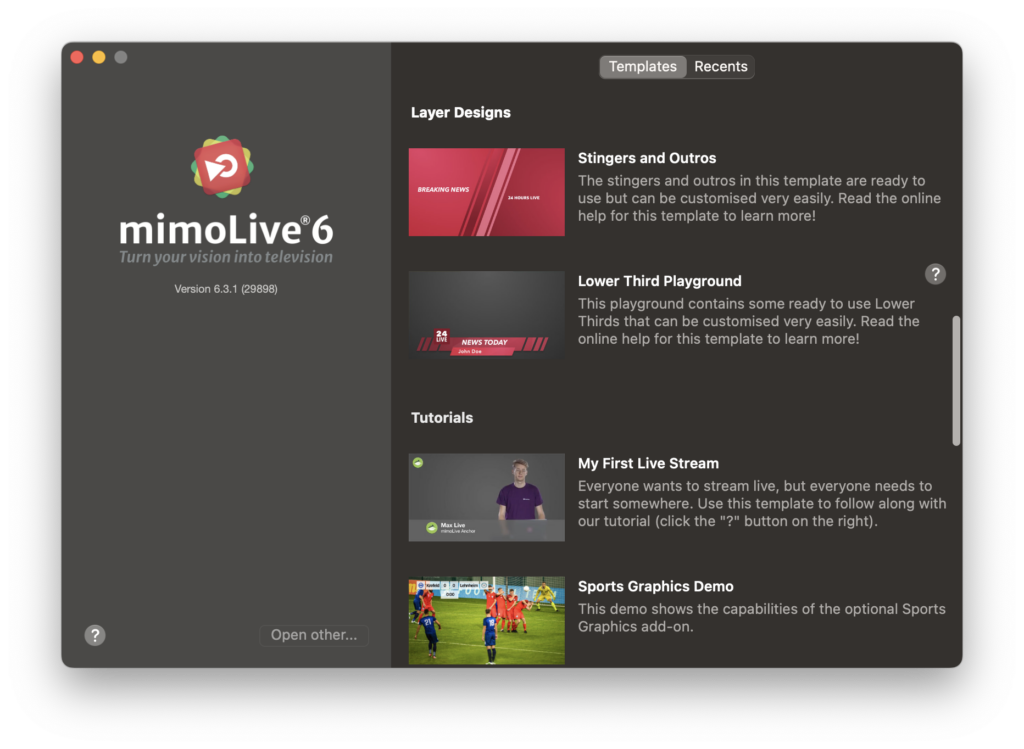
mimoLive comes with a variety of pre-built templates. One category is named **Layer Designs** templates. These templates are made to demonstrate how to animate graphics with mimoLive and help to start quickly. These templates also work as an example to learn how to set up a mimoLive document.
Layers are an essential feature of mimoLive, allowing you to create dynamic and visually engaging live video productions. Our templates provide pre-built layers that are ready to use, making it easy to customize your live video content and create a professional-looking broadcast.
With layers, you can add text, images, videos, and other types of media to your live video production, all with ease and flexibility. Whether you're creating a news broadcast, talk show, webinar, or other type of content, layers are a powerful tool that can help you elevate your production to the next level.
---
### Lower Third Playground Template
Source: https://mimolive.com/user-manual/quick-start-projects-templates/layer-designs/lower-third-playground/
Last updated: 2025-06-16
Lower thirds are a crucial component of any video production, as they help to convey important information to the audience through text overlays. This information can include the name and title of the current speaker or presenter, as well as important news or additional facts related to the content being presented.
[Video: Lower-Third-Demo.mp4](https://mimolive.com/wp-content/uploads/2023/04/Lower-Third-Demo.mp4)
To help users take advantage of this feature, the **Lower Third Playground Template** has been created specifically for mimoLive. This template showcases just how versatile the built-in lower third layer in mimoLive can be, providing users with a range of design options that can be easily customized to meet their unique needs. Whether you want to use these designs for your own production, modify them by adjusting the colors, or take inspiration to create your own designs, the Lower Third Playground Template is an excellent resource for users of all levels.
#### Prerequisite
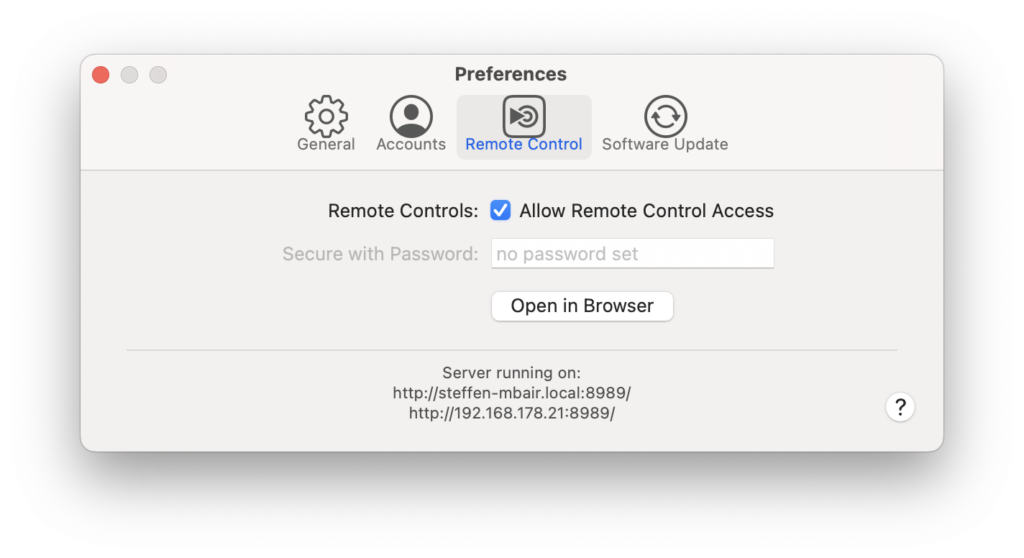
In order to let mimoLive demonstrate all the Lower Third variants automatically you will need to switch on the **Allow Remote Control Access** option in the Remote Control section of the mimoLive Preference window in order to make the Automation layer work.
#### How to load the the Lower Third Playground Template
To open the Lower Third Playground template select “New…” from the File menu. You will get the [New Document dialog window](https://mimolive.com/user-manual/templates). Please make sure that the “Templates” section is selected at the top of this window. Now you can scroll through the list of Pre-installed templates in order to find the Lower Third Playground template. Double click it to open it.
#### How to copy a specific Lower Third to your own mimoLive document
In the Program out window all the lower third designs should cycle through controlled by an [Automation Layer](https://mimolive.com/user-manual/automation). If you find a certain Lower Third design appealing you can make use of it in your own projects by selecting it in the Layer Stack, click on “Copy” in the “Edit” menu, head over to your own mimoLive document and click “Paste” from the “Edit” menu. This will insert the lower third to your [Layer Stack](https://mimolive.com/user-manual/user-interface-overview) and add the necessary graphics as image sources in your [Source Repository](https://mimolive.com/user-manual/sources-and-the-sources-repository). Alternatively you can just drag&drop the Lower Third layer from the Lower Third Playground document to your own mimoLive document.
To adopt the look of the Lower Third to your own corporate design and colors find the Color Shift option in the Background section of the Lower Third layer. With this option you can change the colors of the background image easily.
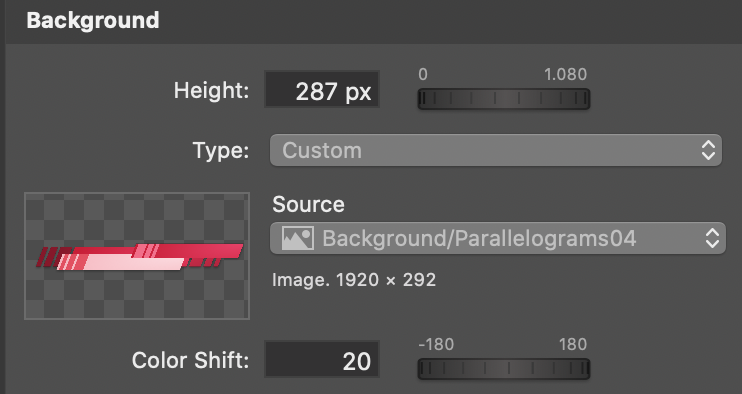
Sometimes it is useful to switch on the Apply BG Color Shift in the Logo section of the Lower Third layer as well if the logo image is actually used a graphical element rather than a real logo.
---
### Stingers and Outros
Source: https://mimolive.com/user-manual/quick-start-projects-templates/layer-designs/stingers-outros/
Last updated: 2025-06-14
In mimoLive you will find a set of pre-designed stingers and outros which are free to use. We have designed a set of animations and they come for free with a mimoLive subscription.
### What is a stinger animation?
A stinger animation or in short just stinger covers the entire screen with a graphic to perform a cut into a new scene without the harshness of a standard cut. Often used in game shows to separate chapters of the show, like entering the final round. For live video cutters a stinger is good practice to perform and hide a cut into a new view angle.
[Video: mimoLive®-6-StringerOutro-Demo.mp4](https://mimolive.com/wp-content/uploads/2022/10/mimoLive®-6-StringerOutro-Demo.mp4)
Stingers and outros are powerful tools that can help you create professional-looking live video productions.
### Getting Started With Stinger Animations
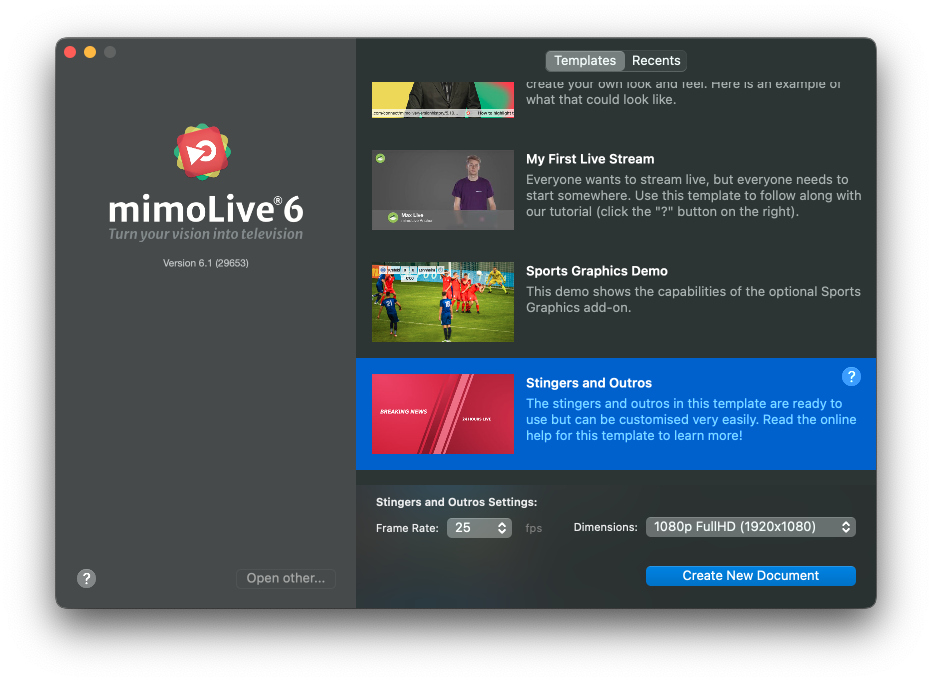
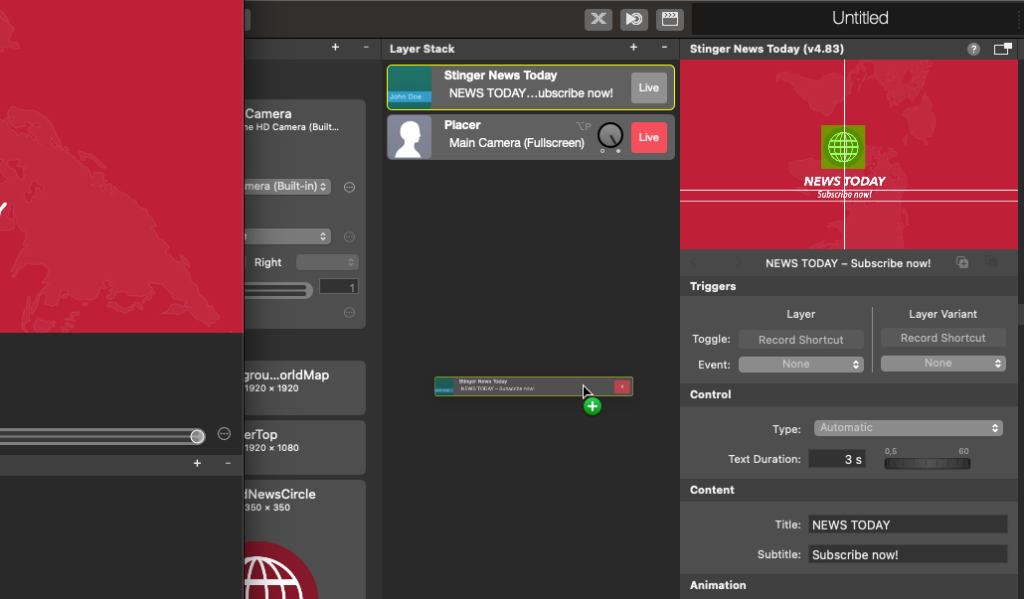
To get started with the new templates, choose **Stingers and Outros** from the **Tempates** tab of the startup dialog. The template will automatically start alternating through the long list of animations. Once you have found our candidate you want to continue to work with, open your mimoLive Document and use Copy+Paste or Drag’n Drop to move the animation into your document.
### About Stingers
Stingers are used to cover the complete screen when switching to other media content or dividing productions into different sections. They can give your audience a visual cue that a new section is starting and help you create a smooth and seamless transition between different parts of your production. With mimoLive, you can easily customize your stingers with text, graphics, and other elements to create a unique and engaging experience for your viewers.
### About Outros
Outros are also an important part of any live video production, allowing you to create a memorable and impactful ending to your show. Whether you're creating a talk show, webinar, or other type of live video content, stingers and outros are a great way to enhance your production value and create a more professional-looking broadcast.
So check out our mimoLive Stingers and Outros website today and start exploring all the possibilities!
An outro is usually used to end a production. With an outro, you have the last chance to communicate any important message to your audience.
### Stingers & Outro Template
We created the Stingers & Outros Template to give you some ideas on how flexible you can use the built-in Lower Third layer in mimoLive. You can use the designs for your own production, adopt them by easily adjusting the colors only or let you inspire to create your own designs.
#### Prerequisite
In order to let mimoLive demonstrate all the Stingers and Outro variants automatically you will need to switch on the “Enable Remote Control” option in the Remote Control section of the mimoLive Preference window in order to make the Automation layer work.
#### Loading the Stingers & Outros Template
To open the Stingers & Outros template select “New…” from the File menu. You will get the New Document dialog window. Please make sure that the “Templates” section is selected at the top of this window. Now you can scroll through the list of Pre-installed templates in order to find the Stingers & Outros template. Double-click it to open it.
#### Using the designs in your own mimoLive document
In the Program out window, all the stinger and outro designs should cycle through controlled by an Automation Layer. If you find a certain stinger or outro design appealing you can make use of it in your own projects by selecting it in the Layer Stack, clicking on “Copy” in the “Edit” menu, heading over to your own mimoLive document and click “Paste” from the “Edit” menu. This will insert the lower third layer to your Layer Stack and add the necessary graphics as image sources in your [Source Repository](https://mimolive.com/user-manual/sources-and-the-sources-repository). Alternatively, you can just drag&drop the Lower Third layer from the Stingers & Outros document to your own mimoLive document.
To adopt the look of the stinger or outro to your own corporate design and colors find the Color Shift option in the Background section of the Lower Third layer. With this option, you can change the colors of the background image easily.
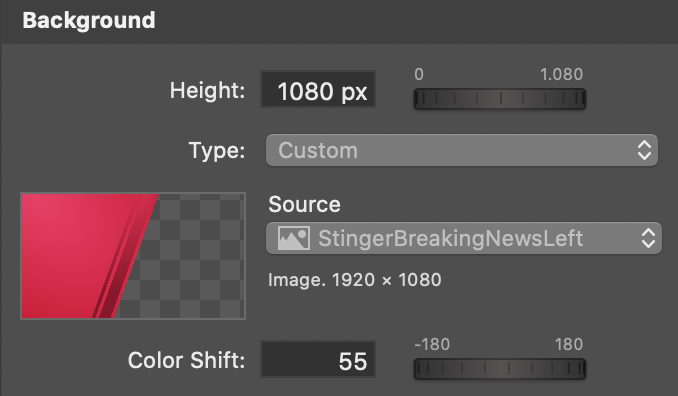
Sometimes it is useful to switch on the “Apply BG Color Shift” in the Logo section of the Lower Third layer as well if the logo image is actually used as a graphical element rather than a real logo.
#### Making use of the Stingers in combination with the Instant Replay layer
Check out [Instant Replay](https://mimolive.com/user-manual/instant-replay) to learn more about it.
---
## Tutorials Templates
Source: https://mimolive.com/user-manual/quick-start-projects-templates/tutorials/
Last updated: 2025-06-14
mimoLive comes with a variety of pre-built templates. One category is named **Tutorials** templates. These templates are made for specific use-cases and help to start quickly. These templates also work as an example to learn how to set up a mimoLive document.
---
### My first live stream
Source: https://mimolive.com/user-manual/quick-start-projects-templates/tutorials/tutorial-my-first-live-stream/
Last updated: 2026-08-19
### Welcome to our tutorial
In this tutorial, we'll show you how to get started with live streaming on your Mac using mimoLive. Our expert, Leo, will guide you through the process of setting up a Facebook Live stream and customizing the demo document to make the video look like it's yours. With just a few simple steps, you can adjust colors, fonts, and add your own logo to make your live stream truly unique. Whether you're new to live streaming or just getting started with mimoLive, this tutorial is perfect for anyone who wants to learn how to go live in no time.
So let's get started and make your first live stream a success!
> **Note:** Get Started Faster
>
> This tutorial contains a demo document that gets you up and started so much quicker and that you’ll learn to customize to your needs during the tutorial.
[Video on YouTube](https://www.youtube-nocookie.com/embed/_MgNIWmH_1I?rel=0)
---
## Genres Templates
Source: https://mimolive.com/user-manual/quick-start-projects-templates/genres/
Last updated: 2025-06-14
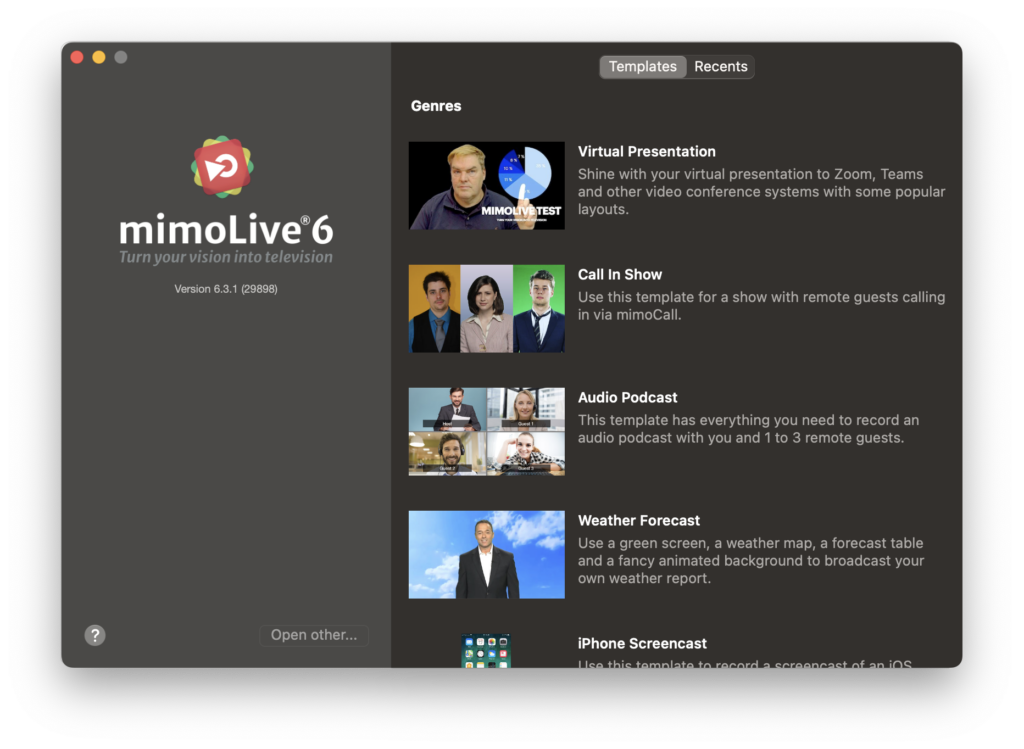
mimoLive comes with a variety of pre-built templates. One category is named **Genres** templates. These templates are made to demonstrate different types of TV or streaming genres. These templates help to start quickly or work as an example to learn how to set up a mimoLive document.
---
### Weather Forecast Template
Source: https://mimolive.com/user-manual/quick-start-projects-templates/genres/weather-forecast/
Last updated: 2026-08-19
### About the Weather Forecast Template
The Weather Forecast Template in mimoLive is a pre-configured setup designed to streamline the creation of multi-day weather segments for live broadcasts or recordings. It features customizable layouts with support for up to 10-day forecasts, integrating weather icons, temperature ranges, and precipitation probabilities. Users can input data manually or import it from external sources, tailoring the presentation to their specific needs. The template also offers animation options and layout adjustments to enhance visual appeal and clarity. Ideal for meteorologists, educators, or content creators, this template simplifies the process of delivering professional-grade weather forecasts.
### Template Elements
#### Sources
- [Camera Source (Video Source)](https://mimolive.com/user-manual/sources-input/local-sources/video/)
The Camera Source in mimoLive is a versatile input that supports a wide range of video and audio devices, from built-in webcams and USB capture dongles to professional HDMI and SDI interfaces. This section of the manual guides you through connecting and configuring video sources—including DSLRs, webcams, screen grabbers, and capture cards—to integrate live video into your production.
#### Layers
- [Station Logo Layer](https://mimolive.com/user-manual/live-editing/layers/layout/station-logo/)
The Station Logo layer displays a branding image, such as a network or channel logo, on top of your video output. This ensures consistent branding throughout your show. The layer can be easily positioned, scaled, and faded in or out using various transitions.
- [Date and Time Layer](https://mimolive.com/user-manual/live-editing/layers/time/date-and-time/)
Display a digital date and time in your video. Content – Date Format The string can contain the following placeholders which will be automatically replaced by mimoLive. Placeholder Usage %a abbreviated weekday name (e.g., Wed) %A full weekday name (e.g., Wednesday) %b abbreviated month name (e.g., Sep) %B full month name (e.g., September) %c date […]
- [Lower Third Layer](https://mimolive.com/user-manual/live-editing/layers/lower-third-2/lower-third/)
The Lower Third layer lets you create, animate and control all kinds of lower thirds. Usually, it’s used to introduce a person with their name and a description such as a job title or position. Often a lower third contains a combination of a company logo, name, and title.
- [Picture in Picture (PIP) Window Layer](https://mimolive.com/user-manual/live-editing/layers/layout/picture-in-picture-window-layer/)
The Picture-in-Picture (PiP) Window Layer in mimoLive allows you to overlay a smaller video or graphic on top of your main content, creating a secondary frame within the live broadcast. This is particularly useful for showing multiple sources at once, such as a speaker’s face during a presentation, or a secondary video feed alongside a […]
- [Weather Map Layer](https://mimolive.com/user-manual/live-editing/layers/weather/weather-map-layer/)
Overview The Weather Map layer for mimoLive allows you to display a map with weather symbols, temperatures, wind directions, and other meteorological data overlayed on top of your live video production. Typically, this layer is used to present a professional-looking weather forecast segment during a livestream, broadcast, or recorded show. Key Features • Flexible Data […]
- [Weather Forecast Layer](https://mimolive.com/user-manual/live-editing/layers/weather/weather-forecast/)
Use clear and intuitive weather icons to ensure easy understanding. Limit the forecast to 3-5 days to maintain clarity and avoid overwhelming the audience. Set smooth animation timing for a polished, professional broadcast. The Weather Forecast layer helps you deliver a concise, visually engaging weather segment, tailored to the needs of your audience.
- [World News Layer](https://mimolive.com/user-manual/live-editing/layers/backdrops/world-news/)
The World News Layer in mimoLive allows you to create visually appealing, rotating globe effects, perfect for news broadcasts or global-themed presentations. This layer provides control over the rotation, axis orientation, globe style, and much more, allowing users to customize the look and feel of their broadcast. Key Features Layer Configuration 1. Adding the World […]
#### Output Destination
- [File Recording to Disk (ISO Recording)](https://mimolive.com/user-manual/playout-output-destinations/recording-to-disk/)
With the Recording to Disk feature, you can easily record your mimoLive productions to your local disk. This is especially useful for users who want to have a backup of their live streams, or for those who want to edit their videos later. You can choose between various output codecs such as h.264, multiple Apple […]
- [Audio Aux Output](https://mimolive.com/user-manual/playout-output-destinations/audio-aux/)
Send audio output to audio devices New documents created with mimoLive automatically add an Audio Aux Output Destination, named Audio Monitor, that allows you to route audio mixes to a specific audio output device. You can add additional Audio Aux Output Destinations to route any desired audio mix to the same audio output device using […]
### Creating a new Document from the Weather Forecast Template
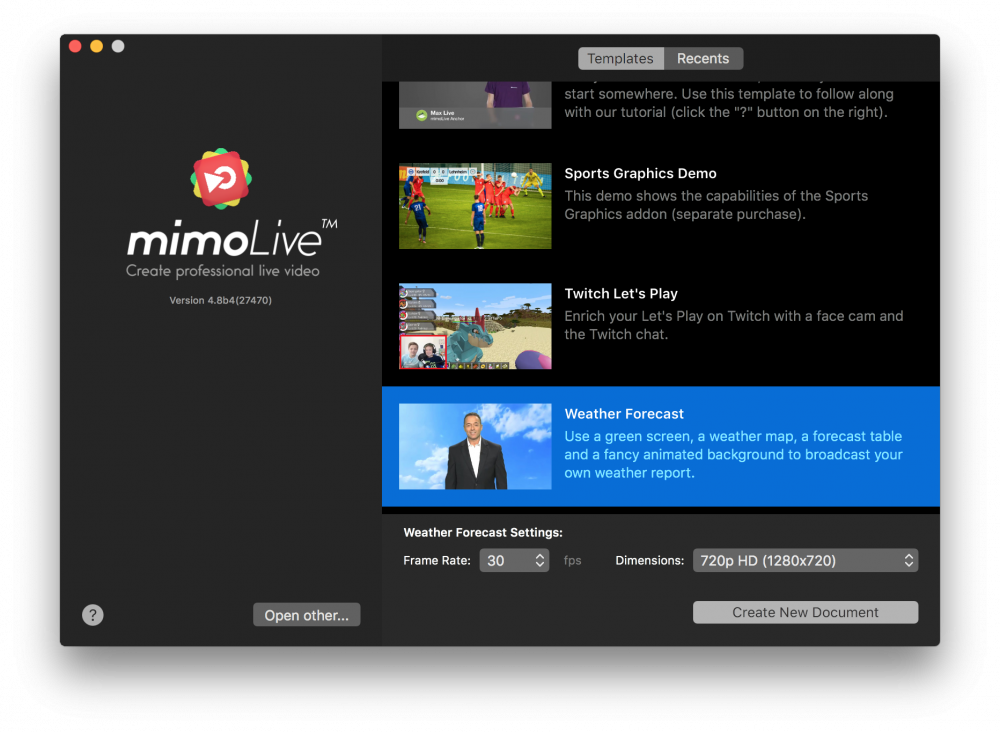
- Launch mimoLive. The New Document window will open up and let you select either a Template or choose from recently opened documents. If you don’t see the New Document window please choose “mimoLive > New…” in the main menu.
- Find the “Weather Forecast” template in the list of templates and select it. A sheet will open up at the bottom of the New Document window showing additional options.
- You need to specify the frame rate and the dimensions you want the video to be. It’s reasonable to go with 30fps and a 720p dimension.
- Click on the “Create New Document” button in the lower right corner. A new [mimoLive document window](https://mimolive.com/user-manual/user-interface-overview) will open up with lots of pre-configured layers.
### Configuring the New Weather Forecast Document
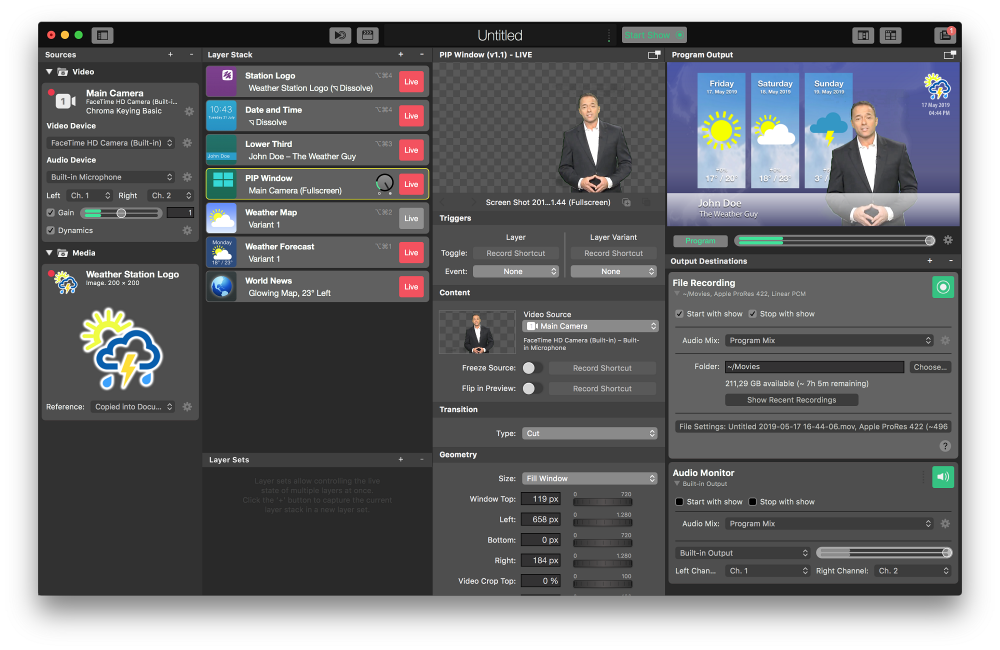
In order to make the document work, you need to set up the main camera as well as the applied chromakey filter.
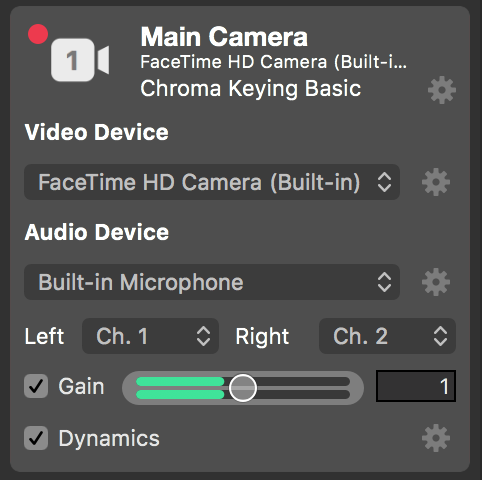
- Find the Main Camera in the most left [Sources Repository](https://mimolive.com/user-manual/sources-and-the-sources-repository) and select it.
- Make sure the “Video Device” popup shows the correct camera of your setup.
- Check if the “Audio Device” is the one you want to capture. If you make noise a green volume indicator will react below.
- Click on the action gear right next to the [Chroma Keying Basic](https://mimolive.com/user-manual/chroma-keying-basic) video filters label on top of the video source. This will open up a control panel to adjust the chroma key.
> **Note:** If you don’t have a chromakey background then you can remove the filter by clicking on the “x” button that will appear if you hover over the filter entry with the mouse cursor.
- Let an anchorman step into the scene and hit the “Auto Adjust” button at the top of the panel. If you are not happy with the estimated parameters you can adjust them manually.
- Head over to the [Layer Stack](https://mimolive.com/user-manual/layers-and-variants) in the next right column and click on the “Lower Third” layer. The layer will get a yellow boundary indicating that it is the one that’s parameters will be shown in the parameters column right next to it.
- In the parameter column, you can change the title of the anchorman from “John Doe” to the correct name of your anchorman. Notice the immediate change in the layer preview above as well as the Program output in the upper right corner of the mimoLive document.
- Switch the control type from “Manual” to “Automatic”. This means that the layer will shut down itself after a certain time.
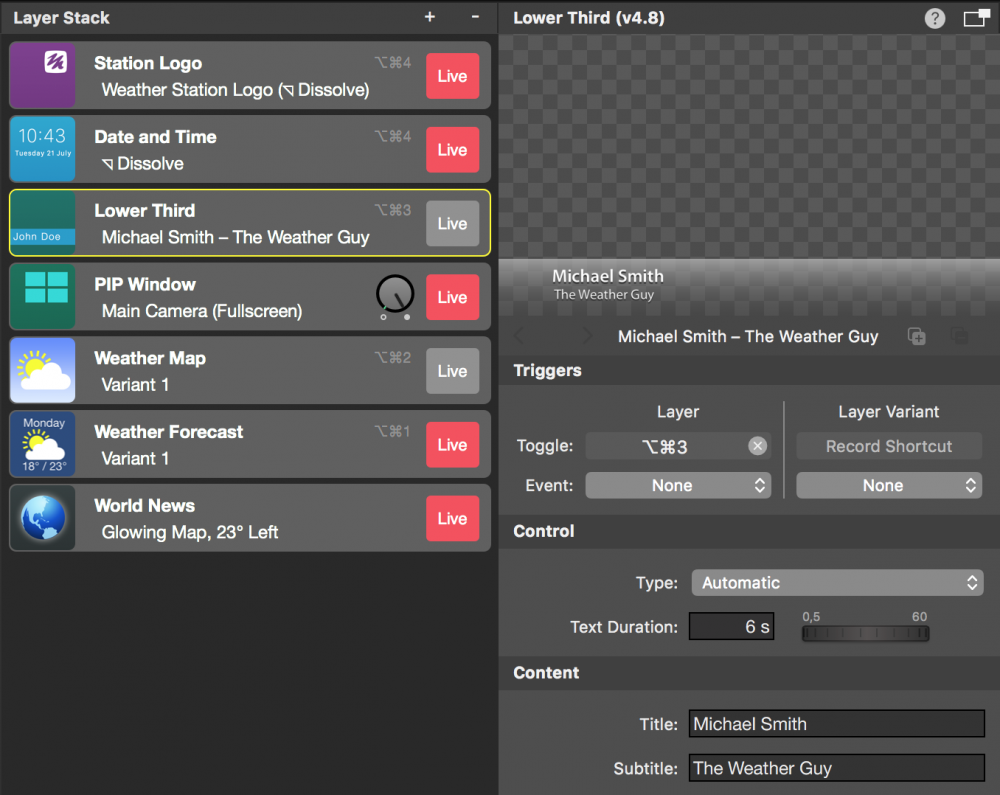
- If you want to adjust the weather data you can configure the “Weather Map” layer and the “Weather Forecast” layer accordingly. For a first trial, this is not necessary.
- Save the document by clicking “File > Save as…” in the main menu. A drop-down sheet will ask for a name for the document and a location where to save it to.
### Recording a Weather Forecast Show
Now everything should be set up for your first recording.
- Find the [Start/Stop Show Button](https://mimolive.com/user-manual/startstop-show-button) at the top of the mimoLive
document and click it. The [File Recording Output Destination](https://mimolive.com/user-manual/recording-to-disk) on the far right should turn to red indicating that its recording.
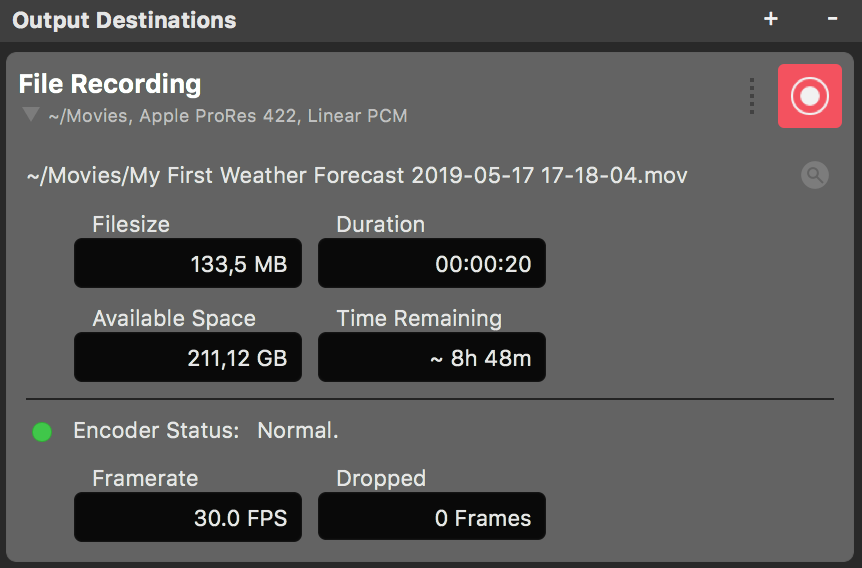
- Let the anchorman do their job.
- After a while click on the Live button right next to the Lower Third layer in the Layer Stack. The anchorman’s name will appear in the Program Out.
- Once the Weather Forecast show is over click on the Stop Show button at the top of the document window again. The File Recording Output Destination will turn to green and a new window will pop up containing a list of the recent recordings.
- Double click on the topmost line in the Recent Recordings window in order to open the just recorded Weather Forecast Show in QuickTime player for playback.
---
### iPhone Screencast Template
Source: https://mimolive.com/user-manual/quick-start-projects-templates/genres/iphone-screencast/
Last updated: 2026-08-19
### About the iPhone Screencast Template
This mimoLive tutorial will explain how to configure the build-in iPhone Screencast template in mimoLive. The template demonstrates the ability of mimoLive to record in any aspect ratio and pixel dimensions.
### Template Elements
#### Sources
- [Camera Source (Video Source)](https://mimolive.com/user-manual/sources-input/local-sources/video/)
The Camera Source in mimoLive is a versatile input that supports a wide range of video and audio devices, from built-in webcams and USB capture dongles to professional HDMI and SDI interfaces. This section of the manual guides you through connecting and configuring video sources—including DSLRs, webcams, screen grabbers, and capture cards—to integrate live video into your production.
- [Audio Source](https://mimolive.com/user-manual/sources-input/audio-sources/audio/)
The Audio Source provides audio input from a microphone, a camera with an integrated microphone or some kind of audio interface that is connected to your Mac. Bringing Audio into mimoLive Audio devices can be connected to the Mac in several ways: USB, Thunderbolt, and FireWire. Some devices are even virtual devices that receive data […]
#### Layers
- [Spotlight Layer (Mouseposé Effect)](https://mimolive.com/user-manual/live-editing/layers/effects/addon-spotlight-layer/)
The Spotlight layer in mimoLive allows you to highlight specific parts of an image or video. You can adjust the opacity, color, size, and blur of the spotlight effect to optimize it for your content and adapt it to your brand’s visual identity. This layer is an effective tool for drawing attention to key elements […]
- [Placer Layer](https://mimolive.com/user-manual/live-editing/layers/layout/placer/)
When starting with mimoLive®, the first tool you should familiarize yourself with is the Placer Layer. This basic yet pivotal layer is the cornerstone of creating visually engaging and professionally structured broadcasts. In this guide, we will explore why the Placer Layer is foundational, its capabilities, and how it enhances your video production process. The Placer Layer is the most basic representation of your footage in the layer stack. It enables you to perform basic edits to the appearance.
- [Audio Only Layer](https://mimolive.com/user-manual/live-editing/layers/audio/audio-only/)
The Audio Only layer injects audio input from any source thats provides audio, like an Audio Source,
a Video Source, a Media File Source or a Media Playlist Source, into the program output.
- [Background Layer](https://mimolive.com/user-manual/live-editing/layers/backdrops/background/)
The Background Layer in mimoLive is a fundamental tool for creating visually engaging live streams and video productions. This layer serves as the foundational element of your scene, providing you with options to display solid colors, two-color gradients, or even multi-color gradients. Related Topics Key Features and Customization Options: 1. Type: 2. Direction: 3. Color […]
#### Output Destinations
- [File Recording to Disk (ISO Recording)](https://mimolive.com/user-manual/playout-output-destinations/recording-to-disk/)
With the Recording to Disk feature, you can easily record your mimoLive productions to your local disk. This is especially useful for users who want to have a backup of their live streams, or for those who want to edit their videos later. You can choose between various output codecs such as h.264, multiple Apple […]
### Creating a new Document from the iPhone Screencast Template
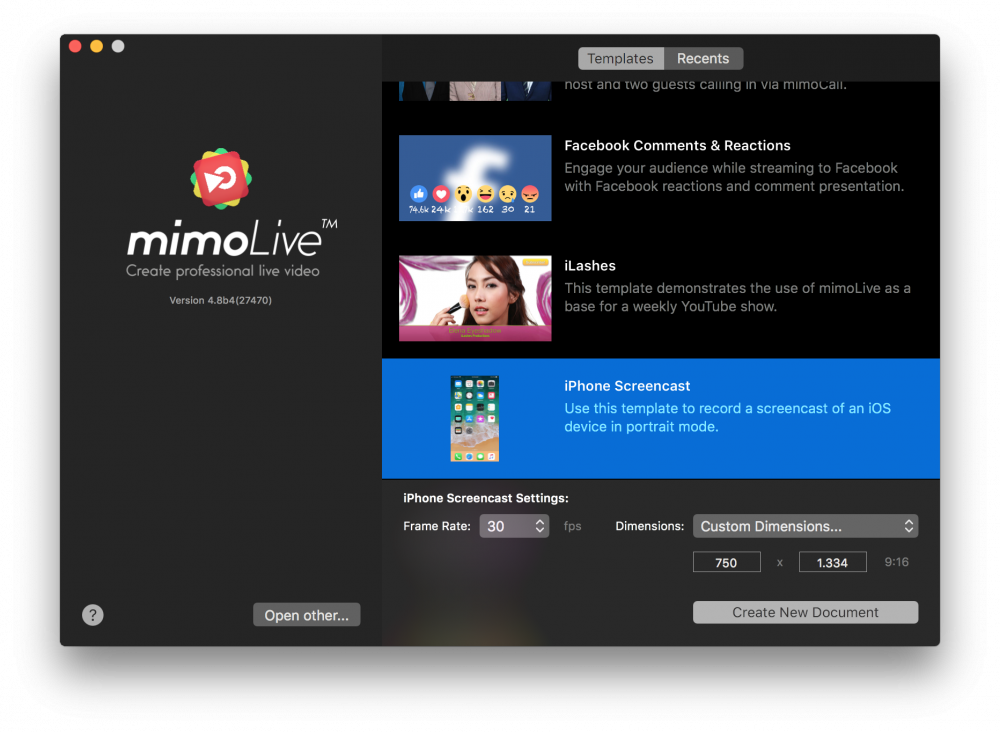
- Launch mimoLive. The New Document window will open up and let you select either a Template or choose from recently opened documents. If you don’t see the New Document window please choose “mimoLive > New” in the main menu.
- Find the “iPhone Screencast” template in the list of templates and select it. A sheet will open up at the bottom of the New Document window showing additional options.
- You need to specify the frame rate you want the screencast to be. It’s reasonable to go with 30fps.
- Change the Dimensions popup menu to “Custom”. Additional input fields will show up below. Enter the pixel dimensions you want to record in.
> **Note:** Use the native pixel dimension of your iOS device
>
> Use the native pixel dimension of your iOS device to avoid cropping or scaling of the user interface. Please refer to [iOS Resolution](https://ios-resolution.com) in order to find the correct pixel dimension of your iOS device. Enter the width and height into the appropriate fields in the custom dimensions field.
- Click on the “Create New Document” button in the lower right corner. A new [mimoLive document window](https://mimolive.com/user-manual/user-interface-overview) will open up with lots of pre-configured layers.
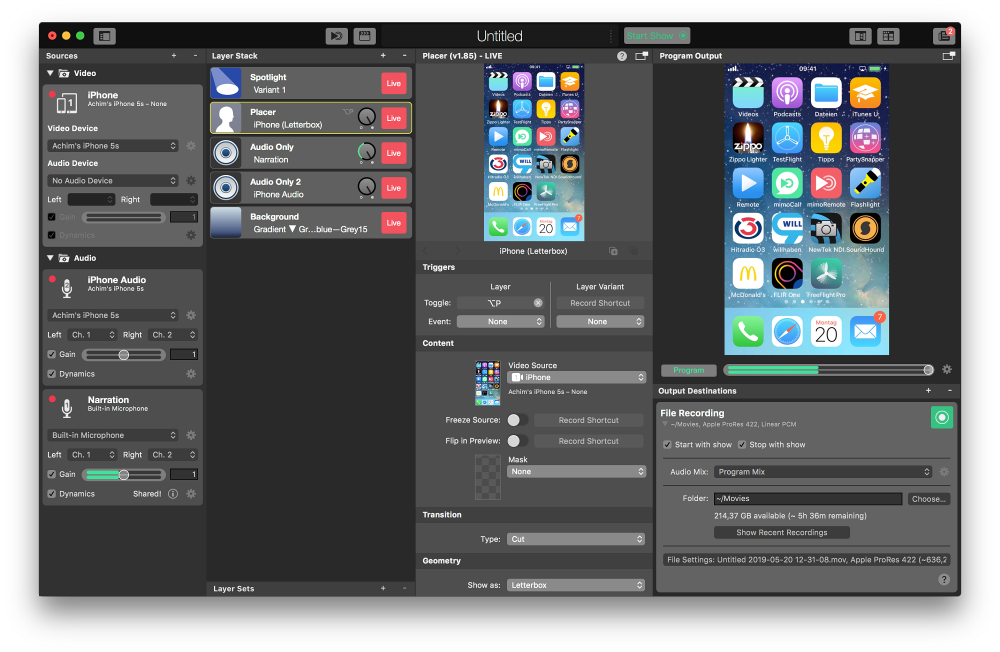
### Configuring the New iPhone Screencast Document
In order to make the document work, you need to connect your iOS device to the Mac and set up some sources accordingly.
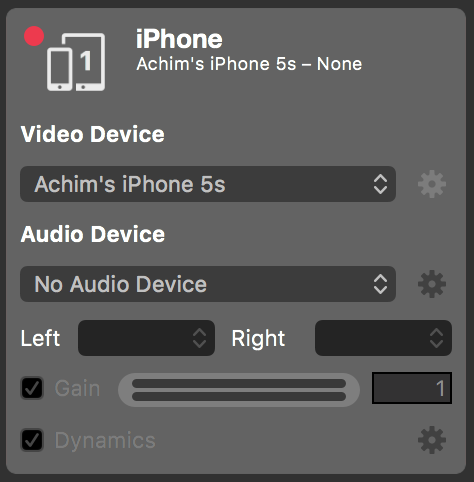
- Connect your iOS device with your Mac via a USB cable. Unlock your device. If you are prompted to confirm the connection to your computer please accept.
- In mimoLive on your Mac find the Main Camera in the most left [Sources Repository](https://mimolive.com/user-manual/sources-and-the-sources-repository) and select it.
- Click on the “Video Device” popup and select your iOS Device as the video source. After a couple of seconds, you should see the screen of your device in mimoLive.
- Click on the “Audio Device” popup and select “No Audio Device”. We will capture the audio in a different mimoLive source so you are able to switch it on and off easily.
- Below the iPhone video source is an Audio Only source called “iPhone Audio”. Please select your iOS device as the audio source in the popup menu.
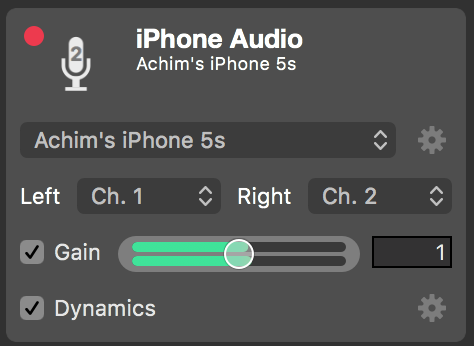
- Save the document by clicking “File > Save as…” in the main menu. A drop-down sheet will ask for a name for the document and a location where to save it to.
### Record an iPhone screencast
Now everything should be set up for your first screencast recording.
- Find the [Start/Stop Show Button](https://mimolive.com/user-manual/startstop-show-button) at the top of the mimoLive document and click it. The [File Recording Output Destination](https://mimolive.com/user-manual/recording-to-disk) on the far right should turn to red indicating that it’s recording.
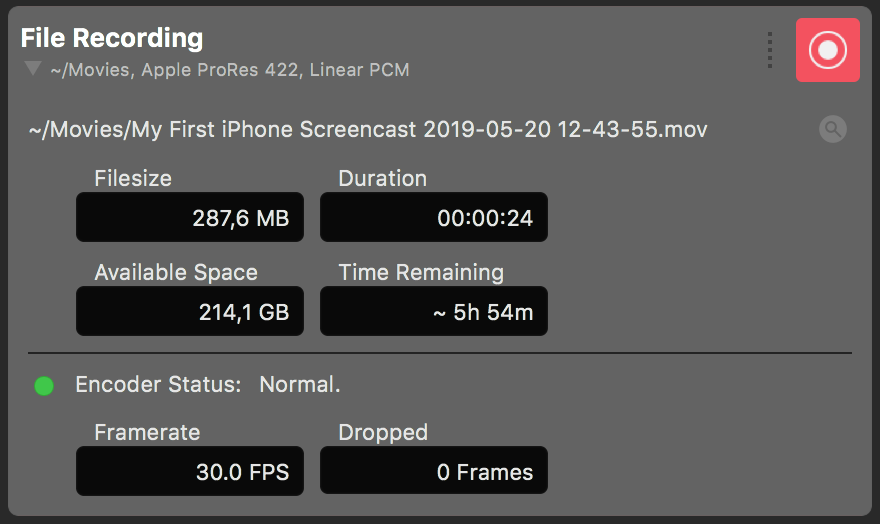
- Now you can explain the latest features of your iOS device.
- In order to highlight a part of the user interface of your iOS device you can click into the Program Out the window. A spotlight circle will be drawn around your mouse cursor. This will focus the attention of your audience to that point. The effect is created by the Spotlight layer on top of the Layer Stack.
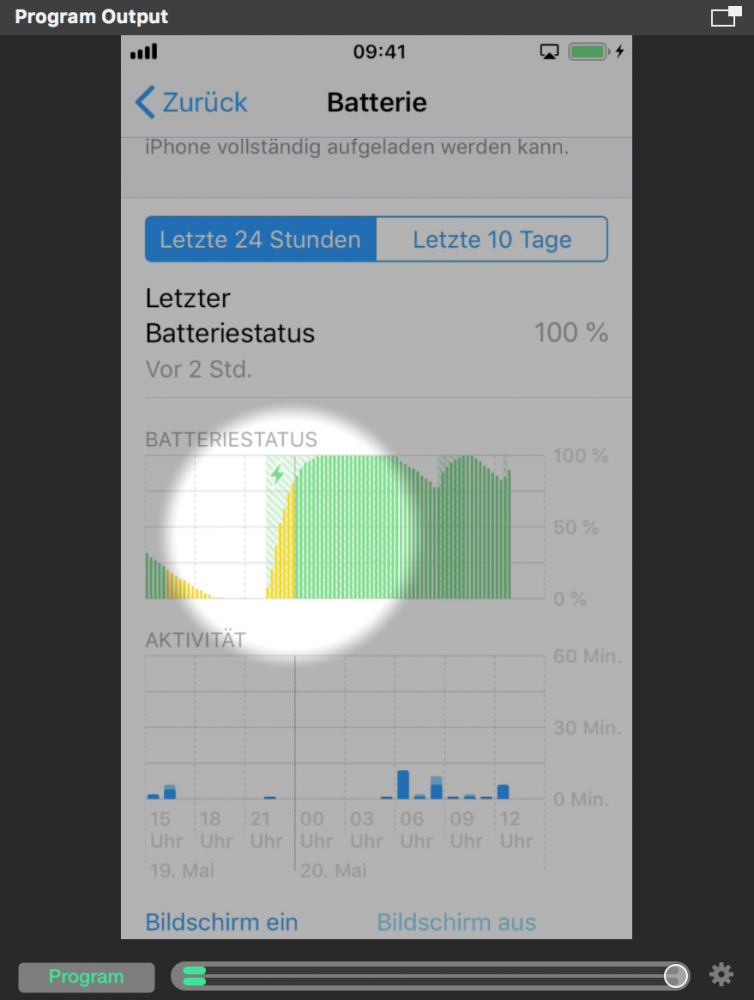
- In the Layer Stack you can see two Audio Only layers that are responsible to bring the audio into the final product. Select the “Audio Only 2” layer to reveal its settings.
- Find the “Ducking” section in the settings panel of this [Audio Only Layer](https://mimolive.com/user-manual/audio-only). Please note that this audio will be ducked depending on the volume of the “Narration” audio source.
> **Note:** iOS audio will duck if the narration is detected
>
> Adjust the “Threshold” parameter so that the ducking gets triggered if you talk normally. You can see the comparison of the volume and the threshold parameter at the bottom of the layer’s preview above.
> Find further information on Ducking here: [Audio Only Layer](https://mimolive.com/user-manual/live-editing/layers/audio-only/)
- Once the iPhone Screencast is over click on the Stop Show button at the top of the document window again. The File Recording Output Destination will turn to green and a new window will pop up containing a list of the recent recordings.
- Double click on the topmost line in the Recent Recordings window in order to open the just recorded iPhone Screencast in QuickTime player for playback.
---
### Audio Podcast Template
Source: https://mimolive.com/user-manual/quick-start-projects-templates/genres/audio-podcast/
Last updated: 2026-08-19
### About the Audio Podcast Template
mimoLive has a great feature for recording podcasts with your friends all over the world: mimoCall. A sort of Skype with much less friction. Just send your friends a URL which they can open in their browser and they are connected immediately to your recording studio. mimoLive can record you and each of your friends separately, so you can edit in Garageband, Logic, Audacity or whatever other multitrack editing software to your heart’s content.
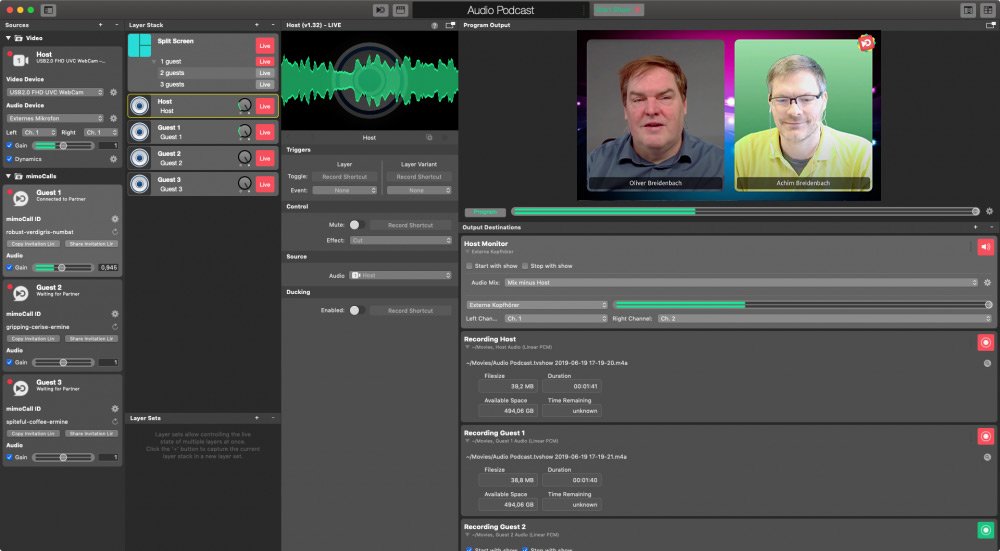
The mimoLive Audio Podcast template has everything you need to record an audio podcast with you and 1 to 3 remote guests. In this tutorial, you’ll learn how to get started and how to customize it to your needs.
### Prerequisite
Your guests will call in via [mimoCall](https://mimolive.com/user-manual/mimocall) using their browser. Ideally, they should have a headset and a camera. This template will not record the video, but you seeing each other makes it easier to talk.
> **Note:** Boinx Connect account for mimoCall
>
> To use mimoCall, you need to set up a Boinx Connect Account in the mimoLive Preferences. Please read [Boinx Connect](https://mimolive.com/user-manual/boinx-connect) for more information on how to create and login to your Boinx Connect Account. Your guests do not need a Boinx Connect account to join a mimoCall. Only the host needs that account to create the mimoCall.
### Template Elements
#### Sources
- [Camera Source (Video Source)](https://mimolive.com/user-manual/sources-input/local-sources/video/)
The Camera Source in mimoLive is a versatile input that supports a wide range of video and audio devices, from built-in webcams and USB capture dongles to professional HDMI and SDI interfaces. This section of the manual guides you through connecting and configuring video sources—including DSLRs, webcams, screen grabbers, and capture cards—to integrate live video into your production.
- [mimoCall Source](https://mimolive.com/user-manual/sources-input/remote-sources/mimocall/)
mimoCall on mimoLive allows remote guests to join your live stream for interviews or panel discussions. Set up a mimoCall source in mimoLive, share the URL with guests, and they can connect via their web browser. This feature ensures seamless integration of remote video and audio into your live production.
#### Layers
- [Split Screen Layer](https://mimolive.com/user-manual/live-editing/layers/layout/splitscreen/)
The mimoLive Split Screen Layer allows you to create dynamic layouts for live broadcasts, showcasing multiple video sources simultaneously. This is perfect for interviews, panel discussions, and events where multiple perspectives or participants are needed on screen at once.
- [Audio Only Layer](https://mimolive.com/user-manual/live-editing/layers/audio/audio-only/)
The Audio Only layer injects audio input from any source thats provides audio, like an Audio Source,
a Video Source, a Media File Source or a Media Playlist Source, into the program output.
#### Output Destinations
- [Audio Aux Output](https://mimolive.com/user-manual/playout-output-destinations/audio-aux/)
Send audio output to audio devices New documents created with mimoLive automatically add an Audio Aux Output Destination, named Audio Monitor, that allows you to route audio mixes to a specific audio output device. You can add additional Audio Aux Output Destinations to route any desired audio mix to the same audio output device using […]
- [File Recording to Disk (ISO Recording)](https://mimolive.com/user-manual/playout-output-destinations/recording-to-disk/)
With the Recording to Disk feature, you can easily record your mimoLive productions to your local disk. This is especially useful for users who want to have a backup of their live streams, or for those who want to edit their videos later. You can choose between various output codecs such as h.264, multiple Apple […]
### Creating a new document using the Audio Podcast Template
- Launch mimoLive. The New Document window will open up and let you select either a Template or choose from recently opened documents. If you don’t see the New Document window please choose “mimoLive > New…” in the main menu.
- Find the “Audio Podcast” template in the list of templates and select it. A sheet will open up at the bottom of the New Document window showing additional options.
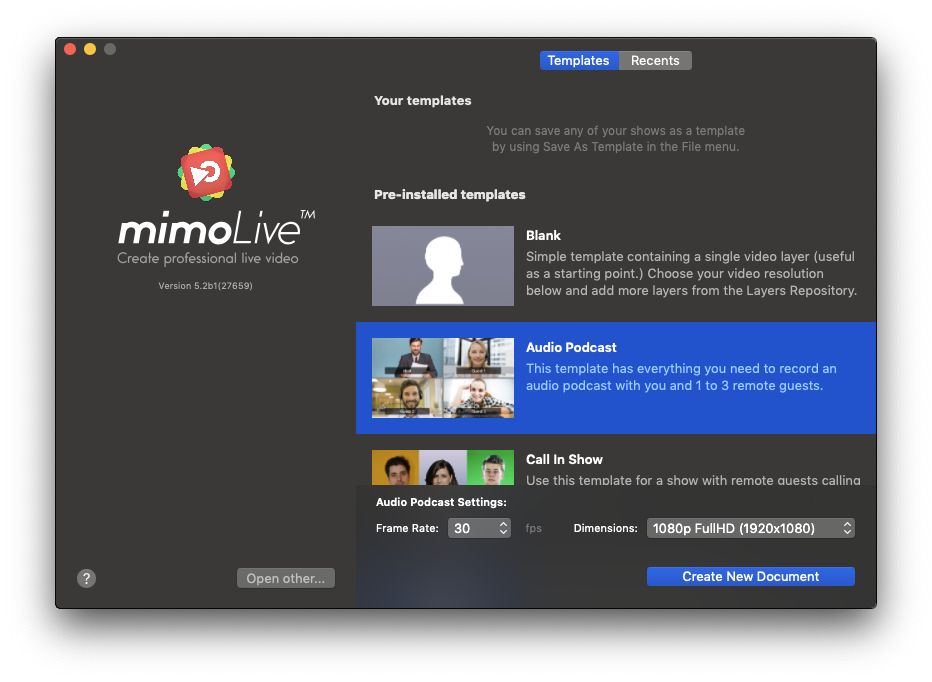
- Even though you’re not going to record or stream video, you need to specify the video frame rate and dimensions. Since you’re not going to use it, choose a frame rate of 30 and 720p HD format to minimize the processor power needed to run the document.
- Click on the “Create New Document” button in the lower right corner. A new [mimoLive document window](https://mimolive.com/user-manual/user-interface-overview) will open up.
### Configuring the Audio Podcast show
The document you’ve just created can be used for recording a host and up to 3 remote guests. Before you start, you need to set up a few things.
#### Setting up the host microphone and camera
For recording an audio podcast, it is advisable to use a proper microphone and headphones. The camera is useful so that your guests can see you.
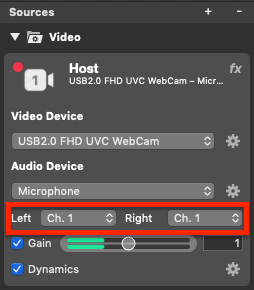
- On the left-hand side of the document window, you’ll find the Sources. At the top is a source labelled “Host” which is your audio and video.
- Select the camera and microphone from the respective popup menus
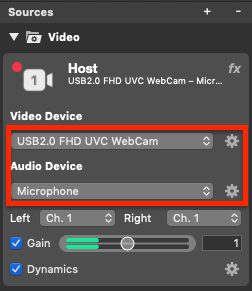
- mimoLive generally operates in stereo. Depending on your source device, you may have to set both left and right audio channels to the same input device channel to get audio on both sides.
#### Setting up the headphones
Since you want to hear what your guests are saying, we need to set up an audio feed for your headphones.
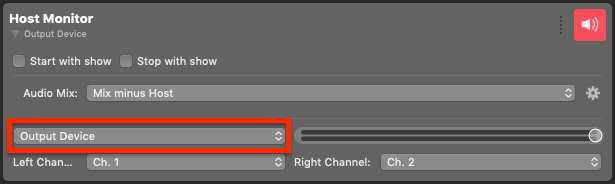
- In the rightmost column of the document window are the output destinations. Find the one that says “Host Monitor”.
- Select the audio device you have your headphones connected to.
> **Note:** Mix-Minus
>
> This output is configured so that you can hear your guests but not yourself. That is called a “mix-minus” setup. Likewise, your guests will only hear you and the other guests.
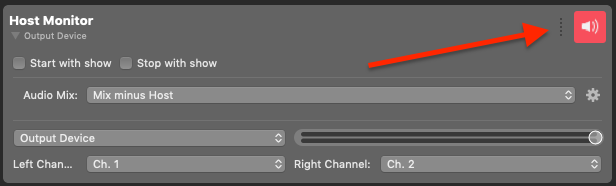
- Check the icon in the top right corner of the Host Monitor Output Destination to make sure that the output is live.
> **Note:** Output Destination State Grey:
>
> The Output Destination is not properly set up. Perhaps the selected device isn’t available.
> Green: The Output Destination is completely configured and ready to be used.
> Red: The Output Destination is live.
#### Checking the Host Audio Levels
Once your guests are connected, you might want to check the Host audio levels and adjust them so that everybody is speaking at about the same volume.
- To hear yourself together with your guests in the Host Monitor, you can temporarily switch your Audio Mix from “Mix minus Host” to “Program Mix”:
### Inviting Guests
> **Important:** Your guests should have a browser, a good microphone, and headphones for the best results.
For each guest, there is a mimoCall source labelled “Guest 1” to “Guest 3” in the left-hand Sources column. Repeat the following procedure for every guest you want to invite, moving to the next Guest source for the next guest.
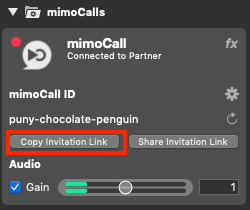
mimoLive automatically creates new unique mimoCall IDs for you when you open the document.
- Click **Share Invitation Link** for sharing the invitation URL with your guests.
- Click on the **Copy Invitation Link** to copy the mimoCall URL to your clipboard.
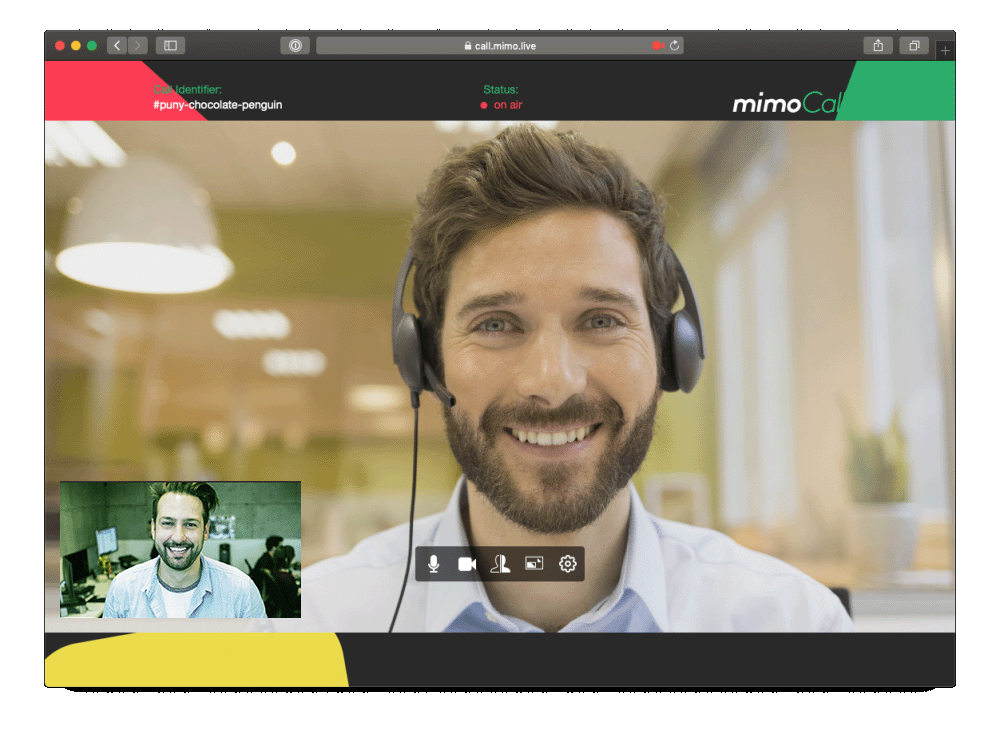
Your Guests will see the following in their browser once they are connected:
*!*Video Delay
Your guests will see their own camera preview in a small window and the mimoLive Program Out is being sent to them in the larger part of the mimoCall client window. The Program Out includes a video of themselves, because you as the host also want to see them. The guest video is slightly delayed in the Program Out that they receive back from mimoLive due to the decoding and encoding of the video going back and forth. This is a little annoying but no cause for alarm.
> **Important:** Video Delay
>
> Your guests will see their own camera preview in a small window and the mimoLive Program Out is being sent to them in the larger part of the mimoCall client window. The Program Out includes a video of themselves, because you as the host also want to see them. The guest video is slightly delayed in the Program Out that they receive back from mimoLive due to the decoding and encoding of the video going back and forth. This is a little annoying but no cause for alarm.
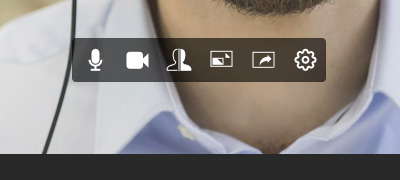
There is a row of controls on the screen and they can be used to control the following (from left to right):
- Mute Microphone
- Turn off video
- Flip the local video (just in preview)
- Swap local and remote video display to see yourself larger
- Share your screen (only available if the Screen Sharing plugin for your browser is installed)
- Set up Audio and Video (Look here if there is trouble with the audio of your guest)
> **Note:** mimoCall IDs
>
> You can choose to reuse the mimoCall IDs next time you record a podcast or have mimoLive generate new ones by clicking on the little “spinning arrow” icon next to the ID in the mimoCall Source panel. If you generate a new one, it also means you have to send a new Invitation link to your guests. If you do not use the mimoCall IDs for more than 3 months they expire and mimoLive will automatically generate new ones for you.
### Adjusting the audio levels
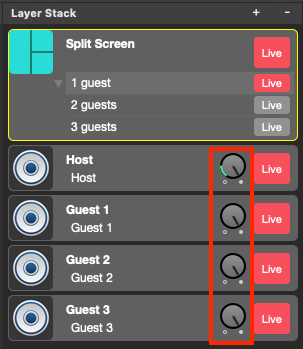
Since mimoLive records you and each of your guests in a separate audio file, you can easily adjust the audio levels in post-production. However, if you want to save yourself some time, mimoLive also records a downmix. For that, you might want to adjust the relative audio levels.
There are three places where you could potentially adjust the audio volume: by adjusting the Source Gain, using the Audio mix panel in the Output Destination, and by using the Audio Level buttons in the Layer Stack. This last method is the recommended way:
### Recording a Podcast
The Audio Podcast template is set up so that all Output Destinations automatically “go live” when you press the “Start Show” button at the top of the document window:

While mimoLive is recording, the Output Destination live button turns red:
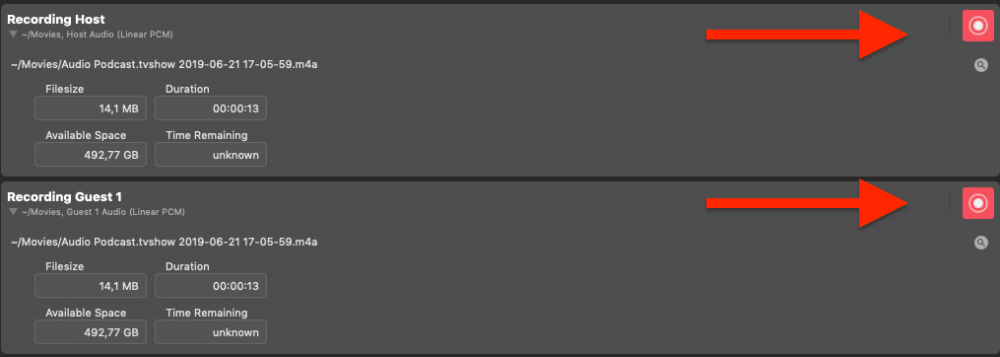
You can stop the recording by pressing “Stop Show” at the top of the window.
The “Recent Recordings” window will pop up, giving you an overview and access to all the recordings made. If you move the mouse cursor over the entry you’re interested in, the actions buttons appear:
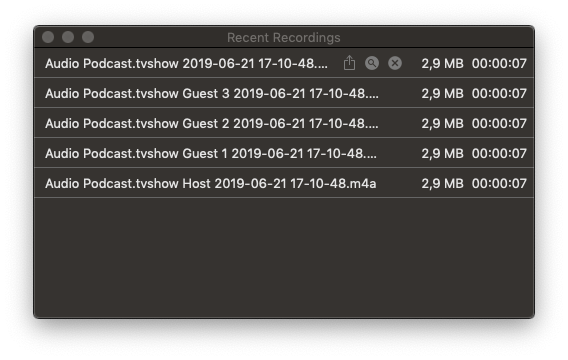
### Adjusting to the number of guests
If you have fewer than 3 guests, you can optimize the template for better performance.
- In the Layer Stack, find the Split Screen Layer and switch on the variation with the proper number of guests:
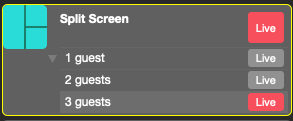
- In the Output Destinations area, find the items you don’t need (for example Recording Guest 2 and Recording Guest 3) and disable the “Start with show” and “Stop with show” options. This prevents the audio from those non-existent guests to be recorded:
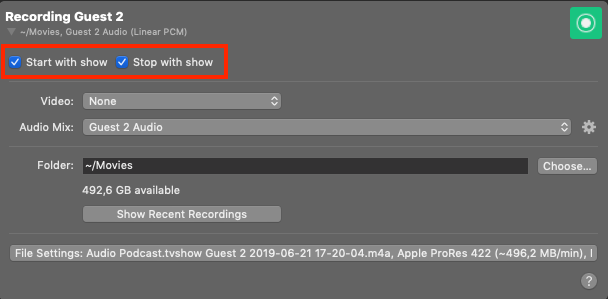
### Advanced topics
You are now able to record audio podcasts with up to 3 guests easily in separate audio files for later editing. But mimoLive offers much more.
#### Turning off Video
While many people like to see their guests, others find video distracting when doing an audio podcast. Fortunately, it is quite easy to turn off video in the Audio Podcast template entirely.
Simply switching the “Split Screen” layer off will disable your video. The guests are being sent back the Program Out, so now they, too, will only see a black screen. If your guests also do not want to see themselves, they can either turn off the camera in the mimoCall client settings or hide the browser window.
#### Changing the Audio recording format
By default, the Audio Podcast template records audio in uncompressed “Linear PCM”. This gives the best audio quality but also the largest files.
Do this to switch to AAC:
Go through each “Recording XYZ” output destination. Find the “File Settings…” button and click it:
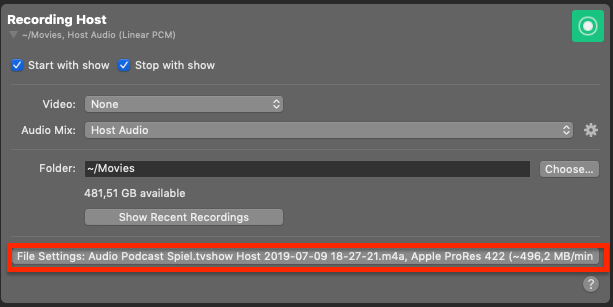
The pane expands and reveals the “Audio Format” popup menu:
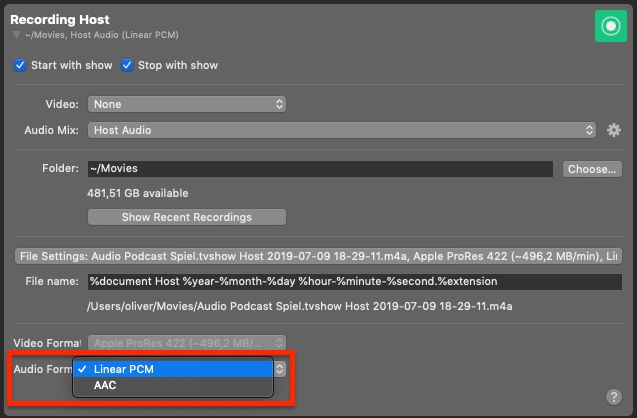
Repeat this for all the File Recording output destinations you plan to use.
#### Creating a soundboard
In order to save a lot of time, you can edit your podcast live, adding intro, outro, jingles, and other elements right in your recording session to eliminate the need for post-production.
Here is a quick recipe for creating a soundboard:
- Drag and drop all the audio sound files into the Sources column.
- Add an Audio Only layer to the Layer Stack.
- For each sound, create a Layer Variation and select the proper audio file as the Source for the Layer.
- Create a Remote Control Surface with a button for each of those variations.
- Open the Remote Control Surface in a browser or on an iPad.
You can now play the sound files by tapping a button on the Remote Control surface.
#### Creating your podcast in front of a live audience via Live Streaming
You can even have your fans participate in the production of your podcast via live stream using Facebook, YouTube, and any other live streaming service. mimoLive offers integration with Facebook and YouTube comments, polling, Twitter, and many more.
The possibilities are endless. Check out some of the other templates and tutorials to find out more.
---
### Call-In Show Template
Source: https://mimolive.com/user-manual/quick-start-projects-templates/genres/call-in-show/
Last updated: 2026-08-19
### About the Call-In Show Template
This powerful template is designed to help you create engaging and interactive live video productions with ease. With the Call-In Show template, you can easily invite guests to join your show via video call, making it easy to incorporate interviews, discussions, and other types of live content into your broadcast.
In this mimoLive tutorial, we'll walk you through the process of configuring the built-in Call-In Show template, from setting up your video call software to customizing the graphics and overlays for a seamless and professional-looking broadcast.
Whether you're hosting a talk show, news program, or other type of live video production, the Call-In Show template is a powerful tool that can help you create engaging and interactive content that your viewers will love. So check out our mimoLive Call-In Show tutorial today and start exploring all the possibilities!
### Prerequisite
Your guests will call in via [mimoCall](https://mimolive.com/user-manual/mimocall) using their browser. Ideally, they should have a headset and a camera.
> **Note:** Log in into your Boinx Connect account for mimoCall
>
> In order to use mimoCall, you need to set up a Boinx Connect Account in the mimoLive Preferences. Please read Boinx Connect for more information on how to create and login to your Boinx Connect Account. Your guests do not need a Boinx Connect account in order to join a mimoCall. Only the host needs that account to create the mimoCall.
### Template Elements
#### Sources
- [Camera Source (Video Source)](https://mimolive.com/user-manual/sources-input/local-sources/video/)
The Camera Source in mimoLive is a versatile input that supports a wide range of video and audio devices, from built-in webcams and USB capture dongles to professional HDMI and SDI interfaces. This section of the manual guides you through connecting and configuring video sources—including DSLRs, webcams, screen grabbers, and capture cards—to integrate live video into your production.
- [mimoCall Source](https://mimolive.com/user-manual/sources-input/remote-sources/mimocall/)
mimoCall on mimoLive allows remote guests to join your live stream for interviews or panel discussions. Set up a mimoCall source in mimoLive, share the URL with guests, and they can connect via their web browser. This feature ensures seamless integration of remote video and audio into your live production.
#### Layers
- [Station Logo Layer](https://mimolive.com/user-manual/live-editing/layers/layout/station-logo/)
The Station Logo layer displays a branding image, such as a network or channel logo, on top of your video output. This ensures consistent branding throughout your show. The layer can be easily positioned, scaled, and faded in or out using various transitions.
- [News Crawl Layer](https://mimolive.com/user-manual/live-editing/layers/text-layers/news-crawler/)
Whether you’re using it to share breaking news or additional information about your show, the News Crawler Layer is an essential element for any news or live production. With the ability to pull information from the internet, a local file, or text you type directly into your mimoLive document, you can easily customize your news crawler to fit your specific needs.
- [Split Screen Layer](https://mimolive.com/user-manual/live-editing/layers/layout/splitscreen/)
The mimoLive Split Screen Layer allows you to create dynamic layouts for live broadcasts, showcasing multiple video sources simultaneously. This is perfect for interviews, panel discussions, and events where multiple perspectives or participants are needed on screen at once.
- [Audio Only Layer](https://mimolive.com/user-manual/live-editing/layers/audio/audio-only/)
The Audio Only layer injects audio input from any source thats provides audio, like an Audio Source,
a Video Source, a Media File Source or a Media Playlist Source, into the program output.
#### Output Destinations
- [Live streaming](https://mimolive.com/user-manual/playout-output-destinations/live-streaming/)
Stream the program live on the Internet mimoLive lets you live stream to a great number of services that support the RTMP protocol. Adding a Live Streaming Output Destination Add a new Live Streaming Output Destination to your Output Destination list by clicking the + button on top of the list in the right most […]
- [Audio Aux Output](https://mimolive.com/user-manual/playout-output-destinations/audio-aux/)
Send audio output to audio devices New documents created with mimoLive automatically add an Audio Aux Output Destination, named Audio Monitor, that allows you to route audio mixes to a specific audio output device. You can add additional Audio Aux Output Destinations to route any desired audio mix to the same audio output device using […]
### Creating a new Document from the Call-In Show Template
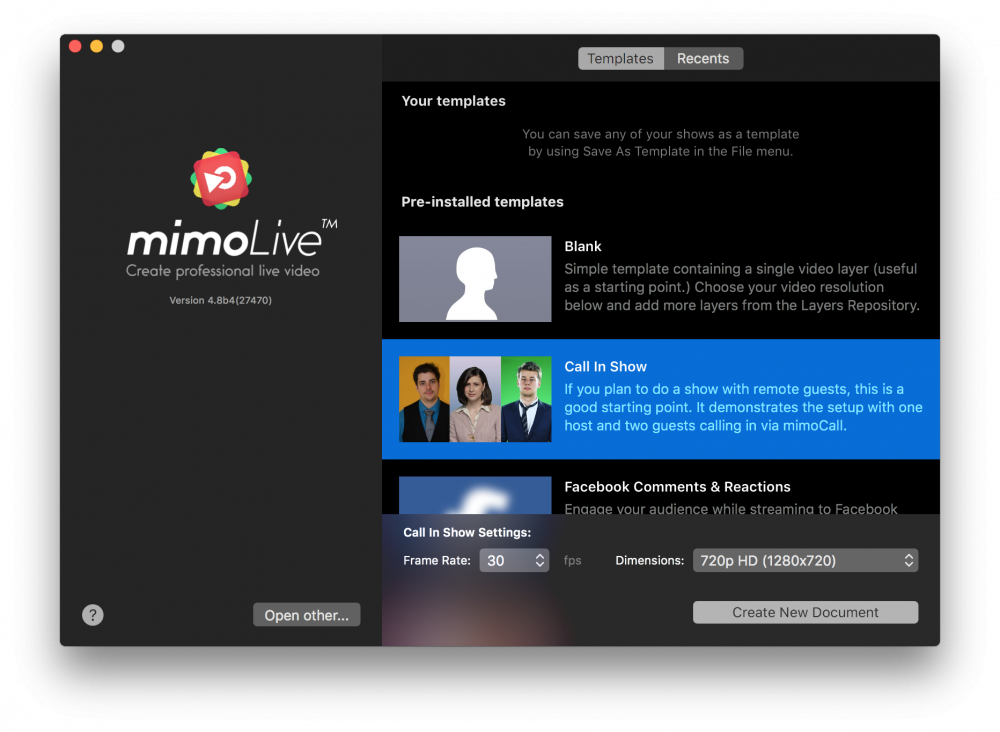
- Launch mimoLive. The New Document window will open up and let you select either a Template or choose from recently opened documents. If you don’t see the New Document window please choose “mimoLive > New…” in the main menu.
- Find the “Call In Show” template in the list of templates and select it. A sheet will open up at the bottom of the New Document window showing additional options.
- You need to specify the frame rate and the dimensions you want the video to be. It’s reasonable to go with 30fps and a 720p dimension.
- Click on the “Create New Document” button in the lower right corner. A new [mimoLive document window](https://mimolive.com/user-manual/user-interface-overview) will open up with lots of pre-configured layers.
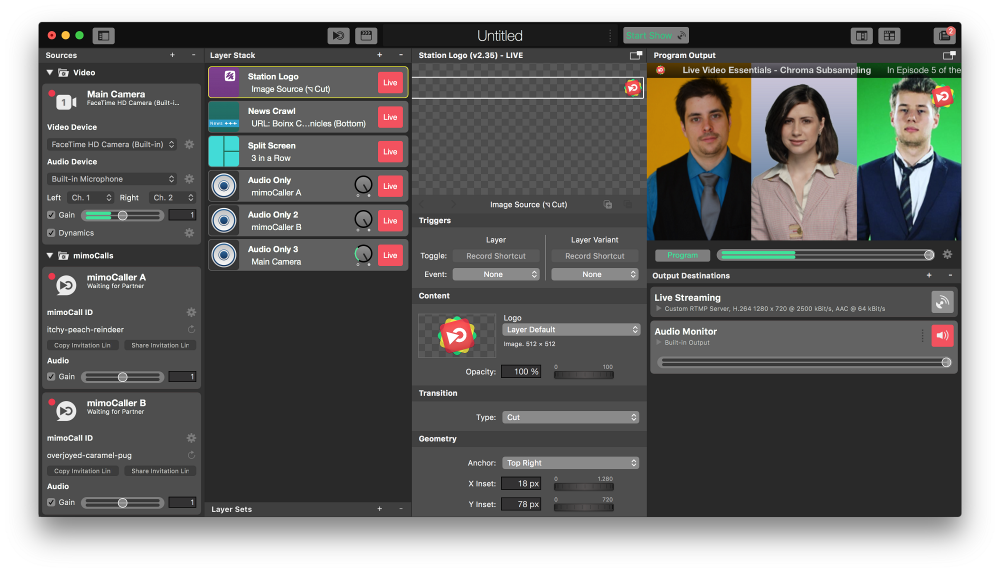
### Configuring the New Call-In Show Document
In order to make the document work you need to set up some things:
- Find the “mimoCaller A” and “B” in the [Source Repository](https://mimolive.com/user-manual/sources-and-the-sources-repository) on the left. Make sure that they are active and after a couple of seconds their status below the source name label should read “Waiting for Partner”. If it doesn’t it probably is because you didn’t login into your Boinx Connect Account as described in the Prerequisite section.
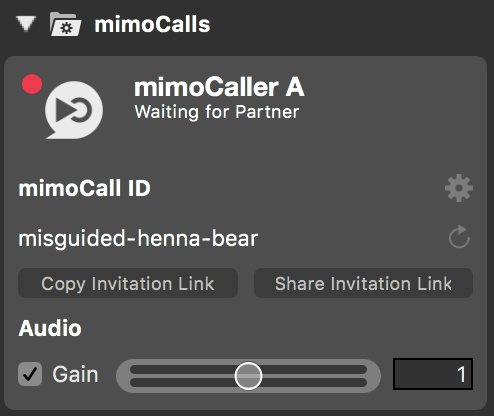
- To invite the guests you need to click the “Copy Invitation Link” button. This will put a web URL to the macOS Paste Board for you to pass it on by a medium of your choice (email, WhatsApp, etc.). The “Share Invitation Link” button will let you share the link via macOS sharing services.
- Once a guest will open the link with a supported web browser they will appear in your show.
- Select the “Split Screen” layer in the Layer Stack. The Layer Settings panel right next to it will show all parameters for this layer.
- Enter the names of the host and the guests in the text fields “Content > Source Name A, B, and C”
- Find the [Live Streaming Output Destination](https://mimolive.com/user-manual/live-streaming) on the far right.
- Setup a Streaming Destination like your Facebook Timeline or your YouTube channel. Please refer to [Live Streaming](https://mimolive.com/user-manual/live-streaming) for details. Make sure that the Live button is green.
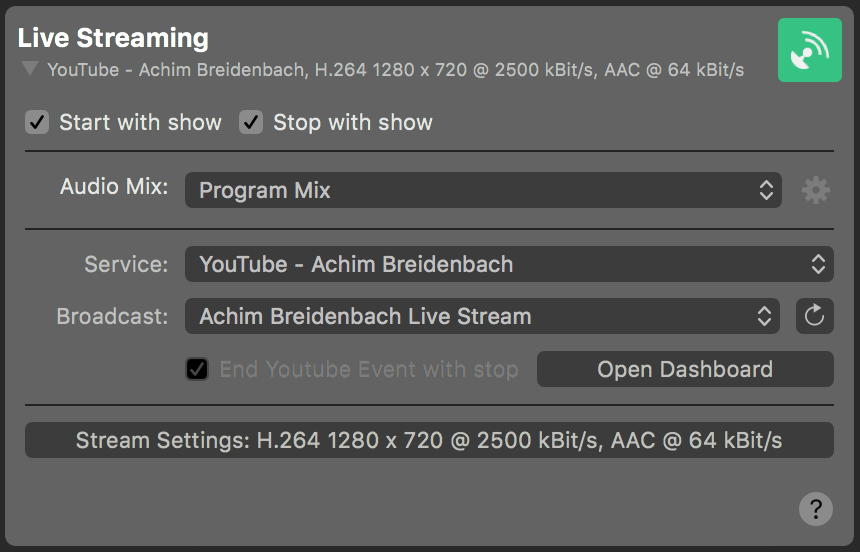
- Find the Audio Monitor Output Destination below the Live Streaming Setup.
- Select the audio hardware where you want to hear the guest’s audio. Consider using headphones as this helps to reduce echo and echo cancellation noises.
- Please note that the Audio Monitor Output Destination is set up that way that you won’t hear yourself as this echo confuses most people. This is done by a special [Audio Mix](https://mimolive.com/user-manual/audio-mix-panel) that has a mix-minus with the host audio. You can check this Audio Mix in the Audio Mix Panel accessible through the Windows menu. As you can see the Main Camera audio is muted:
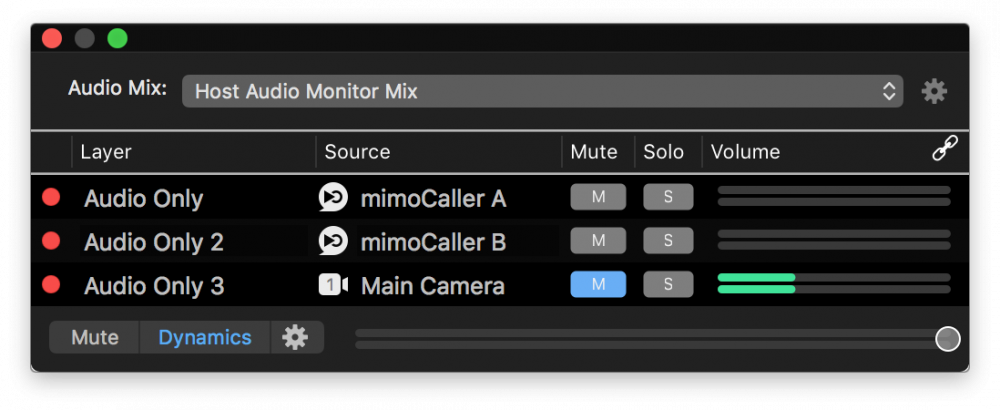
### Streaming a Call-In Show
Now everything should be set up for your first Call-In Show to be streamed to the internet.
- Click on the [Remote Control Surface Button](https://mimolive.com/user-manual/remote-control-surfaces) on the left side of the document info box on top of the mimoLive window. This will open a browser window with the Remote Control Surface already configured for this template.
- On this remote control surface you can see all 3 video sources and “Solo” buttons to make each of them displayed in fullscreen mode if a guest is speaking for a longer time.
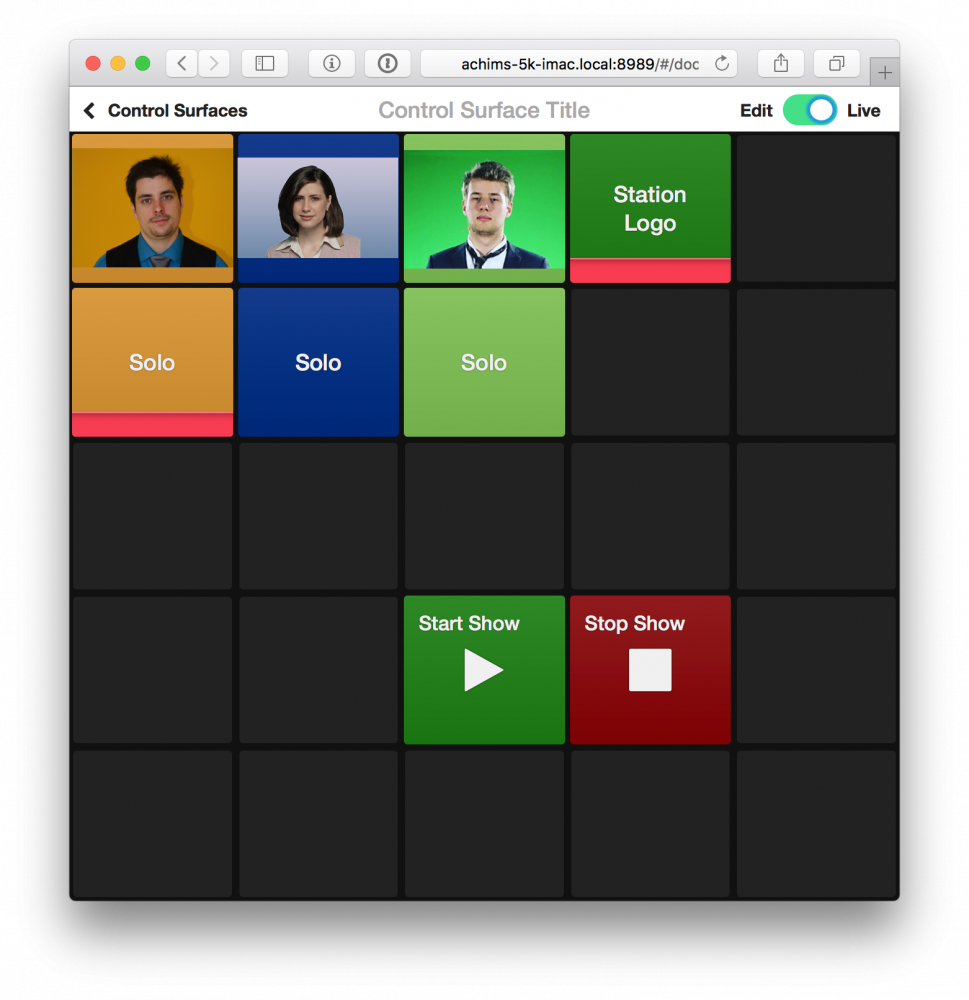
- Put the host (yourself) on “Solo” so you can begin with an introduction.
- Once everything and everyone is ready click on the “Start Show” button on the Remote Control surface. Check if the Live Streaming Output destination in the mimoLive document window is actually streaming.
- After your introduction you can “un-solo” yourself to reveal the other guests on the panel.
- If a guest talks about a topic for a longer time you can put them full screen with the Solo button below their preview.
- Once your show is over you need to click the “Stop Show” button in the Remote Control or on top of the mimoLive document window.
> **Important:** Stopping the show may end your live stream immediately
>
> Your live stream usually has a delay of 10 to 20 seconds between you creating it and the audience seeing it. This is due to video buffers at the streaming services. Unfortunately, some streaming services shut down the live stream immediately once you close your stream so that the audience won’t see the lasting 10 to 20 seconds buffered video. It makes sense to close the event with an outro of any kind (e.g. fade to black), mute the audio and wait 20 seconds before shutting down the live stream.
---
### Virtual Presentation Template
Source: https://mimolive.com/user-manual/quick-start-projects-templates/genres/virtual-presentation/
Last updated: 2026-08-19
mimoLive® can help you to stand out when doing virtual online presentations by making them look like professional quality TV broadcasts.
This easy to use Virtual Presentation template is set up for a number of the most popular layouts and connects to Zoom, MS Teams, WebEx and other video conferencing services, can also record locally for best quality, and stream to LinkedIn, YouTube, Facebook, Twitter and more for a larger audience.
> **Note:** The Virtual Presentation template has been designed for the dual computer [Professional Presentation Setup](https://mimolive.com/user-manual/professional-speaker-presentation-setup) which is recommended so you can run your PowerPoint presentation more easily.
### Enhancing Audience Engagement: Integrating Presenter and Presentation in Live Sessions
While many platforms you might be using for your live presentations like Zoom or MS Teams offer the option to share your screen for a presentation, that has several disadvantages:
- The audience becomes invisible to you because the screen sharing uses up all the space on your screen and in the UI of the platform on your end.
- You become invisible to the audience for the same reason on their end.
- You can’t “interact” easily with your presentation which makes it much less attractive.
The solution is to create a video output that includes both the speaker and the presentation in one, so that the connection to the audience isn’t lost as soon as you share your presentation.
> **Important:** Keep in mind that presentations shared this way are sent to the video conferencing platform using the same resolution as your video camera. Make sure that the text elements on your slides are big enough to be readable.
Let’s get started with looking at the available predefined layouts.
#### Side by Side
This is a classic look used for example by Steve Jobs and Apple for their legendary keynote streams. The layout puts the speaker next to the slides which are fully visible. The speaker can be to the left or to the right of the slides, depending on your preferences.
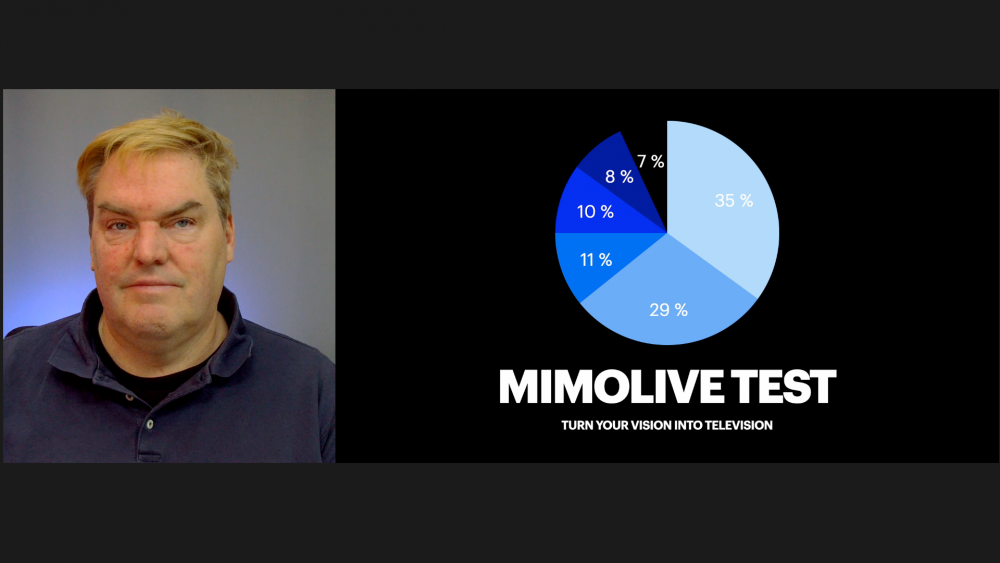
#### Picture in Picture
This layout allows for more use of the screen for the presentation and includes the speaker as a “Picture in Picture”. This is more engaging but you need to make sure that the speaker “window” doesn’t cover the content of your slides. The speaker can be in all four corners of the screen.
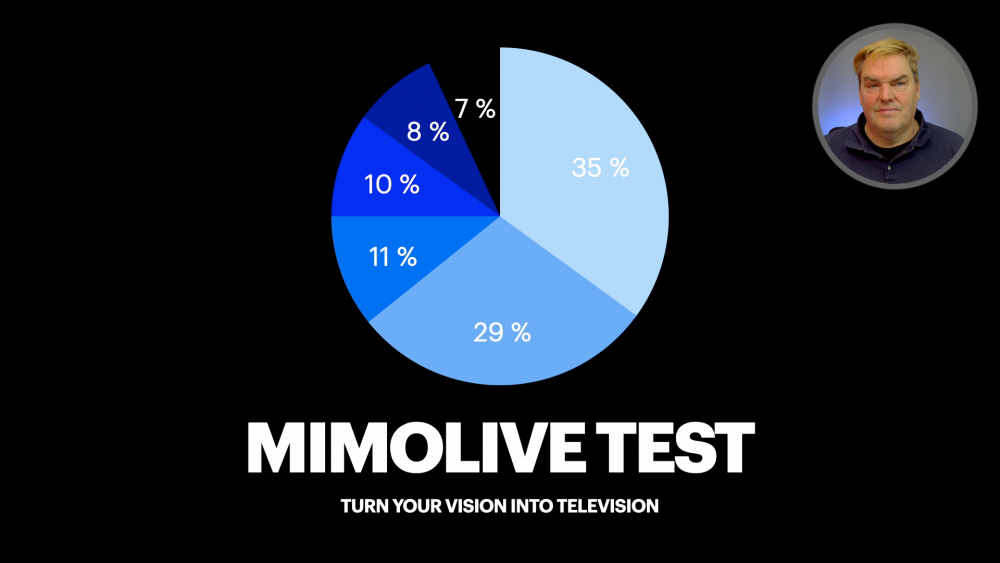
#### Immersive in Back
Using a technique called “keying” allows for removing the background of your camera. mimoLive offers a very easy to use “Background Removal” filter for this. You can then put the presentation in your background. Make sure you do not cover the relevant information, but you can move from left to right if your slides require it.
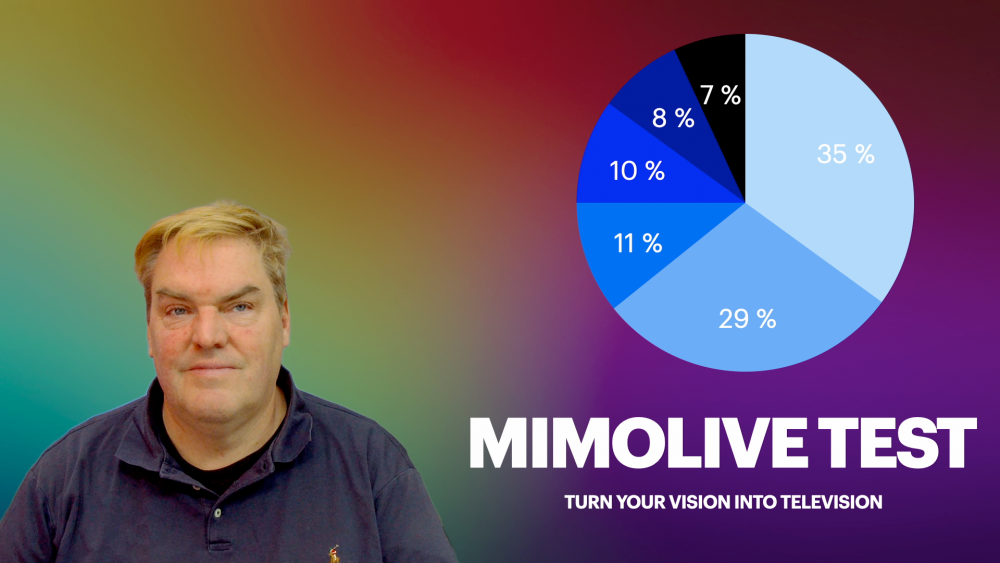
#### Immersive in Front
This layout is very unusual and therefore can make you stand out. The speaker is behind the slides and can point to things on the slide. In order for this to work, the background needs to be dark, preferably black. The slides background also needs to be black, because this layout is using a blend mode that adds the two images, speaker and slides, together. The effect is like there is a tansparent LED screen between speaker and camera. This allows the speaker to interact with the slides, an effect that’s guaranteed to dazzle the audience.
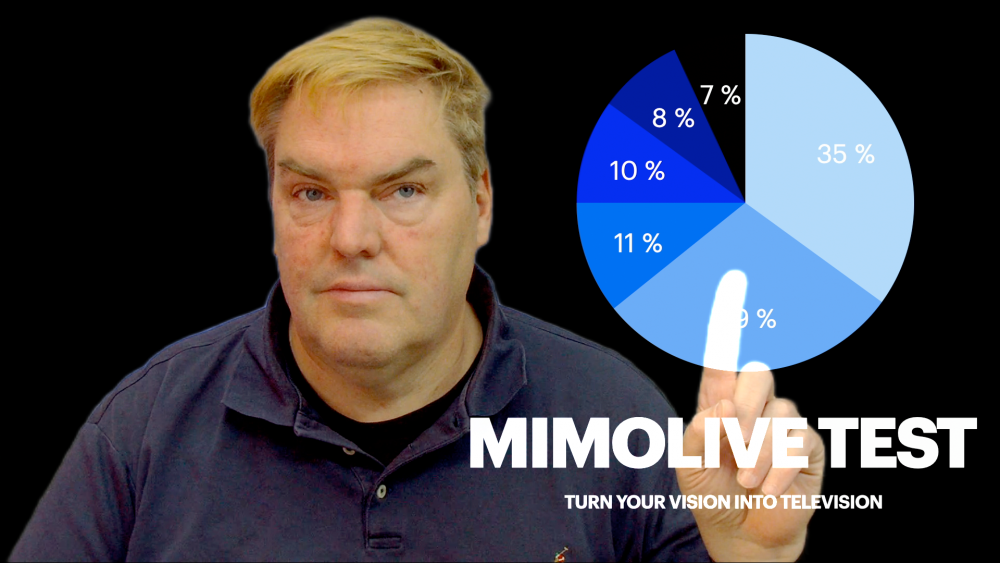
#### News Anchor
This presets inserts the Slides as an “over shoulder” on a virtual TV screen between speaker and the background. This allows the speaker to point to things on the slides while the background is still visible. The blur effect is created by image processing, so no high end camera with expensive lenses is needed.
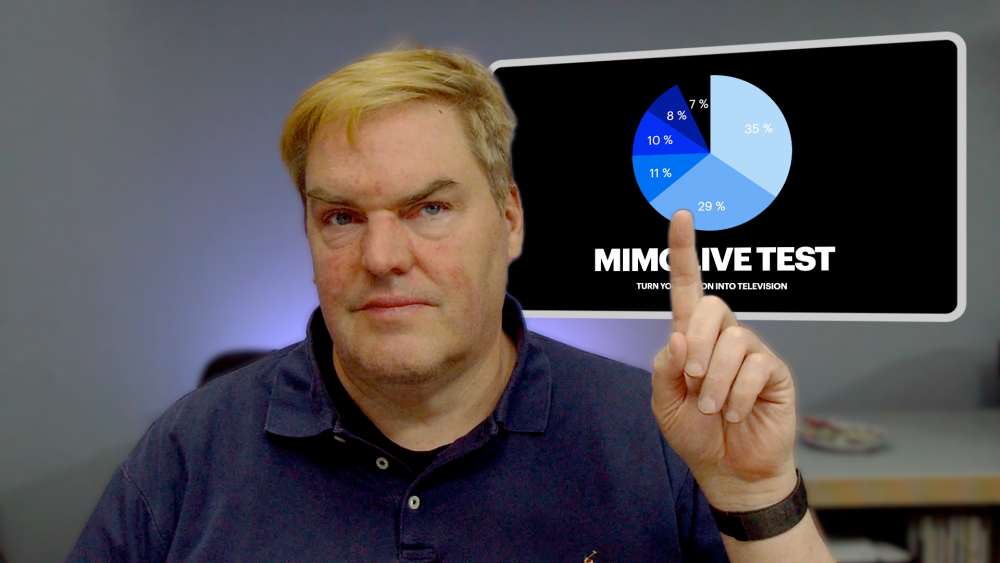
#### Other graphical elements
mimoLive allows you to add many other graphical elements: Analog and digital clocks, countdowns, text, movies (how about showing your favourite meme) and other effects. In the standard configuration, we’ve added a station logo that you can set to your own logo to promote your brand. Once you become more familiar with mimoLive and the Virtual Presentation template you can experiment with the many layers available and create your very own personal template. You can also book a [One-on-One Coaching](https://boinx.com/one-on-one-coaching/) where we go into your ideas and make them happen.
### Setting up the Virtual Presentation template
Before you can use the template, you need to select your camera, microphone, presentation capture, presentation audio, speaker monitor and your logo. Here is a step by step guide:
#### Set up your camera
You can use almost any camera with the Virtual Presentation template. Of course, cameras of different quality will give you different quality results. More important than the camera, however, is the light: Make sure you have enough light for the camera to properly work and use as diffuse light sources as possible. Natural light is to be avoided as it has quite a lot of brightness variations over the day depending on the weather and the time of day.
To select the camera, go to the Sources column and find the items “Speaker Camera”, “Speaker with Background” and “Speaker Blurred”:
> **Note:** There are three sources because there are different filters applied to the camera which are then used in the template to achieve different effects.
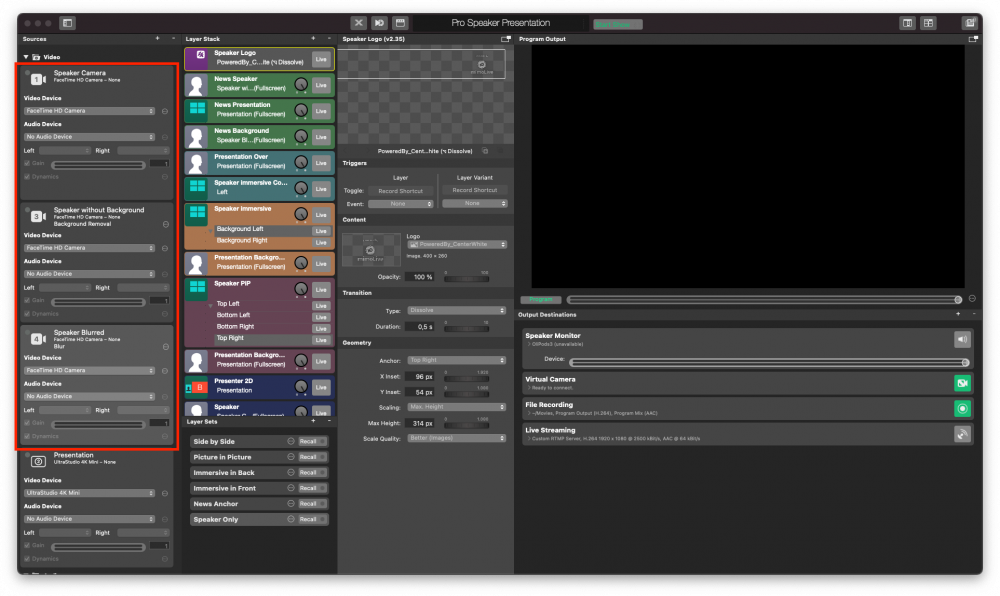
In each of the three Sources, click on the Popup Menu labelled “Video Device” and select your camera or capture device from the list:
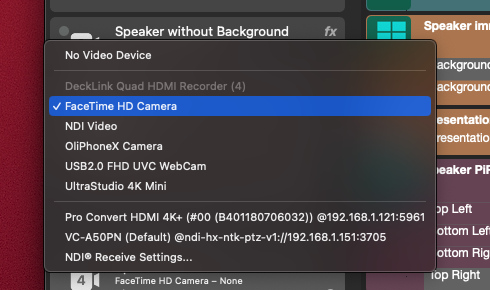
> **Important:** Leave the “Audio Device” popup at “No Audio Device”.
You should now see yourself through your camera in the Program Output to the right.
If not, find the Layer Sets at the bottom of the second column from the right and click on “Speaker Only”.
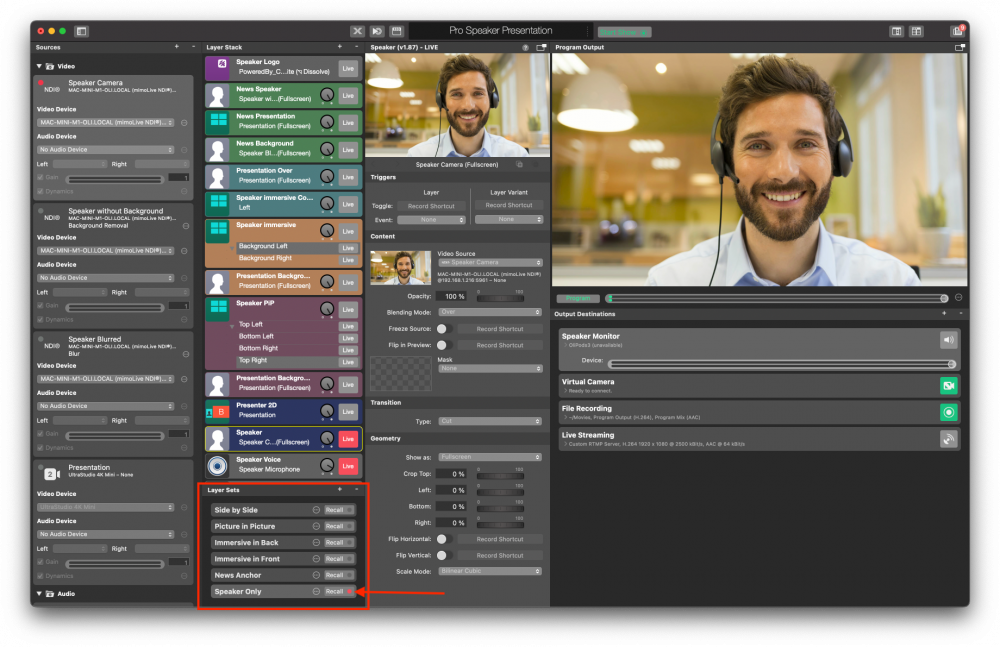
#### Set up your microphone
The microphone is treated as a separate device so that it can be turned on and off independently from the video. The right microphone depends on your setup and your preferences. If you want advice on what microphone to choose, we’re happy to help you in a [one-on-one coaching session](https://boinx.com/one-on-one-coaching/).
To select your microphone, scroll down in the Sources list to find the item labelled “Speaker Microphone” in the Audio section:
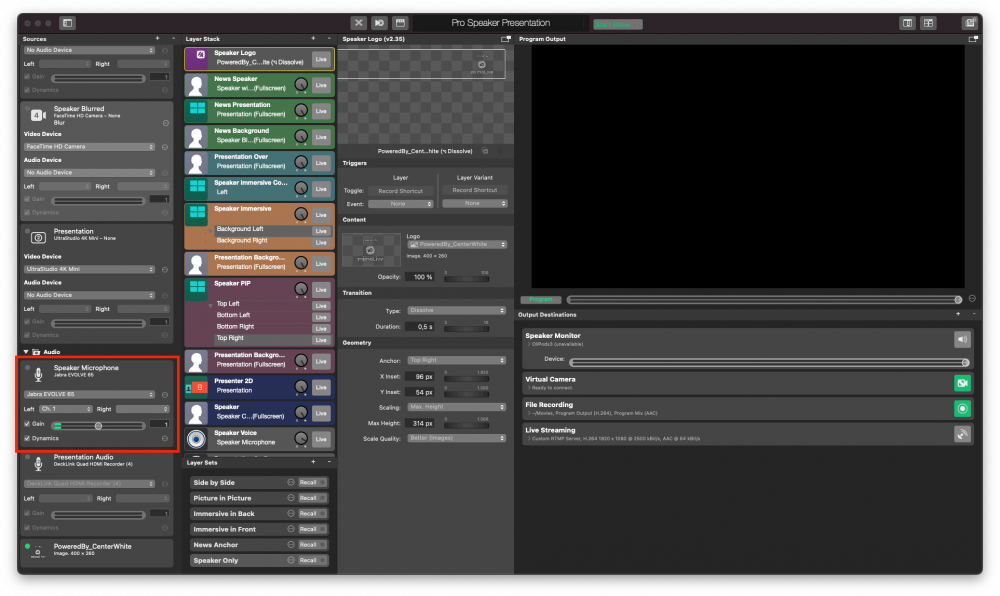
Again, select your microphone device from the popup menu:
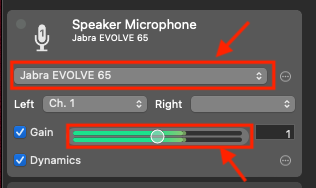
> **Note:** To check if you selected the correct device, you can tap on your microphone and see the green level indicators move to the max corresponding with your tapping.
#### Set up the (PowerPoint) Presentation on the second computer
> **Important:** This assumes a two computer setup with a separate computer for your presentation as described in Professional Virtual Presentation Setup.
There are two things you need to do on the \*second computer \*with the presentation:
- Set up the HDMI display output that’s connected to your mimoLive computer via the HDMI capture device as a separate display and turn off mirroring if it is enabled. Basically you need to set it up as if you had it connected to a projector in a conference room or on a stage.
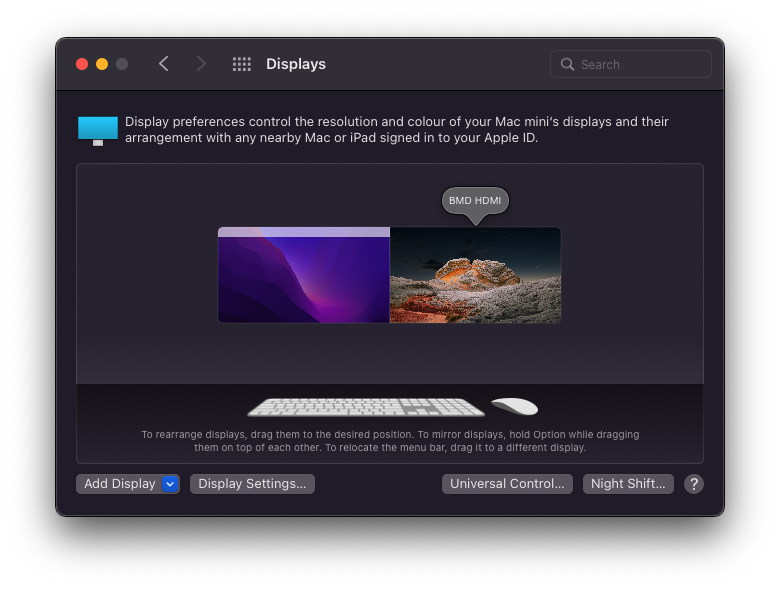
- Also make sure that the HDMI output is also selected as the default Audio Output so that the audio from the presentation is sent to your mimoLive.
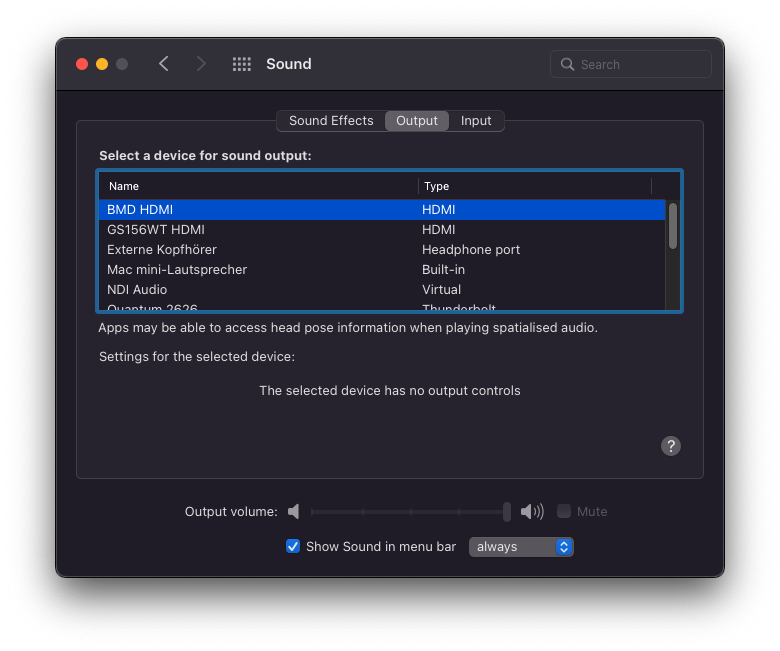
#### Select the presentation source
Now that the presentation is properly set up on the presentation computer, you can select the input device that brings it into mimoLive. Go to the sources column and find the source named “Presentation” and select the capture device from the devices popup menu.
Then go to the Layer Sets and click “Recall” on the Side by Side set:
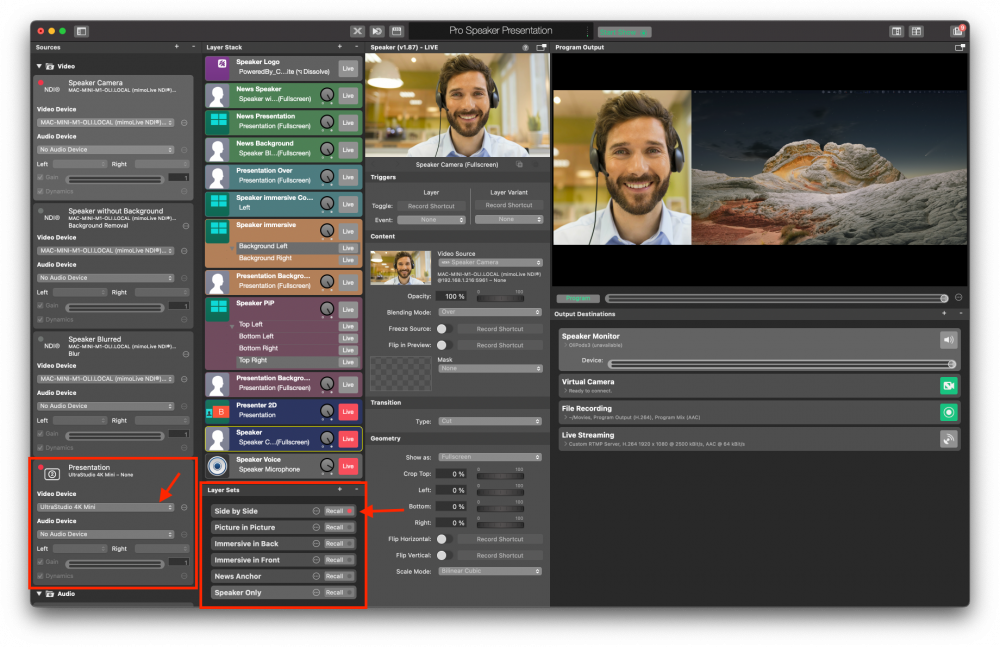
You should now see yourself and the presentation side by side.
#### Select the presentation audio
In order for the people on your Zoom call or watching your stream hearing the audio from your presentation, it needs to be channeled through mimoLive. The Virtual Presentation template has been set up to account for this. You only need to make sure that the audio output on your second “presentation” computer is set to HDMI and select the HDMI capture device as the audio device.
Find the Input labelled “Presentation Audio” in the Sources column in mimoLive and select the HDMI capture device from the device popup:
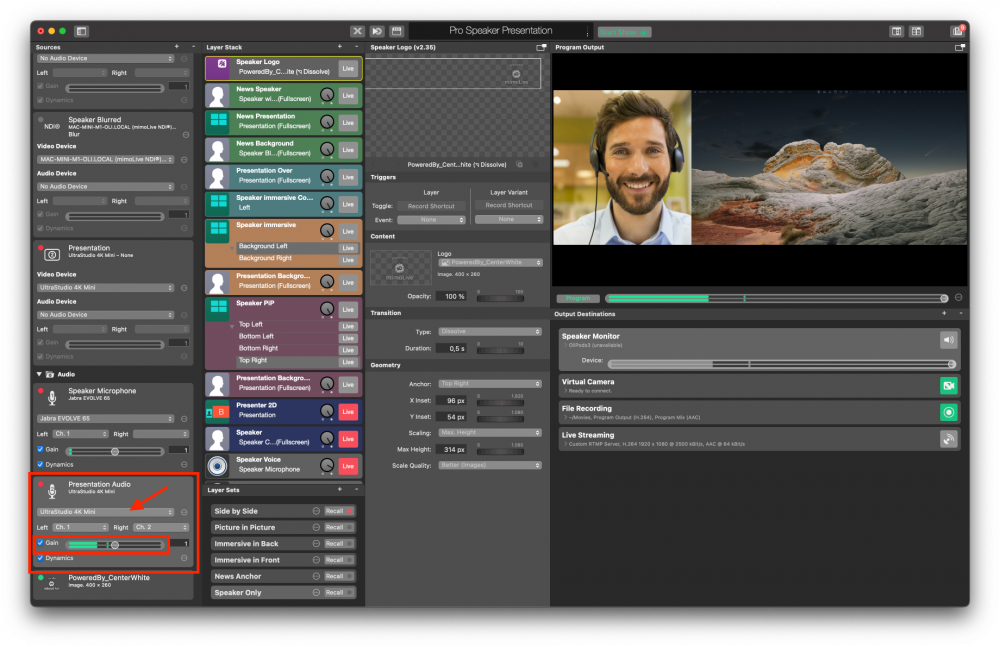
For a quick test play some audio on the presentation computer and check the green level meters in the Presentation Audio source.
#### Select the Speaker Monitor
Usually the speaker also wants to hear the audio from the presentation. For this purpose, there is an Output Destination called “Speaker Monitor”. You can find it in the leftmost column and open the content by double clicking in the empty space between title and live button or using the disclosure triangle in front of the info:
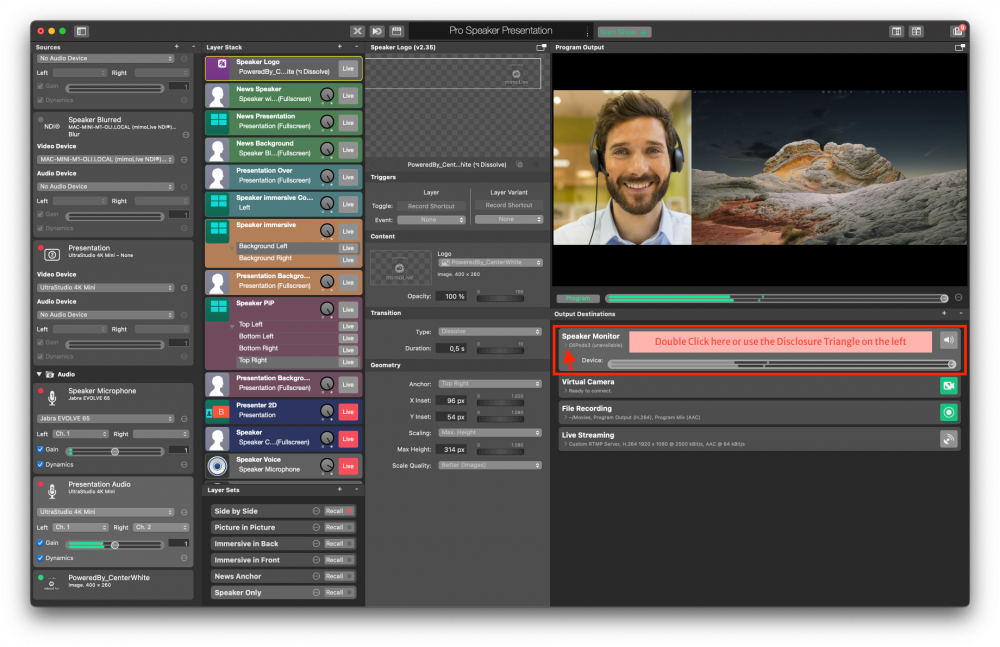
This opens more options where you can select the headphones you want to use to listen in to the audio from your presentation:
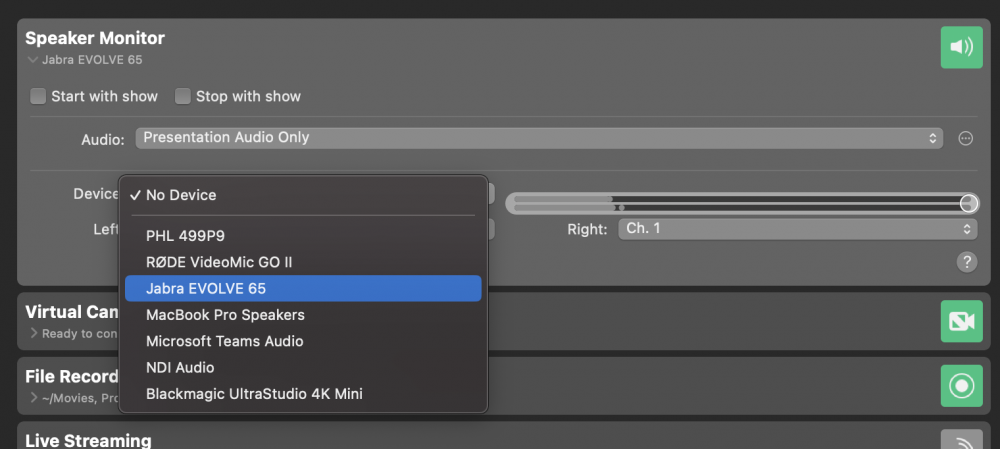
> **Important:** To actually hear something in your headphones, you need to switch the Speaker Monitor to “Live”. To do this, click on the green button to the left until it turns red. In Broadcasting “Red” means live, “Green” means ready. The button will stay grey if the Output Destination isn’t configured properly.
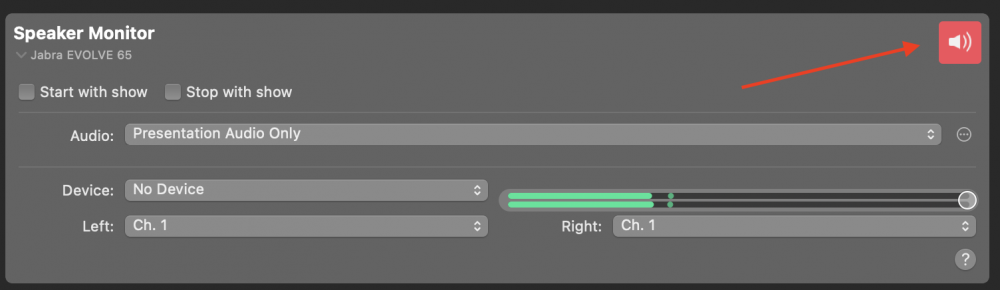
To adjust the volume of your headphones use the volume slider.
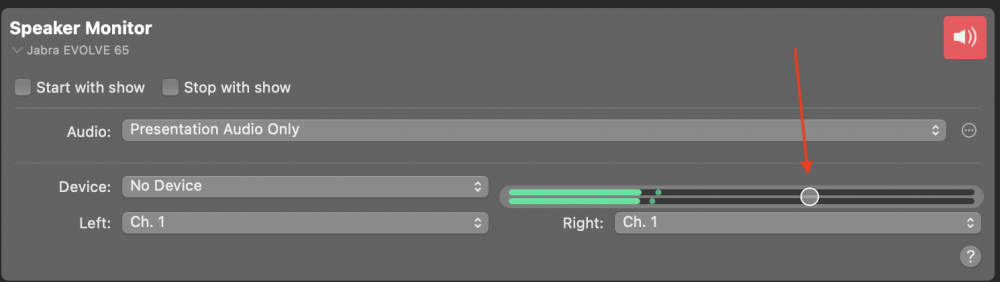
> **Important:** This does not change the volume sent to the live stream or Zoom. Use the Gain control in the Presentation Audio Source or the dial in the Presentation Audio layer to change that. You can also use the volume sliders on the Remote Control Surface for this as described further down.
### Using the Virtual Presentation template for the first time
Now it is time for a test. Invite a friend to a Zoom call to practise using mimoLive and to give you feedback on audio levels, lighting and camera position.
#### Connecting the Virtual Presentation template to Zoom
The Virtual Camera plugin is responsible for making the connection to Zoom. You need to download and install it separately, but it is already set up in the Virtual Presentation template ready for use.
Please refer to “[Sending Audio and Video to Zoom](https://mimolive.com/user-manual/sending-audio-and-video-to-zoom)” on how to connect mimoLive and Zoom.
#### Setting up the Remote Control Surface to control the show
The Remote Control Surface puts the magic into your setup. You can load that on a smart phone or tablet and run your show using a touch interface. This way, you do not have to search for buttons in the App on your Mac while you’re giving your presentation. The Virtual Presentation template has a pre-configured Remote Control Surface that allows you to easily control the show.
To enable the Remote Control Surface, go to the menu mimoLive -> Preferences, find the Remote Control tab and check the “Allow Remote Control Access” box:
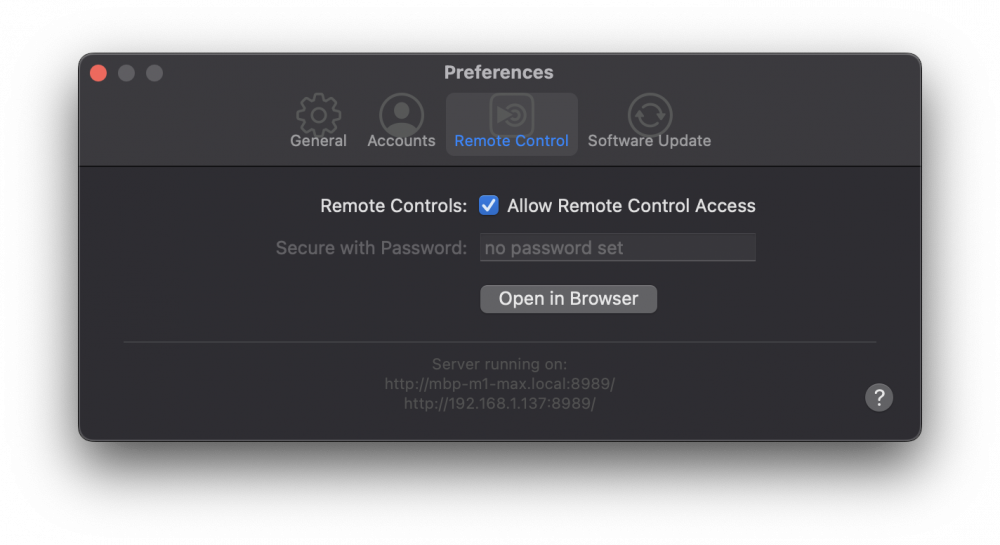
The Remote Control Surface is basically a web page, so you can load it on any device with a browser, like an Android phone or tablet, or another PC or your Mac. To open the Remote Control Surface on another device, simply enter the URL displayed in the screenshot above in the browser on the device. To open the Remote Control Surface on your Mac, you can click on the Remote Control button in the mimoLive document window top bar:

This opens the list of available Remote Control Surfaces.
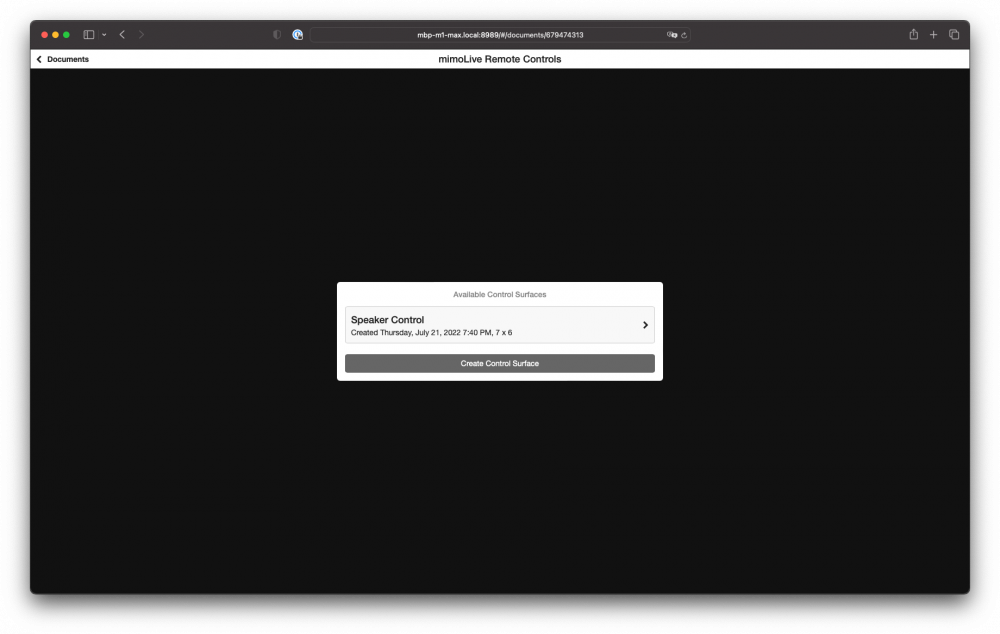
Click on “Speaker Control” to open the pre-configured Remote Control Surface:
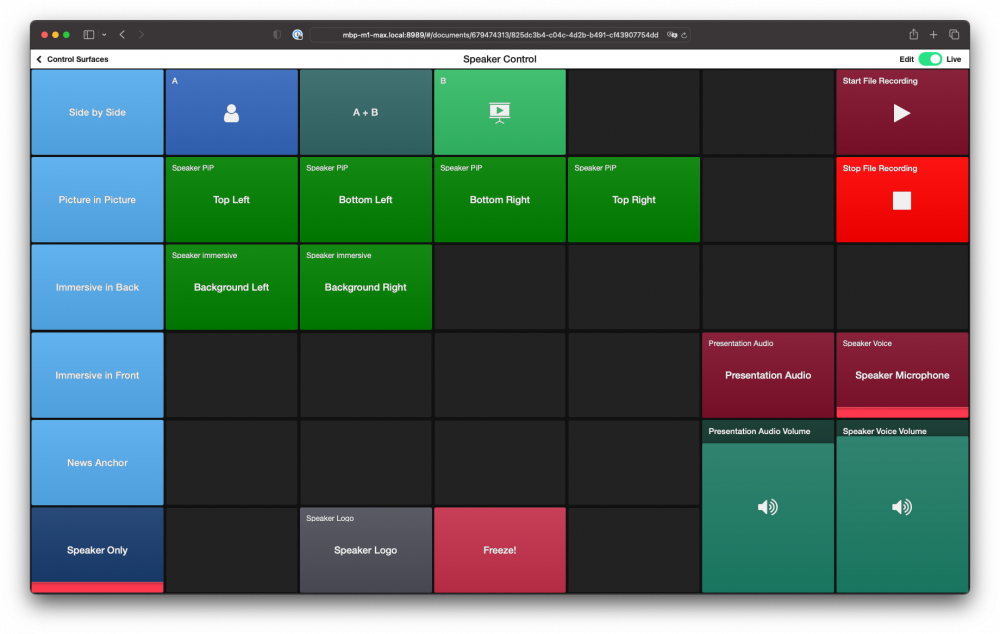
> **Note:** On an iPad or iPhone, it is even easier to use the Remote Control Surfaces. Download the [mimoLive Remote app](https://apps.apple.com/app/mimolive-remote/id1193996868) from the App Store.
#### Using the Remote Control Surface
Using the Remote Control Surface is easy. Just tap on the button that is marked with the action you want to take. Just give it a try. Notice the red line at the bottom of a button which indicates that the corresponding element in the Layer Stack of mimoLive is live.
These are the actions on the Remote Control Surface:
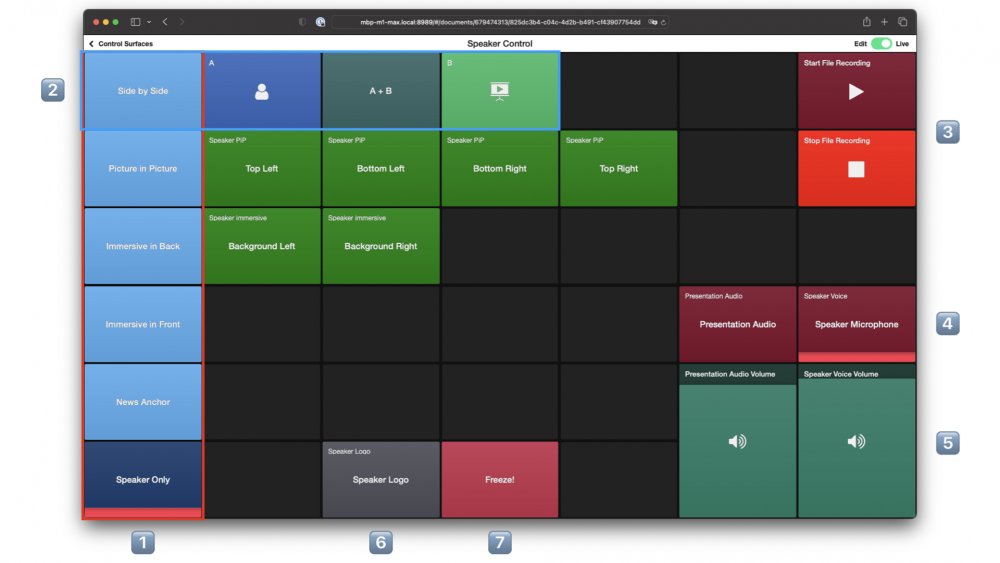
1. In this vertical column there are buttons to trigger the different layouts as described at the beginning of this document.
2. In each line there are the options for those layouts. To use a layout, first select the layout from the first column, then use the options.
3. Start and Stop a local recording.
4. Turn Presentation Audio and Speaker Microphone on and off.
5. The two sliders allow you to balance the volume of your microphone and the audio from the presentation. You operate them by swiping up and down.
6. Turn the Speaker Logo on or off.
7. Need to sneeze or cough? The Freeze button stops your video and turns off your audio. Tapping the button again turns the audio back on and unfreezes your video.
It is best to play around as much as possible with the Remote Control Surface to familiarise yourself with the operation.
> **Note:** You can easily customize the Remote Control Surface by removing buttons you don‘t need or adding buttons for new things, moving buttons around or change their colors to suit your needs. Need help with that? Book your personal [one-on-one coaching](https://mimolive.com/store/services/) session with our mimoLive experts..
### Amplifying Your Brand and Ensuring Quality: Logo Integration and Local Recording in mimoLive
mimoLive offers a lot of functionality and the Pro Speaker Presentation Template only scratches the surface. In this section, we will add your logo for branding and look at making a local recording.
#### Adding your Logo
To add your logo to the template, drag and drop the logo image file from the Finder into the Sources column or use the „Add Media File“ command behind the „+“ icon to the top right of the Source column:
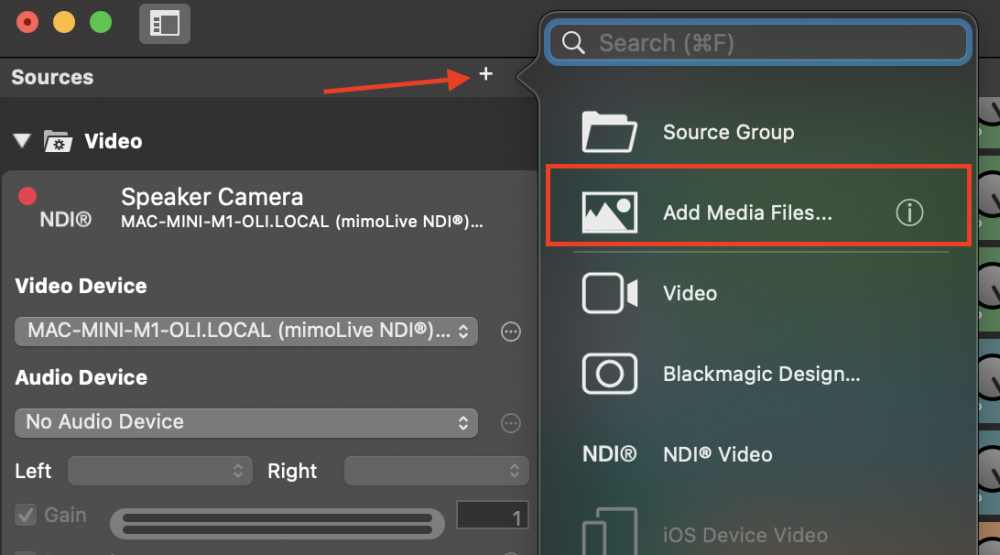
> **Note:** We recommend using a PNG file of your logo with transparency. This usually looks better than an image with a black or white background. Although the size can be adjusted in mimoLive, we recommend to make the PNG the size the logo should be.
Find the „Speaker Logo“ layer in the Layer Stack, go to the Content section of the Layer settings column and select the logo file you just added in the Logo popup:
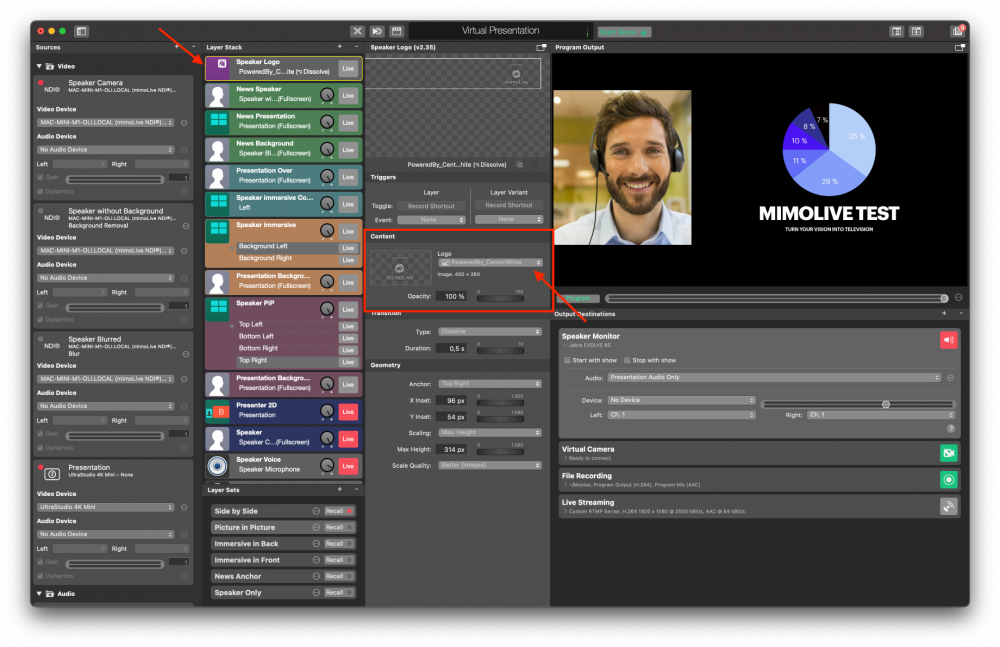
Turn the Layer on by clicking on the „Live“ button:

To fine tune the location and size of the logo, go to the Geometry section of the Layer Settings:
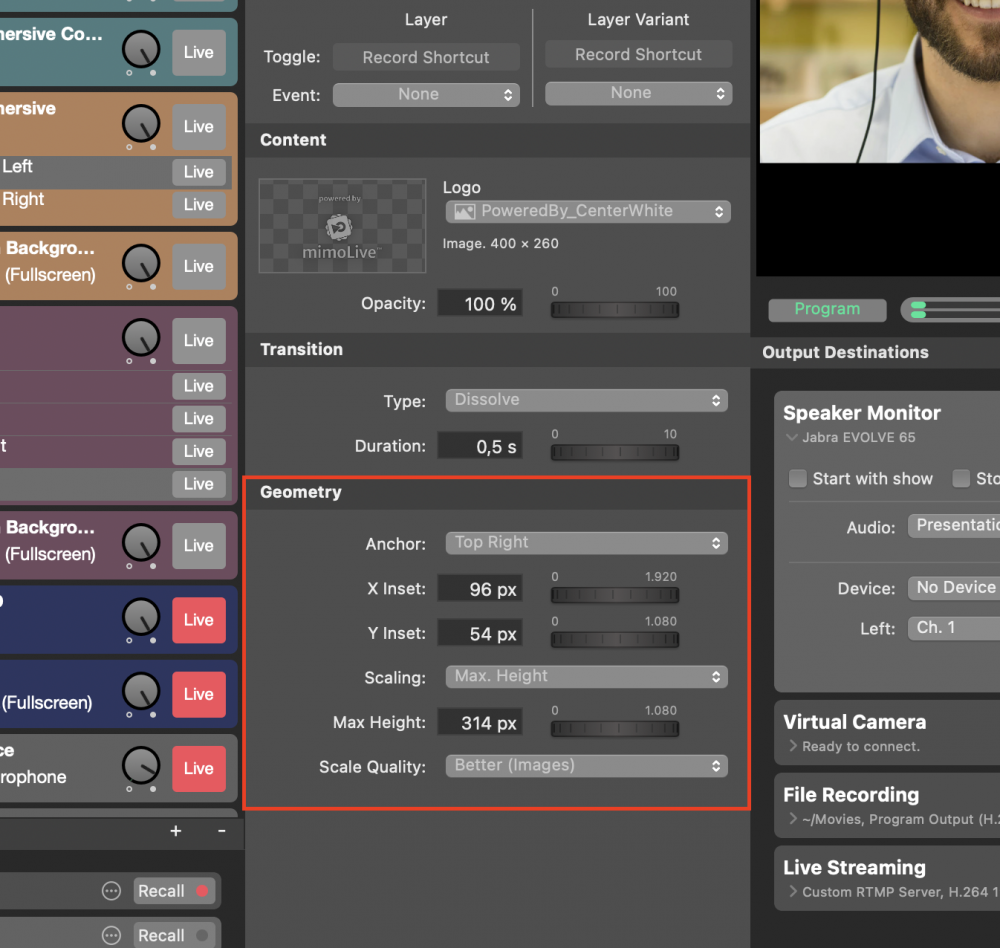
#### Creating a local recording
Creating a local recording is very helpful in many situations:
- The recording on the platform might be unusable because it is of low quality or the host of the meeting forgot to record.
- The meeting or stream isn‘t recorded by the host but you‘d like to have a private, high quality recording of your presentation for use in your marketing materials.
- You want to be able to see your performance and learn from it.
- Your host wants a high quality recording of your presentation for exampled when you‘re a guest in a talkshow or on a podcast.
In any case, the local recording is typically of much higher quality than a cloud recording. The Pro Speaker Presentation Template is pre-configured for a local recording.
You can easily start it by pressing the „Start Recording“ button on the Remote Control Surface, and stop it by pressing the „Stop Recording“. (See Remote Control Surface description above).
At the end of the recording, a window will pop up that shows you your most recent recordings and allows you to access them easily. Your recordings are set to be stored in your „Movies“ folder, but you can change this if you want.
By default, recordings are created in H.264 format with a decent quality but using relatively heavy compression leading to smaller files. You can change this to ProRes – which uses less compression, produces higher quality video but also much bigger files – by going to the Output Destination column and disclosing the settings portion of the pane:
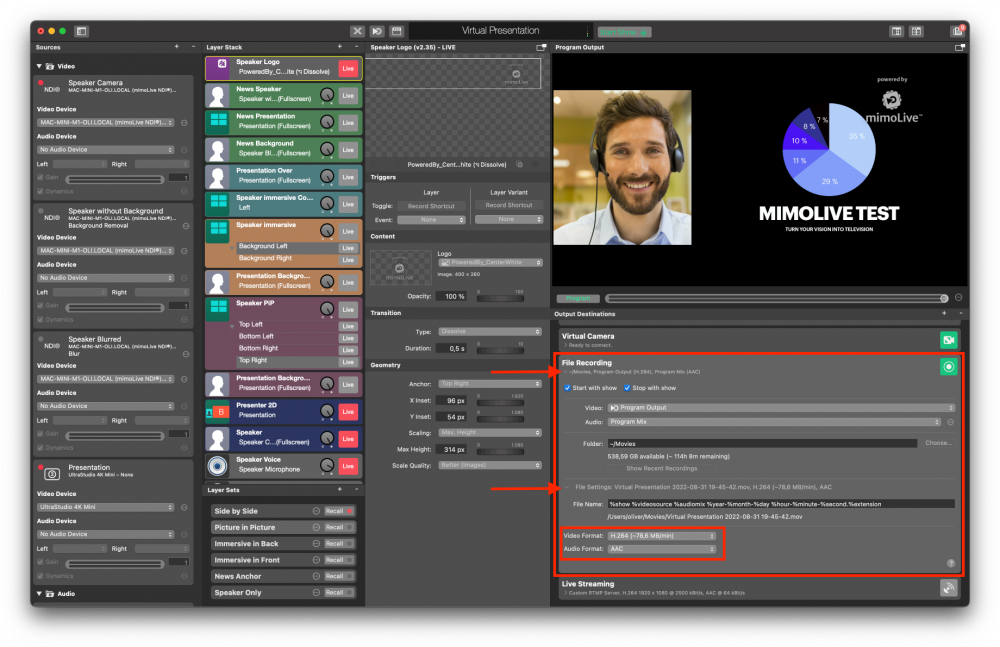
Choose ProRes 422 from the Video Format popup and Linear PCM from the Audio format popup if you want to use your recording in a video editor such as Final Cut Pro, DaVinci Resolve or Adobe Premiere for example to create a sizzle reel.
### Preflight Check List – Avoiding and troubleshooting common problems
> **Important:** Restart your Mac before each presentation to make sure that the virtual camera driver is reset.
With so many components, there are some things that can go wrong. Following this pre-flight checklist will help you avoid the dreaded „Can you see me?“ and „Can you hear me and the presentation?“ moments that are part of so many online presentations.
#### Checking your camera
First step is to make sure that the camera you want to use is the one selected in mimoLive. If it is not, check the „Presenter Camera“ sources in the Sources column and make sure that the proper capture device or camera is selected in the „Device“ popup.
If the camera isn‘t showing up in the popup, make sure it is properly connected to your Mac and restart mimoLive.
#### Checking your microphone
To quickly check your microphone, lightly tap on it and check the „Speaker Microphone“ source in the Sources column. The green levels meter should react strongly to your taps.
Next, check if the mimoLive audio output is selected in the „Microphone“ popup of Zoom or any other platform you‘re presenting to. Make also sure to unselect any Noise/Echo cancellation for best audio quality. This, of course, requires you to use headphones so that your microphone can‘t pick up the audio from the other people on the call.
#### Checking presentation video and audio
If your presentation video or audio isn’t working, the most likely issue is that the computer running the presentation isn’t set up correctly. Check that the external display is recognised in the Display settings and that the HDMI is selected in the Audio output settings.
### Where to go from here?
The Virtual Presentation template is a good starting point to create your very own online brand. Make a copy of the document and feel free to explore the [Layer library](https://mimolive.com/user-manual/layers-and-variants), experiment with the [Lower Third Playground](https://mimolive.com/user-manual/lower-third-playground) and the [Stingers and Outros](https://mimolive.com/user-manual/stingers-outros) templates.
If you want to jump ahead, Boinx Software offers two ways to get you to your goals faster:
#### One on One Coaching
One on One coaching gives you 45 min with an absolute mimoLive Pro who can help you overcome any challenges you might face with mimoLive and show you the best tips and tricks. [Book here…](https://boinx.com/one-on-one-coaching/)
#### Customisation Service
You do have an idea about what you would look like on Zoom or your Live Stream and want to save time getting there? You can also book the Customisation Service, which includes creating your very own template that has exactly the features you want and is using your own design. Book here…
#### Get help from the community
If you want to dive deeper into mimoLive and the options you have as a speaker, you can join the community of passionate and very knowledgeable [mimoLive users on Facebook](https://www.facebook.com/groups/302575437740744) or [the Boinx Forum](https://forum.boinx.com/c/mimolive/25).
---
# Core Interface & Show Basics
Source: https://mimolive.com/user-manual/using-mimolive/
Last updated: 2025-06-16
_This page has no body text; it groups the pages below._
---
## User Interface Overview
Source: https://mimolive.com/user-manual/using-mimolive/user-interface-overview/
Last updated: 2025-07-17
### mimoLive Document Window
The mimoLive document window is divided into several sections to provide you with the best possible overview and control over your production.
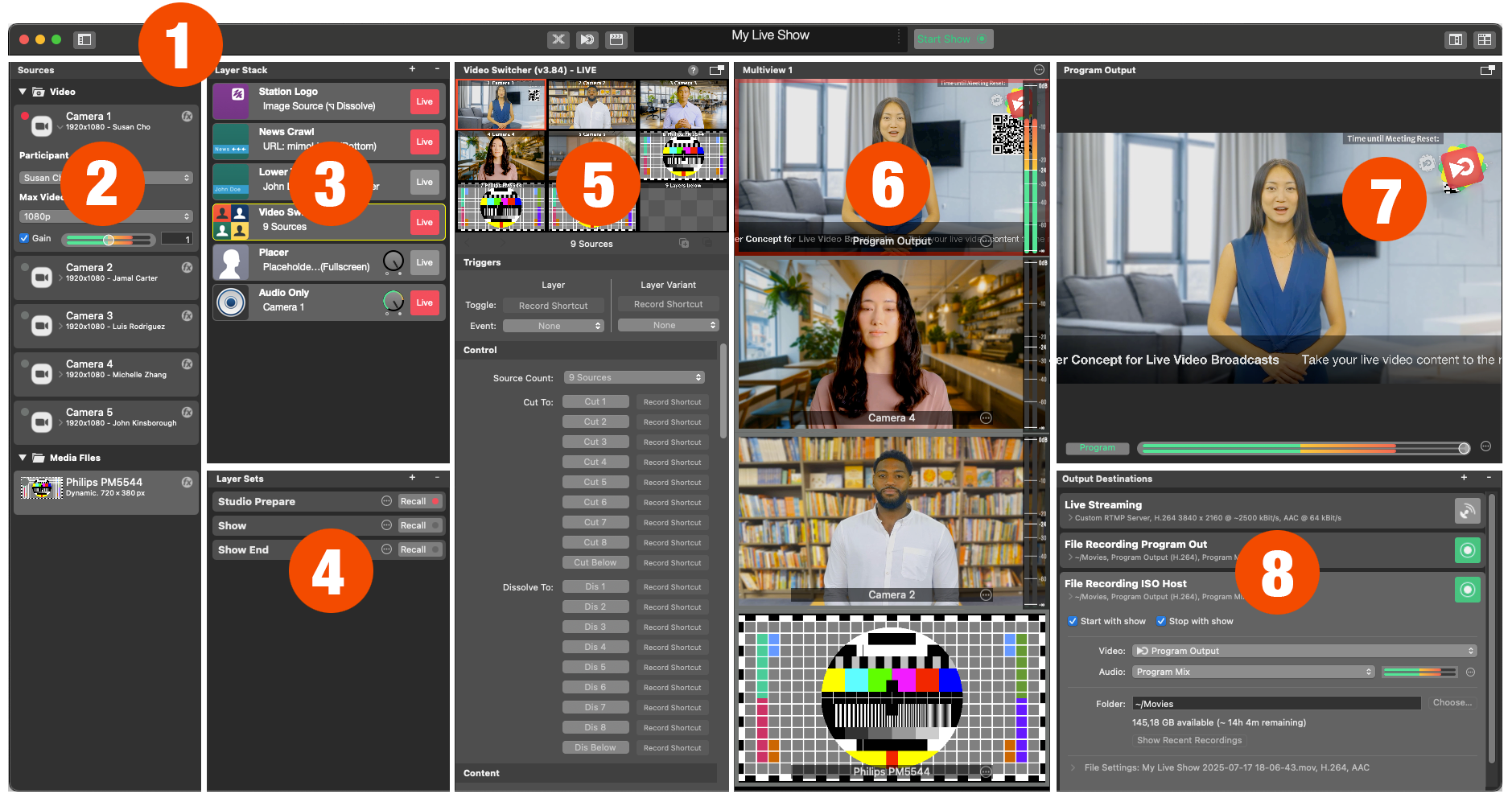
#### 1. Toolbar
The toolbar at the top of the mimoLive document window contains several important controls:
- **Sources Button** – Show or hide the [Sources](https://mimolive.com/user-manual/sources-and-the-sources-repository) column on the left.
- **X‑Keys Icon** – [Assign an X-keys keyboard](https://mimolive.com/user-manual/remote-device-setups) to a Remote Control Surface.
- **Remote Icon** – Open [Remote Control Surfaces](https://mimolive.com/user-manual/remote-control-surfaces) in an external browser (Safari, Chrome, etc.).
- **Clapper Icon** – Opens the [Show Settings](https://mimolive.com/user-manual/show-settings) panel.
- [Status Display](https://mimolive.com/user-manual/status-display) including the [Performance Monitor](https://mimolive.com/user-manual/performance-monitoring).
- [Start/Stop Show Button](https://mimolive.com/user-manual/startstop-show-button) – Located on the right side of the Status Display to start or stop your show.
- **Multiview Buttons** – In the top‑right corner, enable the integrated [Multiview](https://mimolive.com/user-manual/multiview) area or launch an external Multiview window.
#### 2. Sources
The first column below the toolbar lists all your sources, such as cameras, audio devices, video call‑ins, multimedia files, screen captures, data sources, and video generators. Here, you create and configure all audio and video sources.
(See the [sources in the Sources Repository](https://mimolive.com/user-manual/sources-and-the-sources-repository) sections for details.)
#### 3. Layer Stack
The Layer Stack contains all elements that build your final video: cameras, video switchers, audio channels, PTZ camera controls, lower thirds, split views, Picture‑in‑Picture (PIP), and much more.
(See [Layers, Settings and Variants](https://mimolive.com/user-manual/layers-and-variants) for advanced usage.)
#### 4. Layer Sets
Located at the bottom of the Layer Stack, Layer Sets let you switch multiple layers on or off with a single click—ideal for quickly changing production setups.
#### 5. Layer Preview and Layer Parameters
The third column shows a live preview of the selected layer or layer variant from the Layer Stack. Below the preview, you can adjust that layer’s settings and parameters.
(See[Layers, Settings and Variants](https://mimolive.com/user-manual/layers-and-variants) for more information.)
#### 6. Multiview
mimoLive supports various Multiview setups. In this example, Multiview is displayed in a column layout, but you can configure it to your needs.
(See [Multiview](https://mimolive.com/user-manual/multiview) Setup for configuration tips.).
#### 7. Program Output
At the top of the right column, you see the final program output. Below it, you will find the controls for the program’s audio output.
(See [Audio Output and Monitoring](https://mimolive.com/user-manual/audio-aux) to learn more about audio processing in mimoLive.)
#### 8. Output Destinations
In the lower section of the right column, you can define where your production is sent: ISO File Recording, NDI® broadcast, live streaming, fullscreen playout, Blackmagic Design hardware, and more.
(See [Output Destinations Overview](https://mimolive.com/user-manual/output-options) for detailed options.)
---
## Show Settings
Source: https://mimolive.com/user-manual/using-mimolive/show-settings/
Last updated: 2026-08-19
To open the **Show Settings Panel** for a mimoLive document, click the **clapperboard icon** located on the left side of the [Status Display](https://mimolive.com/user-manual/using-mimolive/status-display/) at the top of the document window.
Alternatively, you can access the same panel by choosing **Show > Show Settings…** from the menu bar.
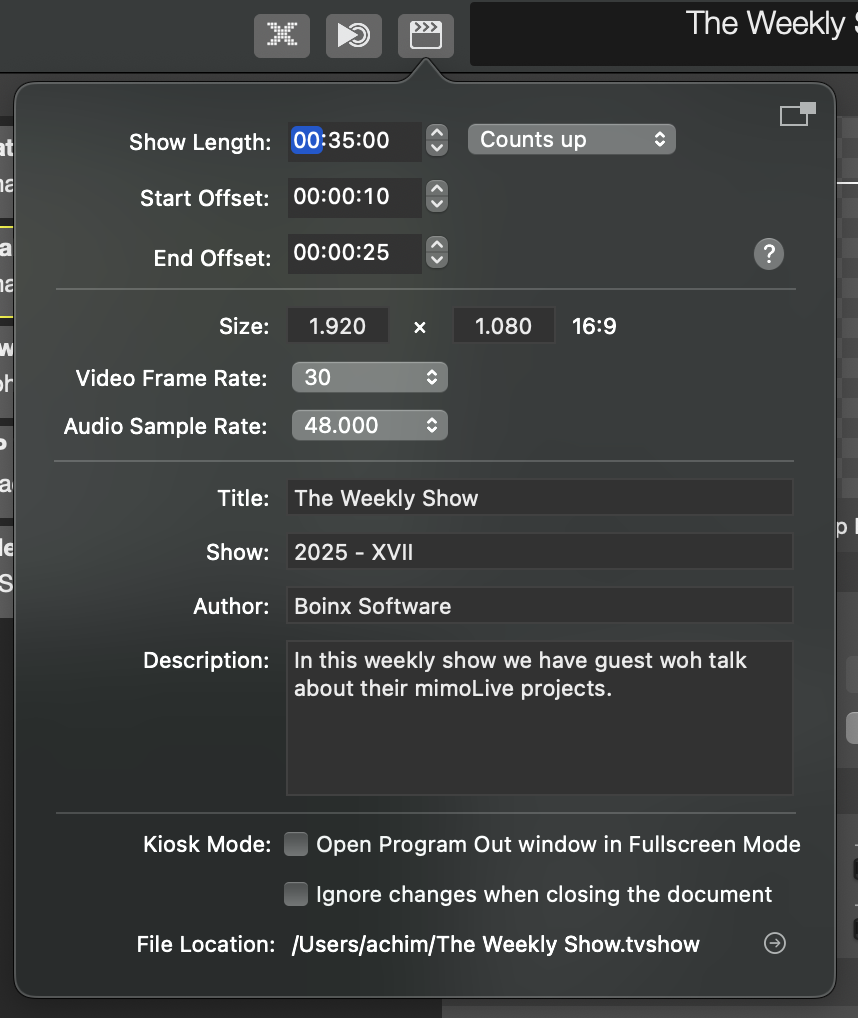
#### Show Timing
| Show Length | In this field, you can define the intended **duration of your show**. When enabled, mimoLive will automatically trigger the [Stop Show button](https://mimolive.com/user-manual/using-mimolive/startstop-show-button/) once the countdown reaches zero.
You can also choose how the timer appears in the **Status Display**—either counting **up** from zero or **down** toward the set duration. |
| --- | --- |
| Start Offset | This value defines a time interval that controls when the **Show Start Trigger** is activated. This trigger can be used to automate actions at the beginning of your show—for example, turning specific layers on or off or triggering [Layer Sets](https://mimolive.com/user-manual/using-mimolive/layer-sets-scenes/).
By adjusting the offset, you can fine-tune exactly when this event occurs relative to the start of the show timer. |
| End Offset | The **End Offset** specifies how much time before the defined **Show Length** the **Show End Trigger** is activated. This allows you to automate actions — such as [scrolling credits](https://mimolive.com/user-manual/live-editing/layers/scrolling-credits/), fading out graphics or stopping media playback — shortly before the show officially ends.
Use this setting to prepare a smooth and timely wrap-up for your production. |
#### Video Configuration
| Size | These fields define the **width and height** of your video frame in pixels. You can set a custom resolution to match your production needs, with support for resolutions up to **8K UHD+ (7680 × 7680)**.
Choosing the appropriate dimensions ensures optimal visual quality and performance for your specific output format or platform. |
| --- | --- |
| Video Frame Rate | The **Video Frame Rate** setting determines how many frames per second (fps) the video render pipeline will process. mimoLive supports a wide range of standardized frame rates, allowing you to choose the one that best fits your target platform—whether it's for streaming, broadcast, or stage presentation.
Selecting the appropriate frame rate ensures smooth motion and optimal compatibility with your playback environment. |
| Audio Sample Rate | This setting defines the **base sample rate** for the audio processing pipeline in mimoLive. For the best audio performance, ensure that all connected audio devices operate at the **same sample rate**. |
> **Important:** Test Your Setup Before Streaming in High Resolution
>
> mimoLive supports live streaming at resolutions up to 8K UHD+ (7680 × 7680). You can fully customize the resolution to match your production needs and available computing resources. However, please keep in mind that streaming at such high resolutions requires significant processing power. Depending on your hardware, your computer may not be capable of handling 8K video streams smoothly. Always test your setup to ensure optimal performance.
#### Show Meta Data
| Title | Enter the name of your show. This helps identify your production in recordings and streaming interfaces. |
| --- | --- |
| Show | Use this field for versioning or additional identification—such as episode numbers, event names, or date tags. |
| Author | Specify the creator or organization responsible for the show. This information is saved with the recording file and may be visible on some streaming platforms. |
| Description | Provide a short summary or description of your show. This may also be sent to streaming services to give viewers context about your content. |
#### Options
| Kiosk Mode | When enabled, mimoLive will automatically open the **Program Out** window in full-screen mode when a document is opened. This is ideal for dedicated display setups like Point Of Interest (POI) terminals. |
| --- | --- |
| Ignore Changes When Closing the Document | Activate this option to prevent mimoLive from prompting you to save changes when closing the document. This is useful in educational or controlled environments where preserving the original document is important and any changes can be dismissed. |
| File Location | This field shows the **file path** where the current document is saved. Clicking the arrow next to the path will **reveal the file in Finder**, allowing quick access for file management. |
---
## Documents and Templates
Source: https://mimolive.com/user-manual/using-mimolive/templates/
Last updated: 2026-08-19
mimoLive uses a **document‑based workflow**. Each project is contained within a single file with the `.tvshow` extension.
You can open and work with multiple project documents at the same time, allowing for great flexibility in managing different productions.
**Templates** are reusable mimoLive documents. When you open a template, mimoLive automatically creates a new project file based on it. Any changes you make affect only the new file—your original template remains untouched.
#### Creating a New Document
When you launch mimoLive, the **New Document Window** appears by default. Here, you can start a new project or open a template.
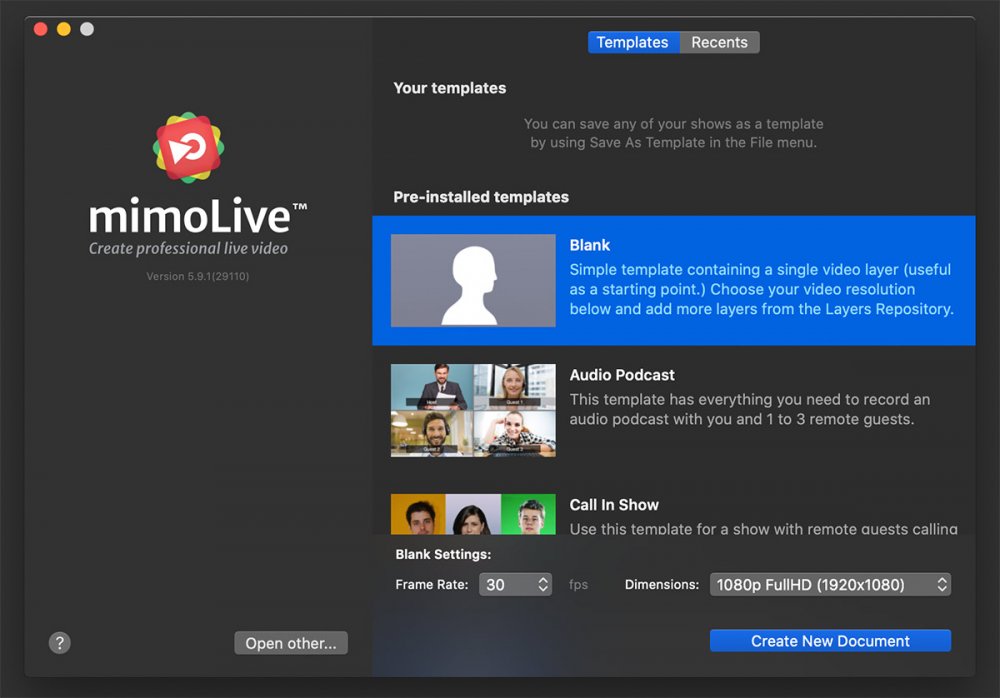
##### Opening the New Document Window
- If the window doesn’t appear, access it manually via **File > New…** from the menu bar.
- To quickly create a blank document, hold down **Option** while choosing **File > New…**. *(This bypasses the window and instantly opens an empty project.)*
##### Using the New Document Window
At the top, you’ll find tabs for:
- **Recents** – Reopen recently used documents.
- **Templates** – Browse and select templates, including: Any templates you’ve created yourself, a completely empty document, perfect for starting from scratch, Tutorial templates to learn about mimoLive or Genre Templates dedicated to a special topic. [Learn more about Templates](https://mimolive.com/user-manual/tutorials-templates/)
##### Choosing Frame Rate and Dimensions
After selecting a template:
- **Frame Rate** – Common choices are **30 fps** or **60 fps** for computer screen viewing, but you can choose others as needed.
- **Pixel Dimensions** – Select from standard video presets, or choose **Custom Dimensions…** to enter your own width and height. mimoLive supports non‑standard resolutions up to **8K UHD+ (7680 × 7680)**.
Once ready, click **Create New Document** to begin your project.
#### Working With Multiple Documents
mimoLive allows you to run multiple documents simultaneously. This is particularly useful if you’re managing different versions of a production—for example:
- One version for **live streaming**.
- Another for **live stage output**.
Both can be operated side by side.
#### Creating Your Own Templates
Templates are invaluable when you produce the same show repeatedly with a consistent setup (e.g., your studio configuration) but need to update details like titles or lower thirds for each show.
**Key Benefits:**
- Ideal for shared environments (e.g., schools) where multiple users work with mimoLive.
- Protects your original configuration from accidental changes.
**How to Create a Custom Template**:
1. Set up your document with the desired layers, sources, graphics, and configurations.
2. Go to **File > Save as Template**.
3. Enter a **name** and choose a **save location**.
Your custom template will now appear in the **Templates** tab of the New Document Window.
> **Note:** Accessing Templates via Finder
>
> Templates are stored in: ~/Library/Group Containers/6372P8EH2J.com.boinx.TVTemplates/
#### Editing a Template
- A template file uses the `.tvtemplate` extension.
- To edit, change the file extension to `.tvshow` and open it in mimoLive.
- Make the desired changes.
- Save it again as a template using **File > Save as Template**.
#### Sharing a Template
To share a template:
- The recipient can then use the template in their own mimoLive setup.
- Copy it from the **Group Container** on your account to the same location on another account or computer.
---
## Output Destinations
Source: https://mimolive.com/user-manual/using-mimolive/output-destinations/
Last updated: 2025-06-16
### What does mimo stand for?
MIMO is an acronym for multiple-input, multiple-output. mimoLive™ handles several multiple inputs of video and audio, to create a live video stream and sends it to several multiple outputs like monitors, video streaming platforms, and disk recordings.
#### mimoLive’s output overview
- [Audio Aux](https://mimolive.com/user-manual/audio-aux)
- [File Recording](https://mimolive.com/user-manual/recording-to-disk)
- [Live Streaming](https://mimolive.com/user-manual/live-streaming)
- [SDI Playout](https://mimolive.com/user-manual/sdi-playout)
- [Full Screen Playout](https://mimolive.com/user-manual/full-screen-playout)
- [Virtual Camera](https://mimolive.com/user-manual/virtual-camera) (Used for 3rd party software e.g. zoom.us)
- [NDI® Playout](https://mimolive.com/user-manual/nditm-playout)
- [mimoCall Output Destination](https://mimolive.com/user-manual/mimocall-webrtc-out)
- [Syphon Server](https://mimolive.com/user-manual/syphon) (This output option needs to be placed in the layer stack and doesn’t have a representation here.)
#### Where to find the Output destinations?
In the most right column of your [mimoLive document window](https://mimolive.com/user-manual/user-interface-overview) you will configure the Output Destinations for your live video production.
Please read on in the [Output Destinations Overview](https://mimolive.com/user-manual/output-options) to learn all about this feature.
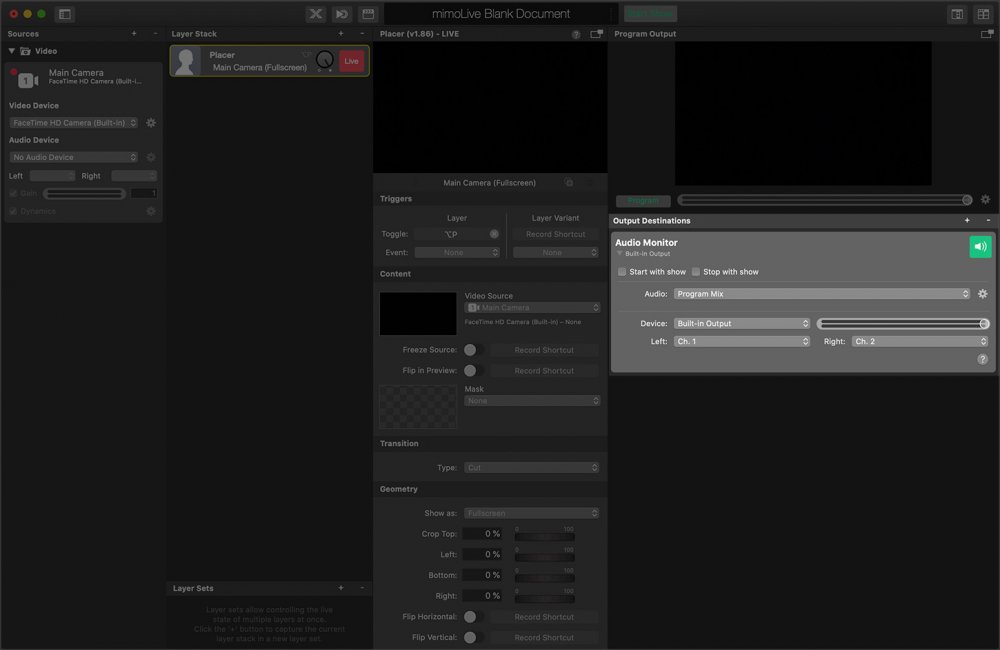
All available output destinations added to a mimoLive document:
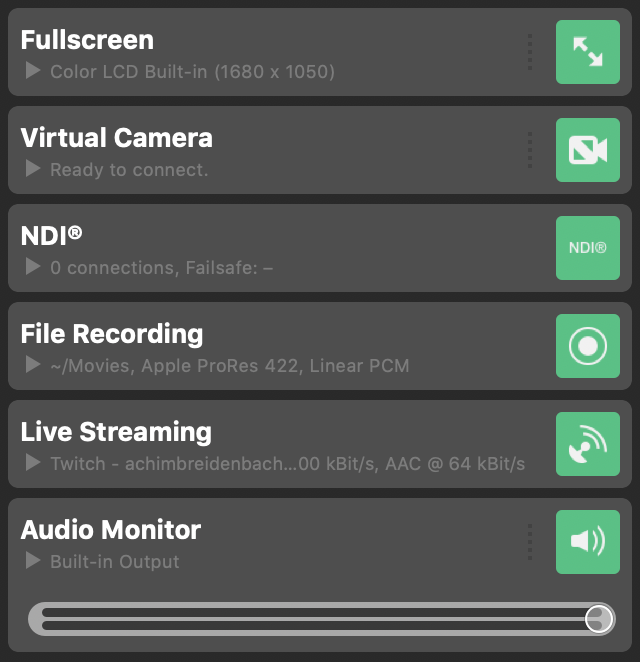
#### Where to find the Output options for resolution and frame rate?
mimoLive can create live streams up to 8K UHD+ 7680 × 7680. You can customize the resolution to your needs and computing resources. Please be aware that eventually, your current computer is not capable of handling 8K video streams. To access the settings click the clapper icon which is located on the left side of the document title at the top of the mimoLive document window.
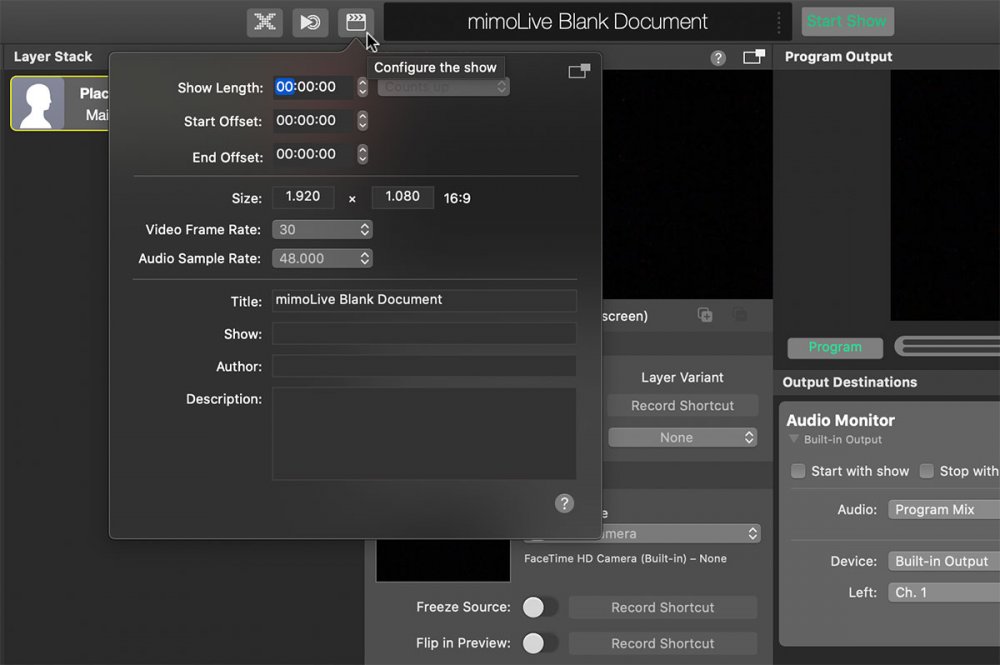
---
## Virtual Audio Device
Source: https://mimolive.com/user-manual/using-mimolive/virtual-audio-device/
Last updated: 2026-08-19
The **Virtual Audio Device** allows you to route audio between mimoLive and other applications. You can use it to send audio **from mimoLive** to external tools for mixing, processing, or applying effects. Conversely, it can also be used to route audio **into mimoLive** from sources like YouTube videos in Safari, PowerPoint or Keynote presentations, or other apps that output audio.
### How does the virtual audio device work in mimoLive?
Think of the **Virtual Audio Device** as a virtual audio cable specifically for mimoLive. It lets you route audio **from mimoLive** to other applications (like recording software, streaming tools, or audio processors), or **into mimoLive** from sources such as a web browser, YouTube video, or presentation software. mimoLive treats this device like a standard audio input or output, enabling seamless audio integration across your workflow.
### Installing the Virtual Audio Device
> **Note:** The Virtual Audo Device is available in mimoLive 6.6 and newer.
To install the **Virtual Audio Device**, open **Settings** in mimoLive and navigate to the **Extensions** tab. Click the **Install**button next to “Virtual Audio Device.”
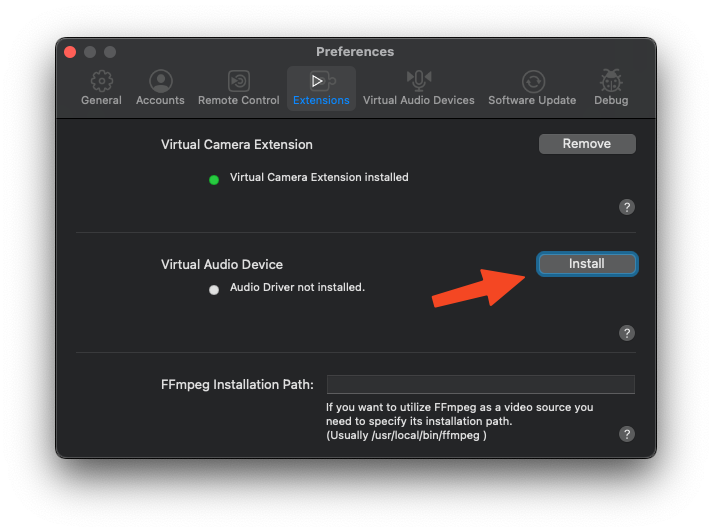
Because this component requires additional system files, mimoLive will launch an external installer. Follow the standard installation steps provided by the installer to complete the setup.
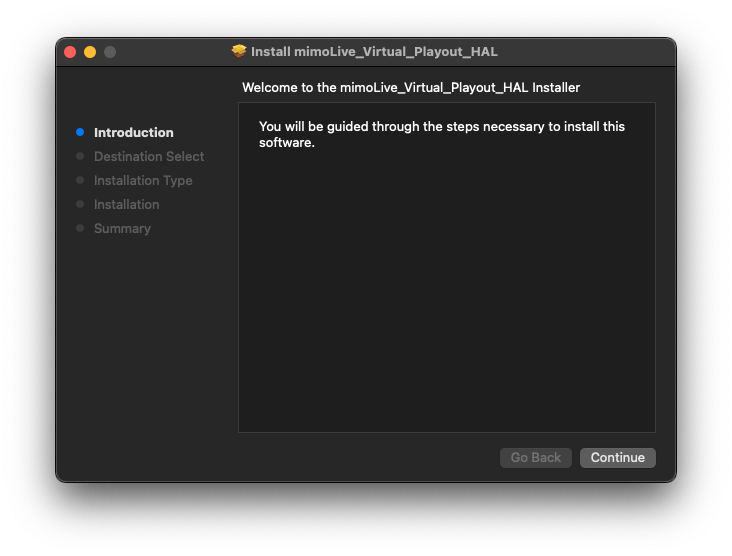
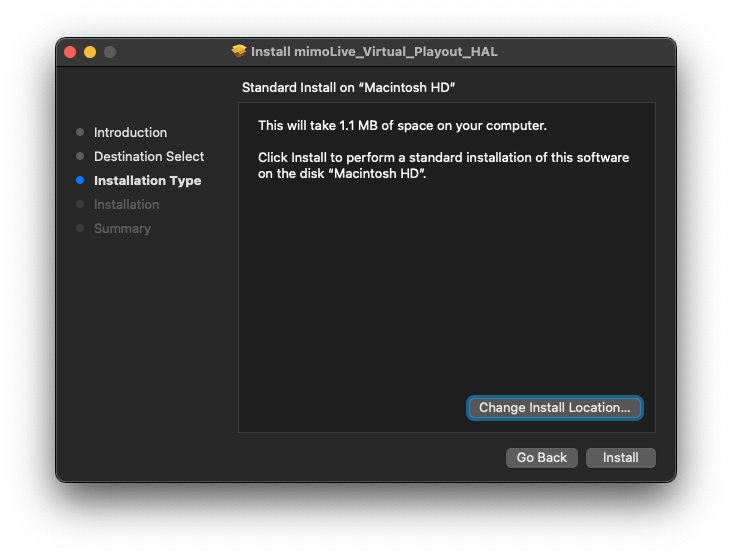
After the installation is complete, **restart your Mac** to activate the Virtual Audio Device and make it available system-wide.
### Managing Virtual Audio Devices
mimoLive allows you to use and manage **multiple Virtual Audio Devices** simultaneously. To view, add, or remove devices, go to **mimoLive > Settings**, then select the **Virtual Audio Devices** tab. This lets you tailor audio routing setups for different production needs—whether you’re sending audio to external tools or capturing sound from various sources.
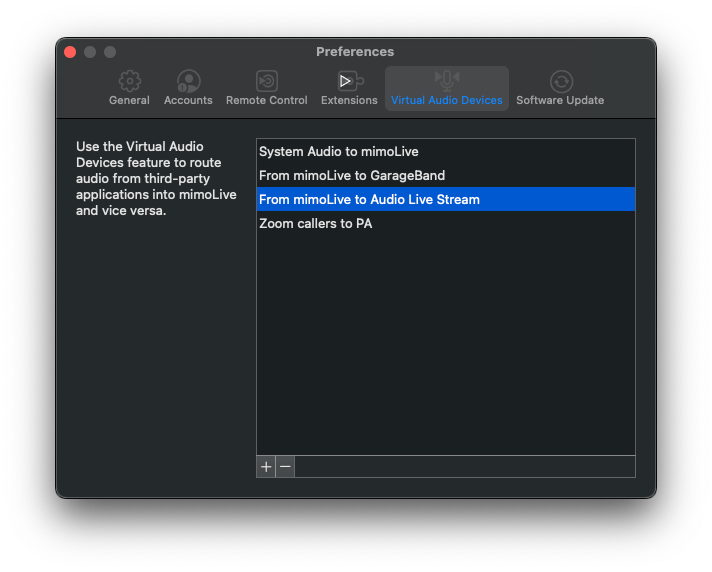
#### Adding a Virtual Audio Device
To add a new Virtual Audio Device, click the **“+”** button located at the bottom left of the **Virtual Audio Devices** list. This will create an additional virtual device that you can configure and route independently for advanced audio workflows.
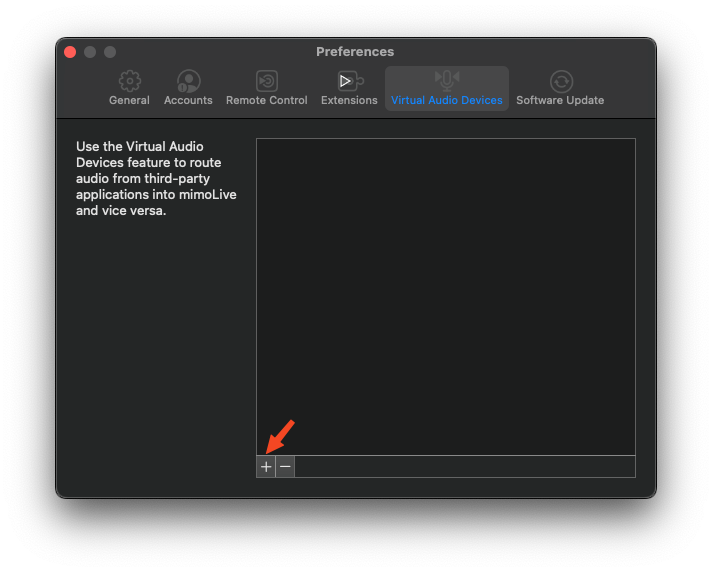
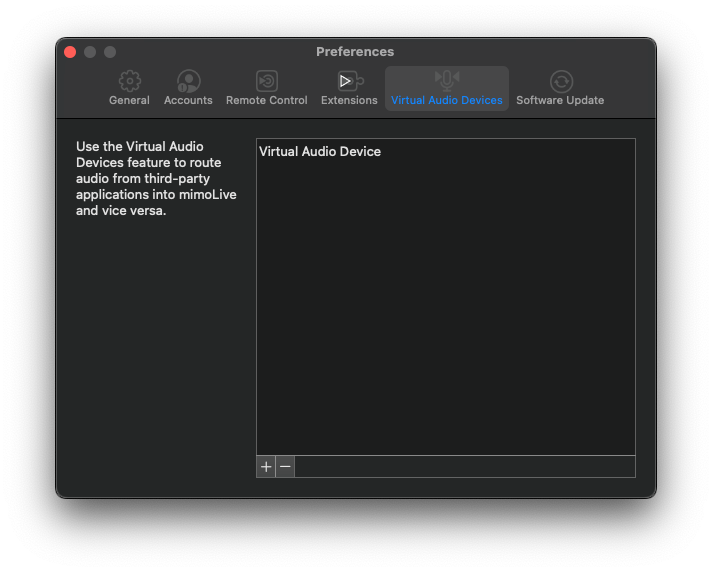
#### Renaming a Virtual Audio Device
For better organization, it’s recommended to give each Virtual Audio Device a name that reflects its specific purpose—this makes it easier to track your audio routing later.
To rename a device, simply **double-click** its current name in the list and start typing a new one.
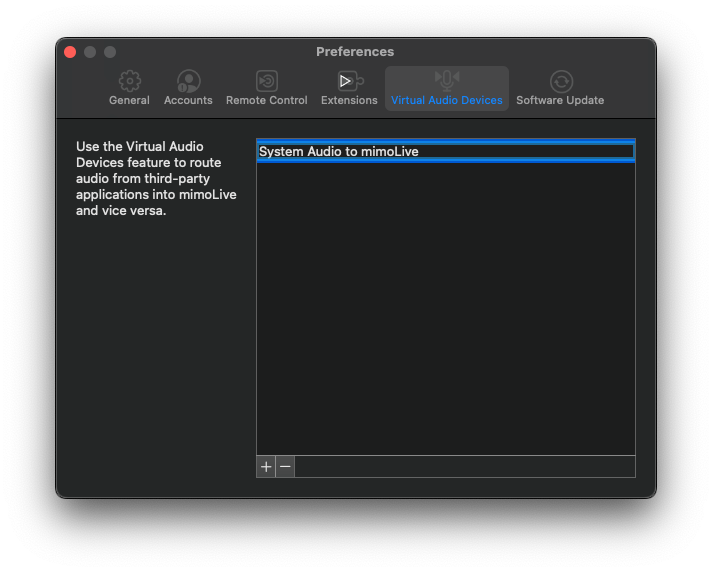
#### Using the Virtual Audio Device
Once you’ve created a Virtual Audio Device, it becomes available system-wide on your Mac, enabling flexible audio routing in and out of mimoLive.
##### Routing System Audio to mimoLive
For example, you can route your **System Output** to a Virtual Audio Device, allowing mimoLive to receive audio from any app (e.g., a browser, Keynote, or video player).
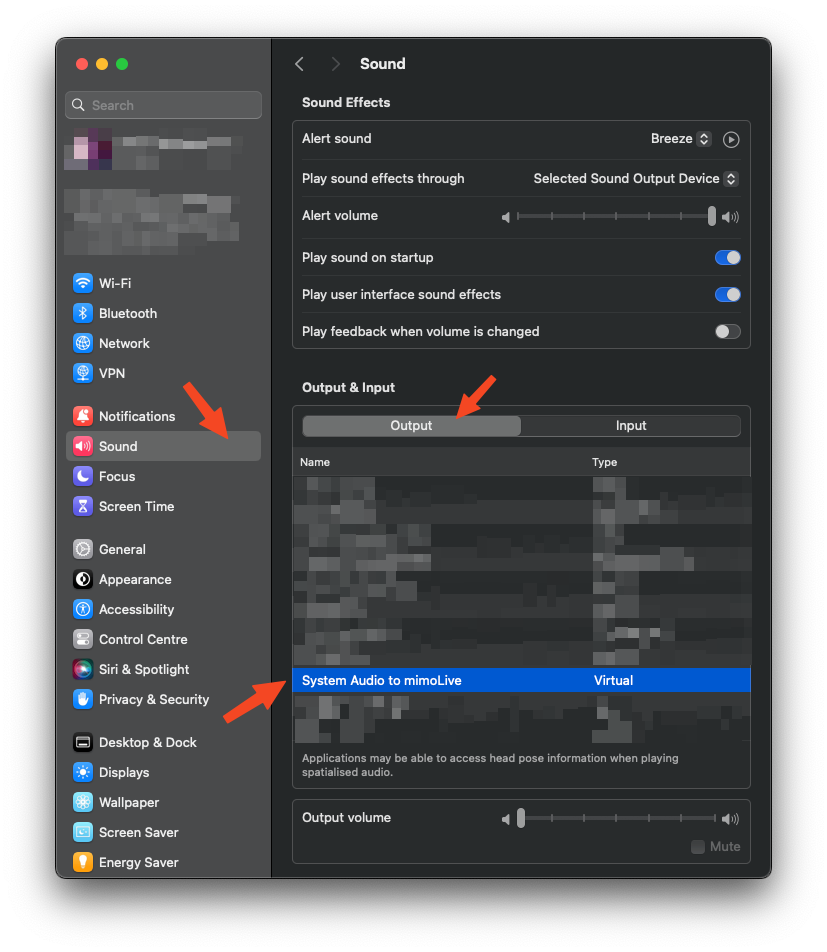
In mimoLive, add an **Audio Source** in the **Sources** panel, then select the corresponding Virtual Audio Device to start capturing that audio.
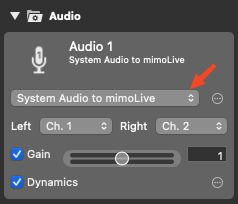
##### Sending Audio from mimoLive to Other Apps
You can also use the Virtual Audio Device to send audio **out** of mimoLive. To do this, add an **[Audio Aux](https://mimolive.com/user-manual/playout-output-destinations/audio-aux/)** output in the **[Output Destinations](https://mimolive.com/user-manual/using-mimolive/output-destinations/)** section, and choose the Virtual Audio Device as the target.
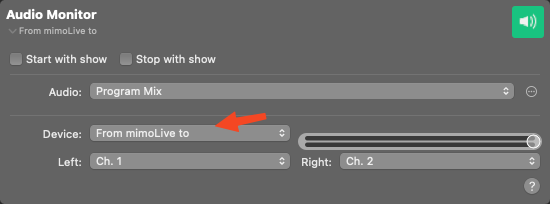
This setup allows other applications—such as **GarageBand**, **OBS**, or **Zoom**—to receive live audio from mimoLive, expanding your production capabilities.
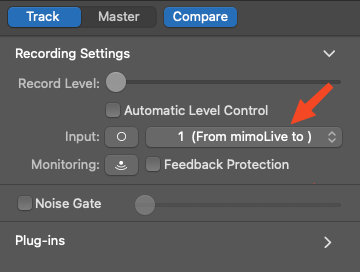
#### Removing a Virtual Audio Device
To remove a Virtual Audio Device:
- Go to **mimoLive > Settings**, then select the **Virtual Audio Devices** tab.
- Click to select the device you want to remove.
- Click the **“–”** button at the bottom left corner of the list.
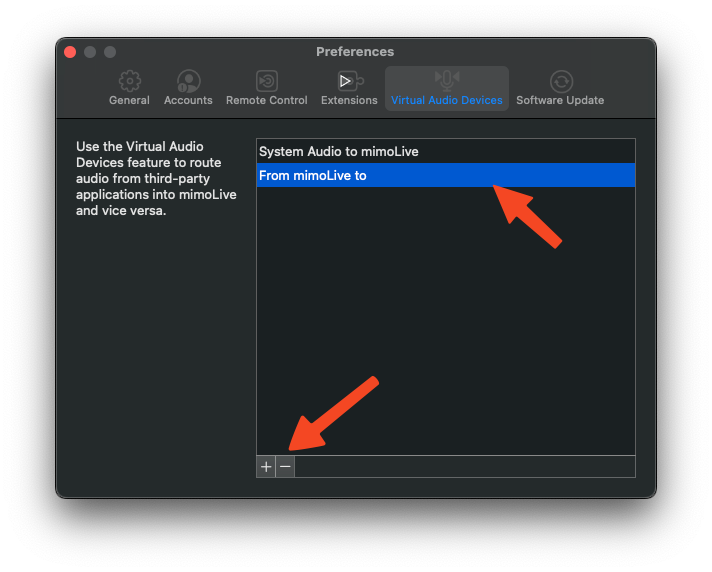
### Uninstalling the Virtual Audio Device Driver
To completely remove the **Virtual Audio Device** driver from your system:
- Open **Settings** in mimoLive and go to the **Extensions** tab.
- Click the **“Remove”** button next to **Virtual Audio Device**.
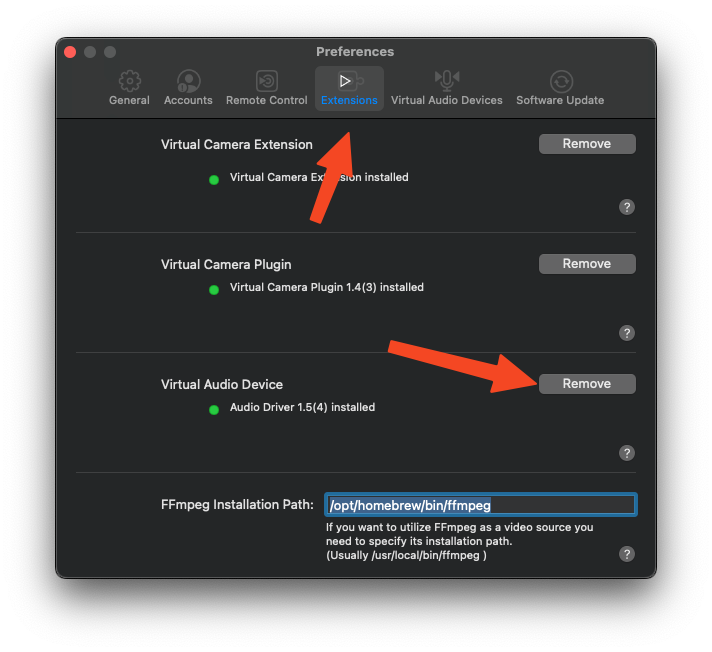
A dialog will appear, informing you that manual deletion is required. Click **“Open Finder”** to be taken directly to the file location.
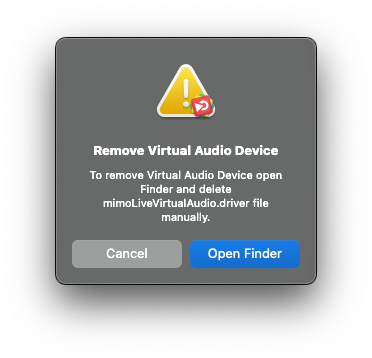
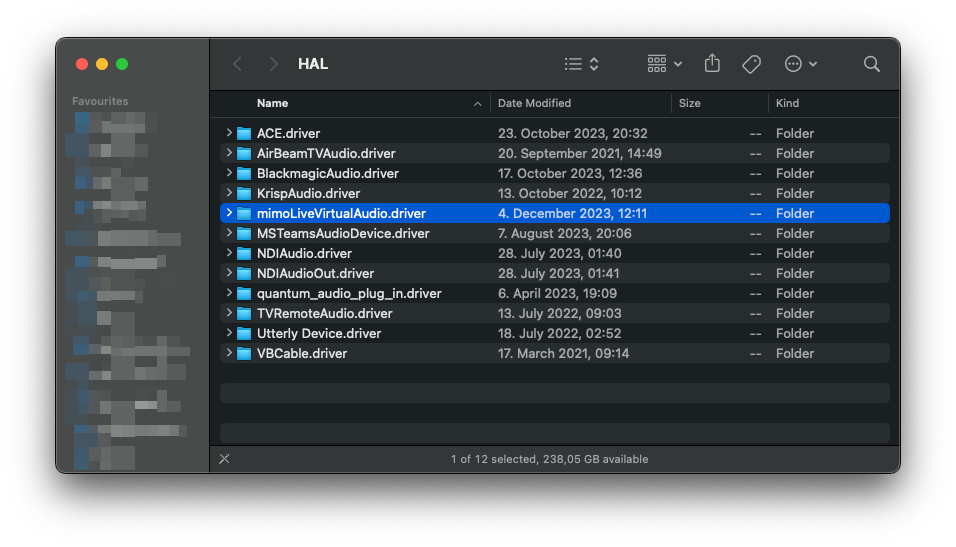
Once Finder opens, locate the **`mimoLiveVirtualAudio.driver`** folder.
Drag this folder to the **Trash** to delete it.
Finally, **restart your Mac** to fully remove the driver from the system and ensure all changes take effect.
---
## Keyboard Shortcuts
Source: https://mimolive.com/user-manual/using-mimolive/keyboard-shortcuts/
Last updated: 2026-08-19
Keyboard shortcuts provide a fast and efficient way to control mimoLive during a live show. Instead of manually scrolling through layers and selecting specific variants, you can use predefined key combinations to trigger actions instantly. This allows for smoother operation and helps maintain focus during critical live productions.
#### Assigning Keyboard Shortcuts
You can assign keyboard shortcuts in mimoLive to quickly switch cameras, trigger layers, or perform various other actions. Most trigger buttons in mimoLive include a **Keyboard Shortcut Recorder** located right next to them, making it easy to customize your workflow.
To assign a shortcut to a specific button:

1. Click the **Record Shortcut** button next to the control you want to configure.
2. The button will turn red and display **"Type Shortcut"**, indicating that it is waiting for your input.
3. Press the desired key combination on your keyboard.

The assigned shortcut is then saved as part of your mimoLive document, ensuring it's preserved and ready to use whenever you open the document again.
> **Note:** Choosing the right keyboard combination
>
> Keyboard shortcuts can be as simple as a single key or a combination of modifier keys—⌘ (Command), ⌥ (Option), ⇧ (Shift), and Control—plus another key. Single-key shortcuts are fast and easy to remember, ideal for frequently used actions. However, they can interfere with normal text input if an input field isn’t selected. Modifier key combinations (e.g., ⌘ + ⇧ + 1) reduce the risk of accidental activation and are especially useful when integrating third-party hardware or software that simulates keystrokes.
> **Note:** Reusing Shortcuts for Simultaneous Actions
>
> mimoLive allows you to assign the same keyboard shortcut to multiple controls. For example, you can use one shortcut to trigger multiple layers simultaneously, enabling complex scene changes or transitions with a single keystroke. This feature is ideal for coordinating actions across layers and streamlining your live production workflow.
> **Note:** Cancel the keyboard shortcut recording
>
> If you change your mind while assigning a keyboard shortcut, you can cancel the recording by clicking the “Revoke” icon on the right. This action will restore the previously assigned shortcut, ensuring you don’t lose your existing setup.
When your keyboard shortcut has been successfully recorded the recorder shows the appropriate shortcut.
#### Clearing a Keyboard Shortcut
To remove an assigned keyboard shortcut, click the **“×” (Clear)** button next to it.
This deletes the current shortcut, leaving the control unassigned.
If you want to change the shortcut instead, simply click on the shortcut field to **record a new one**.

#### Keyboard Shortcuts provided by mimoLive
mimoLive includes a wide range of **predefined keyboard shortcuts** that help streamline your workflow right out of the box.
##### General Keyboard Shortcuts
| Keyboard Shortcut | Action |
| --- | --- |
| ⌘A | Select all. Works in input fields. Because mimoLive only supports single selected layers or sources this has no effect on the document itself. |
| ⌘M | Minimize the mimoLive document window to the doc. |
| ⌘Z | Undo the last operation |
| ⇧⌘Z | Redo the last revoked operation |
| ⌘C | Copy the currently selected item to the pasteboard. Can be used to copy/paste layers as well. |
| ⌘X | Cut the current selection and store it on the pasteboard. |
| ⌘V | Paste the current content of the pasteboard to the current key focus. May be used to copy/paste layers as well. |
| ⌘S | Save the front most document. |
| ⇧⌘S | Save the document at a different location and/or with a different name. You will be prompted with the standard file saving dialog to select a location and a new name. |
| ⌘O | Open an existing mimoLive document. It will bring up the standard file chooser. |
| ⌘N | Open the [New Document template chooser](https://mimolive.com/user-manual/using-mimolive/templates/). |
| ⌥⌘N | Create a new blank mimoLive document. |
| ⌘W | Close the frontmost window. (This may be a different window than the main mimoLive document window. To close the front most mimoLive document window use ⇧⌘W) |
##### Special Keyboard Shortcuts
| Keyboard Shortcut | Action |
| --- | --- |
| ⇧⌘A | Add a media file to the [Source Repository](https://mimolive.com/user-manual/using-mimolive/sources-and-the-sources-repository/). |
| ⌥⌘R | Open the [Recent Recordings Window](https://mimolive.com/user-manual/playout-output-destinations/recording-to-disk/). |
| ⇧⌘R | Open the [Render Performance Monitor Window](https://mimolive.com/user-manual/diagnostics/performance-monitoring/). |
| ⌘R | Start the Show. (see [Start/Stop Show Button](https://mimolive.com/user-manual/startstop-show-button)) |
| ⌘B | Start [Full Screen Playout](https://mimolive.com/user-manual/full-screen-playout) |
| ⌘2 | Toggle the visibility of the Source Repository |
##### Keyboard Shortcuts For Working With Layers
See [Layers, Settings and Variants](https://mimolive.com/user-manual/layers-and-variants) to learn how to work with layers in mimoLive.
| Keyboard Shortcut | Action |
| --- | --- |
| ⌘L | Switch on or off the currently selected layer. (see [Layers, Settings and Variants](https://mimolive.com/user-manual/layers-and-variants)) |
| ⌘D | Duplicate the currently selected layer. (see [Layers, Settings and Variants](https://mimolive.com/user-manual/layers-and-variants)) |
| ⌘⌫ | Delete the currently selected layer. (see [Layers, Settings and Variants](https://mimolive.com/user-manual/layers-and-variants)) |
| ⌘⏎ | Collapse the variants of a layer in the layer stack. |
| ⌘↑ | Select layer above |
| ⌘↓ | Select layer below |
##### Keyboard Shortcuts For Working With Layer Variants
See [Layers, Settings and Variants](https://mimolive.com/user-manual/layers-and-variants) to learn how to work with layer variants in mimoLive.
| Keyboard Short Cut | Action |
| --- | --- |
| ⌘⏎ | Collapse the variants of a layer in the layer stack. (see [Layers, Settings and Variants](https://mimolive.com/user-manual/layers-and-variants)) |
| ⌘+ | Duplicate the currently selected layer variant. (see [Layers, Settings and Variants](https://mimolive.com/user-manual/layers-and-variants)) |
| ⌥⌘⌫ | Delete the currently selected layer variant. |
| ⌘→ | Select next layer variant. |
| ⌘← | Select previous layer variant. |
#### Using Keyboard Shortcuts for Automation
Many hardware devices and software tools can **simulate key presses** to remotely control other applications, making them ideal for automating mimoLive workflows.
When using such automation tools, we recommend assigning **complex keyboard shortcuts** that include multiple modifier keys—**⌘ (Command), ⌥ (Option), ⇧ (Shift),** and **Control**—along with a regular key.
This minimizes the risk of accidental activation by a user and helps avoid conflicts with other system or application functions.
Carefully chosen shortcut combinations ensure smooth and reliable integration with your automation setup.
> **Note:** Consider using the Remote Control Surfaces and HTTP API for Automation
>
> Instead of simulating keystrokes, consider using mimoLive’s powerful remote control features: [Remote Control Surfaces](https://mimolive.com/user-manual/remote-control-surfaces) allow you to build custom control panels accessible from any web browser, while the [HTTP API](https://mimolive.com/user-manual/http-api) enables deep integration with automation tools and scripts—making keyboard simulation often unnecessary.
##### Using AppleScript to control mimoLive
Using AppleScript directly to control mimoLive is currently not supported.
However, you have two options to control mimoLive with AppleScript:
- You can use AppleScript to trigger keyboard shortcuts. You need to record the same keyboard shortcuts in the keyboard shortcut recorder as described above. See the following example of how this works:
> tell application "mimoLive" to activate
>
> tell application "System Events" to keystroke "p" using {option down, control down}
> -- options are: command down / control down / option down / shift down
- You can trigger a “curl” terminal command with “do shell script” AppleScript command. See [Examples of API usage](https://mimolive.com/user-manual/examples-of-api-usage) to learn more.
---
## Audio Mix Panel
Source: https://mimolive.com/user-manual/using-mimolive/audio-mix-panel/
Last updated: 2026-08-19
The **Audio Mix Panel** allows you to create and configure audio mixes for use in [Output Destinations](https://mimolive.com/user-manual/using-mimolive/output-destinations/).
### Audio Mixes
Every mimoLive document includes a default **Program Mix**, which reflects the audio levels as set by the audio volume dial knobs in certain layers the [Layer Stack](https://mimolive.com/user-manual/using-mimolive/layers-and-variants/). The Program Mix represents the primary audio output of the layer stack and, as such, **cannot be renamed or removed**.
In some scenarios, it’s beneficial to create additional audio mixes within a document. Here are a few common use cases:
- **Production Monitoring**: During production, you might need to monitor all layers, a subset of layers, or a single layer at custom volume levels—independent from the Program Mix. This allows you to adjust the monitoring audio (via speakers or headphones) without affecting what is recorded or streamed.
- **In-Ear Monitoring**: Show hosts, anchors, or guests often require personalized monitoring setups. For instance, their own microphone input can be excluded from the monitor mix to avoid latency-induced confusion or potential feedback loops.
- **Multi-Stream Events and Format-Specific Recordings**: For live events with multiple language streams or for simultaneous recordings tailored to different formats (such as [D-M-E or M&E](https://en.wikipedia.org/wiki/Stem_%28audio%29#Mixing_for_films)), separate audio mixes allow for clean, format-specific outputs.
### Opening the Audio Mix Panel
You can open the Audio Mix Panel in one of the following ways:
- Choose **Window > Audio Mix Panel** from the main menu.
- Press **Option–Command–A** on your keyboard.
- In Audio Mix dropdown menus where you can create a new audio mix, selecting this option will both open the Audio Mix Panel and immediately create a new mix.
### Adding, Removing, and Renaming Audio Mixes
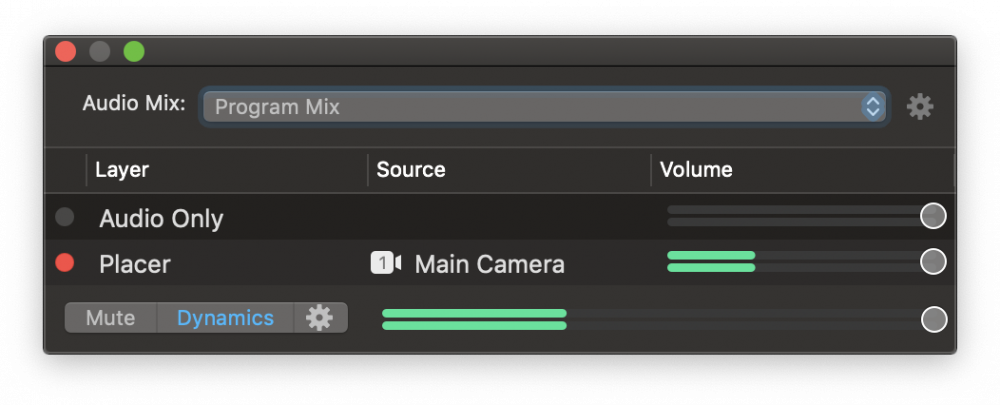
To **add a new audio mix**, click the **Audio Mix menu popup button** at the top of the Audio Mix Panel and select **“Create New Audio Mix…”**.

The newly created mix will be automatically selected, and the configuration section of the Audio Mix Panel will display the volume controls for each layer. Each audio mix receives a unique, automatically generated name.
To **rename or remove** an audio mix, click the **action button** to the right of the Audio Mix menu to open the context menu with the relevant options.
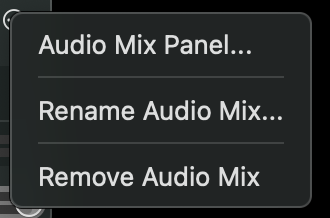
> **Note:** The Audio Mix Panel menu item is not always present
>
> The Audio Mix Panel option is only present in the context menu of supported Output Destinations, not in the context menu of the Audio Mix Panel itself.
### Working with Audio Mixes
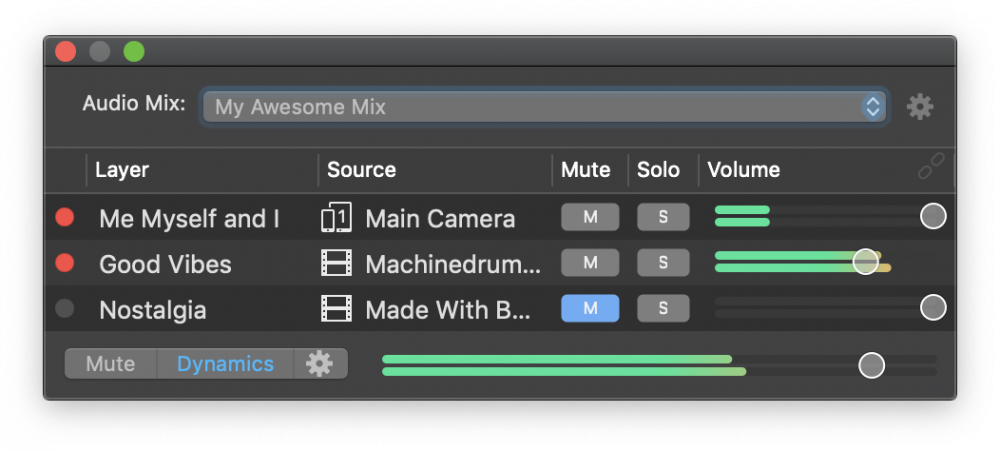
The mix configuration section displays every layer capable of producing audio—these can be identified in the Layer Stack by the presence of a volume dial knob. Layers without a volume knob do not generate audio and are therefore excluded from the Audio Mix Panel.
#### Layer Volumes
By default, layer volumes in each mix are **chained to the Program Mix**. This means they mirror the volume levels set by the dial knobs in the Layer Stack. This setup is ideal for cases where you occasionally want to:
- Mute or solo specific layers
- Adjust the master volume of the mix
- Monitor audio without altering the Program Mix
#### Chaining and Unchaining Layer Volumes
Click the **chain button** in the Volume table header to toggle between **chained** and **independent** volume modes:
- **Chained**: Volumes follow the Program Mix.
- **Unchained**: Volumes can be set independently, allowing full control over the mix.
An **unchained audio mix** behaves like a separate, fully functional mixer—ideal for creating custom monitor or stream mixes.
#### Mute and Solo Controls
- Click the **M (Mute)** button to mute a layer within the selected audio mix.
- Click the **S (Solo)** button to isolate one or more layers, muting all others.
You can mute or solo **multiple layers simultaneously** to suit your monitoring or output needs.
> **Important:** The Program Mix Can't Be Changed via the Audio Mix Panel
>
> Keep in mind: the audio portion of video sources can be routed to a separate Audio Only Layer for more control. If this workflow isn’t suitable for your setup, consider creating a custom audio mix — these support full muting and soloing of layers, offering much greater flexibility.
#### Mute, Dynamics and Master Volume of the Audio Mix
The bottom section of the Audio Mix Panel contains these additional controls:
- **Mute** mutes the whole audio mix,
- **Dynamics** de/activates the master dynamics effect for the audio mix,
- The action button opens the dynamics effect settings,
- The volume fader controls the volume of the audio mix output.
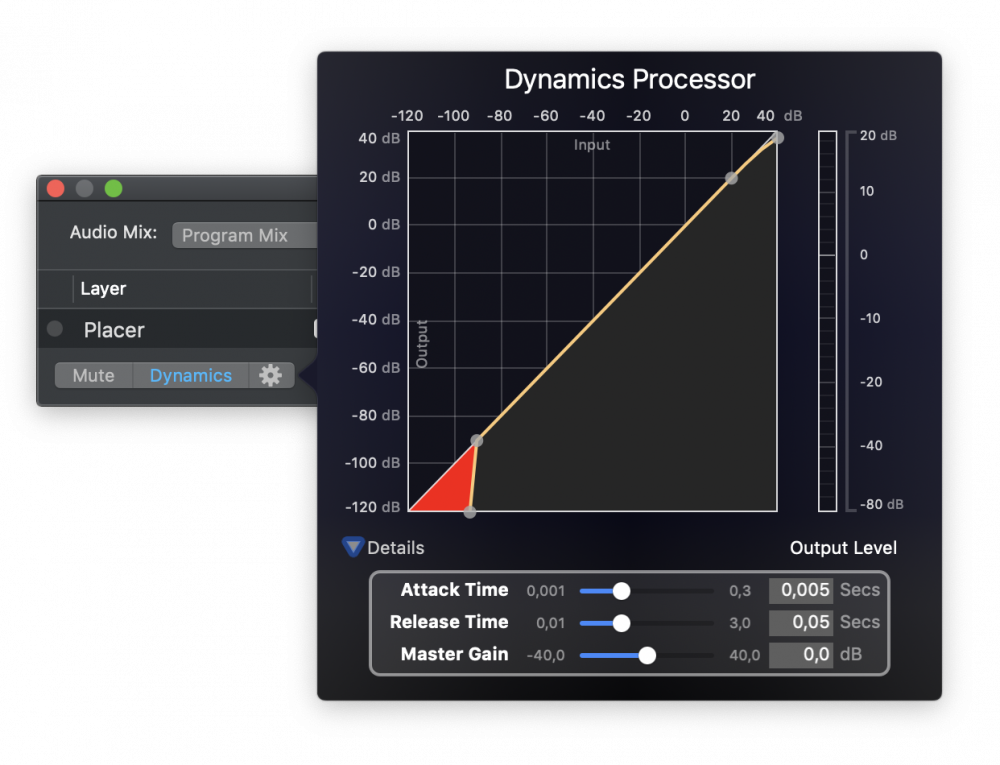
> **Important:** Muting Audio Mixes Can Disrupt Your Production
>
> Muting the wrong audio mix can unintentionally silence critical output. Always remember that an audio mix may be routed to multiple Output Destinations. For example, if the Program Mix is used both for monitoring via an Audio Aux Output and for live streaming, muting it will silence both your speakers/headphones AND your live stream. Best Practice: Instead of muting an audio mix, directly enable or disable the relevant Audio Aux Output Destination — this is far less error-prone. Use muting of audio mixes only as a last resort, such as a kill switch in live scenarios where you need to immediately stop audio (e.g. due to feedback or an unexpected disturbance) without interrupting the stream itself.
---
## Start/Stop Show Button
Source: https://mimolive.com/user-manual/using-mimolive/startstop-show-button/
Last updated: 2026-08-19
### What is the Start/Stop Show button for?
The **Start/Stop Show** button, located on the right side of the HUD at the top of the [mimoLive document window](https://mimolive.com/user-manual/user-interface-overview), is used to trigger multiple actions simultaneously at the beginning or end of a show. For example, you can configure it to start recording to disk while also activating a layer that plays your show's intro video. This makes it easy to automate your production workflow with a single click.
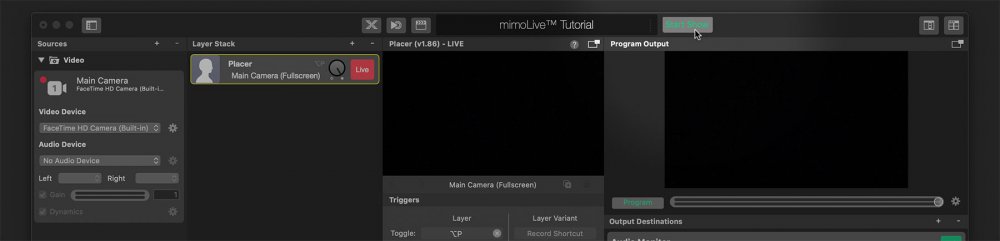
### Things Triggered by the Start/Stop Show Button
he **Start/Stop Show** button triggers specific events that can be received by various components within mimoLive.
- The **Start Show** event is triggered when the show transitions from a stopped to a running state.
- The **Stop Show** event is triggered when the show is stopped.
To understand the full behavior and configuration of these events, please refer to the article on [Show Settings](https://mimolive.com/user-manual/using-mimolive/show-settings/).
#### Triggering Layers with Start or Stop Show Events
Each [**layer** and **layer variant**](https://mimolive.com/user-manual/using-mimolive/layers-and-variants/) in mimoLive can respond to the Start or Stop Show events. These behaviors can be configured in the **Parameter Panel** of each layer.
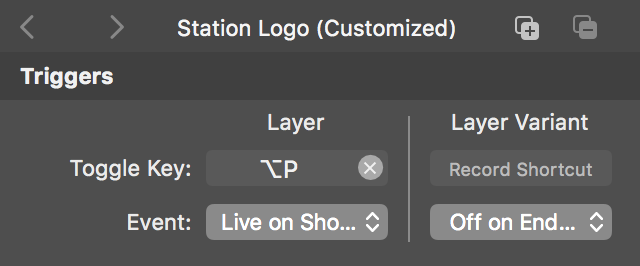
Available options are:
- **Live on Show Start**
Sets the layer (or a specific variant) to go live automatically when the show starts.
*Use case:* Play an intro movie or display a station logo as soon as the show begins.
- L**Live on End Trigger**
Sets the layer (or a variant) to go live when the show ends.
*Use case:* Trigger rolling credits or an outro video when the show stops.
- **Off on End Trigger**
Automatically removes the layer (or variant) from live output when the show ends.
*Use case:* Hide the station logo at the end of a broadcast.
> **Note:** The timing of the event triggers can be controlled in the Show Settings Panel
>
> The Start Event will be sent to the output destinations immediately, however, it can be delayed for the layers in order to give you some seconds in advance in a recording or streaming before the actual show begins. The Show End Event will be set to the layers immediately while as for the output destinations it can be delayed. This can be configured in the Show Settings Panel.
> **Note:** Make Use of the Automation Layer
>
> The Automation Layer supercharges the capabilities of Start and Stop Show events. By combining them with the events, you can trigger complex sequences—such as activating multiple layers in order, timing transitions precisely, or turning off various Output Destinations one after another.
#### Triggering Layer Sets with Start or Stop Show Events
In addition to individual layers, [Layer Sets](https://mimolive.com/user-manual/using-mimolive/layer-sets-scenes/) can also be recalled automatically by the Start or Stop Show events. This allows you to activate or deactivate multiple layers simultaneously, providing even more control and automation for your production workflow.
In the **Layer Set** configuration panel, you can enable automatic recall of the set using the following options:
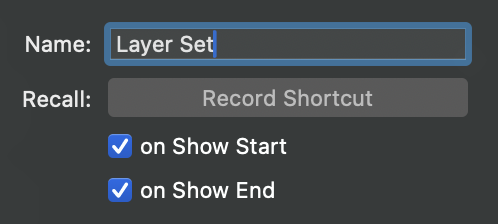
- **on Show Start**
The Layer Set will be recalled automatically when the show starts. This is useful for setting up your initial layer configuration—such as showing logos, lower thirds, or camera presets—at the beginning of your broadcast.
- **on Show End**
The Layer Set will be recalled automatically when the show ends. This can be used to transition to an outro layout, hide on-air graphics, or reset the interface.
You can enable one or both options depending on your production needs. These settings make it easy to automate transitions between different stages of your show with minimal manual control.
#### Triggering Output Destinations with the Start or Stop Show events
Each [Output Destinations](https://mimolive.com/user-manual/output-options) in mimoLive can be configured to automatically start or stop in sync with your show. This allows you to streamline your workflow by linking output actions—such as recording, streaming, or broadcasting—to the **Start/Stop Show** button.
You can configure this behavior in the **Settings panel** of each Output Destination using the following options:
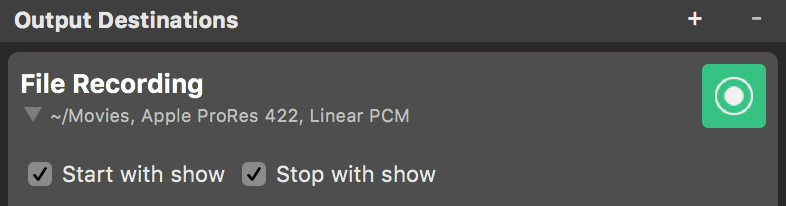
- **Start with Show** – Activates the output when the show starts.
- **Stop with Show** – Deactivates the output when the show ends.
Additionally, the **Start/Stop Show** button itself displays icons that indicate which output destinations are set to respond to the show events. This provides an at-a-glance overview of which outputs will be triggered automatically.

### Example Scenario
The event-based triggering system in mimoLive is a powerful tool for automating production tasks.
Imagine you're live streaming an all-day event with multiple speeches. You want the **live stream** to run continuously, but you also want to **record each speech individually**, including a branded **intro** and **outro**.
Here’s how you could set it up using show event triggers:
- The **Intro Layer** is set to **Live on Show Start**, so it automatically plays when you begin recording a speech.
- The **Outro Layer** is set to **Live on End Trigger**, so it plays when you stop the recording.
- Use the **End Offset** parameter (set to the duration of the outro video) to delay stopping the recording until the outro finishes playing.
- The **Start/Stop Show** button is configured to **trigger only the “Recording to Disk”** Output Destination.
- The **Streaming Output Destination** is not configured to respond to the Start or Stop Show events, so the stream continues uninterrupted throughout the day.
Between speeches, you can manually activate a layer that displays a “Next session starts soon” message to keep your viewers informed.
This setup gives you precise control over recording individual segments while maintaining a seamless live stream.
---
## Controlling PTZ Cameras in mimoLive
Source: https://mimolive.com/user-manual/using-mimolive/controlling-ptz-cameras-in-mimolive/
Last updated: 2025-05-29
mimoLive offers robust integration with various PTZ (Pan-Tilt-Zoom) cameras, providing users with a range of controls depending on the camera type. Whether you’re using **[Axis PTZ cameras](https://aixs.com)**, **[PTZOptics](https://ptzoptics.com/mimolive/)[cameras](https://ptzoptics.com/)**, or **[NDI® cameras](https://ndi.video/)** such as [Sony](https://sony.com), [Panasonic](https://panasonic.com), [Lumens](https://www.mylumens.com/de/Products/1/PTZ-Camera) or others, mimoLive provides intuitive layers to manage and control these devices directly within your live production workflow.

**Controller layer for PTZ cameras in mimoLive**
### What is a PTZ camera?
A **PTZ camera** is a type of video camera equipped with mechanical controls that allow it to **pan** (move horizontally), **tilt** (move vertically), and **zoom** (adjust the lens to focus closer or further away) remotely. PTZ cameras are widely used in live broadcasting, security systems, video conferencing, and event streaming because they provide flexibility in capturing different angles and zoom levels without needing a camera operator in reach of the hardware or even on-site. With the ability to move and adjust focus through software or hardware controllers, PTZ cameras are ideal for dynamic environments where multiple perspectives are required, enabling operators to create engaging, multi-angle video streams or recordings.
### **PTZ Camera Layers and Controls in mimoLive**
mimoLive provides a comprehensive suite of layers and controls for managing PTZ cameras from multiple manufacturers. Whether you’re using Axis, PTZ Optics, or NDI® cameras, mimoLive’s specialized layers ensure that you can control and switch between cameras seamlessly during your live productions.
Here’s an overview of the current layers and controls available for PTZ cameras in mimoLive:
- **Axis® Controller Layer:** Dedicated controls for Axis PTZ cameras.
- **PTZOptics® Layer:** Integration with PTZOptics cameras via Visca over IP.
- **PTZ Controller Layer:** General controls for NDI® cameras.
- **Multiview:** Manage and control multiple NDI® cameras from the multiview layout.
- **NDI Camera Source**: Manage the camera positions
#### 1. Axis® Controller Layer
- **Layer Type:** Dedicated to controlling **Axis® PTZ Cameras**.
- **Functionality:**
- This layer is specifically designed for cameras from [Axis® Communications](https://axis.com), which are well-known for their high-quality PTZ IP cameras.
- Users can control pan, tilt, zoom, and other camera settings directly from within mimoLive.
- The integration allows for smooth camera movement and remote adjustments during live broadcasts.
- This layer utilizes automatic face tracking to smoothly follow and adjust the camera’s movement in sync with the speaker.
- **Use Case:**
- Ideal for security, live events, or broadcasting where Axis® PTZ cameras are used as the main video source.
[More about the Axis® Controller layer](https://mimolive.com/user-manual/live-editing/layers/axis-controller/)

#### 2. PTZOptics® Layer
- **Layer Type:** Optimized for controlling **[PTZOptics cameras](https://ptzoptics.com/)**
- **Functionality:**
- mimoLive provides built-in support for PTZ Optics cameras, one of the leading manufacturers of PTZ cameras, offering reliable remote control for professional live streaming.
- Full integration with mimoLive makes it easy to switch between presets, adjust camera positions, and zoom remotely.
- **Use Case:**
- Perfect for corporate presentations, houses of worship, or any scenario where PTZ Optics cameras are used to capture multiple angles with precision.
[More about the PTZOptics Controller layer.](https://mimolive.com/user-manual/live-editing/layers/ptzoptics-controller/)

#### 3. PTZ Controller Layer (various NDI® Cameras)
- **Layer Type:** General **PTZ Camera Controls** for **NDI® cameras**.
- **Functionality:**
- This layer enables full control over [NDI](https://mimolive.com/technology/ndi/)-enabled PTZ cameras.
- With this layer, mimoLive users can control all major PTZ functions (pan, tilt, zoom) and recall of predefined positions of NDI® cameras from within the software interface.
- **Use Case:**
- Ideal for multi-camera setups in studios or live streaming events where NDI® cameras are utilized to deliver high-quality video over a network.

#### 4. Multiview (NDI® Cameras)
If a video source is PTZ-enabled via NDI®, mimoLive provides intuitive control elements directly within the [Multiview](https://mimolive.com/user-manual/using-mimolive/multiview/). These controls offer the ability to pan, tilt, and zoom (PTZ), making it easy to adjust the camera’s view in real-time without leaving the software interface.
- **View Type:** **Multiview PTZ Camera Controls** for **NDI® cameras**.
- **Functionality:**
- This allows users to view and control multiple NDI® cameras simultaneously in a **multiview** layout, making it easy to manage several cameras at once.
- Similar to the PTZ Controller Layer, it supports full control over pan, tilt, and zoom functions, with the added benefit of previewing multiple cameras side-by-side.
- **Use Case:**
- Designed for complex live productions such as sports events, concerts, or conferences, where multiple NDI® cameras are in use and need to be controlled from a single interface.
[More about the Multiview in mimoLive](https://mimolive.com/user-manual/using-mimolive/multiview/).
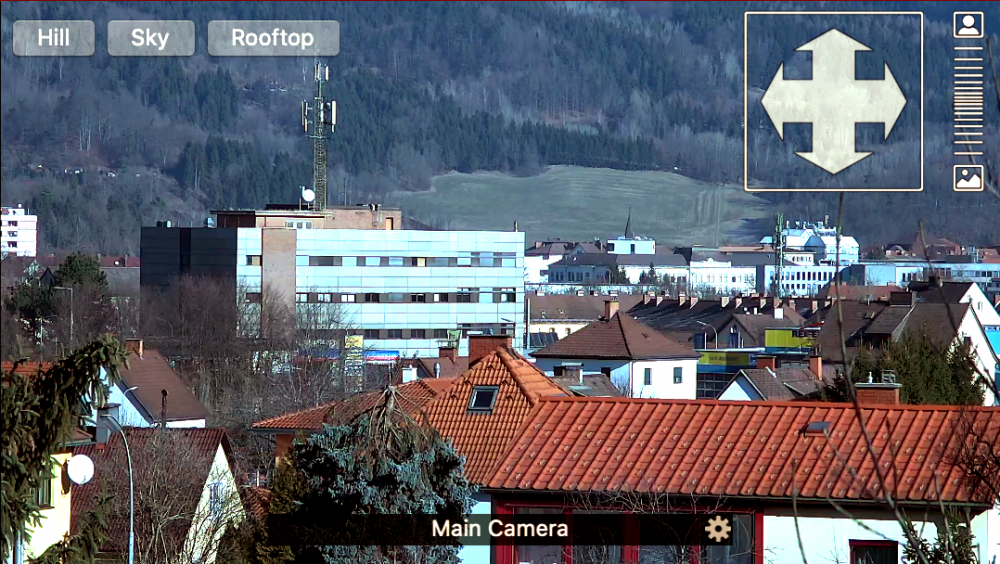
#### 5. NDI® Camera Source
- **Input Source:** Manage the specific camera positions for each NDI® camera individually
- **Functionality**:
- Set positions and rename the preset positions for each camera. The names will appear in the Multiview PTZ camera controls.
- Move the camera to the positions (Recall)
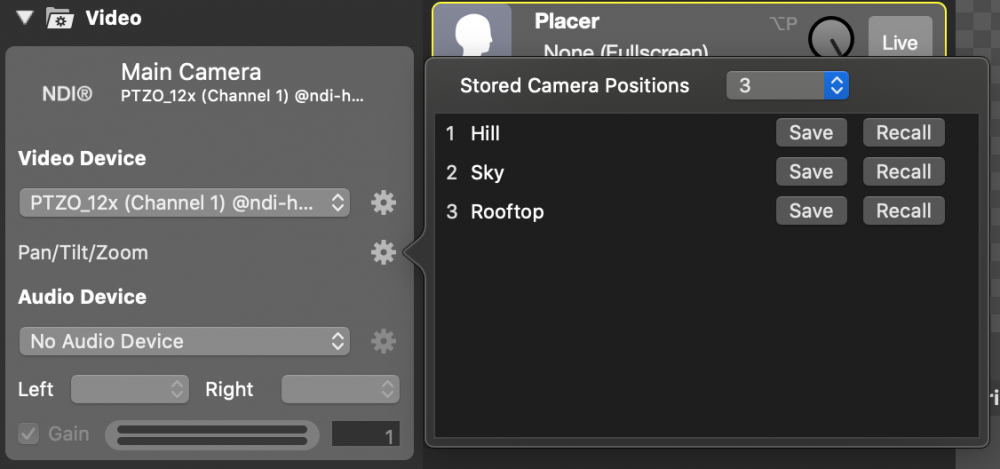
---
## Multiview
Source: https://mimolive.com/user-manual/using-mimolive/multiview/
Last updated: 2026-08-19
### What are Multiviews in mimoLive?
The **Multiview** feature provides a comprehensive overview of your video sources and layers. Each mimoLive project includes two independent Multiviews:
- One is located in the **middle column** of the [main document window](https://mimolive.com/user-manual/using-mimolive/user-interface-overview/).
- The other appears as a **floating window**, which can be repositioned freely.
The floating Multiview is particularly useful for external monitors, allowing you to optimize your workspace by dedicating a separate screen to monitoring sources and outputs.
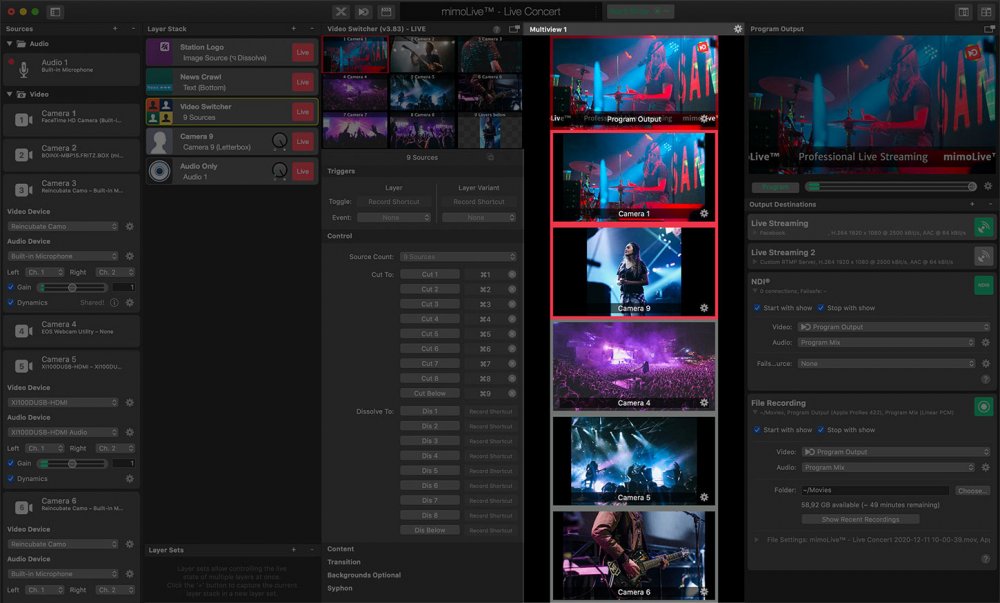
### Enabling The Multiviews
If you prefer to keep everything within a single window, you can enable the Multiview panel in the **mimoLive document window**:

1. Click the **left Multiview button** located in the upper-right corner of the window toolbar.
2. This action opens a new column between the **Layer Stack** and the **Program Out**, displaying the Multiview.
The **Program Out** will be hidden automatically to make space for the Multiview because the Program Out is part of the multiview by default.
Alternatively, you can open a **separate floating window** with an independent Multiview:

- Click the **right Multiview button** in the window toolbar.
This floating window can be moved to a second screen, offering a flexible way to monitor video sources and outputs independently.
> **Note:** Use the Floating Multiview Window in Full-Screen Mode on a Secondary Monitor
>
> You can move this window to a secondary display and switch it to full-screen mode by clicking the green full-screen button in the upper-left corner of the window (macOS standard) to maximize visibility and focus. This is especially useful in control room environments or live productions, where monitoring multiple sources clearly and without distraction is critical.
### Setting Up The Multiviews
By default, the **Multiview** displays four video sources, including the **Program Out**. You can customize the number of views and their layout using the **action gear icon** located in the upper-right corner of the Multiview panel.
#### Automatic Layout
When the **Multiview Layout** is set to **Automatic**, mimoLive dynamically calculates the size and position of each view to make optimal use of the available space. This mode ensures that all sources are clearly visible, regardless of the number of views selected.
In the **Screen Count** pop-up menu, select the number of views you want to display in the Multiview.
Enabling the **First Screen Exposed** option gives priority to the first view. This view will always occupy the **top portion of the Multiview**, making it larger and more prominent than the others. This is ideal for highlighting the Program Out or another critical source.
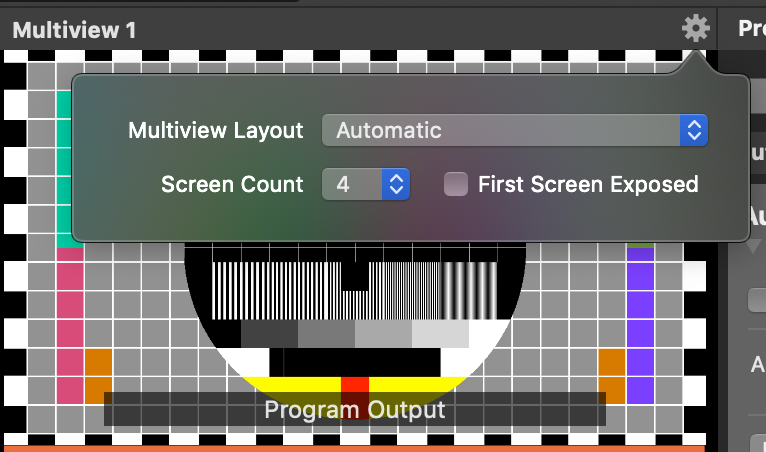
#### Using A Multiview Preset
mimoLive provides several **predefined Multiview layouts** commonly used in the broadcast industry. These presets offer quick and convenient ways to arrange your video sources for optimal monitoring.
To select a preset:
1. Click the **action gear icon** in the upper-right corner of the Multiview panel.
2. Choose a layout from the **Multiview Layout** menu.
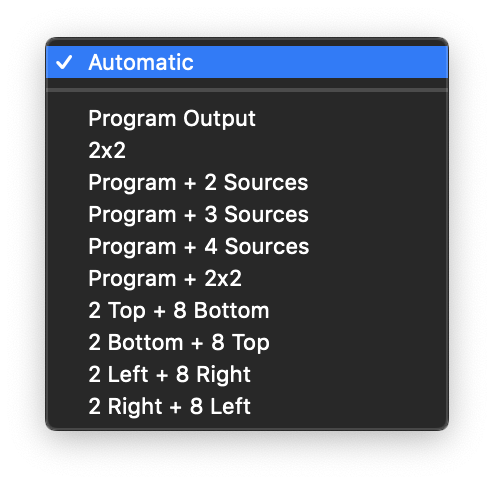
- Program Output
- 2×2
- Program + 2 Sources at the bottom
- Program + 3 Sources at the bottom
- Program + 4 sources at the bottom
- Program + 2×2
- 2 Top + 8 Bottom
- 2 Bottom + 8 Top
- 2 Left + 8 Right
- 2 Right + 8 Left
Examples:
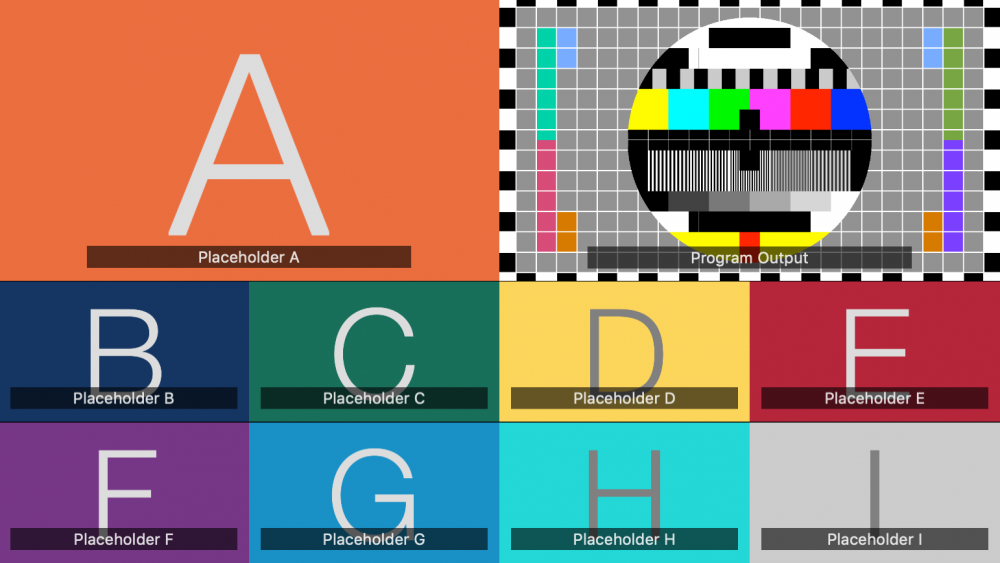
#### Changing The Video Sources In The Multiview
You can easily assign specific video sources or output destinations to each view in the **Multiview**.
There are two ways to do this:
1. **Drag and Drop**
Simply drag a source from the **[Source Repository](https://mimolive.com/user-manual/using-mimolive/sources-and-the-sources-repository/)** and drop it onto the desired view in the Multiview. Alternatively you can drag & drop Output Destinations from the [Output Destination List](https://mimolive.com/user-manual/using-mimolive/output-destinations/).
2. **Use the View Popup Menu**
Click on the **name tag** located at the bottom of a Multiview panel. A popup menu will appear, allowing you to select from all available video sources or output destinations.
This flexible assignment method allows you to customize your Multiview layout to suit your live production needs.
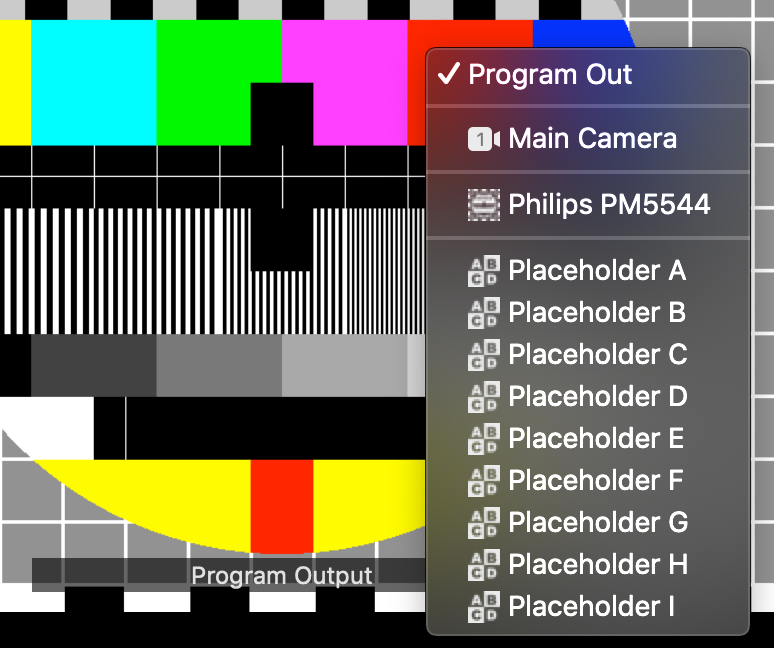
> **Important:** Program Out can only be assigned via the name tag in the Multiview.
>
> Because the Program Out can’t be dragged from anywhere, it must be assigned by clicking on the name tag in the Multiview and selecting it from the popup menu.
> **Note:** Switch Video Sources Without Selecting the Video Switcher Layer
>
> With this setup, you can switch video sources in the Video Switcher layer directly from the Multiview, even if the layer is not currently selected in the Layer Stack.
### Optional Overlays in the Multiview
The Multiview can display additional information and controls, depending on the capabilities of each video source:
#### Audio Meter
The Audio Meter displays real-time audio levels for a video source—but only if that video source has an audio device assigned directly to it. This provides a quick visual reference for monitoring embedded or attached audio from cameras or other sources.
#### Tally State
The Tally State indicator as a ribbon around the view shows whether a video source is currently live (red) or in preview (yellow). This is useful for production workflows where clear visual feedback helps avoid switching mistakes.
#### PTZ Controls
If a video source supports PTZ (Pan-Tilt-Zoom) functionality via NDI®, PTZ controls can be enabled in the Multiview. These allow you to adjust the camera position and zoom directly from within mimoLive, offering fast and precise framing during live operations.

##### **Preset Positions**
In the upper left corner, you can access buttons to recall preset positions for pan, tilt, and zoom. You can pre-configure these positions, specifying how many preset buttons should appear in the Video Source itself.
In the video device settings from the Sources panel, you can further adjust the “Pan/Tilt/Zoom” positions, rename the positions to your needs, save the current position, or press recall to move the camera into the saved position. The save command will overwrite the last saved position.

##### ****Pan And Tilt Controls****
In the upper right corner of the video source, you’ll find crossed arrows. Clicking and dragging in this area allows you to pan (move horizontally) or tilt (move vertically) the camera in any direction.
##### ****Zoom Control****
To zoom in or out, simply drag the striped bar in the upper left corner of the view.
### Combine Multiview and Video Switcher
To **trigger sources** in a [Video Switcher layer](https://mimolive.com/user-manual/video-switcher) by clicking on views in the Multiview, you must ensure that the Multiview displays the same [Video Sources](https://mimolive.com/user-manual/sources-and-the-sources-repository) that are configured in the Video Switcher layer.
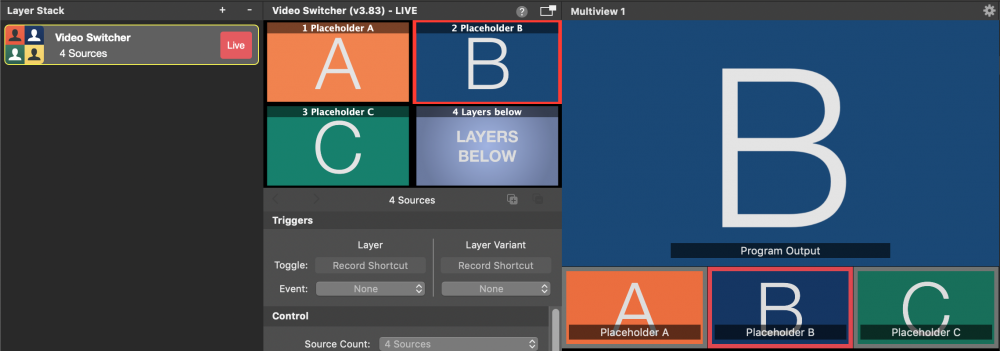
A **red ribbon** in the Multiview indicates which source is currently **active in the Program Out**.
---
## Layer Sets (Scenes)
Source: https://mimolive.com/user-manual/using-mimolive/layer-sets-scenes/
Last updated: 2026-08-19
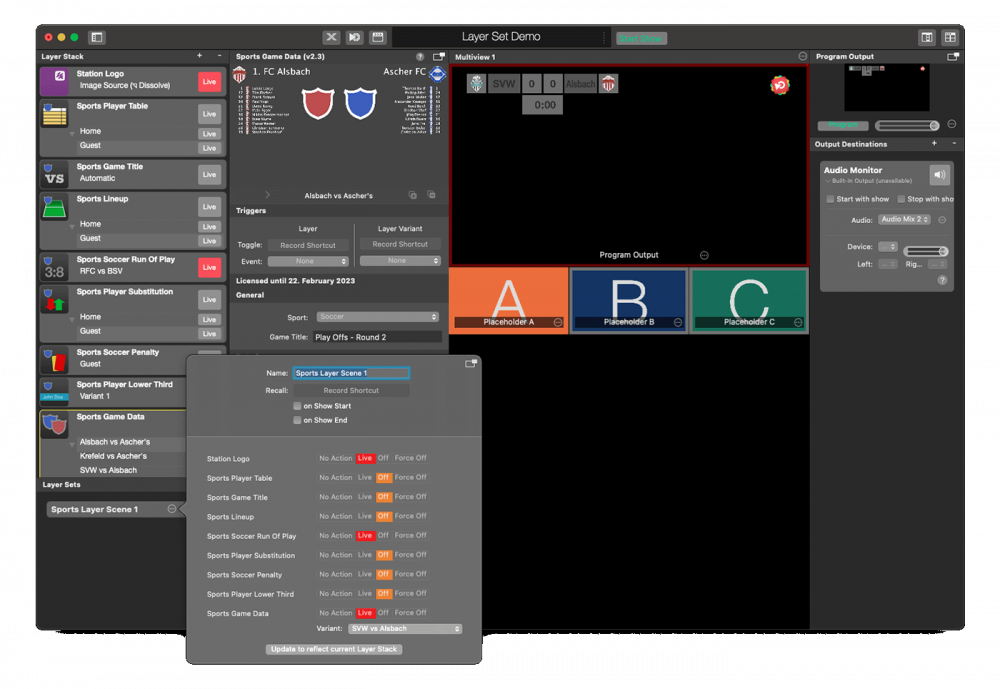
#### What are Layer Sets?
Layer Sets in mimoLive are a powerful feature that allows you to manage the visibility and arrangement of multiple layers as a group. In a typical mimoLive document, you often work with several layers—such as lower-thirds, video sources, clocks, overlays, and other visual elements—that need to appear or disappear together depending on the context of your production. Layer Sets make this process efficient, repeatable, and seamless.
A Layer Set defines a set of live state changes for each layer—such as leaving it unchanged, switching it live or turning it off. Instead of toggling layers manually during a live broadcast, you can apply a Layer Set with a single click or keystroke to quickly switch between predefined layer configurations—for example, jumping from a “Pre-Show” setup to a “Live Interview” or from “Game View” to “Commentator View.”
Layer Sets help ensure consistent and error-free transitions between different parts of your show. They also enhance the flexibility of your workflow, allowing you to rehearse and refine your visual setups in advance and then trigger them with confidence during a live production.
Layer Sets can also be triggered by the [Remote Control Surface](https://mimolive.com/user-manual/remote-control-surfaces) or the Show Start event.
Layer Sets are shown below the [Layer Stack](https://mimolive.com/user-manual/layers-and-variants):
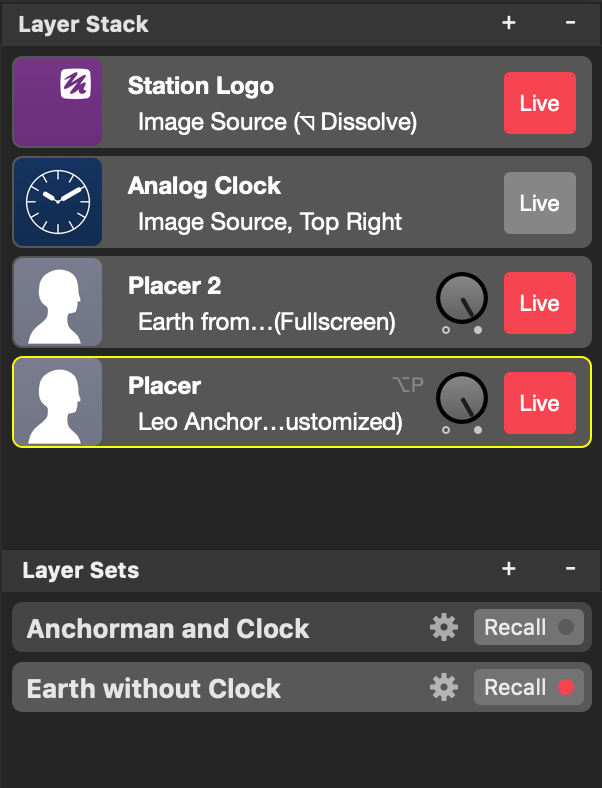
#### Creating a Layer Set
If you are happy with the current live state of your layers you can click on the “+” button in the top right corner of the Layer Sets list (below the Layer Stack). The current Layer stack live states are stored in a new set.
> **Note:** Layer Sets are only controlling the live state of layers but not their content
>
> Please note that the Layer Set will only activate or deactivate layers but they won’t restore the content or the state of a layer nor the selected Layer Variant.
#### Deleting a Layer Set
To remove a Layer Set you need to select it in the Layer Set List below the Layer Stack. Once its selected click on the “-” button in the upper right corner of Layer Set List.
#### Recalling a Layer Set
If you have defined a Layer Sets you can recall the state of those Layers by activating the Layer Set. There are different ways to trigger a recall of a Layer Set:
- You can click on the “Recall” button of a Layer Set.
- You can assign a keyboard short cut for each Layer Set and hit those buttons.
- In the [Remote Control Surface](https://mimolive.com/user-manual/remote-control-surfaces) you can specify a custom action for a button that will trigger a Layer Set.
- If you toggle the “Start Show” button in the main window this can also trigger a Layer Set.
> **Note:** Activation Indicator turns red even if you change layers manually.
>
> Once the current live state of all layers reflects the actions defined in a Layer Set the Activation Indicator turns red. This happens not only if you trigger a Layer Set by clicking on it but also if you manually switch on or off layers directly in the Layer Stack and accidentally match a Layer Set state. Whenever the live states of the layers reflect a “result” of triggering a Layer Set then this Layer Set gets turned on red.
#### Finetuning a Layer Set
When you click on the action gear button at a Layer Set you will get a popover window revealing details of the Layer Set like its name, assigned keyboard shortcut, possible event triggers and the actions that are performed for each layer.
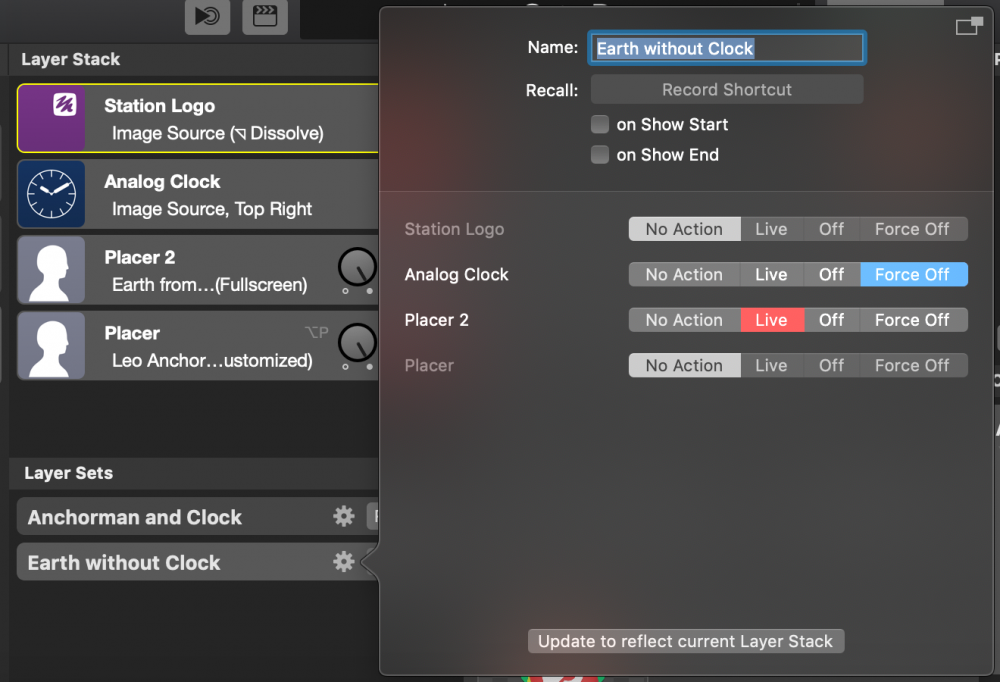
##### General Settings of Layer Sets
In the upper part of the Layer Set configuration window, you can specify a name for the Layer Set so you can easily remember what this Layer Set is meant to do. (You can also change the Name of a Layer Set by double-clicking its name label in the Layer Set List.)
With the keyboard shortcut recorder, you are able to define a certain key combination that will recall this Layer Set. Click on "Record Shortcut" and hit the keys on the keyboard you want to use as a trigger.
The “Recall on Show Start” and “Recall on Show End” options can be used to trigger this Layer Set if you click the [Start/Stop Show Button](https://mimolive.com/user-manual/startstop-show-button) in the main document window to start or stop your show.
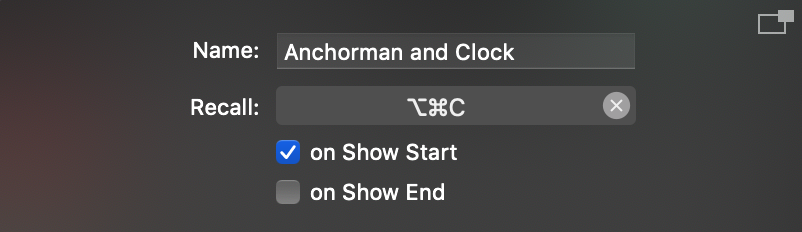
##### Layer Actions
Whenever you create a Layer Set, the current live state of all layers in the Layer Stack is captured. However, in certain setups, you may prefer to leave some layers unaffected when recalling a Layer Set.
Additionally, you might want to avoid waiting for a layer's out-transition when it gets switched off. To address this, you can fine-tune the behavior of each layer when recalling a specific Layer Set.
There are four options available for each layer in a Layer Set:
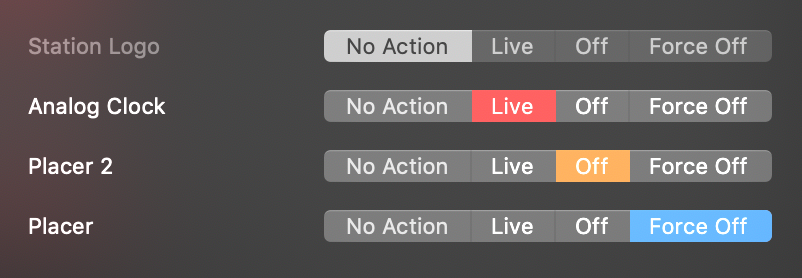
| No Action | This layer won’t be altered by this Layer Set. |
| --- | --- |
| Live | This layer will be switched to live if not already done so. |
| Off | This layer will be turned off. If a layer has an out transition (e.g. a hiding animation in a Lower Third layer) this outro will be performed. |
| Force Off | This layer will be turned off immediately. A possible out transition will be skipped. |
#### Best Practice
Layer Sets are a powerful tool for streamlining your live production. Here are some best practices to help you get the most out of them:
- **Use Remote Control Surfaces for Triggering Layer Sets**
Integrate a [Remote Control Surface](https://mimolive.com/user-manual/using-mimolive/remote-control-surfaces/) to trigger Layer Sets easily. This minimizes mouse interaction during live broadcasts and helps you stay focused on the flow of the show.
- **Trigger a Layer Set with the "Recall on Show Start" Option**
Assign a Layer Set to the *Recall on Show Start* action to automatically set up your initial scene—activating overlays, setting the correct camera angle, and playing an intro animation or video. This ensures a consistent and professional start every time.
- **Use "Recall on Show Stop" in combination with Stop Delay for a Smooth Outro**
Configure the **Recall on Show Stop** option in combination with a show stop delay in the [Show Settings](https://mimolive.com/user-manual/using-mimolive/show-settings/) to automatically run an ending sequence—such as switching to a wide camera, lowering overlays, and starting rolling credits—without rushing the final moments of your show.
- **Pre-Initialize Layers Before Going Live**
To avoid frame drops when activating layers for the first time, run all layers live once before the show starts. This ensures they are pre-initialized and ready to switch smoothly during the broadcast.
- **Name Your Layer Sets Clearly**
Give each Layer Set a descriptive name to identify them quickly. This is especially helpful when managing multiple sets under time pressure.
- **Organize Layer Sets in Logical Groups**
Arrange Layer Sets according to show segments (e.g., *Intro*, *Interview*, *Gameplay*, *Break*, *Outro*). This structure reduces cognitive load during the show and allows for smoother transitions. You can use drag & drop to reorder the Layer Sets in the list.
- **Test All Layer Sets in a Rehearsal**
Always rehearse with your configured Layer Sets before a live broadcast. This helps catch mistakes, such as missing layers or incorrect transitions, and ensures everything behaves as expected.
> **Important:** Switching many layers at once may stall the render engine
>
> The first time a layer is switched live in a mimoLive session, its initial run routine is triggered, which may briefly tax the render engine and cause a dropped frame or a momentary stutter in the program-out feed. To avoid this, you can pre-activate all layers once before going live to initialize them and ensure smooth performance during the show.
---
## Layers and Variants
Source: https://mimolive.com/user-manual/using-mimolive/layers-and-variants/
Last updated: 2026-08-19
In mimoLive, layers hold every ingredient of the final video composition. The concept is taken from how we create real-world photo collages and work in the same way. The lowest layer is in the very background, the highest layer is in the foreground of the composition. The overall final video output is called the program out.
mimoLive has lots of different types of layers. Please refer to the [Layer Library](https://mimolive.com/user-manual/layers) for a list of available layers.
### The Layer Stack
The layer stack in mimoLive is the area of[the document window](https://mimolive.com/user-manual/using-mimolive/user-interface-overview/) which holds all layers of the project.
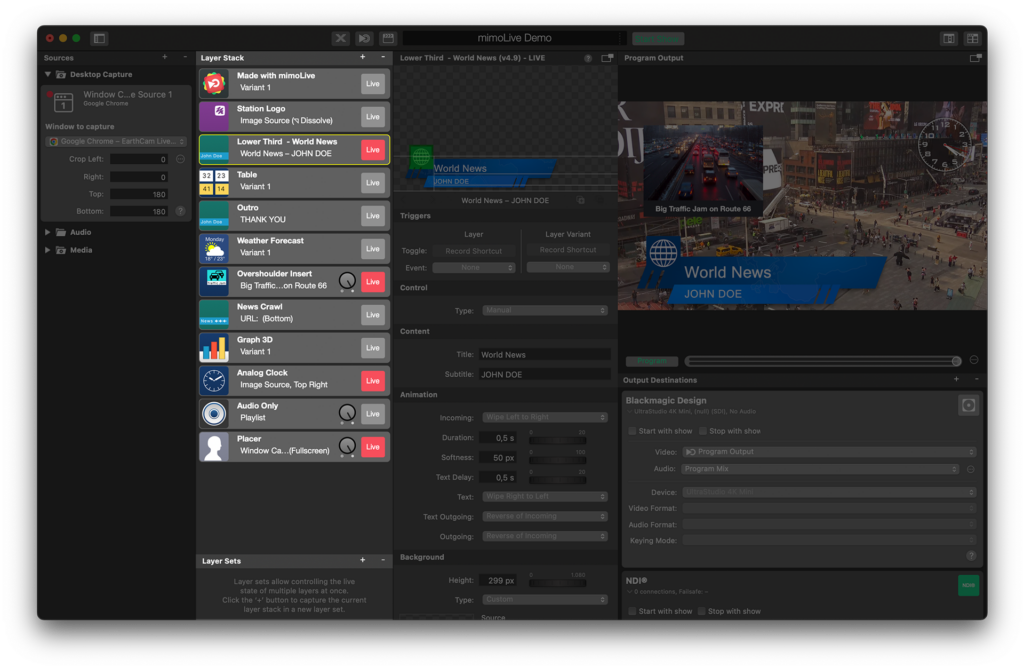
### Layers
#### Example of Layers in mimoLive
In this example, there are three layers used. The [Background layer](https://mimolive.com/user-manual/live-editing/layers/background/), a [Placer layer](https://mimolive.com/user-manual/live-editing/layers/placer/) containing the speaker video and a [Lower Third layer](https://mimolive.com/user-manual/live-editing/layers/lower-third/) which contains name and title information.
#### Adding A New Layer To The Layer Stack
There are three ways to add a new layer to the layer stack:
- Drag a source from the [Sources Repository](https://mimolive.com/user-manual/sources-and-the-sources-repository) to the layer stack.
In the case of a visual source, you will get a preconfigured [Placer layer](https://mimolive.com/user-manual/placer) which displays the source in full-screen mode.
In the case of an [Audio source](https://mimolive.com/user-manual/sources-input/audio/), you will get an [Audio Only layer](https://mimolive.com/user-manual/audio-only).
- Click on the “+” button on the top right of the layer stack to open the Layer Templates Library. Find your layer and drag it to the layer stack at the position you want the layer to be.
- Click on the “+” button on the top right of the layer stack to open the Layer Templates Library. In the Layer Templates Library double click on the Layer Template you want to add. The new layer will be added on top of the currently selected layer. You may need to reorder the layer position within the layer stack to meet your needs.
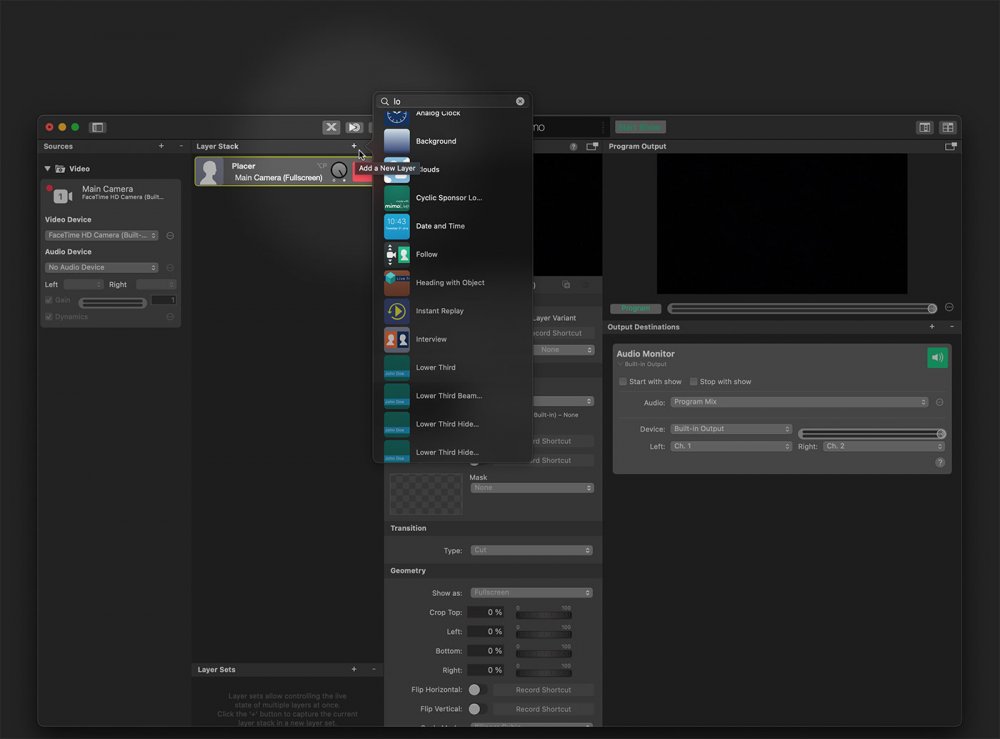
#### Reordering Layers in the Layer Stack
Because it is important at which position a layer is placed in the layer stack you may need to reorder the layer e.g. to bring a background behind a transparent ([chroma keyed](https://mimolive.com/user-manual/special-topics/chroma-keying-green-screen/)) video source.
To reorder the layers in the layer stack simply drag the layer to the new position in the layer stack.
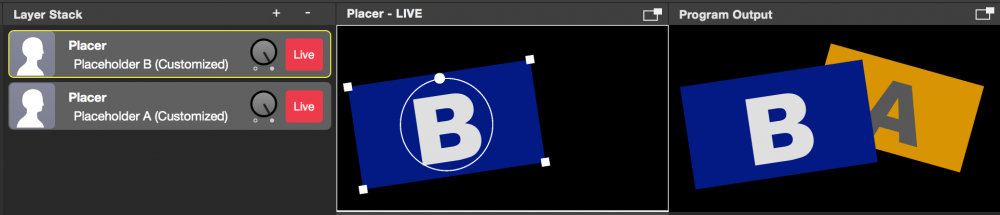
Dragging the top layer (Placer layer with placeholder “B”) to the bottom brings it behind the placeholder “A” in the Program Output.
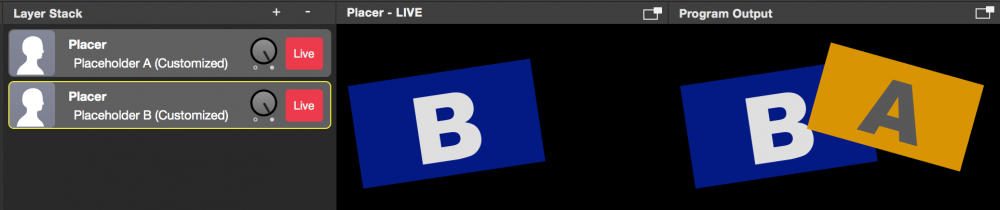
#### Removing A Layer From The Layer Stack
Layers can be deleted in two ways.
- Select the layer
- Click on the “-” button on top of the layer stack to remove it permanently.
Or:
- Seelect the layer
- Hit “cmd” ⌘ + “backspace” on your keyboard at the same time.
#### Copy/Paste Layers
Layers can be copied and pasted between mimoLive documents, as well as dragged and dropped. For example, if you've created a specific design for a Lower Third layer in one mimoLive document (or found one of your interest in the [Lower Third Playground template](https://mimolive.com/user-manual/tutorials-templates/layer-designs/lower-third-playground/)), you can select it, press ⌘-C, switch to another document, select a layer, and press ⌘-V to insert the copied layer above the selected one. Alternatively, you can simply drag the layer from one document to another.
> **Note:** Take a Close Look at Sources Associated with the Layer!
>
> Media files associated with the copied layer will be transferred to the destination document. However, other source types will not be copied automatically—you'll need to manually create those sources in the destination document and reconnect them to the pasted layer.
### Layer Variants
**Variants** store sets of settings. For example, instead of having five individual Lower Third layers with a different name each, you can have one Lower Third layer with five Variants.
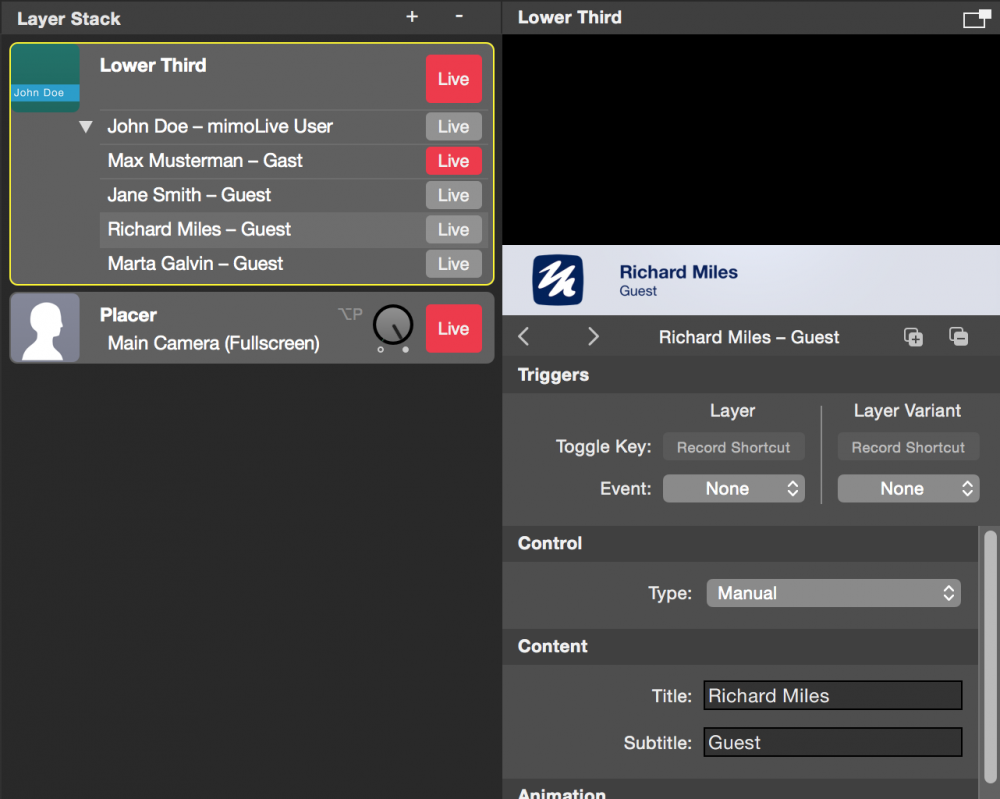
#### Why Use Layer Variants?
- **Mutual Exclusivity:** Layer Variants cannot be active at the same time. This ensures that only one version of the layer (e.g. a Lower Third) is shown in the program output at a time, preventing visual clutter or accidental overlap.
- **Smooth Transitions:** Some layers support animated transitions between variants. For example, the [*PIP Window* layer](https://mimolive.com/user-manual/live-editing/layers/picture-in-picture-window-layer/) animates the position of the window when switching from one variant to another, creating a smooth, professional-looking transition.
Each variant can have its own keyboard shortcut trigger or button in the [Remote Control Surface](https://mimolive.com/user-manual/remote-control-surfaces).
Please note that there are different information to see in the variants list:
- The little “Live” button (below the big “Live” button) can be used to switch a certain variant live. If another variant is currently live this variant will be switched off (some layer has a transition between variants, most don’t)
- The little “Live” button indicates with red that this variant is currently live. This information is independent of the select state of a variant!
- The light grey background indicates that this variant is currently selected for preview on the right. This is independent of the live state of a variant!
> **Important:** The selected variant doesn’t need to be the live variant! If the output doesn’t show what the previews show it’s most likely because you selected a different variant than the live one.
#### Adding Variants To A Layer
To add a Variant to a layer, follow these steps:
1. **Select the layer** you want to add a Variant to in the layer stack. A preview of the layer will appear on the right
2. **Click the “+” button** at the top of the preview settings. This will create a new Variant by duplicating the currently selected one.
3. If you want to duplicate a specific Variant, **select it first** from the list of Variants in the layer stack before clicking the “+” button.
> **Note:** Design First, Duplicate Later
>
> Since the settings of Variants are independent of one another, it's a good idea to finalize the visual design of a layer before creating multiple Variants. For example, first design the graphical appearance of a Lower Third, then duplicate it into multiple Variants and update each with different titles and subtitles. However you can copy and paste specific parameters later on if necessary.
#### Collapsing Variants In The Layer Stack
If you have many Variants and want to reduce visual clutter in the layer stack, you can collapse the list of Variants for a particular layer. To do this, click the **white triangle** to the left of the Variants list in the layer stack.
##### Understanding the Variant Indicators
- A **white dot** marks the currently *selected* Variant. This is the Variant that will go live when you press the layer's Live button.
- A **red dot** indicates the *currently live* Variant.
ou can navigate through Variants using the **arrow buttons** next to the dot indicators, or **click directly on a dot** to instantly select a specific Variant.
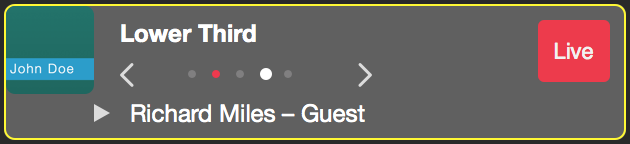
> **Note:** Step Through Variants During Live Shows
>
> The ability to step through Variants is especially useful when you have a predefined sequence to follow during a show. For example, if you're hosting a show with several guests appearing one after another, you can prepare a set of Lower Third Variants in advance—each with the name and title of a guest in the correct order. During the show, you simply step through the Variants one by one as each guest appears.
#### Renaming Variants
By default, Variants are automatically named based on the behavior of the layer. However, you may want to rename a Variant to something more meaningful for your production workflow.
To rename a Variant, you can:
- **Double-click** on the Variant’s name to edit it directly in place.
- **Right-click** on the Variant’s name to open the context menu, then select **“Rename Layer Variant”** to enter name edit mode.
Giving your Variants descriptive names helps keep your project organized and makes switching between them during a live show easier.
#### Removing Variants From A Layer
To remove a Variant from a layer, follow these simple steps:
- **Select the Variant** you want to remove from the Variant list in the layer stack. The preview for that Variant will appear on the right.
- **Click the “–” button** at the top of the preview settings to delete the selected Variant.
### Editing Layer Settings
Each layer type in mimoLive has its own unique set of parameters, known as *layer settings*. To edit these settings, select the desired layer in the layer stack. A preview of the layer will appear to the right of the layer stack, and the corresponding settings will be displayed below the preview image.
Scroll down to view and adjust all available parameters.
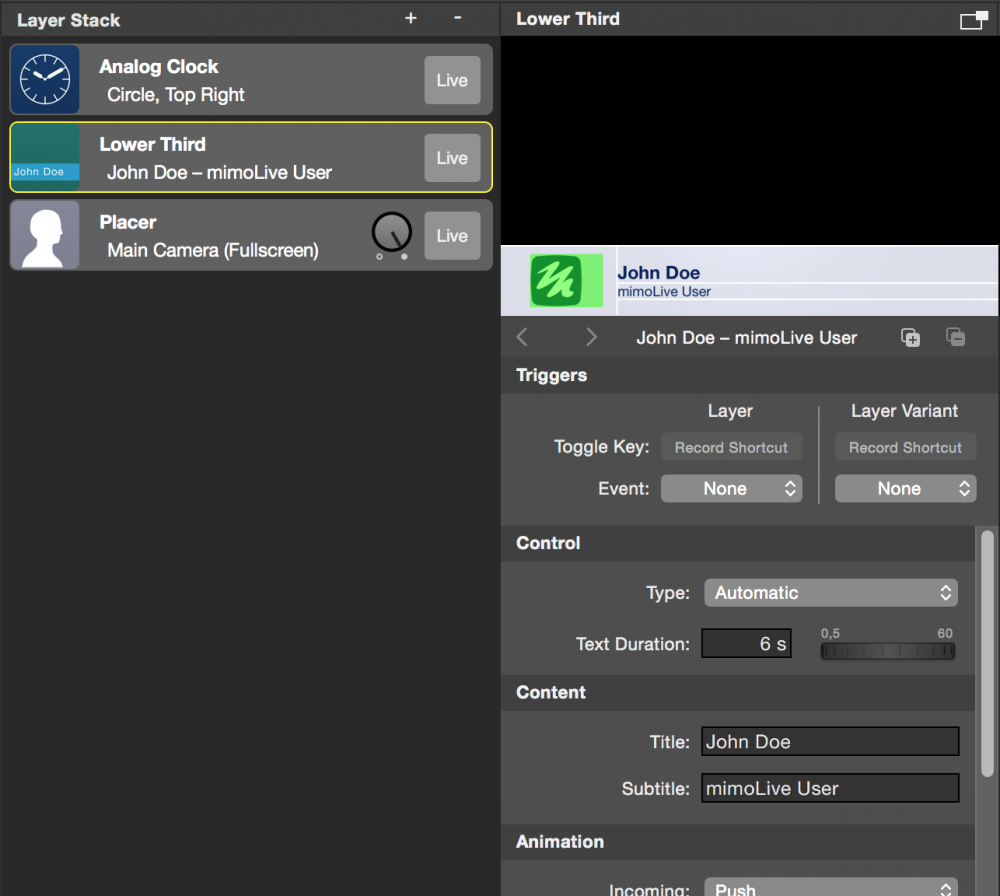
#### Common Layer Settings
All the layers have certain settings in common. The Event Triggers are described in the [Start/Stop Show Button](https://mimolive.com/user-manual/startstop-show-button) section.
#### Individual Layer Settings
Many layers in mimoLive support *direct manipulation*, allowing you to interact with elements or guides directly in the preview area. When you adjust elements this way, the corresponding values in the settings panel below the preview will update automatically.
However, not all settings can be modified through the preview. For example, attributes such as color, font face, font size, and overall behavior settings must be adjusted in the settings panel.
To make the most of each layer's capabilities, it's recommended to explore all available settings and experiment with different configurations.
#### Copy and Pasting Layer Attributes
If you have multiple layers of the same type in your layer stack, you can quickly transfer all settings from one layer to another using the following steps:
1. **Right-click** on the *source layer* in the layer stack to open its context menu.
2. Select **“Copy Layer Attributes.”** The parameters of this layer will be copied to the clipboard.
3. **Right-click** on the *destination layer* to open its context menu.
4. Choose either:
- **“Paste Layer Attributes”** to apply the copied settings to the currently active Variant of the destination layer, or
- **“Paste Attributes to All Layer Variants”** to apply the copied settings to all Variants of the destination layer.
This is especially useful when you want to maintain a consistent design or behavior across multiple similar layers.
> **Important:** All Layer Attributes Will Be Overwritten
>
> lease note that using this method will override all parameters in the destination layer. This includes any manual changes you've made—such as the name and subtitle in a Lower Third layer, for example. Make sure to double-check whether you want to preserve any custom edits before pasting layer attributes. (see box below)
> **Note:** Edit or Remove Attributes Before Pasting
>
> Layer attributes are copied to the pasteboard as XML-formatted text, which makes it easy to review, modify, or remove values using a text editor.
Before pasting to another layer, you can:
- **Change values** directly in the XML.
- **Delete specific parameters** to avoid overwriting existing content in the destination layer.
For example, to prevent overwriting the Title and Subtitle of a Lower Third, look for and remove the following lines:
> ```
> tvGroup_Content__Title
> John Doe
> tvGroup_Content__Subtitle
> mimoLive User
> ```
By doing this, the destination layer's title and subtitle will remain unchanged when you paste the attributes.
#### Copying and Pasting Parameter Groups Only
If you don’t want to copy an entire layer’s attributes—especially to avoid overwriting important entries like the **Title** and **Subtitle** in Lower Thirds—you can narrow the copy-paste process to a specific *parameter group*.
1. **Right-click** on the **parameter group bar** in the layer’s settings to open its context menu.
2. Select **“Copy [Group Name] Attributes.”** This copies only the settings from that specific group to the clipboard.
3. To paste the values:
- **Right-click** on the same group in the destination layer.
- Choose one of the following options:
- **“Paste [Group Name] Attributes”** – applies the copied values to the currently selected Variant only.
- **“Paste [Group Name] Attributes to All Variants”** – applies the values to all Variants of the destination layer.
This method gives you precise control over what gets copied and avoids unintended changes.
---
## Sources and the Sources Repository
Source: https://mimolive.com/user-manual/using-mimolive/sources-and-the-sources-repository/
Last updated: 2026-08-19
#### The Source Repository in the mimoLive document window
mimoLive organizes sources like **video input, audio input, static images, multimedia files, animation** and others in the first column of your [mimoLive document window](https://mimolive.com/user-manual/using-mimolive/user-interface-overview/).
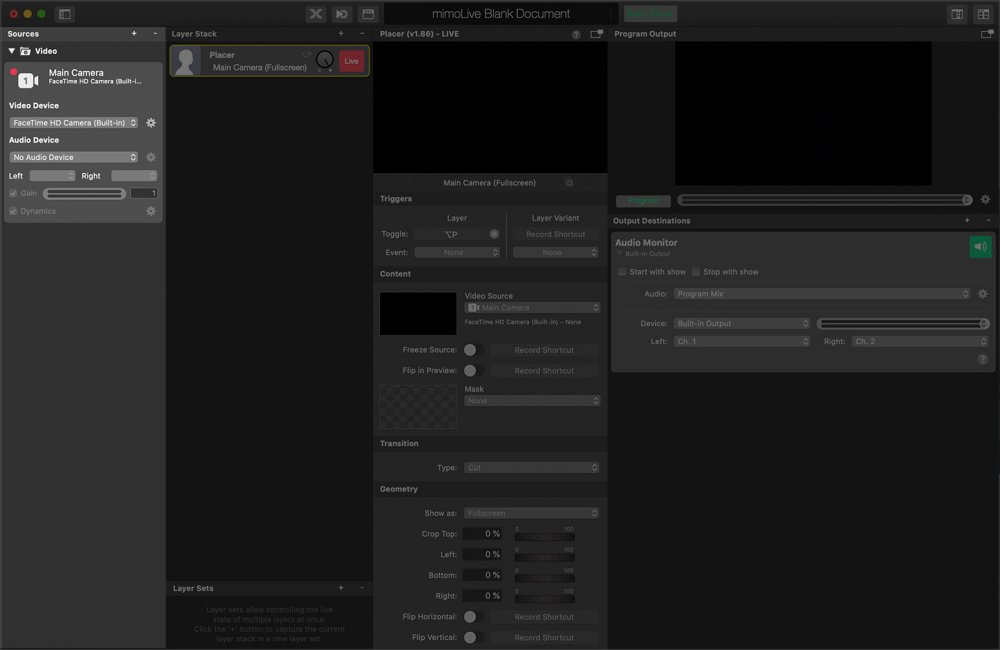
#### Adding Sources to the Source Repository
##### Adding Media Files to the Source Repository
If you want to add an image or a movie to your sources repository you can drag and drop the file right from the Finder or select "Source > Add Media File…" from the menu bar.
When dragging a media file from your Desktop into the Source Repository you may notice the green “+” next to the mouse cursor. This means that you will copy the file to the mimoLive document bundle.
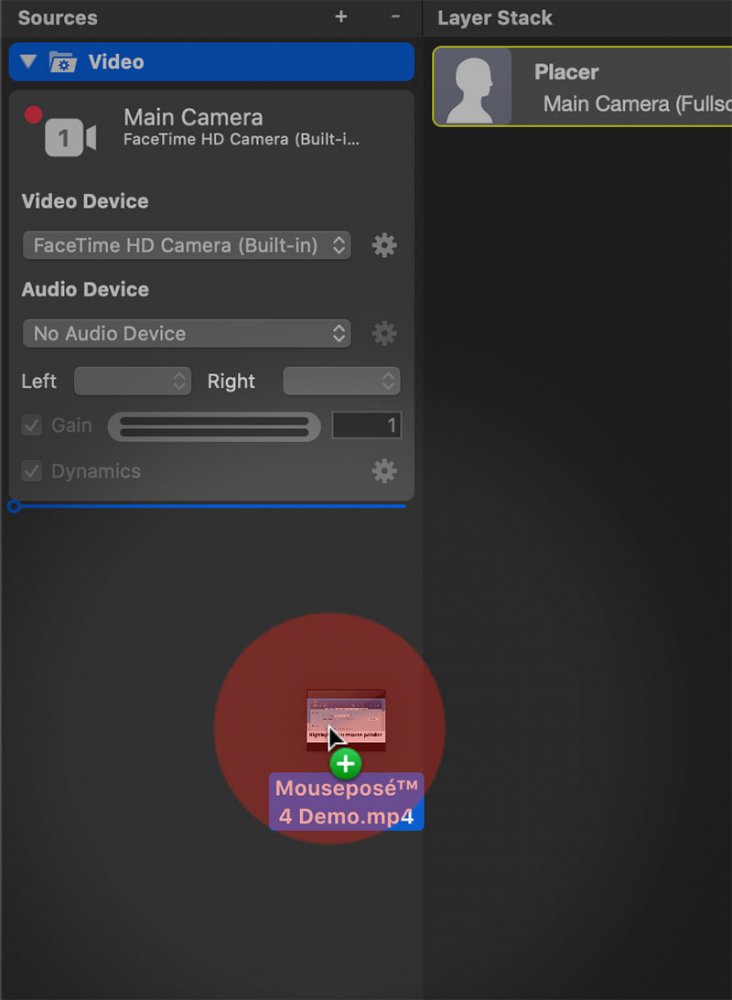
> **Note:** Media files are stored in the mimoLive document bundle by default
>
> To ensure all media files are always available for a mimoLive project, they are stored within the document bundle.
You can hold down the Option (⌥) key on your keyboard to switch to “Path Reference” mode, indicated by an arrow icon next to the mouse cursor. This saves the absolute path to the file instead of embedding the file itself.

> **Important:** Linked files may break if moved in Finder
>
> Please be aware that mimoLive won’t be able to open the file if you move it to a different location in the Finder.
You can switch between the storage options at any time using the **Reference** popup menu in the Source Settings panel:
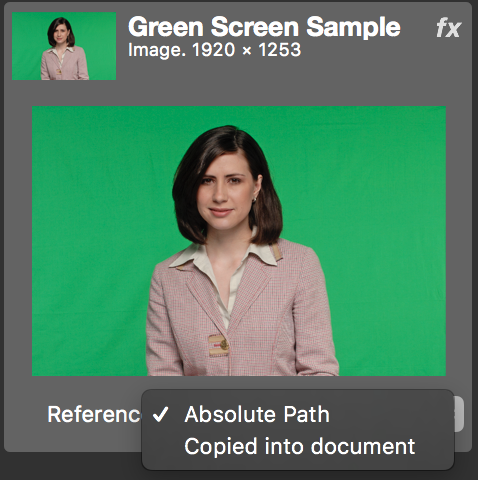
##### Adding built-in and live Sources to the Source Repository
In addition to media files, mimoLive offers many other types of sources you can use in your projects, such as live inputs, system sources, and other dynamic data feeds. Each source type has its own dedicated documentation. Please refer to the[Sources documentation](https://mimolive.com/user-manual/sources-input/) page to learn more about the available source types.
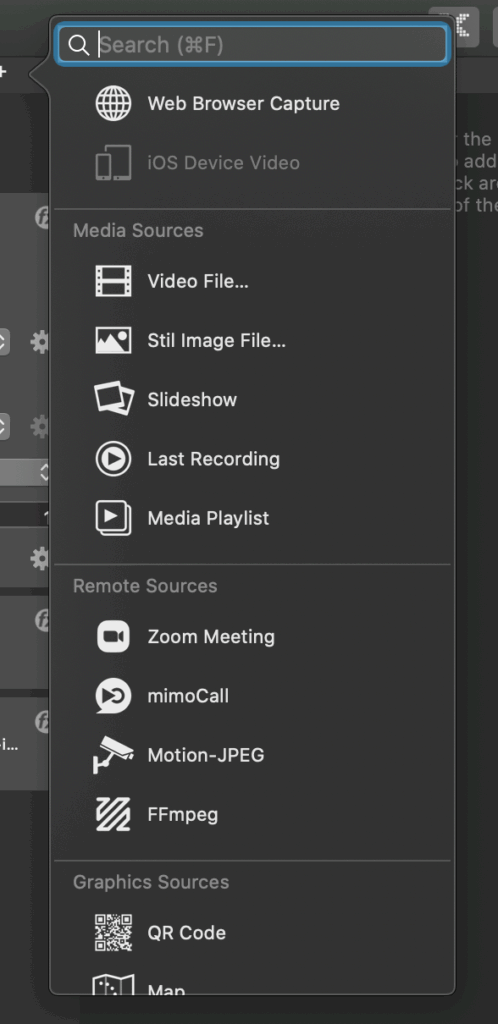
To add one of these sources to the Sources Repository, follow these steps:
1. Click the **“+”** button in the top-right corner of the Sources Repository. A popover window will appear, showing a list of available source types.
2. Use the search field to quickly find a specific source, or scroll through the list to browse available options.
3. Double-click a source in the list to create an instance, or drag and drop it into the Source Repository.
#### Configuring a source
Each source type in mimoLive provides its own specific configuration options. However, there are some settings and behaviors that are shared across all sources.
##### Renaming a source
By default, mimoLive automatically generates a name for each source to help you distinguish between them. However, giving sources custom names can make your project easier to manage — especially when working with many similar sources.
To rename a source:
1. **Select the source** you want to rename from the Source Repository (left column). The source will be highlighted
2. **Double-click the source name** at the top of the Source Info panel. A text entry field will appear.
3. **Type the new name** and press **Enter** to confirm the change.
##### Adding Filters and Effects
Every image-providing source in mimoLive can be enhanced or modified using filters and effects. This allows you to adjust the visual appearance of a source directly within the Source Info panel, without needing to preprocess media externally.
To learn more about the built-in video filters available in mimoLive, visit the [Filters](https://mimolive.com/user-manual/filters) documentation page.
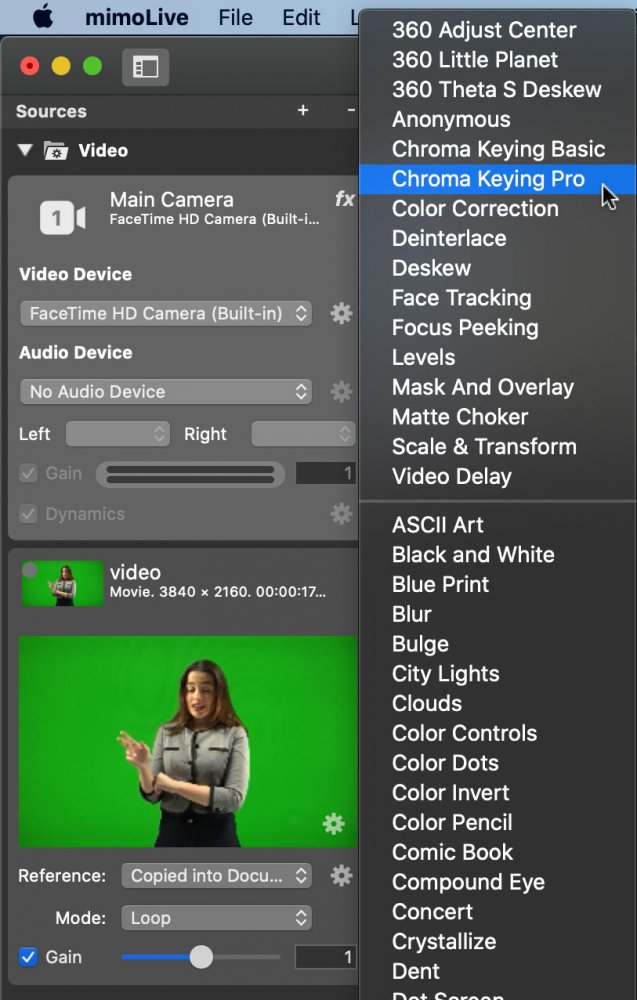
##### Collapsing or expanding a source
Each source listed in the Sources Repository also has a small triangle icon to the left of its name.
Clicking this triangle will **collapse** the source, hiding its detailed settings in the Source Info panel. This helps reduce clutter when working with multiple sources.
To view the configuration options again, simply **click the triangle icon** to expand the source.
Alternatively, you can **double-click the background of the source entry** to quickly collapse or expand it
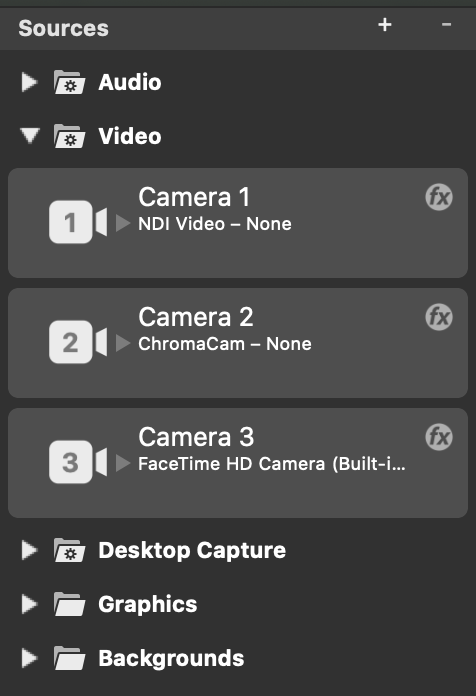
#### Organizing sources in the Sources Repository using groups
When working with multiple sources, the Sources Repository can become cluttered quickly. To help you keep things organized, mimoLive allows you to arrange sources into groups and customize their order.
##### Creating a new source group
To create a new source group in the Sources Repository:
1. Click the **“+”** button at the top of the Sources Repository. A popover window will appear showing all available source types.
2. At the top of the list, locate **Source Group**
3. **Drag the Source Group** **item** into the Sources Repository and drop it at the position where you want to organize related sources.
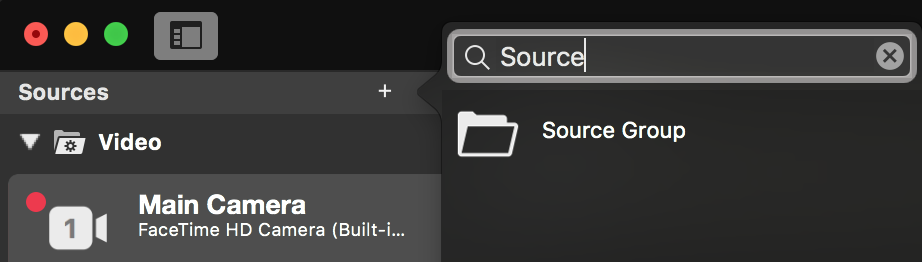
You can now drag existing sources into this group to keep your workspace tidy and better structured.
##### Rearranging sources in groups
By default, new sources are automatically sorted into smart groups such as **Video**, **Audio**, **Media**, or **Data**. However, you can manually rearrange your sources within the Sources Repository.
- **Drag and drop** sources to change their order within a group.
- **Move sources between groups** by dragging them into a different category.
This flexibility allows you to structure your project workspace in a way that best suits your workflow.
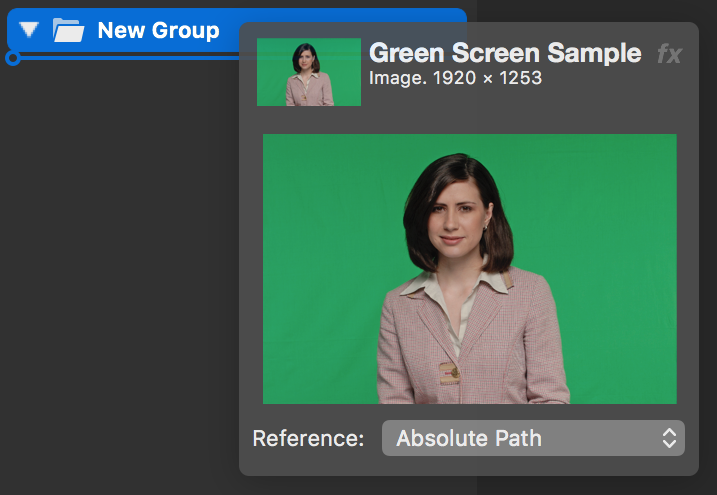
##### Renaming a source group
To rename a source group in the Sources Repository:
1. **Double-click the group’s title**. A text entry field will appear.
2. **Enter the new name** for the group.
3. **Press Enter** to confirm the change.
##### Collapsing or expanding a source group
Each source group in the Sources Repository has a small triangle icon to the left of its title. Clicking this icon collapses the group, hiding all its contained sources. To expand it again, click the triangle once more. Alternatively, you can double-click the background of the source group to toggle its collapsed state.
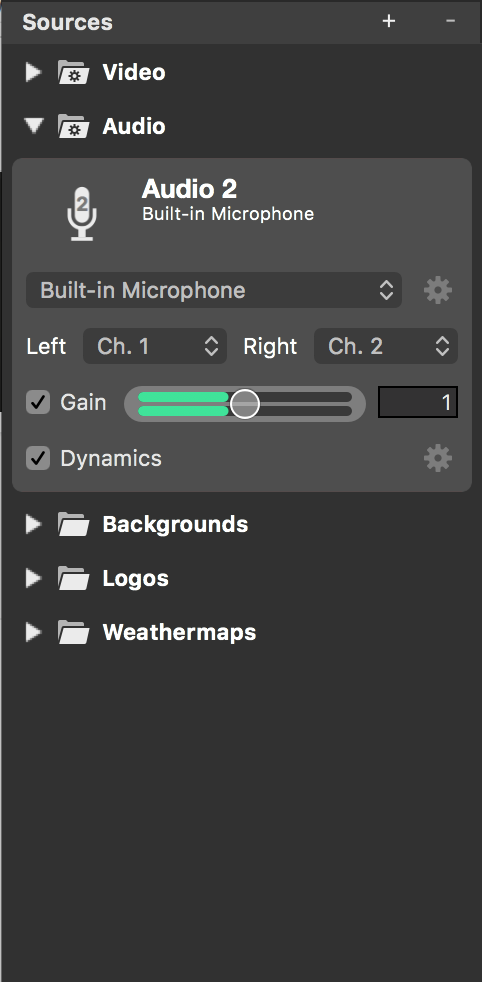
---
## Accounts
Source: https://mimolive.com/user-manual/using-mimolive/accounts/
Last updated: 2023-07-21
In the mimoLive main preferences, you can add accounts you want to use with mimoLive. Some are used to get information from a service others are used to stream the video to them.
#### Adding An Account To mimoLive
1. To add an account you need to open the Account preferences. Please choose **Preferences…** from the mimoLive main menu in the upper left corner of your screen. The mimoLive Preferences window will show up.
2. Select the **Accounts** tab in the toolbar of the Preference window. A list of already created accounts will be shown (will be empty by default). On the right, you will see a list of available accounts from different services. If you don’t see the accounts on the right you may need to click on the “+” button at the left bottom of the accounts list.
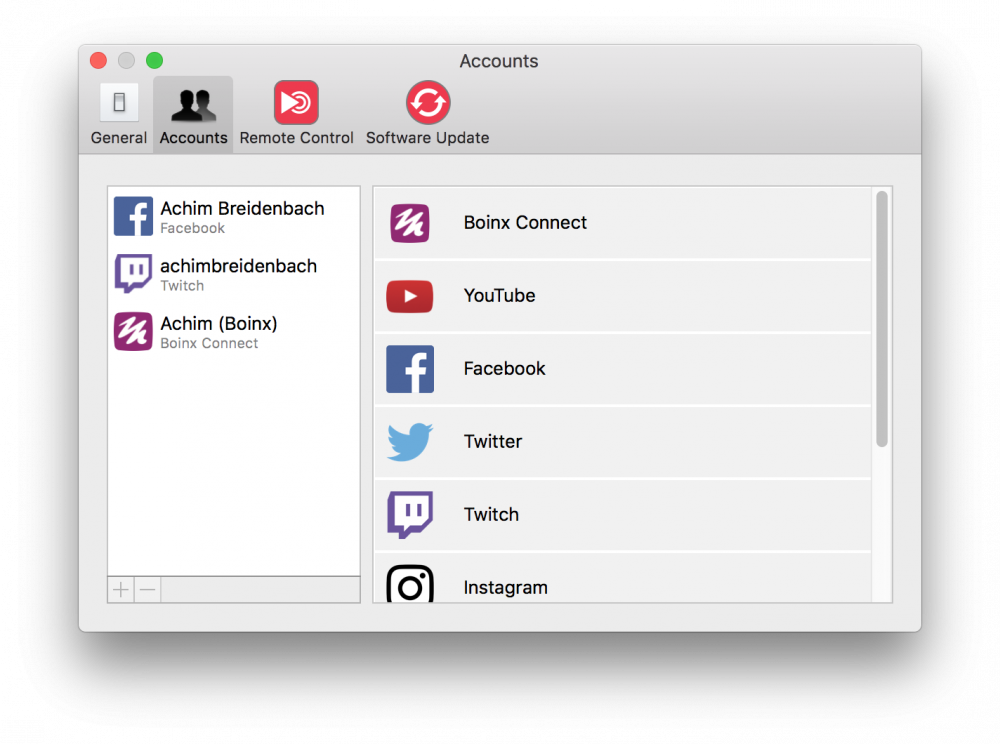
3. Select the account you want to add on the right and follow the instructions that will appear. Each account has a unique way of login into its services.
4. If you successfully added a new account it will appear in the accounts list on the left.
#### Account Types And Purpose
| Boinx Connect | If you want to use the [mimoCall Video Source](https://mimolive.com/user-manual/mimocall) you need to create a [Boinx Connect account and log in with it.](https://mimolive.com/user-manual/using-mimolive/accounts/boinx-connect/) |
| --- | --- |
| YouTube | mimoLive can stream to YouTube with the [Live Streaming Output Destination](https://mimolive.com/user-manual/live-streaming). The [Social Media Source](https://mimolive.com/user-manual/social-media) is able to receive comments and channel stats. |
| Facebook | mimoLive can stream to Facebook with the [Live Streaming Output Destination](https://mimolive.com/user-manual/live-streaming). The [Social Media Source](https://mimolive.com/user-manual/social-media) is able to receive comments and channel stats. |
| Twitter | You can use the [Twitter Layer](https://mimolive.com/user-manual/twitter) to display Tweets in your program out.
(Note: Twitter may no longer work since Twitter discontinued third party support.) |
| Twitch | mimoLive can stream to [Twitch](doc:twitch) with the [Live Streaming Output Destination](https://mimolive.com/user-manual/live-streaming). The Twitch Chat Layer can display the chat messages from your Twitch channel. |
| BoxCast | mimoLive can stream to Boxcast.com with the [Live Streaming Output Destination](https://mimolive.com/user-manual/live-streaming). |
| screen9 | TBD |
#### Removing An Account From mimoLive
If you don’t need an account anymore you can remove it with the following steps:
1. To remove an account you need to open the Account preferences. Please choose **Preferences…** from the mimoLive main menu in the upper left corner of your screen. The mimoLive Preferences window will show up.
2. Select the **Accounts** tab in the toolbar of the Preference window. A list of the current accounts will be shown.
3. Click on the account you want to remove in the right table. It will get selected and the account details will be shown on the right.
4. By clicking on the “-” button at the bottom of the accounts list you are going to remove the selected account.
#### Security And Privacy
Privacy and security of your data are essential to us. All the information about your accounts will be stored securely in the keychain of your account on your Mac. You can access your keychain with the Keychain Access application by Apple. However, you can’t look into the data by yourself (but no one else can either)
You can find the stored account data in the keychain with the following steps:
1. Search and open the Keychain Access app by Apple with Spotlight in the upper right corner of your screen. The Keychain Access app will launch and present a window with all stored items.
2. Search for “com.boinx” in the upper right corner of the Keychain Access window. The list of items will be filtered but only the “com.boinx.bxkeychainstore” item should remain. This item will hold all account data known to mimoLive. Unfortunately, you can’t look inside that item.
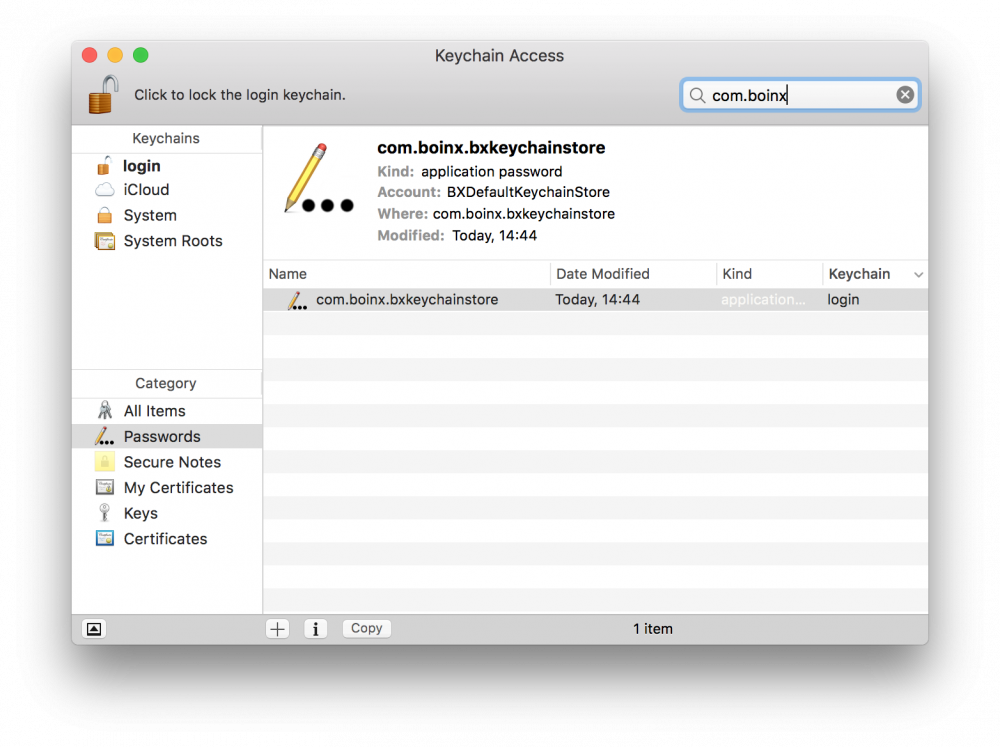
3. If you feel the need to remove the account data from your system you can select the **com.boinx.bxkeychainstore** row and delete it.
---
### Boinx Connect
Source: https://mimolive.com/user-manual/using-mimolive/accounts/boinx-connect/
Last updated: 2023-07-21
In mimoLive, the Boinx Connect account is needed for adding [mimoCall Sources](https://mimolive.com/user-manual/mimocall).
The Boinx website also gives you access to your license key information and the Boinx Forum for tech support.
#### Adding a Boinx Connect account to mimoLive
- Choose “Preferences…” From the mimoLive menu.
- Select the “Accounts” tab.
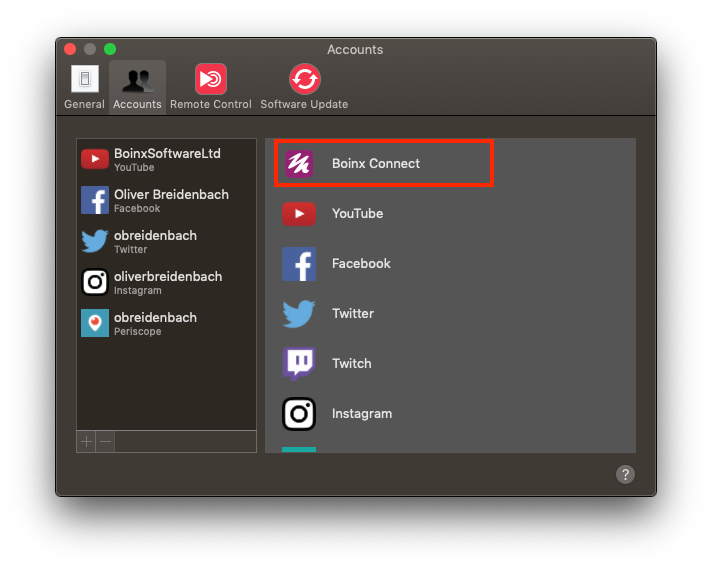
- Click on “Boinx Connect” in the right hand column.
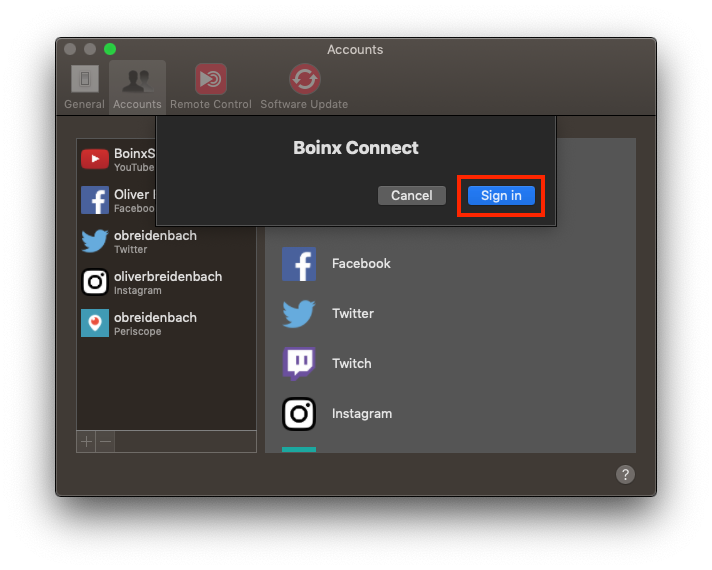
- Click “Sign in…”
If you already have a Boinx ID, enter the information (or choose a login provider) and click “Log in”. Then proceed to the “Authorizing mimoLive” section below.
If you do not yet have a Boinx ID, click on “Sign up.”
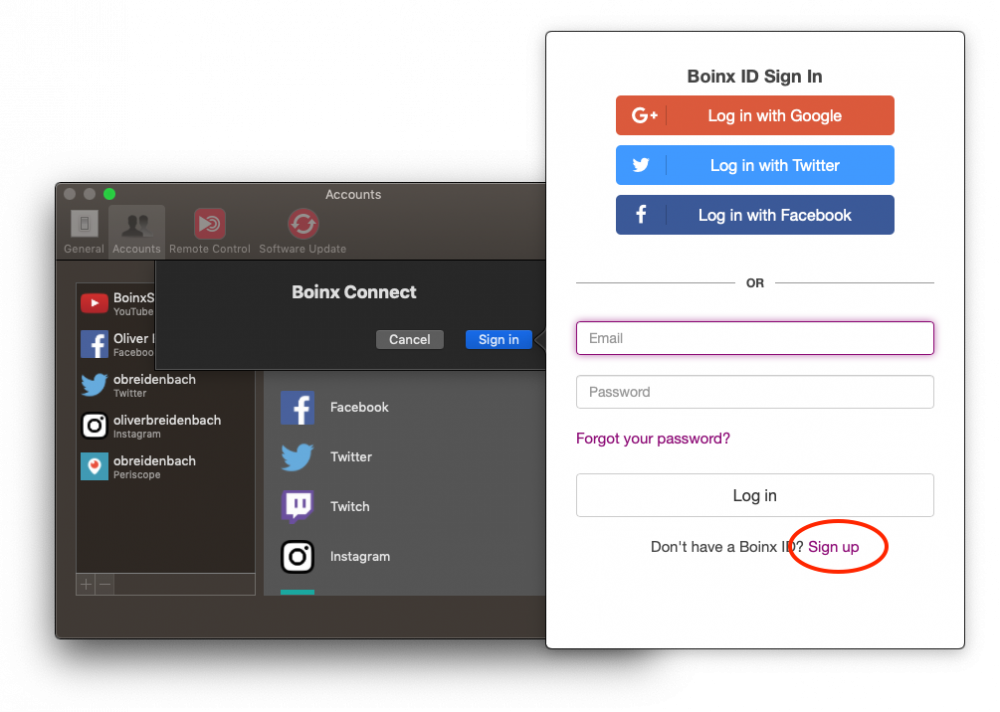
You can choose to use your Google, Twitter or Facebook identity to create your Boinx ID. This allows you to log in without having to create a separate password for your Boinx Connect account. Boinx Connect only uses your name and email information from your Social media account.
If you prefer to set up a separate account, click on “Register with your email address.”
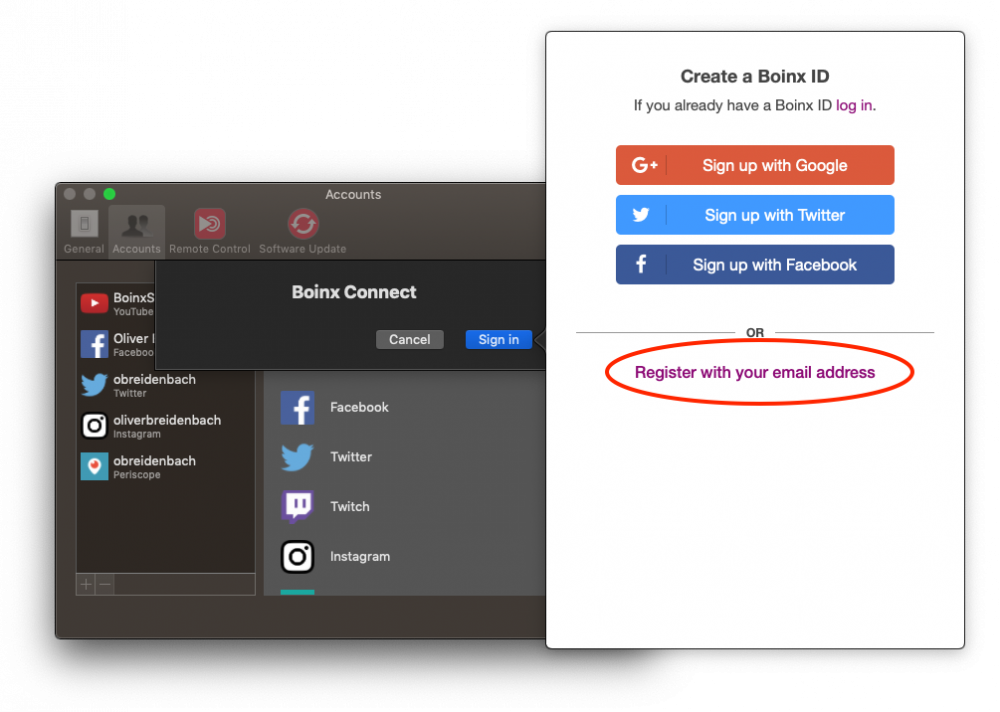
Enter all the required information and click “Sign up”
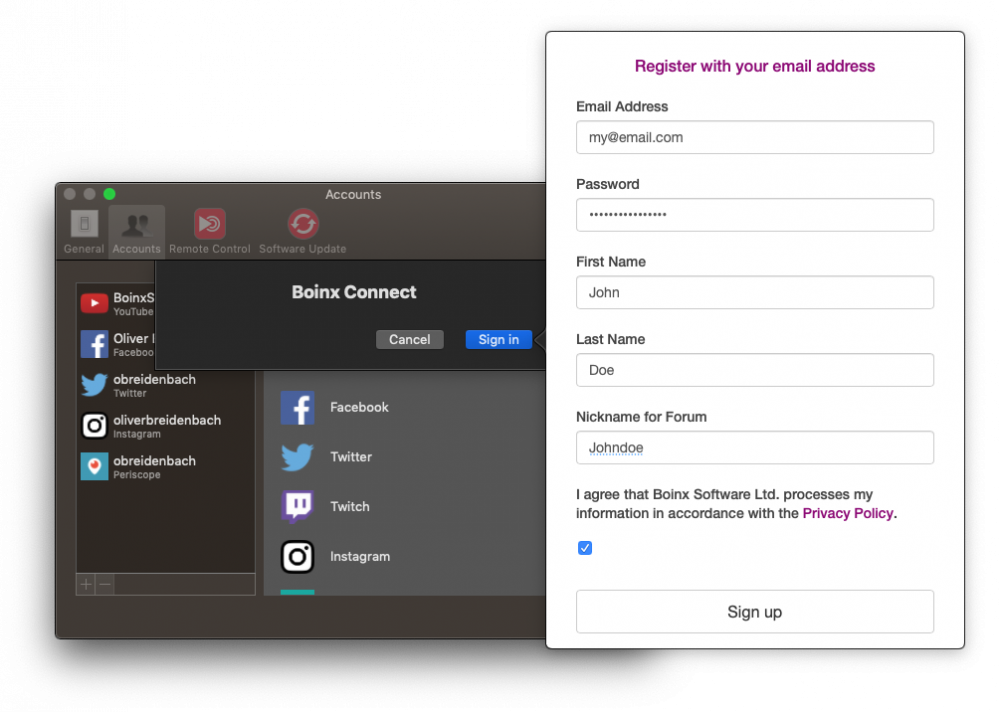
#### Authorizing mimoLive
As the final step, you need to authorize mimoLive to create mimoCall IDs (channels) on your behalf.
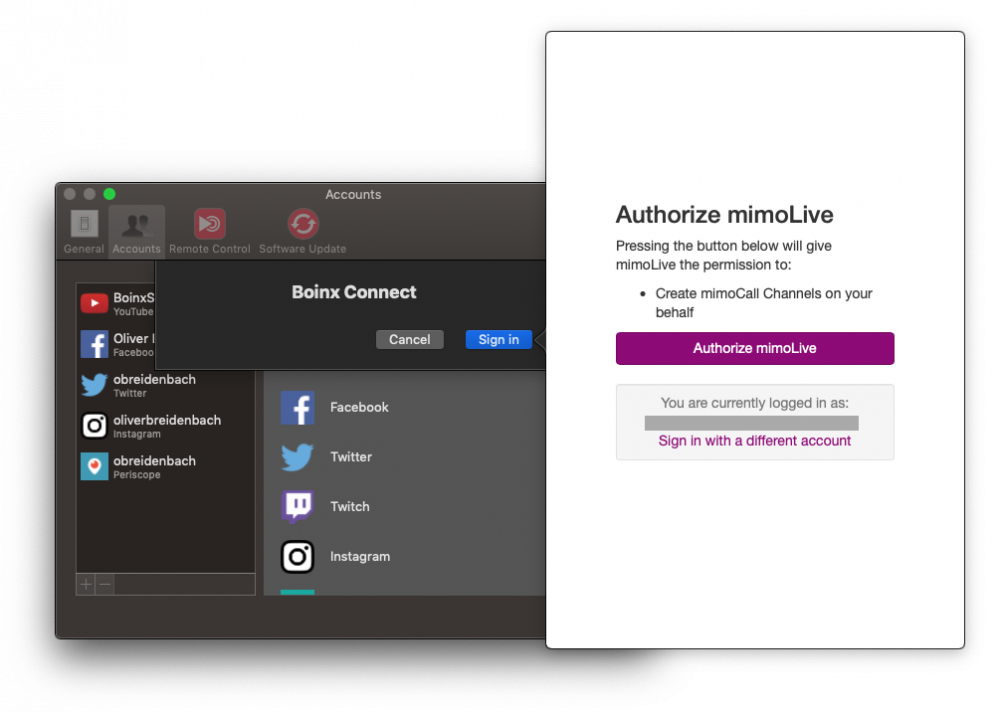
You’ve now successfully added a Boinx Connect account to mimoLive and are now able to use mimoCall.
---
## Status display
Source: https://mimolive.com/user-manual/using-mimolive/status-display/
Last updated: 2025-10-23
The Status Display is located on top of the [mimoLive document window](https://mimolive.com/user-manual/user-interface-overview). It displays the document name, the Show Timer as well as the status of the Rendering Pipeline (performance meter on the far right). If you click on the Performance Meter you will get to the [Render Performance](https://mimolive.com/user-manual/diagnostics/performance-monitoring/reder-performance-monitor/)[Monitor Panel](https://mimolive.com/user-manual/diagnostics/performance-monitoring/performance-monitoring-2/).

When the show is running you either see the show duration or the show countdown depending on your [Show Settings](https://mimolive.com/user-manual/show-settings).

Next on the left side, there is the [Show Settings setup](https://mimolive.com/user-manual/show-settings). On the right, you will find
the [Start/Stop Show Button](https://mimolive.com/user-manual/startstop-show-button).
---
## NDI® settings
Source: https://mimolive.com/user-manual/using-mimolive/ndi-settings/
Last updated: 2026-08-19
### Configure NDI® send and receive settings that apply to every mimoLive document.
> **Note:** NDI® Receive Settings and NDI® Send Settings Are Optional
>
> NDI® discovery automatically searches the local subnet for NDI® senders. The following settings are additional options to broaden or narrow the search.
> **Note:** mimoLive Overrides the NewTek NDI Access Manager
>
> The NDI® Settings window in mimoLive predates the release of the NewTek NDI Access Manager for macOS and always overrides any Access Manager settings. Note, however, that this override only affects mimoLive. The Access Manager can still be used to globally configure other NDI® capable applications on the same macOS system.
#### Opening the NDI® Settings Window
All of the following actions will open the NDI® Settings window:
- Select **NDI® Settings…** from the Window menu.
- Select **NDI® Receive Settings…** from the device popup menus in [Audio Sources](https://mimolive.com/user-manual/audio) or
[Video Sources](https://mimolive.com/user-manual/video).
- Click the action button to the right of the **Failsafe Source** menu in the [NDI® Output Destination](https://mimolive.com/user-manual/nditm-playout).
#### Receive Settings
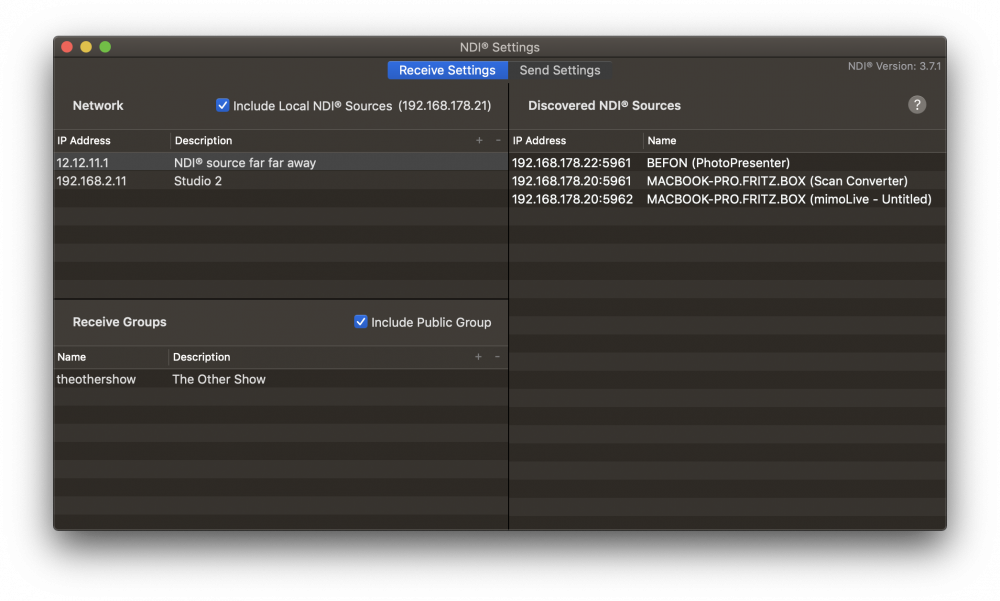
> **Important:** Editing Receive Settings Restarts NDI® Discovery!
>
> Restarting the NDI® discovery service causes mimoLive to temporarily lose all NDI® senders. This is especially dangerous for any Video or Audio Sources using an NDI® sender as an input device. If such a Video or Audio Source was currently live in a layer, its output would vanish until the NDI® discovery service found the respective NDI® sender again!
> Note: Every change in the NDI® Receive Settings restarts NDI® discovery.
##### Network
Add IP addresses that you want to be searched for NDI® senders. This can be IP addresses from other local subnets as well as from remote locations. While you must add a valid IP address, the description is completely optional but should help you add some context.
Click the **+** button in the upper-right table header to add an IP address or click the **–** button right next to it to remove one or several selected IP address(es) from the list.
Check **Include Local NDI Sources** to allow searching your local host for NDI® senders, i.e. other NDI® enabled software running on the same machine. Your local IP address will be displayed in parenthesis as additional information.
##### Receive Groups
Add the names of groups that you want mimoLive to search for NDI® senders. Other instances of mimoLive, or any other NDI® enabled software or hardware, can specify these groups as their send groups. Adding a description is optional.
Click the **+** button in the upper-right table header to add a group name or click the **–** button right next to it to remove one or several selected group names from the list.
Check **Include Public Group** to allow searching the default group for NDI® senders. Unchecking this option may be helpful in networks crowded with NDI® senders where you are interested only in senders from specific send groups.
##### Discovered NDI® Senders
This table lists all NDI® senders that the NDI® discovery service was able to find with the given settings, i.e. looking up the specified IP addresses, searching the specified receive groups and including or excluding local senders according to your selection. It is the same list of NDI® senders that is available from the devices menu in [Audio](doc:audio) and [Video Sources](https://mimolive.com/user-manual/video) and from the
Failsafe Source in the [NDI® Output Destination](https://mimolive.com/user-manual/nditm-playout).
#### Send Settings
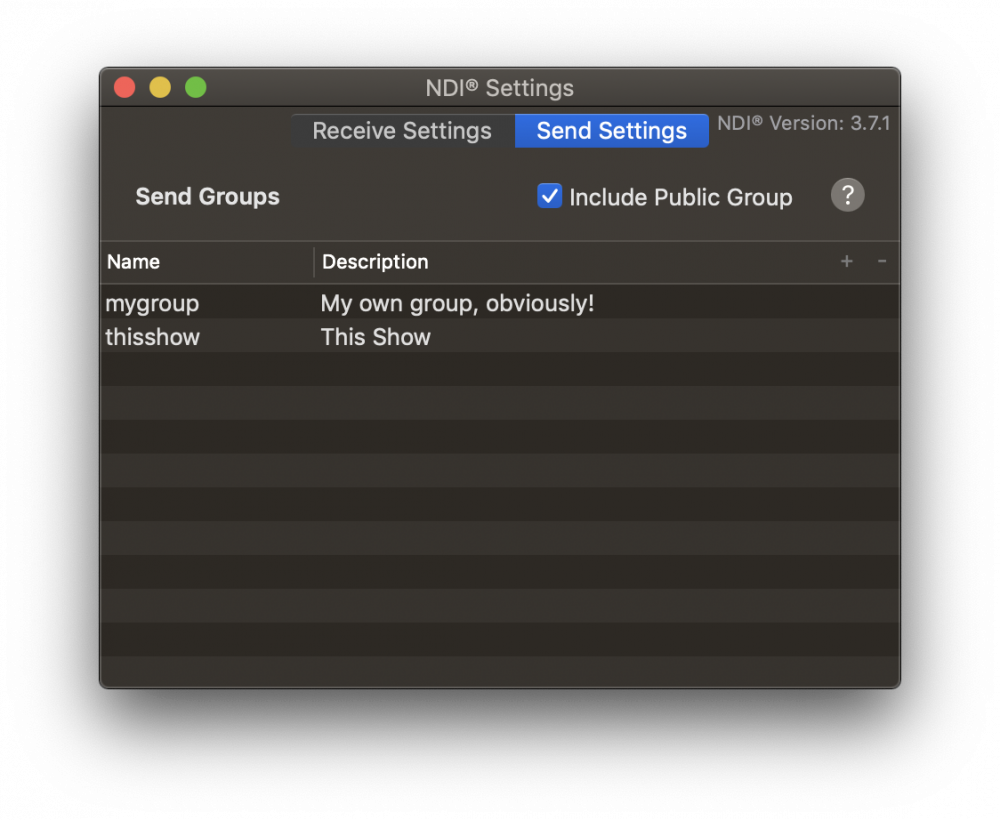
> **Note:** Editing Send Groups While NDI® Output Destination Is Active
>
> When an NDI® Output Destination starts, the currently specified send groups are passed to NDI®. While an NDI® Output Destination is live, changes to the send groups will take no effect. A restart of NDI® Output Destinations is necessary to pick up any changes.
##### Send Groups
Add the names of groups that you want [NDI® Output Destinations](https://mimolive.com/user-manual/nditm-playout) to appear in. Other mimoLive instances or any other NDI® enabled software or hardware, can discover the mimoLive NDI® output by adding the same group name to its receive groups list. Adding a description is optional.
Click the **+** button in the upper-right table header to add a group name or click the **–** button right next to it to remove one or several selected group names from the list.
Check **Include Public Group** to publish NDI® Output Destinations in the default group. Unchecking this option may be helpful in networks crowded with NDI® senders where you want to isolate NDI® Output Destinations in specific send groups.
> **Important:** Groups Are Not a Privacy Feature!
>
> Don’t mistake send groups as a measure to allow for private NDI® senders on a public network. NDI® senders may still be discoverable on the network by other means. Once a sender’s NDI® signature is known a receiver can easily connect to it.
#### NDI® Version
Starting with mimoLive 4.5 the currently used NDI® SDK version number is displayed in the top right corner of the NDI® Settings window. The version number does **not** correlate with the version of the NDI® HX driver if one is installed on the system.
---
# Sources (Input)
Source: https://mimolive.com/user-manual/sources-input/
Last updated: 2025-10-23
### What are Sources in mimoLive?
In mimoLive, **sources** are the building blocks of your live video production. A source is any input that provides content — such as a camera feed, screen capture, audio input, media file, or data stream — which can be used in your [layers](https://mimolive.com/understanding-mimolive-layer-concept-for-live-video-broadcasts/). Sources are managed in the [SourcesRepository](https://mimolive.com/user-manual/using-mimolive/sources-and-the-sources-repository/), where they can be configured, grouped, and reused across different parts of your project. Understanding [how to work with sources](https://mimolive.com/user-manual/using-mimolive/sources-and-the-sources-repository/) is essential for building flexible, professional-grade broadcasts in mimoLive.
### Built-in Sources
mimoLive comes with a wide range of **built-in sources** that allow you to bring dynamic and real-time content into your productions. These sources include everything from video and audio inputs to data feeds and system captures. Below is an overview of the built-in sources available in mimoLive, each designed to handle a specific type of input or workflow.

#### Local Sources
| [Camera](https://mimolive.com/user-manual/sources-input/video/) | Combines a video input device and an audio input device into a single video source. This setup ensures that **audio follows video**, meaning the corresponding audio automatically switches together with the video signal — ideal for simplifying production workflows and maintaining proper audio-video sync. |
| --- | --- |
| [NDI®](https://mimolive.com/user-manual/sources-input/nditm-video-source/) | Connects to any NDI-enabled device on your network and uses it as a video source in mimoLive. Ideal for integrating cameras, computers, or other production systems over IP without the need for additional hardware. |
| [Blackmagic Capture](https://mimolive.com/user-manual/sources-input/blackmagic-design-video/) | Uses Blackmagic Design hardware (e.g., DeckLink or UltraStudio devices) as high-quality video sources in mimoLive. Supports professional video workflows with low-latency input. |
| [Key & Fill](https://mimolive.com/user-manual/sources-input/key-fill-source/) | Works with supported Blackmagic Design capture hardware to generate video with transparency by using separate key (alpha) and fill (color) signals — ideal for professional broadcast graphics and compositing. |
| [Syphon Video Receiver](https://mimolive.com/user-manual/sources-input/syphon-receiver/) | Receives video from other **Syphon-compatible applications** running on the same Mac, including mimoLive’s built-in [Syphon Sender layer](https://mimolive.com/user-manual/live-editing/layers/syphon-video-sender/). This allows seamless video sharing between apps like VDMX, Resolume, or MadMapper without the need for additional hardware. |
#### Audio Sources
| [Audio](https://mimolive.com/user-manual/sources-input/audio/) | Configures an audio-only source to bring in sound separately from video. Useful when you need isolated audio input, such as microphones or soundboard feeds. Commonly used with the [Audio Only layer](https://mimolive.com/user-manual/live-editing/layers/audio-only/) for flexible audio routing and control. |
| --- | --- |
#### Screen Sources
| [Screen Capture](https://mimolive.com/user-manual/sources-input/capturing-screen-content/screen-capture/) | Captures your Mac’s desktop screen as a video source. Ideal for **screencasts, software demos**, or presentations. Especially useful with dual-display setups — use one screen to control mimoLive and the other for capturing content. |
| --- | --- |
| [Window Capture](https://mimolive.com/user-manual/sources-input/capturing-screen-content/window-capture/) | Captures the content of a specific application window on your Mac. Ideal when you want to include the output of a particular app in your production without showing your entire screen. |
| [Web Browser Capture](https://mimolive.com/user-manual/sources-input/capturing-screen-content/web-browser-capture/) | Captures the content of a web browser window directly within mimoLive. Use it to display full web pages or specific sections — ideal for showing websites, dashboards, or embedded web apps during a broadcast. |
| [iOS Device Video](https://mimolive.com/user-manual/sources-input/ios-device-video/) | Displays the screen of an iOS device connected to your Mac via USB. Perfect for demos, app walkthroughs, or showcasing mobile content directly in your mimoLive production. |
#### Media Sources
| [Video File…](https://mimolive.com/user-manual/sources-input/media-file/) | Imports a video file (e.g., MP4, MOV) into your project for playback. Useful for pre-recorded clips, intros, bumpers, or background loops. |
| --- | --- |
| [Still Image File…](https://mimolive.com/user-manual/sources-input/media-file/) | Imports a static image (e.g., PNG, JPEG, TIFF) into your project. Ideal for logos, backgrounds, lower-thirds, or any non-animated visual element. |
| [Slideshow](https://mimolive.com/user-manual/live-editing/layers/slideshow/) | Displays images from a folder as a slideshow with customizable transitions. Ideal for photo galleries, automated visual sequences, or background visuals. |
| [Last Recording](https://mimolive.com/user-manual/sources-input/last-recording-source/) | Plays back the most recent file created by any [File Recording output destination](https://mimolive.com/user-manual/playout-output-destinations/recording-to-disk/). Useful for quick reviews or referencing recently captured content. |
| [Media Playlist](https://mimolive.com/user-manual/sources-input/media-playlist/) | Plays back a sequence of media files — including still images, audio tracks, and video clips. Useful for creating automated slideshows, looping content, or timed multimedia sequences. |
#### Remote Sources
| [Zoom Meeting](https://mimolive.com/user-manual/sources-input/zoom-meeting/) | Captures individual Zoom meeting participants or shared screens directly within mimoLive. Ideal for integrating remote guests or presentations into your live production. |
| --- | --- |
| [mimoCall](https://mimolive.com/user-manual/sources-input/mimocall/) | Brings remote guests into your live production via a web-based video call. Ideal for interviews, panel discussions, or remote contributions — no additional software required for your guest. |
| [Motion-JPEG](https://mimolive.com/user-manual/sources-input/motion-jpeg/) | Connects to IP cameras and webcams that provide a built-in Motion JPEG (MJPEG) stream, such as those from AXIS. This source lets you pull live video directly over the network via an MJPEG URL. |
| [FFmpeg](https://mimolive.com/user-manual/sources-input/ffmpeg/) | Uses the powerful FFmpeg framework to bring in a wide range of audio and video streams, including network streams (RTSP, HTTP), local files, and advanced formats. Ideal for integrating non-standard or custom media sources into your production. |
#### Graphic Sources
| [QR Code](https://mimolive.com/user-manual/sources-input/qr-code-source/) | Generates a QR code image from a URL or any other text content. Useful for sharing links, contact information, or event details with your audience in a quick and scannable format. |
| --- | --- |
| [Map](https://mimolive.com/user-manual/sources-input/map/) | Generates a map image from any location worldwide, with the option to display it as a satellite view or a standard roadmap. Perfect for showing event locations, travel routes, or geographic context in your production. |
| [Text](https://mimolive.com/user-manual/sources-input/text-source/) | Renders a text image with optional background, shadow, and borders. Useful for titles, captions, or on-screen information.
**Tip:** *The Text source defaults to the full program output size. If your text element is smaller, reduce the source resolution to better fit your design and improve performance.* |
| [Placeholder](https://mimolive.com/user-manual/sources-input/placeholder/) | Renders an image with a customizable large letter, while the background color is assigned automatically. Ideal for setting up your layout when an actual source is not yet available. |
#### Data Sources
| [Social Media](https://mimolive.com/user-manual/sources-input/social-media/) | Reads chat messages or channel statistics from social media platforms like Facebook and YouTube. Ideal for displaying audience interactions, live comments, or viewer metrics during your broadcast. |
| --- | --- |
| [Sports Team Data](https://mimolive.com/user-manual/live-editing/add-ons/sports-graphics-overview/data-sources/sports-team-data/) | Manages structured information for sports teams, including team names, player rosters, player images, team emblems, and primary colors. This source helps you create dynamic team presentations, introductions, and layouts for sports productions. |
#### Testing Sources
| [Video Output Test](https://mimolive.com/user-manual/live-editing/layers/video-output-test/) | Generates standard test images, such as the Philips PM5544 test pattern or SMPTE color bars, at any pixel dimensions and aspect ratios. Useful for testing video outputs, calibrating displays, or setting up broadcast environments. |
| --- | --- |
| [AV Sync Test](https://mimolive.com/user-manual/live-editing/layers/audio-sync-meter/) | Provides a tool for measuring the delay between the video and audio signals in your production setup. Essential for calibrating and ensuring proper audio-visual synchronization during live broadcasts. |
#### Backdrops
The backdrop sources listed below are available as **free in-app downloads**.
To use them, simply click the **download icon** next to the source name in the Source Chooser. Once downloaded, the backdrops will be available for you to add to your project at any time.
| Computer Circuits | Generates a dynamic, animated background featuring stylized computer circuit designs. Ideal for technology-themed productions and tech-centric visual styles. |
| --- | --- |
| Night Sky | Creates a serene night sky backdrop filled with stars and subtle gradients. Perfect for calming atmospheres, astronomy themes, or late-night broadcasts. |
| Snow | Simulates gently falling snowflakes over a soft background. Adds a seasonal, festive, or wintery mood to your production. |
| Star Field | Produces a moving star field effect, giving the illusion of flying through space. Great for sci-fi themes, futuristic designs, or space-related content. |
| Disco Lights | Displays animated, colorful light patterns that simulate a lively disco or party atmosphere. Ideal for concerts, celebrations, or energetic event broadcasts. |
| Line Art | Generates dynamic abstract line art visuals. Perfect for adding an artistic, minimalist, or modern backdrop to your show without distracting from the main content. |
### Your Media Files as Sources
In addition to built-in sources, you can easily use your own graphics, images, audio, and movie files as sources in mimoLive.
Simply drag and drop files into the Sources Repository, or import them using the File > Import menu item.
This allows you to fully customize your production with personal media assets.
[Read more about importing media files](https://mimolive.com/user-manual/using-mimolive/sources-and-the-sources-repository/) in the detailed manual page.
### Create Custom Sources
mimoLive can use custom sources created with **Quartz Composer**. You can build your own interactive graphics, animations, and dynamic content using Apple’s Quartz Composer app.
[Learn more about creating and using Quartz Composer sources.](https://mimolive.com/user-manual/customization/custom-layers/)
### Monitoring Performance of Sources
The [Source Performance Monitor](https://mimolive.com/user-manual/diagnostics/performance-monitoring/source-performance-monitor/) provides a live overview of your sources’ performance, helping you identify issues and optimize resource usage.
---
## Local Sources
Source: https://mimolive.com/user-manual/sources-input/local-sources/
Last updated: 2025-06-15
_This page has no body text; it groups the pages below._
---
### Camera Source (Video Source)
Source: https://mimolive.com/user-manual/sources-input/local-sources/video/
Last updated: 2026-08-19
#### About the Camera Source
The **Camera Source** in mimoLive combines both a video device and an audio device into a single input. Although it's commonly used to bring a camera feed into your production, its functionality goes far beyond that.
You can use the Camera Source to:
- Connect a webcam or professional camera.
- Capture video output from an external device via HDMI (e.g., laptops running PowerPoint, Apple TV, or VCRs).
- Bring in gameplay or desktop feeds using HDMI capture devices.
Even of this versatility, mimoLive refers to this input simply as the **"Camera Source"** rather than more broadly "Video Source".
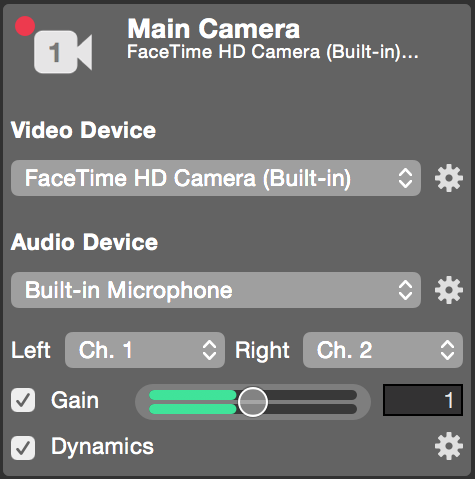
#### Connecting Video Devices to mimoLive
Most Macs include a built-in webcam, which mimoLive can use immediately. However, standard Mac configurations typically **do not** include built-in video capture hardware for external video sources. To connect external video signals—such as cameras, laptops, or other media devices—you'll need a separate **video capture device**.
There is a wide range of hardware available, from simple **USB HDMI grabbers** to high-end **professional SDI capture interfaces**.
#### Device Compatibility
The **Camera Source** in mimoLive supports all input sources that are accessible through standard **macOS APIs**. A video device is considered compatible with mimoLive if:
- **It does not require a custom driver**, because it is natively supported by macOS.
- **Or**, the device vendor provides a driver that integrates with modern macOS frameworks (such as AVFoundation or CoreMediaIO).
> **Note:** Before purchasing a capture device, verify with the manufacturer that it supports macOS and conforms to Apple’s recommended driver architecture.
#### Capturing HDMI Video Signals
To capture HDMI video signals from external sources—such as video camcorders, DSLRs, or laptops running presentations—you'll need an **HDMI video input device**. mimoLive supports a variety of hardware solutions depending on your preferred interface: **Thunderbolt** or **USB 3**.
##### HDMI Video Input via Thunderbolt
For professional-grade HDMI capture using Thunderbolt, the following devices are recommended, because these devices offer low-latency, high-quality video capture and are well-suited for demanding production environments:
- Blackmagic Design DeckLink Mini Recorder
- Blackmagic Design UltraStudio Mini Recorder
- Blackmagic Design PCI cards in a PCIe expansion box (for example Sonnet Technologies)
- Magewell Pro Capture cards in a PCIe expansion box (for example Sonnet Technologies)
##### HDMI Video Input via USB 3
USB 3 HDMI capture devices are a popular choice due to their ease of use and driver-free setup. These devices are particularly useful for mobile setups or quick deployment scenarios. mimoLive supports many plug-and-play USB 3 devices, including:
- Magewell USB Capture HDMI
- AJA U-TAP
> **Note:** USB 3 devices that conform to UVC (USB Video Class) standards work out of the box with macOS and are recognized by mimoLive without requiring additional drivers.
#### Connecting DSLR Cameras
Using a **DSLR camera** as a video source in mimoLive can significantly improve the visual quality of your production. However, not all DSLR models are suitable for live video workflows. Before choosing a DSLR camera, make sure the following requirements are met:
- **Clean HDMI Output:** The camera must provide a “clean” HDMI signal, meaning the video feed is free of on-screen overlays such as focus boxes, battery indicators, or menu items.
- **Continuous Video Output:** The camera should be capable of providing continuous video output for extended periods without shutting down or overheating. Some DSLR models are prone to turning off the video feed after several minutes to prevent the sensor from overheating.
- **USB Webcam Mode Support (Optional)** Some modern DSLR and mirrorless cameras include software from the manufacturer that allows the camera to act as a **virtual webcam** via USB. These appear to macOS as standard webcam devices, and mimoLive can use them as video sources without additional hardware.
> **Important:** Many DSLRs are designed to mirror their internal screen via HDMI for use with external monitors, rather than for clean live output. Always verify that your camera supports clean HDMI for live use.
#### Capturing SDI Video Signals
To integrate **SDI cameras** into your mimoLive production, you’ll need a compatible **SDI capture device**. SDI is a preferred standard for professional video workflows due to its durability, long cable runs, and high-quality signal transmission. The following devices are known to work well with mimoLive and are available in different connection formats:
- Blackmagic Design DeckLink Mini Recorder (Thunderbolt)
- Blackmagic Design UltraStudio Mini Recorder (Thunderbolt)
- Blackmagic Design PCI cards in a PCIe expansion box (for example Sonnet Technologies)
- Magewell Pro Capture cards in a PCIe expansion box (for example Sonnet Technologies)
- Magewell USB Capture SDI (USB)
- AJA U-TAP (USB)
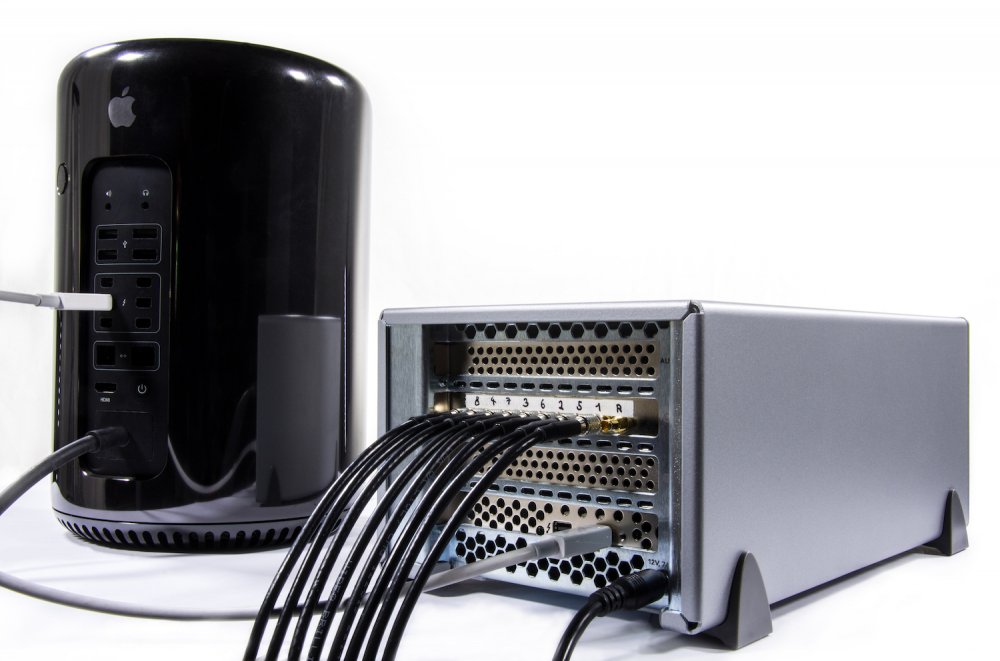
Using 8 HD SDI Sources with a Blackmagic Quad 2 card in a Sonnet Technologies Echo Express box.
> **Note:** Blackmagic Design Devices
>
> If mimoLive detects that there is a Blackmagic Design device connected to your Mac, it will offer you the Blackmagic Design Video source in the Source Repository.
#### Using USB Webcams
**USB webcams** are one of the easiest and fastest ways to get started with video production in mimoLive. Most models are **plug-and-play** and work with macOS **out of the box**, without the need for additional drivers.
> **Important:** While convenient, USB webcams may offer lower image quality or fewer controls compared to DSLRs or professional cameras. For best results, choose a model with HD or 4K resolution and good low-light performance.
#### Using the Build-In FaceTime HD Camera
Most iMacs and Mac laptops come equipped with a front-facing webcam called the **FaceTime HD Camera**. mimoLive automatically selects this camera as the **default video source** when creating a new, blank document. The FaceTime HD Camera is a great option for capturing yourself in solo productions, training videos, or for use in picture-in-picture overlays.
#### Setting Up The Video Source
In the Video popup and the Audio popup, you can select which video or audio device you are going to use in this Video Source. The action gear buttons right next to each popup let you configure the settings of the associated device. They will look different for each type of hardware device you have selected.
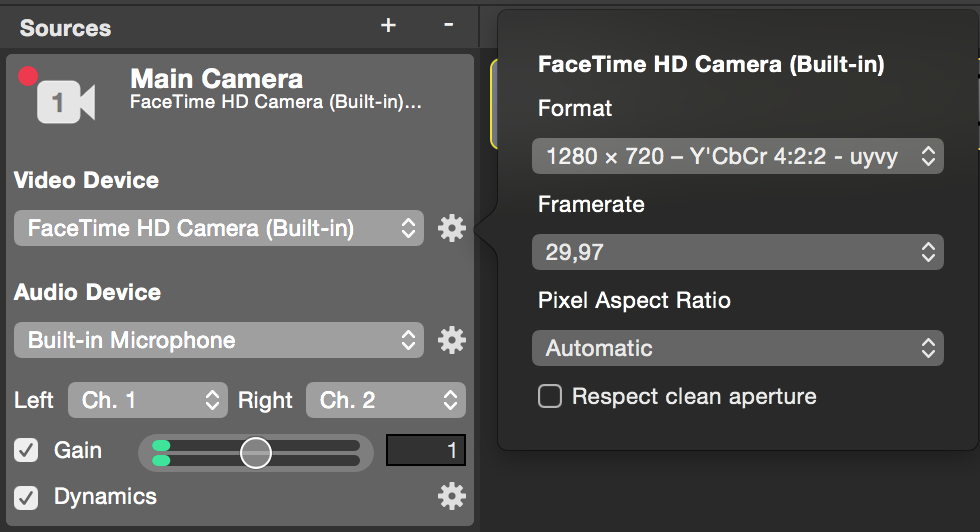
For the Video Device you have several parameters:
- Format: Here you can select the video format that is transmitted from the video hardware.
**Choose a video format for your hardware that matches the usage in your document best.**
If you are using a certain video camera as a small face camera in the upper right corner of your 1080p production, the video of the camera doesn’t need to be 1080p as well. It will reduce CPU and GPU performance if you choose a much smaller resolution for this video device as it is only displayed in this small resolution.
- Frame Rate: Some devices may provide different frame rates. The popup let you select one.
**Choose a video frame rate for your video hardware that matches that of your document.**
The input side is independent of the program output in mimoLive. Therefore the frame rates for the video source can be set independently from the program output rendering pipeline. Please choose a frame rate for your video device that matches the one in your document so that there won’t be any unnecessary performance hit on the CPU or GPU.
**The Video Resolution and Video Frame Rate are provided by the hardware device.**
The selectable options for resolution and frame rate is not a “preset” of mimoLive by itself. If there is a certain video resolution missing then it’s because the video device doesn’t provide it as an option to mimoLive.
- Pixel Aspect Ratio: By default, the Pixel Aspect Ratio is set to “Automatic” in will work in most cases. However, sometimes the pixel aspect ratio may vary (e.g. for an analog NTSC signal) and can’t be correctly detected by mimoLive, then you can force a certain pixel aspect ratio for this video image.
**Pixel aspect ratio is not the aspect ratio of the video frame**The pixel aspect ratio describes the ratio between the width and the height of one pixel provided in the video frame. For certain video formats, this can vary (e.g. DV-PAL or DV-NTSC).
The aspect ratio of a video frame describes the ratio between the width and the height of the complete image when displayed (not the pixel dimensions but the display dimensions!)
**The rendering pipeline in mimoLive runs always on square pixels.**
Because the graphic cards in computers are calculating everything in square pixels, mimoLive is doing the same. Please take into account that non-square video sources will be scaled to square pixels in the video pipeline and therefore will look a bit blurry if you take a closer look.
#### Setting Up The Audio Device
Setting up the audio component of a Video Source in mimoLive follows the same principles as configuring a dedicated **Audio Source**.
For detailed guidance on selecting and configuring audio input devices, please refer to the [Audio Source](https://mimolive.com/user-manual/audio) section of this manual.
---
### NDI® Video Source
Source: https://mimolive.com/user-manual/sources-input/local-sources/nditm-video-source/
Last updated: 2025-06-15

The NDI® Video Source receives video data from any NDI® enabled device on your local network. Technically, this video source works exactly like the [Video](https://mimolive.com/user-manual/video) source.
#### Setting up the NDI® Video Source
Once you dragged the NDI® video source into the [Source Repository](https://mimolive.com/user-manual/sources-and-the-sources-repository) you can select the video and audio sources in the associated popups.
With the action wheel right next to the popups you can retrieve further information about the selected NDI® source. In this information popover window, you can specify if the source is on a low bandwidth network. If you experience issues with NDI® input this option can help to improve the data transmission for this source.
NDI® is a product of [NewTek, Inc](https://www.newtek.com/ndi/) .
---
### Blackmagic Design Video Source
Source: https://mimolive.com/user-manual/sources-input/local-sources/blackmagic-design-video/
Last updated: 2026-08-19
From the user's perspective, this video source works exactly like the [Video](https://mimolive.com/user-manual/sources-input/video/) source, but uses a Blackmagic Design device via the Blackmagic Desktop Video SDK. This means it has very low latency, high video quality and a small performance footprint. It is perfect for capturing video from HDMI or SDI cameras and devices.
It is available automatically if mimoLive detects a Blackmagic Design device connected to your system.
#### Using the Blackmagic Desktop Video Setup
> **Important:** BMD Desktop Video Setup vs. Desktop Video Utility
>
> Please note that they are two different applications that look almost exactly the same. However, the setup described below is only possible in the `Blackmagic Desktop Video Setup`. You can download the Blackmagic Desktop Video Setup from [https://www.blackmagicdesign.com/de/support/family/capture-and-playback](https://www.blackmagicdesign.com/de/support/family/capture-and-playback)
If you are using a *Black**magic De**ckLink* capture card, you will want to make sure that it is properly configured. To do this, download and install the ***Desktop Video Setup*** application. Most cards like the ***DeckLink Quad*** are preconfigured to use their 8 channels as 4 channels, each with a separate throughput. (e.g. channel 1 uses connectors 1 and 2) This can be useful to capture 4 HD-SDI signals while sending the signals to another device.
The more common use would be to use all 8 channels as separate inputs or outputs.
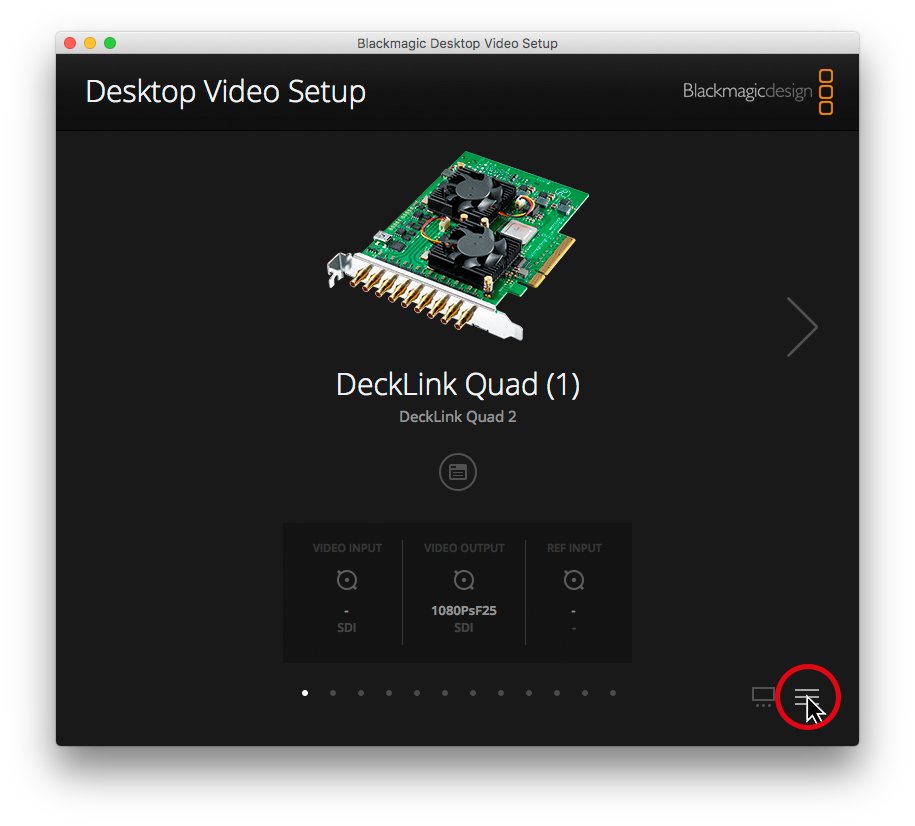
Step 1: Click on the menu button to show an overview of all connected BMD devices.
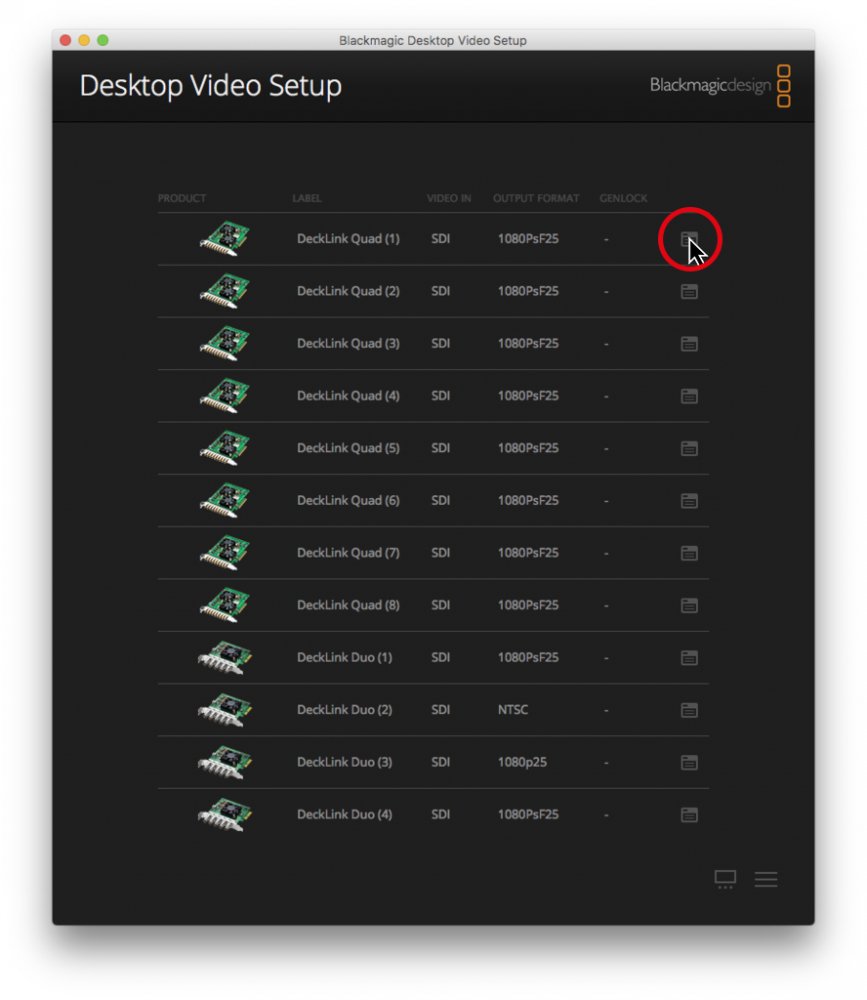
Step 2: Click on the options button behind the channel you want to adjust.
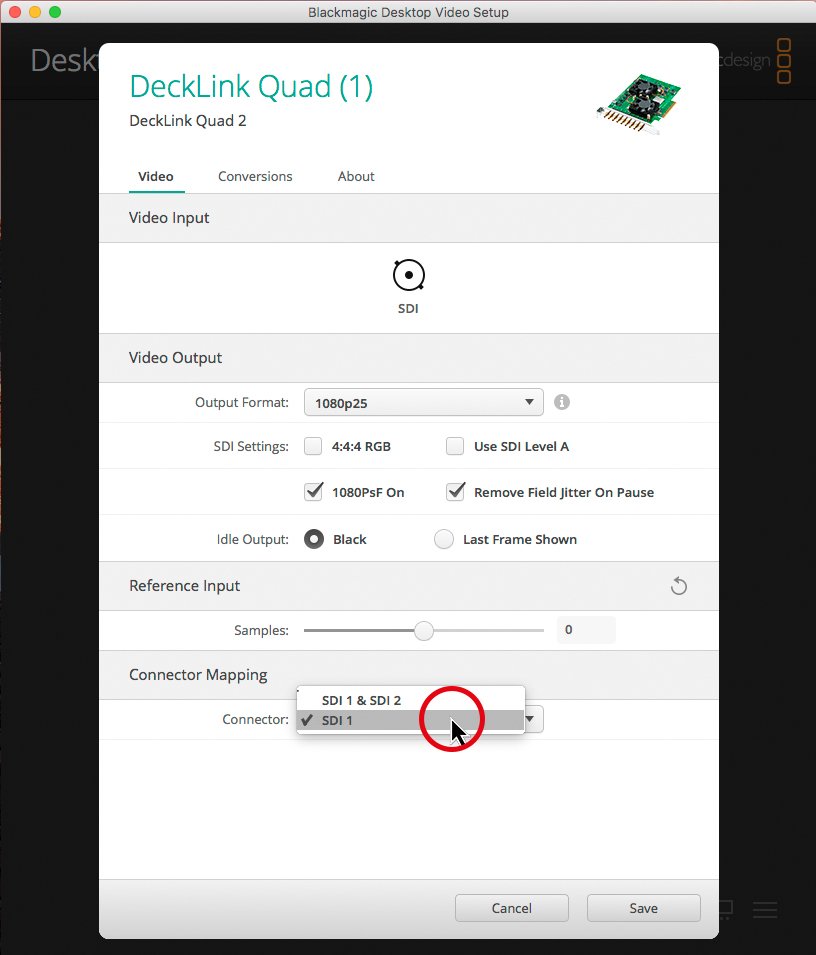
Step 3: Select the single channel from the drop-down menu.
> **Important:** Selecting a single connector for one channel automatically assigns the other.
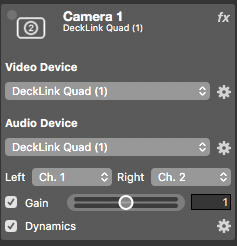
Step 4: After selecting `Blackmagic Design Video` in the sources section of mimoLive, you are able to assign each channel separately.
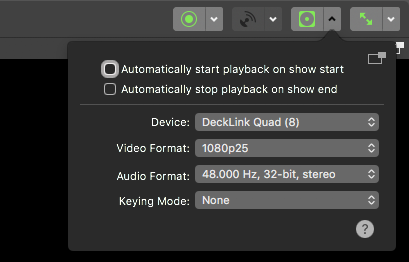
Step 5: If you want to use the DeckLink card for HD-SDI playback, you can assign a channel in the playback menu.
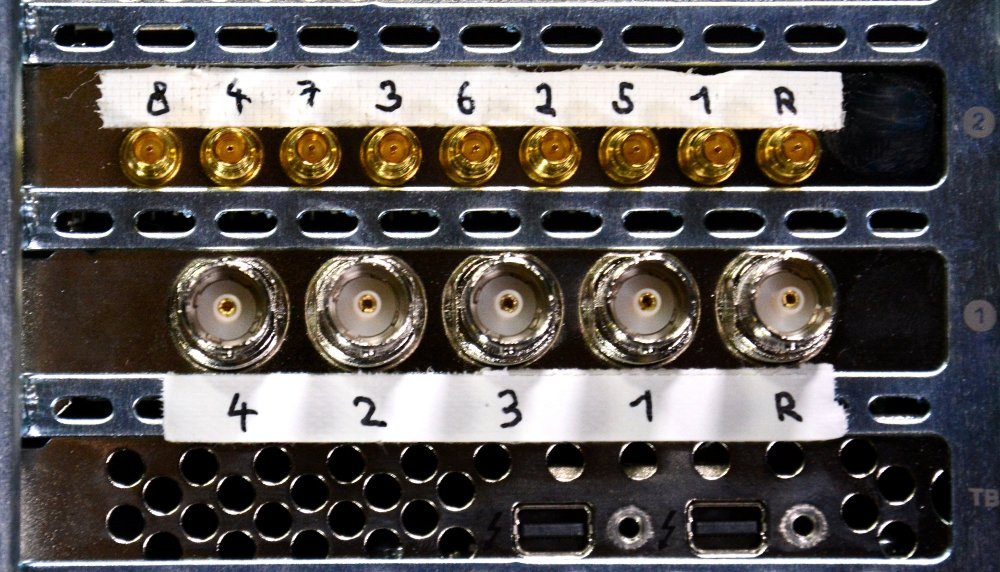
The connectors are mapped alternately. The rightmost one is for reference.
In this setup we are using 8 HD SDI Sources with a Blackmagic Quad 2 card in a Sonnet Technologies Echo Express box:
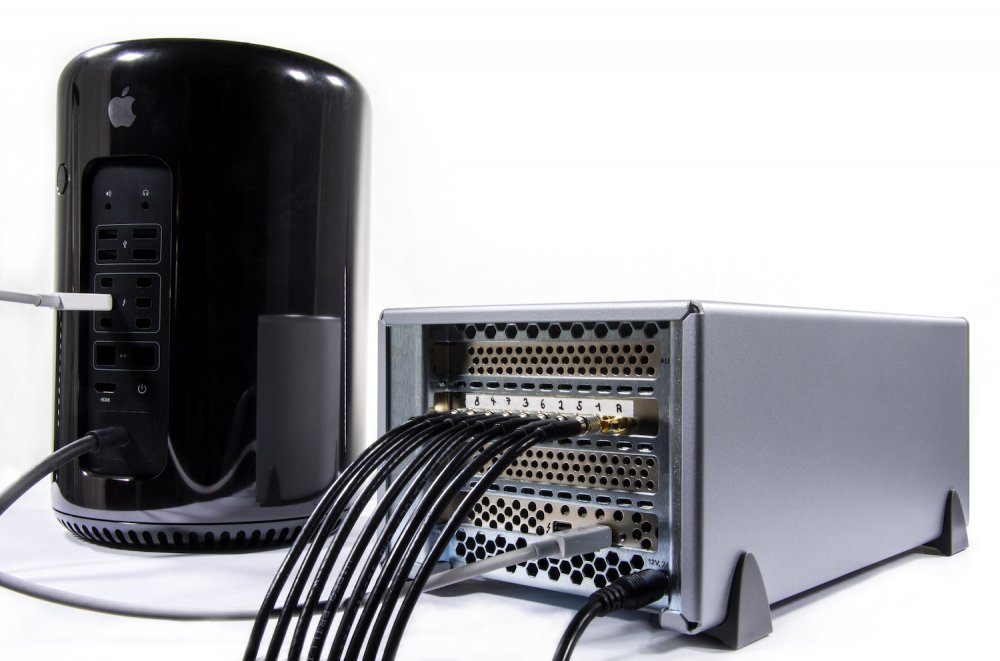
---
### Key & Fill Source
Source: https://mimolive.com/user-manual/sources-input/local-sources/key-fill-source/
Last updated: 2026-08-19
> **Important:** This feature requires a mimoLive Studio or Broadcast license.
For some use cases, it may be interesting to ingest a video with an alpha channel into mimoLive. For example, you can use the brilliant Blackmagic Design Ultimatte to get a near-perfect chroma key for your DSLR or pro studio camera against a green screen background. Since SDI doesn't support alpha channel video, the Ultimatte sends key and fill on two separate SDI channels. The Key & Fill source in mimoLive can take these signals using a Blackmagic Decklink card or other Blackmagic devices and convert them to alpha channel video. You can then use the video in mimoLive to place a news anchor in a virtual studio or send it to your NDI workflow via the NDI output.
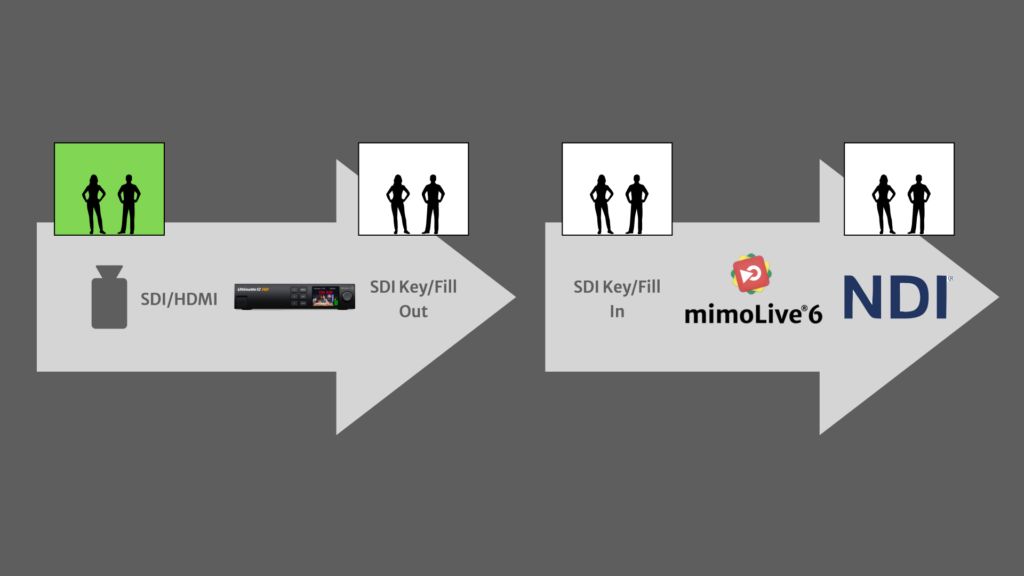
### Configuration
(This section is currently under construction.)
---
### Syphon Receiver Source
Source: https://mimolive.com/user-manual/sources-input/local-sources/syphon-receiver/
Last updated: 2025-06-16
[Syphon](http://syphon.v002.info/) is an open source macOS technology that allows applications to share frames – full frame rate video or stills – with one another in realtime.
Use the Syphon Video Receiver to get video content from Syphon Servers in other applications like VDMX or GifToSyphon. You also can use the [Syphon Server Layer](https://mimolive.com/user-manual/syphon) to receive video image within mimoLive itself.
##### Render Size
By default, even if the Syphon source has different dimensions, the image is rendered in to the Document Size.
You can change this to a custom size by choosing “Custom…” from the “Render Size” popup and entering the desired dimensions in the text fields below.
#### Settings
Click on the cogwheel in the bottom right corner to bring up the Settings.
By default the Syphon Video Receiver will use the first Syphon Sever it will find. But if you need to specify a certain Syphon Server you need to switch the “Selection” option to “Custom” and put in the name of the specific Syphon Server and its host application. In the preview you will find a list of currently available Syphon Servers. You can click on an list entry to make it active. Please keep in mind that you may need to update the Rendering Size (described above) if you don’t want to have black bars (letter boxing).
---
### Canon Camera via USB and Syphon
Source: https://mimolive.com/user-manual/sources-input/local-sources/canon-dslrs-via-usb-and-syphon/
Last updated: 2026-08-19
> **Important:** This article is mainly about older DSLR cameras
>
> For modern mirrorless cameras, go to https://www.usa.canon.com/cameras/eos-webcam-utility
If you’re looking for using Canon DSLRs with mimoLive simply connected via USB, there is an open source app you can use: Camera Live.
#### Using Canon DSLRs
1. Check the list below if your camera is supported.
2. Connect your camera to your Mac via a suitable USB cable. Check with the manual that came with your Canon camera for cable specification.
3. Download [Camera Live](https://github.com/v002/v002-Camera-Live)
4. Launch Camera Live. You should see your camera listed in the window.
5. Connect Camera Live to your Camera.
6. In your mimoLive document, add a [Syphon Video Receiver](https://mimolive.com/user-manual/syphon-receiver) source and assign it to a Placer layer or any other layer that displays video. You should now see the live video from your camera.
#### List of Supported Canon Cameras
As of June 2020, the Camera Live app supports the following Canon DSLRs: (Source: [https://github.com/v002/v002-Camera-Live/blob/master/CAMERAS.md](https://github.com/v002/v002-Camera-Live/blob/master/CAMERAS.md) :
- EOS 1000D
- EOS 100D
- EOS 1100D
- EOS 1200D
- EOS 1300D
- EOS 1500D
- EOS 1D C
- EOS 1D Mark III
- EOS 1D Mark IV
- EOS 1Ds Mark III
- EOS 1D X
- EOS 1D X Mark II
- EOS 2000D
- EOS 200D
- EOS 200D II
- EOS 250D
- EOS 3000D
- EOS 4000D
- EOS 40D
- EOS 450D
- EOS 500D
- EOS 50D
- EOS 550D
- EOS 5D Mark II
- EOS 5D Mark III
- EOS 5D Mark IV
- EOS 5DS
- EOS 5DS R
- EOS 600D
- EOS 60D
- EOS 650D
- EOS 6D
- EOS 6D Mark II
- EOS 700D
- EOS 70D
- EOS 750D
- EOS 760D
- EOS 77D
- EOS 7D
- EOS 7D Mark II
- EOS 8000D
- EOS 800D
- EOS 80D
- EOS 9000D
- EOS 90D
- EOS DIGITAL REBEL XS
- EOS DIGITAL REBEL Xsi
- EOS Hi
- EOS KISS F
- EOS Kiss M
- EOS Kiss X10
- EOS Kiss X2
- EOS Kiss X3
- EOS Kiss X4
- EOS Kiss X5
- EOS Kiss X50
- EOS Kiss X6i
- EOS Kiss X7
- EOS Kiss X70
- EOS Kiss X7i
- EOS Kiss X80
- EOS Kiss X8i
- EOS Kiss X9
- EOS Kiss X90
- EOS Kiss X9i
- EOS M200
- EOS M50
- EOS M6 Mark II
- EOS R
- EOS REBEL SL1
- EOS Rebel SL2
- EOS Rebel SL3
- EOS REBEL T100
- EOS REBEL T1i
- EOS REBEL T2i
- EOS REBEL T3
- EOS REBEL T3i
- EOS REBEL T4i
- EOS REBEL T5
- EOS REBEL T5i
- EOS Rebel T6
- EOS REBEL T6i
- EOS REBEL T6s
- EOS REBEL T7
- EOS Rebel T7i
- EOS RP
- PowerShot G5X Mark II
- PowerShot G7X Mark III
- PowerShot SX70 HS
---
### Using iPhone as a webcam
Source: https://mimolive.com/user-manual/sources-input/local-sources/using-iphone-as-a-webcam/
Last updated: 2026-08-19
Using an iPhone or an iPad as a camera for mimoLive is very appealing. The cameras in iPhones are pretty good and since many people already have one, it isn’t an extra investment to get a decent camera.
There are several ways to use an iPhone as a camera in mimoLive:
- [Continuity Camera](https://mimolive.com/user-manual/using-iphone-as-a-webcam#continuitycamera) and [Desk View](https://mimolive.com/user-manual/using-iphone-as-a-webcam#deskview) with iOS 16 and MacOS Ventura
- Via [NDI®](https://ndi.tv) using the NDI HX camera app
- Using a Lightning cable and the mimoCam app (see [iOS Device Video Source](https://mimolive.com/user-manual/ios-device-video))
- mimoCall over the public internet (see [mimoCall](https://mimolive.com/user-manual/mimocall))
- Various third party apps that turn the iPhone into a Webcam for the Mac like [Camo](https://mimolive.com/user-manual/using-iphone-as-a-webcam#camo)
- Using an HDMI video grabber and the Lightning Digital AV adapter or an USB-C to HDMI cable (if your device has a UBS-C port)
The method that works best for you depends on the circumstances and can ultimately only be determined through testing.
### Continuity Camera
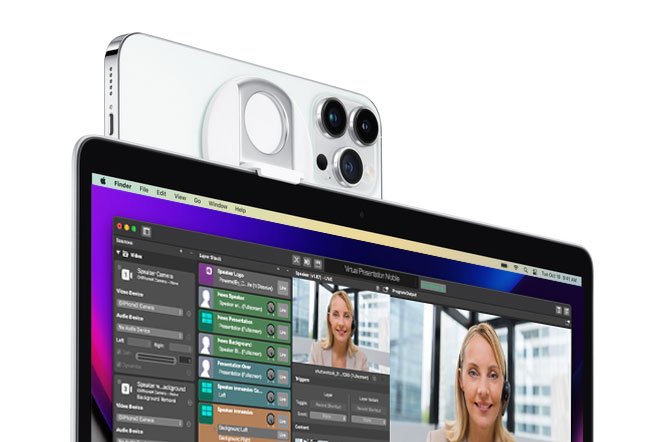
With the introduction of **MacOS Ventura** and **IOS 16**, the [Continuity Camera](https://support.apple.com/en-us/HT213244) is the easiest to use if you have a supported iPhone.
#### Requirements
- MacOS Ventura and iOS 16
- Supported iPhone and Mac
- Both devices are logged into the same iCloud account
#### Activating And Deactivating Continuity Camera
By default, the Continuity Camera is activated when you install iOS 16 and MacOS Ventura. If you need to activate or deactivate the Continuity Camera, go to Settings -> General -> AirPlay & Handoff:
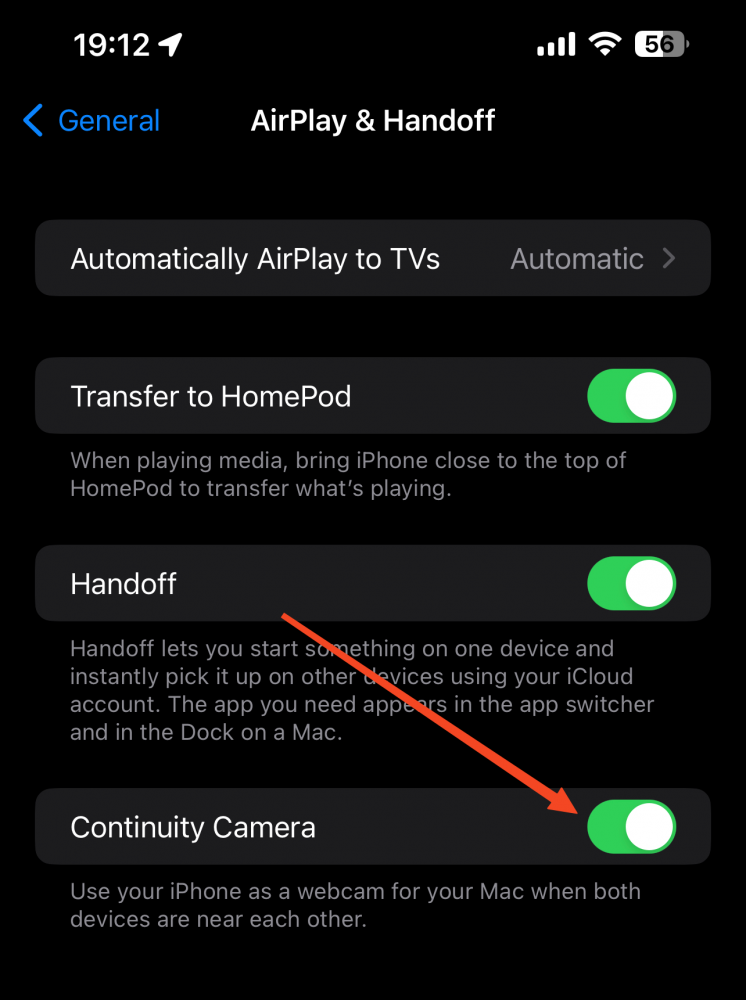
#### Using Continuity Camera in mimoLive
It is very simple to use Continuity Camera in mimoLive: Just add a regular video source and select the camera from the popup menu:
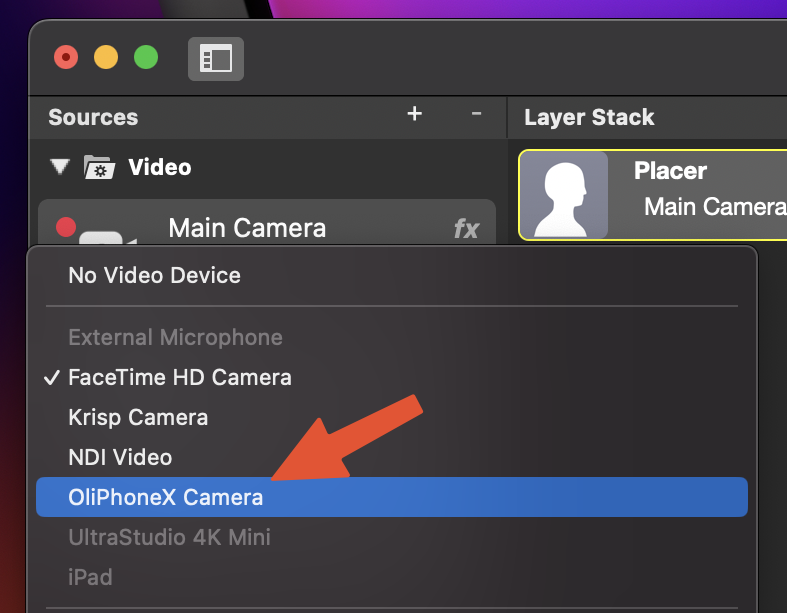
#### Controlling the Continuity Camera Settings
Continuity Camera comes with a number of effects you can also use in mimoLive:
- **Center Stage** – The camera automatically keeps faces framed and centered on the video output.
- **Portrait** – Blur the background to hide the fact that you’re in a hotel room or to keep viewers from reading the book titles on a shelf behind you.
- **Studio Light** – Brightens the face and body of the person in front of the camera while darkening the background.
To get to the settings, go to the Control Center at the top right of the menu bar and select “Video Effects”:
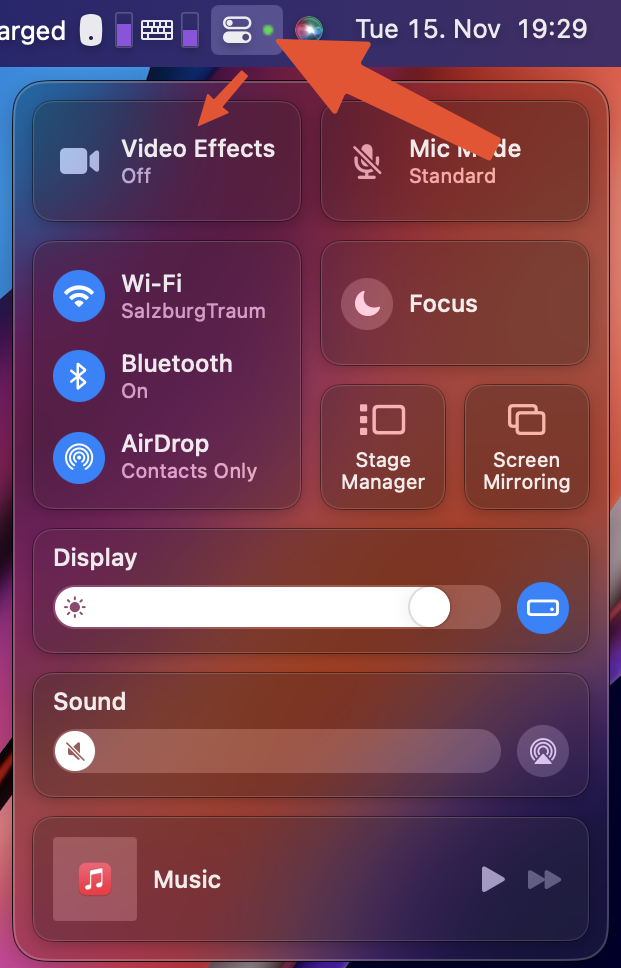
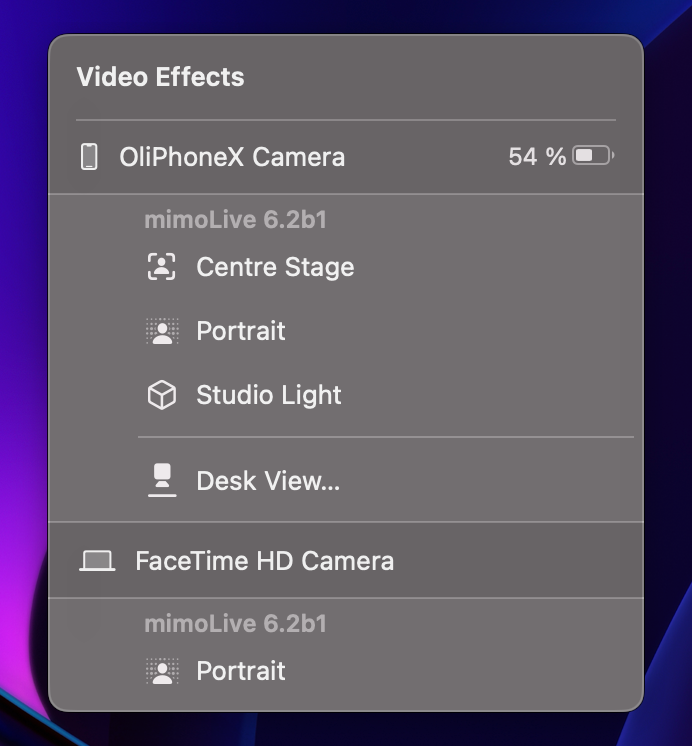
Using mimoLive Filters allows you to go even further with this:
- Remove the background using [Chroma Keying](https://mimolive.com/user-manual/chroma-keying-green-screen2) or the [Background Removal](https://mimolive.com/user-manual/background-removal) filter
- Change the look of the camera using [Color LUTs](https://mimolive.com/user-manual/color-lut-color-look-up-table)
> **Note:** \*The Continuity Camera is a great camera for the [Mobile Virtual Presentation Studio](https://mimolive.com/user-manual/mobile-virtual-presentation-studio).
#### Desk View
The Continuity Camera also comes with a feature called Desk View. When the iPhone is mounted at the correct height, the table surface in front of the MacBook or Display will be observed and deskewed by the Desk View camera. This makes it look like there is a second camera mounted over the desk and looks straight down. This can be used to show documents, drawings or items in your live stream.
Learn how to use Desk View with mimoLive.
### NDI HX Camera App
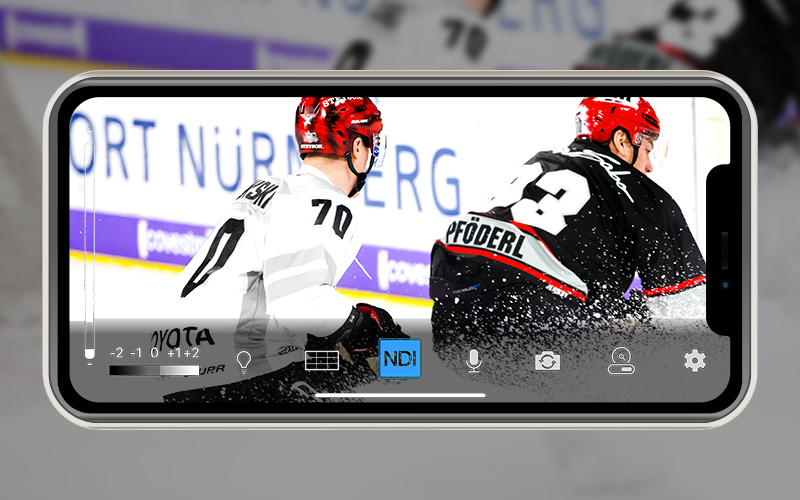
The NDI HX Camera app can be used on iPhone, iPad and Android smart devices and is using the NDI® network protocol to send video to mimoLive. After being enhanced in mimoLive, it can be sent on to Zoom, MS Teams and other platforms using the mimoLive Virtual Camera.
This option can also be used in a multi camera setup and, with the help of an Ethernet adapter for the iPhone, iPad or Android, as a wired camera.
#### Using the NDI HX Camera with mimoLive
- Download and install the NDI HX Camera on your [iPhone, iPad](https://apps.apple.com/us/app/ndi-hx-camera/id1477266080?ls=1) or [Android device](https://play.google.com/store/apps/details?id=com.newtek.ndi.hxcam).
- Connect the device to the same network as the Mac running mimoLive.
- Launch the app and turn on NDI streaming (1). You can select the bandwidth to adjust to requirements (2).

- Add an NDI® source to your mimoLive document and select the camera.
The auto-discover feature will automatically detect any NDI® source inside your network which makes it super easy to work with NDI® sources.
### Camo App & Camo Studio
[Reincubate Camo](https://reincubate.com/camo/) is a solution for Mac and iOS which brings maximum features to use an iPhone as a webcam and mic device.
- Download and install Camo App on the iPhone and Reincubate Camo Studio on the Mac.
- Add a new source to a mimoLive document and choose Reincubate Camo as the video and audio source.
- Once the iPhone runs the Camo app and the USB connection is established the video and audio feed is available in mimoLive.
Camo Studio lets you choose between the different camera lenses\*, mics and video resolutions\*. You can control focus and zoom positions\*. Camo enhances the experience of using mimoLive on your Mac as it helps to convert your iPhone into a pro-quality HD webcam. It is a great app that allows you to create professional-quality live streams or videos with minimum setup requirements.
\*PRO features
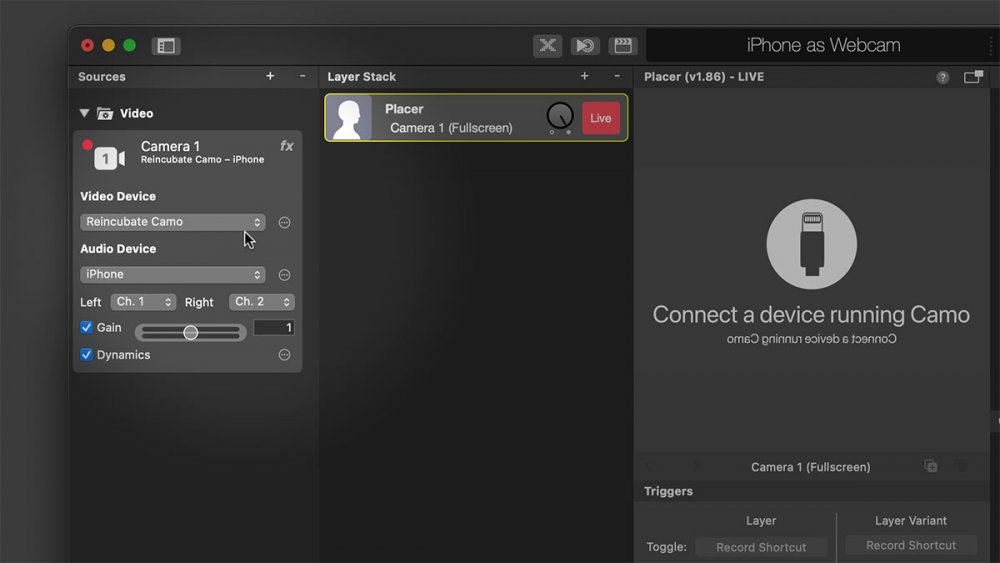
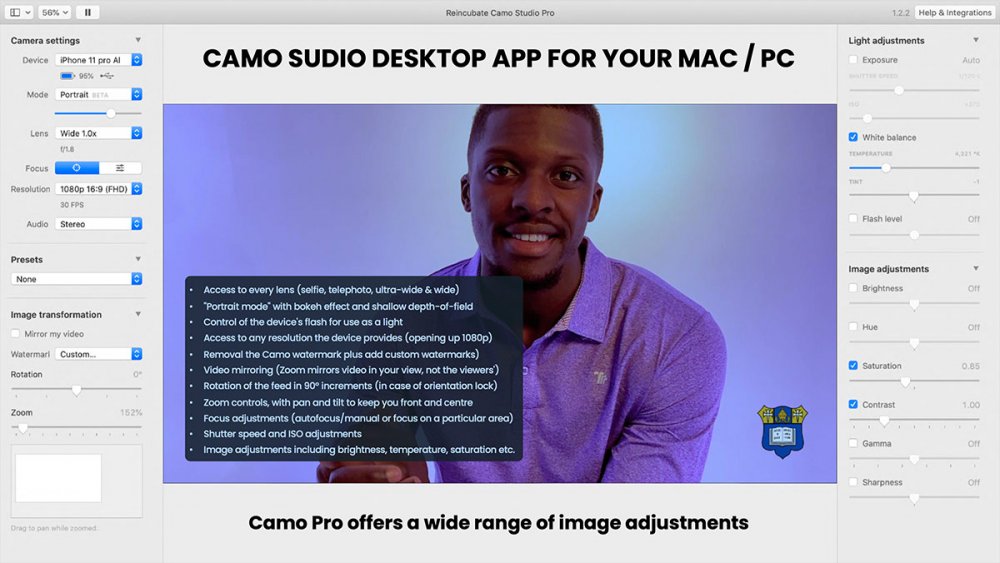
Use [https://reincubate.com/camo/](https://reincubate.com/camo/) for free or upgrade to PRO.
---
### Simulated Camera Source
Source: https://mimolive.com/user-manual/sources-input/local-sources/simulated-camera-source/
Last updated: 2025-06-15
When creating screenshots, tutorial videos, or other documentation, it is sometimes helpful to simulate a camera with a pre-recorded video.
To create a Simulated Camera Source, drag and drop a video from the Finder into the Sources column while holding the Command + Control keys. A new source will appear that looks like a [camera](http://Camera)[source](https://mimolive.com/user-manual/sources-input/video/), but plays the video in a loop. You can then select a hardware source and audio source, just like with a real camera source.
---
## Audio Sources
Source: https://mimolive.com/user-manual/sources-input/audio-sources/
Last updated: 2025-06-15
_This page has no body text; it groups the pages below._
---
### Audio Source
Source: https://mimolive.com/user-manual/sources-input/audio-sources/audio/
Last updated: 2026-08-19
The Audio Source provides audio input from a microphone, a camera with an integrated microphone or some kind of audio interface that is connected to your Mac.
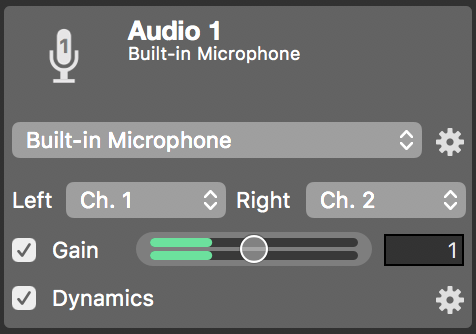
#### Bringing Audio into mimoLive
Audio devices can be connected to the Mac in several ways: USB, Thunderbolt, and FireWire. Some devices are even virtual devices that receive data over the network or aggregate audio from other audio devices or from other software.
> **Note:** Class Compliance
>
> Audio devices can either be class-compliant or need a dedicated audio driver, usually provided by the manufacturer. Class-compliant devices are plug-and-play on the Mac and should work seamlessly. If you don’t see your audio device being available in mimoLive or experience issues with audio quality, please make sure you have the latest version of any additional software that came with your audio device installed.
- Connect the audio device to your Mac. It should instantly become visible in the Audio Source device popup menu.
- Select the device from the popup menu. The input meter will display the volume levels of the incoming audio.
- Select the physical input channels that should be mapped to the left and right input channels in mimoLive.
#### Setting Up The Audio Device
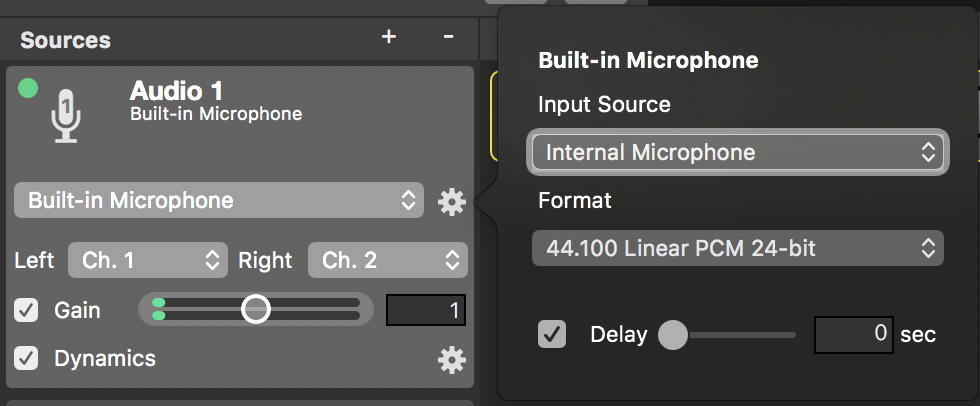
The action gear button next to the popup menu lets you configure the settings of the associated device.
- Input Source: Video devices with audio input may provide input ports like HDMI or SDI.
#### Configuring Hardware Channel Map
Audio interfaces usually make their various input connectors, like S/PDIF, TOSLINK, AES/EBU, MADI, etc., available through their channels. Channel mapping can be done directly on the device or via control software.
- **Format:** Audio devices usually provide more than one audio format. Select a format that matches the current mimoLive show. If such a format is unavailable mimoLive will convert the device’s audio input on the fly with a small performance penalty.
> **Note:** Configuring Hardware Audio Format
>
> Some audio devices may require that the audio format, most notably the audio sampling rate, be set via their control software. Certain audio formats may only become available in mimoLive after changing the sampling rate in the device’s control software. Audio glitches may occur until the device’s control software has been configured to match the audio format selected in mimoLive.
- **Delay:** Oftentimes, audio input arrives ahead of video input. To compensate for the timing difference and to bring audio and video back into sync, audio input can be delayed by up to 2 seconds. The [Audio Sync Meter Layer](https://mimolive.com/user-manual/audio-sync-meter) provides a workflow to determine the correct delay time.
> **Note:** Device settings are global
>
> Note that the changes you make to the device settings affect all sources using this device.
#### Additional Settings
- Gain: In case the audio input is too quiet or easily distorts, its gain can be levelled using this control. The effect will immediately be visible in the volume meter. Gain changes can be temporarily disabled by unchecking the check box.
- Dynamics: The dynamics effect can be used to limit, compress, expand and excite the audio signal. The action gear button at the right opens the effect of the dynamic user interface. Dynamics can be temporarily disabled by unchecking the check box.
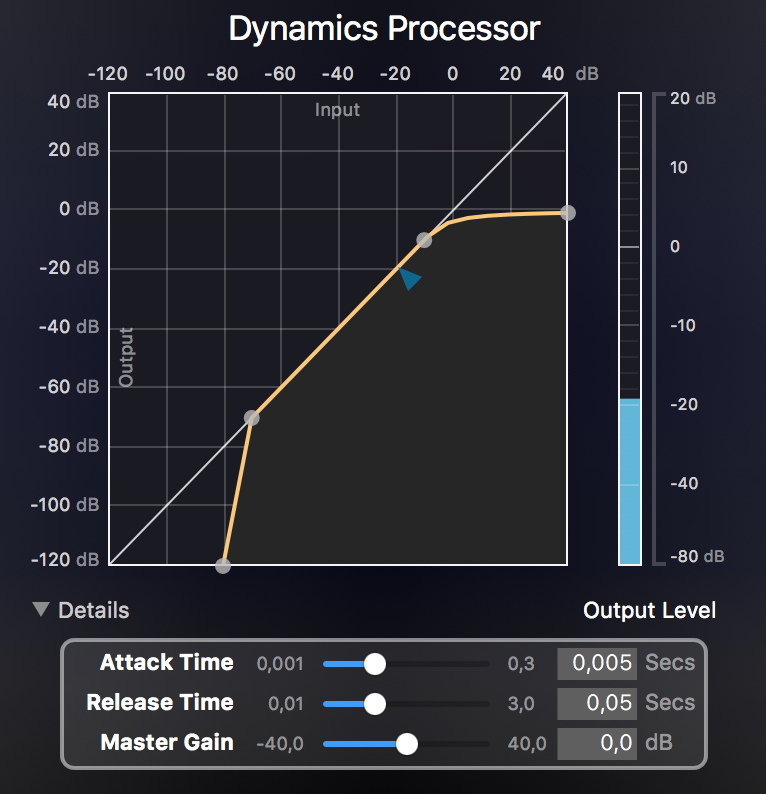
> **Note:** Dynamics are shared between sources with the same device input setup!
>
> Sources sharing the same audio input device and the same channel map configuration also share their dynamics effect. Therefore, changes made to the effect of the dynamic in one of these sources affect all sharing sources. A label saying Shared! will be displayed nearby the dynamics section is affected sources.
---
## Screen Sources
Source: https://mimolive.com/user-manual/sources-input/screen-sources/
Last updated: 2025-06-15
_This page has no body text; it groups the pages below._
---
### Screen Capture Source
Source: https://mimolive.com/user-manual/sources-input/screen-sources/screen-capture/
Last updated: 2025-06-16
#### Screen Capture Source / Screen Recordings / Screencast
The Screen Capture source lets you record the entire screen or a part of it and provide what’s displayed there as video for use in any layer that supports a video source.
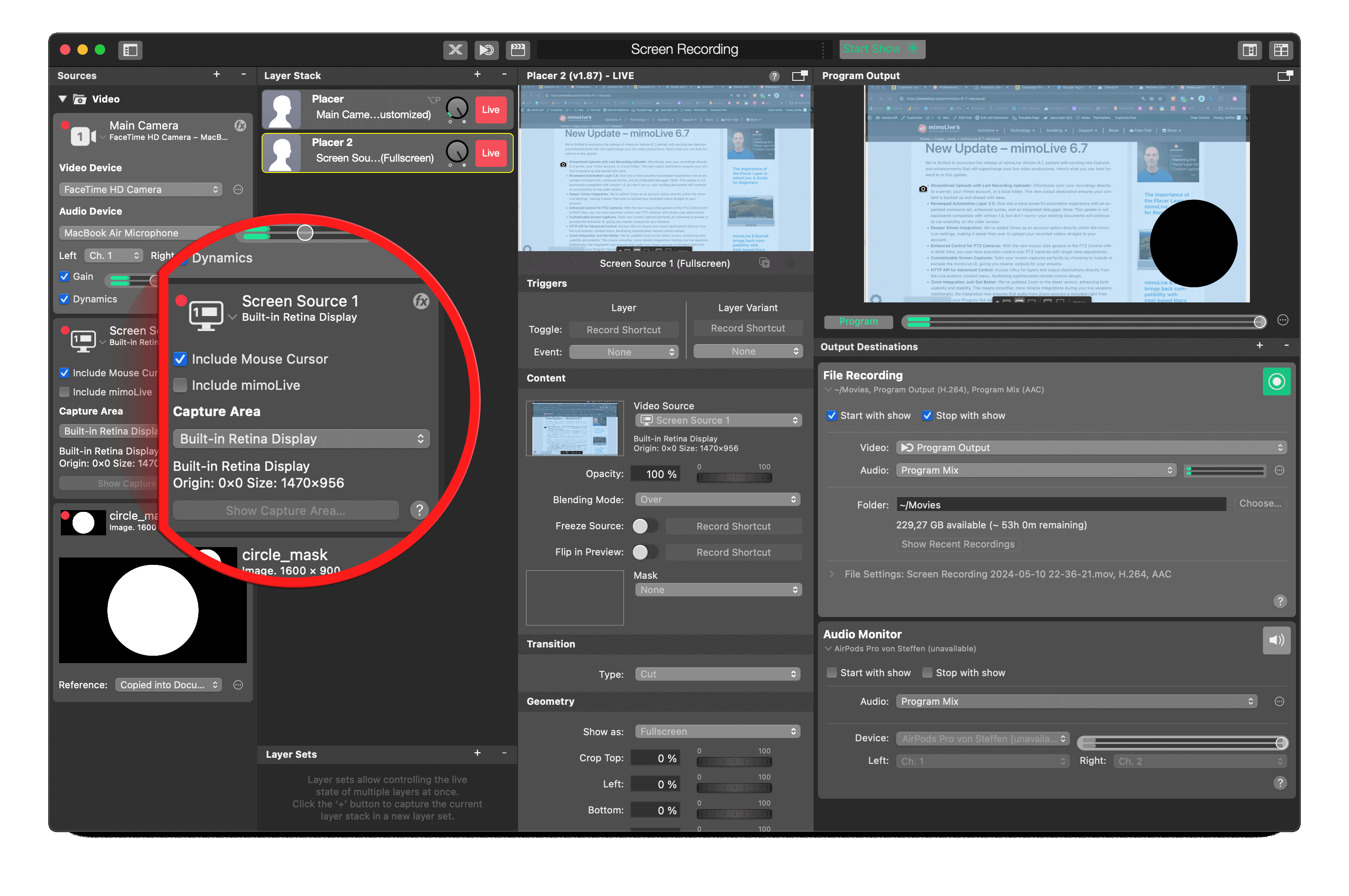
#### Adding The Screen Capture Source
To add the Screen Capture source to your mimoLive document click on the “+” button on top of the [Sources Repository](https://mimolive.com/user-manual/sources-and-the-sources-repository) to show a list of available source types. Find the Screen Capture source and drag it to the Source Repository.
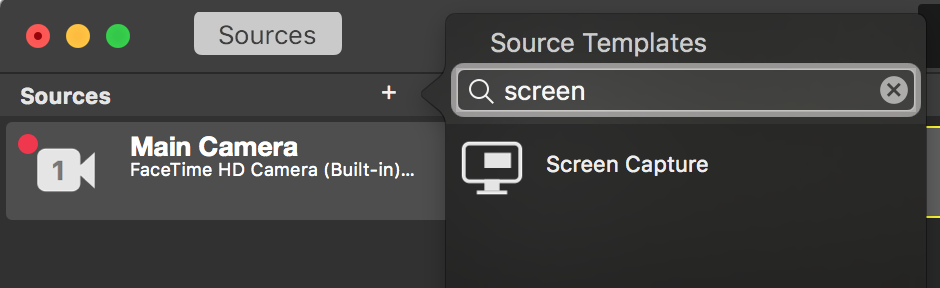
#### Include Mouse Cursor

Depending on your needs you can show or hide the mouse cursor. For a screencast, e.G. a video that explains software, it is helpful to record the cursor to demonstrate clicks and actions. However, capturing a Google Hangout or Skype call you might not want to record the mouse cursor at all.
#### Include mimoLive
You now have the option to include or exclude the mimoLive window from the recording (program output) based on your specific requirements. This feature proves especially useful for screen casts and similar productions where you may want to control the visibility of the mimoLive interface.
#### Selecting The Capture Area
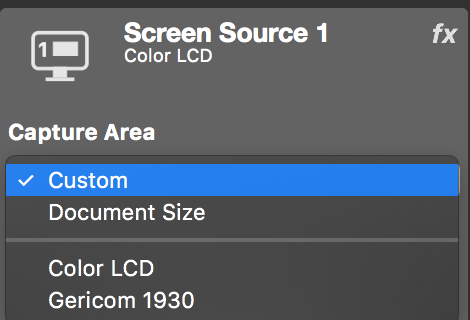
The Screen Capture source can either capture a complete screen or a certain part. The available screens are listed in the lower section of the popup menu. If you select a certain display it will flash twice to indicate which one you selected. If you select “Custom” as the capture area you can show and modify this area with the “Shop Capture Area…” button below the popup. A black frame appears and the inner bounds define the capture area. You can drag it around and resize it at its corners.
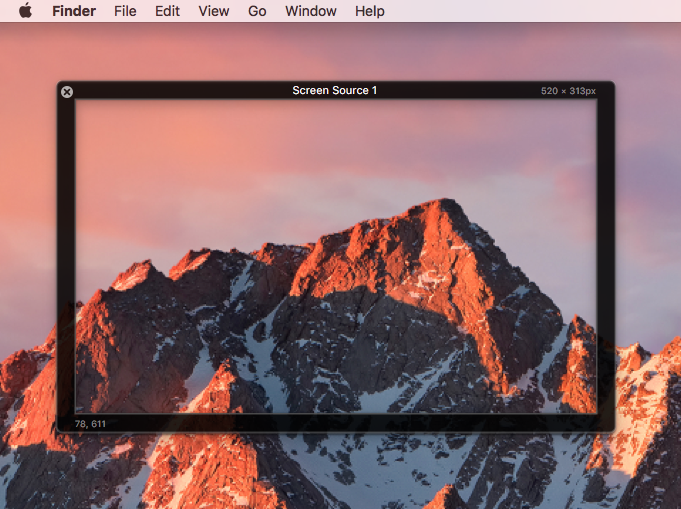
To make sure that the custom capture area is precisely the same pixel size as the mimoLive document you can select “Document Size” in the Capture Area popup. Then the black frame can only be dragged around but not resized anymore.
### Capturing Computer Audio
In Screen Recordings, recording Mac’s audio is not as easy as video. The problem occurs from the audio driver and internal processes of how the computer processes audio. mimoLive is natively able to record any audio signal which comes into the Mac, the input audio. This includes any microphones, internal or external, as well as mimoCalls. Pre-recorded audio can be recorded if played by mimoLive itself. If you play a music song through a 3rd party software on your speakers or play a youtube video in a browser – it might be impossible to record that natively with minoLive.
The solution is to run an audio routing software that allows sharing of audio between applications.
In order to record audio from another application, you need to use a tool that redirects the audio output from the app you want to capture and provides it as an audio source to mimoLive.
The following applications are Virtual Audio Driver which does exactly that:
#### Loopback
With the power of Loopback, it’s easy to pass audio from one application to another. Loopback can combine audio from both application sources and audio input devices, then make it available anywhere on your Mac. With an easy-to-understand wire-based interface, Loopback gives you all the power of a high-end studio mixing board, right inside your computer.
Loopback is a paid software from Rogue Amoeba.
Link to [Loopback](https://www.rogueamoeba.com/loopback/)
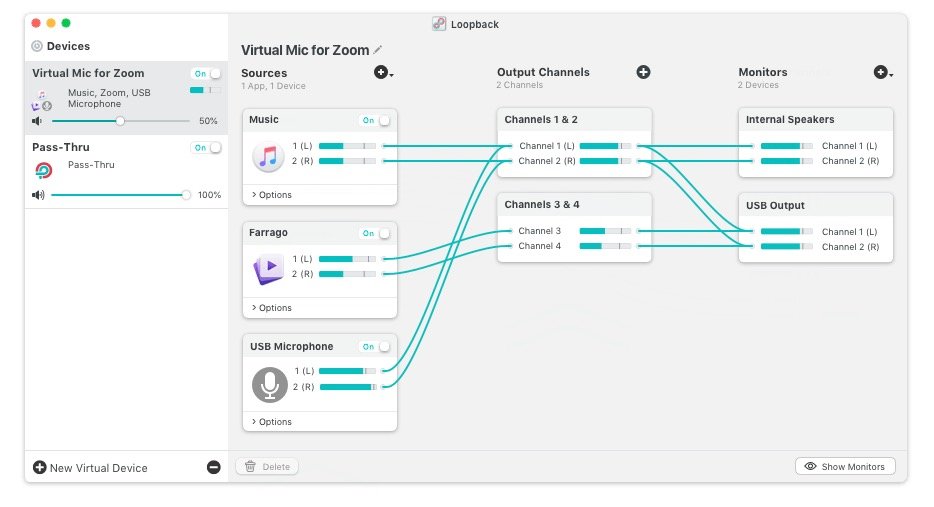
#### BlackHole
BlackHole is an open-source virtual audio driver that allows applications to pass audio to other applications with zero additional latency.
Link to [BlackHole](https://existential.audio/blackhole/) – Free Route Audio Between Apps
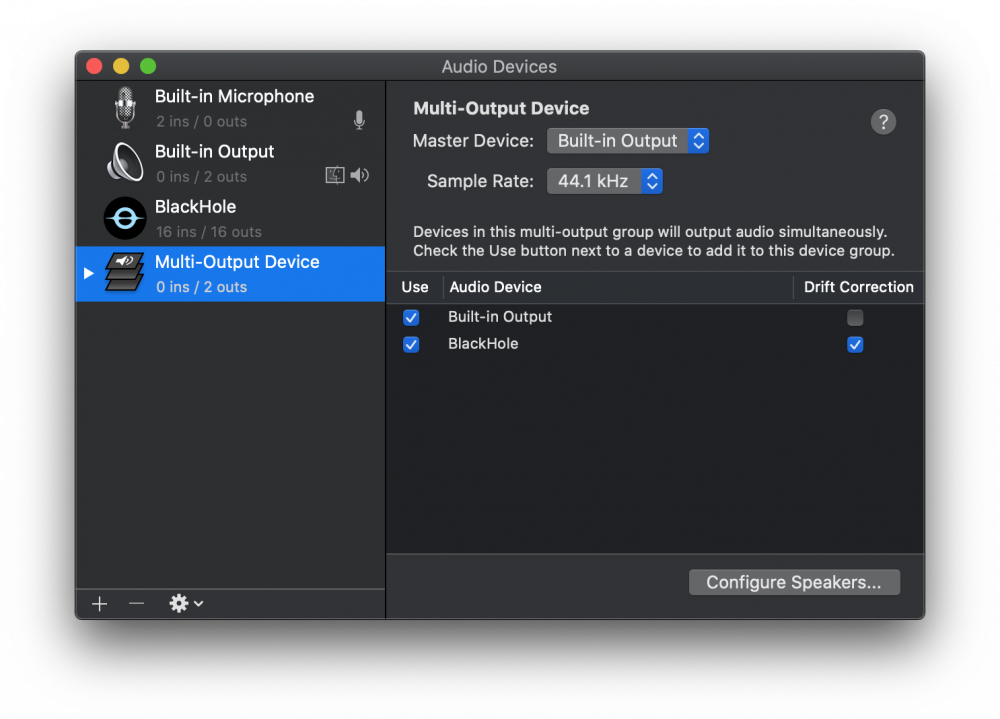
#### Soundflower
Link to [https://github.com/mattingalls/Soundflower](https://github.com/mattingalls/Soundflower/) discontinued
---
### Window Capture Source
Source: https://mimolive.com/user-manual/sources-input/screen-sources/window-capture/
Last updated: 2026-08-19
#### Window Capture Source
The **Window Capture** source lets you grab certain windows from 3rd party apps or a part of them and provide what’s displayed there as video for use in any layer that supports a video source. [Web Browser Capture](https://mimolive.com/user-manual/web-browser-capture)
> **Important:** Use the Web Browser Source to capture web content
>
> For the special case of capturing a web page we implemented the [Web Browser Capture Source.](https://mimolive.com/user-manual/web-browser-capture)
#### Adding The Window Capture Source
To add the Window Capture source to your mimoLive document click on the “+” button on top of the [Sources Repository](https://mimolive.com/user-manual/sources-and-the-sources-repository) to show a list of available source types. Find the Window Capture source and drag it to the Source Repository.
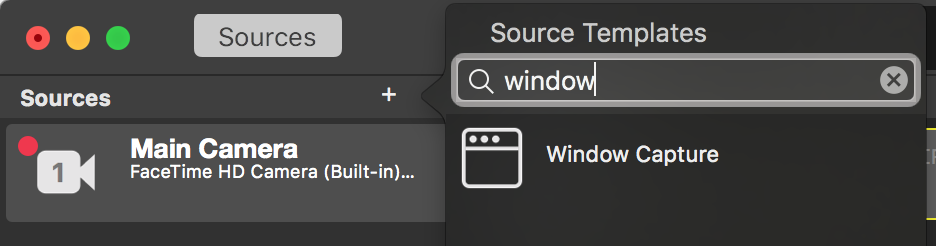
#### Selecting The Window To Capture
To select a certain window to capture click on the “Window to capture” popup. You will see a list of all the active windows on your Mac.
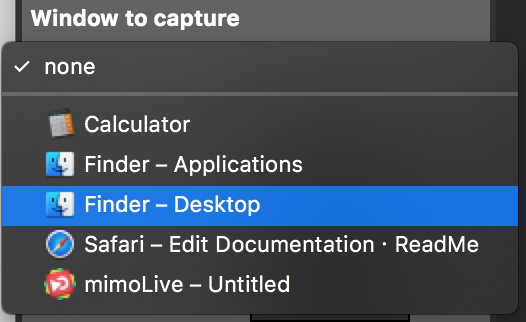
#### Grabbing Only A Part of the Window
Sometimes it makes sense only to grab a certain area of a window. To do so you can set up crop marks from each edge. By clicking on the action gear button you will get a preview of the grabbed window. The red border shows the area to grab. You can drag the red handles to only get a certain area of the window. At the top there are three buttons to control the zoom stage of the preview. Zoom in to have pixel-accurate control.
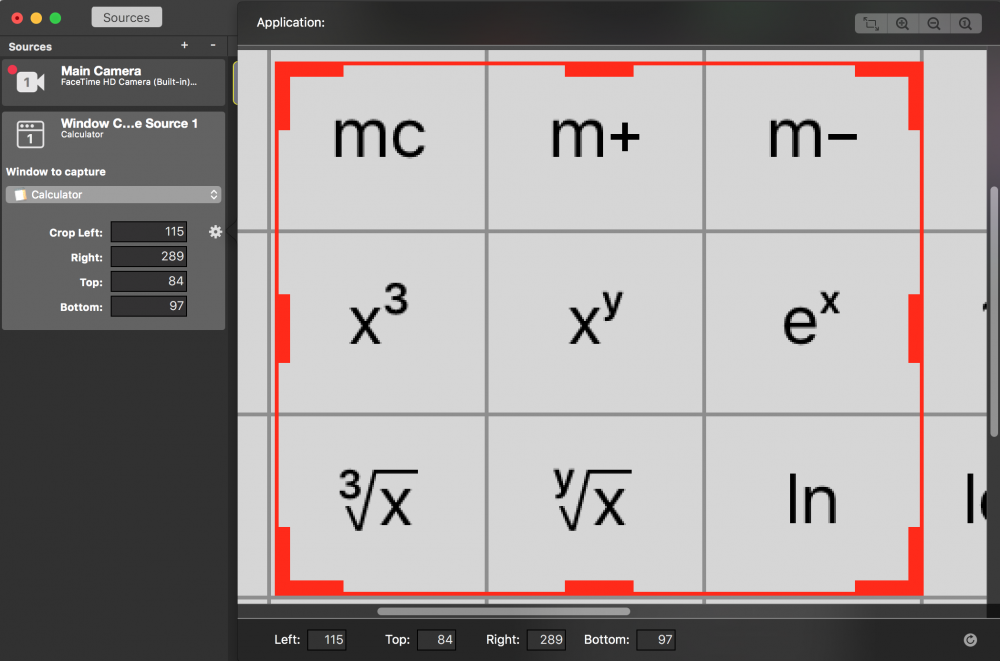
**Capturing Computer Audio**
To learn about how to capture computer audio refer to [Sources (Input) / Computer Audio](https://mimolive.com/user-manual/computer-audio)
---
### Web Browser Capture Source
Source: https://mimolive.com/user-manual/sources-input/screen-sources/web-browser-capture/
Last updated: 2026-08-19
#### The Web Browser Capture Source
The **Web Browser Capture** source lets you capture an internet browser window or a part of it and provide what’s displayed there as video for use in any layer that supports a video source.
This can be useful if you want to show off a web page. Or you can create a transparent graphics overlay with live data updated via the internet using HTML and CSS for formatting.
#### Adding the Web Browser Capture Source
To add the Web Browser Capture source to your mimoLive document click on the “+” button on top of the [Sources Repository](https://mimolive.com/user-manual/sources-and-the-sources-repository) to show a list of avaiable source types. Find the Web Browser Capture source and drag it to the Source Repository.
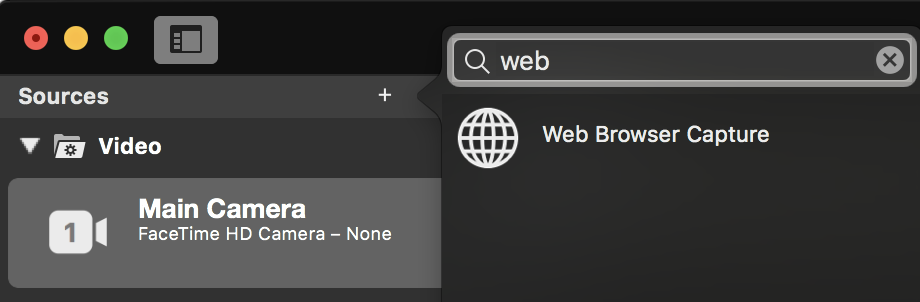
#### Entering An URL To Capture
Click in the URL field and enter the URL you want to capture.
> **Important:** You can also specify files from your local computer
>
> If you want to capture an HTML document from your computer you need to specify the URL starting with “file:///” followed by the full path to this document. Please note the three “/” after “file:” ! E.g. file:///Users/mimolivestation/Desktop/MyHTMLpage.html
#### Controlling the Content
To control the content of your Web Browser Capture source you need to open the browser window by clicking the “Show Web Browser” button below the URL field. A new browser window will popup containing the content of your URL.

Several control elements are available:
##### Backward and Forward
The first two buttons let you jump through the browser history if you navigated via links on the web pages.
##### URL field
The text field in the middle lets you enter a new URL for the web content.
##### Reload
With the circular button you can force a reload of the current web page.
##### Cropping
If you only want to capture a certain part of the web browser content you can enable cropping with this button. A red border will show up which let you define the portion you want to capture by dragging the red handles. Numeric fields will appear at the bottom of the web browser window to let you enter exact parameters if needed.
##### Transparent Background
Sometimes you want to have only the textual content of a web page as an overlay for your video production but the web page content has got a background color defined. In this case you can try to remove the transparency by clicking on this button. Since this is manipulating the HTML document structure via injected JavaScript code this may not work for all web pages.
The following JavaScript code is executed to make the background transparent:
```
document.body.style = document.body.style.cssText + \“;background: transparent !important;\“;
```
> **Important:** Use the Chromakey Filter if the background removal feature don’t work!
>
> You still can apply [Chroma Keying Basic](https://mimolive.com/user-manual/chroma-keying-basic) to make the background transparent! Learn how to [add a Filter](https://mimolive.com/user-manual/filters) to the Web Browser source.
##### Mouse Cursor
Especially if you want to show off web pages to your audience you may want to see them your mouse cursor so that they can follow along your narration. Use this button to switch on and off the mouse cursor.
#### Setting Up The Pixel Dimensions
It is important to know that the pixel dimensions of the captured web page is the same as the web browsers window. By default the window will have the dimensions of your video production. Once you resize the window also the pixel dimensions of the resulting captured image will be changed.
To specify a certain pixel dimension for your source you can click on the action wheel in the upper right corner to reveal a popup menu with predefined video formats or you can switch to a custom dimension.
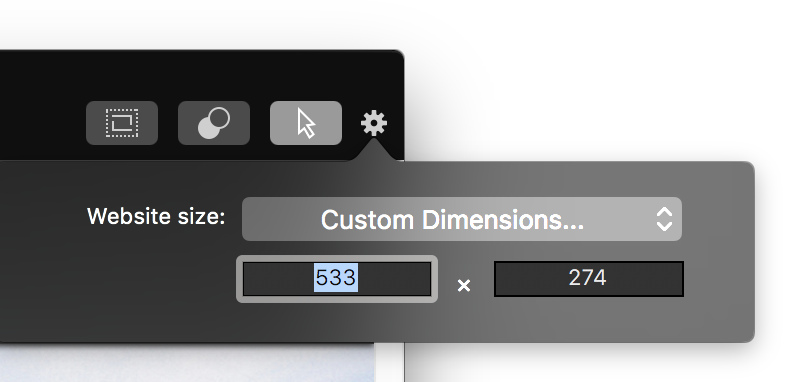
**Capturing Computer Audio**
To learn about how to capture computer audio refer to [Sources (Input) / Computer Audio](https://mimolive.com/user-manual/computer-audio)
#### Resetting the Web Browser Capture Source
MacOS stores the caches, cookies and other data related to the Webview used by the Web Browser Capture Source at:
`~/Library/WebKit/com.boinx.mimoLive/WebsiteData/`
If it becomes necessary to reset the web content of the source, delete that folder.
---
### iOS Device Video
Source: https://mimolive.com/user-manual/sources-input/screen-sources/ios-device-video/
Last updated: 2026-08-19
Starting with iOS 9, you can connect an iOS device via USB Lightning cable to your Mac and receive the live screen on your Mac. mimoLive allows you to use this so you can use the iOS device as a video source. This is useful for recording screen casts of iOS apps or using the iOS device as an external camera.
If you want to use your iOS device as a video camera we build a special iOS app called [mimoCam](https://mimolive.com/user-manual/mimocam) that helps with that.
> **Note:** Using Multiple iOS Devices
>
> Apple currently supports only one iOS device to be connected to mimoLive via Lightning cable at once.
#### Setting up the iOS Device Video Source
Once your iOS device is connected to your Mac with a USB Lightning cable the iOS Device Video Source will get enabled and you can drag it to your sources list.
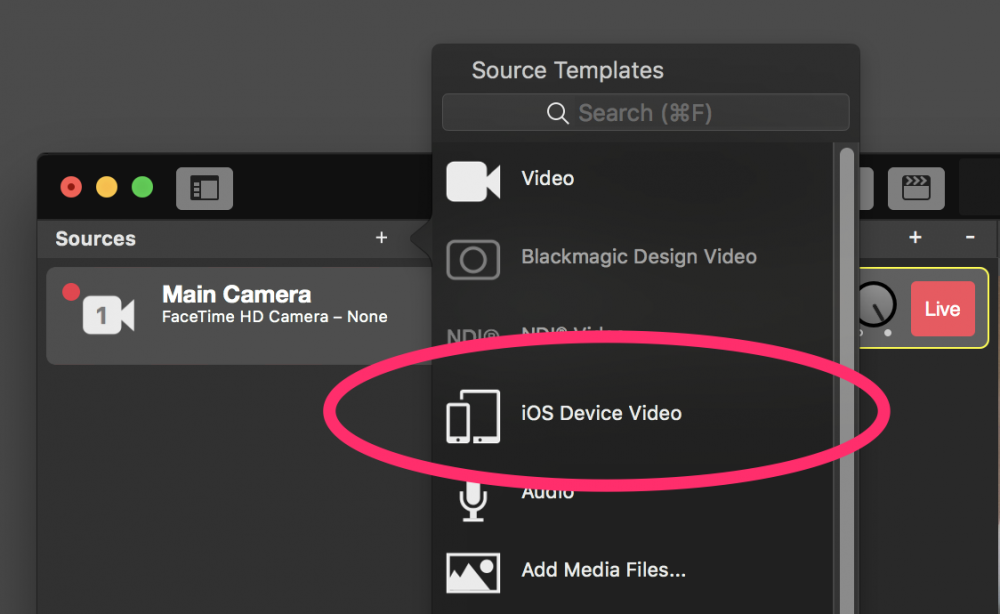
**Lightning Cable**Although there is no official confirmation, empirical testing shows that a certified Apple Lightning cable is required for this to work reliably.
After adding the video source, you will see the iOS devices screen in your video source and can use it like any other video source.
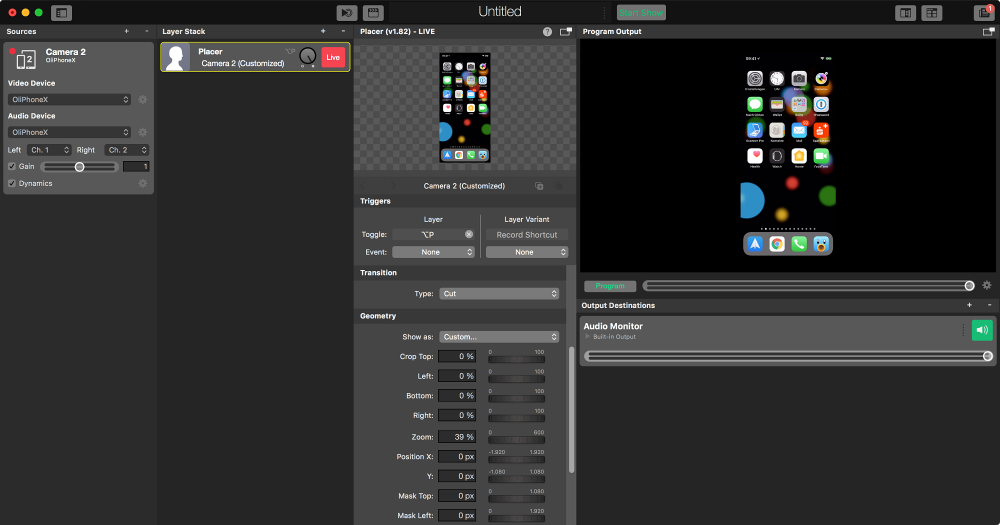
---
## Media Sources
Source: https://mimolive.com/user-manual/sources-input/media-sources/
Last updated: 2025-06-15
_This page has no body text; it groups the pages below._
---
### Media File Sources
Source: https://mimolive.com/user-manual/sources-input/media-sources/media-file/
Last updated: 2026-08-19
The Media File Source plays an audio or video file. Because it’s a video source you can assign it to any layer that works with video sources. For video files, by default a [Placer Layer](https://mimolive.com/user-manual/placer) is inserted when you drag a source to the [Layer Stack](https://mimolive.com/user-manual/layers-and-variants). For audio files, the default is an [Audio Only](https://mimolive.com/user-manual/audio-only) layer.
#### Setting Up The Media File Source
Drag a media file from the Finder to the mimoLive [Source Repository](https://mimolive.com/user-manual/sources-and-the-sources-repository) to create a new Media File Source. Alternatively, you can select **Add Media Files…** from the Source Templates menu that opens from the **+** button above the Source Repository.
#### Reference Mode
- Absolute Path: The media file won’t be copied to the document, therefore saving hard disk space. However you need to make sure not to move the referenced file on your hard disk. Otherwise, mimoLive won’t be able to find it.
- Copied into document: The media file will be copied and stored within the mimoLive document bundle. This doubles the needed hard disk space per media file but makes it possible to easily transfer the mimoLive document to another computer without fearing to loose the link to the media file.
> **Note:** Controlling the Reference Mode with Option and Control key
>
> When adding a media file by dragging it from the Finder to the mimoLive Source Repository, you can hold the Option or Control key to force the Absolute Path reference mode. This comes especially in handy with large files that you don’t want to copy to the document.
#### Playback Mode
- Play Once: When the layer gets activated, the media file gets played back once. The layer gets deactivated automatically.
- Loop: When the layer gets activated, the media file starts playing endlessly.
- Play Once And Freeze: When the layer gets activated, the file gets played back once and freezes on the last frame. This only works for video files and makes it possible to use the last frame as a still after the video finished playback.
#### Gain
When enabled, the volume of the Media Playlist Source can be adjusted with the gain slider or number box. Disabling the gain check box sets the gain parameter temporarily back to the default value of 1.
---
#### Media File Playback Range and Preview
Source: https://mimolive.com/user-manual/sources-input/media-sources/media-file/media-file-playback-range-and-preview/
Last updated: 2026-08-19
Choose a part of a video or audio file to play and check it before broadcasting it.
You can select a specific section of a media file that will play when it's time to show it to your audience. You can also preview this section to make sure everything looks and sounds good. This is useful when you're working with new material or in a live event where you need to quickly review content before broadcasting.
#### Accessing the Media File Source Settings
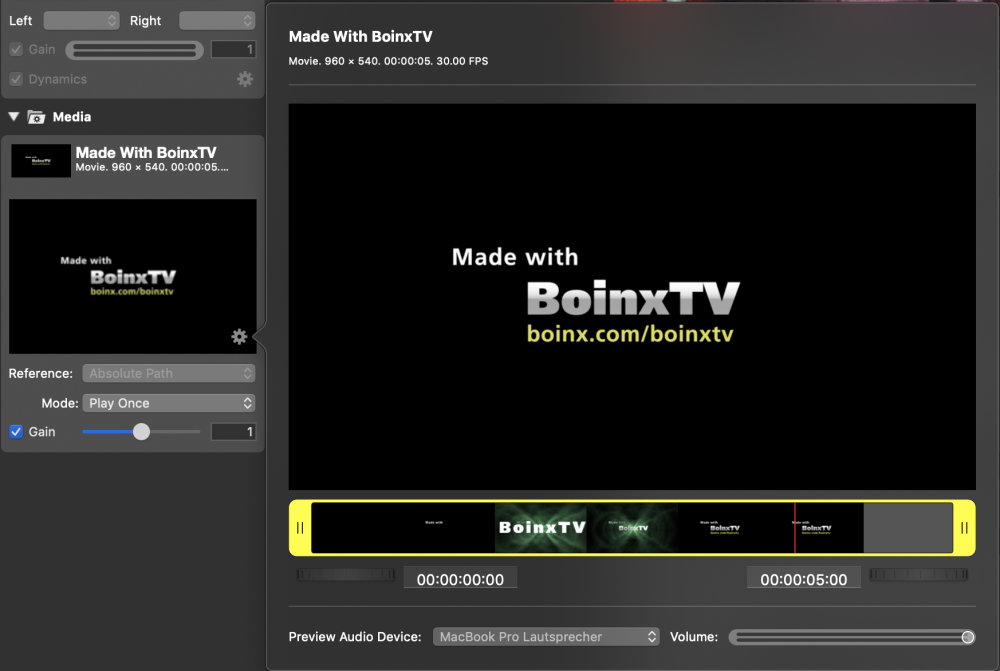
Open the Media File Source settings popover by clicking the action button in the preview image of the Media File Source. The popover looks different for video files and audio files:
- For video files the popover offers a preview that can be clicked on to preview the current playback selection. Beneath the preview is the thumbnail strip that contains a series of video frames taken from the media file at periodic intervals to make selection and playhead positioning easier.
- For audio files the popover contains a waveform preview preceded by a button to start and pause playback.
#### Selecting the Playback Range
The playback range selection can be set in different ways:
- Dragging of the left and right selection handles
- Click-and-dragging the center of the jog wheels
- Clicking the left or right side of the jog wheels (allows selection with frame-precision)
- Entering a time code into the number boxes
##### Quickly Previewing In-Point and Out-Point
When clicking a selection handle or when releasing a selection handle after dragging, the first or last second of the playback selection is automatically played back to quickly see the current playback selection in action
**Time Code Format**
Time code must match the following formats:
- For video files, \*\*\*hh:mm:ss:ff\*\*\* where frames run from 0 to the media file’s frame rate. For example, at a frame rate of 30 FPS, time code frames would run from 0 to 29. The frame rate can be found in the popover title.
- For audio files, **\*hh:mm:ss.mss\*\*\* where milliseconds run from 0 to 999. \*\*Note the “.”** instead of”:” between seconds and milliseconds.
#### Previewing the Playback Range
Video files can be previewed by clicking the preview. Clicking the preview again pauses the preview playback. Audio files can be previewed by clicking the Play button in front of the waveform display.
##### Playback Mode
If the Media File Source’s playback mode is set to “Loop”, the preview playback will loop, too.
During playback **the playhead** can be moved freely around in the thumbnail strip or waveform preview to change the current playback position. The playhead can also be moved when playback is paused. Playback will then resume from the playhead position.
#### Audio Monitoring

If the media file –like most movie files and virtually all audio files– contains an audio track, audio can be monitored through the Preview Audio Device. If “No Device” is selected or if the volume is turned down, no audio will be played out.
#### Device Volume vs Source Volume
The volume slider sets the device volume and meters the audio levels being sent to the device **for preview**.
The source’s volume in the program, i.e. when being played through [a layer](https://mimolive.com/user-manual/layers-and-variants),
depends on the layer volume and on the respective [audio mix’s](https://mimolive.com/user-manual/audio-mix-panel) output volume.
> **Note:** Note:
>
> Source gain is also applied during preview.
---
### Media Playlist Source
Source: https://mimolive.com/user-manual/sources-input/media-sources/media-playlist/
Last updated: 2026-08-19
The Media Playlist Source in mimoLive plays multiple media files one by one. Because it’s a video source you can assign it to any layer that works with video sources. If the playlist contains video files, by default a [Placer Layer](https://mimolive.com/user-manual/placer)
is inserted when you drag a source to the [Layer Stack](https://mimolive.com/user-manual/layers-and-variants).
If the playlist consists of only audio files, the default is an [Audio Only](https://mimolive.com/user-manual/audio-only) layer.
#### Setting Up The Media Playlist Source
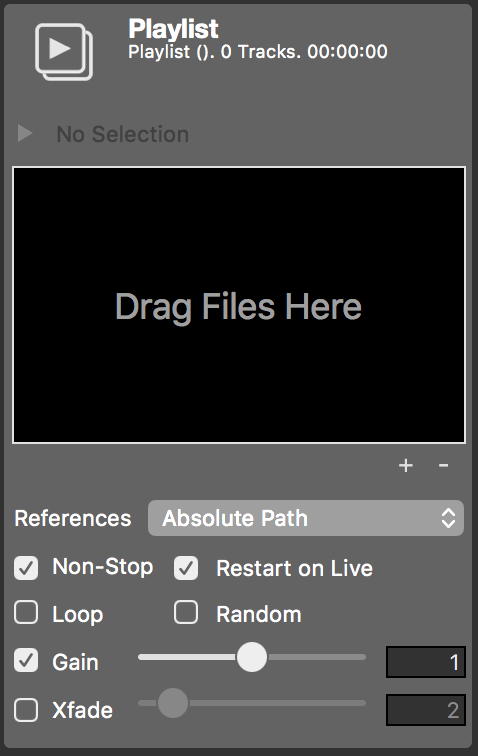
#### Reference Mode
- Absolute Path: The media file won’t be copied to the document, therefore saving hard disk space. However you need to make sure not to move the referenced file on your hard disk. Otherwise, mimoLive won’t be able to find it.
- Copied into document: The media file will be copied and stored within the mimoLive document bundle. This doubles the needed hard disk space per media file but makes it possible to easily transfer the mimoLive document to another computer without fearing to loose the link to the media file.
> **Note:** Controlling the Reference Mode with Option and Control key
>
> When adding media files by dragging from the Finder to the mimoLive Source Repository, you can hold the Option or Control key to force the Absolute Path reference mode. This comes especially in handy with large or many files that you don’t want to copy to the document.
#### Playback Mode
- **Non-Stop**: When this option is set all the media files in the Media Playlist will be played in a row. When the option is switched off the Media Playlist Source will stop after each item and only starts playing the next item when it is activated again.
- **Restart on Live**: Starts from the first media file in the list when the Media Playlist source is activated again. This option is only available when the Non-Stop option is switched on.
- **Loop**: When the loop option is enabled on the Media Playlist Source will automatically start all over again once it reached its end. This option is only available if the Non-Stop option is enabled.
- **Random**: Shuffles the media files randomly during playback. However, it will make sure that each file will be played at least once.
#### Common Scenarios
When you have **multiple commercials** that you want to play in a row, enable “Non-Stop” and disable “Loop” so that the commercial break will stop automatically once all commercials have been played.
When you want to **present footage videos** one by one in a live show, disable the “Non-Stop” option. When you put the Media Playerlist Source into your layer stack with a [Placer Layer](https://mimolive.com/user-manual/placer) this layer will switch off automatically once a single movie has played. The Media Playlist Source automatically advances to the next media file when it is activated again.
Another common usage is the playback of **ambient music**. Add as much audio files to the Media Playlist source as you like, set it to play “Non-Stop”, “Loop” and “Random”. When using the Playlist Visualizer layer in conjunction, it will show the meta data of the audio files.
#### Adding Media Files to the Media Playlist Source
After this setup you can drag files to the drop target labeled **Drag Files Here**. The Media Playlist Source can play back movies and audio files. The media files will appear in a list. You are free to rearrange the media files or remove them with the **x** button which appears while hovering over a media file.
The **+** button below the list lets you add media files by choosing them in a file dialog.
Clicking on the **–** button will remove the selected media file(s).
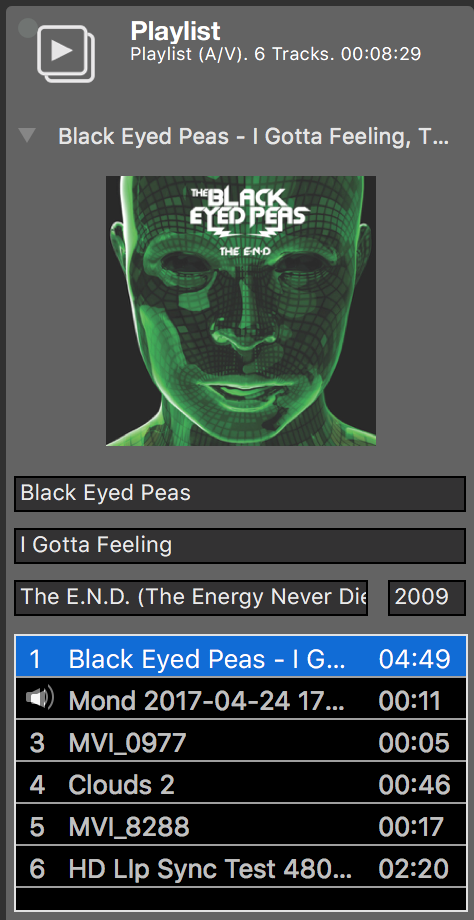
#### Inspecting Meta Data of Media Files
Once you selected a media file in the file list you can reveal more detailed information by clicking on the triangle disclosure button above the list. The info panel shows either a movie preview or the cover artwork contained in an audio file. You can edit the author, title, album and year. This data will be used in the Playlist Visualizer layer.
#### Audio Controls
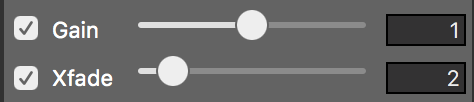
- Gain: When switched on, the volume of the Media Playlist Source can be adjusted with the slider right next to it.
- Xfade: This option lets you define a crossfade to happen once an audio file ends and the next is about to begin. Adjust the crossfade time in seconds with the slider next to it.
> **Note:** Xfade Is Audio-Only
>
> Crossfades only work for transitions between audio files. Transitions between, to and from video files will never apply any fade or crossfade.
---
### Last Recording Source
Source: https://mimolive.com/user-manual/sources-input/media-sources/last-recording-source/
Last updated: 2025-06-15
This source will play back the last recording of mimoLive.
If you have a [File Recording Output Destination](https://mimolive.com/user-manual/recording-to-disk) in your mimoLive document this source will get pushed the last recorded movie file path and can play it back instantly. This is feature is helpful in kiosk applications where you want to show a customer the just recorded video they did.
---
## Remote Sources
Source: https://mimolive.com/user-manual/sources-input/remote-sources/
Last updated: 2025-06-15
_This page has no body text; it groups the pages below._
---
### Zoom Meeting Source
Source: https://mimolive.com/user-manual/sources-input/remote-sources/zoom-meeting/
Last updated: 2026-08-19
### How the Zoom Meeting Source in mimoLive is Changing the Game
The [Zoom Meeting](https://zoom.us) Source in mimoLive can be used for a variety of live video production use cases, such as:
1. Webinars: You can use the Zoom Meeting Source to host webinars and incorporate the audio and video of up to six participants into your live stream, allowing you to create a more engaging and interactive experience for your viewers.
2. Remote Interviews: The Zoom Meeting Source can be used to conduct remote interviews with guests who are not physically present in the studio. By integrating Zoom into your live production workflow, you can bring remote guests onto your show and interact with them in real-time.
3. Remote Meetings: You can also use the Zoom Meeting Source to host remote meetings and incorporate the audio and video of all participants into your live stream, making it easier to collaborate and work with remote team members.
4. Live Events: The Zoom Meeting Source can be used to incorporate live feeds from remote cameras, allowing you to capture and broadcast multiple angles of an event, such as a concert or sporting event.
Overall, the Zoom Meeting Source in mimoLive provides a convenient and flexible way to integrate remote participants into your live production workflow, allowing you to create a more engaging and dynamic experience for your audience.
> **Important:** A mimoLive Studio license is required for the Zoom Meeting Source.
>
> The Zoom integration is provided free of charge to mimoLive Studio and Broadcast license holders as long as Zoom isn't charging developers for the use of the SDK.
#### Get Zoom Audio and Video for Up to 6 Participants in 1080p Resolution
Join a Zoom Meeting with mimoLive and receive individual audio and video for up to 6 participants in up to 1080p resolution (Zoom High Bandwidth Mode). Use the individual audio and video provided by this source to create great looking layouts using mimoLive layers.
> **Important:** Not getting 1080p?
>
> To receive video in HD, Zoom must enable it at the account level for the account hosting the meeting. A Zoom Pro account can be configured to deliver 720p and a Business account can deliver up to 1080p. Contact Zoom support via a support ticket to request that Group HD meetings be enabled for the account hosting the meeting.
> **Note:** Can I capture more than 6 participants?
>
> Yes, you can. However, Zoom limits the bandwidth sent to your computer, so additional Zoom Meeting sources will degrade the quality of the sources.
### How mimoLive integrates with Zoom
#### Zoom Virtual Production

Create a visually compelling and engaging live program using meeting participants as external cameras. Shown here is the [Video Carousel layer](https://mimolive.com/user-manual/live-editing/layers/video-carousel-layer/).
#### Zoom Hybrid Production

Send video and audio from participants to a studio or stage and integrate with live action to create a live broadcast.
#### Zoom ISO Recording

Record ISO video and audio from meeting participants to h.264, h.265 or ProRes video files.
#### Zoom ISO Playout

Send ISO audio and video feeds from to other video production equipment using SDI, NDI or RTMP.
#### Sending mimoLive output to Zoom (Virtual Camera)

> **Important:** If you want to increase the production value of your live performance in a Zoom meeting, use the [Virtual Camera](https://mimolive.com/user-manual/playout-output-destinations/virtual-camera/) to send video and audio from your mimoLive document into Zoom (or other live conferencing apps.)
### How to get started with the Zoom Meeting Source
#### mimoLive User
When you join a Zoom meeting using mimoLive, it appears to the meeting participants that a new user has joined the meeting. We will refer to this user as the mimoLive user.
#### Authenticating with Zoom
Some Zoom Meetings require authentication to prevent uninvited guests from joining. To authenticate with Zoom, go to the mimoLive settings, select Accounts, find "Zoom" in the table on the right, and click on it:
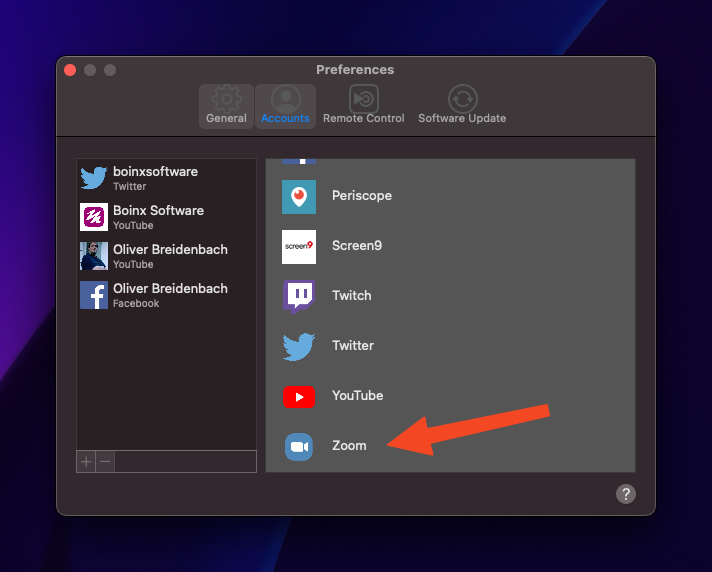
The process will take you to your web browser and the Zoom website. Log in using your Zoom credentials.
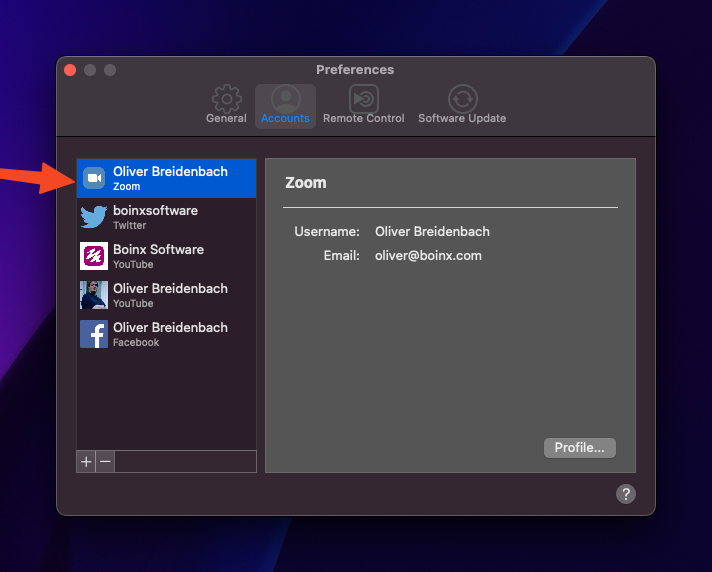
You are now logged in to Zoom using mimoLive. This will be the persona of the mimoLive user that is joining the meeting when you use mimoLive to join the meeting.
> **Note:** Do I need to be authenticated with Zoom to join a meeting?
>
> Yes. Zoom requires every meeting join to be associated with a Zoom account, so at least one Zoom account must be logged in to mimoLive. If none is logged in yet, the account popup in the join dialog offers “Log in to Zoom Account in mimoLive Settings…” which takes you directly to the Accounts settings. In addition, you must be granted Local Recording privileges by the meeting host or co-host.
#### Joining a Zoom Meeting
You can use mimoLive to join an existing meeting on Zoom. mimoLive will appear as a regular user on the meeting called "mimoLive Recorder".
Select "Join Zoom Meeting" from the Zoom menu:
Enter the meeting ID and passcode:
> **Note:** Shortcut
>
> You can copy/paste the Zoom Invitation link or the entire invitation email into the Meeting ID field, and mimoLive will automatically find the information needed.
> **Important:** Join a Zoom Demo Meeting for Testing
>
> To explore the Zoom integration in mimoLive or verify that your setup is working correctly, you can join a dedicated Zoom Demo Meeting. This allows you to experiment with the features in a safe environment without affecting a live production meeting.
After you click Join Meeting, the Zoom window opens. It looks and works just like the Zoom client:
#### Changing Meeting Settings
The Zoom Meeting window is a true Zoom client. You can set up a video camera and microphone for the return feed, as well as most other Zoom Meeting settings.
To access the settings, select the Audio or Video pop-up menu in the lower left corner of the Zoom Meeting window:
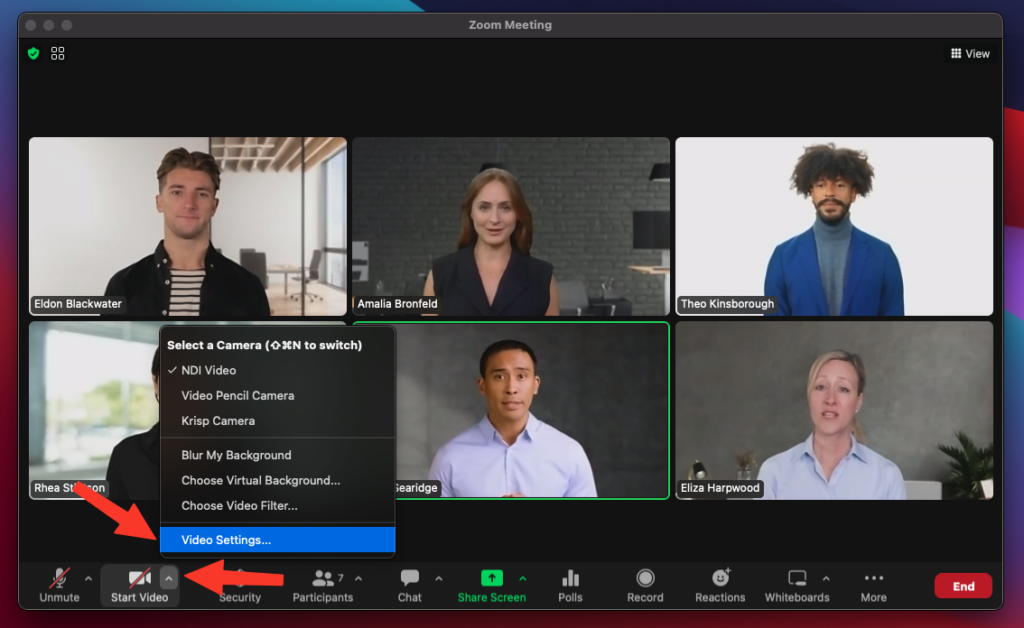
This will open the standard Zoom Settings window:
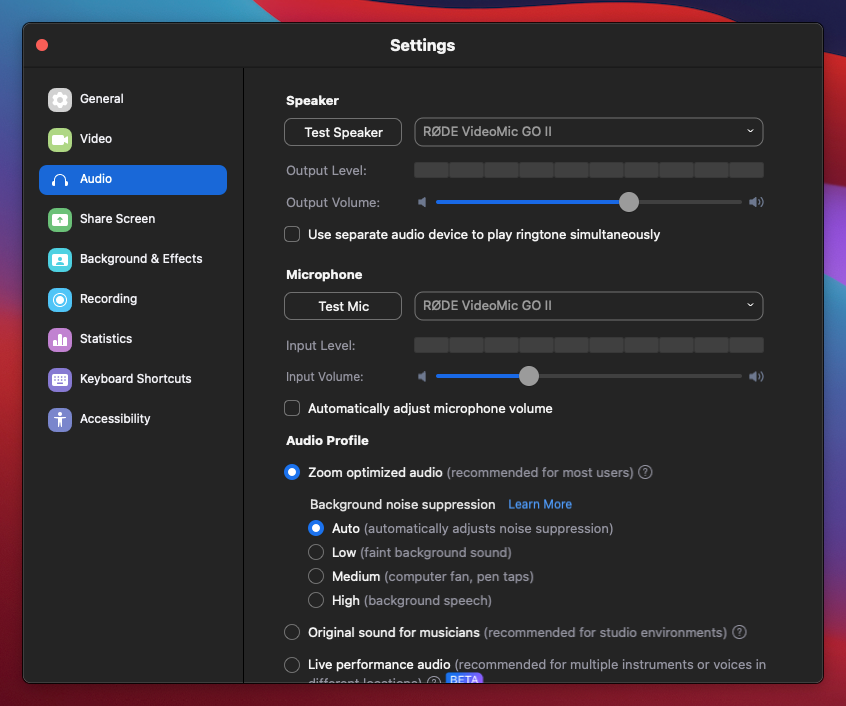
> **Important:** Hearing an echo?
>
> If you hear an echo when you've set up your meeting sources and monitor the audio through mimoLive, it is most likely because the Zoom Meeting also outputs the audio through your monitoring device. To avoid this, select a different "Speaker" in the Zoom Meeting settings. If you do not have an extra audio device, you can install a virtual audio device such as Loopback or the free Blackhole and select that.
#### Receiving Audio and Video
> **Important:** Local Recording Permission Required to Receive Audio and Video
>
> In order for mimoLive to receive audio and video from a Zoom meeting, the mimoLive user must have local recording permission. This permission must be granted by the meeting host or co‑host, and local recording must be enabled at the account level in Zoom.
>
> If the mimoLive user is the host or a co‑host, local recording permission is automatically granted.
>
> If you see a “Request Recording Permission” button in the Zoom Meeting source, click it to request the required permission from the host.
To receive audio and video, add a Zoom Meeting source in the Sources column for each participant you want to add to your production:
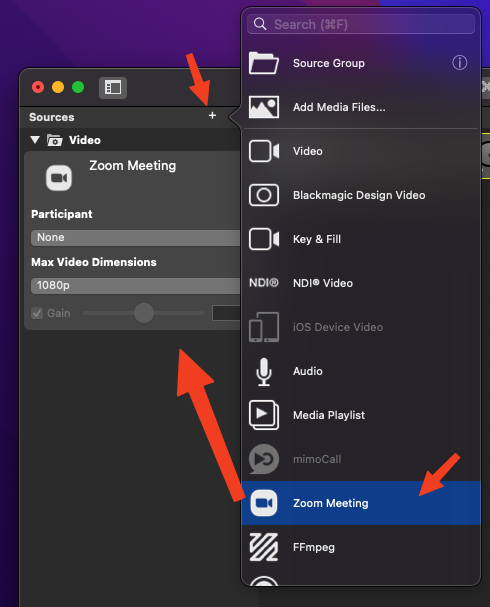
#### Select Zoom Participant
You can select a specific Zoom meeting participant directly from the pop-up menu:
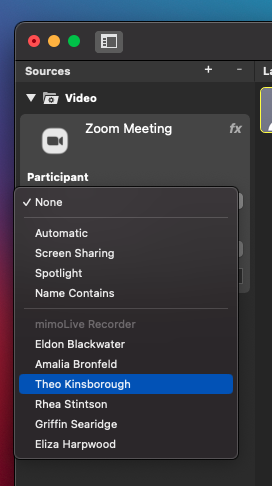
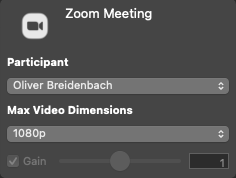
There are a couple of "special" participants:
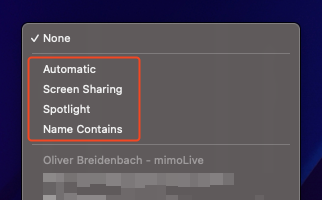
#### Automatic
A Zoom Meeting source of this type automatically follows the **active speaker** as determined by Zoom, receiving their video and the mixed audio from the meeting. This is especially useful for open discussions or Q&A sessions, where you want the video to follow whoever is currently speaking.
When you choose this option, an additional setting appears: **“Ignore users in other Zoom sources.”**
If you enable this setting, mimoLive will check all other Zoom sources in your project whenever the active speaker changes.
- If the new active speaker is **already shown in another Zoom source** (for example, you have a dedicated Zoom source showing the host at all times), mimoLive will **not switch** to that speaker.
- This allows you to set up one (or more) fixed Zoom sources for specific participants (like the hosts), while the automatic Zoom source cycles through **all other participants** without ever replacing those fixed hosts.
This gives you a flexible setup: your hosts remain visible at all times in their dedicated sources, and the automatic source dynamically highlights other speakers during the meeting.
#### Screen Sharing
If a participant shares their screen, the Zoom Meeting source with "Screen Sharing" selected will receive the video from the screen share.
A Zoom Meeting Source for Screen Sharing does not include audio.
#### Spotlight
A Zoom Meeting source with "Spotlight" selected will receive video and audio from the participant that a host or co-host has "spotlighted".
> **Important:** Only spotlight one person at a time
>
> Zoom allows you to spotlight multiple people in the meeting. mimoLive will receive a list of all the people being spotlighted, but will only use the first entry in that list.
> Please make sure the meeting host knows to only spotlight one person at a time.
This feature can be used to give an outside person control over who appears in the video production. An example of this would be a town hall meeting where the town clerk can select which citizen is given the right to speak.
#### Name Contains
When you select this option, a new field appears for you to enter a portion of the Zoom Meeting participant's name that will be automatically matched when the person joins the meeting:
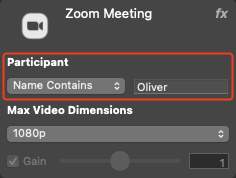
This can be used to assign sources to specific people in preparation for a meeting.
### Video Dimensions
The Zoom Meeting source supports receiving video with up to 1080p resolution, depending on the bandwidth of your connection to Zoom and the power of your computer to decode video streams. To preserve bandwidth, you can choose an upper limit for the video resolution by setting the Video Dimensions in the Zoom Meeting source panel:
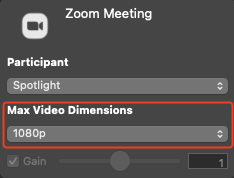
### Chat
Messages that attendees send to the meeting chat are added to the mimoLive Comments window and can be used with the comment layers to display in your video production. You can find the Comments window in the "Window" menu.
### Return Feed
mimoLive can send the program out and program audio mix back into the Zoom meeting as a return feed. To do this, there are special audio and video devices available that can be activated by using the HTTP API (see below) to join the meeting.
Starting with mimoLive 6.5, you will be able to use the mimoLive Virtual Camera Extension to send a return feed to the meeting.
### ISO Recording and Playout
By using the **File Recording output destination**, you can record each source from the Zoom Meeting individually for later editing in an NLE video editing program such as Final Cut Pro, DaVinci Resolve, or Adobe Premiere.
The **Fullscreen Playout output destination** can be used to display a specific participant on a studio monitor or teleprompter for interaction with a live audience.
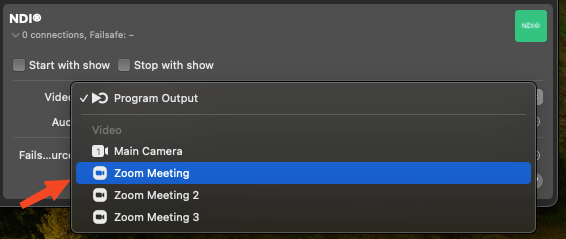
> **Note:** Looking for Hardware to run this on?
>
> The mimoRack™ is the perfect hardware companion to the mimoLive Zoom integration. You can [build it yourself](https://mimolive.com/user-manual/live-streaming-hardware-kits/mimorack-diy/).
### Status Messages
The mimoLive Zoom source displays status messages:
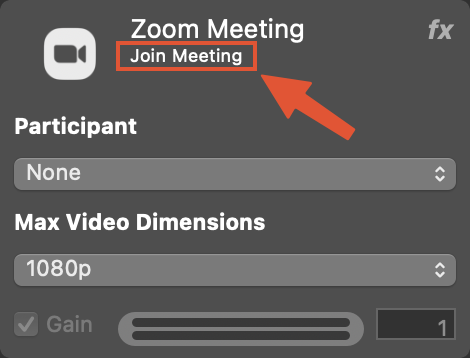
#### Join Meeting
This message appears if you haven't joined a meeting yet.
#### Awaiting Recording Permission
This message appears if you have joined a meeting but don't have recording permissions. Request permission from a host or co-host in the meeting using the "Request Recording Permission" button:
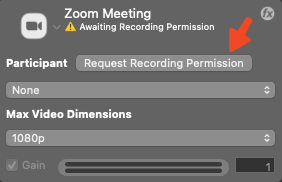
#### Waiting for Zoom participant
This message appears when the source is trying to capture a meeting participant who hasn't joined the meeting yet.
**[Video Resolution] - [Participant name]**
If everything is working correctly, the status message will show the video resolution being received and the name of the participant.
### API Support
The Zoom Meeting Source also supports changing parameters via the HTTP API to enable automation. The Zoom Meeting Source has the following properties that can be read and set:
| zoom-userid | select a specific Zoom User by their ID (sets the "zoom-userselectiontype” automatically) |
| --- | --- |
| zoom-username-containing | select a user by their literal name (first match) (sets the "zoom-userselectiontype” automatically) |
| zoom-username | set a specific Zoom User by their literal name (sets the "zoom-userselectiontype” automatically) |
| zoom-userselectiontype | switch the user selection mode (0=none selected, 1=by User ID, 2=automatically by Zoom, 3=because pinned in Zoom, 4=because spotlighted in Zoom, 5=by matching contained text, 6=because screen sharing is active, 7=because computer audio sharing is active) |
| zoom-videoresolution | zoom-videoresolution (0= 90p, 1=180P, 2=360P, 3=720P, 4=1080P, 100=reserved) |
| zoom-automatic-mode-exclude-other-zoom-sources | when the automatic mode is active, then don't switch to users that a re present in other Zoom sources (0=no, 1=yes) |
#### API Calls
Several HTTP API endpoints and calls are available for controlling a Zoom meeting. Please refer to this article for more information [about the Zoom Meeting API](https://mimolive.com/user-manual/remote-control-automation/http-api/endpoints/).
#### Using the command line to call the API:
The API can also be called from the Mac command line using the applications URL scheme. Here are two examples:
>
`open -a "mimoLive" "mimolive2://api/v1/zoom/join?meetingid=xxxxxxxx&displayname=mimo%20rocks&passcode=yyyyyyyyyyyyyyyyyyyyy&zoomaccountname=zzzzzzzz&virtualcamera=true"`
`open -a "mimoLive" "mimolive2://api/v1/zoom/leave" `
#### Using the Automation Layer to control the Zoom Meeting
Another way to control the Zoom meeting would be an set of [Automation layers](https://mimolive.com/user-manual/remote-control-automation/automation/) that will send an http request to the mimoLive API. This way you can easily add some buttons to the [mimoLive Remote Control Surface](https://mimolive.com/user-manual/remote-control-automation/remote-control-surfaces/) to control the Zoom meeting:
>
```
httpRequest("http://127.0.01:8989/api/v1/zoom/meetingaction?command=lowerAllHands")
httpRequest("http://127.0.01:8989/api/v1/zoom/end")
```
---
### mimoCall Source
Source: https://mimolive.com/user-manual/sources-input/remote-sources/mimocall/
Last updated: 2026-08-19
#### Introduction Video
The following video is an introduction to mimoCall. In case you need in depth information please read the instructions further below.
[Video on YouTube](https://www.youtube-nocookie.com/embed/ZfPcNgJkaaU?rel=0)
#### mimoCall Overview
The mimoCall source is a way to bring in one or more remote correspondents for an interview or a panel discussion.
- In mimoLive, set up a mimoCall source for each correspondent.
- Share the URL of the mimoCall source with your correspondents. mimoLive provides a handy invite function that allows you to use Messages, Mail and many more services for sharing.
- Your correspondents then open the URL in Google Chrome or any other supported web browser (unfortunately Safari is not yet supporting the necessary WebRTC standard).
- Your correspondents will connect to mimoLive on your Mac where you can use their video and audio in any layer that supports a video or audio source. There are several layers for interviews and panel discussions, for example the [Split Screen layer](https://mimolive.com/user-manual/live-editing/layers/splitscreen/) or the [Interview layer](https://mimolive.com/user-manual/live-editing/layers/interview/).
- The correspondents will receive the mimoLive program output and a N-1 audio mix, so they can hear everything but themselves.
- Set up an Audio Monitor Output Destination with a mix-minus for yourself so you can participate in the discussion without hearing yourself.
> **Note:** New Output Destinations Setup
>
> Since we made the video, the way output destinations are defined and configured changed. Please read the instructions below for updated information.
> **Note:** mimoCall Source And Multi-Source Layers
>
> When using mimoCall Sources in a layer that supports more than one video source like the Switcher layer or the Split Screen layer, don’t forget to add Audio Only layers for each mimoCall source so the callers can be heard in your video stream.
#### Creating a mimoCall Source in mimoLive
> **Note:** Boinx Connect account for mimoCall
>
> In order to create mimoCalls, you need to have an active Boinx Connect Account in the mimoLive Preferences. Please read Boinx Connect for more information on how to create and login to your Boinx Connect Account.
Your guests do not need a Boinx Connect account in order to join a mimoCall. Only the host needs that account to create the mimoCall.
- Click the **+** button on the top right of the Source Library on the far left in the mimoLive document window. A list of source types will pop up in a window.
- Find the **mimoCall** source template and drag it into the Source Library.
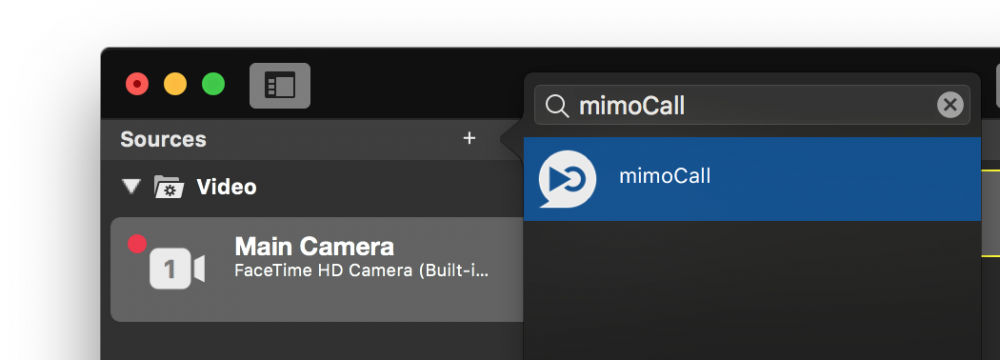
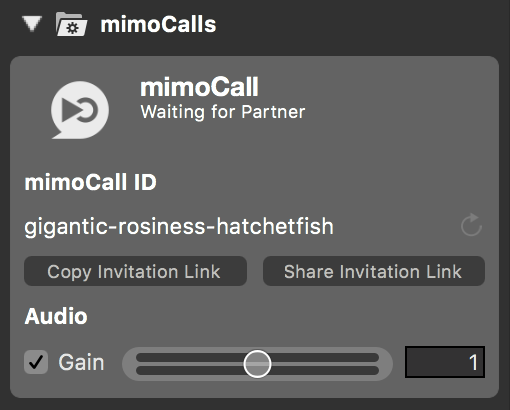
#### Settings
A mimoCall source has several options to control its features:
##### Revoke mimoCall ID
Each mimoCall source has a global unique mimoCall channel represented by a mimoCall ID consisting of three random words. If you think that you need a new mimoCall channel and the old one shouldn’t be used anymore for any reasons, you can revoke the mimoCall ID by clicking on the reload button right next to the mimoCall ID. After a moment a new mimoCall channel will be opened and you receive a new mimoCall ID. The old one gets archived and can’t be used anymore.
##### Audio Gain
You can adjust the audio level of each mimoCall source individually to level out all the callers. Use the slider to adjust the gain level.
#### Inviting a Correspondent
The correspondent needs to get a mimoCall ID in order to establish a connection. This ID is transmitted as part of a HTTP link. This link can be clicked by the caller and the mimoCall web client will open automatically.
To send this link you have two options:
- Copy Invitation Link: Copies the link to the macOS paste board. Now you can paste the link into any communication channel you prefer.
- Share Invitation Link: Opens a popup with the standard sharing destinations on macOS.
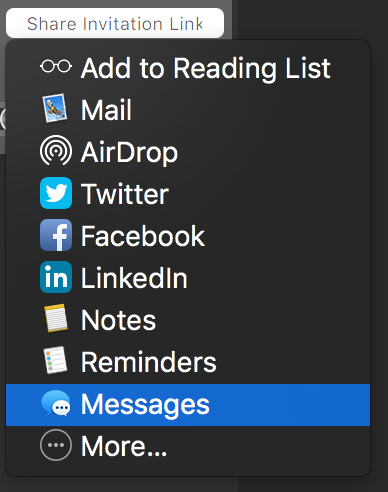
#### Providing Audio To The Moderator
While your mimoCall correspondent receives the program mix minus their own audio, the moderator in the studio needs to be set up separately.
1) Add a Audio Monitor to the output destinations if it is not there already:
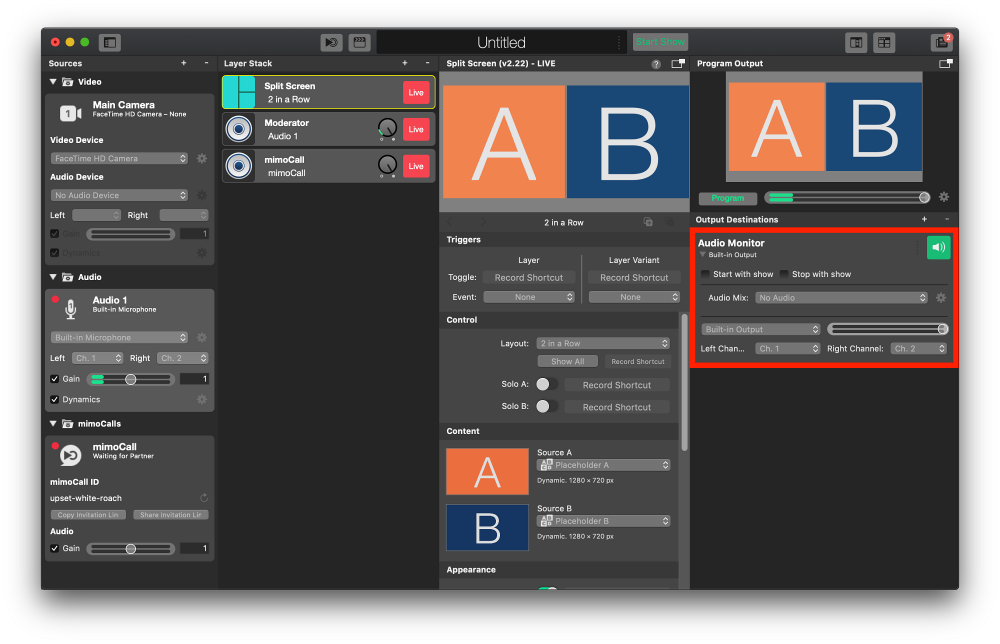
2) In the “Audio Mix” popup menu, select “New Audio Mix”:
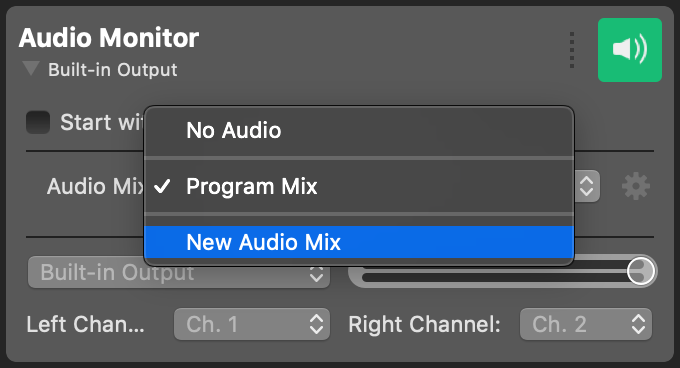
3) In the Audio Mix panel, select the new audio mix and mute the audio from the moderator’s audio source.
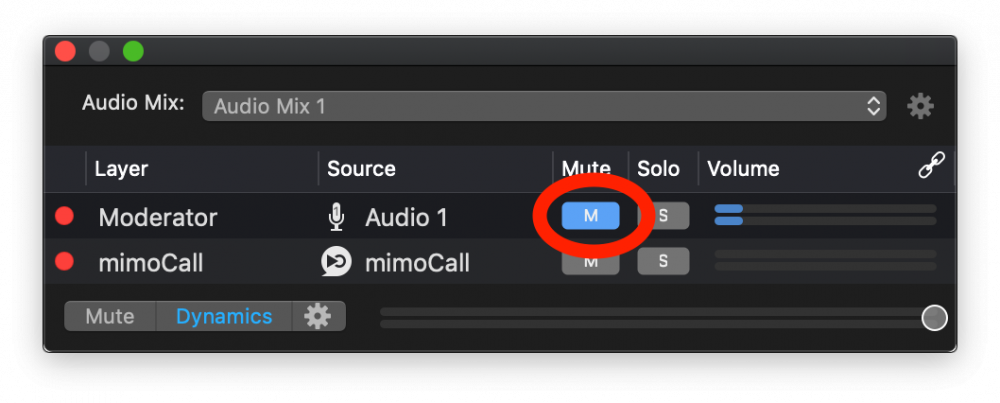
4) Close the Audio Mix panel and select an audio output for the moderator to plug into:
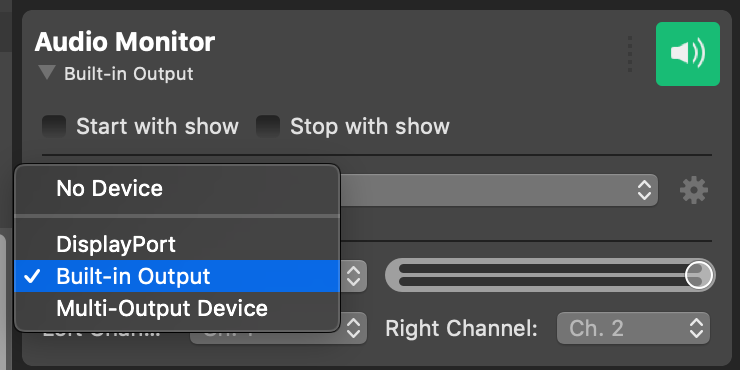
5) Turn on the Audio Monitor so you can actually hear anything:
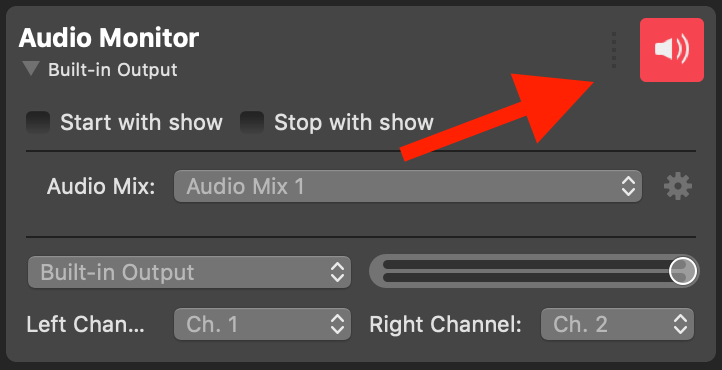
> **Important:** Red means “Live”
>
> This throws off a lot of people: The Button is green when everything is set up correctly and the output destination is ready to go. Turning it on makes the button turn red and that means that it is “live”.
#### FAQ
Q: What resolution does mimoCall support?
A: The image quality mimoCall sends depends on a number of factors
- What’s the resolution of the camera at the caller’s end?
- What resolutions is the caller’s browser permitting? Some browsers limit the resolution the camera can use in the mimoCall client. Use Google Chrome for best results.
- What bandwidth is available between you and the caller? This should typically be a direct peer-to-peer connection but might be a relayed connection if your computer and the caller’s computer can’t talk to each other.
#### Monitoring mimoCall Performance And Troubleshooting
The [mimoCall Performance Monitor](https://mimolive.com/user-manual/diagnostics/performance-monitoring/mimocall-performance-monitor/) provides real-time insights into your mimoCall connections, showing detailed audio and video statistics to help you evaluate call quality and troubleshoot connection issues.
> **Important:** Network administrators have been preventing access to WebRTC. Although mimoCall attempts various methods to establish a connection between the client and mimoLive, it's not always possible when network security systems block access. To ensure network compatibility with WebRTC, your clients can use the following test site: https://networktest.twilio.com/.
---
#### mimoCall™ web client customisation
Source: https://mimolive.com/user-manual/sources-input/remote-sources/mimocall/mimocall-web-client-customisation/
Last updated: 2026-08-19
> **Note:** Note:
>
> To customise the look of the mimoCall Web Client you need to have a Broadcasting License
---
#### mimoCall Web Client
Source: https://mimolive.com/user-manual/sources-input/remote-sources/mimocall/mimocall-web-client/
Last updated: 2025-12-03
#### Using the mimoCall Web Client
TDB
#### Supported Browsers for the mimoCall Web Client
Currently, we recommend to use Google Chrome as the client for mimoCall. WebRTC is mainly sponsored by Google, Mozilla and Opera.
See the list of [supported browsers](https://webrtc.org/) .
---
### Motion-JPEG Source
Source: https://mimolive.com/user-manual/sources-input/remote-sources/motion-jpeg/
Last updated: 2025-06-15
The Motion-JPEG source allows the use of many network cameras with mimoLive.
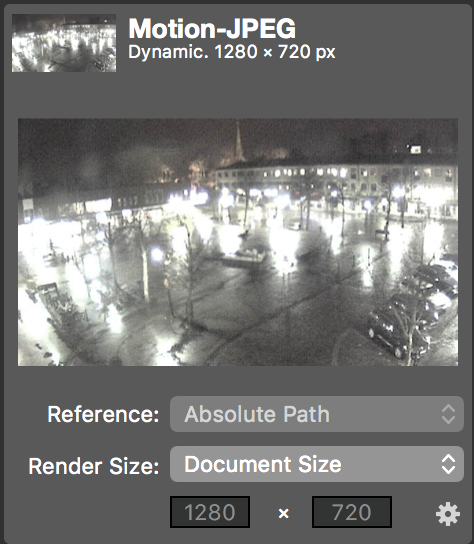
#### Render Size
By default, even if the source has different dimensions, the Motion-JPEG is rendered in to the Document Size.
You can change this to a custom size by choosing “Custom…” from the “Render Size” popup and entering the desired dimensions in the text fields below.
#### Settings
Click on the cogwheel in the bottom right corner to bring up the Settings
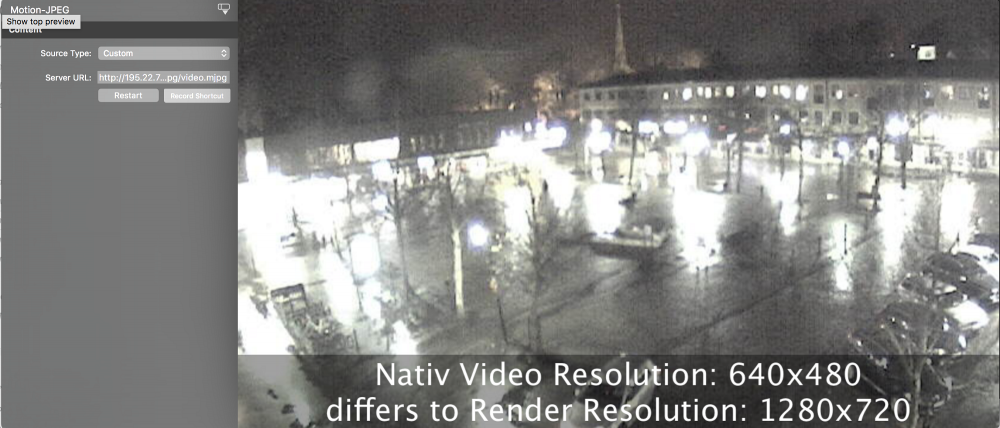
- A Motion-JPEG source is accessed via http and “Server URL” contains the address of the Motion-JPEG stream in the camera.
- Refer to the documentation of your camera to find the proper Server URL.
- If you have an Axis Network Camera, you can choose “Axis” from the Source Type menu and just enter the IP address of the camera instead of the complete Server URL.
- Restart reloads the Motion-JPEG stream.
- The live preview has an overlay that displays the native video resolution of the Motion-JPEG stream and alerts you if there is a difference to the Render Resolution you’ve set up. Normally, this is just for information and explains why there might be a difference in video quality.
#### Audio
Motion-JPEG doesn’t include Audio.
---
### FFmpeg Source
Source: https://mimolive.com/user-manual/sources-input/remote-sources/ffmpeg/
Last updated: 2026-08-19
> **Note:** The FFmpeg source replaces the RTSP source beginning with mimoLive 6.0
FFmpeg is a versatile video utility that can process almost any video format and has a huge variety of protocols. This makes it the universal tool for bringing a lot of different sources into mimoLive, including RTSP, RTMP and SRT.
Due to licensing restrictions, FFmpeg needs to be downloaded and installed by the user separately from mimoLive.
### Installing FFmpeg
The most convenient way to install FFmpeg is by using Homebrew, a so-called package manager for command line tools. You’ll find the most recent instructions at the [Homebrew web page](https://brew.sh/).
1. Open Terminal.app and copy/paste this command to install Homebrew:
/bin/bash -c "$(curl -fsSL https://raw.githubusercontent.com/Homebrew/install/HEAD/install.sh)"
> **Important:** "ffmpeg" vs. "ffmpeg-full"
>
> Starting with FFmpeg 8, Homebrew has two formulae for FFmpeg. The base package "ffmpeg" no longer contains SRT. We recommed to install the "ffmpeg-full" formula.
2. Install FFmpeg using this command:
```
brew install ffmpeg-full
```
### Enter the path to FFmpeg in mimoLive
Before you can use the FFmpeg source, you need to let mimoLive know where to find it.
To find out the path where ffmpeg-full is installed, you can use the Terminal and issue the command:
which ffmpeg
This should give you the following path (or something similar): /opt/homebrew/opt/ffmpeg-full/bin/ffmpeg
Enter this path into the FFmpeg Installation Path field in the mimoLive Preferences:
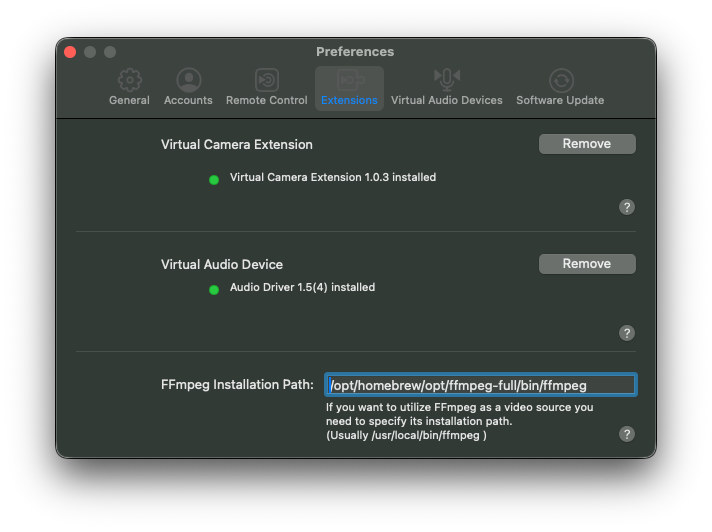
### Using the FFmpeg source
FFmpeg runs as a separate process controlled from mimoLive. By default, it is only launched when a layer it is used in is switched live. In some cases, this can take a few seconds.
Once started, however, the FFmpeg source receives data until the source no longer sends data regardless of whether the source is used in a live layer.
To use the FFmpeg source, add it to the Sources column:
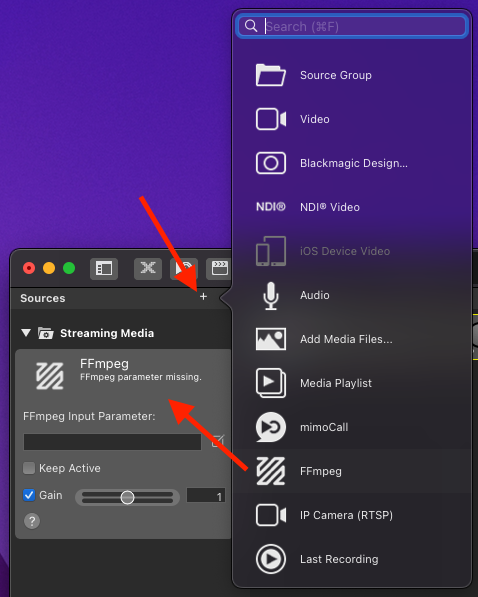
##### FFmpeg Input Parameter
FFmpeg uses command line parameters for instructions of what it should do. You can enter the parameters by clicking on the edit button next to the text field showing the currently active parameters:
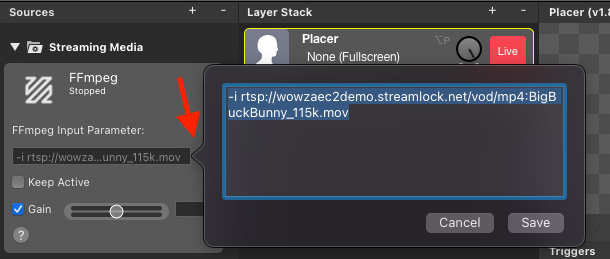
If you click “Save” and FFmpeg is running, the process is stopped and restarted with the new parameters. If you click Cancel, the parameters currently in use are preserved and, if it is running, FFmpeg keeps running.
> **Important:** mimoLive adds some default parameters to the ffmpeg command line that you should omit if you’re experimenting with other protocols. The “hidden” parameters are: -f avi -pix\_fmt argb -vcodec rawvideo -acodec pcm\_s16le -ac 2 -ar 48000
When playing back a local file you need to put a “-re” upfront to your parameters to tell FFmpeg to playback the file in real time.
`-re -i file://User/MyUserName/Movies/MyMovie.mp4`
See the subsections on [RTMP](https://mimolive.com/user-manual/sources-input/ffmpeg/rtmp/), [RTSP](https://mimolive.com/user-manual/sources-input/ffmpeg/rtsp-ffmpeg/) and [SRT](https://mimolive.com/user-manual/sources-input/ffmpeg/srt/) for examples for parameters to use.
##### Keep Alive Option
FFmpeg will only be started when a layer it is assigned to is switched live. If you want to run FFmpeg as a server, for example to receive live camera streams via RTSP, RTMP or SRT, checking this checkbox will start FFmpeg immediately and keep it running as long as mimoLive is running regardless of whether the input is actually used by a live layer.
##### The FFmpeg Log Window
Sometimes the FFmpeg source won’t run. Usually this is due to mistake in the complex parameter setup. To monitor what FFmpeg is actually saying about the parameters and the connection process there is a log window which will output of FFmpeg.
The log is divided into three column:
- Timestamp: The first column shows the time when this log entry was produced.
- Source: Sometimes there will be log entries produced by mimoLive rather than FFmpeg itself. This column will help to distinguish those.
- Log Message: This is the original log output by FFmpeg.
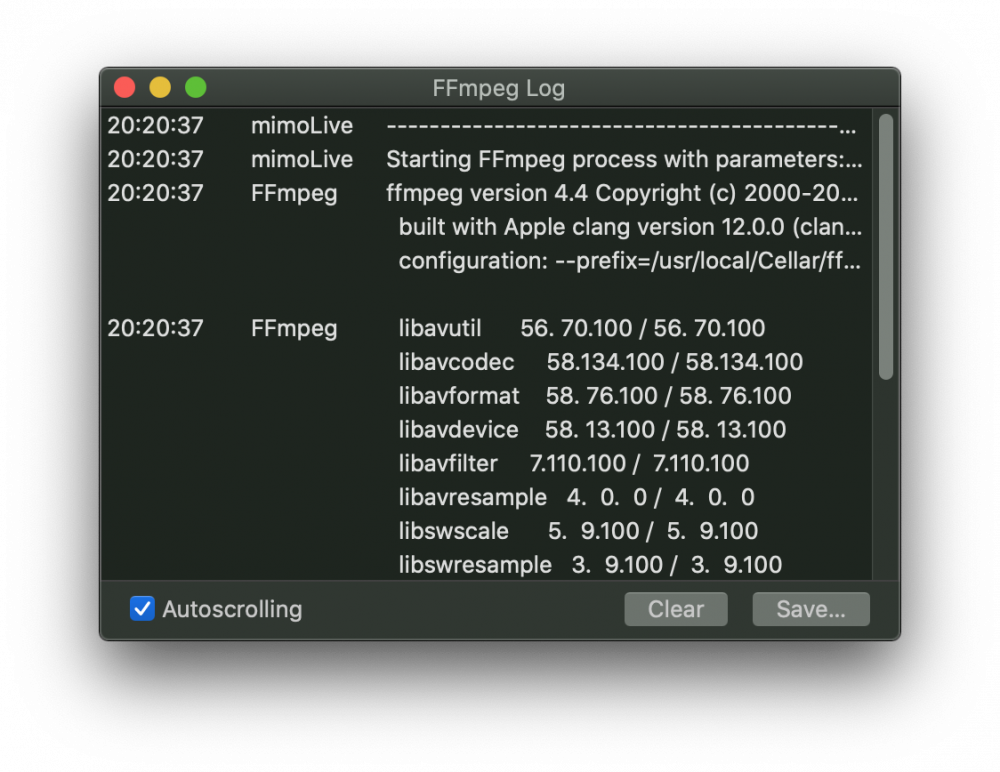
At the bottom of the window there are three options available:
- Autoscrolling: If this option is checked, a new log entry will cause a scrolling down automatically to keep up with the newest information.
- Clear: This Button clears the log window in case you want to start a new log.
- Save…: With the Save button the log can be saved to a text file for further inspection.
---
#### RTSP ffmpeg
Source: https://mimolive.com/user-manual/sources-input/remote-sources/ffmpeg/rtsp-ffmpeg/
Last updated: 2023-07-03
### What is RTSP?
RTSP stands for Real-Time Streaming Protocol. It is a network control protocol that is used for controlling streaming media servers. RTSP allows for the delivery of audio and video streams over IP networks, and it enables the delivery of on-demand and live media. It is commonly used for streaming video content over the internet, and it supports a range of codecs and file formats. RTSP uses TCP or UDP as the transport protocol and is widely supported by media player software, web browsers, and other applications that handle streaming media.
### RTSP and mimoLive
You can use the [FFmpeg source](https://mimolive.com/user-manual/ffmpeg) to ingest RTSP video streams into mimoLive.
Add an FFmpeg source and enter the URL for the RTSP stream adding parameter `-i` to tell FFmpeg that it is an input:
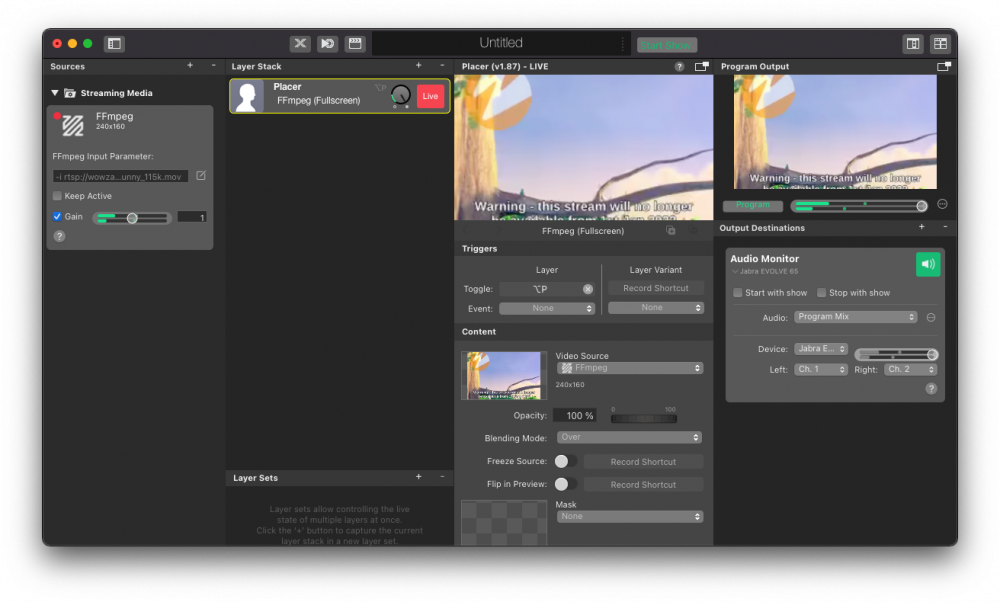
There are some public streams available. For example, you can enter `-i rtsp://wowzaec2demo.streamlock.net/vod/mp4:BigBuckBunny_115k.mp4` into the FFmpeg Input Parameter field for testing.
---
#### RTMP
Source: https://mimolive.com/user-manual/sources-input/remote-sources/ffmpeg/rtmp/
Last updated: 2026-08-19
### What is RTMP?
RTMP stands for Real-Time Messaging Protocol, which is a TCP-based protocol used to stream audio, video, and data over the internet. It was originally developed by Macromedia, now Adobe, for streaming audio and video between a Flash player and a server. RTMP is widely used for live streaming on platforms like YouTube Live, Facebook Live, and Twitch. It works by encoding the audio and video signals into a format that can be transmitted over the internet, and then transmitting the data to a server for distribution to viewers. RTMP has been widely adopted due to its low latency and real-time streaming capabilities.
### RTMP and mimoLive
Using FFmpeg, mimoLive can now ingest RTMP streams.
> **Important:** This is preliminary documentation. You might be able to get better results using different parameters. Please let us know if you find better setups.
### Setting up an RTMP server
Add an [FFmpeg source](https://mimolive.com/user-manual/ffmpeg) your sources column. For RTMP, FFmpeg needs to run in listening mode and the Keep Alive checkbox needs to be marked so that mimoLive starts FFmpeg right away and keeps it running even if no data is received and the source isn’t used in a live layer or a multiview.
The parameters for starting and running an RTMP server are:
```
-listen 1 -i rtmp://xxx.xxx.xxx.xxx:1935/thiscanbe/anything
```
where you need to replace the “xxx.xxx.xxx.xxx” with the primary IP number of your Mac.
> **Note:** The “1935” is the default port number for RTMP but you can use any other number as well. Just make sure that they match on the mimoLive and the sender side.
### Sending video and audio to mimoLive using RTMP
On the sending side, you need to set up the camera, drone, streaming app or whatever you want to use as a source to match the setup of your FFmpeg source:
```
rtmp://xxx.xxx.xxx.xxx:1935/thiscanbe/anything
```
again replacing the “xxx.xxx.xxx.xxx” with the IP number of your mimoLive Mac.
> **Note:** If you want to stream to your Mac via Internet, you have to make sure your Mac is reachable under a unique IP and port number. For example, you can use port forwarding in your router. In this case, the IP number in the sender will be the publicly visible IP number. Contact your network support for more details.
You should now receive the RTMP stream in mimoLive.
---
#### SRT
Source: https://mimolive.com/user-manual/sources-input/remote-sources/ffmpeg/srt/
Last updated: 2026-08-19
### What is SRT?
SRT stands for Secure Reliable Transport and it is a protocol for transmitting high-quality video over unreliable networks, such as the internet. It is an open-source protocol that uses encryption and error correction to ensure that video and audio streams are delivered reliably and securely, even in low-bandwidth or congested network conditions. SRT is commonly used in live video streaming applications, such as sports broadcasting, where a high-quality, low-latency video feed is critical.
### SRT and mimoLive
Thanks to FFmpeg, mimoLive can now offer SRT (Secure Reliable Transport) ingest support starting with version 6.0. Find more information on SRT at the [SRT web site](https://www.srtalliance.org/).
> **Important:** This is preliminary documentation and we do not have extensive experience with SRT. Please let us know if you find any issues.
### Setting up mimoLive as an SRT receiver
Create an [FFmpeg source](https://mimolive.com/user-manual/ffmpeg) and enter these parameters into the FFmpeg Input Parameter field:
```
-i srt://xxx.xxx.xxx.xxx:9998?pkt_size=1316&mode=listener
```
replacing the “xxx.xxx.xxx.xxx” with the **local** IP number of your Mac.
> **Important:** Your network needs to be configured so that the Mac you’re running on is reachable from the Internet via a public IP number and the port 9998.
### Sending SRT to mimoLive
In order to test the setup, you can also use ffmpeg to send a test signal to your SRT receiver. You should have a video file on your remote computer and ffmpeg installed. Then you can open the Terminal and issue this command:
```
ffmpeg -i testmovie.mp4 -acodec copy -vcodec copy -f mpegts srt://yyy.yyy.yyy.yyy:9998?pkt_size=1316
```
where you need to replace “yyy.yyy.yyy.yyy” with the **public** IP number where your mimoLive Mac is reachable. This is most likely different from the local IP number.
---
## Graphic Sources
Source: https://mimolive.com/user-manual/sources-input/graphic-sources/
Last updated: 2025-06-15
_This page has no body text; it groups the pages below._
---
### QR Code Source
Source: https://mimolive.com/user-manual/sources-input/graphic-sources/qr-code-source/
Last updated: 2026-08-19
The QR Code generator layer in mimoLive allows you to easily create QR codes as a source element. This feature is useful for various applications such as marketing campaigns, product packaging, or event promotions. With the QR code generator layer, you can quickly create and display QR codes in your live streams or video productions, making it easy for your audience to access and interact with your content.
The QR Codes can be used to trigger certain actions:
- Open a web page
- Send an email
- Call a phone number
- Add a contact to the address book
- Send a text SMS
- Open a map on a certain location
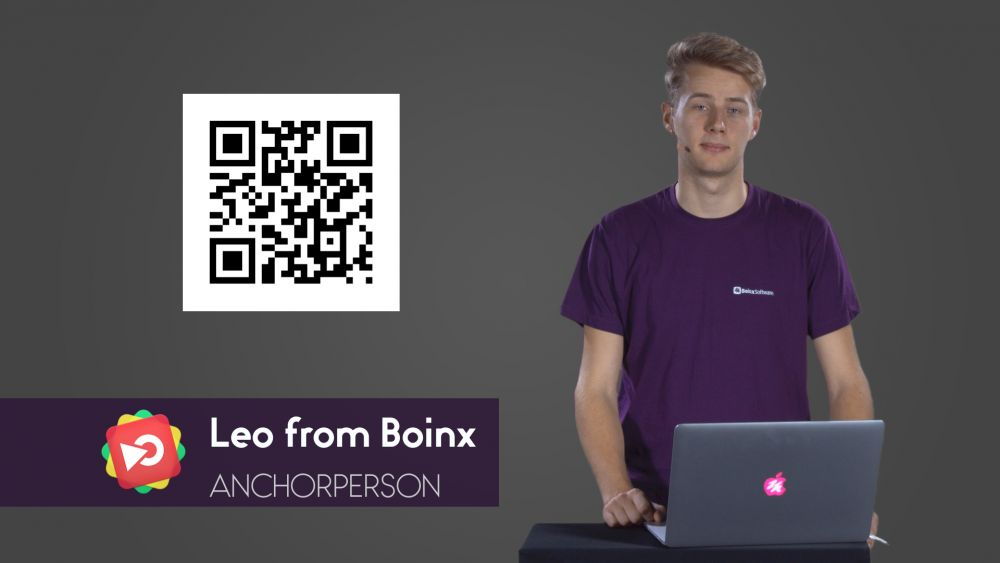
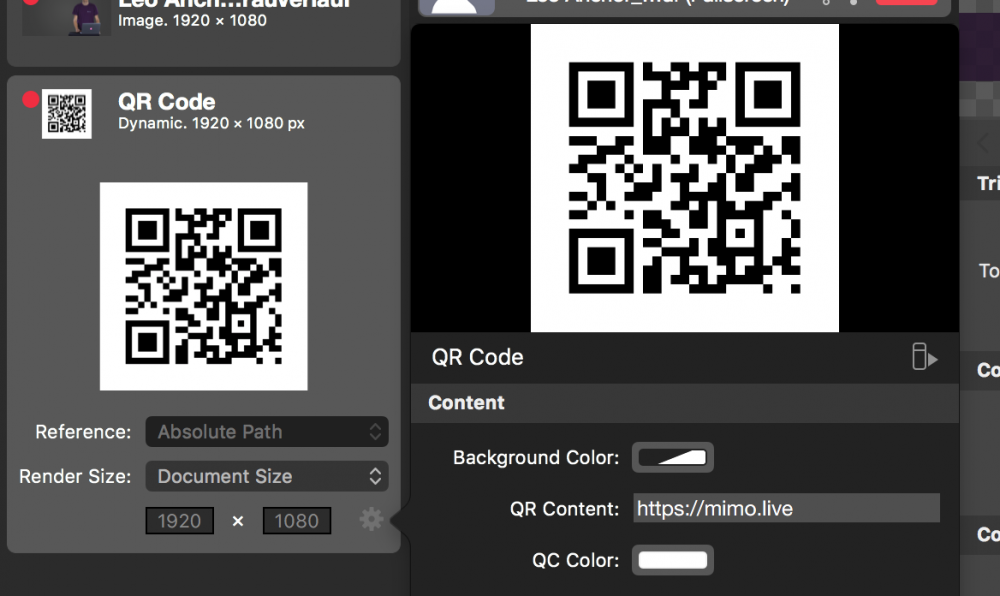
#### Encoding Data
- To create a QR Code, add an instance of the QR Code Source to your Sources.
- Click on the setting cogwheel at the right-hand bottom of the source to bring up the settings panel.
- Enter the string you want to encode in the field “QR Content”.
Their smartphone can be made to perform various tasks when viewers point their cameras at the QR Code. Here is a list of some of those tasks:
> **Note:** Proper URL Encoding
>
> All the information entered in “QR Content” must be URL-encoded.
[(This information is based on “Barcode Contents” by Sean Owen](https://github.com/zxing/zxing/wiki/Barcode-Contents) )
| QR Code Action | “QR Content” Example |
| --- | --- |
| Open a Web Page | https://mimo.live |
| Send an Email | sendto:support@boinx.com |
| Call a Phone Number | tel:+49-89-8400550 |
| Add Contact to Address Book | MECARD:N:Boinx%20Software;ADR:Industriestr.%209,82110%20Germering,Germany;TEL:+49898400550;EMAIL:support@boinx.com;; |
| Send a Text | sms:+49-89-8400550:Hi%20there |
| Open a Location on Map | geo:48.133884,11.359026,540 |
#### Displaying the QR Code in Your Stream
> **Note:** Set up the pixel dimension for the QR-Code to match the size in the video.
>
> By default, the QR code source is rendered in the pixel dimensions of your Program Out. But the QR code usually is a square. Therefore there are transparent areas on both sides of the QR-code. Those can make it difficult to place the QR code image correctly on your video. Switch the “Render Size” option from “Document Size” to “Custom” and set up the dimension to be a square and in a size that matches the pixel size in the video.
To display the QR Code in your video, you can use the source in any layer. We recommend using the [PiP Layer](https://mimolive.com/user-manual/live-editing/layers/picture-in-picture-pip/) because that layer automatically masks the entire area of the QR Code.
---
### Map
Source: https://mimolive.com/user-manual/sources-input/graphic-sources/map/
Last updated: 2025-06-15
The Map Source in mimoLive is an image generator that is able to produce a map from an address or an geo location. There are different styling options to change the design of the map.
#### Adding The Map Source
To add the Map source to your mimoLive document click on the “+” button on top of the [Sources Repository](https://mimolive.com/user-manual/sources-and-the-sources-repository) to show a list of available source types. Find the Map source and drag it to the Source Repository.
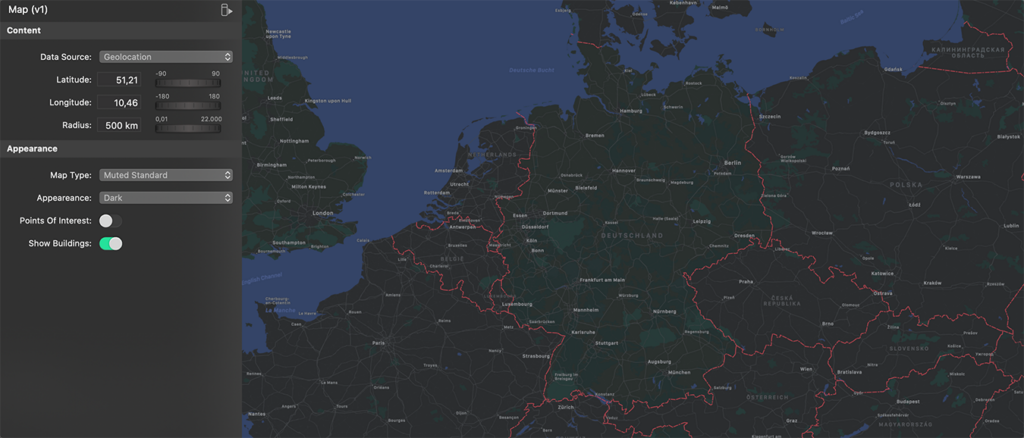
#### Setting Up The Map Image Dimensions
By default the image will be the size of the mimoLive video output. However it may be useful to change the pixel dimensions of the map image to get a different aspect ratio (like a square) or to change the text font size (a smaller pixel dimension results in bigger text in the video output). You can change the pixel dimensions of the Map Source at the bottom of the source item. Click on the drop down menu for “Render Size” and change it to Custom Size:
#### Choosing The Area Of The Map
In order to change the area of the map you need to click on the action gear in the lower right corner of the Map source. This will bring up an inspector window. There are several option:
| Option | Description |
| --- | --- |
| Data Source | This option specifies which way you want to enter the location of the map. You can either enter a postal address or geo location coordinates. |
| Location | If you selected “Search Field” then you can enter a search query to find a certain location for the map. |
| Latitude | In case of “Geolocation” you are asked to enter the center coordinates of the area you want to see as well as the radius in kilo meters (km). |
| Longitude | (see above) |
| Radius | (see above) |
| Map Type | There are four map types you can choose: Standard, Satellite, Hybrid (a satellite image overlaid with streets), Muted Standard (a light version of Standard). Each map type give different options combinations for Appearance, Point Of Interest and Show Buildings. |
| Appearance | You can choose either a light or dark appearance. |
| Point Of Interest | This option let you show the points of interest on the map. |
| Show Buildings | If this option is switch on you will see buildings if you zoomed in close enough. |
---
### Text Source
Source: https://mimolive.com/user-manual/sources-input/graphic-sources/text-source/
Last updated: 2026-08-19
### Text Source
The Text Source allows displaying text easily, changing it or even doing automated changes through the [HTTP API](https://mimolive.com/user-manual/http-api).
Many other [layers](https://mimolive.com/user-manual/layers) have got their own text input so that you can enter text conveniently directly into the layer. However, there are some situations where you want to put in the text where the layer is designed to present an image or video. Usually, you need to design an image with an externe graphics application to accomplish this. Changing this text is tedious because you always need to go the round trip through the external editor. With the Text Source, this isn’t necessary: You can change the text within mimoLive easily. If you need it automated you can change the text with the [HTTP API](https://mimolive.com/user-manual/http-api).
#### Define The Render Size
By default, the Text Source is rendered into the Document Size.
You can change this to a custom size by choosing “Custom…” from the “Render Size” popup and entering the desired dimensions in the text fields below.
#### Settings
> **Note:** Click on the cogwheel in the bottom right corner to bring up the Settings
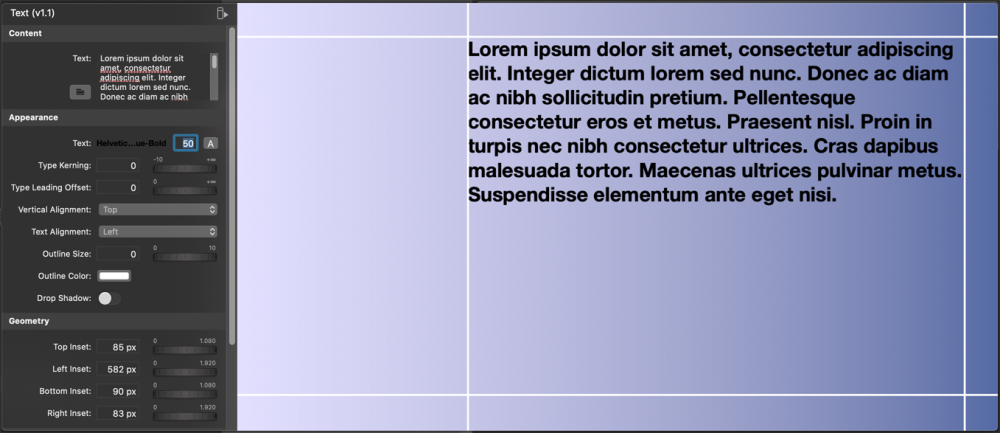
The Text Source has a lot of options to customize the look of the resulting image.
In the Appearance section, you can define the properties of the text like font, size, color, alignment, or a drop shadow. You even can add an outline border to the text.
In the Geometry section, you can specify the area where the text will be printed by insets from the edges.
The Background section lets you design the background of your text image. You can choose from gradients, solid colors or an image from your source repository.
> **Note:** If you want a transparent background you should select “Solid Color” as the background type and set the Opacity of the background color to 0%.
---
### Placeholder Source
Source: https://mimolive.com/user-manual/sources-input/graphic-sources/placeholder/
Last updated: 2025-06-16
When ever you are designing a mimoLive template from scratch or for any other reason don’t have access to the final resources (like movies, images or video hardware) it may be necessary that you put in a placeholder temporarily into a layer. This Placeholder source is a convenient way to quickly generate images in any size.
#### Choosing the displayed Character
The Placeholder source will generate a letter in front of a coloured background. You can choose the character in the “Key” option of the setup from A through J.
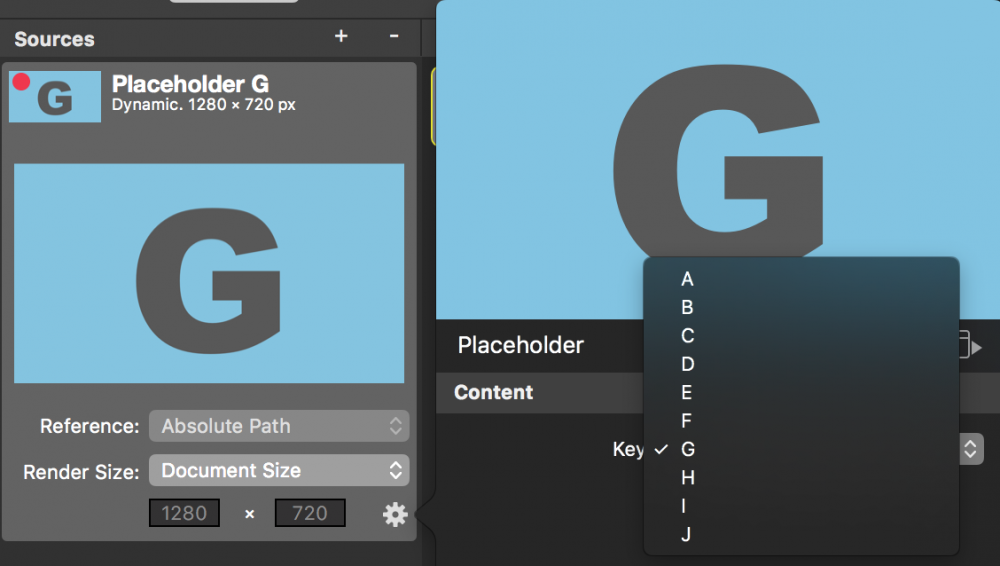
#### Setting up the Render Size
By default the Placeholder source generates an image that is the same size as the program output dimensions. If you need different pixel dimensions you can switch the Render Size option from “Document Size” to “Custom…” and enter a width and hight in pixels.
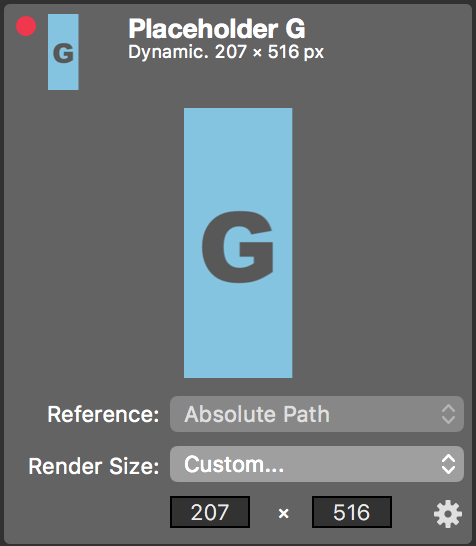
---
## Data Sources
Source: https://mimolive.com/user-manual/sources-input/data-sources/
Last updated: 2025-06-15
_This page has no body text; it groups the pages below._
---
### Social media
Source: https://mimolive.com/user-manual/sources-input/data-sources/social-media/
Last updated: 2025-06-15
The Social Media Source is used to retrieve metadata from a social media site that you’re streaming live to.
mimoLive supports these Social Media platforms:
- Facebook
- YouTube
#### Setting Up A Social Media Source
As the Social Media source is able to retrieve data from different social media services we choose Facebook Comments as a common use case for this example.
1. In order to make use of a Social Media Source in mimoLive you need to create the appropriate account first. Go to mimoLive Preferences and add it in the [Accounts](https://mimolive.com/user-manual/accounts) tab.
2. Click the **+** button on the top right of the Source Library on the far left in the mimoLive document window. A list of source types will pop up in a window.
3. Find the **Social Media** source template and drag it into the Source Library.
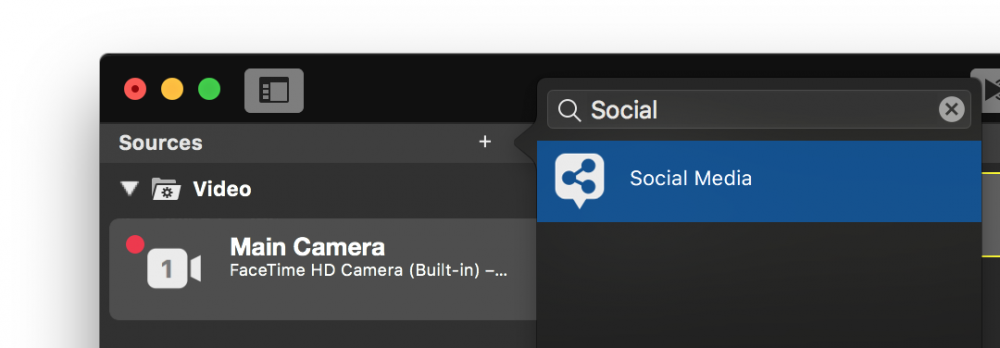
4. Now that you have the Social Media Source in your Source Repository you can specify what data this source should retrieve. In this example, we want to collect the comments from a live video on Facebook which we don’t steam by our selves. Select the Facebook Account you set up in step 1.
5. The options below the **Account** popup may change for different social media services. In case of Facebook you can select **Live Video Comments & Reactions**, **Page Likes** or **Page Reactions** for the Content-Type. For YouTube accounts you can select **Live Chat**, **Live Broadcast Statistics** or **Channel Statistics**. For our example please choose **Live Video Comments & Reactions**.
6. The **Live Video** selector could either be a stream that is currently accessible through your Facebook account or your can switch to **Custom ID** in order to grab the Comments & Reactions from a 3rd party stream.
7. Put in the **Live Video ID** of the stream your want to retrieve data from. Learn how to [get the Facebook Post ID](https://mimolive.com/user-manual/getting-the-facebook-post-id). The status indicator switches to green if the social media source is able to successfully connect to the streaming host and have to correct access rights.
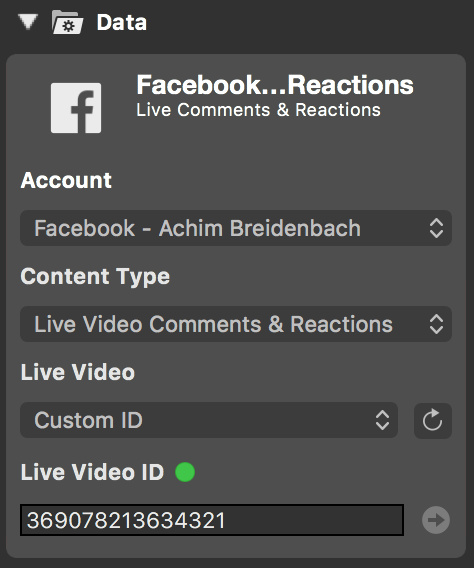
8. Add a [Comments Layer](https://mimolive.com/user-manual/comments) to your layer stack and switch it live.
9. Open the Comments Window from the **Windows** menu and observe the comments that are floating in. Read [Comments](https://mimolive.com/user-manual/comments-1) to learn what else can be done with comments in mimoLive.
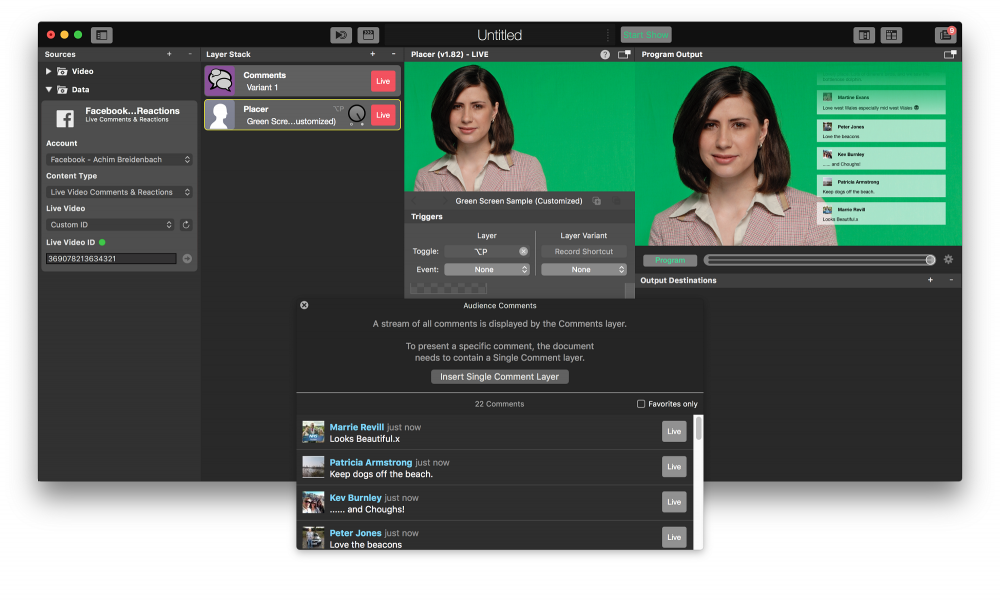
---
## Testing Sources
Source: https://mimolive.com/user-manual/sources-input/testing-sources/
Last updated: 2025-06-15
_This page has no body text; it groups the pages below._
---
### Video Output Test
Source: https://mimolive.com/user-manual/sources-input/testing-sources/video-output-test/
Last updated: 2025-10-13
The Video Output Test source generates certain test patterns to test the render pipeline or the program output in mimoLive.
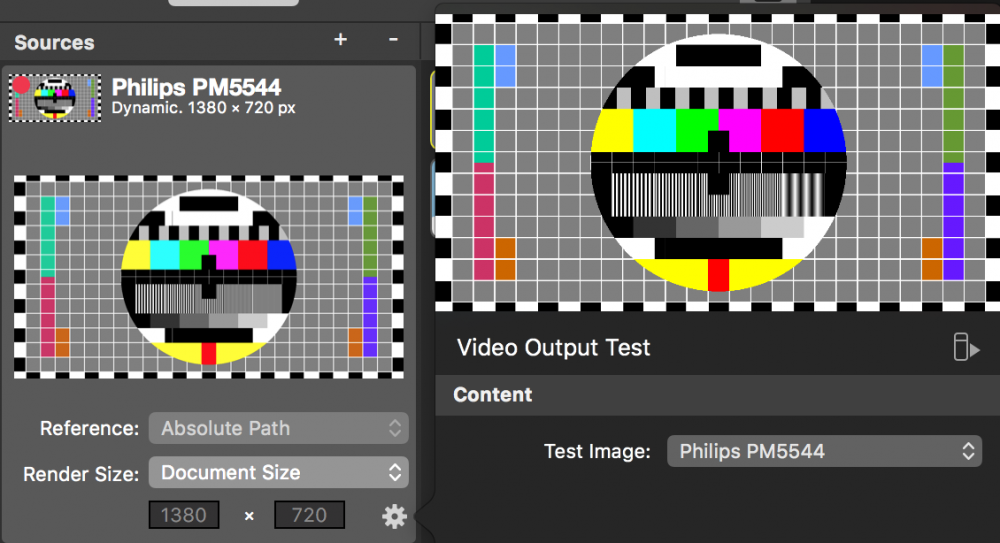
#### Choosing a Test Image
Depending on what you are going to test with this source you need to choose a certain test pattern. To select a pattern click on the configuration button in the lower right of the source. This will popup a source settings inspector.
##### Philips PM5544
This image helps you to test the dimensions and pixel accuracy of you video pipeline: E.g. the big circle shows if the resulting video is in the correct aspect ratio. With the vertical stripes in the middle section you can see if all your pixels are coming through and what artefacts a video compression may cause. Please check this [wikipedia page](https://en.wikipedia.org/wiki/Philips_PM5544) for detailed information on what area is good for.
##### SMPTE Color Bars

The color bars are standardised and you can use them to compare the color of the video pipeline to other video signals in your production environment. Please refer to this [wikipedia page](https://en.wikipedia.org/wiki/SMPTE_color_bars) to learn more.
##### Screen Dimensions
It carries a one pixel boundary of green as well as the total resolution of the source itself. This image should be used to test if any cropping is happening: The green boundary should always be visible when walking the video pipeline.
##### Alpha Channel Test
Use this test pattern for checking the alpha channel when playing out a key and fill signal via SDI. Some video mixers/switchers use a Clip and Gain setting to determine how the key will be applied. This test pattern is useful to calibrate the values. See SDI Playout documentation for more info.
#### Setting up the Render Size
By default the Video Output Test source generates an image that is the same size as the program output dimensions. If you need different pixel dimensions you can switch the Render Size option from “Document Size” to “Custom…”. The test pattern gets recalculated based on the width and height and stays pixel accurate.
---
### Audio Video Sync Test Source
Source: https://mimolive.com/user-manual/sources-input/testing-sources/audio-video-sync-test/
Last updated: 2025-06-15
This Source is for diagnostic purposes. It creates a blinking video and synchronized sound, so that the Output Destinations can be tested for sync issues.
You can set the blinking times and choose an audio signal.
[Video on YouTube](https://www.youtube-nocookie.com/embed/jQZXDXSPYHY?rel=0)
---
# Layers, Video Effects & Live Editing
Source: https://mimolive.com/user-manual/live-editing/
Last updated: 2025-06-16
_This page has no body text; it groups the pages below._
---
## Layers Overview
Source: https://mimolive.com/user-manual/live-editing/layers/
Last updated: 2025-11-19
mimoLive's layers are a powerful tool that enables users to create stunning graphics, animations, and other video overlays. With a vast selection of layers available, users can produce TV-quality live shows and events with ease. Each layer serves a unique purpose, from displaying scores in sports events to adding breaking news banners to your stream. Moreover, Mimolive offers users the ability to create custom layers using Apple's Quartz Composer technology, allowing for endless possibilities in creating unique graphics for any event.
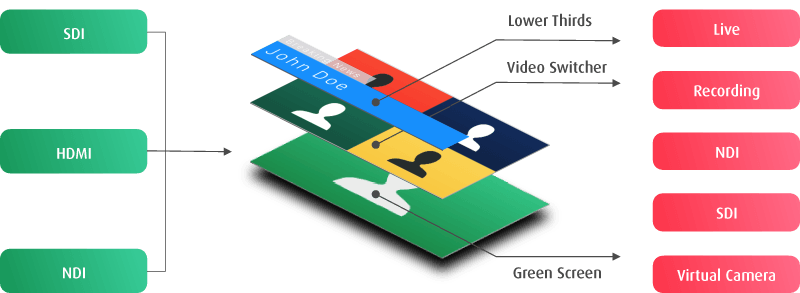
#### Working With Layers
Continue reading [Layers, Settings and Variants](https://mimolive.com/manual/5/en/topic/layers-and-variants) for more advanced information about how to work with layers and how to create variants.
#### List of mimoLive Layers
#### Getting More Layers
In addition to the built-in layers, [more layers are available](https://mimolive.com/store/add-ons) through the Layer Store. Some, more specialized layers require additional purchases.
#### Custom Layers
Layers are based on Apple’s Quartz Composer technology. It is possible for you to [create your own layers](https://mimolive.com/user-manual/custom-layers)
following the [Custom Layer API](https://mimolive.com/user-manual/custom-layer-api) using Quartz Composer. It is also possible to hire Boinx Software to create custom layers.
---
### Audio Layers
Source: https://mimolive.com/user-manual/live-editing/layers/audio/
Last updated: 2025-11-19
The **Audio Layers** section contains all layers in mimoLive that process audio signals during live production.
---
#### Audio Only Layer
Source: https://mimolive.com/user-manual/live-editing/layers/audio/audio-only/
Last updated: 2026-08-19
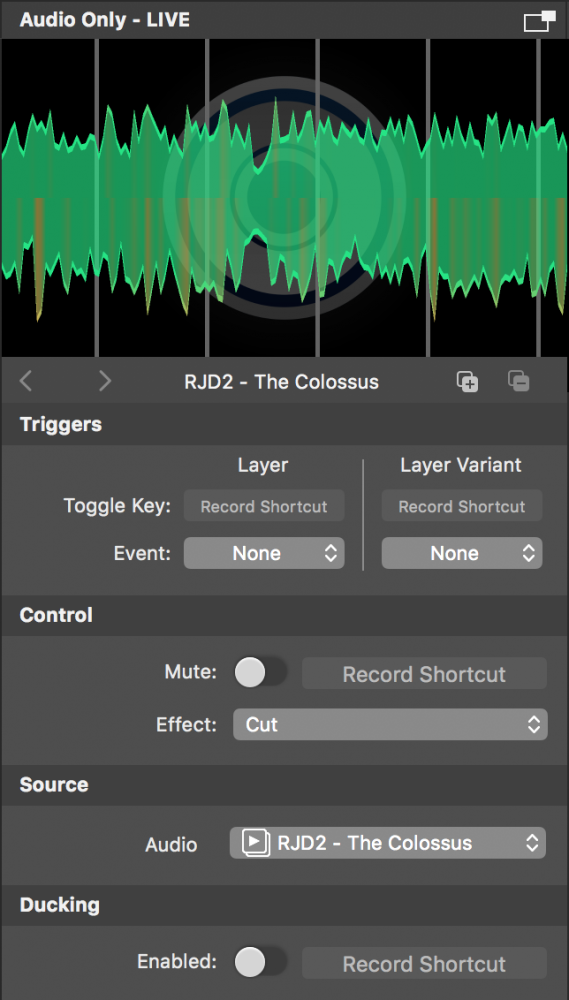
The Audio Only layer injects audio input from any source thats provides audio, like an [Audio Source](https://mimolive.com/user-manual/audio),
a [Video Source](https://mimolive.com/user-manual/video), a [Media File Source](https://mimolive.com/user-manual/media-file) or a [Media Playlist Source](https://mimolive.com/user-manual/media-playlist), into the program output. While being active, its preview displays the waveform of the incoming audio signal. The Audio Only layer will automatically be added when dragging an audio source from the [Sources Repository](https://mimolive.com/user-manual/sources-and-the-sources-repository) to the [Layer Stack](https://mimolive.com/user-manual/layers-and-variants).
#### Control
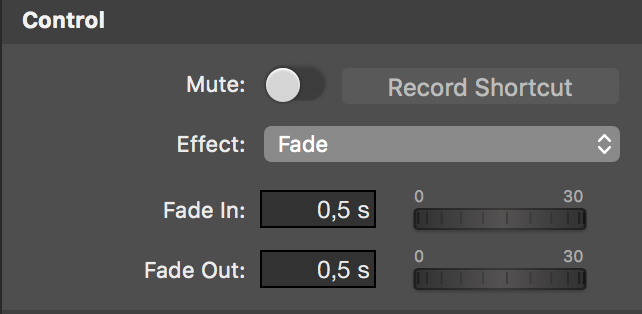
- Mute: Mutes the audio layer instantly.
- Effect:
- Cut: When the layer gets activated or deactivated, the layer instantly unmutes or mutes.
- Fade: When the layer gets activated or deactivated, it performs a fade-in or fade-out.
#### Source
Selects the source whose audio input gets injected into the program out through this Audio Only layer.
#### Ducking
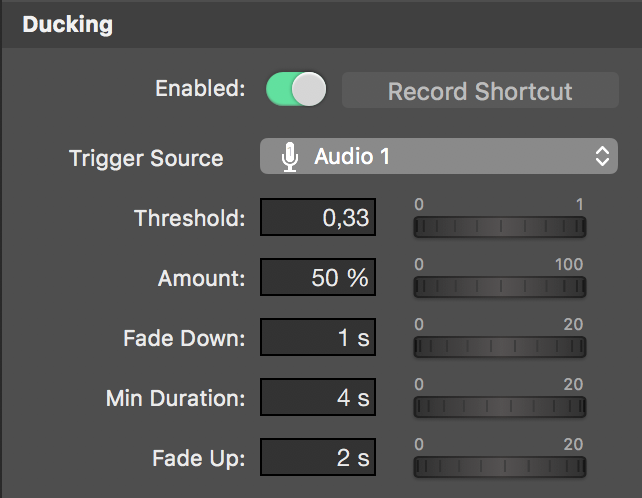
- Trigger Source: Selects the source whose audio input acts as control signal for the ducking effect.
- Threshold: Sets the amplitude of the control signal at which the ducking should be automatically activated, where 0 means ducking is constantly active and 1 means ducking will never be activated.
- Amount: Sets the percentage of attenuation which should be applied to the Audio Only layer’s output whenever it is ducked.
- Fade Down: Sets the time the ducking effect takes to ramp to its destination attenuation level.
- Min Duration: Sets the minimum time the ducking effect should last, which is useful to prevent pumping in the audio output if for example the talking person regularly makes short pauses.
- Fade Up: Sets the time the ducking effect takes to ramp back to the unattenuated level.
> **Note:** Trigger Source Must Be Active!
>
> The ducking effect will only be applied when the trigger source is activated. This means the trigger source must be set as source in another layer and that layer needs to be live.
#### Ducking Example
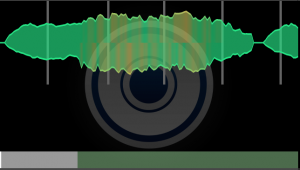
As you can see in the screenshot above, underneath the waveform display there is a two-colored metering bar. The grey area represents the volume range where the ducking effect does not take effect while the dark green area represents the volume range where the ducking does take effect. Changing the **Threshold** parameter will resize both areas.
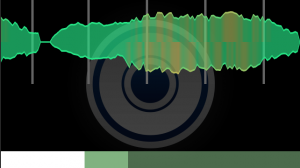
As soon as there is an audio input from the trigger source, the metering bar will display its volume level in white and light green. As can be seen in the screenshot above, the point at which the trigger source volume crosses the threshold and the ducking starts to take effect can now easily be identified as the right end of the now white volume range.
---
### Layout Layers
Source: https://mimolive.com/user-manual/live-editing/layers/layout/
Last updated: 2025-11-19
Layout Layers provide tools for arranging, combining, and presenting multiple visual sources within a mimoLive composition. These layers control how video, graphics, and other content elements appear on screen—whether side by side, overlaid, framed, animated, or dynamically positioned.
They are essential for building professional multi-source layouts such as interviews, picture-in-picture arrangements, over-the-shoulder graphics, branded presentations, and complex scene compositions. Each layer offers different layout behaviors, from simple placement and scaling to advanced transitions, multi-slot arrangements, or 3D-style presentation effects.
---
#### Follow Layer
Source: https://mimolive.com/user-manual/live-editing/layers/layout/follow/
Last updated: 2025-11-19
Applies to mimoLive: Follow (v1.2)
The Follow Layer is designed follow faces within a given frame, with a default focus on face detection for the point of interest. This makes it ideal for live streaming, presentations, and any scenario where dynamic cropping and tracking are essential but the video camera can't be manipulated.
[Video: Layer-11-Follow.mp4](https://mimolive.com/wp-content/uploads/2024/07/Layer-11-Follow.mp4)
### Crop Positions
The Follow Layer offers two primary crop positions:
1. **Long Shot**: This mode captures the entire frame, providing a wide view of the scene.
2. **Close Up**: This mode allows you to zoom in on the subject. The zoom factor can be adjusted between 1% and 90%, with 90% being the maximum zoom level.
### Centering the Field
To determine the center of the zoom field, you have two options:
1. **Face Detection Tracking Mode (Default)**: This mode uses advanced face detection algorithms to automatically center the field on the detected face, ensuring that the subject remains in focus.
2. **Manual Mode**: In this mode, you can manually set the center of the zoom field. Simply click on the desired area in the preview window of the layer settings, and the zoom center will adjust accordingly.
### Keystroke Assignments
For ease of use, you can assign keystrokes to control the following functions:
• **Long Shot Position**: Quickly switch to the entire frame view.
• **Close Up Position**: Instantly zoom in to the predefined close-up view.
• **General Layer Control**: Manage the layer’s general settings and functions.
• **Layer Variants**: Switch between different layer variants as needed.
### Performance and Accuracy
The Follow Layer is optimized for high performance with default settings set to high accuracy. This ensures that the tracking and cropping are precise and reliable, even in dynamic environments.
### Smooth Transitions
No matter how you adjust the settings, the Follow Layer guarantees smooth zoom and pan transitions. This ensures a professional and seamless viewing experience for your audience.
We hope this manual helps you understand and utilize the Follow Layer to its full potential. For further assistance, please refer to the other sections of the mimoLive manual or contact our support team.
---
#### Video Carousel Layer
Source: https://mimolive.com/user-manual/live-editing/layers/layout/video-carousel-layer/
Last updated: 2025-06-16

The Video Carousel layer highlights mimoLive's "video is just another type of graphic" philosophy and shows off 3D capabilities by combining up to 6 sources in a dynamic, circular, "virtual round table" format. The Carousel can be rotated to center the current speaker and zoom out to provide a birds eye view.
---
#### Split Screen Layer
Source: https://mimolive.com/user-manual/live-editing/layers/layout/splitscreen/
Last updated: 2026-02-28
Applies to mimoLive: Split Screen Layer v3.41
The **mimoLive Split Screen Layer** allows you to create dynamic layouts for live broadcasts, showcasing multiple video sources simultaneously. This is perfect for interviews, panel discussions, and events where multiple perspectives or participants are needed on screen at once. With a wide range of customization options, you can achieve a polished and professional presentation for your live stream.
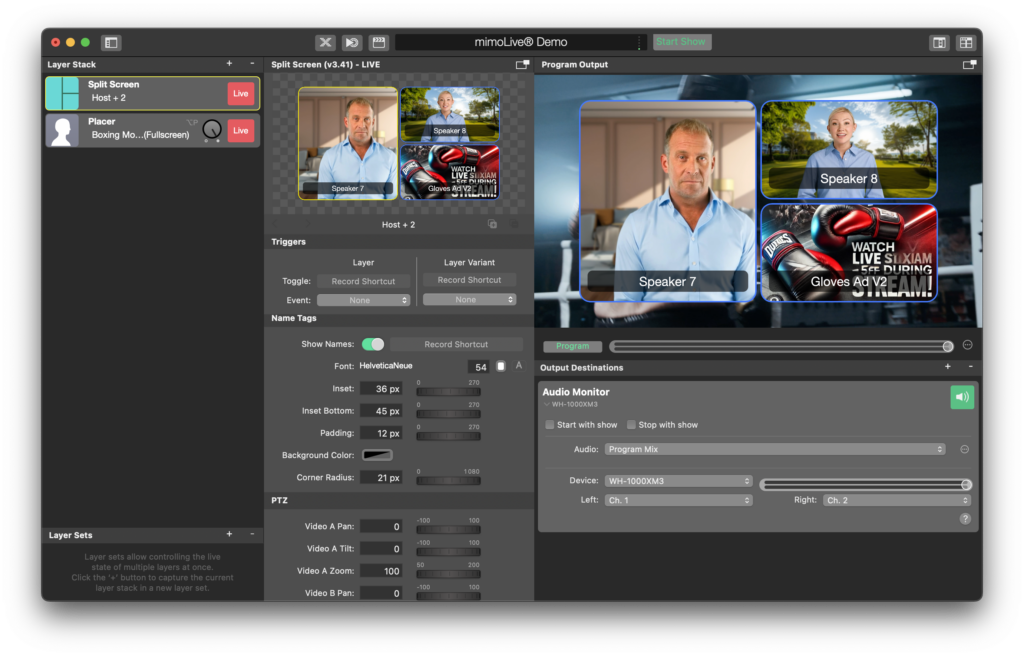
### **Layer Parameters**
#### Triggers
- **Toggle:** Assign a record shortcut to enable or disable the split screen layer on command, allowing quick control during your broadcast.
- **Event:** You can link the activation of the layer to a specific event (currently set to “None”).
#### Control
**Layout:** Choose the grid or layout for displaying the video sources. The available layout options are:
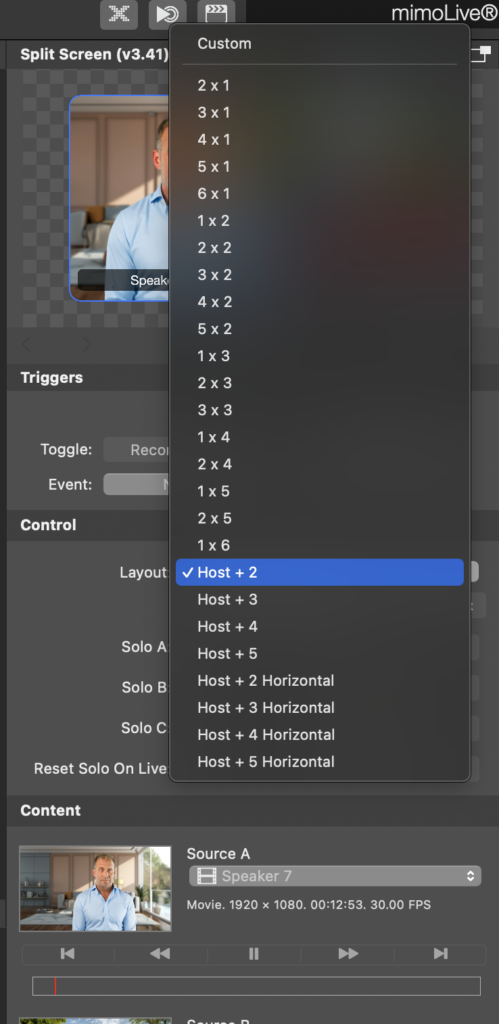
- **Host + 2:** Displays the host alongside two other sources.
- **Host + 3, Host + 4, Host + 5:** For larger discussions or interviews, additional layouts accommodate more participants.
- **Grid Configurations:** Layout options like 2x1, 3x1, 2x2, 3x2, and other grid configurations provide flexibility for how sources are arranged. This includes horizontal and vertical grids.
- **Custom:** Design your own custom layout by selecting the appropriate grid size based on your needs.
- **Solo A, Solo B, Solo C:** Use these toggles to highlight individual video sources by switching to solo views of specific speakers (A, B, or C) within the split-screen layout.
- **Reset Solo On Live:** Automatically resets the solo view and returns to the main layout when the layer goes live, ensuring the stream starts with the correct visual configuration.
#### Content
- **Source A:** Select the primary video source, often the host or main speaker. For example, in the screenshot, *Speaker 7* is used as Source A.
- **Source B:** Select a secondary video source, such as a guest or co-host. In the screenshot, *Speaker 8* is used as Source B.
- **Source C:** This could be an additional guest or content like a product ad. In the screenshot, the *Gloves Ad V2* is used as Source C.
- **Source Names:** You can label each source if necessary, which will help distinguish between different inputs in more complex streams.
### **Appearance Settings**
#### Gap Size
• **Gap Size:** Control the spacing between the video sources. Adjusting this will create more or less space between each window in the split screen. For example, the gap size is set to **16 px** in the screenshot, which keeps each window visually separated while still maintaining a cohesive layout.
#### Background
• **Background:** Choose a background for the entire layout. Options include setting a solid color or using a custom background image. In this example, the background is set to **None** for transparency, which can be useful when overlaying the split screen on top of other content.
#### Borders
- **Border:** Toggle on or off to add a border around each video window for clarity and separation.
- **Border Width:** Adjust the thickness of the border. The current border width is set to **5 px**.
- **Border Color:** Choose a color to make the border stand out. In this example, a light blue border has been applied, creating a clean visual frame around each video source.
#### Corner Radius
- **Corner Radius:** Round the corners of the video windows for a modern, softer look. The example shows a **21 px** corner radius, which gives each window rounded edges, adding a professional touch to the broadcast.
### PTZ (Pan-Tilt-Zoom) Settings:
The **PTZ Controls** allow fine adjustments to each video source’s positioning within the frame.
- **Video A Pan, Tilt, Zoom:** Adjust the framing of Source A. Use the pan and tilt to move the video within the frame and the zoom to bring the subject closer. The default zoom for Video A is set to **100**.
- **Video B Pan, Tilt, Zoom:** Adjust Source B in the same way to ensure that the subject is correctly framed and in focus.
- **Video C Pan, Tilt, Zoom:** Adjust Source C as needed, especially useful when displaying non-speaker content like ads or pre-recorded segments.
These controls are especially helpful when you want to make sure each speaker or video source is framed correctly without needing to physically adjust cameras.
### **Animation Settings**
- **Solo Transition:** Choose how to transition between solo views (when a single speaker is in focus) and the full split-screen layout. Options include:
- **Zoom Animation:** Smoothly zooms in or out of the selected solo speaker, adding a dynamic touch to the transitions.
- **Other Transition Types:** Additional options include dissolves, slides, and cuts for different visual effects.
- **Transition Duration:** Control how long the transition takes between views. In the example, the duration is set to **0.5 seconds**, offering a quick and smooth change between solo and split views.
### **Geometry Settings**
- **Window Top, Bottom, Left, Right:** Fine-tune the positioning of the entire split-screen layout on the screen by adjusting the window boundaries. This ensures that the layout fits perfectly within the broadcast frame without cutting off important elements.
- Example settings: Top is set to **108 px**, and Left is set to **192 px** for precise placement on the screen.
### **Highlighting Mode**
The **Highlighting** feature allows you to automatically or manually emphasize the active speaker during a live broadcast.
- **None:** No highlighting, maintaining equal emphasis on all video sources.
- **Automatically (Audio):** Automatically highlights the speaker who is currently talking by zooming in or making their window more prominent based on audio detection. This is useful for live discussions or debates where participants speak at different times.
- **Manually:** The operator can manually select which speaker to highlight by switching between sources.
### **Practical Tips**
- **PTZ Control:** Use the PTZ settings to adjust each video feed without needing to move the cameras. Zoom in on speakers to give a dynamic look, or pan and tilt to ensure proper framing.
- **Solo Views:** Switching to solo views during discussions can help draw attention to a specific speaker. Combining this with the **Zoom Animation** creates smooth, professional transitions.
- **Highlighting:** Use the automatic audio-based highlighting in situations where multiple speakers are involved. This ensures that the most relevant speaker is emphasized without manual intervention.
- **Custom Layouts:** For unique broadcasts, the **Custom Layout** option allows you to create specific grids and configurations based on the number of speakers or the content being shown.
### Custom Layouts
When the Layout control is set to Custom, mimoLive allows you to define your own bespoke split-screen configurations. To do this effectively, it’s helpful to understand how the Custom Base values, Window geometry, and Layer Data parameters relate to each other.
#### Custom Base Width & Height
The Custom Base Width and Custom Base Height parameters (found under the Control section) establish the coordinate system used for your layout. These values define the grid space in which coordinates are interpreted:
By default, these values are set to 1920 × 1080, which mirrors the pixel resolution of standard 1080p video. This makes it intuitive to enter values that directly correspond to screen positions expressed in pixels. (Make sure to set the Geometry > Window parameters to zero!)
If you change these values—for example to 100 × 100 - the coordinate system becomes percentage-based. In this mode, all layout coordinates are expressed as a percentage of the window’s width and height.
For higher resolution workflows (such as 4K), adjusting the custom base to match your recording resolution (e.g., 3840 × 2160) lets you work in pixel units that align with your source material.
#### Geometry Window Coordinates
The Window parameters (Window Top, Window Left, Window Bottom, Window Right) in the Geometry section define the actual rendering rectangle used for the split-screen layout: The custom base coordinate system spans the window defined by these four geometry values.
To make your layout coordinates correspond directly to the full frame of your output (e.g., full video canvas), it’s common to set all four window values to 0.
#### Layout Data
Once your coordinate grid is defined by the custom base and geometry settings, the Layer Data field becomes your workspace for laying out individual windows: The Layout Data field contains a list of coordinate sets in the format: centerX, centerY, width, height. Each set of values defines a single partition of the split screen.
These numbers are interpreted in the units established by your custom base and are scaled to fit within the geometry window boundaries.
By tailoring the custom base and geometry settings before entering layout coordinates, you gain precise control over how each video source is positioned and sized in your custom split-screen layout.
---
#### Presenter 2D Layer
Source: https://mimolive.com/user-manual/live-editing/layers/layout/presenter-2d-layer/
Last updated: 2025-06-16
[Video: Presenter-2D-Layer.mp4](https://mimolive.com/wp-content/uploads/2024/10/Presenter-2D-Layer.mp4)
**Presenter 2D Layer in mimoLive**
The **Presenter 2D Layer** in mimoLive allows you to create professional presentations by combining two sources, such as a speaker and presentation content, into one layout. This layer is ideal for webinars, training videos, or broadcasts that require both a presenter and supporting visuals.
### **Key Features**
**Dual Source Display**
This layer lets you display **two sources** simultaneously, with one acting as the main content (e.g., a screen recording) and the other being a presenter (e.g., a webcam feed). Both sources can be shown side-by-side or in different layouts.
**A/B Transition**
You can smoothly switch between **Source A (presenter)** and **B (screen content)** or display both together, with the ability to apply transitions such as **Dissolve** for a polished look.
**Motion Detection**
If enabled, the layer can detect motion from the presenter, automatically switching to the presenter when motion is detected, making the presentation more dynamic.
**Aspect Ratio Control**
The layer allows you to adjust the **aspect ratio** for both sources to ensure they fit the screen properly without distortion or cropping.
**Custom Layouts**
You can configure the layout of the two sources, adjusting the **position**, scale, and margins of each, or apply **backgrounds** to improve visibility and presentation quality.
### User Interface
**Source Selection**
In the **Content** section, you can choose the two sources for the presentation (e.g., a screen recording and a webcam).
You can also control whether to display **A**, **B**, or **A and B** together using manual controls or keyboard shortcuts.
**A/B Transition**
Set a transition between the two sources using effects such as **Dissolve**.
Adjust the **transition duration** to control the smoothness of the switch between sources.
**Layout and Geometry**
Adjust the **position** and **scale** of each source.
Set margins, insets, and cropping for each source to control how they appear in the final layout.
**Background**
You can add a custom background to frame the presentation, giving a professional look that separates the presenter from the content.
### Example Uses
**Webinars**
Use the Presenter 2D Layer to display a presenter explaining content while showing their slides or a screen recording alongside them.
**Training Videos**
The layer is perfect for tutorials where the speaker demonstrates actions on screen while providing live commentary.
**News Broadcasts**
Show a news anchor or reporter speaking while simultaneously displaying news clips or graphics.
The **Presenter 2D Layer** gives you the ability to present information in a professional and visually engaging way, allowing your audience to focus on both the presenter and the content being discussed.
---
#### Overshoulder Insert (OTS) Layer
Source: https://mimolive.com/user-manual/live-editing/layers/layout/overshoulder-insert/
Last updated: 2025-06-16
The Over-The-Shoulder (OTS) Insert is a classic TV news technique where an image or video clip is displayed over the shoulder of the news presenter. In a live production environment like mimoLive, using the OTS effect can add professionalism and visual interest to your broadcasts.
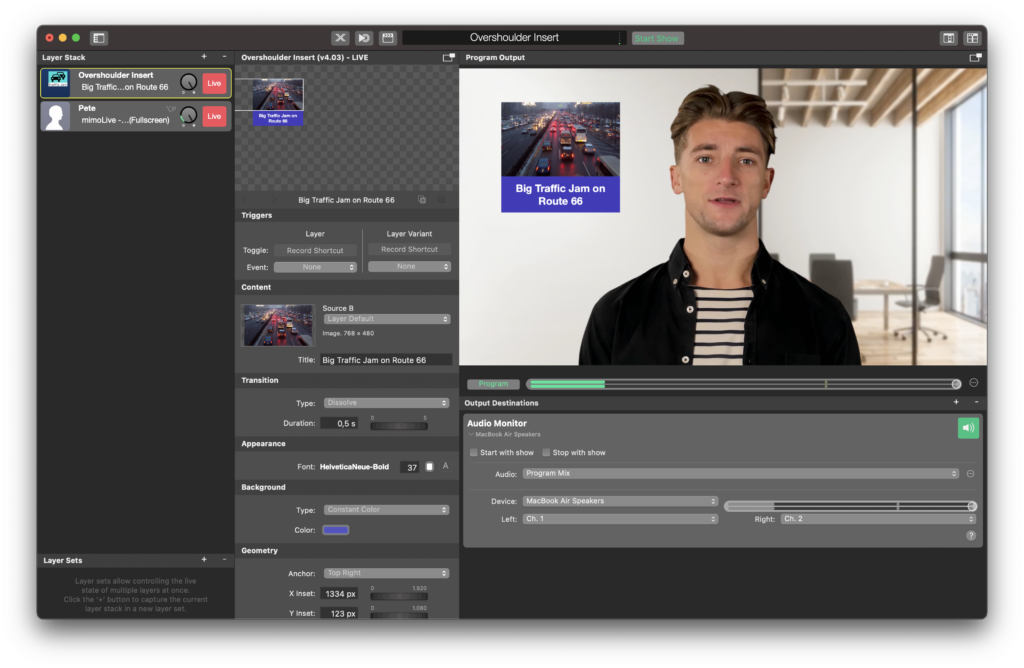
### Introduction to OTS
The Over-The-Shoulder (OTS) technique is a visual staple in news broadcasts, offering a seamless way to introduce graphics or clips related to the topic being discussed by the presenter. Within mimoLive, the OTS layer provides an efficient and user-friendly method to integrate this effect into your live broadcasts or recordings.
#### Adding an OTS Layer
1. **Launch mimoLive** and access your desired project.
2. Navigate to the **Layers Stack** panel.
3. Click on the **"+"** button to incorporate a new layer.
4. From the dropdown list, opt for **OverShoulder Insert**.
#### Configuration of the OTS Layer
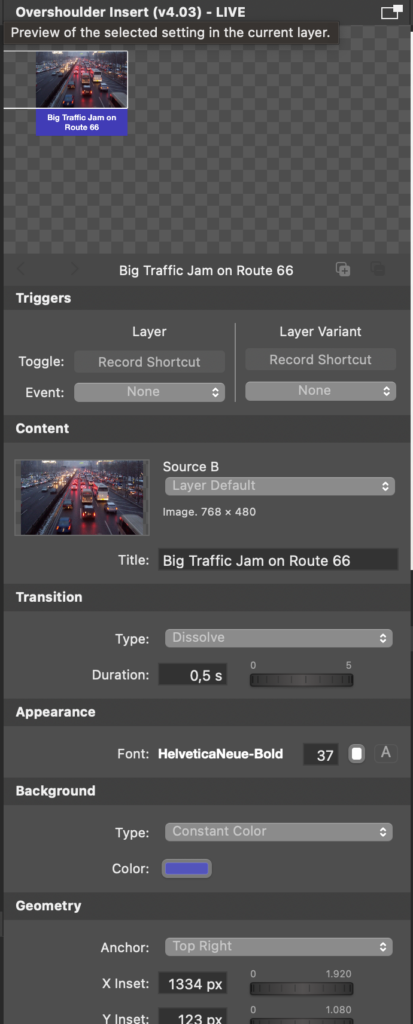
### Tips for Effective OTS Usage
- **Content Relevance**: Ensure the OTS graphic or clip directly relates to the presenter's topic, avoiding confusion for viewers.
- **Scale and Position**: Position the OTS insert so it doesn't obscure the presenter's face or any vital information they may be sharing.
- **Quality**: As with all visual elements, make sure your OTS content is clear and high-quality. A low-res insert can detract from the overall presentation.
---
Using the Over-The-Shoulder Insert layer in mimoLive can greatly elevate the quality of your broadcasts. With a touch of planning and the software's versatile tools, even the most basic production can take on a professional sheen.
---
#### Quicklook 3D Layer
Source: https://mimolive.com/user-manual/live-editing/layers/layout/quicklook-3d/
Last updated: 2025-06-16
### **Overview**
The Quick Look 3D layer allows you to display media files with dynamic 3D transformations, creating a visually engaging presentation. This layer is ideal for showcasing images, videos, or slides with perspective, rotation, and scaling effects to add depth and professionalism to your broadcast.
#### **Key Features**
• **3D Transformations:** Add rotation and perspective effects for a 3D look.
• **Zoom and Positioning:** Adjust zoom levels and reposition the media for perfect alignment.
• **Smooth Borders:** Enable smooth border transitions for a polished appearance.
• **Custom File Input:** Load any image or video file for 3D display.
**Layer Controls**
#### Content
• **File Path:** Upload or select a file (image or video) to display in the layer.
• **Icon Mode:** Activate icon display for smaller, representative visuals.
• **Smooth Border:** Toggle this feature to enable soft edges around the file.
**Transition**
• **Type:** Choose a transition style (e.g., Cut) for how the file appears or disappears.
#### Geometry
• **Zoom:** Adjust the zoom level of the media to scale it within the 3D space (e.g., 75%).
• **Position X/Y/Z:** Control the horizontal, vertical, and depth positioning of the file for precise alignment.
• **Rotation X/Y/Z:** Set rotation angles along the X, Y, and Z axes to add a 3D dynamic to the media.
##### Workflow Example
1. Add the Quick Look 3D layer from the Layer Stack.
2. Upload your desired media file (image or video).
3. Adjust the zoom to fit the media appropriately within the scene.
4. Use the position controls to align the media with your broadcast layout.
5. Apply 3D rotations to create the desired perspective or visual effect.
6. Enable smooth borders for a polished look.
7. Preview the animation and transitions before taking the layer live.
#### Tips
• Use high-resolution files for sharp and professional visuals.
• Experiment with rotation and position settings to achieve dynamic and engaging effects.
• Combine this layer with others for a seamless, layered presentation.
The Quick Look 3D layer adds a unique and modern visual element to your production, making it ideal for presentations, slideshows, or dynamic displays in live broadcasts.
---
#### Source With Distortion Layer
Source: https://mimolive.com/user-manual/live-editing/layers/layout/source-with-distortion/
Last updated: 2025-06-16
**Source with Distortion Layer in mimoLive**
The **Source with Distortion Layer** in mimoLive allows you to dynamically manipulate a video source by distorting its perspective. This layer is perfect for creating custom overlays, simulating 3D transformations, or adjusting video to fit unique screen shapes or environments.
### Key Features
**Dynamic Perspective Adjustment**
The layer allows you to adjust the corners of a video source independently, creating a **perspective effect** or aligning the source to fit within custom layouts.
**Projection Modes**
Choose between **Perspective** and **Orthogonal** projection modes to achieve the desired distortion style, providing flexibility for both artistic and technical needs.
**Feathered Edges**
Add a smooth feather effect to the edges of the distorted source to blend it seamlessly into the background or other layers.
**Show Fullscreen and Crosshairs**
Enable **Fullscreen** mode or display **crosshairs** to assist with precise alignment and distortion adjustments.
### User Interface
**Content Section**
- **Source A**: Select the video or image source you wish to distort.
- The chosen source will be displayed in the layer for further distortion and alignment.
**Transition Section**
- **Type**: Choose the transition effect (e.g., **Dissolve**) for how the layer appears or disappears.
- **Duration**: Adjust the length of the transition effect.
**Appearance Section**
- **Feather Width**: Use the slider to smooth the edges of the distorted source.
- **Projection Mode**: Switch between **Perspective** and **Orthogonal** to define the distortion style.
**Geometry Section**
- Adjust the **X** and **Y** positions of the four corners (Top Left, Top Right, Bottom Left, Bottom Right) to distort the source dynamically.
- These controls allow for custom alignment and perspective manipulation to fit the video source within any shape or layout.
### Example Uses
**Custom Overlays**
Distort video content to fit custom-shaped overlays for unique visual effects during live streams or recordings.
**Projection Mapping**
Adjust the video source to match irregular screen shapes or surfaces in projection mapping setups.
**Simulated 3D Effects**
Use perspective distortion to simulate 3D transformations or depth effects, adding visual complexity to your production.
The **Source with Distortion Layer** is a versatile tool for precise control over video alignment and perspective, enabling creative designs and professional-level adjustments in your productions.
---
#### Station Logo Layer
Source: https://mimolive.com/user-manual/live-editing/layers/layout/station-logo/
Last updated: 2025-06-16
### Overview
The Station Logo layer displays a branding image, such as a network or channel logo, on top of your video output. This ensures consistent branding throughout your show. The layer can be easily positioned, scaled, and faded in or out using various transitions.
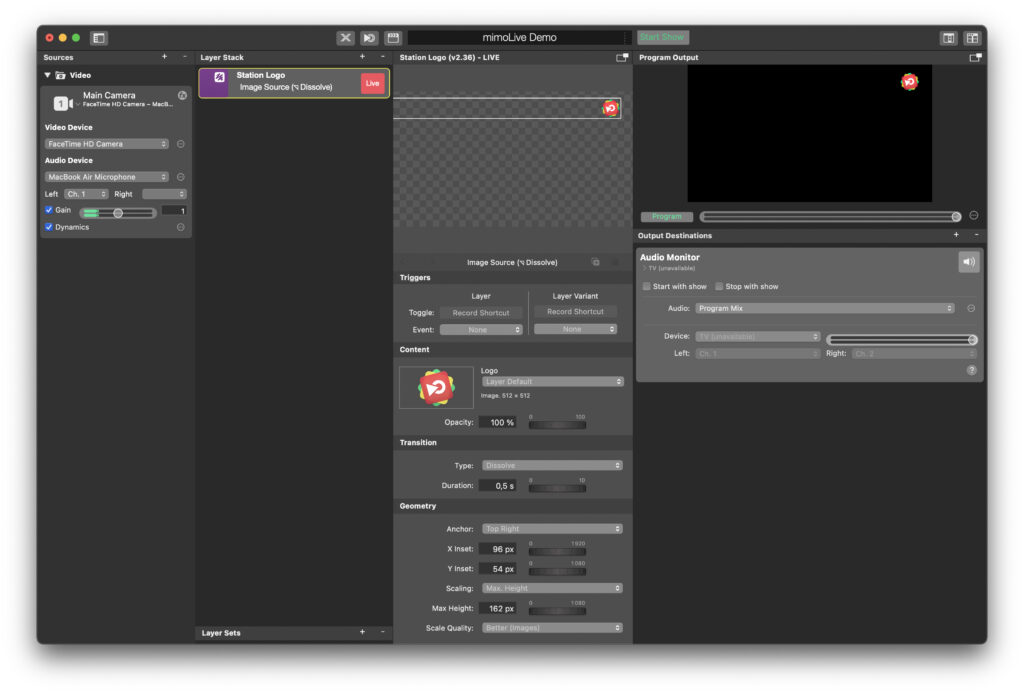
### Key Features
This layer makes it simple to keep your logo visible at all times. You can adjust the logo’s size, position, and transparency to maintain a professional look without distracting viewers. Subtle transitions help integrate the logo into your broadcast smoothly.
### Layer Controls
In the Content section, select your logo image and set the desired opacity.
In the Transition section, choose how the logo appears or disappears, for example by using a dissolve effect with a custom duration.
In the Geometry section, position the logo precisely by anchoring it to a chosen corner of the frame, adjusting its X and Y offsets, and setting a suitable scale and maximum height.
### Typical Workflow
Add the Station Logo layer to your Layer Stack and choose your logo file. Adjust the opacity to blend the logo into the scene. Apply a quick dissolve transition for a professional fade-in. Position the logo in a corner so it remains visible but unobtrusive. Once satisfied, take the layer live to ensure consistent branding throughout your production.
### Tips
Use a clean, high-resolution logo and keep it subtle. Confirm that it stays within safe display areas on all screens. The Station Logo layer helps maintain brand identity and professionalism with minimal distraction.
---
#### Interview Layer
Source: https://mimolive.com/user-manual/live-editing/layers/layout/interview/
Last updated: 2025-06-16
Applies to mimoLive: Interview Layer V3.32
The **Interview Layer** in mimoLive provides a professional and customizable way to display two speakers in a side-by-side format during live broadcasts. This layer allows for dynamic transitions, text overlays, and a variety of appearance adjustments to match your stream’s branding and layout.
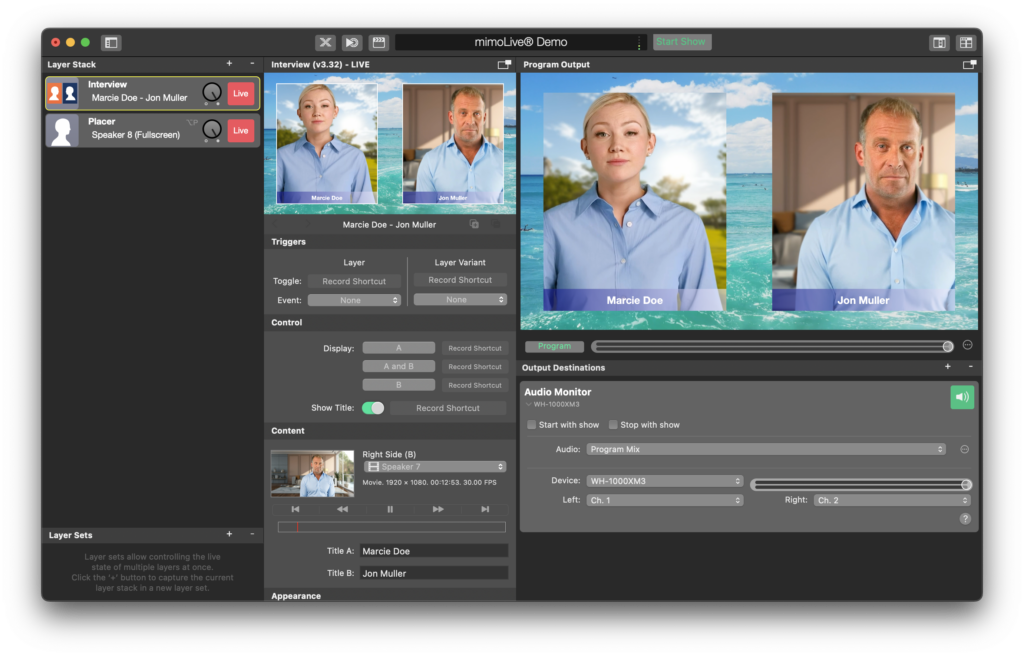
### Layer Setup Parameters
#### Triggers
- **Toggle:** Assign a record shortcut to enable or disable the layer during your stream.
- **Event:** Currently set to “None,” but you can assign a specific event trigger if needed.
#### Control
- **Display Options:**
- **A:** Display only Speaker A.
- **A and B:** Display both speakers side-by-side.
- **B:** Display only Speaker B.
- **Show Title:** Toggles the display of the titles for each speaker, which can be customized below.
#### Content
- **Title A:** Customize the name or title for the person appearing on the left (Speaker A). For example, *Marcie Doe*.
- **Title B:** Customize the name or title for the person on the right (Speaker B). For example, *Jon Muller*.
- **Speaker Video Feed:** Select the video source for both Speaker A and Speaker B. In this case, it is set to **Speaker 7**.
#### **Appearance Settings**
1. **Font:**
- Choose from a variety of fonts to display the names or titles of the speakers. The current font is set to **HelveticaNeue-Bold** at size **43 px**.
2. **Text Background Type:**
- Customize the background behind the titles of the speakers:
- **Constant Color:** A solid color background.
- **Gradient L to R:** A gradient from left to right (currently selected).
- **Gradient T to B:** A gradient from top to bottom.
- **Custom Image:** Use an image as the background for the text.
3. **Text Background Colors:**
- **Text BG Color 1:** The first color for the background gradient or solid color. In the example, it is set to a dark blue.
- **Text BG Color 2:** The second color for the background gradient. In this example, it is set to white (#FFFFFF).
#### Geometry Settings
1. **Crop Settings:**
- Adjust the cropping for each video feed to ensure the best framing of your speakers:
- **Crop Top:** Default is **85 px**.
- **Crop Bottom:** Default is **81 px**.
- **Crop Middle:** Default is **96 px**, to balance the middle of the screen between both speakers.
2. **Display Configuration:**
- Adjust the aspect ratio and positioning of both speakers, ensuring that the layout fits within your live stream’s visual design.
### Practical Tips
- The **Gradient L to R** option provides a more dynamic look for text backgrounds compared to a solid color. It works well to make titles stand out.
- Adjust the **Crop Top** and **Bottom** values based on how your speakers are framed within the video feed. This ensures no unnecessary empty space.
- The **Show Title** toggle can be useful when you need to emphasize the speaker’s identity, but it can be turned off for a cleaner look when not required.
- This layer does not route audio to the Program Out audio mix. To include audio from each video source, add a separate [Audio Only layer](https://mimolive.com/user-manual/live-editing/layers/audio-only/) for each.
This setup is ideal for interviews, panel discussions, or dual-presenter broadcasts. With mimoLive’s Interview Layer, you can provide a polished and engaging experience for your audience.
---
#### Picture in Picture (PIP) Window Layer
Source: https://mimolive.com/user-manual/live-editing/layers/layout/picture-in-picture-window-layer/
Last updated: 2025-06-16
Applies to mimoLive: PIP Window V1.43
The **Picture-in-Picture (PiP) Window Layer** in mimoLive allows you to overlay a smaller video or graphic on top of your main content, creating a secondary frame within the live broadcast. This is particularly useful for showing multiple sources at once, such as a speaker’s face during a presentation, or a secondary video feed alongside a main program. The PIP Window layer as a wider range of geometry settings the standard [PIP layer](https://mimolive.com/user-manual/live-editing/layers/picture-in-picture-pip/).
**Key Features:**
- **Resizable Window**: You can easily adjust the size of the PiP window to fit your broadcast needs. Whether it’s a small corner window or a larger overlay, the PiP window can be customized to the desired dimensions.
- **Positioning**: The PiP window can be dragged to any position on the screen, allowing you to place it in a corner, along the edge, or anywhere else that best suits your layout.
- **Multiple Sources**: The PiP window can display any type of source, including cameras, pre-recorded videos, graphics, or live streams.
- **Borders and Effects**: You can apply various borders and effects to the PiP window to help it stand out, such as rounded corners, shadow effects, or colored frames.
- **Transparency**: Adjust the transparency level of the PiP window to integrate it seamlessly into the main video or make it more subtle.
**User Interface:**
- **Size and Position Controls**: You can manually adjust the size and position of the PiP window using sliders or by dragging it directly within the preview window.
- **Source Selection**: Choose the content source for the PiP window from the available sources in your project, whether it’s a video feed, image, or another layer.
- **Layer Variants**: As with other layers, you can create multiple **Layer Variants** for the PiP window. This allows you to switch between different content or layouts easily, using shortcuts or triggers.
**Example Uses:**
- **Presentations**: Display a presenter in a small window while showing their presentation slides in the main view.
- **Interviews**: Use the PiP window to show the interviewer or guest speaker while the main video focuses on the event or subject being discussed.
- **Tutorials**: Create a tutorial where the main screen shows the process or action, while the PiP window shows a close-up of the speaker explaining the steps.
The **PiP Window Layer** is a versatile and easy-to-use tool in mimoLive, perfect for enhancing your live broadcasts with multi-source content.
---
#### Picture in Picture (PIP) Layer
Source: https://mimolive.com/user-manual/live-editing/layers/layout/picture-in-picture-pip/
Last updated: 2025-06-16
### What is a PIP?
The Picture-in-Picture (PIP) effect is a great way to overlay one video or image over another, typically in a smaller frame. It's a popular technique for adding commentary to a video, showing two angles of the same scene, or for instructional videos where you might show a presenter alongside their presentation slides.
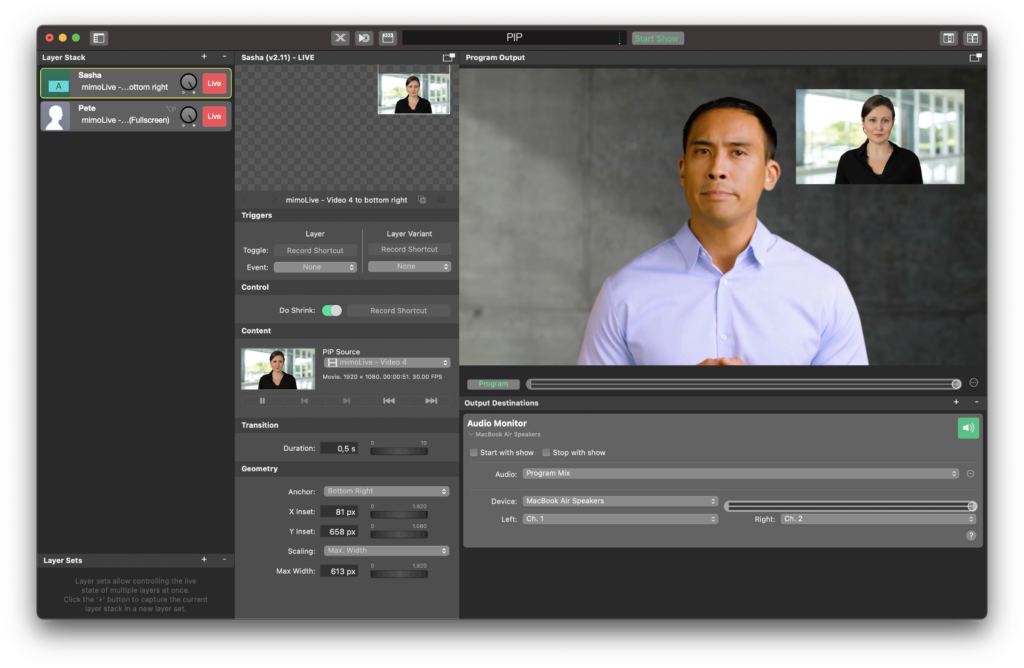
### Introduction to PIP
Picture-in-Picture (PIP) is a versatile effect that allows you to overlay a smaller video or image on top of a larger one. In the context of mimoLive, the PIP layer provides an intuitive way to add this effect to your live broadcasts, recordings, or streams.
#### How to add a pip layer to my mimoLive document?
1. **Launch mimoLive** and open your desired project.
2. Navigate to the **Layers Stack** panel.
3. Click the **"+"** button to add a new layer.
4. From the dropdown list, select **PIP**
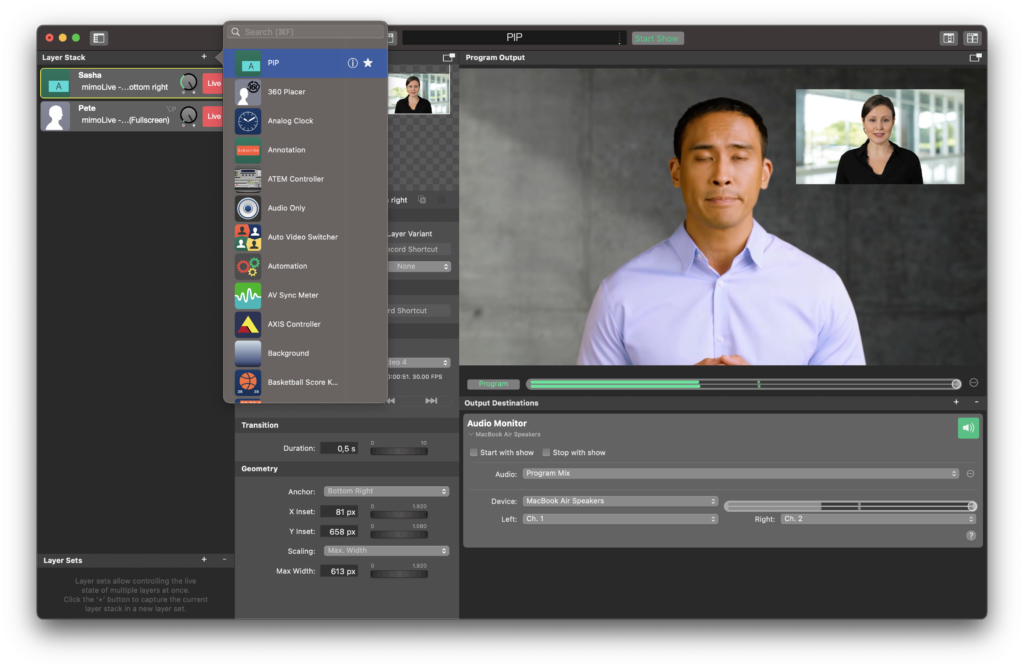
#### Configuring the PIP Layer
1. **Layer Variants** Add variants with the "+" below the preview window
2. **Triggers** Add hotkeys to toggle the Layer states and Layer Variants
3. **Control:** Do Shrink ON/OFF
You can switch the layer to to fullscreen mode.
4. **PIP Selection**: Once you've added the PIP layer, you'll need to select the sources. Typically, there's a main source (background) and a PIP source (foreground). Assign each source as required.
5. **Transition**: Decide if you want the PIP window to fade in, slide in, or change to fullscreen, and set the duration for this transition.
6. **Geometry**: Adjust the position of your PIP window by dragging it around the preview. You can also resize it using the corner handles.
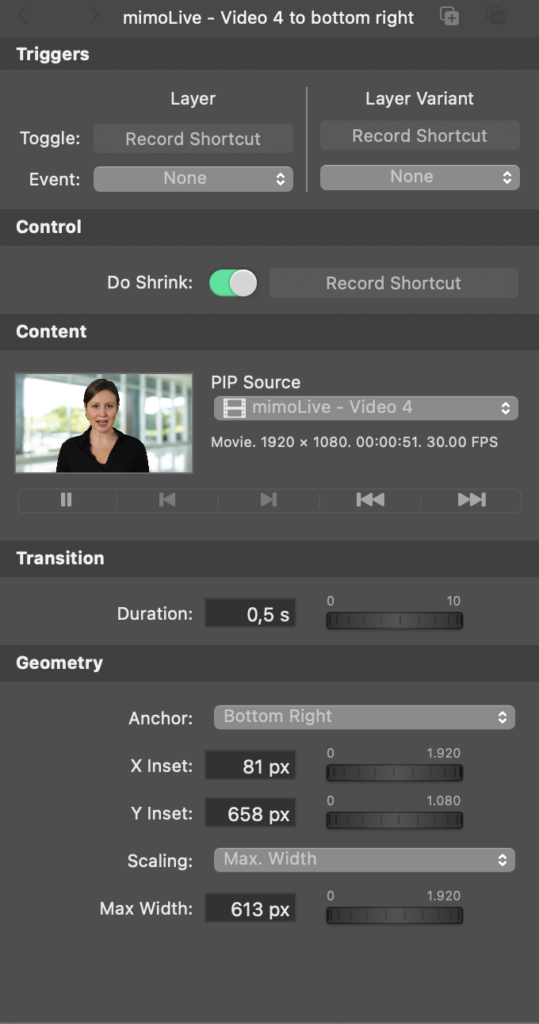
#### Tips for Effective PIP Usage
- **Composition**: Ensure that the content in the PIP window doesn't obscure critical information in the main video.
- **Consistency**: If using PIP frequently throughout a broadcast, keep its position and size consistent unless there's a need to change.
- **Quality**: Ensure that the content in the PIP is of high quality. Blurry or pixelated content can be distracting.
---
With mimoLive's intuitive interface and robust PIP capabilities, creating professional-looking broadcasts with layered content becomes a breeze. Whether you're a seasoned pro or just getting started, the PIP layer is a valuable tool in your mimoLive toolkit.
---
#### Placer With Transition Layer
Source: https://mimolive.com/user-manual/live-editing/layers/layout/placer-with-transition/
Last updated: 2025-06-16
Applies to mimoLive: Placer Layer with Transitions v1.33
The **Placer with Transition** layer in mimoLive is a powerful tool that allows users to seamlessly switch between video sources using a wide array of customizable transitions. This layer is ideal for live broadcasts where dynamic switching between speakers, cameras, or media elements is required to maintain a professional flow.
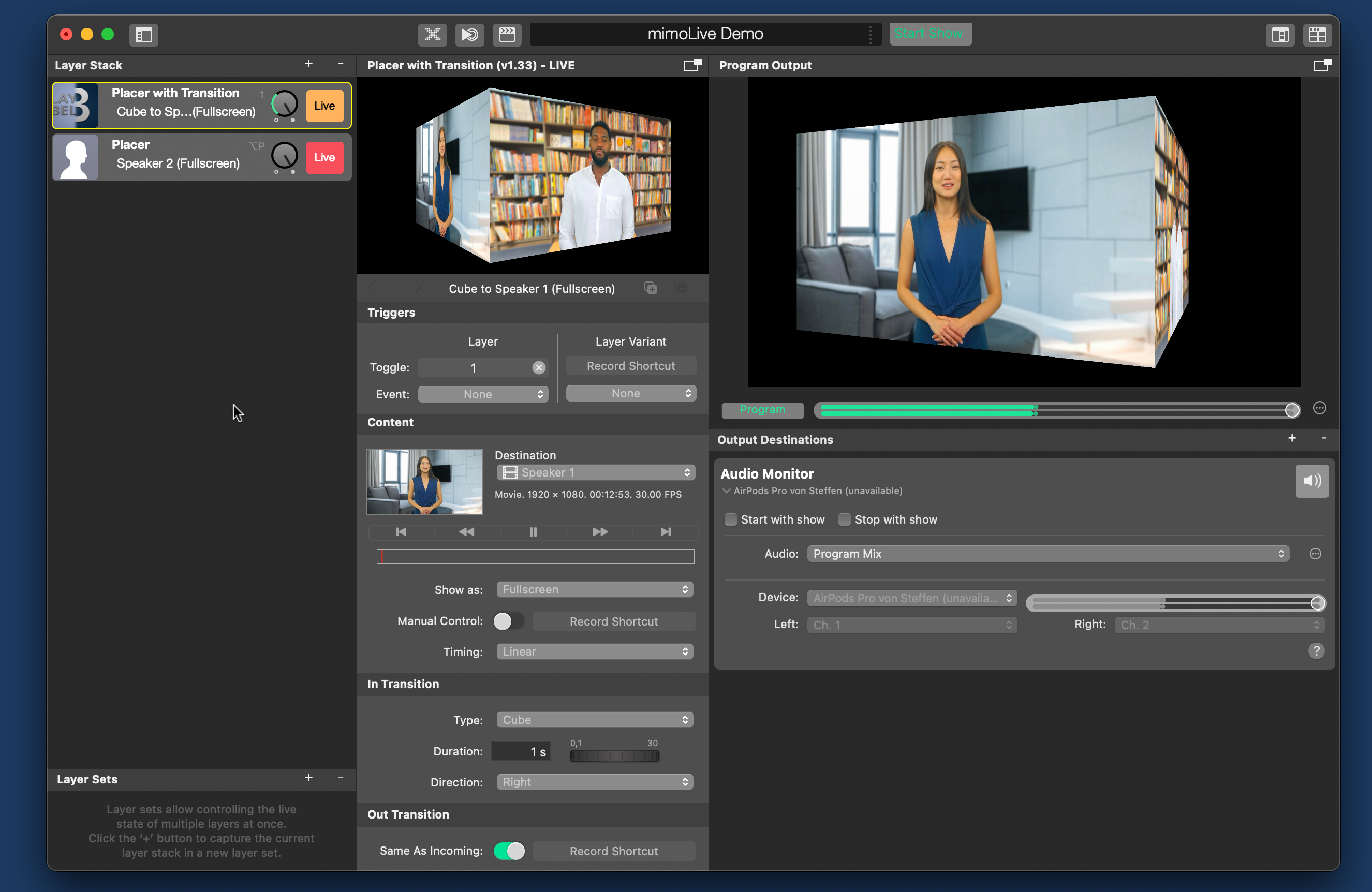
### Key Features
- **Transitions**: Offers multiple types of transitions, including Flip, Wipe, Cube, and Page Curl, each with customizable directions, duration, and softness.
- **In and Out Transitions**: Separate in and out transition effects allow for unique visual effects when a new source enters or exits the screen.
- **Manual Control**: Options to manually trigger transitions, giving the user full control during live shows.
- **Layer Variants**: Pre-configure different settings for various layer looks and switch between them using shortcuts.
- **Display Options**: Adjust how the content is displayed on screen with Fullscreen, Letterbox, or 1:1 options.
### User Interface Breakdown
#### Layer Settings
1. **Destination**: This section allows you to choose the video source or media file for the Placer. You can assign speakers, cameras, or any other video source as the **Destination**
Example: “Speaker 1” or “Main Camera.”
2. **Triggers**: Use these to assign **record shortcuts** to toggle layers on or off. This gives the user control over when a transition begins or ends.
3. **Show As**: You can choose between:
**Fullscreen**: The source takes up the entire screen.
**Letterbox**: Adds black bars on the sides to maintain the aspect ratio.
**1:1**: Useful for square formats, particularly for social media platforms.
4. **Manual Control**: This toggle allows users to manually control when transitions occur, providing flexibility during live shows. You can assign shortcuts for easy control.
### In Transition Settings
The **In Transition** section lets you define how a new video source enters the screen.
- **Transition Type**:
- **Flip**: Creates a 3D flip effect between sources.
- **Cube**: Simulates rotating a cube face to reveal the new source.
- **Wipe**: Slides the video across the screen in a specific direction (Up, Down, Left, Right).
- **Page Curl**: Gives the effect of turning a page.
- **Duration**: Controls how long the transition lasts. The duration can be as short as 0.1 seconds or as long as 30 seconds, depending on your needs.
- **Direction**: For transitions like **Wipe** or **Flip**, you can control the direction of the animation. For instance, with Wipe, you can choose between **Up**, **Down**, **Left**, and **Right** directions.
- **Softness** (For Wipe only): Adjust the softness of the Wipe transition to control the edge. A higher softness will create a more gradual transition, while a lower percentage will give a sharp cut between sources.
### Out Transition Settings
The **Out Transition** section defines how a video source exits the screen.
- **Same as Incoming**: This toggle automatically applies the same transition settings to the Out transition, ensuring consistent transitions.
- **Custom Out Transition**: If you’d like the source to exit with a different transition (for instance, a **Cube** in and a **Flip** out), you can set the Out transition independently from the In transition.
#### Timing Settings
In both In and Out Transitions, you can control how the animation behaves:
- **Linear**: The transition maintains a constant speed throughout.
- **Ease In/Out**: Adds an acceleration or deceleration to the transition, making it feel smoother.
- **Easy In**: Starts slow and speeds up towards the end.
- **Easy Out**: Starts fast and slows down towards the end.
### Practical Tips
1. **Test Transitions**: Always preview your transitions before going live to ensure they fit the pacing and style of your broadcast.
2. **Shortcuts for Efficiency**: Use keyboard shortcuts to quickly switch between layer variants or trigger manual control. This will speed up your workflow during fast-paced live shows.
3. **Layer Variants**: By setting up different layer variants with various transition types and destinations, you can effortlessly switch between setups, making your broadcast visually dynamic.
4. **Combine Effects**: Experiment with combining different transitions for in and out animations. For instance, using **Flip** to introduce a speaker and **Cube** to move to the next segment can create a visually engaging experience.
### Final Thoughts
The **Placer with Transition** layer in mimoLive is an essential tool for creating polished, professional live broadcasts. Whether you’re managing speakers, switching cameras, or showing different media, the customizable transitions and display options give you full control over how your content appears on-screen. With smooth animations and flexible layer settings, this layer enhances the overall production value of your shows.
By using features like **manual control** and [**layer variants**,](https://mimolive.com/user-manual/using-mimolive/layers-and-variants/) you can stay in control of your broadcast while also ensuring seamless transitions between content.
---
#### Placer Layer
Source: https://mimolive.com/user-manual/live-editing/layers/layout/placer/
Last updated: 2026-08-19
The Placer Layer in mimoLive is primarily utilized for positioning, scaling, and rotating video or image sources within your broadcast frame. Whether you're trying to fit multiple sources onto one screen, or just fine-tune the position of a single source, the Placer Layer offers the flexibility you need.
[Video: mimoLive-Learn-the-basics-Vol.1-V3.mp4](https://mimolive.com/wp-content/uploads/2024/04/mimoLive-Learn-the-basics-Vol.1-V3.mp4)
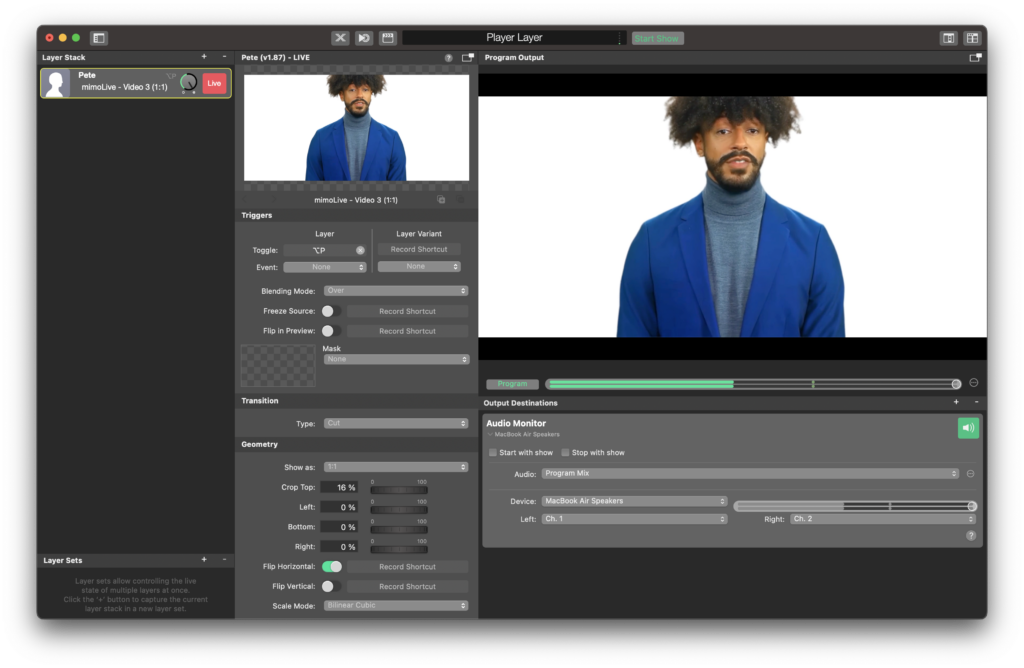
The Placer layer is essential for bringing visual sources to the program output. It takes any visual source (video, movies, images, etc.) and draws it into the program output canvas.
> **Important:** The placer layer has many options which are not noticeable in first sight.
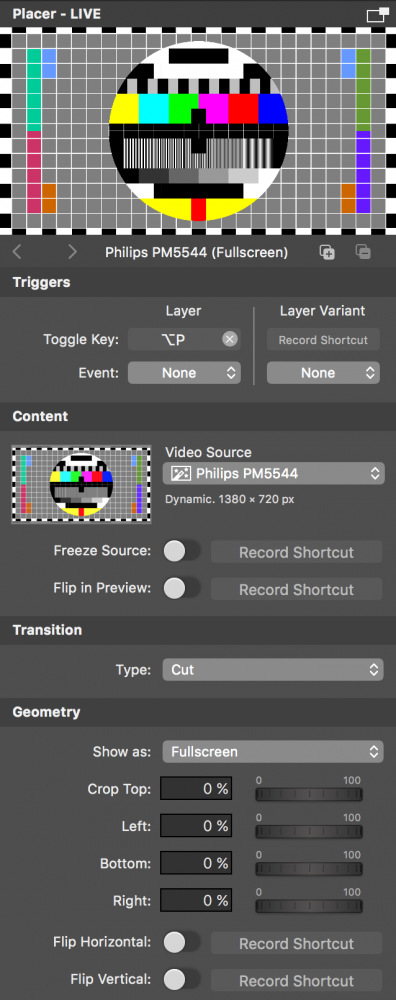
> **Note:** If you drag a source from the Source Library to the layer stack a Placer layer will be added in the layer stack and the dragged source will be assigned to it. (In case of an audio source an Audio Only layer is added)
The Placer Layer is a cornerstone in mimoLive's suite of tools. It gives users the ability to precisely control the position, size, and rotation of sources, ensuring they fit seamlessly within the broadcast frame.
### Adding a Placer Layer
1. **Launch mimoLive** and open your chosen project.
2. Head over to the **Layers Stack** panel.
3. Press the **"+"** button to add a fresh layer.
4. From the dropdown list, select **Placer**.
### Controlling the Placer Layer
#### Geometry
The Placer layer has several display options to choose from in the “**Geometry** > **Show as**:” popup menu:
| Display Mode | Result |
| --- | --- |
| Fullscreen | The source image gets scaled to fully fill the program output. The aspect ratio of the source remains so that the image gets cropped. |
| Letterbox | The source image gets scaled to the size of the program output. The aspect ratio of the source remains so that black bars will appear if the source aspect ratio doesn’t match the program-out. |
| 1:1 | The source gets drawn exactly in its pixel size of itself. If the size of the source doesn’t match the program output size the images get either cropped or the areas that are not covered remain transparent. |
| Custom | The custom mode lets you be rather complex and is described in detail below. This setting provides the **most options** for custom settings. |
#### Cropping the Video Source
If your video source contains pixels at the edge that you don’t want to display in the program-out, you can use the “Crop” parameters in the Geometry section to cut them off before the source gets drawn to the canvas. You can manipulate the crop margins in the layer preview while holding down the “alt” key.
#### Custom Placement of a Video Source
In “Custom” mode you get all kinds of options to place the video source. In the layer preview it is possible to move the video around (just grab it), scale it to any size (by the square handles) and rotate it (with the circle knob). Mask insets from all sides can be used to crop the image further when its gets drawn into the program output.
#### Special Options
The Placer layer has some special options that are only needed in certain situations:
| Option | Function |
| --- | --- |
| Freeze Source | This option will grab the current video image and display it until the option is switched off. This is useful if you need to take a closer look at a certain portion of the video image but it's a moving target. |
| Flip in Preview | Because we are much more used to looking at ourselves in a mirror this option helps when recording yourself and you want to see yourself mirrored. |
| Transition | When switching this layer live it either will show the video immediately (“cut”) or fade it in with a “Dissolve” transition. For the dissolve, there is a duration option in seconds. |
| Flip Horizontal/Flip Vertical | Those options actually flip the video source image before it gets cropped and drawn into the program output. |
---
### Switcher
Source: https://mimolive.com/user-manual/live-editing/layers/switcher/
Last updated: 2025-11-19
**Switcher Layers** provide tools for managing and automating transitions between multiple video sources during a live production. These layers are designed to streamline source selection, enable smooth real-time switching, and support automated workflows for hands-free operation. Whether you are directing a multi-camera event, producing a live interview, or adding visual elements to a radio broadcast, Switcher Layers help ensure seamless and professional transitions.
mimoLive offers several switcher options tailored to different production needs—from fully automated switching driven by audio or timed intervals, to operator-controlled video selection, to layers specifically designed for enhancing radio-style broadcasts with visual components.
---
#### Auto Video Switcher Layer
Source: https://mimolive.com/user-manual/live-editing/layers/switcher/auto-video-switcher/
Last updated: 2026-08-19
### **Overview**
The **Auto Video Switcher layer** in mimoLive is a robust tool designed to automate the switching between various video sources, either in response to audio inputs or at specified time intervals. This functionality is particularly beneficial for live events and presentations that utilize multiple cameras to showcase diverse angles and perspectives. When configured to **respond** to **audio signals**, this layer becomes the ideal switcher for **panel discussions** and **interviews**, seamlessly transitioning between speakers based on audio cues. Additionally, the Auto Video Switcher can be integrated with other layers, enhancing the dynamic and engaging nature of video productions.
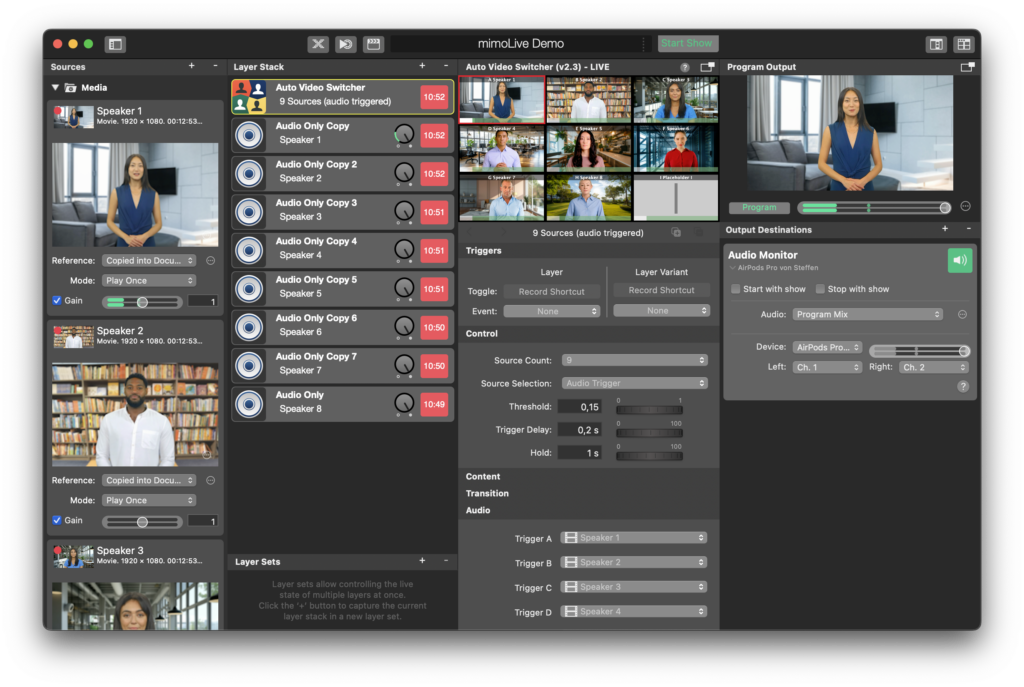
#### **Key Features**
The Auto Video Switcher can handle 2 - 9 video sources, e.g. live video feeds, prerecording videos, still images, screen captures or any other visual input. (Source Count)
The source selection can be set to cycling, random or based on **an audio trigger**.
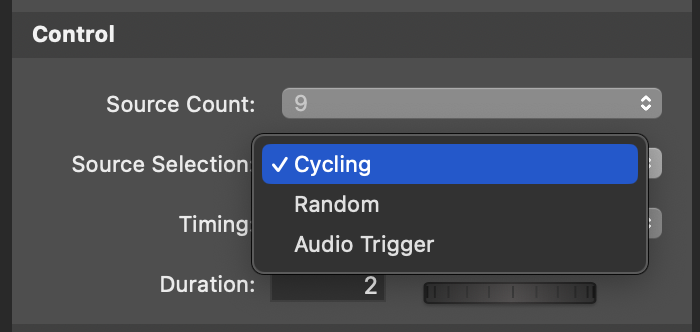
### Source Selection
This setting controls how the Auto Video Switcher chooses which source to display.
#### Cycling
- **Mode:** Sequentially cycles through sources.
- **Timing Options:** Fixed or random intervals.
- **Duration:** Set in seconds for fixed timing or as a range (minimum and maximum duration) for random timing.
#### Random
- **Mode:** Randomly selects from available sources.
- **Timing Options:** Fixed or variable intervals.
- **Duration:** Defined in seconds for fixed timing or as min/max duration for random timing.
#### Audio Trigger
The switcher selects the source based on an audio trigger. The *threshold* controls the audio threshold for this trigger.
- **Mode:** Switches based on audio input from sources.
- **Threshold Setting:** Adjusts the audio threshold for source selection. The audio levels of each source are shown with a transparent white horizontal level, with the threshold overlaid in white.
- **Trigger Delay:** Adds a delay to the source selection.
- **Hold Time:** Sets the minimum duration a source is displayed after being selected.
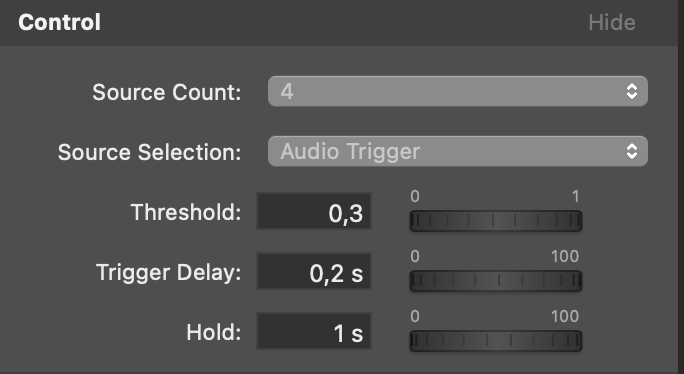
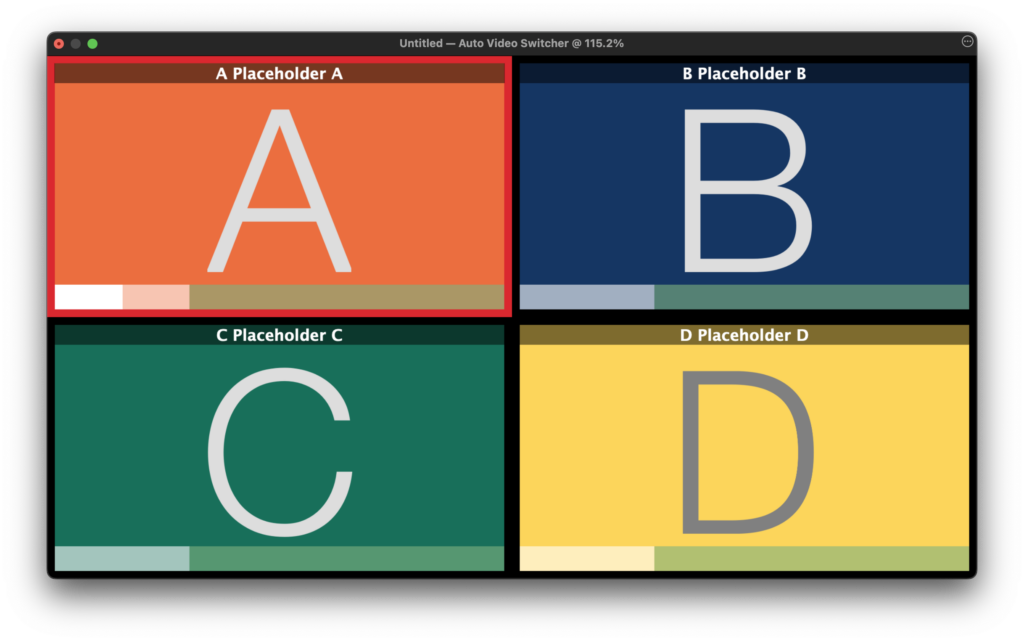
The audio levels of each source is displayed by the horizontal level (transparent white) and threshold level is overlayed in white. To set the audio trigger input, see the Audio Section below.
##### **Setting Up Audio Triggers**
1. When Source Selection is set to 'Audio Trigger', the Audio section of the layer settings becomes active.
2. In the Audio section, configure the specific trigger settings for the sources.
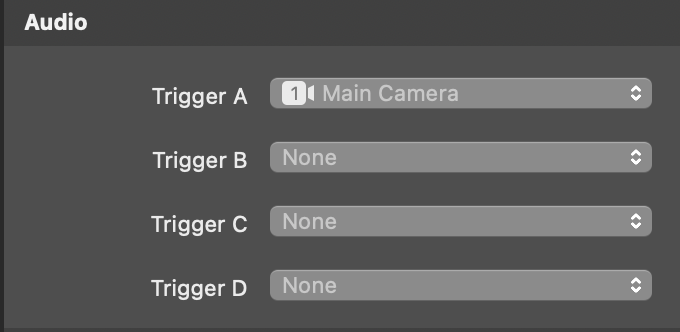
> **Important:** Auto Switcher Layer does not switch audio
>
> The audio trigger needs audio signals from sources to switch. Assign the sources in the Audio section. Remember to add an "Audio Only" layer for each source. Read more in the section "Configuring the Audio Trigger for the Auto Switcher Layer"
##### Configuring the Audio Trigger for the Auto Switcher Layer
To enable the Auto Switcher Layer to respond to audio signals, you must first assign the audio sources. This is done in the Audio section of the interface. It's essential to add an "Audio Only" layer for each audio source you intend to use as a trigger. This is because the Auto Switcher Layer does not directly process audio; it merely switches based on the audio signals received.
1. **Add an "Audio Only" Layer:** For each source that will trigger a switch, ensure there is a corresponding "Audio Only" layer included in your layer stack. This layer is critical as it facilitates the reception of audio signals by the Auto Switcher.
2. **Assign Audio Sources:** Navigate to the Audio section and link your audio sources to their respective "Audio Only" layers. Without this step, the Auto Switcher will not be able to detect and react to audio cues.
By following these steps, you ensure that the Auto Switcher Layer efficiently switches scenes based on the designated audio triggers.
---
#### Video Switcher Layer
Source: https://mimolive.com/user-manual/live-editing/layers/switcher/video-switcher/
Last updated: 2026-08-19
The Video Switcher layer in mimoLive is a powerful tool that allows you to easily switch between up to 9 different video sources with smooth cut or dissolve transitions. One of the great benefits of this layer is that it can seamlessly transition between sources with different pixel resolutions or different FPS (frames per second), thanks to mimoLive's ability to independently manage input sources and program output. This makes it easy to integrate a variety of video sources into your production, creating a more dynamic and engaging experience for your audience.
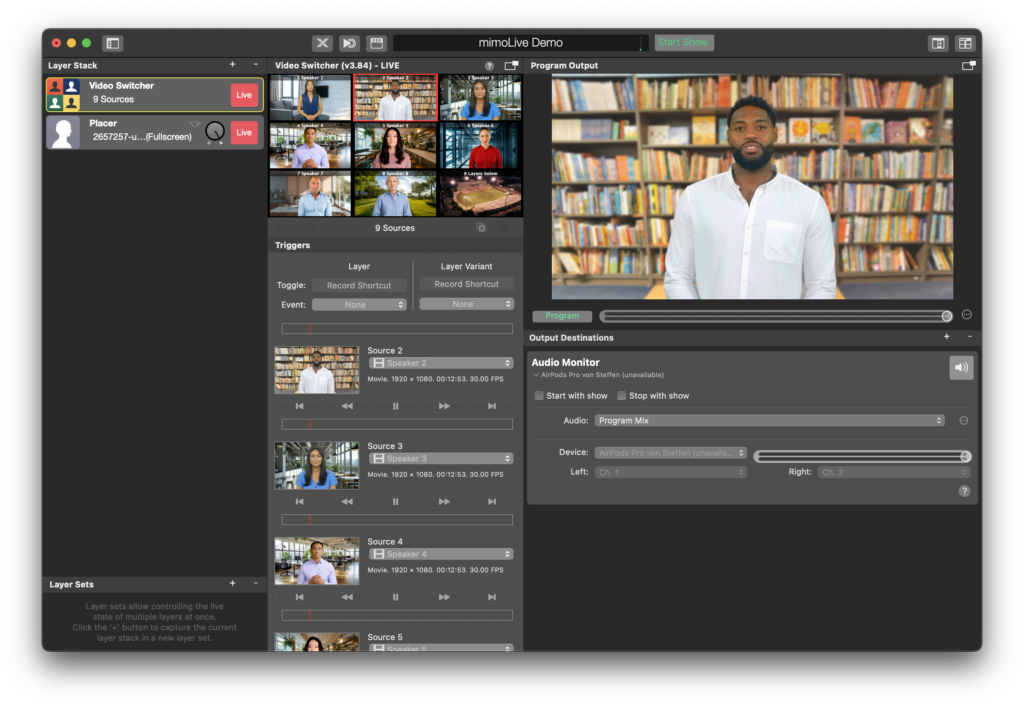
#### Setting Up The Video Switcher Layer
First of all, you should set up the Source Count in the Control section of the layer settings. If you are using fewer cameras this will help to reduce the controls and buttons in the user interface.
Then you can assign the [video sources](https://mimolive.com/user-manual/sources-and-the-sources-repository) by dragging them onto the layer in the Layer Stack or selecting them in the Content section of the layers settings.
By default, the preview of the layer shows the names of each source for better orientation. You can override the names with the “Source Name“s text input fields.
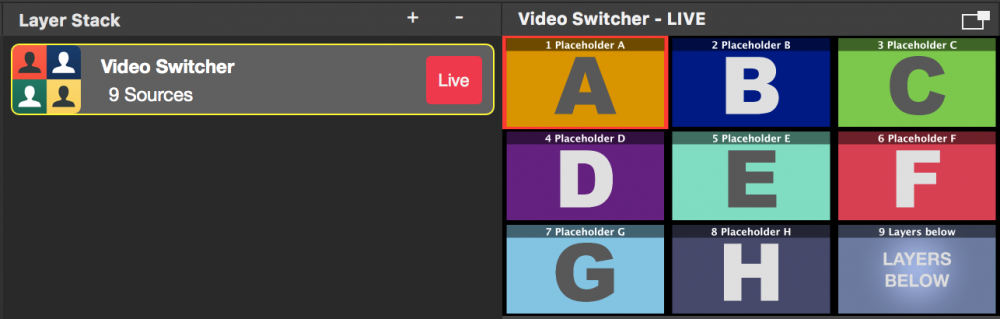
A Transition Duration input field lets you control the time it takes to perform the dissolve transition.
There are optional Background image inputs that are needed when running a Virtual 3D Studio.
#### Controlling The Video Switcher By Buttons Or Keyboard
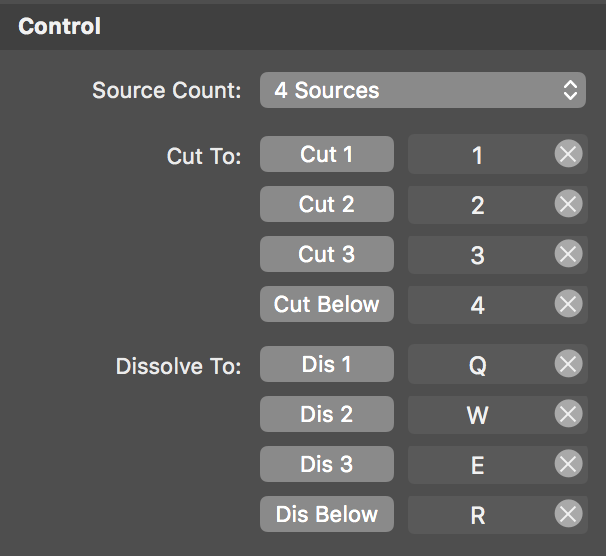
The Video Switcher layer has a bunch of buttons that will control the output. The first ones do a Cut to the specific camera whereas the following will do a dissolve transition. It is helpful to assign [Keyboard Shortcuts](https://mimolive.com/user-manual/keyboard-shortcuts) for each button you need so you can access this feature anytime.
#### Controlling The Video Switcher By Mouse Action
You can use the mouse to click on the multiview preview to switch to a certain source. If you do a single click the video switcher will do cut to the new source. If you do a long press (keep your mouse button down) then a dissolve transition will be performed.
#### Remote Controlling The Video Switcher
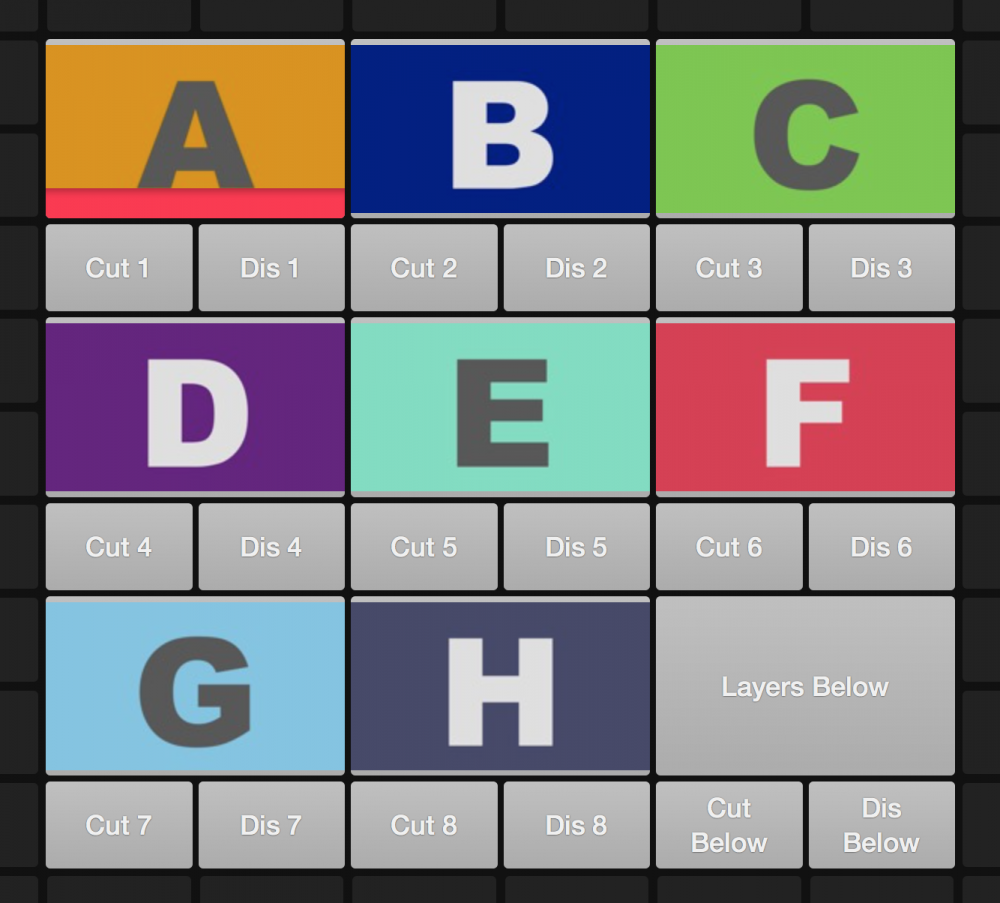
Because the Video Switcher is a very intensive task and should be performed separately from controlling mimoLive in general we implemented rich [Remote Control Surfaces](https://mimolive.com/user-manual/remote-control-surfaces) for it. There are basically two options for the standard layouts in the Remote Control:
- Compact Cuts: This option lets give you just the cut buttons.
- Full-Featured: Gives you full control by showing the video previews and having cut and dissolve buttons available.
> **Important:** Video previews in the remote control cost render performance
>
> The little video previews for the remote control surface need to be compressed on the host computer in order to transmit them to the remote control surface. This task costs render performance on the host computer and should only be used if the machine can handle it. If you don’t need the video previews in the remote control you should remove them from there.
#### Controlling the Video Switcher By The Multiview
If you enable the Multiview in the mimoLive document window or detach the Multiview in another window you can click on the Multiviews views to control the Video Switcher Layer. Please read [how to setup the Multiview](https://mimolive.com/user-manual/multiview) for more information.
#### Using Syphon to transmit the Preview
Currently, in mimoLive, the multiview preview of the Video Switcher layer with all your assigned sources will be replaced if you select a different layer. Then you won’t see your sources anymore and can’t keep track of the content. With the “Transmit Preview” in the Syphon section of the layer settings you can get the preview with the multiview into another app via Syphon. In this 3rd party app, you can constantly display the multiview of the Video Switcher layer regardless of its selection state in mimoLive.

[Download the Simple Client.app by Syphon.](https://github.com/Syphon/Simple/releases/tag/version-3)
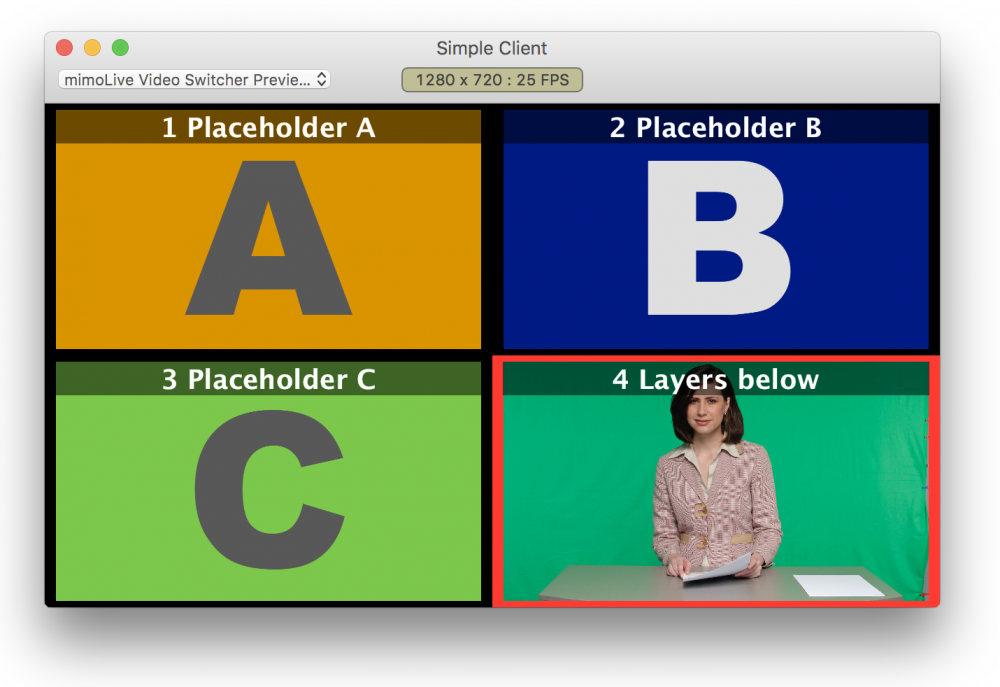
#### Controlling multiple AXIS IP Cameras
If your sources are AXIS IP cameras you can use the AXIS Control section to configure the IP Numbers for them and enable remote control for them in the multiview preview. There are two modes available:
- Click To Center: If you shift-click on an image the associated AXIS camera will recenter itself to the clicked point.
- Drag To Move: You need to shift-click and hold down the mouse button to drag the AXIS camera to a new position. Please take into account that there may be a delay and you won’t see the movement of the camera in real time.
By holding down the alt key you can switch to the opposing mode. Eg. if you have set up the Mode to “Click To Center” then the alt key will change the mode to “Drag To Move” temporarily.
> **Note:** In any case you need either shift or alt keys to control the AXIS cameras because, without the modifier keys, the control would get in conflict with the general mouse control of the Video Switcher layer.
---
#### Visual Radio Layer
Source: https://mimolive.com/user-manual/live-editing/layers/switcher/visual-radio/
Last updated: 2025-06-16
The Visual Radio layer in mimoLive offers a unique solution for live radio broadcasting by adding a visual component to your audio content. With this layer, you can easily stream your live radio show to your audience with video playback, live video input, and graphics. Whether you are broadcasting from a studio or a remote location, the Visual Radio layer allows you to engage with your listeners in a new and exciting way. In this article, we will explore the features and capabilities of the Visual Radio layer in mimoLive.
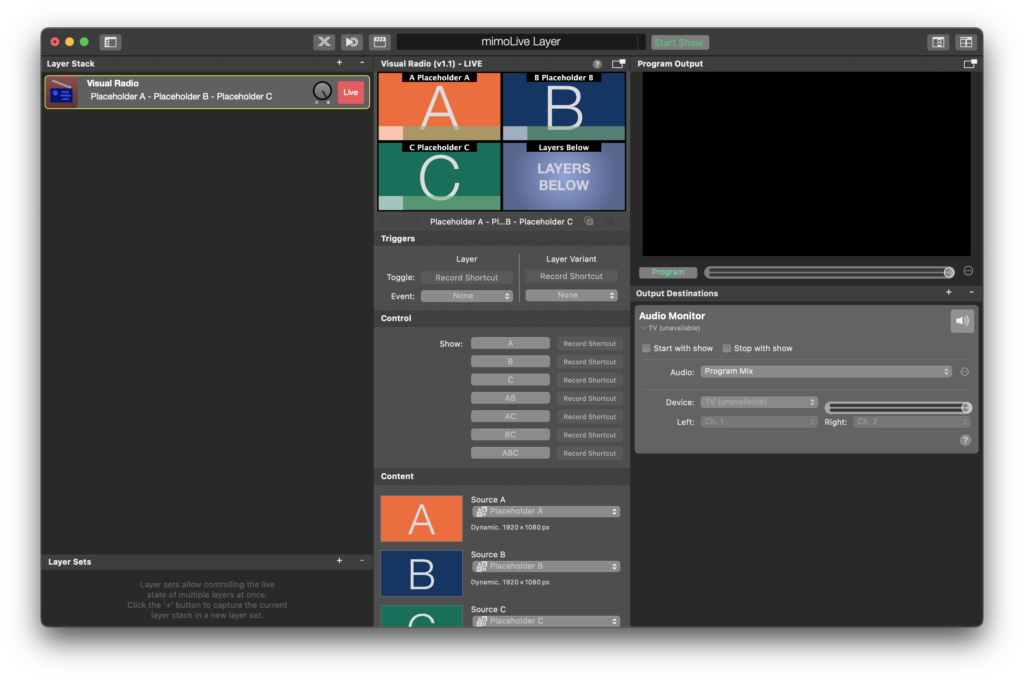
### What is Visual Radio?
[Visual Radio](https://en.wikipedia.org/wiki/Glossary_of_broadcasting_terms#V) is a term used by Radio broadcasters to describe a setup where the video is added automatically to a radio show in order to give listeners another medium to tune in. It is most useful when a radio show host has a celebrity guest in the studio so that fans can not only listen but also watch the interview but can also be used for call-ins via video conferencing apps or [mimoCall](https://mimolive.com/user-manual/sources-input/mimocall/). A setup with multiple cameras can make it visually more interesting but is also more difficult to produce. In times when the radio show host is also the show producer, the task of switching needs to be automated. This is where the Visual Radio layer comes in.
### Using audio to automatically switch cameras
To use the Visual Radio layer, you need to set up:
- A camera source for each participant/camera angle (up to 3 are supported + one source from below)
- A microphone that captures the audio from each participant.
You can then select the camera and associated microphone in the Visual Radio layer and assign a trigger value to the audio.
The Visual Radio layer will listen to the audio and, depending on levels and timing, switch to a layout that shows all the people talking.
The Visual Radio layer supports up to three camera angles or mimoCalls with associated audio and can be set to default to the layers below in case nobody speaks which can be a fourth camera showing an overview of the studio.
---
### Lower Third
Source: https://mimolive.com/user-manual/live-editing/layers/lower-third-2/
Last updated: 2025-11-19
**Lower Third Layers** provide tools for creating professional on-screen titles that introduce speakers, label content, or provide contextual information during a live production. Lower thirds typically appear in the bottom third of the screen and play an essential role in communicating names, roles, topics, and other key details to the audience.
mimoLive offers a range of lower third solutions—from simple, ready-to-use designs to advanced, fully animated templates. Whether you need quick identification graphics for interviews or highly customized branded overlays for broadcast-level productions, the Lower Third Layers give you the flexibility to design and control the look and behavior of your titles.
---
#### Lower Third Layer
Source: https://mimolive.com/user-manual/live-editing/layers/lower-third-2/lower-third/
Last updated: 2026-08-19
### What is a lower third?
A lower third is an overlay of text and graphical elements placed on top of video content to give the audience extra information. Because this overlay appears commonly in the lower third of the screen, it is called lower third or lower thirds. This might seem trivial, but their necessity is clear when they’re used poorly or missing altogether which can confuse the audience.
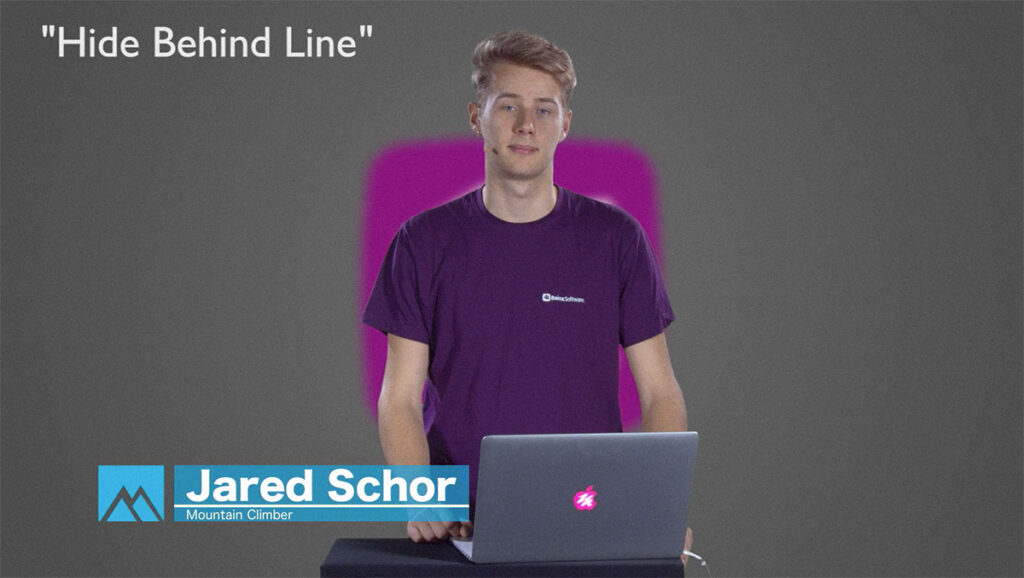
[Video: Vertical-in-Horizontal-TV-.mp4](https://mimolive.com/wp-content/uploads/2023/04/Vertical-in-Horizontal-TV-.mp4)
#### Lower thirds in mimoLive
To create lower thirds in mimoLive you can add the **Lower Third layer** to your project. The **Lower Third layer** lets you create, animate and control all kinds of lower thirds. Usually, it’s used to introduce a person with their name and a description such as a job title or position. Often a lower third contains a combination of a company logo, name, and title. You can style your lower third easily in mimoLive by adding graphics, custom typography, color, shape and style.
#### Adding a lower third layer to a mimoLive document
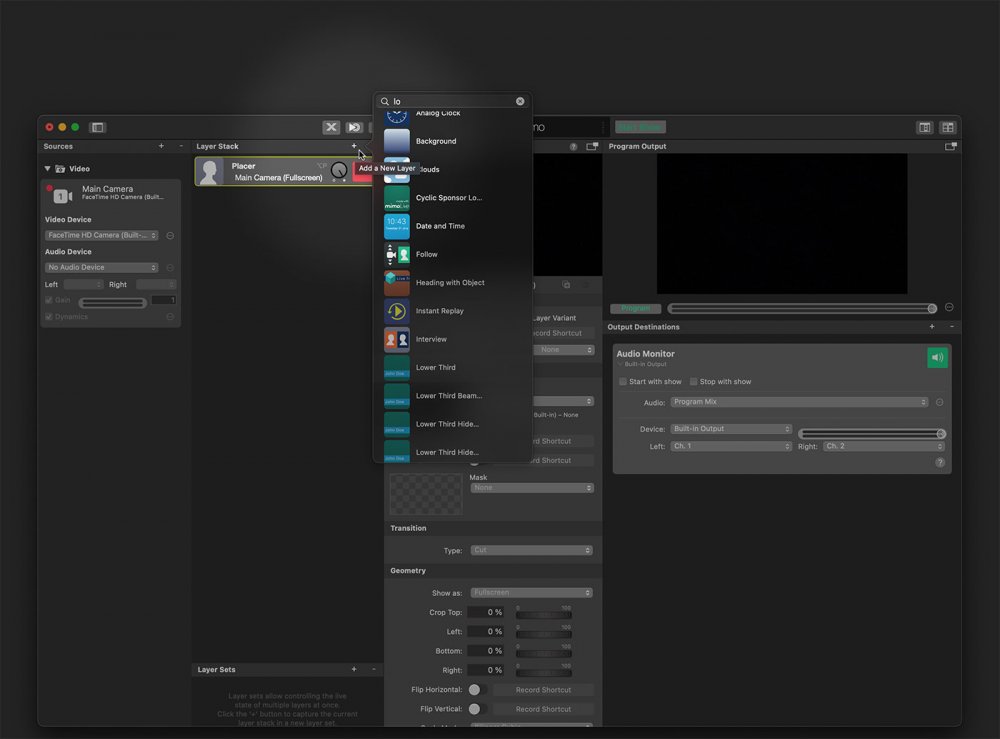
#### Set up the Lower Third layer
##### Content
Fill in a Title and a Subtitle in the Content section. If you want to you can leave the Subtitle field blank in order just to present one line of text.
##### Animation
In the Animation section of the parameters, you can define the timing and type of animation you want the lower third to appear and disappear. For the transition animation there are the following options: Cut, Dissolve, Push, Wipe From Left To Right and Wipe From Right To Left. The Duration parameter controls the speed of the transition. If you want the text to appear later than the background graphic you can delay the text with the Text Delay field.
Usually, the lower third disappears with the reverse animation of its appearance. However, by the Outgoing parameter, you can specify a different animation for the disappearance.
##### Design
**Get creative!**
We highly encourage you to play with the graphical design parameters for the lower third. The possibilities are endless and so you can create your very unique style of a lower third for your show with only a few clicks. Please also check out the [Lower Third Playground template](https://mimolive.com/user-manual/lower-third-playground) to see some awesome designs.
The type of Background of the lower third can be set by the Type parameter in the Background section. You can use a Custom Color, a Gradient Left To Right, a Gradient Top To Bottom, a Custom Image or the Frosted Glass effect.
**A custom image can also be a custom movie!**
If you want to have a fancy animated background you may create the animation in a 3rd party animation tool (like Adobe Aftereffects) and import the animation as a movie into mimoLive. Use this movie as the source for a “Custom Image” background. Learn more here: [Creating Animated Lower Thirds With Adobe After Effects](https://mimolive.com/user-manual/creating-animated-lower-thirds-with-after-effects)
> **Note:** Frosted Glass effect is very GPU intensive and can cost frame drops in the program out!
>
> If you experience frame drops in the program out while presenting the lower third you probably have to switch to a different background type (e.g. Constant Color) because the Frosted Glass effect is very GPU intensive.
In the Appearance section, you will find all sorts of parameters to control the look of the text in the lower third: You can adjust the font face, font size and color as well as the Kerning for the title and the subtitle individually.
If the text is barely visible you can increase contrast by adding a drop shadow. If the Drop Shadow option is switched on you will get even more parameters to play with: The color of the shadow, its blurriness, the distance and a direction.
All the parameters in the Geometry section let you set up the position and size of the lower third. If you want you can control those parameters by direct manipulation in the layers preview area.
To get more life into your lower third you can add an animation background in the Background Animation section. It works best if you choose a seamless tileable image. The parameters Translation X, Translation Y and Rotation can be used to control the movement of the background image over the lower third background. The Opacity value lets you set up the transparency of the animated overlay.
> **Note:** You can switch off the Rotation and the Translation Y by entering a zero into their input fields in order to get a background that moves horizontally only.
#### Controlling the Lower Third layer
The lower third can be set to a “shoot and forget” mode with the Type parameter in the Control section set to “Auto”. In this case, the lower third will be presented for the duration you specify in the Text Duration field below. If you switch the Type to Manual, you must switch off the lower third by yourself.
#### Best Practise
If you happen to have a long list of speakers at your conference or need to display the names of different members in a talk show it makes sense to first set up a master lower third and then add multiple [variants](https://mimolive.com/user-manual/layers-and-variants) to it.
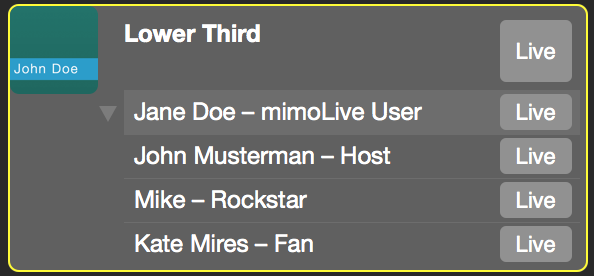
In the [Remote Control Surface](https://mimolive.com/user-manual/remote-control-surfaces), this list of layer variants gives you a nice preset to create a control interface instantly with all the names on it:

---
#### Lower Third Pro Layer
Source: https://mimolive.com/user-manual/live-editing/layers/lower-third-2/lower-third-pro/
Last updated: 2025-06-16
### Create advanced Lower Thirds with Background Animation
Our Lower Thirds Pro layer is a powerful tool that can help you create professional-looking Lower Thirds for your live video productions. With the ability to use custom animations as a background, you can create a truly unique and engaging viewing experience for your audience. To use your own animations, simply create them in a third-party app like Motion or Adobe After Effects and render them as movie files. Our Lower Thirds Pro layer can then use these files as a background for your lower thirds.
#### Start with the Lower Thirds Templates
But don't worry if you don't have the skills or resources to create your own animations – we also offer a wide range of pre-designed Lower Thirds templates that you can easily customize to fit your brand and style. So whether you're hosting a talk show, webinar, or another type of live video content, our mimoLive Lower Thirds Pro layer can help you create professional-looking lower thirds that will impress your viewers.
#### Designing the Animation Movie as a Background for the Lower Third Pro Layer
Many customers want to use their own animations for a lower-third background. Usually, they create the animations in third-party apps like Motion or Adobe After Effects. mimoLive can use those designs if they are rendered as movie files. These are the requirements:
- The background movie file needs to be rendered in AppleProRes 4444 in order to keep the transparency areas transparent.
- The horizontal dimensions should match the pixels width of the mimoLive document. (e.g. 1920 pixels wide for a 1080p resolution)
- If possible crop the video at the top and the bottom as much as you can avoiding the need for mimoLive to render large areas of transparent pixels. This will also reduce the processing time for the AppleProRes 4444 codec which gives mimoLive more room for other things.
- The text of the lower third graphics will be generated by mimoLive. So there is no need to add them in the background movie.
- The movie should consist of three parts:
- The Intro: The first part will be building up the Lower Third starting with a completely transparent screen. Keep in mind that mimoLive can produce the text within that time.
- The Loop (optional, see “Timing Mode” below): In the middle, you can have a looping part (e.g. a highlight is flashing up). For the best experience, you should make it that way so that it loops seamlessly. However, it is essential to know that mimoLive can’t loop the movie on a certain frame but only on time with a tolerance around the frame rate of the mimoLive document.
- The Outro: After the loop, the lower third should disappear until the complete screen is transparent again.
You can download this movie file to get an idea of how such a background movie should look like. Also, its royalty-free so you can use it in your own production: [Lower Third Pro Sample Background Movie](https://cdn.manula.com/user/15748/docs/lower-third-pro-sample-background-mov.zip)
#### Setting up the Lower Third Pro Layer Behaviour
Add the Lower Third Pro layer to your [Layer Stack](https://mimolive.com/user-manual/layers-and-variants).
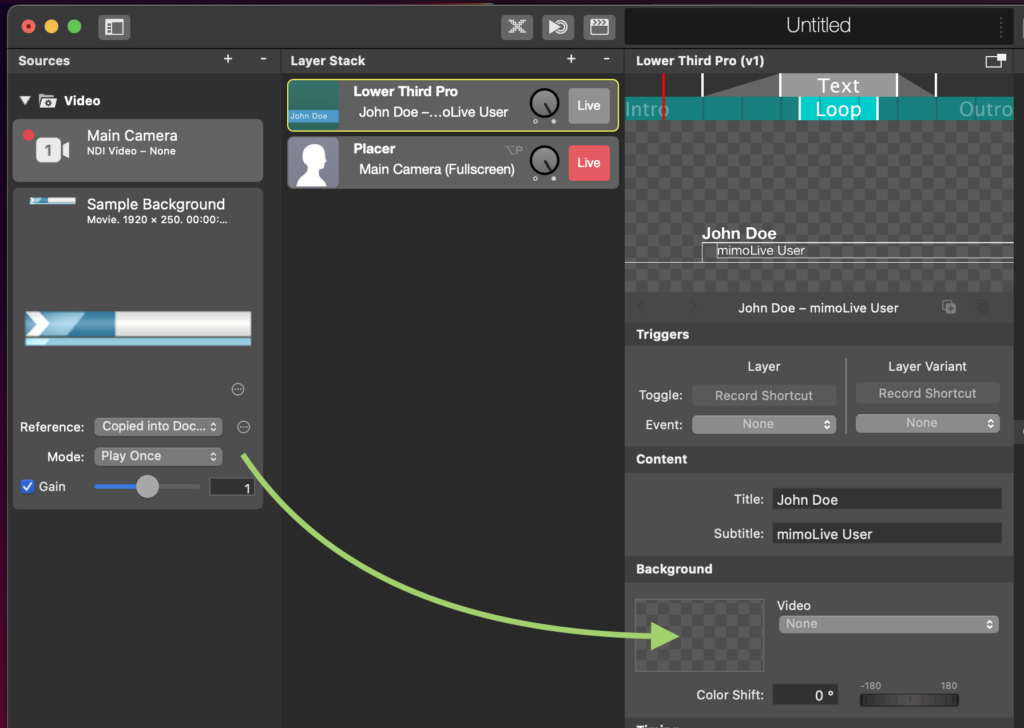
Import your background movie (created by following the requirements above) into the [Source Repository](https://mimolive.com/user-manual/sources-and-the-sources-repository) on the right of your mimoLive document. Select this video in the Background section of the Lower Third Pro layer.
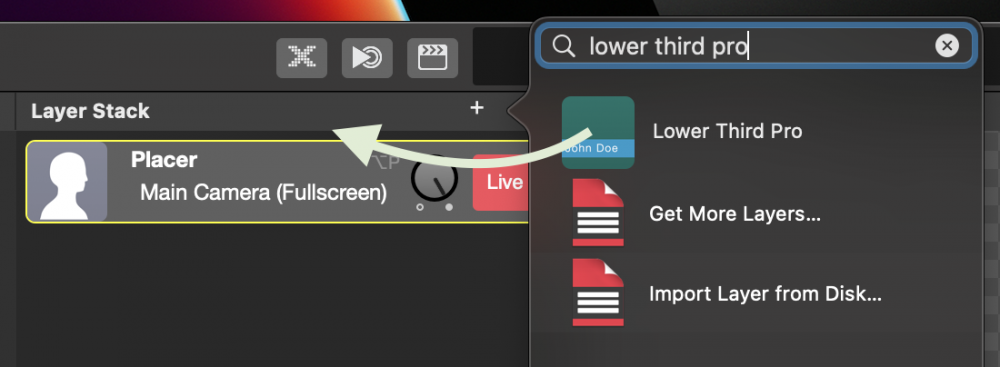
With the “Color Shift” parameter you are able to change the colors of your background movie on the fly. This is helpful if you want to adopt a rendered movie file to a different CI.
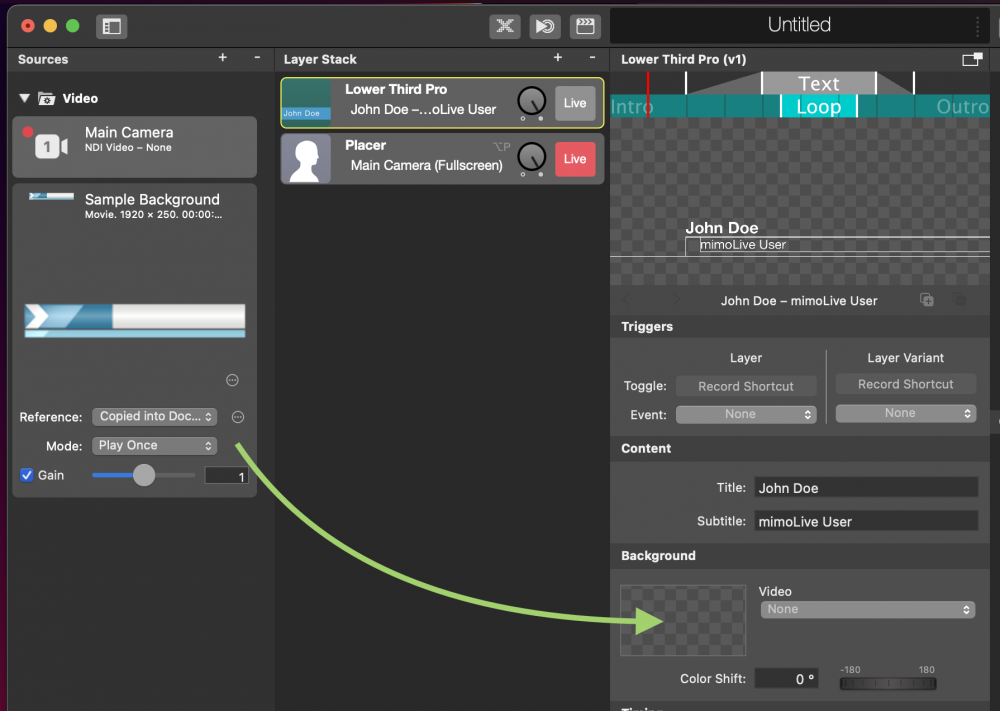
The Lower Third Pro layer needs to know the timing of your animation movie. You can set up those parameters in the Timing section:
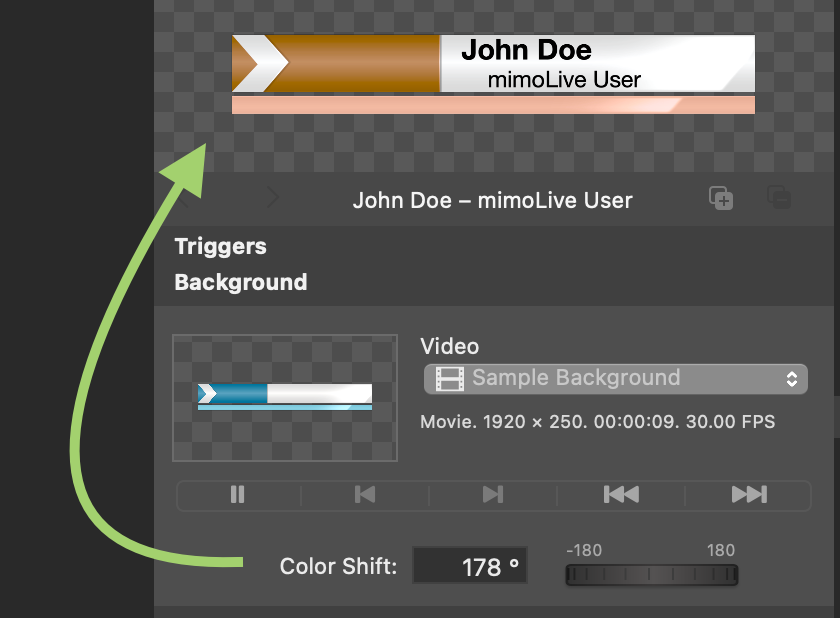
The Mode parameter will describe how you want to treat the background movie:
- “None Stop” will let run the lower third in one take.
- “Pause” lets the lower background movie pause at a specific time.
- “Loop” means that you have added a looping section in your background movie and you want to use it in a loop.
You will notice that depending on which Timing Mode you chose there will show up different parameters below the Mode parameter.
In the case of “None Stop” there are no special timing parameters necessary: The background movie will just play as is and the layer will switch off automatically once the movie has finished.
If the mode is set to “Pause” or “Loop” you got the option to specify by the “Layer off” parameter if you want to switch off the layer “manually” or “automatically”. In the case of “manually” the layer just waits for you to switch off the layer. Then it will perform the outro as specified below. In the case of “automatically” the layer will display the lower third text at least for the time you specify by “Text Min Duration”. After that time has passed the outro will be performed.
For the mode “Pause” there is a special parameter “Pause at”. This defines when the background movie should be paused to display the text.
When the mode “Loop” is selected the additional parameter “Wait for Loop End”, “Loop Start” and “Loop End” are appearing.
- “Wait for Loop End”: If this option is checked mimoLive plays the loop part of the background movie until the end before starting the outro phase. This gives a seamless experience for the audience. However, the lower third may look “unresponsive” to the mimoLive user because it may not look like the layer will shut off. Whereas If this option is switched off mimoLive will start the outro phase immediately after you switch off the layer. This gives a faster response time but will also interrupt the background movie's looping part.
- “Loop Start”: This is the absolute time in the movie when the looping part starts.
- “Loop End”: This time specifies the endpoint in absolute time of the looping part in the background movie.
#### Setting up the Timing for the Text of the Lower Third
In the Timing section of the Lower Third Pro layer, you will find several timing parameters for the Text. First of all, you specify how the text should appear in the intro and the outro phase:
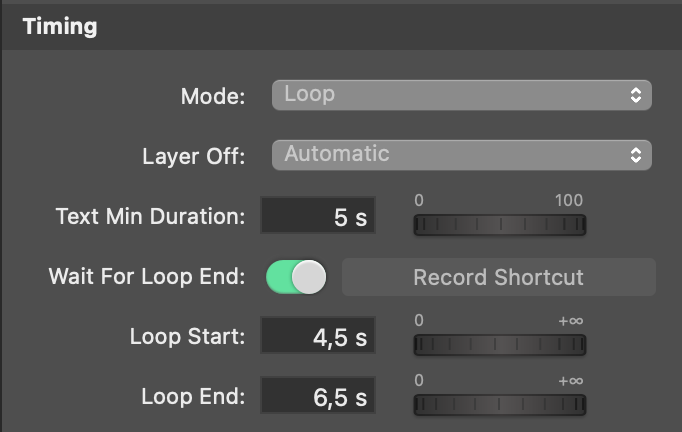
- Cut
- Dissolve
- Wipe Left to Right
- Wipe Right To Left
- Push up
- Push Left to Right
- Push Right to Left
The parameter pair “Text In Start” and “Text In End” define when the text animation should start and when the animation should be done.
“Text Out Start” and “Text Out End” specifies when the text of the lower third should disappear with the animation selected above. Please note that those times need to be within the outro phase otherwise the text will “jump” off.
Please note that you can manipulate the Text and Loop parameters directly in the preview of the layer.
#### Setting up the Appearance of the Text in the Lower Third Pro Layer
There are two lines of text in the Lower Third Pro layer. They are referred to as Titles and Subtitles. Both of those have their own parameter set consisting of the following options:
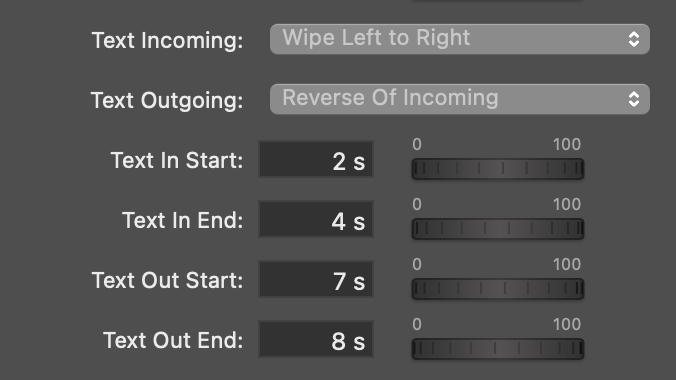
- “Font Face”, “Font Color” and “Font Size”
- “Kerning” (brings the characters more together or more apart which can be nice effects)
- “Outline Size” and “Outline Color” makes a border around each character
Common settings for Title and Subtitle are the “Text Alignment” (left, center, right) and the “Drop Shadow” option.
#### Setting up the Position of the Text
The parameters for the position of the text may seem a bit awkward at the first glance but makes more sense if you see both text lines as one group. However, if those parameters won’t help you you can still move the text directly in the layer’s preview around.
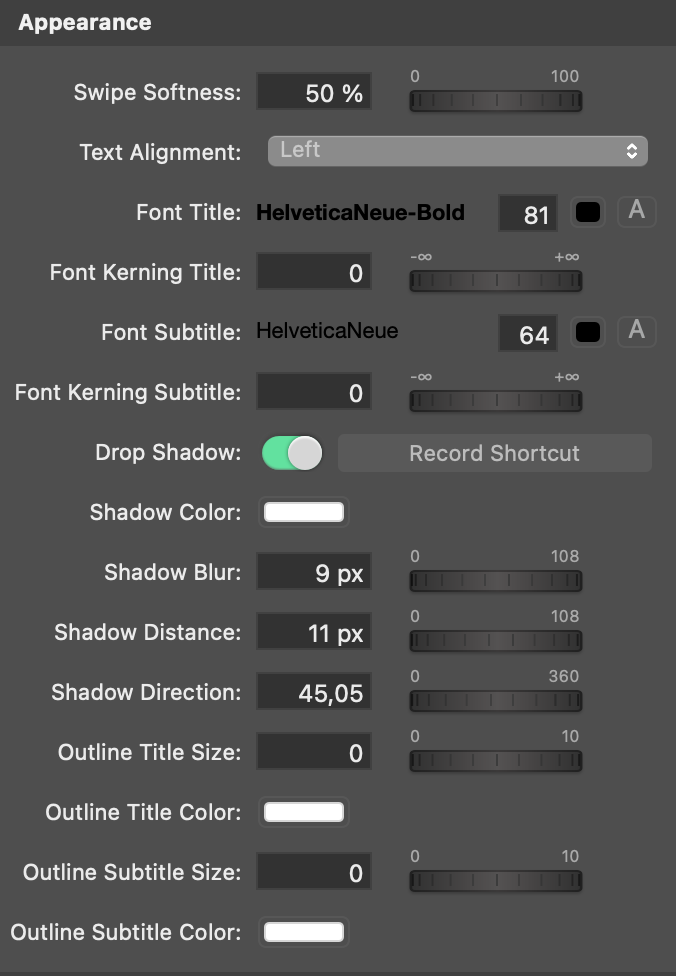
---
#### Lower Third Pack 1
Source: https://mimolive.com/user-manual/live-editing/layers/lower-third-2/lower-third-pack-1/
Last updated: 2026-08-19
### What is a lower third?
Lower thirds are graphical overlays that are used to display information, typically at the bottom third of the screen. They can be used to display the name and title of a person being interviewed, show the title of a piece of music being played, or provide any other relevant information to the viewer. Lower thirds are a great way to make your video content look professional and polished. They not only add a layer of visual interest to your content, but they also help to convey important information to your audience. With lower thirds, you can make your content more engaging and keep your audience informed.
> **Note:** Lower third pack 1 comes bundled with mimoLive® Studio and mimoLive® Broadcast licenses.
>
> If you have a mimoLive Non-Profit license, you can purchase this add-on through the [mimoLive Online Shop](https://mimolive.com/store/addon/)
#### Lower Thirds Pack 1 Demo Video
In this demonstration, you will witness various animation styles for the Lower Third layer. Customization options for the text include font type, size, and color, as well as adjustable background colors. Additionally, using a second line or logo is optional.
[Video on YouTube](https://www.youtube-nocookie.com/embed/moVib_TruH0?rel=0)
The Lower Third Pack 1 includes the following Lower Thirds:
- Beam Wiper
- Hide Behind Bar
- Hide Behind Line
- Origami
- Sliding Horizontally
- Sliding Vertically
- Vortex Push
- Vortex Slide
---
### Text Layers
Source: https://mimolive.com/user-manual/live-editing/layers/text-layers/
Last updated: 2025-11-19
**Text Layers** in mimoLive provide a versatile set of tools for displaying, animating, and formatting textual information in your live productions. From simple titles and labels to fully animated headlines, dynamic effects, lower-third style compositions, and scrolling credits, these layers make it easy to integrate professional on-screen text into your broadcast.
Whether you need static informational text, stylized animated typography, live annotations, or automated subtitles, the Text Layers category offers solutions for nearly every production scenario. These layers support rich formatting, motion effects, data-driven content, and integration with images or graphics—providing the flexibility needed for both straightforward broadcasts and highly polished visual designs.
---
#### Flying Text Animation Layer
Source: https://mimolive.com/user-manual/live-editing/layers/text-layers/flying-text-animation/
Last updated: 2025-06-16
Applies to mimoLive: Flying Text (v3.08)
Welcome to the detailed manual for the Flying Text Layer in mimoLive. This section will guide you through the functionalities and settings of the Flying Text Layer, helping you create dynamic and engaging text animations for your broadcasts.
[Video: Layer-Flying-Text.mp4](https://mimolive.com/wp-content/uploads/2024/07/Layer-Flying-Text.mp4)
#### Overview
The Flying Text Layer is designed to animate two lines of text across the screen, adding a dynamic element to your live streams, presentations, or video productions. This layer is perfect for highlighting important information, displaying headlines, or creating visually appealing text animations.
#### Content options
Enter your text for line 1 and line 2.
Duration: enter the time to display the text without animations from 0.5 to 20 seconds
#### Animation Options
The Flying Text Layer offers four animation styles for the text lines:
1. **Left to Right**: The text moves from the left side of the screen to the right.
2. **Crossover Left Right**: The first line of text moves from the left side to the right, while the second line moves from the right side to the left, crossing each other in the middle.
3. **Crossover Right Left**: The first line of text moves from the right side to the left, while the second line moves from the left side to the right, crossing each other in the middle.
4. **Right to Left**: The text moves from the right side of the screen to the left.
**Movement:** set the animation distance from 0-960 pixel
**Background:**If you set a background color, this settings controls the appearance of the background. Either a cut or a dissolve transition.
**Duration (only for dissolve):** Set the duration for the dissolve background transition.
**Text delay:** Add a delay between the background transition and the appearance of the text fields.
#### Appearance
Controls over font and color settings for each line of text.
#### Background
Color setting for a background color.
#### Background Video
**Source:**Set a video as a background. Has a higher priority than the background color setting, and will appear above the background color. In case the video has transparency either the background color will be visible or the layers below.
**Opacity**: Set the degree of opacity of the background animation.
**Translation X:**Add a movement along the X axis.
**Translation Y:** Add a movement along the Y axis.
**Rotation:** Add a rotation to the animation in degrees.
---
#### Sidebar Ad Layer
Source: https://mimolive.com/user-manual/live-editing/layers/text-layers/sidebar-ad/
Last updated: 2025-06-16
The **mimoLive Sidebar Ad Layer** allows you to display custom advertisements during your live stream in an engaging and dynamic way. This layer is perfect for showcasing sponsor messages, product promotions, or event updates without disrupting the main content of your broadcast.
https://www.youtube.com/shorts/Agnm7Yjj9nk
### **Layer Setup Parameters**
#### **Triggers**
- **Toggle:** You can set a record shortcut to quickly enable or disable the ad layer during your live stream.
- **Event:** Allows for assigning a specific event trigger, though currently set to “None” in this example.
#### Content
- **Ad Media:** Select the media to display in the ad.
- **Delay:** You can introduce a delay for the ad to appear after activation of the background. The default is set to **0.5 seconds**.
- **Transition:** Choose from multiple transition effects when introducing the ad:
- **Cut:** Immediate appearance without transition.
- **Dissolve:** Gradual fade-in/out effect.
- **Push:** The ad is pushed into view from one side, creating a dynamic transition.
- **Wipe:** The ad wipes in from the top or bottom of the screen.
#### **Transition Settings**
- **Incoming Transition:** Customize how the ad appears on screen. Options include “Push,” “Dissolve,” “Cut,” etc.
- **Outgoing Transition:** Set how the ad disappears. Default is set to the same transition as the incoming one.
- **Duration:** Adjust the length of the transition. Default is set to **0.5 seconds** for smooth in-and-out effects.
#### **Background**
- **Type:** Choose the background style for your ad. The example uses **Frosted Glass** for a modern, semi-transparent look.
- **Color 1:** This sets the primary background color. The default in the example is a light grey.
- **Width:** Defines the width of the ad, adjustable based on your stream layout.
- **Blur Radius:** Adds a blur effect to the background for added depth. Default is set to **10**.
#### **Geometry**
- **Anchor Point:** Defines where the ad is anchored on the screen. Options include **Right**, **Left**, or other custom locations. In this example, it is anchored to the **Right**.
- **X Inset:** The horizontal distance of the ad from the edge of the screen. The current setting is **0 px**, meaning it hugs the right edge.
- **Video Inset:** Set the padding or distance for various edges of the video ad from the screen:
- **Top Inset:** Default is **162 px**.
- **Left Inset:** Default is **48 px**.
- **Right Inset:** Default is **48 px**.
#### **Practical Tips**
- Use the **Push** or **Wipe** transitions to add a more dynamic visual effect, especially during action-heavy streams such as boxing events.
- The **Frosted Glass** background type with adjustable blur makes the ad more integrated with your live stream by partially showing content behind it.
- Make sure to adjust the **Width** and **Insets** according to the overall layout and content of your live stream, ensuring it doesn’t cover key on-screen elements.
This setup is ideal for smoothly introducing sponsor promotions or special announcements into live broadcasts, making your stream both professional and monetizable.
---
#### Annotation Layer
Source: https://mimolive.com/user-manual/live-editing/layers/text-layers/annotation/
Last updated: 2026-08-19
The Annotation layer in mimoLive is a powerful tool that allows you to draw and write on top of your live video in real-time. This layer provides a variety of annotation tools, such as text boxes, enabling you to highlight specific areas or add notes and call to actions to your live stream. With the ability to customize the colors and sizes of the annotations, the Annotation layer is an excellent way to enhance the interactivity of your live stream and engage your audience.
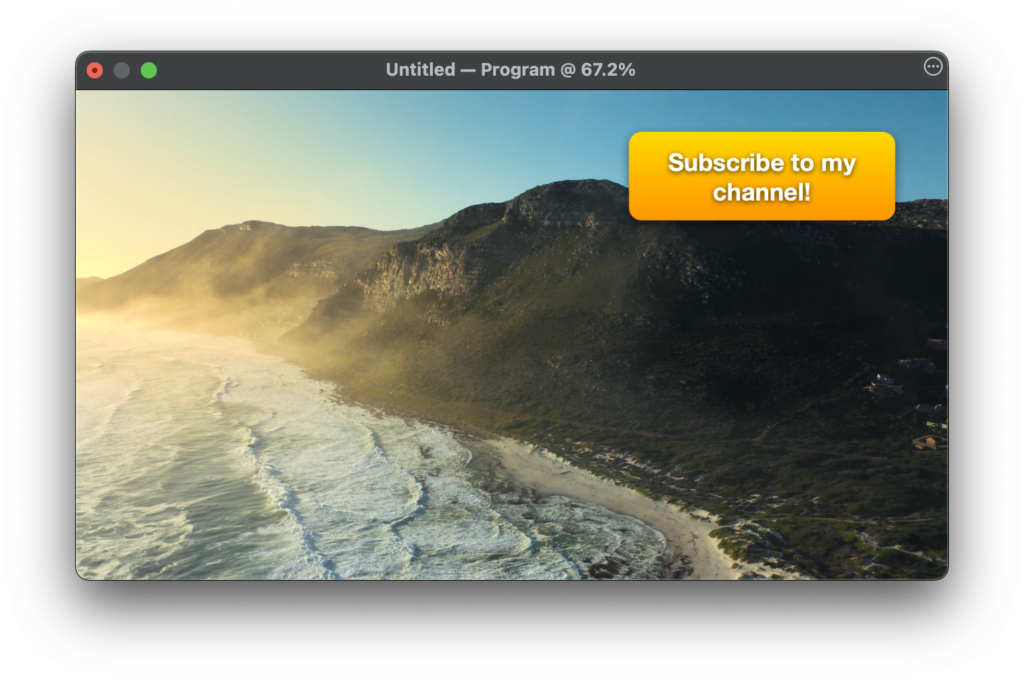
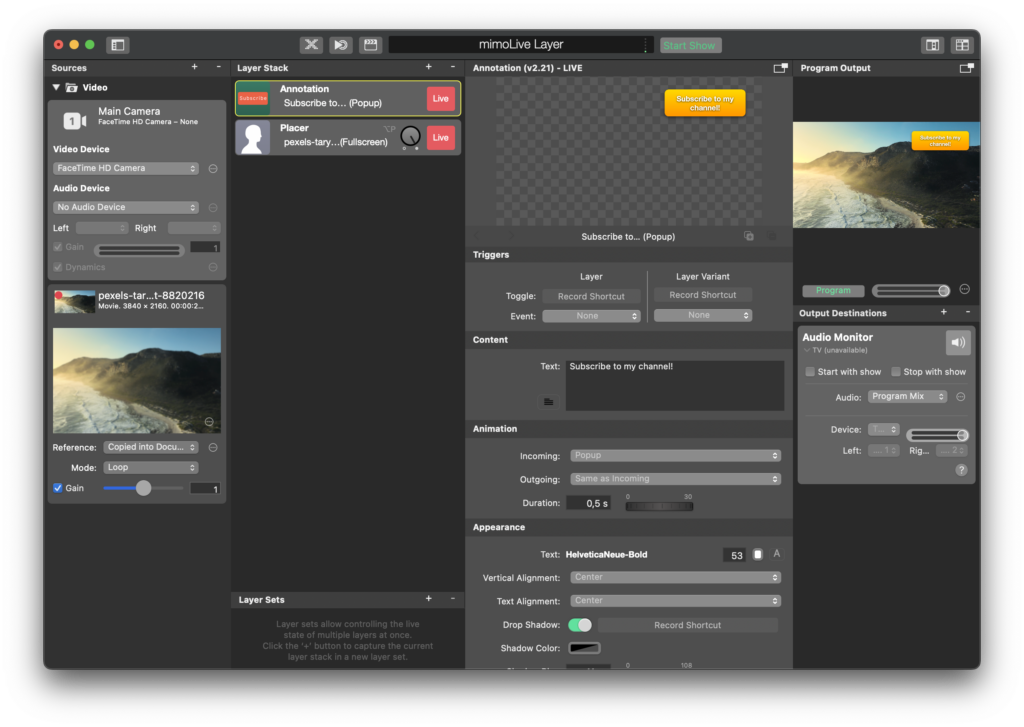
#### Text
In the text filed you can enter the Text that should appear on the Annotation box.
#### On Screen Button (Trigger HTTP)
Enable **On Screen Button** to make the Annotation layer act as a clickable/tappable button. When the user clicks inside the configured button area, mimoLive triggers the HTTP request specified in **Trigger HTTP URL**.
#### Trigger HTTP URL
Paste a full HTTP URL here that should be triggered once the user clicks on it on the Program Output view. A quick way to obtain a URL that will control a layer in mimoLive is to right-click a layer’s Live button or a parameter and use the “Copy URL …” menu items, then paste the result here.
> **Important:** Enable HTTP Server in mimoLive to control mimoLive from this layer.
>
> To be able to control mimoLive from this layer you need to enable the build in HTTP Server in mimoLive.
#### Animation
The annotation box can be presented in many different ways (cut, dissolve, push). You can specify the incoming transition and an independent outgoing transition. The Duration parameter let you define how log it will take for the Annotation box to appear.
---
#### Burning Text Layer
Source: https://mimolive.com/user-manual/live-editing/layers/text-layers/burning-text/
Last updated: 2025-06-16
The **Burning Text Layer** in mimoLive adds dynamic, animated text with a fiery effect to your live streams or video productions. This visually striking feature is perfect for creating attention-grabbing headlines, announcements, or themed events where fiery text enhances the impact of your content.
### Layer Setup Parameters:
**1. Triggers**
- **Toggle:** Assign a record shortcut to quickly turn the **Burning Text** layer on or off during your broadcast.
- **Event:** You can set an event to automatically trigger the layer based on specific conditions during your live stream.
**2. Content**
**Text:**
- Enter the desired text you want to display with the burning effect. In this example, the text is set to **“Text on Fire.”**
- This text will be styled and animated with a fire effect, making it a visually engaging element.
**3. Transition Settings:**
**Duration:**
- Set the time it takes for the text to transition in or out of the screen. In this example, the transition is set to **2 seconds** for smooth entrance and exit.
**4. Animation Settings:**
**Incoming:**
- Choose the animation style for how the text enters the screen. Options include:
- **Swipe Left to Right:** The text swipes in from the left to the right side of the screen.
**Outgoing:**
- Set how the text will exit the screen. In this example, it is set to **Same As Incoming**, meaning it will swipe out in the opposite direction.
**Swipe Width:**
- Adjust the width of the swipe bar. In the screenshot, it is set to **10%** of the screen width.
**5. Appearance Settings:**
This section controls the intensity and size of the fire effect:
**Fire Flare:**
- Adjust the flare of the fire, controlling the brightness and energy of the flames. In this case, the flare is set to **50%**.
**Fire Height:**
- Set the height of the flames that appear above the text. A value of **50%** is used in the example to balance the effect.
**Fire Spread:**
- This controls how wide the flames spread across the text. In this example, the spread is set to **20%**, creating a concentrated fire effect.
**Text Size & Font:**
- Customize the text font, color and size. In the example, the font size is set to **108 px** for large, impactful text. You can also choose different fonts to match your production’s theme or branding.
**6. Geometry Settings:**
**Anchor Point:**
- Define where the text is anchored on the screen. In the example, the anchor is set to the **Bottom Left**, which means the text will appear anchored to the lower-left corner.
**Position X & Y:**
- Fine-tune the text’s position by adjusting the X (horizontal) and Y (vertical) coordinates. In this case:
- **Position X:** **-824 px** (places the text further to the left).
- **Position Y:** **-431 px** (positions the text lower on the screen).
### Practical Applications
**Themed Live Events:**
- Use the **Burning Text** layer for themed events like Halloween, sports highlights, or any high-energy broadcast that requires dramatic visuals.
**Attention-Grabbing Headlines:**
- Use this layer to display urgent or important information in a way that instantly grabs the viewer’s attention.
**Transitions & Announcements:**
- The fiery animation is perfect for transitions between segments in your live stream, or to announce new sections or changes in the event.
### Summary
The **Burning Text Layer** in mimoLive adds a visually captivating fire effect to text, making it perfect for dramatic headlines, announcements, or themed content. With full control over the fire animation, text appearance, and placement on the screen, this layer provides flexibility to fit your specific production needs. Whether for live events, news, or creative video production, this layer enhances viewer engagement through dynamic visual effects.
---
#### Static Text 3D Layer
Source: https://mimolive.com/user-manual/live-editing/layers/text-layers/static-text-3d-layer/
Last updated: 2025-06-16
Applies to mimoLive: Static Text 3D v1.13
The **Static Text 3D Layer** in mimoLive adds depth and a dynamic perspective to your text elements by transforming them into three-dimensional objects. This layer is ideal for creating more engaging titles, lower thirds, or other text-based graphics that stand out in your live production.
**Key Features:**
- **3D Depth**: Adds a third dimension to your text, allowing it to have real visual depth. You can control the **Depth** of the text to make it pop out or sink in.
- **Rotation**: The text can be rotated on the **X, Y,** and **Z axes** to create a dynamic viewing angle, making your text appear more visually interesting. For example, you can tilt or skew the text for a unique look.
- **Customizable Text**: Like other text layers, you can input any text and customize the **font, size, kerning,** and **leading**.
- **Animation**: The text can be animated for both entry and exit, allowing smooth transitions with various animation effects.
**User Interface:**
- **Text Settings**: In the **Content** section, you can manually input the text to be displayed.
- **3D Depth Control**: In the **Appearance** section, you can adjust the text’s **Depth** to enhance the 3D effect.
- **Rotation Settings**: Use the **Rotation X, Y, Z** sliders in the **Geometry** section to control the orientation of the text in 3D space.
- **Positioning**: Adjust the text’s position in 3D space along the **X, Y,** and **Z axes** to fine-tune its placement on screen.
- **Fixed Width**: Set a fixed width for the text to maintain its dimensions, even with 3D transformations applied.
**Example Uses:**
- **Title Cards**: Use the Static Text 3D Layer to create impressive title sequences with rotating, floating text.
- **Intro Text**: Add depth and rotation to your intro text to grab viewers’ attention at the beginning of your broadcast.
- **Animated Lower Thirds**: Enhance lower thirds with 3D text effects for a more dynamic, professional appearance.
The **Static Text 3D Layer** provides an engaging way to bring text to life with added depth and motion, making it a powerful tool for adding impactful titles and text to your live productions.
---
#### Static Text Layer
Source: https://mimolive.com/user-manual/live-editing/layers/text-layers/static-text-layer/
Last updated: 2025-06-16
The **Static Text Layer** in mimoLive allows you to display text content on-screen, perfect for titles, lower thirds, or any other text-based elements during your live production. This layer offers full customization in terms of text content, appearance, and animation.
### Key Features
- **Custom Text**: You can input any text manually to be displayed in the layer.
- **Animation**: Define how the text appears and disappears using a variety of animation options such as **Dissolve**, **Cut**, or **Push from Top/Bottom/Left/Right**. You can adjust the **duration** and **delay** for incoming and outgoing animations.
- **Appearance**: Adjust the font, size, alignment, kerning, and leading. You can also add an outline or a drop shadow for better visibility.
- **Background**: Apply background effects like a gradient (e.g., **Top to Bottom**) and adjust colors. You can also control the background’s **drop shadow** settings to make the text stand out more.
### User Interface
- **Text Entry**: In the **Content** section, you can manually type or paste your desired text.
- **Animation Settings**: The **Animation** panel lets you select how the text enters and exits the screen, including the ability to adjust the timing for both incoming and outgoing animations.
- **Appearance Settings**: In the **Appearance** section, you can set the text font (e.g., **HelveticaNeue-Bold**), size, kerning, alignment (e.g., **Left**), and apply additional effects such as outlines or drop shadows.
- **Geometry**: The **Geometry** panel allows you to control the positioning of the text and its margins. This includes adjusting the margins and rotation for the text to fit perfectly within your layout.
- **Background Settings**: You can define the background with color and gradient options, along with shadow effects to enhance the text’s visibility.
### Example Uses:
- **Lower Thirds**: Add a static text box at the bottom of the screen with speaker names or descriptions.
- **Title Cards**: Display titles or important information at the beginning or end of a segment.
- **Bullet Points**: Use the static text layer for lists or key points during presentations.
The **Static Text Layer** in mimoLive provides flexibility and control, making it ideal for any live production that requires clear and customizable text elements.
---
#### Heading with Object Layer
Source: https://mimolive.com/user-manual/live-editing/layers/text-layers/heading-with-object-layer/
Last updated: 2025-06-16
Applies to mimoLive: Heading with Object layer v4.11
The **Heading with Object** layer in mimoLive is a versatile tool that allows you to display a heading or title on your video with an accompanying object, such as a logo, graphic, or image. This layer is typically used for lower-thirds, headlines, or labels during live streams or presentations, giving your broadcast a professional look by combining text and visual branding elements.
### Key Features
- **Customizable Heading**: The text can be personalized with different fonts, sizes, and styles.
- **Object Placement**: You can add a logo or image next to the heading, ideal for branding or enhancing the information on the screen.
- **Text Animation**: Options for incoming and outgoing animations, including transitions like “Dissolve” or “Slide.”
- **Shadow and Blur Effects**: Adds depth and separation from the background using customizable shadow effects.
### Layer Configuration
1. **Adding the Heading with Object Layer**:
- To add this layer, go to the Layer Stack and click on the + button to add a new layer.
- Select “Heading with Object” from the list of available layers and click Add.
2. **Content Settings**:
- **Title**: In the **Content** section, input the title or heading text. In the example, the text reads: *“Live from mimoLive Studios”*.
- **Logo/Object**: To add an object or logo, click on the image placeholder and choose your graphic file. This is where your company logo, icon, or any visual element can be added.
3. **Animation Settings**:
- **Incoming Animation**: Choose how the text and object enter the screen. Options include **Dissolve**, **Slide**, and more.
- **Duration**: Adjust how long the animation lasts when transitioning in and out. In this example, the incoming animation duration is set to 0.5 seconds.
- **Outgoing Animation**: You can mirror the incoming animation or customize it separately for how the text exits the screen.
#### Appearance Customization:
1. **Text Settings**:
- **Font and Style**: In the **Appearance** section, you can choose the font and weight for the text. In the provided example, the font is *HelveticaNeue-Bold* and the size is set to 59 points.
- **Kerning**: Adjust the space between letters to improve readability or fit the design needs.
- **Leading Offset**: Modify the vertical spacing between lines of text.
- **Vertical Alignment**: Align the text within the available space. In the example, it’s aligned to the **Top**.
- **Text Alignment**: Control whether the text is aligned **Left**, **Center**, or **Right**. The example uses **Right** alignment to keep the text close to the object (logo).
2. **Shadow and Blur**:
- **Drop Shadow**: Enable a shadow behind the text to create depth and separation from the background. You can adjust:
- **Color**: Choose the color of the shadow (often black for contrast).
- **Shadow Blur**: Adjust the blur radius of the shadow to make it softer or sharper. In this case, the shadow blur is set to 2px.
- **Shadow Distance**: This controls how far the shadow is cast from the text. The example uses a distance of 2px.
- **Shadow Direction**: Choose the angle at which the shadow is cast. For example, in the provided interface, it is set to 270° (directly below the text).
#### Practical Uses:
1. **Live Shows and News Broadcasts**:
This layer is ideal for live news or studio broadcasts where you need to display lower-thirds with a title and accompanying graphic or logo.
2. **Branding and Corporate Streams**:
Perfect for webinars, corporate streams, or online events where you want to display your logo alongside text, reinforcing brand identity during the broadcast.
3. **Event Announcements**:
Use the heading to display live updates, event titles, or announcements with accompanying visual cues to engage viewers more effectively.
#### Best Practices:
- **Text Alignment**: Ensure your text alignment (left, center, or right) fits well with the object placement. For example, if the logo is on the left, you might want to right-align the text for a balanced look.
- **Shadow and Blur**: Use the shadow and blur features subtly to enhance the readability of the text, especially when displayed against complex backgrounds.
- **Animation Timing**: Adjust the timing of the animations to match the pace of your presentation. A fast dissolve may work for quick transitions, but a slower slide might be more appropriate for formal presentations.
#### Conclusion
The **Heading with Object** layer in mimoLive is an excellent tool for adding dynamic, branded headings to your live broadcasts or presentations. With its customizable text, object placement, and animation features, you can achieve a polished and professional look, whether you’re hosting a live show, webinar, or corporate event.
---
#### Scrolling Credits Layer
Source: https://mimolive.com/user-manual/live-editing/layers/text-layers/scrolling-credits/
Last updated: 2025-06-16
### **Overview**
The Scrolling Credits layer allows you to create professional end-credit sequences by scrolling text vertically, similar to movie or television productions. The layer supports customized content, scrolling speed, and branding logos for a personalized touch.
**Key Features**
• **Customizable Text:** Input and format text for roles, names, or any other content.
• **Brand Integration:** Add a trailing logo or graphic at the end of the credits.
• **Smooth Scrolling:** Adjustable scrolling speed and fade duration for a polished effect.
• **Appearance Settings:** Customize text alignment, font, and size for a professional look.
**Layer Controls**
**Content**
• **Scrolling Text:** Add the text content to display, separating roles and names by line (e.g., Producer\nJohn Doe).
• **Trailing Logo:** Upload a logo or image to appear at the end of the scrolling text. Toggle this on or off as needed.
**Transition**
• **Fade Duration:** Define how long the text takes to fade in and out of the scene.
**Timing**
• **Scrolling Speed:** Adjust how quickly the text scrolls vertically (e.g., 25 units for moderate speed).
• **Logo Duration:** Specify how long the trailing logo remains visible after the text finishes scrolling.
**Appearance**
• **Text Font:** Select the desired font, size, and style to match the aesthetic of your production.
• **Text Alignment:** Set the alignment (e.g., center, left, or right) to ensure proper visual balance.
**Workflow Example**
1. Add the Scrolling Credits layer to your Layer Stack.
2. Enter the desired text in the Scrolling Text field, ensuring each role and name is on a separate line.
3. Upload a trailing logo (e.g., company branding) and enable it for display.
4. Adjust the scrolling speed, ensuring it is slow enough to be easily readable.
5. Customize the text appearance, including font, size, and alignment.
6. Preview the credits to confirm the layout and transitions, then take the layer live to display during your production.
**Tips**
• Use a readable font size and style for clarity. Avoid overly decorative fonts.
• Ensure the scrolling speed is appropriate for the amount of text; too fast or slow can detract from readability.
• A trailing logo can add a professional touch, especially if it includes production branding.
The Scrolling Credits layer provides a simple and professional way to conclude your productions with a polished, customizable end-credit sequence.
---
#### Subtitles Layer
Source: https://mimolive.com/user-manual/live-editing/layers/text-layers/subtitles-layer/
Last updated: 2025-06-16
The **Subtitles Layer** in mimoLive is designed to display text captions or subtitles on your live stream or recorded video. This layer is ideal for enhancing accessibility, translating spoken content, or adding captions to clarify audio in your broadcast.
### Key Features
**SRT or SBV File Support**
The Subtitles Layer supports importing standard subtitle files in **SRT** or **SBV** formats, making it easy to integrate pre-written captions into your live broadcast.
**Real-Time Caption Display**
Display subtitles in sync with your content by manually or automatically managing the timing of captions from the imported file.
**Customizable Appearance**
You can fully customize the look of your subtitles, including font, size, alignment, colors, shadow effects, and margins, ensuring the subtitles match your broadcast’s style and readability standards.
**Animation Effects**
Subtitles can fade in and out with customizable **fade durations**, creating smooth transitions that blend seamlessly with the video.
### User Interface
**Content Section**
- **SRT or SBV Format**: Import an SRT or SBV file to load the subtitles. The timing data is automatically read and applied during playback.
- Preview and edit individual subtitle entries directly within the layer if needed.
**Animation Section**
- **Fade Duration**: Control how quickly subtitles appear and disappear by adjusting the fade duration slider.
**Geometry Section**
- Adjust the **left**, **right**, and **bottom margins** to position subtitles precisely on the screen. This ensures they don’t overlap with important visual elements.
**Appearance Section**
- **Font and Size**: Choose the font and text size for your subtitles.
- **Text Alignment**: Align subtitles to the left, center, or right.
- **Drop Shadow**: Enable and customize shadow effects for better readability against complex backgrounds.
- **Outline**: Add an outline around the text to improve visibility on bright or cluttered visuals.
### Example Uses
**Live Events**
Use the Subtitles Layer to display captions for live events, making the content accessible to a broader audience.
**Translation**
Provide real-time translation of spoken content by importing subtitle files in multiple languages.
**Video Editing**
Add professional-looking captions to recorded video segments before publishing or exporting.
The **Subtitles Layer** is an essential tool for creating engaging and inclusive live streams or video productions, providing seamless integration of captions with full customization options.
---
#### News Crawl Layer
Source: https://mimolive.com/user-manual/live-editing/layers/text-layers/news-crawler/
Last updated: 2025-06-16
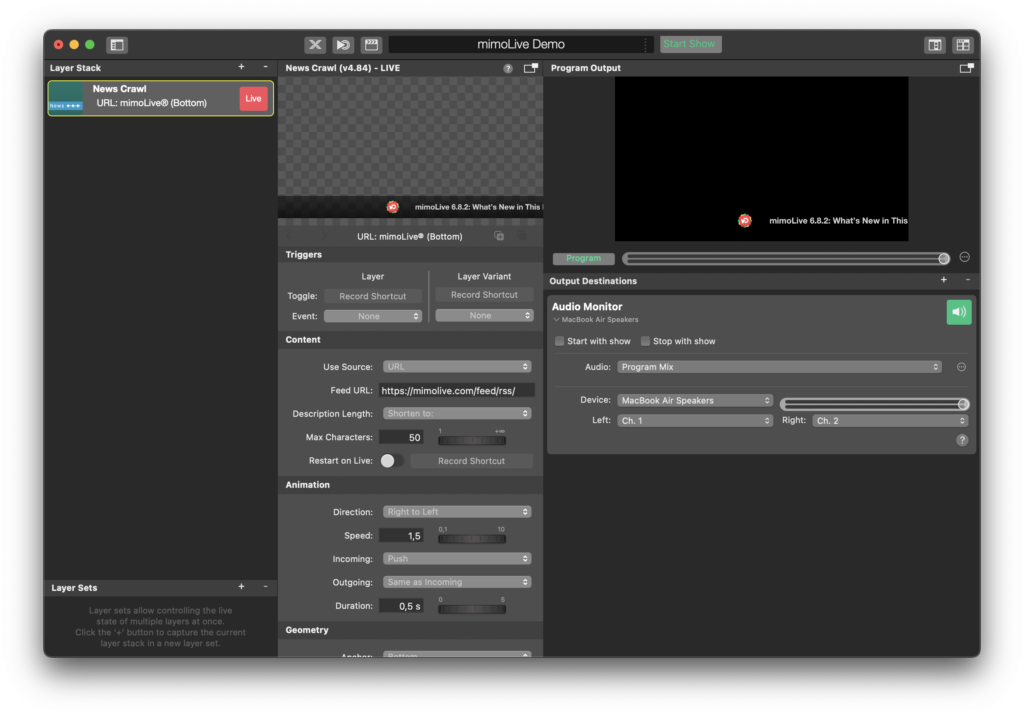
One of the most important elements in any news show is keeping the audience informed with up-to-date information. That's why we've created the News Crawler Layer for mimoLive – a powerful tool that allows you to continuously display scrolling text at the bottom of your screen. Whether you're using it to share breaking news or additional information about your show, the News Crawler Layer is an essential element for any news or live production.
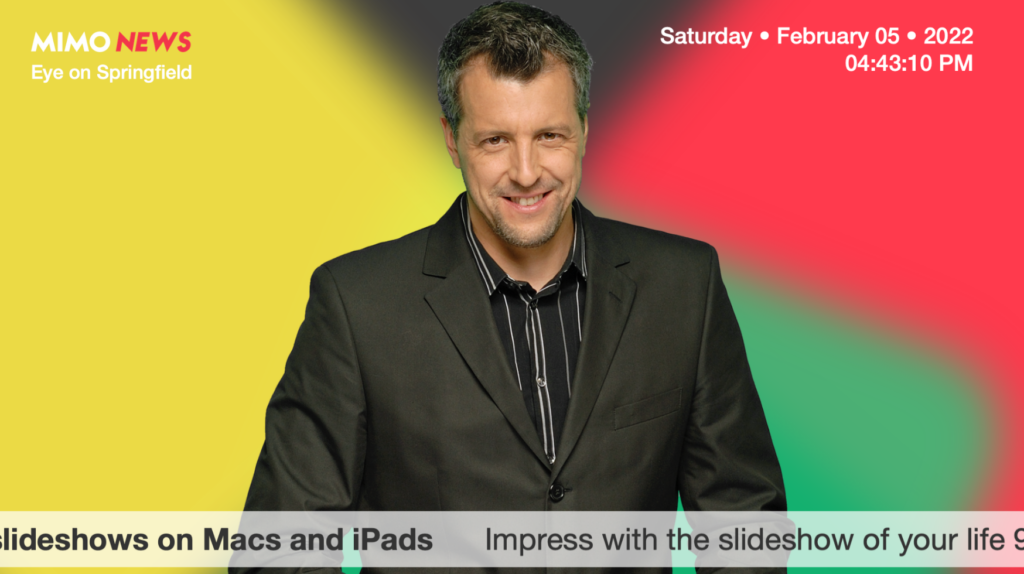
With the ability to pull information from the internet, a local file, or text you type directly into your mimoLive document, you can easily customize your news crawler to fit your specific needs. Plus, you can see an example of the News Crawler Layer in action in our [Newscast and Overlay Graphics Generator templates](https://mimolive.com/user-manual/overlay-graphics-generator-template). So why wait? Start keeping your audience informed and engaged today with mimoLive's News Crawler Layer. Check out our website to learn more!
#### Setting up the News Crawler Source
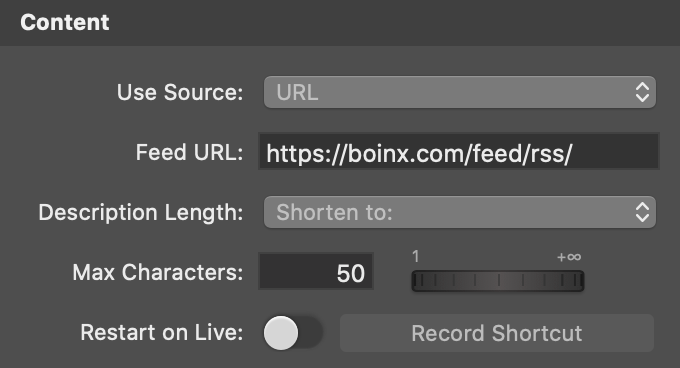
In the Content section of the layer settings, you can select which Type of data source you want to use. There are three ways to get the data into the News Crawler layer:
- URL: This will let you specify an URL pointing to an RSS feed on the Internet. Below the dropdown menu, you are required to enter the URL for this feed.
- Local File: With this option, you can have a file on your disk containing the RSS feed. This makes sense if you want to display data but you don’t want to put it on a public web server.
- Text: When you select this option you get a text field below to enter the text for the crawler directly in mimoLive. Note that there is a | character as a divider between the title and text.
When loading an RSS feed from the Internet the description text could be sometimes excessively long. With the Description Length option, you can shorten it to the maximum length of characters.
If you want to let the News Crawler start always from the beginning once you put it live then you need to switch on the Restart On Live option.
#### Control the Animation of the News Crawler
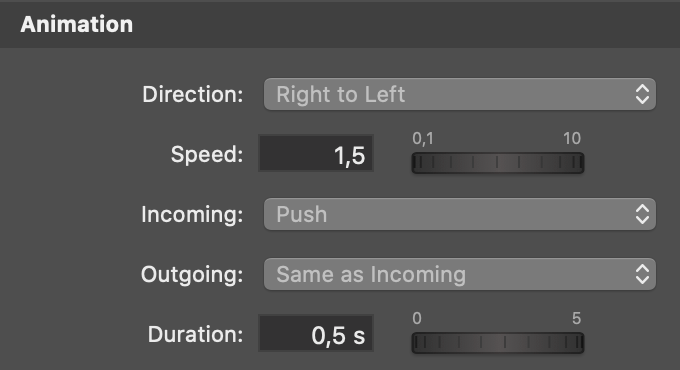
There are several parameters in the Animation section that controls the movement of the News Crawler.
- Direction: The crawler can move from left to right, or from right to left. It is important to adjust this to the reading direction of your writing, e.g. Hebrews is written from right to left, so the scrolling direction needs to be “Left to Right”.
- Speed: The scrolling speed is more like an artistic value and may vary by audience.
- Incoming/Outgoing animation: The News Crawler is defined to be a horizontal bar. These parameters control the appearance of this bar. It can be pushed in, fade in (dissolve) or just pop up (cut). Note: The push direction is depending on the Anchor parameter of the Geometry section.
- Duration: This is the time for the incoming and outgoing animation in seconds.
#### Positioning of the News Crawler Bar
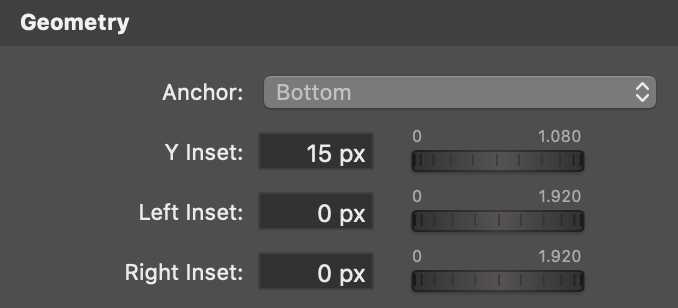
The News Crawler is a horizontal bar that can be positioned anywhere on the screen. Those parameters in the Geometry section describe where this location will be. With the insets from all edges, the bar location is defined. Note: The Anchor parameter defines also the direction of the incoming animation if it is set to “push”.
#### Setting up the Fonts and Colors
In the Appearance section of the News Crawler settings, you can specify the font face, size and color for the title text and the description text separately.
The option of Type Kerning will give you additional creative control for the character spacing.
With the Text, Y Offset you can position the text within the News Crawler bar.
The Description Offset specifies the gap between the title and the description text in pixels.
#### The Item Divider gives Structure to the News
Each news item consists of a title and a description text. It is important to have a divider to make it clear to the audience when a new item starts.
The Horizontal Margin specifies how much space will be between the last description and the item divider image, and further between the divider image and the next title.
The image can be any source that outputs an image (most likely a Media File source). Please note that the divider is drawn only once when a new item gets moved in. In consequence, it will take some time until you see the changes to the item divider. Also, there will be now animation.
With the Vertical Offset parameter, you can adjust the vertical position if the item divider is not in the right position.
With all the Scaling parameters the resulting size of your item divider media is defined.
#### Changing the background color of the News Crawler Bar
It is very easy to adopt the look and feel of the News Crawler to your corporate design. In the Background section you can select the type of background you want to see for your News Crawler bar:
- None: If your design incorporated the background for the News Crawler in another layer then you can switch of the background drawing in this layer.
- Constant Color: This will fill the background with all with the same color you specify below the dropdown menu. Note: The color can also be translucent. This is controlled by the Opacity value in the color chooser popover.
- Gradient top/bottom, or left/right: This option requires two colors to be specified. Note: A nice effect can be achieved if one color is 100% opaque while the other has a bit of transparency.
- Custom: Use any image source as a background. It will be stretched to fit the dimensions of the news crawler bar.
For your convenience, there is a Drop Shadow option to draw a drop shadow around the News Crawler bar. The drop shadow can be specified by its color, blur factor, distance and direction.
#### Add an Animation to the News Crawler Bar to make it pop!
You can get really creative by adding an animation to the background of the News Crawler bar. First, specify an image that will be overlaid with the background you defined in the Background section. Note: this overlay image can have transparency on its own, however, there is an Opacity parameter to make the image transparent overall. Also, it is a good practice if the image can be tiled seamlessly.
With the Translation X and Y parameter as well as the Rotation parameter you can let this overlay move and spin over time.
#### Update the Content of the News Crawler Remotely
You can use the [HTTP API](https://mimolive.com/user-manual/http-api) or the [Remote Control Surface](https://mimolive.com/user-manual/remote-control-surfaces) to update the content of the News Crawler from a secondary device, even across the internet.
To update using the Remote Control Surface, simply add the “Edit” Button:
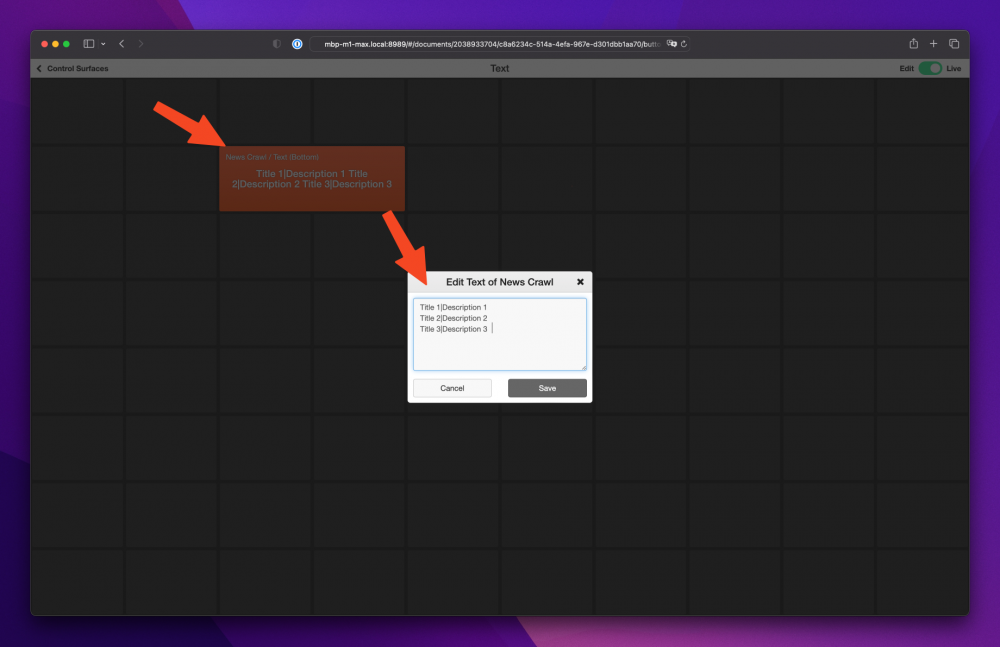
---
#### Breaking News Layer
Source: https://mimolive.com/user-manual/live-editing/layers/text-layers/breaking-news/
Last updated: 2025-06-16
The **Breaking News Layer** in mimoLive is a dynamic tool designed to present breaking news or important information in a visually striking way. It allows you to quickly display urgent updates, headlines, or announcements during your live stream, making it ideal for news broadcasts, live events, or updates in any live production.
[Video: mimoLiveFeature-3_1.mp4](https://mimolive.com/wp-content/uploads/2021/12/mimoLiveFeature-3_1.mp4)
### Layer Setup Parameters
**1. Triggers**
- **Toggle:** Assign a record shortcut to activate or deactivate the Breaking News layer during your live stream. This is useful for toggling the display of breaking news updates without leaving the live interface.
- **Event:** You can optionally assign an event trigger to automate the display of the Breaking News layer when certain conditions are met.
**2. Content**
The content section allows you to customize the information displayed in the Breaking News layer:
- **Title:**
- Enter the main headline or breaking news title. For example, in the screenshot, the title is set to **BREAKING NEWS**.
- **News 1-5:**
- You can enter up to five different lines of text, which could be sub-headlines or detailed news snippets.
- In the example:
- **News 1:** mimoLive 5.8 out!
- **News 2:** Your news is here
- **News 3:** …and here
- Additional lines can be left blank if not needed.
- **Text Duration:**
- Set the duration (in seconds) for how long each piece of news is displayed. In this case, it’s set to **3 seconds**. Adjust the duration to suit the pace of your broadcast and the importance of each message.
**Appearance Settings:**
- **Title Font:**
- Customize the font style, color and size for the title. The example uses **HelveticaNeue-Bold** with a font size of **60 px**, making the headline bold and prominent.
- **Text Font:**
- Customize the font for the sub-headlines or news content. The example uses **HelveticaNeue** with a font size of **50 px**, ensuring the news text is large and readable.
- **Gradient Width:**
- Adjust the width of the gradient background behind the text. In the screenshot, the gradient is set to cover the entire width of the screen (1920 px), providing a visually appealing background for the text.
- **Gradient Color:**
- Choose the color for the gradient background. In the example, the gradient is set to a light purple, which contrasts nicely with the text and the background image.
- **Drop Shadow:**
- Add a shadow effect to the text for increased readability, especially when the background image is complex or busy. This can be toggled on or off depending on the visual needs of the stream.
**Geometry Settings:**
- **Anchor Point:**
- Set the position of the news overlay. In the example, the news bar is anchored to the **Top** of the screen, placing the text at the top portion of the broadcast.
- **X & Y Inset:**
- Fine-tune the position of the news text by adjusting the X (horizontal) and Y (vertical) insets.
**Text Alignment:**
- Align the text within the layer. In this example, the text is aligned **left** for a clean, professional look.
**Text Height:**
- Adjust the text height to fit within the gradient bar. In the example, the height is set to **118 px**, ensuring the text is perfectly framed within the gradient background.
### Practical Applications
- **Breaking News Alerts:** Use the layer to quickly display urgent information or updates during a live broadcast, such as weather warnings, event changes, or important announcements.
- **Event Updates:** Keep your viewers informed with real-time updates, scores, or results for live events.
- **Live Chat Updates:** You can also use the Breaking News layer to display live chat highlights or viewer comments in a dynamic and engaging way.
### **Summary**
The **Breaking News Layer** in mimoLive is a versatile and highly customizable tool for presenting urgent updates or important information in a clear and visually appealing manner. With flexible text, font, and geometry options, you can tailor the layer to suit your specific broadcast needs, ensuring that your viewers are always informed with the latest updates.
---
### Graphics
Source: https://mimolive.com/user-manual/live-editing/layers/graphics/
Last updated: 2025-11-19
**Graphics Layers** in mimoLive provide a wide range of visual elements that enhance the look and feel of your live productions. These layers are designed to help you add decorative, informational, or branded graphics to the screen—whether as backgrounds, overlays, animations, or thematic visual effects.
From simple geometric shapes and image slideshows to dynamic animated elements and sponsor logo rotations, those layers give you the tools to create polished, visually engaging broadcasts. They support flexible design options, custom images, motion effects, and branding elements, allowing you to tailor the visual style of your show to your specific needs.
---
#### Box Layer
Source: https://mimolive.com/user-manual/live-editing/layers/graphics/box/
Last updated: 2025-06-16
The Box layer in mimoLive allows you to create customizable, rectangular graphics that can be used as a background or a frame for other elements. This layer offers a range of options for colours and positioning the box, including gradients, shadox, and animation.
With the Box layer, you can quickly add a professional-looking frame to any video or graphic element in your production. The Box layer can be adjust in size and position easily with the mouse course.
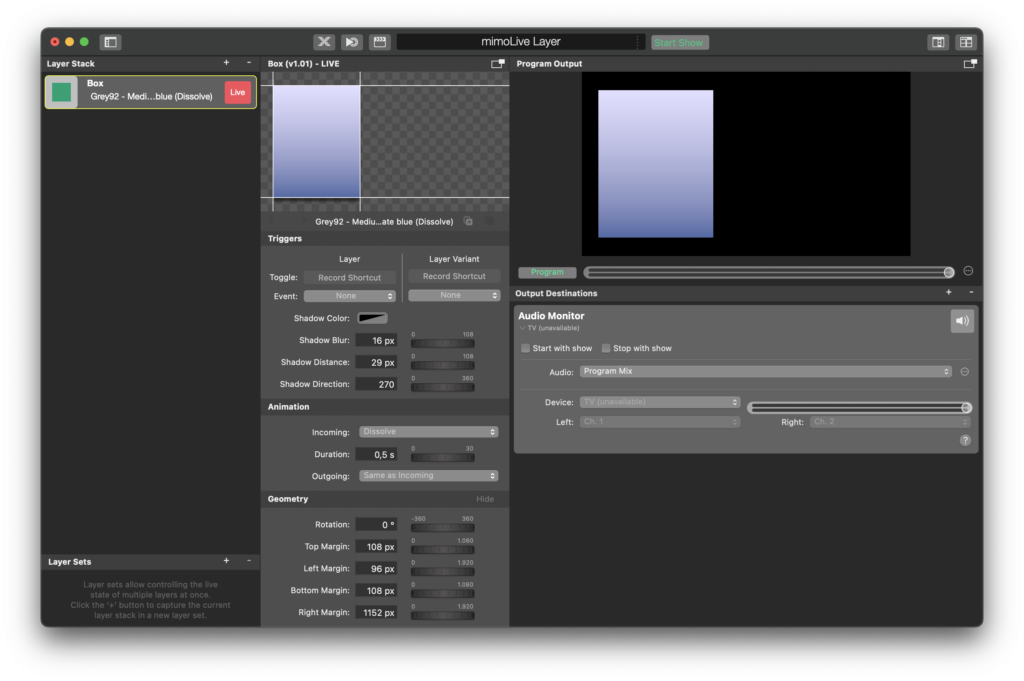
---
#### Cyclic Sponsor Logos Layer
Source: https://mimolive.com/user-manual/live-editing/layers/graphics/cyclic-sponsor-logos/
Last updated: 2025-06-16
The **Cyclic Sponsor Logos Layer** in mimoLive is designed to display a sequence of sponsor logos in a smooth, automated loop. This layer is perfect for live streams and broadcasts where sponsors need visibility, helping you showcase multiple sponsors without interrupting the flow of your content.
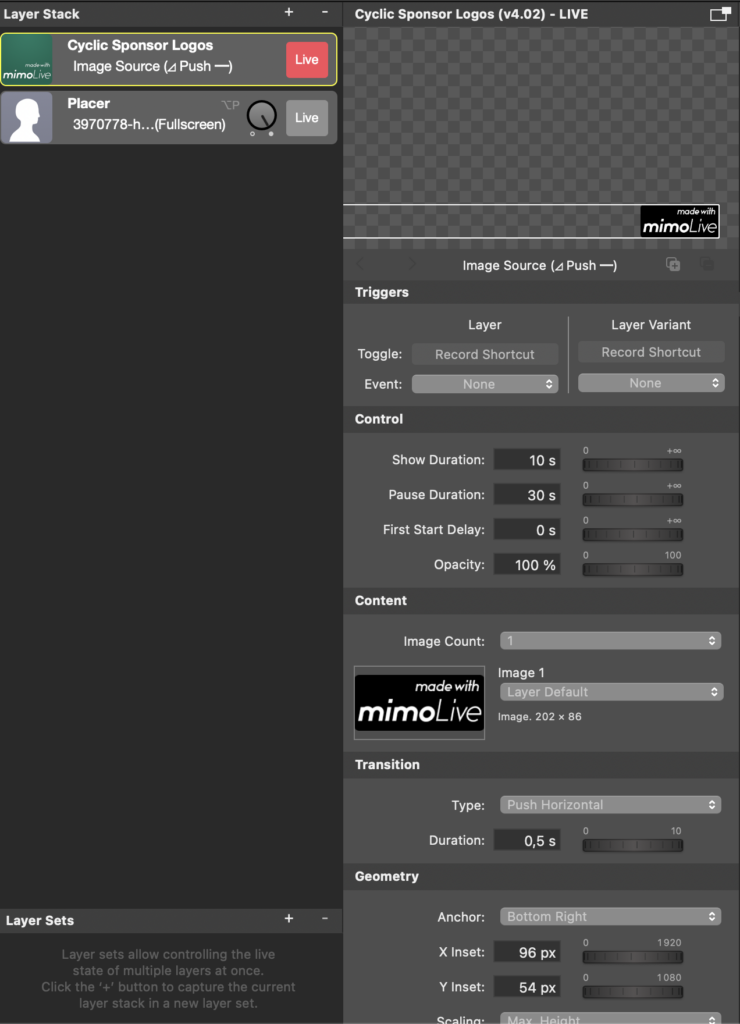
### **Layer Setup Parameters**
**1. Triggers**
- **Toggle:** Assign a record shortcut to turn the **Cyclic Sponsor Logos** layer on or off during your live stream, allowing for easy control without having to manually adjust the settings.
- **Event:** You can link the layer’s activation to a specific event, which will automate the process of showing sponsor logos based on certain triggers during your broadcast.
**2. Control Settings:**
**Show Duration:**
- Set the amount of time each sponsor logo is displayed. In the example, the show duration is set to **10 seconds**. This gives each logo sufficient on-screen time for viewers to recognize the sponsor.
**Pause Duration:**
- Control the delay between each logo display. In the screenshot, the pause duration is set to **30 seconds**, meaning there will be a 30-second break between the display of each sponsor logo.
**First Start Delay:**
- Specify a delay before the first sponsor logo appears. This is set to **0 seconds** in the example, meaning the logos start showing immediately when the layer is activated.
**Opacity:**
- Adjust the transparency of the sponsor logos. For full visibility, the opacity is set to **100%**, but you can lower this value for a more subtle display.
**3. Content Settings:**
**Image Count:**
- Set the number of sponsor logos to display in rotation. In the example, the **Image Count** is set to **1**, meaning only one logo is currently being shown. You can increase this number to rotate through multiple logos during the broadcast.
**Image 1, Image 2, etc.:**
- Select the images for each sponsor. In the example, **Image 1** displays the **mimoLive** logo. You can replace this with your own sponsor logos by dragging images to the image box or add another [media image source](https://mimolive.com/user-manual/sources-input/media-file/) in order to be able to select it in the source dropdown menu.
**4. Transition Settings:**
**Type:**
- Choose the type of transition between logos. In this example, the transition type is set to **Push Horizontal**, which causes the logos to smoothly slide horizontally in and out.
**Duration:**
- Set the duration of the transition animation. In this sample, the duration is **0.5 seconds**, providing a quick and smooth shift between sponsor logos.
**5. Geometry Settings:**
**Anchor Point:**
- Choose where the sponsor logos will appear on the screen. In the example, the anchor point is set to the **Bottom Right** corner, making the logos appear in the lower-right section of the broadcast.
**X Inset & Y Inset:**
- Adjust the position of the logos relative to the anchor point. In this example:
- **X Inset:** **96 px** (adjusts the horizontal placement from the right edge).
- **Y Inset:** **54 px** (adjusts the vertical placement from the bottom edge).
**Scaling (Max Height and Width):**
- Control the size of the logos by setting the maximum height and width. This ensures that the logos are properly scaled to fit your broadcast without appearing too large or too small.
### Practical Applications
**Sponsor Visibility:**
- Use this layer to cycle through sponsor logos during sports events, webinars, or conferences, giving each sponsor exposure while maintaining the flow of your live broadcast.
**Event Branding:**
- Perfect for events where you want to display partners or sponsors prominently without needing to manually switch between logos.
**Dynamic Branding:**
- By using the **Push Horizontal** transition and customizing the display times, you can create a dynamic, professional-looking sponsor showcase that enhances the overall production value of your stream.
### Summary:
The **Cyclic Sponsor Logos Layer** in mimoLive provides an efficient and visually engaging way to display multiple sponsor logos in your live stream. With control over transition types, durations, logo placement, and more, you can create a smooth and professional rotation of sponsor logos, ensuring that each sponsor gets the visibility they deserve while keeping your broadcast engaging and uninterrupted.
---
#### Waving Flag Layer
Source: https://mimolive.com/user-manual/live-editing/layers/graphics/waving-flag/
Last updated: 2025-06-16
### Overview
The Waving Flag layer animates an image or graphic to appear as if it’s a flag waving in the wind. This effect adds a dynamic and professional visual element to your broadcast. Ideal for branding, showcasing national flags, or creating thematic visuals.
### Key Features
• **Realistic Animation:** Creates a waving effect to simulate the motion of a flag.
• **Customizable Speed and Opacity:** Adjust the flag’s waving intensity and transparency.
• **Precise Positioning:** Easily position and scale the flag within your scene to fit your production layout.
• **Seamless Transitions:** Add smooth transitions for when the flag enters or exits the scene.
**Layer Controls**
### Content
• **Flag:** Upload or select the image to be animated as the flag. Supported formats include PNG and JPEG for transparency and clarity.
• **Speed:** Adjust the waving intensity with a scale from 0 (no motion) to 300 (rapid motion).
• **Opacity:** Control the transparency of the flag to blend it into the scene as needed.
**Transition**
• **Type:** Choose from a variety of transition effects (e.g., dissolve) for the flag’s appearance and disappearance.
• **Duration:** Set the transition duration to create a smooth, professional entry or exit (e.g., 0.5 seconds).
**Geometry**
• **Anchor:** Set the flag’s position relative to the scene (e.g., top-left, center).
• **X/Y Inset:** Fine-tune the flag’s placement by adjusting its horizontal (X) and vertical (Y) offsets.
• **Scaling:** Select scaling modes to adapt the flag’s size to the layout while maintaining the aspect ratio.
• **Max Width:** Set a maximum width for the flag to ensure it fits within the desired area of the frame.
### Workflow Example
1. Add the Waving Flag layer from the Layer Stack.
2. Upload your desired flag graphic (e.g., a national flag or company logo).
3. Adjust the speed of the waving effect for the desired motion. Use lower speeds for subtle animations or higher speeds for a dramatic effect.
4. Position the flag using the Anchor and X/Y Inset settings, ensuring it doesn’t overlap key visual elements.
5. Preview the animation, then take the layer live to display the animated flag during your production.
### Tips
- Use high-quality images with transparency for the best visual results.
- Subtle waving speeds often appear more professional and less distracting.
- Ensure the flag’s placement adheres to safe zones so it remains visible on all display types.
The Waving Flag layer is a visually engaging feature that enhances the aesthetic appeal of your live productions by adding movement and branding elements.
---
#### Slideshow Layer
Source: https://mimolive.com/user-manual/live-editing/layers/graphics/slideshow/
Last updated: 2026-08-19
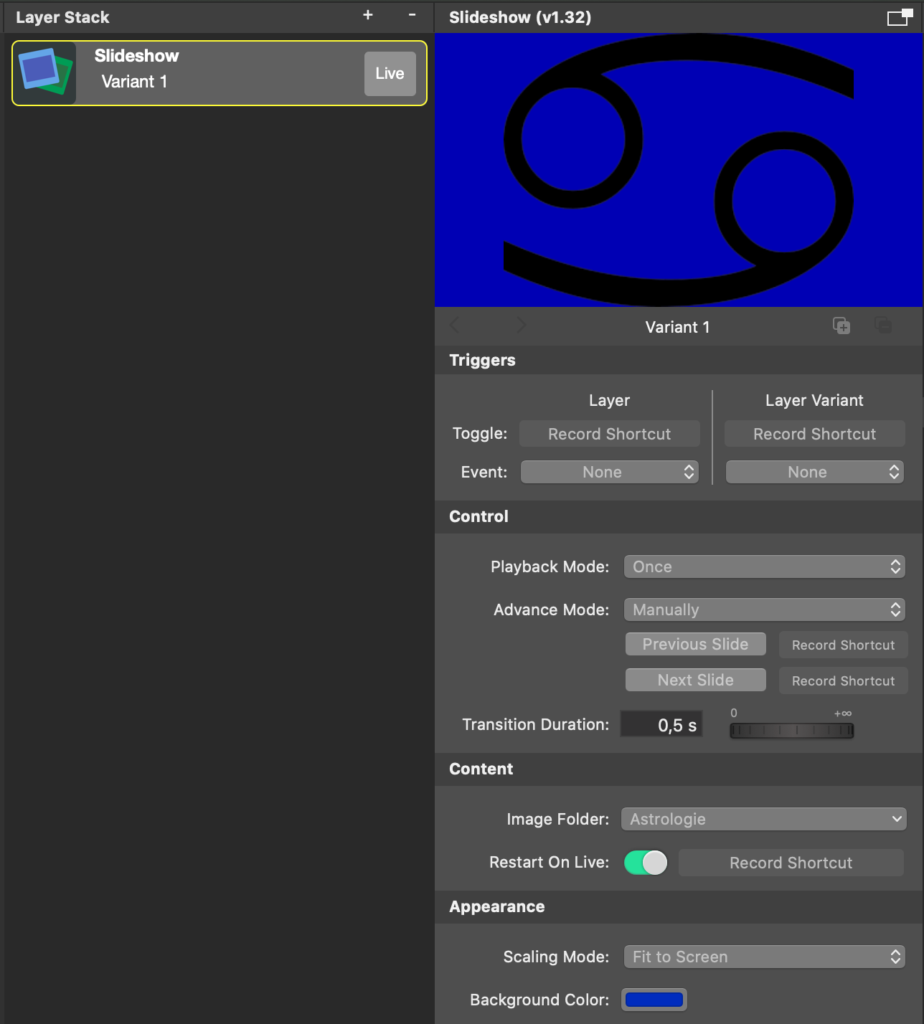
The Slideshow Layer allows you to display a series of images as a slideshow in your live production. It is perfect for showcasing photo albums, event highlights, or background visuals.
#### Control
**Playback Mode**
- *Once*: Plays through the images one time and then stops.
- *Loop*: Continuously cycles through the images in the selected folder.
**Advance Mode**
- *Time Interval*: Automatically advances to the next image after a set duration.
- *Manual*: Allows manual control of slide advancement. When selected, two new buttons appear:
**Previous Slide**
Go back to the previous image.
**Next Slide**
Advance to the next image.
> **Note:** Use a clicker to control your slideshow
>
> With the teach-in procedure, you can assign the "Previous Slide" and "Next Slide" functions to the buttons of a hardware presentation clicker. Simply click "Record Shortcut" next to the desired button, then press the corresponding button on your clicker to teach-in the remote control input. (Alternatively you can create a mimoLive Remote Control Surface to be used on a mobile phone)
**Transition Duration**
Defines the duration of the crossfade between slides. Adjustable via a time field and slider (e.g., 0.5 s).
**Slide Duration**
Sets how long each image is shown before advancing (e.g., 6 s). Only relevant in Time Interval mode.
#### Content
**Image Folder**
Selects the folder containing the images for the slideshow.
- *Choose Folder…:* Opens a dialog to select a new folder.
- *Reveal in Finder:* Opens the current folder in Finder for quick access or file management.
**Restart On Live**
When enabled, the slideshow resets to the beginning every time the layer goes live.
#### Appearance
**Scaling Mode**
- *Fit to Screen:* Displays the entire image, scaling it to fit within the layer bounds. Empty areas are filled with the background color.
- *Fill Screen:* Scales the image to cover the entire screen. This may crop parts of the image to maintain aspect ratio.
**Background Color**
Sets the background color used in Fit to Screen mode where images do not fill the full layer area or the images are transparent.
> **Note:** Use a transparent background color for transparent slideshow content
>
> If you use PNG files that has transparency in them and want to see the layers below the Slideshow layer you need to set up the opacity of the background color to 0%.
---
#### Made with mimoLive Layer
Source: https://mimolive.com/user-manual/live-editing/layers/graphics/made-with-mimolive-layer/
Last updated: 2025-06-16
The **Made with mimoLive Animation Layer** is designed to display a branded animated outro or intro sequence to acknowledge that the production was created with mimoLive. It’s a visual branding tool that adds a professional touch to your broadcasts by introducing or concluding them with an animated logo or message.
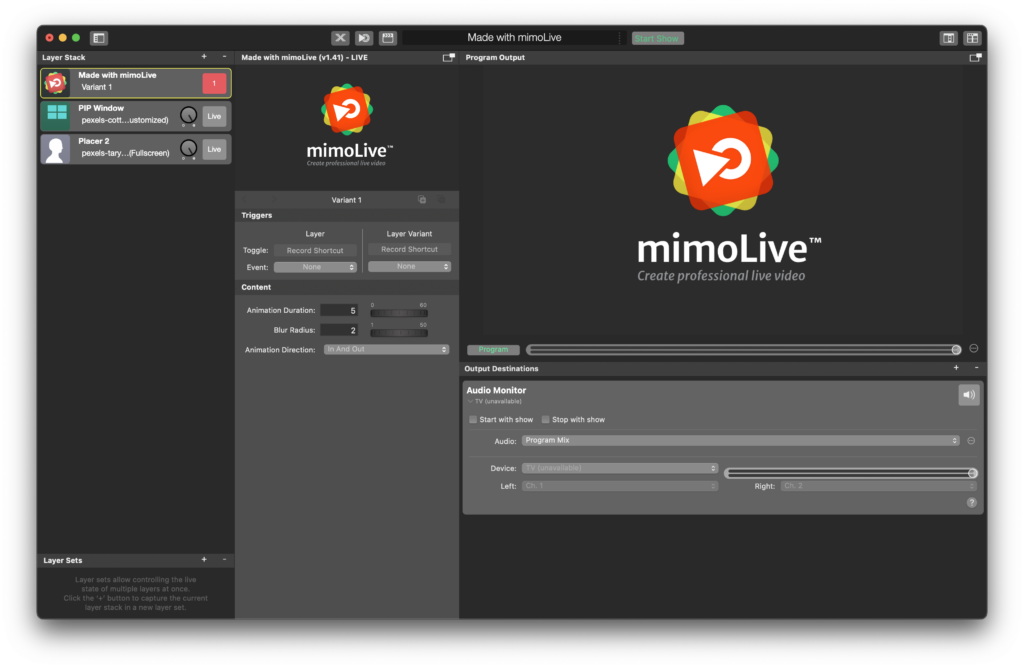
### Key Features:
- **Intro/Outro Animation**: The layer allows you to display an animation either at the beginning (**Intro**) or end (**Outro**) of your broadcast, or both (**In and Out**). You can control the **animation direction** based on how you want it to appear.
- **Animation Duration**: You can customize the length of the animation by adjusting the **Animation Duration** slider, providing flexibility to match the tempo and style of your broadcast.
- **Blur Radius**: Add a **blur effect** to the animation for a soft focus effect, enhancing the visual presentation of the branding.
- **Seamless Integration**: The animation layer seamlessly integrates into your broadcast, ensuring smooth transitions in and out of live segments without abrupt changes.
### User Interface:
#### **Content Settings**:
- **Animation Duration**: Set the duration of the animation (e.g., 5 seconds) to control how long the animation stays visible.
- **Blur Radius**: Adjust the blur effect for a smooth transition or stylish visual effect.
- **Animation Direction**: Choose from **Intro**, **Outro**, or **In and Out** to define when the animation plays.
#### **Trigger Settings**:
Set a **record shortcut** to manually trigger the animation, or allow it to play automatically based on the layer state.
### Example Uses:
- **Intro Animation**: Use the layer to introduce your live stream with the “Made with mimoLive” branding, adding a professional and polished start to your broadcast.
- **Outro Animation**: End your broadcast with an animated outro, giving credit to mimoLive for the production and leaving a lasting impression on your viewers.
- **Branding**: Customize the layer with your own logo or branding for a personalized introduction or conclusion to your broadcast.
The **Made with mimoLive Animation Layer** is an effective branding tool, allowing for smooth, professional intros and outros that enhance the production value of your broadcast.
---
### Time
Source: https://mimolive.com/user-manual/live-editing/layers/time/
Last updated: 2025-11-19
**Time Layers** in mimoLive provide tools for displaying clocks, timers, and countdowns during your live production. These layers are ideal for adding temporal context, managing event pacing, or creating anticipation for upcoming segments. Whether you need a simple time display, a customizable countdown, or visually engaging stopwatch graphics, the Time Layers category offers flexible solutions suitable for a wide range of broadcast scenarios.
These layers support various formats and visual styles—from analog and digital clocks to circular timers and full-screen countdown displays—allowing you to integrate time-based information in a way that matches your production’s design and workflow.
---
#### Stopwatch Layer
Source: https://mimolive.com/user-manual/live-editing/layers/time/stopwatch/
Last updated: 2025-06-16
The Stopwatch Layer will display a counter with either a circular or horizontal representation of the duration.
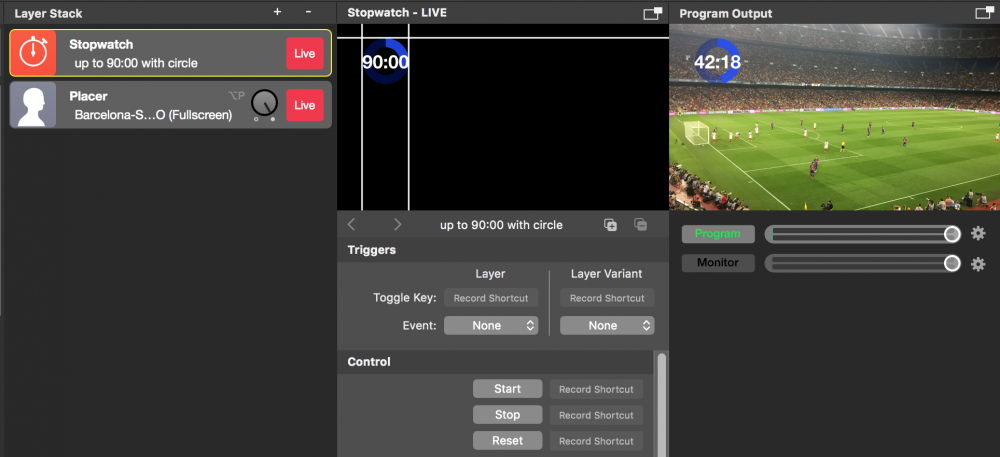
#### Setting up the Stopwatch Layer
There are several options to customize the behavior and appearance of the Stopwatch layer.
### Counter behavior
The Stop Watch layer can be used for either counting down or counting up. This behavior is defined by the Counting Mode option.
You can specify from which point in time the counter should start by the Start Time parameter. The Max Time parameter will define the 100% mark of the Progress Indicator. In the case of “Count up infinite” this parameter is ignored and no Progress Indicator is displayed.
If you need to reset the counter each time you switch the Stop Watch layer live you need to switch the option “Reset On Live” to on.
### The appearance of the Clock
First, you need to define how the clock should look like. The options Precision Min and Precision Max define what numbers will be displayed. E.g. If you want to display only short time durations for a game show you can set both options to “Seconds”. Or if you have a long time duration you can choose to only display “Minutes” and “Hours”.
The Center Delimiter option will fix the delimiter to the center position in the layout. This helps if you have a custom background design or a font face with different character spacing for numbers so that the clock won’t change position if the clock text gets longer or shorter when displaying “11” or “00”.
### Progress Indicator
There are two different ways of displaying the progress of the stopwatch visually: as a “Circle” or a “Bar”. If you don’t need it you can switch it off by choosing the “None” option.
Color 1 and Color 2 separate the progress of the Stop Watch.
*\****Colors of the progress indicator can be transparent**
Choosing the right colors for the Progress Indicator is important in order to make it clearly readable. Please note that you also can set up transparent colors which can give nice effects.
The size of the Progress Indicator can be either set by dragging the margin line in the Preview View. Set up the width of the circle line with the “Line Width” parameter.
### Geometry
The position of the Stop Watch can be adjusted by dragging it in the Layers Preview view or by setting the parameters manually in the Geometry section of the Layers Parameters.
The “Time Y Adjustment” parameter lets you compensate for the offset of the Font Base Line when choosing different font faces.
---
#### Count Down Layer
Source: https://mimolive.com/user-manual/live-editing/layers/time/count-down/
Last updated: 2025-06-16
The Count Down Layer offered by [mimoLive](https://mimolive.com)® is a valuable tool for individuals interested in enhancing their live streams or video productions. By adding a timer to your content, you can create a sense of excitement and anticipation among your audience. The Count Down Layer is fully customizable, allowing you to set the length of the countdown and choose how the timer appears on screen.
This feature is particularly useful for those creating promotional videos or streaming live events. By keeping viewers informed on how much time remains until a specific event, you can ensure they remain engaged throughout your content.
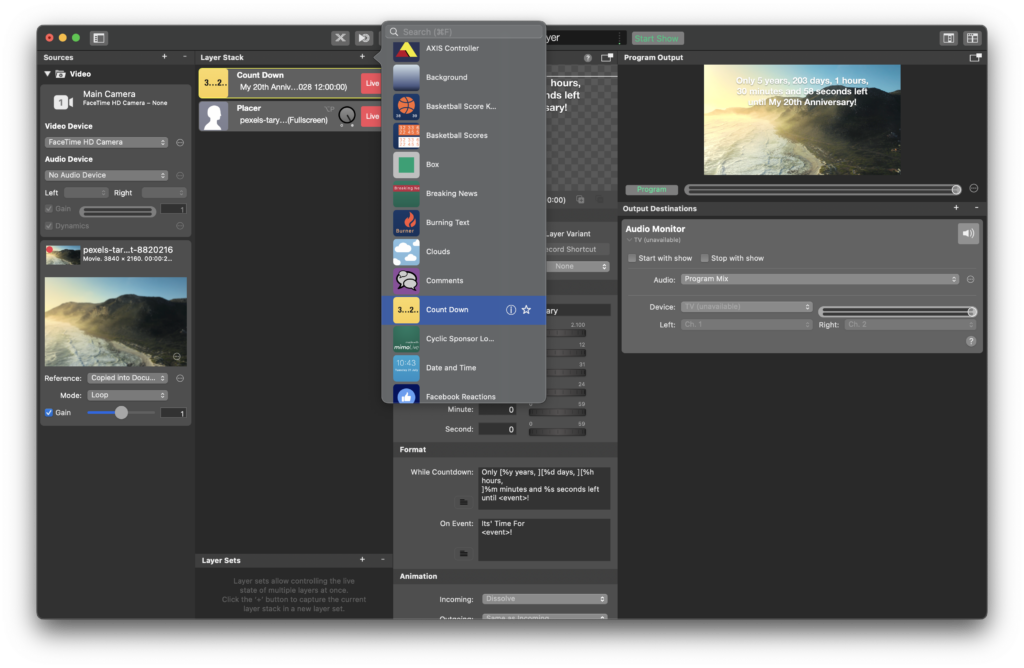
#### Setting Up the Count Down Layer
You specify the name of the Event in the **Event** text field. This name will be used in the **While Countdown** and **On Even** text fields as a replacement. Also you need to specify the **Year**, **Month**, **Day**, **Hour**, **Minute** and **Seconds** when the event will happen.
The **While Countdown** and **On Even** text fields can use several text replacement tags:
| Replacement Tag | Description | Sample Value |
| --- | --- | --- |
| %y | Years until the event | 7 |
| %d | Days in the last year until the event | 23 |
| %hh | Hours on that day (leading zero) | 02 |
| %h | Hours on that day | 2 |
| %mm | Minutes in that hour (leading zero) | 08 |
| %m | Minutes in that hour | 8 |
| %ss | Seconds in that minute (leading zero) | 04 |
| %s | Seconds in that minute | 4 |
| | Content of the **Event** text field | |
In addition the replacement understand optional text when put into **[** and **]**. E.g. if you put [%y years, ] into your text, this will only be displayed if the year is bigger than zero.
#### Changing the Appearance of the Count Down Layer
The look of the count down can be changed in many aspects: You can change the font in shape, color and size, you can also add a shadow effect to the text.
The visual anchor can be set to all four corners and the center positions. For each anchor there are different settings for an inset from the video border.
The positioning of the text can be done with the mouse cursor in the layer preview view too.
---
#### Analog Clock Layer
Source: https://mimolive.com/user-manual/live-editing/layers/time/analog-clock/
Last updated: 2025-06-16
Applies to mimoLive: Analog Clock Layer v2.3
The Analog Clock layer in mimoLive provides a simple yet elegant solution to display the current time during live broadcasts. With a variety of customization options, including the ability to change the clock face and hand styles, the Analog Clock layer can be seamlessly integrated into any live video production. In this article, we will take a closer look at the Analog Clock layer in mimoLive and explore its features and functionality.


---
#### Date and Time Layer
Source: https://mimolive.com/user-manual/live-editing/layers/time/date-and-time/
Last updated: 2025-06-16
Display a digital date and time in your video.
#### Content – Date Format
The string can contain the following placeholders which will be automatically replaced by mimoLive.
| Placeholder | Usage |
| --- | --- |
| %a | abbreviated weekday name (e.g., Wed) |
| %A | full weekday name (e.g., Wednesday) |
| %b | abbreviated month name (e.g., Sep) |
| %B | full month name (e.g., September) |
| %c | date and time (e.g., 09/16/98 23:48:10) |
| %d | day of the month (16) [01-31] |
| %H | hour, using a 24-hour clock (23) [00-23] |
| %I | hour, using a 12-hour clock (11) [01-12] |
| %M | minute (48) [00-59] |
| %m | month (09) [01-12] |
| %p | either “am” or “pm” (pm) |
| %S | second (10) [00-61] |
| %w | weekday (3) [0-6 = Sunday-Saturday] |
| %x | date (e.g., 09/16/98) |
| %X | time (e.g., 23:48:10) |
| %Y | full year (1998) |
| %y | two-digit year (98) [00-99] |
| %% | the character `%´ |
| %F | Frame Count |
Default String:
```
%A, %d %B %Y %I:%M:%S %p
```
#### Displaying a Time Code
The placeholder %F displays a frame count corresponding to the document's frame rate. This can be used to imprint a Time Code into the program output by using this string: `%X:%F`
#### Date and Time on the Remote Control Surface
When creating a [Remote Control Surface](https://mimolive.com/user-manual/remote-control-surfaces) for your mimoLive document you can add a default button layout for the Date and Time layer that includes a Live button as well as the output of the date and time specified by the format above.
---
### Backdrops
Source: https://mimolive.com/user-manual/live-editing/layers/backdrops/
Last updated: 2025-11-19
**Backdrop Layers** in mimoLive provide dynamic and visually engaging backgrounds that enhance the atmosphere and visual identity of your live production. These layers are designed to fill the scene with motion, texture, or thematic imagery, offering a foundation upon which other graphics, video sources, and text elements can be placed.
Backdrop Layers are especially useful when working with **greenscreen setups**. After keying out the background of your video source, these layers allow you to replace it with animated skies, abstract gradients, global-themed visuals, or any other creative environment—helping you craft a polished virtual studio or immersive scene with ease.
Whether you're creating a stylized environment, supporting a specific broadcast theme, or simply adding visual depth, those layers help set the tone and elevate the overall presentation. They can serve as subtle ambience or bold graphical statements, giving you full control over the mood and style of your show.
---
#### Clouds Layer
Source: https://mimolive.com/user-manual/live-editing/layers/backdrops/clouds-layer/
Last updated: 2025-06-16

The **Clouds Layer** in mimoLive adds an endless dynamic moving cloud animation to your live streams or video productions, creating an immersive and atmospheric effect. This layer can be used as a foreground or background visual, making it ideal for themed broadcasts, nature scenes, or to add depth to your content.
### Layer Setup Parameters:
**1. Triggers**
- **Toggle:** Assign a record shortcut to quickly enable or disable the Clouds layer during your live stream. This allows for easy control without navigating through the interface.
- **Event:** You can link the layer’s activation to an event, automating when the cloud effect appears during your broadcast.
**2. Control Settings:**
**Speed:**
- Adjust the speed of the cloud movement. In the example, the speed is set to **0.13**, which means the clouds are slowly drifting across the screen. Increasing the speed makes the clouds move faster, while decreasing it slows them down or even reverses the direction (when negative values are used).
**Use as:**
- **Foreground only:** The clouds appear in front of other elements in your scene, providing a layered visual effect. This is useful when you want the clouds to partially obscure other elements, giving a sense of depth. In this mode the layer is semi transparent.
- **Background only:** Only the far away clouds are shown with a slow animation effect, creating a backdrop for your scene.
- **Both:** All the clouds appear in the Program Out enhancing the immersive effect.
### **Practical Applications:**
**Thematic Streams:**
- Use the **Clouds Layer** to create themed broadcasts, such as weather reports, travel videos, or any situation that benefits from a sky or cloud motif.
**Depth and Immersion:**
- Combining the **foreground** and **background** options with different speeds adds visual depth, making your scene feel more dynamic and engaging.
**Layer Stacking:**
- Putting this layer twice in the [Layer Stack](https://mimolive.com/user-manual/using-mimolive/layers-and-variants/) and configuring the bottom layer as the **background** while setting up the top layer as the **foreground** allows you to place any other content between those layers, giving your production a sense of depth.
### Summary:
The **Clouds Layer** in mimoLive is a versatile tool for adding a natural and dynamic atmosphere to your live streams. With customizable speed controls and the ability to use clouds in the foreground, background, or both, this layer helps enhance the visual depth and mood of your production. Whether you’re creating weather reports, nature-themed content, or simply adding a creative effect to your broadcast, the Clouds Layer provides flexibility and style to your live setup.
---
#### Background Layer
Source: https://mimolive.com/user-manual/live-editing/layers/backdrops/background/
Last updated: 2025-06-16
The **Background Layer** in mimoLive is a fundamental tool for creating visually engaging live streams and video productions. This layer serves as the foundational element of your scene, providing you with options to display solid colors, two-color gradients, or even multi-color gradients.
#### Related Topics
- [Background Removal Filter](https://mimolive.com/user-manual/live-editing/filters/background-removal/)AI
- Addon [Background Pack 1](https://mimolive.com/user-manual/live-editing/add-ons/mimolive-addon-background-pack-1/)
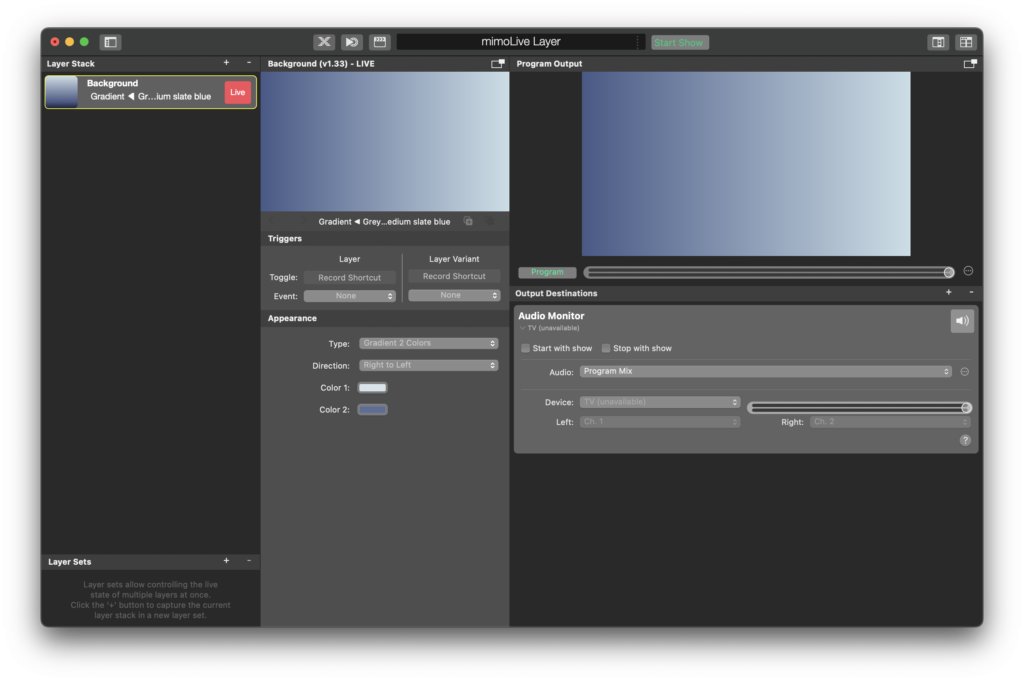
### Key Features and Customization Options:
**1. Type:**
- You can choose from several background types depending on your visual needs:
- **Solid Color:** Displays a single, flat color.
- **Gradient 2 Colors:** Allows a smooth transition between two colors.
- **Gradient 3 Colors (Optional):** If needed, a three-color gradient for more complex backgrounds.
**2. Direction:**
- Control the direction of the gradient:
- **Right to Left:** The gradient transitions horizontally, from the first color to the second.
- **Top to Bottom:** Creates a vertical gradient transition.
- **Other Directions:** Depending on your design, you can adjust the gradient to flow in various directions (e.g., diagonal).
**3. Color Customization:**
- **Color 1:** Select the first color in the gradient (or solid color, if applicable). This serves as the starting point of the gradient.
- **Color 2:** Choose the second color, defining the endpoint of the gradient. This helps create a smooth, visually appealing transition between two tones.
- For **solid color**, only **Color 1** will be active. For **gradients**, both **Color 1** and **Color 2** will be utilized.
### Appearance Customization:
The Background Layer is highly customizable, offering flexibility for a wide range of applications:
- Use **light gradients** for a fresh, modern look or **dark tones** for a more dramatic, intense feel.
- **Gradients** are perfect for adding depth and dimension to your scene, creating a professional backdrop for text, graphics, or other layers.
### Triggers and Control:
**1. Toggle:**
- Assign a **record shortcut** to easily enable or disable the background layer during your live stream, ensuring full control over the visuals.
**2. Event:**
- You can optionally link the Background Layer’s activation to a specific event, automating its display
---
#### World News Layer
Source: https://mimolive.com/user-manual/live-editing/layers/backdrops/world-news/
Last updated: 2025-06-16
Applies to mimoLive: World News V4.13
The World News Layer in mimoLive allows you to create visually appealing, rotating globe effects, perfect for news broadcasts or global-themed presentations. This layer provides control over the rotation, axis orientation, globe style, and much more, allowing users to customize the look and feel of their broadcast.
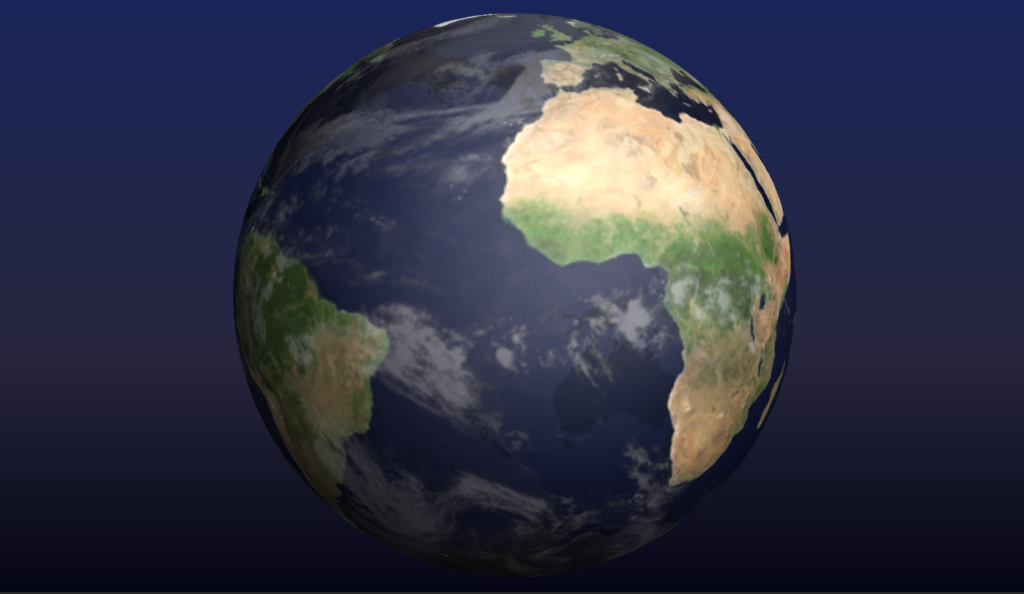
### **Key Features**
- **Rotating Globe**: Displays a 3D rotating globe that can be customized in terms of axis orientation, speed, and rotation style.
- **Different Globe Types**: Choose between “Normal”, “Glowing”, or “Realistic” styles to fit the mood and theme of your presentation.
- **Custom Colors**: You can adjust the colors of the globe and background for better integration into your overall design.
- **Grid and Side Views**: Show or hide a grid on the globe and decide which sides (front, back, or both) are visible.
- **Adjustable Geometry**: Fine-tune the size (diameter) and position (X/Y) of the globe within the frame.
- **Background Customization**: The background can be customized with gradients, images, or solid colors to enhance the presentation.
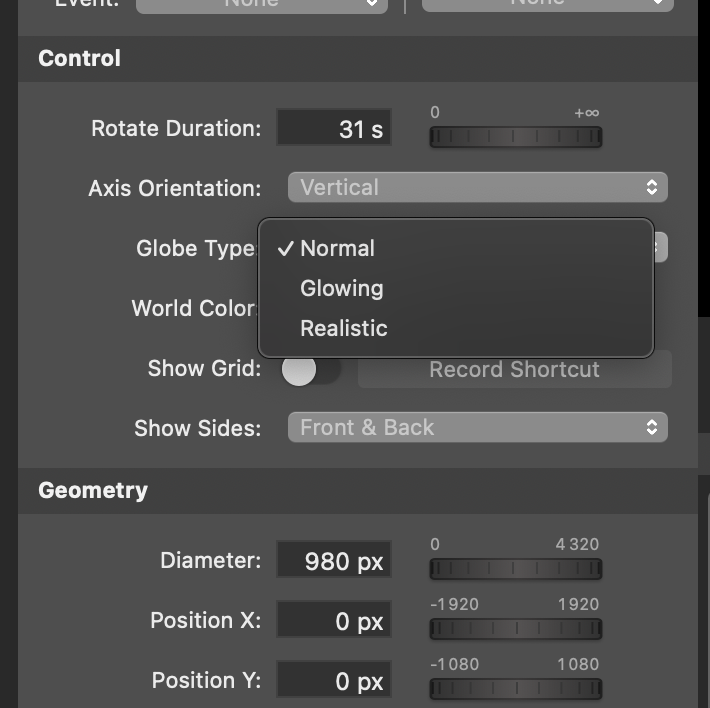
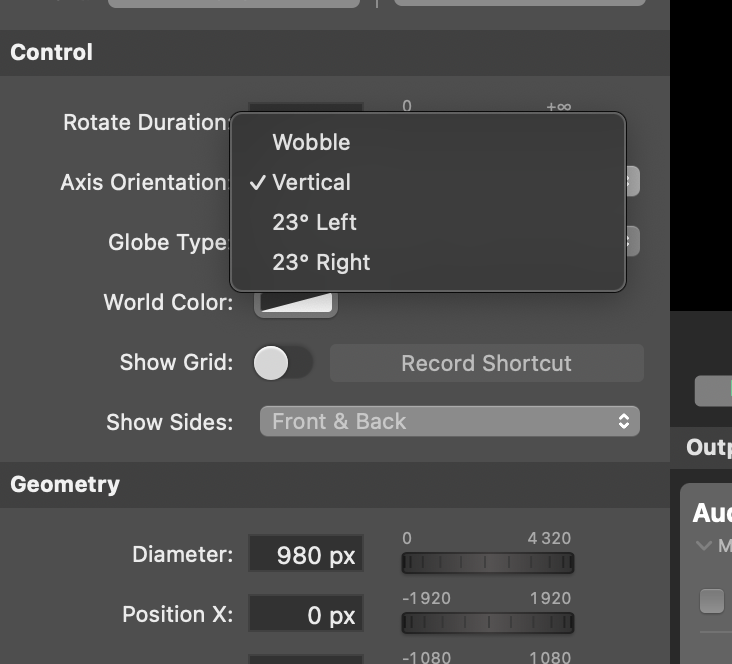
### Layer Configuration
1. **Adding the World News Layer**:
- Navigate to the Layer Stack and add the “World News” layer by clicking the + button.
- Select “World News” from the list and add it to your project.
### **Controls**:
The World News layer provides a variety of customization options for the rotating globe:
- **Rotate Duration**: This slider allows you to set how fast or slow the globe rotates. In the provided example, the rotation duration is set to 31 seconds.
- **Axis Orientation**: You can select from several options:
- **Vertical**: The globe rotates along a vertical axis.
- **23° Left/Right**: This tilts the axis by 23° to the left or right for a more dynamic presentation.
- **Wobble**: Adds a wobbling effect to the globe rotation for a more organic movement.
- **Globe Type**: Choose between:
- **Normal**: A basic globe representation.
- **Glowing**: Adds a glowing effect to the globe for a more dramatic look.
- **Realistic**: Provides a more detailed, realistic representation of the Earth.
- **World Color**: This allows you to customize the color of the globe to match your theme. You can pick from a range of colors using the color picker tool.
- **Show Grid**: Optionally, display a grid overlay on the globe to provide more geographic structure. You can toggle this option on or off.
- **Show Sides**: Select whether you want to show the front, back, or both sides of the globe as it rotates.
### **Geometry Settings**
**Diameter**: Adjust the size of the globe using the “Diameter” slider. The example shows a globe with a 980px diameter, but you can increase or decrease this to fit your needs.
**Position X/Y**: Adjust the globe’s position horizontally and vertically on the screen using the X and Y position sliders. These values allow precise control over where the globe appears in your frame.
#### Background Customization:
- **Background Type**: You can choose from a solid color, gradient, or image for the background behind the globe.
- **Gradient**: In the example, a three-color gradient is used, which provides a smooth transition of colors to match the global theme.
- **Position**: Set the position of the gradient to determine how it transitions between colors. In this case, it is set at 60%.
#### Practical Tips:
##### **Choosing the Right Globe Type:**
If you want a simple, clean look, stick with the “Normal” globe type.
For a more visually engaging broadcast, try the “Glowing” or “Realistic” styles.
##### Use Axis Tilt for a Dynamic Look:
The “23° Left” or “23° Right” tilt options give your globe a more dynamic, news-broadcast feel, making the presentation more engaging.
##### Customize the Background:
The background gradient or image can make the globe stand out. Experiment with different colors to find the right balance between your globe and the background.
### Conclusion
The World News Layer in mimoLive is a powerful tool for creating professional-looking, rotating globe effects for your live stream or broadcast. With a wide range of customization options, from axis orientation to globe type and color, you can create a unique and polished look that suits your broadcast theme. Use this layer to add a global, sophisticated touch to your news presentations or shows.
---
### Interaction
Source: https://mimolive.com/user-manual/live-editing/layers/interaction/
Last updated: 2025-11-19
**Interaction Layers** in mimoLive enable real-time engagement with your audience by integrating live comments, reactions, and social media activity directly into your broadcast. These layers connect your production to platforms such as Facebook and YouTube, allowing viewers to become an active part of the show.
Whether you want to highlight audience comments, display reaction counts, or show social media engagement metrics, Interaction Layers make it easy to bring viewer participation on-screen in a visually appealing and dynamic way. They help create a more interactive, community-driven experience and are especially useful for live interviews, Q&A sessions, gaming streams, webinars, and social-media–focused broadcasts.
Interaction Layers support flexible layouts, customizable designs, and seamless integration with mimoLive’s data sources, ensuring that social content blends smoothly into your production style.
---
#### Facebook Reactions Layer
Source: https://mimolive.com/user-manual/live-editing/layers/interaction/facebook-likes/
Last updated: 2025-06-16
This layer displays the reactions (aka. “Likes”) of a particular Facebook Post.
#### Setting up the Facebook Reactions layer
1. In order to make the Facebook Reactions layer work you need to [setup a Facebook account in the Accounts Preferences](https://mimolive.com/user-manual/accounts).
2. [Create a Social Media Source](https://mimolive.com/user-manual/social-media) to retrieve the reaction Data of the Facebook post or live video of your choice. If you need to display reactions of a custom Facebook post you need to [get the Facebook Post ID](https://mimolive.com/user-manual/getting-the-facebook-post-id) and enter it in the Post ID field in the Social Media Source.
3. [Add the Facebook Reactions layer](https://mimolive.com/user-manual/layers-and-variants) to your layer stack and switch it live.
4. Select the Social Media source as the **Data Source** in the **Content** section of the layers parameters.
#### Setting up the Facebook Likes layer as a Voting Poll
*!***Facebook Rules**
If using the Facebook Likes layer for polls, please make sure you follow Facebook’s rules on [how to use Reactions in a live stream](https://en.facebookbrand.com/assets/reactions) .
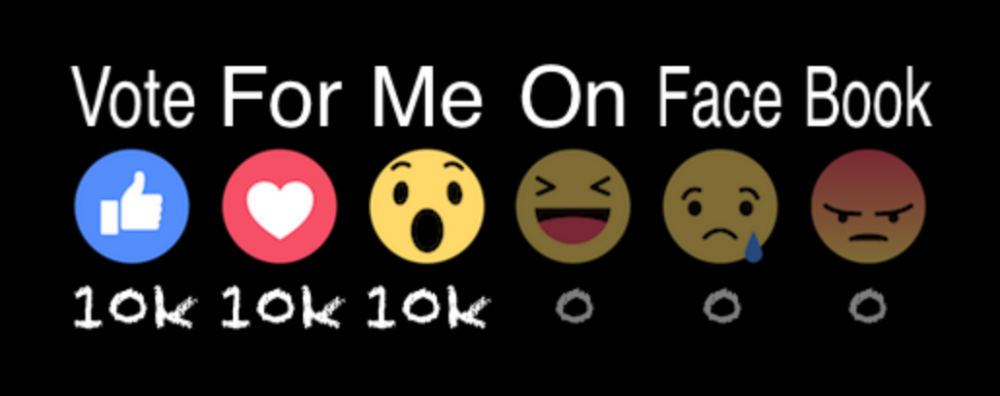
It is very popular to use the Likes counts of a Facebook Post for a Voting Poll. You can add text labels to each Facebook Likes icon so that it is clear which icon stands for which possible answer. First you need to switch on the “Enabled” option in the Voting section. Now you can set up the font type, size and color for the text labels with the “Text” option. Fill in the text labels you want in the text fields accordingly.
#### Customizing The Look
You can either click and drag the guide lines in the preview view to adjust the position and size of the output or setup the inset and width parameter in the “Geometry” section of the layer settings.
When you switch the layer “live”, the Likes icons will move in from one side by default. You can change the Transition type from “Right to Left” to “Left to Right”, “Cut”, “Dissolve” or “Push” in the “Animation” section.
In the Appearance section of the layer settings you can change the font type, size and color for the Likes count.
If you don’t want to display all the possible like icons you can uncheck them in the “Appearance” section with the appropriate “Include” option
The “Show Zeros” option let you define if you want to automatically hide the Likes icons that have no clicks yet. If they will get clicks over time the icons will appear again automatically.
If your voting poll runs in higher numbers than 1000 then the option “Short Numbers” will help with the layout. The Numbers will get truncated and get extensions like “k” for thousands and “m” for millions.
Anytime a new click will be registered for a certain Like the appropriate icon will pop to seek attention by the audience. You can switch off this animation with the “Jump” option in the Appearance section.
The icons can be adjusted in size by the “Image Size” value. 100% means as big as can be to fit all icons in to the “Width” parameter of the Geometry section.
The Likes icons are the defaults provided by Facebook. You can exchange them in the image input fields at the bottom of the Appearance section.
---
#### Comments Layer
Source: https://mimolive.com/user-manual/live-editing/layers/interaction/comments/
Last updated: 2026-08-19
The Comments layer in mimoLive is a powerful tool that enables you to showcase real-time comments from your audience during a live stream. Whether you're broadcasting on YouTube or Facebook, you can easily integrate viewer comments into your content and engage with your audience in real-time. This layer is highly customizable, allowing you to change the font, size, and color of the comments to match your branding.
With the Comments layer, you can keep your viewers engaged and connected with your content.
**Learn more about [working with Social Media Comments in mimoLive](comments-1)**
#### Setting up the Comments layer
The Comments layer is receiving its data from the Comments window. Therefor you don’t need to specify a data source in the layer itself.
In the Content Section you can choose if the layer should reset the video output when its gets switched live with the “Reset On Live” option.
The “Show User Image” option tells the layer if it should display the comments authors profile image. For certain design guides it may be necessary to switch it off.
In the Animation Section you can specify how new comments should appear. The animation could be either **Zoom In**, **Push from bottom**, **Push from the side** or a **Dissolve**. If you don’t want an animation you can switch this option to **Cut**.
The **Duration** parameter specifies the appearance animation duration in seconds.
Because there could be a fast update rate for comments the Min Display Time can force a certain update speed allowing the audience to read individual comments.
> **Note:** Comments gets dropped if there is no display time available
>
> If you get more comments than the Min Display Time is allowing to be displayed then comments gets skipped in order to maintain the readability over all
The scroll direction of the comments can be switched from **Vertical** mode to **Horizontal** mode. Please note that in **Horizontal** mode the height of the comments is varying because the width is fixed.
In the Appearance section you will find lots of parameters to control the text and graphical elements in shape and color. There is also an option to define the area for the fade out.
The Geometry parameter lets you specify where the comments will scroll in your video. You can either enter pixel values here or use the direct manipulation in the layers preview area.
#### Controlling the Comments layer
You only need to switch the layer live. It will display the comments that are shown in the [Comments Window](https://mimolive.com/user-manual/comments-1) automatically.
---
#### Social Media Likes Layer
Source: https://mimolive.com/user-manual/live-editing/layers/interaction/social-media-likes/
Last updated: 2026-08-19
The Social Media Likes layer lets you display the Likes count for a certain Facebook Page.
#### Setting up The Social Media Likes layer
##### Connect a data source
1. In order to make the Social Media Likes layer work you need to [setup a Facebook account in the Accounts Preferences](https://mimolive.com/user-manual/accounts).
2. [Create a Social Media Source](https://mimolive.com/user-manual/social-media) to retrieve the Page Likes of the Facebook Page.
> **Note:** You are able to select Pages that can be accessed by the Facebook account you set up in step 1 only.
3. [Add the Social Media Likes layer](https://mimolive.com/user-manual/layers-and-variants) to your layer stack and switch it live.
4. Select the Social Media source as the **Data Source** in the **Content** section of the layer's parameters.
##### Design the layout
In the **Geometry** section of the layer's parameters, you can position the likes counter in you video output. This is also possible with direct manipulation in the layers preview area.
If you happen to have a large number of page likes you probably want to not display it in the total length. The **Short Numbers** option in the **Appearance** section will shorten the number to the nearest power-of-ten digit.
If you want to draw attention to the change of the number you can switch on the **Wiggle Badge** option. The thumbs-up graphic will wiggle each time the counter changes.
The **Background\* of the Social Media Likes layer is a rounded box with a constant color by default. However, you can change it to be a \*\*Gradient Left to Right**, **Gradient Top to Bottom** or a **Custom** graphic.
A **Drop Shadow** option let you put some contrast to the background. The drop shadow can be adjusted in **Color**, **Blur**, **Distance** and **Direction**.
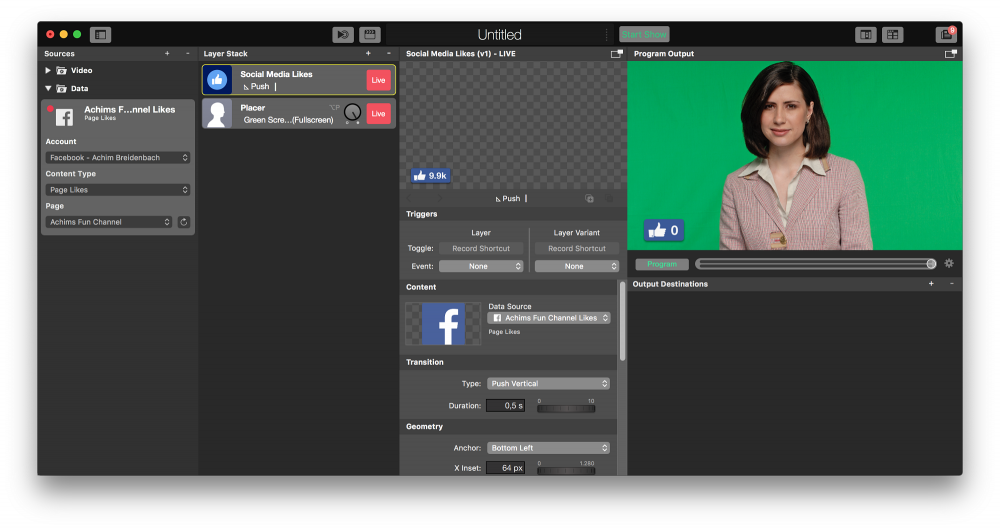
---
#### Single Comment Layer
Source: https://mimolive.com/user-manual/live-editing/layers/interaction/single-comment/
Last updated: 2026-08-19
This layer displays a single comment in a lower third format.
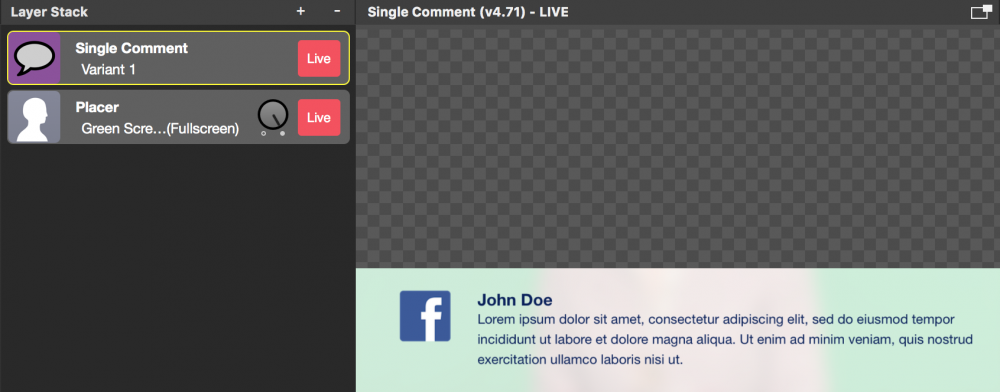
#### Setting up the Single Comment layer
Because the setup of the Single Comment layer is very similar to the basic Lower Third layer please refer to the documentation about the [Lower Third](https://mimolive.com/user-manual/lower-third) to learn about all the parameters.
However, there is some difference in the Lower Third layer:
- You can’t specify a logo graphic. The logo gets either replaced by the user profile image or displays the channel where the comment was coming from.
- The height of the background is depending on the amount of text that is present in the comment.
#### Controlling the Single Comment layer
There are no certain control elements in this layer. You need to switch it to live in order to make it work. Once it is switched live it listens to the [Comments Window](https://mimolive.com/user-manual/comments-1) and displays comments that are set to be “live” there.
#### Displaying Comments on the Remote Control Surface
A very useful function is the display of the comments on the [Remote Control Surface](https://mimolive.com/user-manual/remote-control-surfaces). This way you can have an iPad for example to display the current comment right in front of the show host.
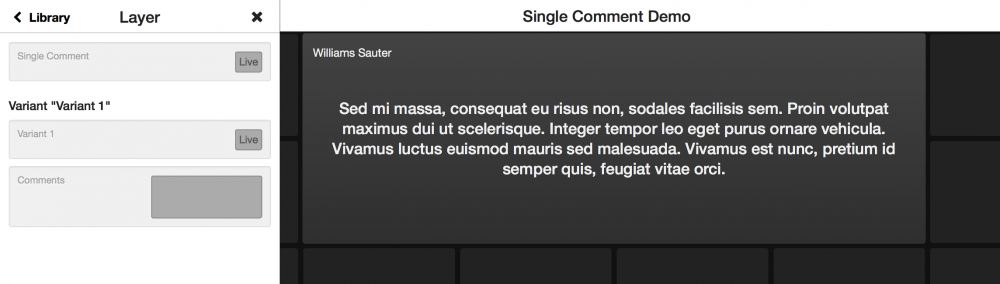
> **Note:** You can create multiple Remote Control Surfaces for different purposes.
>
> Because you can create multiple Remote Control Surfaces for one mimoLive document its possible to create one Remote Control Surface for the mimoLive operator and a second for the show host with different functions and buttons.
---
### Sports
Source: https://mimolive.com/user-manual/live-editing/layers/sports/
Last updated: 2025-11-19
**Sports Layers** in mimoLive provide specialized tools for producing professional sports broadcasts, enabling you to manage replays, display scores, track game progress, and present team information in a clear and engaging way. These layers are designed to support fast-paced live environments where timely, accurate, and visually consistent graphics are essential.
Whether you’re covering a local match, streaming a school tournament, or producing a full-scale sports broadcast, the Sports Layers offer streamlined workflows for scorekeeping, timekeeping, game event management, and automated visual updates. Together with optional add-on systems such as the Sports Graphics System, they enable you to build a complete sports-ready production pipeline within mimoLive.
---
#### Instant Replay Layer
Source: https://mimolive.com/user-manual/live-editing/layers/sports/instant-replay/
Last updated: 2025-06-16
The Instant Replay layer allows it to roll back a few seconds. Perfect for sports events if a game-changing event is worth replaying.
You can watch a demo video here on YouTube.
[Video on YouTube](https://www.youtube-nocookie.com/embed/dSlLObuiviU?rel=0&autoplay=1)
The Instant Replay layer buffers the last seconds of the layers below or a [video source](https://mimolive.com/user-manual/sources-and-the-sources-repository) for instant replay.
#### Setting up the Instant Replay layer
First, you need to think about what you want to be able to replay: You can select either “Layers Below” or “Video Source” for the Source option in the Content section of the layer’s parameters.
The benefit of choosing “Layers Below” is that the complete content of all layers below the Instant Replay layer will be captured. E.g. if you have a Video Switcher, the switched output will be captured. That’s why we recommend putting the Instant Replay layer just above the video productions layers in order to have a clean signal (no other graphics):
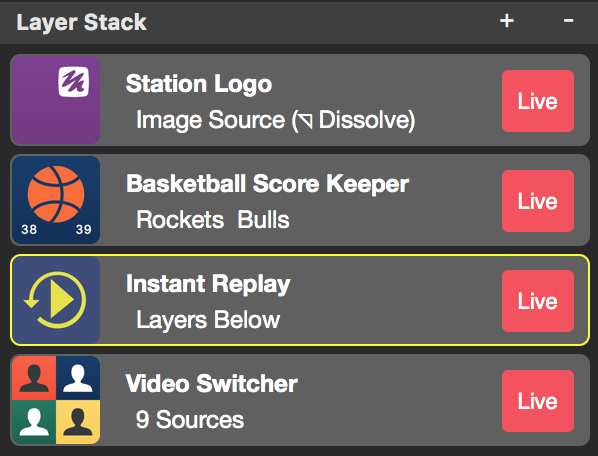
If you choose to capture a certain “Video Source” you need to specify this source with the popup below. Now you can replay video content independently from the layer stack.
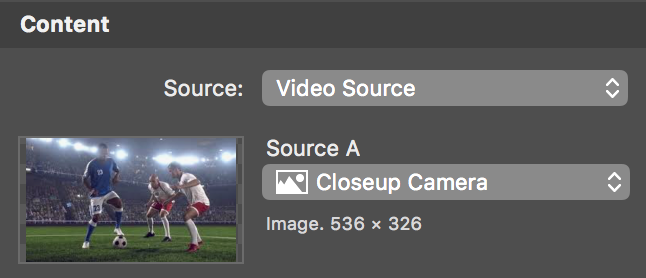
The “Buffer” field let you control how much video footage in seconds should be buffered for instant replay.
*!*How much time can be buffered is depending on your graphic card!
The video buffering happens on the graphics card only. This means that you need lots of memory inside your graphics card rather than RAM in your Mac. Unfortunately, it is hard to determine how much video RAM is available to mimoLive because macOS does a lot of magical housekeeping so we already successfully stored 10 secs of 1080p 30fps video frames (=2.5GB) in a 2GB video card. Even if this is possible it is not recommended because it certainly will have a side effect on the rendering engine in mimoLive.
In the Animation section, you can specify how the replay should appear and disappear in the video. You can choose from several animations like Dissolve, Swipe, Page Curl, Push Horizontal, Push Vertical or even a Cut. Put the transition duration in seconds into the Duration input field.
There is a Replay Indicator that will be shown once the replay is in progress. Specify the video source that should be shown in the “Appearance” section. The graphic can be positioned freely on the screen either by direct manipulation in the layer preview area or with the coordinates in the Geometry section.
#### Controlling the Instant Replay layer
In order to capture the selected content, the Instant Replay layer needs to be live all the time. While the layer is live to capture the current video frames into a buffer. How much video is already in the Buffer is indicated by the progress bar in the layers Preview area.
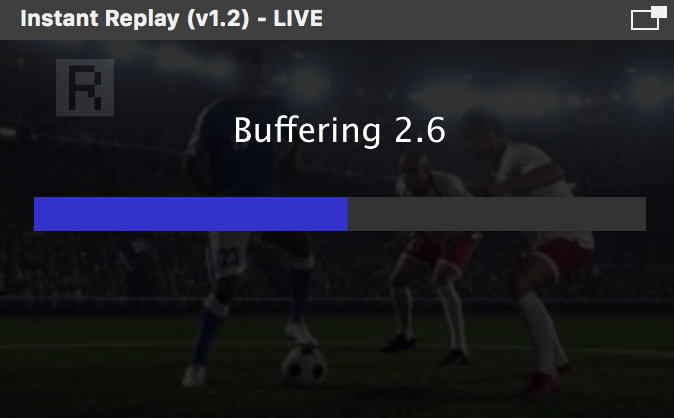
Whenever there is a scene that could be interesting for the audience to see as a replay the operator can press the “Buffering Stop” button to playback the scene whenever the moderator announces it, or he can press “Replay Start” which will start the plack back instantly.
Before or while the playback it is possible to control the playback speed by the Button “Speed”.
| Button | Play Back Speed |
| --- | --- |
| Reverse | reverse at normal speed |
| Pause | paused |
| 0.3 | 1/3 speed |
| 0.5 | half speed |
| 1.0 | normal speed |
Once the replay operation should end the operator needs to press the “Replay Stop” button. Now the buffering of the video content starts again.
#### Remote controlling the Instant Replay layer
Because this is a very intense operation it makes sense to create a [Remote Control Surface](https://mimolive.com/user-manual/remote-control-surfaces) for this task. Please keep in mind that you are able to create multiple control surfaces for different tasks and use them on different devices at the same time.
The buttons are quite the same as described above in “Controlling the Instant Replay layer”.
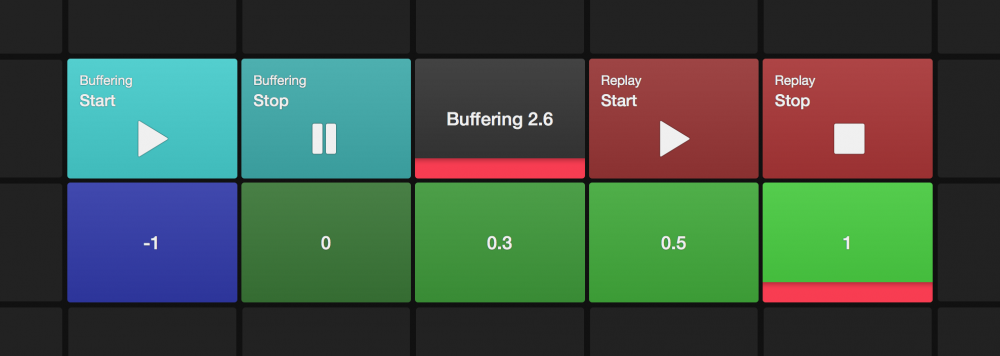
### Advanced: How to add a custom stinger (transition) to the Instand Replay layer
The Instand Replay layer comes with a variety of transition. However those are very basic and may not fit your needs. Here is an example on how you can make your own stinger before rolling the instand replay:
A stinger is a short clip played before switching to another video source. It will cover the complete screen for a blink of an eye when the switch of the video sources will happen. In our case we will start the Instand Replay in this vary moment.
- Check out the [Stingers & Outros template](https://mimolive.com/user-manual/stingers-outros) for some inspiration on how to build a stinger from a Lower Third layer. Maybe one of the designs matches your needs already then just copy and paste the layer to your project! Maybe you need to set the “Text Duration” option to zero to have a faster transition.
- Set the “Transition” option in the “Animation” section of the Instand Replay layer to “Cut”. We need to start it immediately once it gets the play back command.
- Add an [Automation layer](https://mimolive.com/user-manual/automation) to your [layer stack](https://mimolive.com/user-manual/layers-and-variants). This Automation layer will run a script to synchronise the Stinger layer and the Instand Replay layer.
- In the Automation layer you need to use the layerOn() command to start the stinger layer. Right click on the stinger layer in the layer stack and select “Copy layers API Endpoint” from the context menu. Fill in this API-Endpoint into the layerOn() command like so:
layerOn(/api/v1/documents/1955505422/layers/C6F0EA76-240D-4CE2-AE1E-1499EC93E30E)
*!*In order to make this command work you need to enable the “Allow Remote Control Access” option in the mimoLive preferences!)
- Next step in the script is to wait a bit (timing is depending on your stinger when it covers the complete screen). To do so use the sleep() command:
.bc sleep(0.5)
- Add an httpRequest() command to the script in order to trigger the “Replay: Start” button of the Instand Replay layer. Right clicking on the button to get another context menu. Select “Copy URL to trigger Button” menu item. The URL goes into the httpRequest() command:
.bc httpRequest(http://127.0.0.1:8989/api/v1/documents/1955505422/layers/CAD2DDBC-118E-4305-868C-CB115AFAC9B1/signals/tvGroup\_Control\_\_Start\_TypeSignal)
- The complete Automation script should look something like this:
.bc layerOn(/api/v1/documents/1955505422/layers/C6F0EA76-240D-4CE2-AE1E-1499EC93E30E)
sleep(0.5)
httpRequest(http://127.0.0.1:8989/api/v1/documents/1955505422/layers/CAD2DDBC-118E-4305-868C-CB115AFAC9B1/signals/tvGroup\_Control\_\_Start\_TypeSignal)
- Now you need a second Automation layer that does the revers but with the “Replay: Stop” button so you can transition out of the instand replay mode. (Alternatively you can use the “Replay Stop” button itself if the “cut” transition is appropriate for you.)
---
#### Basketball Score Keeper Layer
Source: https://mimolive.com/user-manual/live-editing/layers/sports/basketball-score-keeper/
Last updated: 2026-08-19
Applies to mimoLive: Basketball Score Keeper (v4.42)
Welcome to the detailed manual for the Basketball Score Keeper Layer in mimoLive. This section will guide you through the functionalities and settings of the Basketball Score Keeper Layer, enabling you to efficiently manage and display scores during live broadcasts.
> **Important:** Note:
>
> While this layer is named the Basketball Score Keeper Layer, it can be used for any team sport that utilizes 1, 2, or 3 points at a time.
[Video: Layer-Basketball-Score-Kepper.mp4](https://mimolive.com/wp-content/uploads/2024/07/Layer-Basketball-Score-Kepper.mp4)
### Overview
The Basketball Score Keeper Layer is designed to provide two primary views for displaying the scores of a game. Both views are highly customizable, ensuring that you can tailor them to fit your broadcast’s aesthetic and functional needs.
### Views
#### Permanent Lightweight Scoreboard
The permanent lightweight scoreboard is a compact display that shows the score of the game in real time. This scoreboard remains visible throughout the entire game, ensuring that viewers are always informed about the current standing.
#### Full Screen Overlay
The full screen overlay provides a larger, more detailed view of the current standing, focusing the audience’s attention on the game’s progress. This view is ideal for moments when you want to highlight the scores prominently.
### Customization Options
Both views of the Basketball Score Keeper Layer offer extensive customization options, allowing you to adjust the appearance and positioning to match your broadcast style.
#### Team Logos
You can set team logos using PNGs with transparency or other graphic types. This ensures that the logos blend seamlessly with the rest of the graphics.
#### Colors and Fonts
The colors and fonts for both views can be customized separately. This allows you to maintain a consistent branding style across your broadcast while ensuring that each view is distinct and visually appealing.
#### Positioning and Layer Control
As with other layers in mimoLive, you have full control over the positioning and layering of the Basketball Score Keeper Layer. This includes adjusting the position of the score display, as well as controlling the layer order to ensure that the scoreboard and overlay are integrated smoothly into your broadcast.
### Score Control
To update the scores during the game, the Basketball Score Keeper Layer provides three buttons for each team:
• **1 Point Button**: Adds one point to the team’s score.
• **2 Points Button**: Adds two points to the team’s score.
• **3 Points Button**: Adds three points to the team’s score.
These buttons allow for quick and accurate score updates, ensuring that the displayed scores are always current.
The layer comes with a predefined remote control layout that makes it easy to install on a [Remote Control](https://mimolive.com/user-manual/using-mimolive/remote-control-surfaces/) Surface. It contains all the important buttons for changing the score and controlling the layout in the program output.

### Performance and Accuracy
The Basketball Score Keeper Layer is optimized for high performance and accuracy, ensuring that all score updates are reflected instantaneously on the screen. This guarantees a seamless viewing experience for your audience.
### Smooth Transitions
The layer ensures smooth transitions between the lightweight scoreboard and the full screen overlay. This provides a professional and polished look to your broadcast, keeping the audience engaged without any visual disruptions.
We hope this manual helps you understand and utilize the Basketball Score Keeper Layer to its full potential. For further assistance, please refer to the other sections of the mimoLive manual or contact our support team.
---
#### Basketball Scores Layer
Source: https://mimolive.com/user-manual/live-editing/layers/sports/basketball-scores/
Last updated: 2025-06-16
The **Basketball Scores Layer** in mimoLive allows you to display pre-defined basketball game scores directly in your live stream. This layer is perfect for sports broadcasts, game updates, or highlight reels where scores need to be shown in a clear and organized manner.
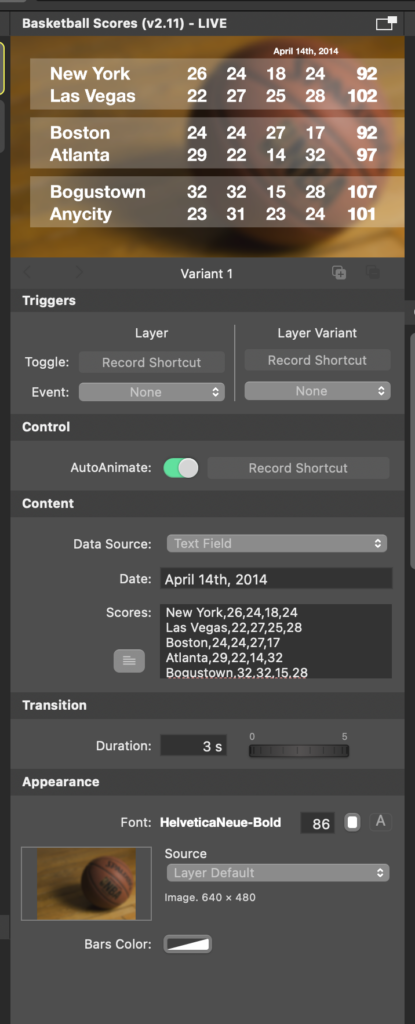
### Layer Setup Parameters
#### Triggers
- **Toggle:** Assign a record shortcut to easily activate or deactivate the Basketball Scores layer during your live stream. This is useful for quick control without navigating away from your broadcast.
- **Event:** Optionally, you can assign a specific event that triggers the score display. In this example, no event is currently set.
#### Control
- **Auto Animate:** When enabled, this option automatically animates the complete scoreboard when the layer is switched to live. When switched off, each row can be slid in manually one after the other. This is useful if the host is discussing each score separately.
#### Content
##### Data Source:
- The default option is **Text Field**, where you manually enter the game data as a comma separated table. However, this can be customised to pull from other sources, such as external databases or a CSV file.
##### Date**:**
- The date field allows you to display the game date on screen. For example, in the screenshot, it is set to **April 14th, 2014**. This is particularly useful when showing scores from multiple games on different days.
##### Scores:
- The main section where you input scores, team names, and quarter-by-quarter breakdowns. The format is structured as follows:
- **Team Name:** The name of the competing teams (e.g., *New York* and *Las Vegas*).
- **Scores per Quarter:** Each quarter’s score is entered sequentially, separated by commas.
- Two rows of table data results in one row of one game.
##### Example Input:
```
New York,26,24,18,24
Las Vegas,22,27,25,28
Boston,24,24,27,17
Atlanta,29,22,14,32
Bogustown,32,32,15,28
Anycity,23,31,23,24
```
#### **Transition Settings**
##### Duration:
- Adjust the transition time when switching in or out of the Basketball Scores Layer. The default duration is **3 seconds**. This creates a smooth fade or transition effect, ensuring the scoreboard appears and disappears without harsh jumps.
#### Appearance Settings:
##### Font:
- Select the font style and size for the text. In the example, the font is set to **HelveticaNeue-Bold**, with a size of **86** pixels for clear readability on the screen.
##### Source (Background Image):
• You can choose the background image for the scoreboard display. The default source is the **Layer Default**, showing a basketball-themed image (a basketball on a court). You can replace this with a custom image that matches your branding or event theme.
• **Bars Color:**
• Adjust the color of the score bars. The bars separate each game. In the example, the bar color is set to a light grey. You can customize this color to match the overall branding of your stream or broadcast.
#### Practical Tips:
1. Game Updates:
- If you need to automatically update the game data consider to use the remote http API call to set the tables data content from outside of mimoLive.
2. Custom Background:
- Consider changing the background image or color based on the theme of the event or season. For example, during playoffs, you could use a different color scheme to emphasize the importance of the games.
3. Font Size and Style:
- Adjust the font size according to the size of your broadcast window. If you’re displaying the scoreboard in a smaller part of the screen, reduce the font size accordingly for better fit and legibility.
4. Multiple Games Display:
- Use the format to display multiple games at once, especially useful for recaps or highlights of multiple matches within a tournament or season.
The **Basketball Scores Layer** in mimoLive is a powerful tool for enhancing sports broadcasts by providing game score updates. With flexible design and animation options, this layer ensures that your audience stays engaged and informed throughout the event.
---
#### Sports Graphics System
Source: https://mimolive.com/user-manual/live-editing/layers/sports/sports-graphics-overview/
Last updated: 2025-11-19
### About the Sports Graphics System
Always stay on top of the game with the Sport Graphics add-on. This pack contains sources and layers for mimoLive to support sports broadcasts with scorekeeping, timekeeping, game events, team roster, and more.
The Sports Graphics add-on contains a set of data sources and layers that work together to provide various graphical elements for a sports broadcast.
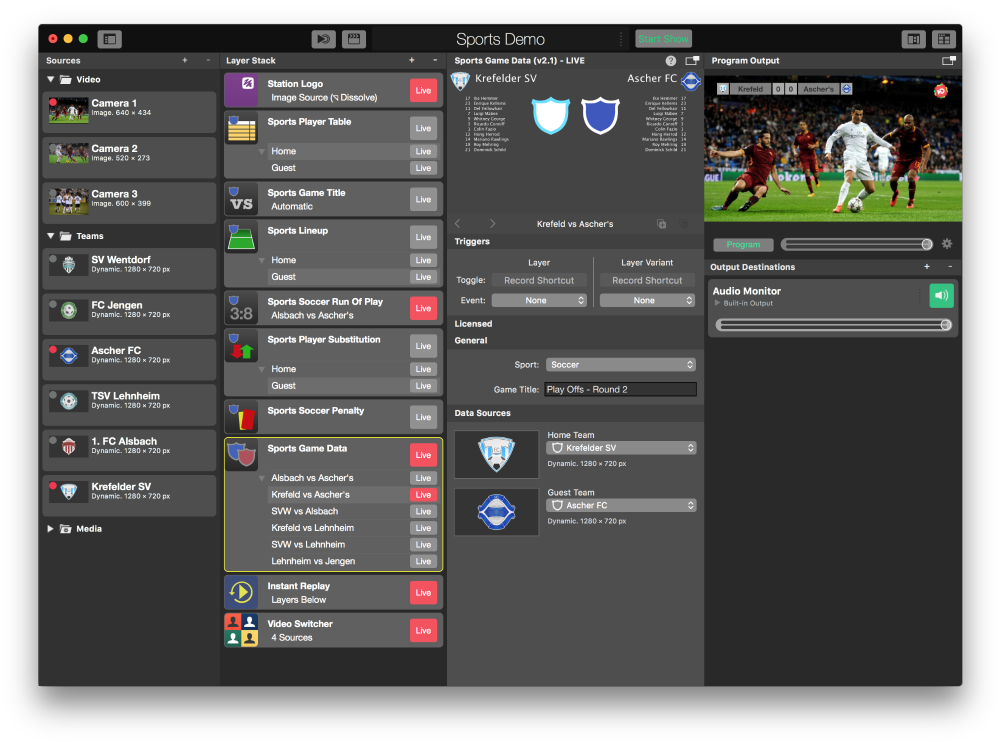
You will need one [Sports Team Data](https://mimolive.com/user-manual/sports-team-data) source for each team that is in your tournament. At the bottom of your layer stack, you will need a [Sports Game Data](https://mimolive.com/user-manual/sports-game-data) layer that will bring together two teams for one match. This layer then provides the team’s data (like player names and team emblem) to the [Sport Graphic Layers](https://mimolive.com/user-manual/live-editing/add-ons/sports-graphics-overview/sports-graphic-layers/) above in the layer stack.
### Sports Graphics Demo Template and Tutorial
To see how it all works together you can open up the Sports Graphics Template. It can be open by selecting the document template “Sports Graphics Demo” in the [New Document window](https://mimolive.com/user-manual/using-mimolive/templates/) of mimoLive.
Watch this video for an overview:
[Video: Sports-Layers-Demo.mp4](https://mimolive.com/wp-content/uploads/2023/03/Sports-Layers-Demo.mp4)
---
#### Sports Graphics - Layers
Source: https://mimolive.com/user-manual/live-editing/layers/sports/sports-graphics-overview/sports-graphic-layers/
Last updated: 2026-08-19
> **Note:** Sports Graphics Pack comes bundled with mimoLive® Studio and mimoLive® Broadcast licenses.
>
> If you have a mimoLive Non-Profit license, you can purchase this add-on through the [mimoLive Online Shop](https://mimolive.com/store/addon/)
The optional Sports Graphic licenses enables special [Data Sources](https://mimolive.com/user-manual/data-sources) and the following list of layers:
You can test those layers within mimoLive by enabling the demo mode.
---
#### Sports Player Table Layer
Source: https://mimolive.com/user-manual/live-editing/layers/sports/sports-graphics-overview/sports-graphic-layers/sports-player-table/
Last updated: 2026-08-19
> **Note:** Sports Graphics Pack comes bundled with mimoLive® Studio and mimoLive® Broadcast licenses.
>
> If you have a mimoLive Non-Profit license, you can purchase this add-on through the [mimoLive Online Shop](https://mimolive.com/store/addon/)
With the Sports Player Table, you can show up to 12 players of a team in a chart.
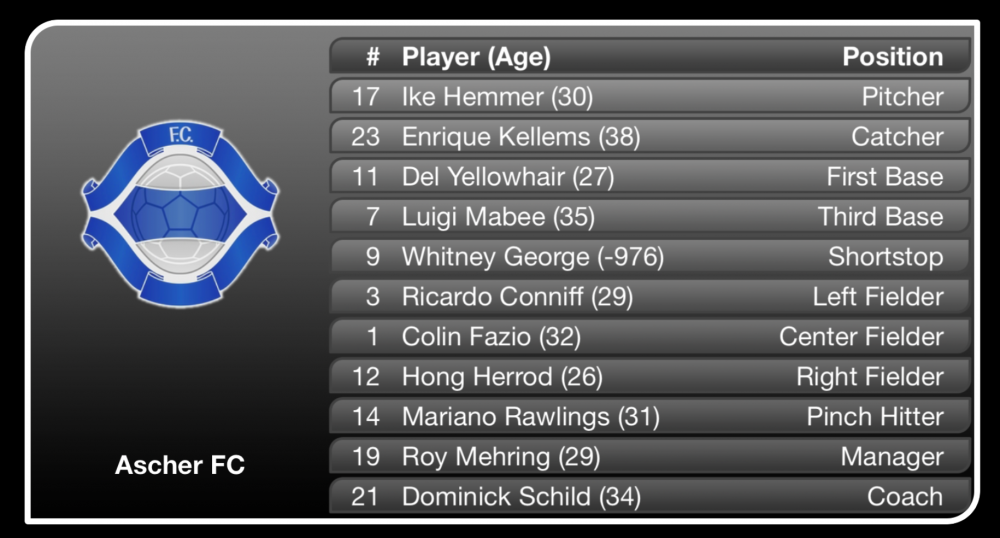
#### Configuring the content
In the Content parameter group of the layer, you can specify how many players should be visible. with the Titles text field, you define how many columns you want to show. Use a comma to separate each title. You are required to set up the column titles however you can switch off their presents in the rendered graphics with the Show Header option.
In the Team section, you can define what data should be shown in which column. Separate each column by a comma.
#### Set Up The Animation
In the Control section, you can switch between Manual or Automatic switch-off of the layer. If this option is set to Automatic you can specify a presentation duration. With the Transition Duration, you can define the speed of the animation for the table.
You can choose from four different styles for the player chart: 3D Doors, Fly By, Build Up, Flip.
#### Designing The Table
With the Header and Body Font options, you can match the text appearance to your design. Specify the font face, size, color and transparency.
The Column Alignment text field lets you define if a column is right-aligned “r”, left-aligned “l” or centered “c”. Put in a valid letter for each column and separate them with a comma.
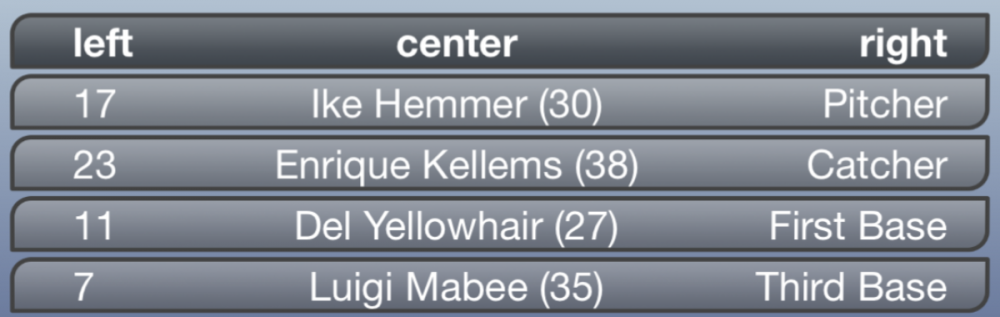
The Column Positions contain numbers to specify the position for each column. Those values are represented in the percentage of the table width. However, it is much easier to move the columns in the preview view above with direct manipulation.
The Top, Left, Bottom and Right Margin let you set up the bounding box for the table. Again, it’s easier to adjust those values with the guides in the preview view but you can enter numeric values if you need them to be precise.
You can exchange all the images that are used as backgrounds for the table, for the header row, the odd rows and the even rows.
#### Have Two Layer Variants For Home And Guest
In the Sports Player Table layer you need to select the team (Home or Guest) from the specified game in the Sports Game Data layer. It makes sense to create two [layer variants](https://mimolive.com/user-manual/layers-and-variants) of the layer: one for the Home team and one for the Guest team so that you can show one after the other just by setting the appropriate layer variant live.
*!*Make sure that you configured the layer variant completely for the “Home” team before duplicating this one to make the second variant for the “Guest” team because the parameter isn’t shared between variants!
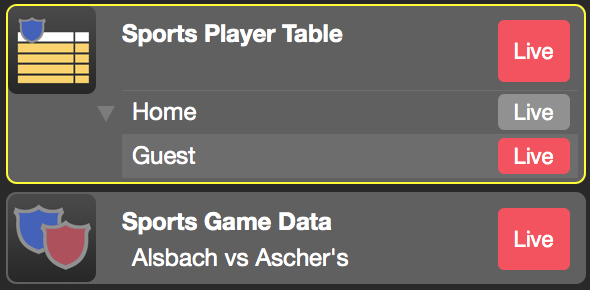
---
#### Sports Game Data
Source: https://mimolive.com/user-manual/live-editing/layers/sports/sports-graphics-overview/sports-graphic-layers/sports-game-data/
Last updated: 2026-08-19
> **Note:** Sports Graphics Pack comes bundled with mimoLive® Studio and mimoLive® Broadcast licenses.
>
> If you have a mimoLive Non-Profit license, you can purchase this add-on through the [mimoLive Online Shop](https://mimolive.com/store/addon/)
#### Specify The Game And Teams
The Sports Game Data layer combines two [Sports Team Data sources](https://mimolive.com/user-manual/sports-game-data) into one game. To specify which teams should be in a game you can either drag&drop the teams from the [Sources Repository](https://mimolive.com/user-manual/sources-and-the-sources-repository) to the Sports Game Data layer or you can select them in the Home Team and Guest Team popups:

Make sure to select the correct sports type! The [Sports Lineup layer](https://mimolive.com/user-manual/sports-lineup) uses it to choose the right game floor.
> **Note:** All the Sports Graphics layers in the layer stack above will take the current game data as their data source. It is important to switch the layer live!
#### Make Use Of Layer Variants
For a tournament, you will add multiple [layer variants](https://mimolive.com/user-manual/layers-and-variants) to the Sports Game Data layer so that you can switch to the current game by just setting the appropriate layer variant live easily.

---
#### Sports Game Title
Source: https://mimolive.com/user-manual/live-editing/layers/sports/sports-graphics-overview/sports-graphic-layers/sports-game-title/
Last updated: 2026-08-19
> **Note:** Sports Graphics Pack comes bundled with mimoLive® Studio and mimoLive® Broadcast licenses.
>
> If you have a mimoLive Non-Profit license, you can purchase this add-on through the [mimoLive Online Shop](https://mimolive.com/store/addon/)
The Sports Game Title layer can be used to present an intro at the beginning of a game or other situations where you want to communicate the current game to your audience.
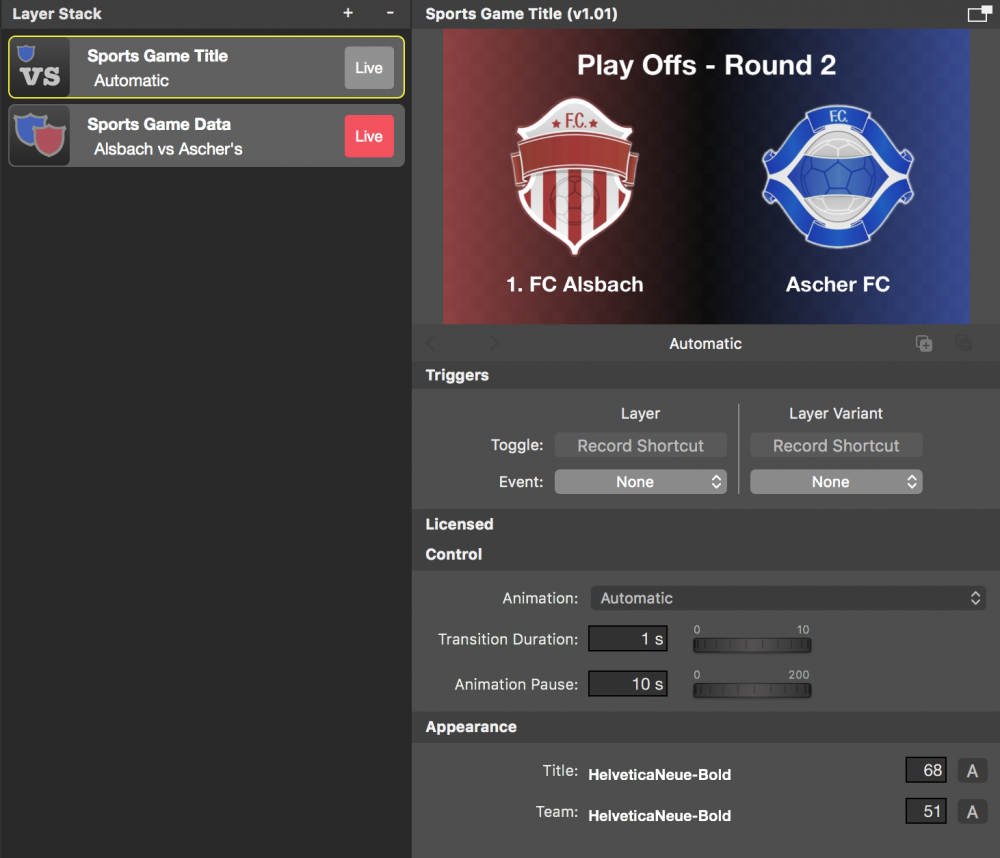
#### Customize The Appearance
There is not much that you can customize here. The title comes from the [Sports Game Data layer](https://mimolive.com/user-manual/sports-game-data), the team names, the background color and team emblems come from the [Sports Team Data sources](https://mimolive.com/user-manual/sports-team-data) that are selected in the Sports Game Data layer.
There are options to control the animation timing in speed and duration. Also, you can change the animation mode from automatic deactivation to manual shutdown.
In the Appearance group of the layer parameters, you can change the font type and font size to match your CI.
> **Note:** The background of this layer is slightly transparent so that the layers below will shine through!
---
#### Sports Lineup
Source: https://mimolive.com/user-manual/live-editing/layers/sports/sports-graphics-overview/sports-graphic-layers/sports-lineup/
Last updated: 2026-08-19
> **Note:** Sports Graphics Pack comes bundled with mimoLive® Studio and mimoLive® Broadcast licenses.
>
> If you have a mimoLive Non-Profit license, you can purchase this add-on through the [mimoLive Online Shop](https://mimolive.com/store/addon/)
The Sports Lineup layer is a fancy way to present the lineup of a team in 3D.
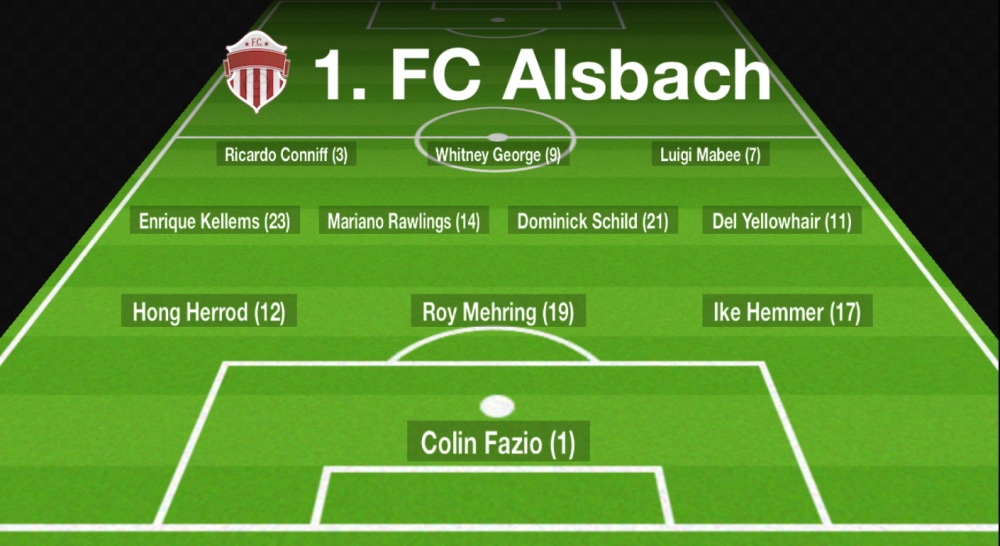
#### Configuring The Data Source
The actual content of the lineup is coming from the active live [Sports Game Data layer](https://mimolive.com/user-manual/sports-game-data), which in turn gets its data from the Sports Team Data sources that are selected in the Sports Game Data layer itself.
You need to enter the player number in the Lineup text field of the [Sports Team Data source](https://mimolive.com/user-manual/sports-team-data). The first row will be presented at the bottom of the Sports Lineup layer. Player numbers need to be separated by commas.
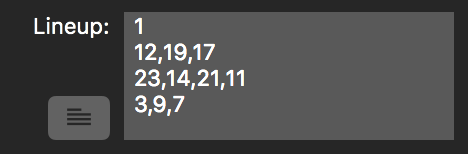
#### Changing The Appearance
There are some playing fields available depending on the game type set up in the Sports Game Data layer. If the graphics don’t match your requirements or you have a different game type that is not listed here you can add your own graphics in the Custom Playing Field image parameter.

The Player Format field specifies which columns from the Player List in the Sports Team Data source should be used for display. Use [ and ] to mark keys that you want to be replaced by the player’s data.

There are options to control the animation timing in speed and duration. You can change the animation mode from automatic deactivation to manual shut down.
#### Have Two Layer Variants For Home And Guest
In the Sports Lineup layer, you need to select the team (Home or Guest) from the specified game in the Sports Game Data layer. It makes sense to create two [layer variants](https://mimolive.com/user-manual/layers-and-variants) of the layer one for the Home team and one for the Guest team so that you can show one after the other just by setting the appropriate layer variant live.
> **Important:** Make sure that you configured the layer variant completely for the “Home” team before duplicating this one to make the second variant for the “Guest” team because the parameter isn’t shared between variants!
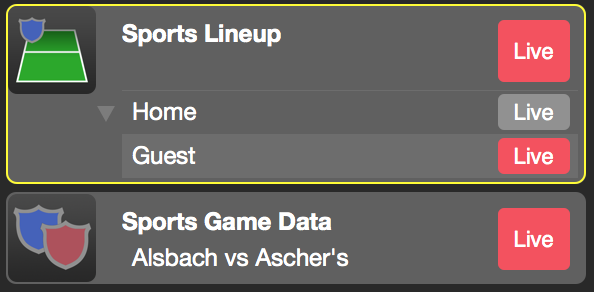
---
#### Sports Player Lower Third
Source: https://mimolive.com/user-manual/live-editing/layers/sports/sports-graphics-overview/sports-graphic-layers/sports-player-lower-third/
Last updated: 2026-08-19
> **Note:** Sports Graphics Pack comes bundled with mimoLive® Studio and mimoLive® Broadcast licenses.
>
> If you have a mimoLive Non-Profit license, you can purchase this add-on through the [mimoLive Online Shop](https://mimolive.com/store/addon/)
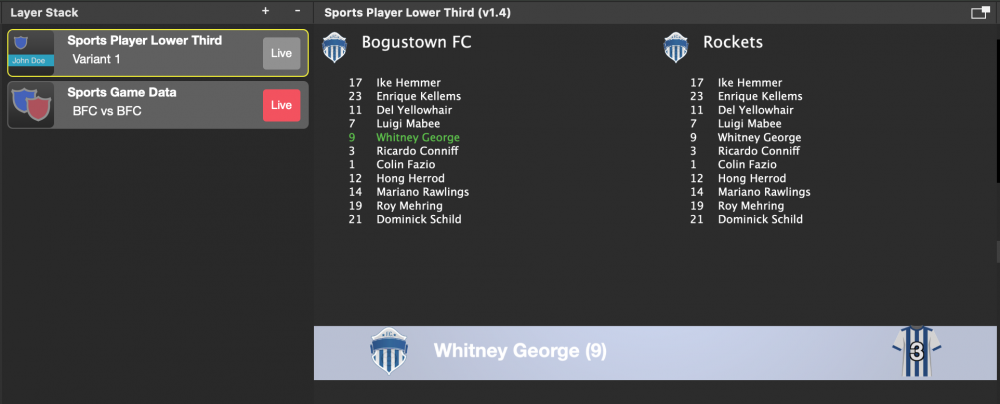
This layer can display specific information about a player. The design of the lower third can be specified just like the regular [Lower Third](https://mimolive.com/user-manual/lower-third)
The player information is defined in a [Sports Team Data source](https://mimolive.com/user-manual/sports-team-data) and provided by a [Sports Game Data layer](https://mimolive.com/user-manual/sports-game-data).
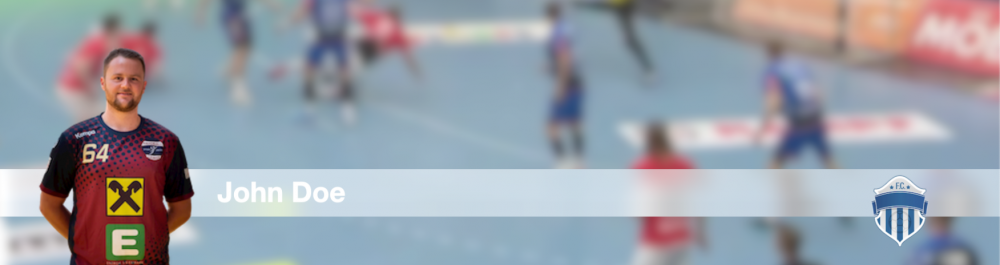
#### How To Control The Player Lower Third
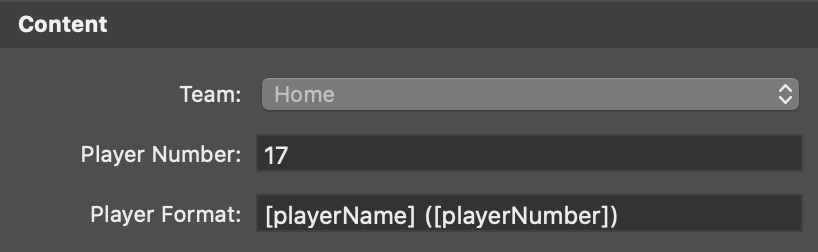
To show the information of a specific player you can either select Home or Guest team and enter the number of the player in the Player Number field or select them on screen in the layers preview window. Once the correct player is selected you click on the Live button to make it visible in the Program Out.
The Player Format field let you specify the content of the lower third. You can use all column names you specified in the [Sports Team Data source](https://mimolive.com/user-manual/sports-team-data) in [ ]-brackets, those will be replaced by the data from the players list.
---
#### Sports Player Substitution
Source: https://mimolive.com/user-manual/live-editing/layers/sports/sports-graphics-overview/sports-graphic-layers/sports-player-substitution/
Last updated: 2026-08-19
> **Note:** Sports Graphics Pack comes bundled with mimoLive® Studio and mimoLive® Broadcast licenses.
>
> If you have a mimoLive Non-Profit license, you can purchase this add-on through the [mimoLive Online Shop](https://mimolive.com/store/addon/)
If a player gets substituted on the field you can show this with the Sports Player Substitution layer.
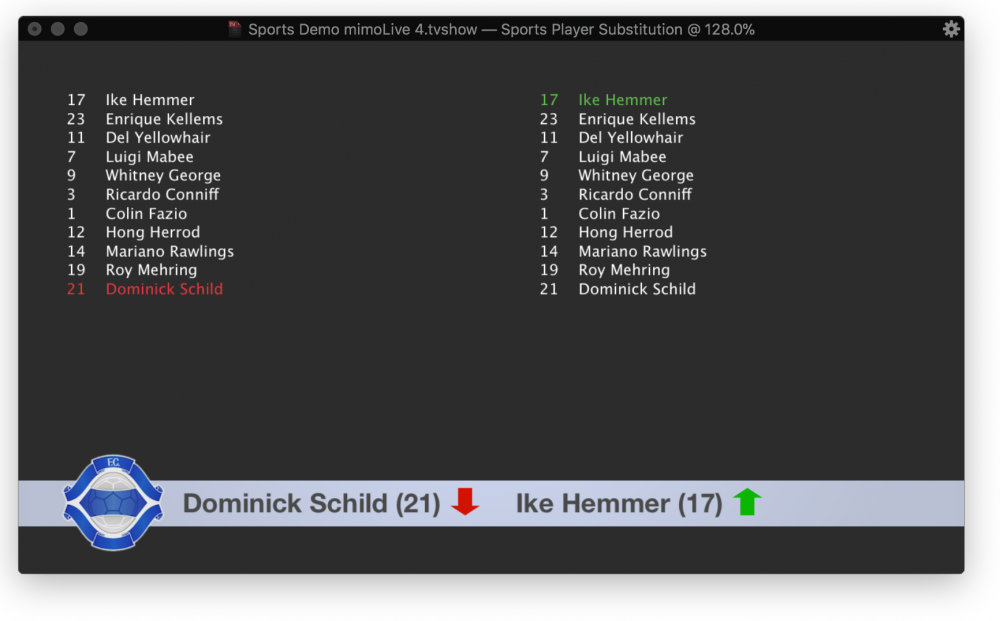
#### Configuring The Data Source
The actual player list is coming from the current live [Sports Game Data layer](https://mimolive.com/user-manual/sports-game-data), which in turn gets its data from the [Sports Team Data](https://mimolive.com/user-manual/sports-team-data) sources that are selected in the Sports Game Data layer itself.
#### Configuring The Appearance
There are a lot of parameters to adjust the look and animation of your design. They are pretty much the same as for the Lower Third layer. Check it out here (Link to be added).
Additionally, you can set up the layout of the text (“Side by Side” or “Stacked”). Also, you can exchange the in and out graphics with your own images.
The Player Format field specifies which columns from the Player List in the Sports Team Data source should be used for display. Use [ and ] to mark keys that you want to be replaced by the player’s data.

#### Have Two Layer Variants For Home And Guest
In the Sports Player Substitution layer you need to select the team (Home or Guest) from the specified game in the Sports Game Data layer. It makes sense to create two [layer variants](https://mimolive.com/user-manual/layers-and-variants) of the layer: one for the Home team and one for the Guest team so that you can show one after the other just by setting the appropriate layer variant live.
*!*Make sure that you configured the layer variant completely for the “Home” team before duplicating this one to make the second variant for the “Guest” team because the parameter isn’t shared between variants!
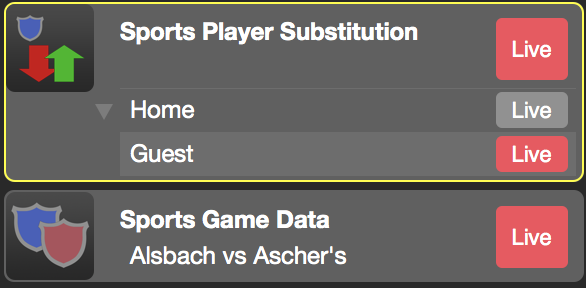
#### Selecting The Players And Presenting Them
The easiest way to select the players for the substitution is to click on their names in the preview of the layer. The layers preview is small by default therefore it is hard to read the names. You can either make the layers preview column wider or you can detach the layers preview window by the button in the upper right corner of the layers preview column.
Alternatively, you can enter the player’s numbers in the appropriate input fields of the layer:
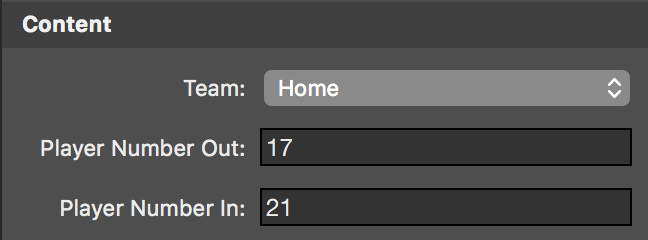
Once you selected the player’s numbers you can set the layer to live.
---
#### Sports Score Keeper
Source: https://mimolive.com/user-manual/live-editing/layers/sports/sports-graphics-overview/sports-graphic-layers/sports-score-keeper/
Last updated: 2026-08-19
> **Note:** Sports Graphics Pack comes bundled with mimoLive® Studio and mimoLive® Broadcast licenses.
>
> If you have a mimoLive Non-Profit license, you can purchase this add-on through the [mimoLive Online Shop](https://mimolive.com/store/addon/)
The Sports Crore Keeper can be used for many different sports because its not branded to a certain sport type.

#### Configuring The Data Source
The actual team information is coming from the live [Sports Game Data layer](https://mimolive.com/user-manual/sports-game-data), which in turn gets its data from the [Sports Team Data](https://mimolive.com/user-manual/sports-team-data) sources that are selected in the Sports Game Data layer itself.
#### Configuring The Appearance
There are a lot of parameters to adjust the look and animation of your design.
With Output Format you can specify if the opponents should be aside from the score or the score should follow the team names.
There are options to set up the text font, size and color for either the small score display or the full-screen output.
The Background color is used for dimming the background in fullscreen mode.
> **Note:** Transparent Background Color
>
> In order to have a transparency effect, the background color is set to be transparent by default. This can be changed in the color chooser window with the opacity value.
The Geometry parameter group holds values to describe the position of the small score display as well as the position of the full screen layout.
The Versus Text field can be used to enter a “vs” text for the fullscreen layout. The Quarter option is also presented in the fullscreen layout.
#### Switching Between Small And Full Screen
The Sports Score Keeper layer can switch between a small and a full screen layout. The small layout could be used while the game happens whereas the fullscreen layout may be used for game breaks.
#### Controlling The Score
In the Control section of the parameters of the layer, there are several buttons to control the score. You can assign keyboard shortcuts for each button though that you don’t need to select the Sports Score Keeper layer before you can change the score. The number fields Score Home and Score Guest hold the actual score and can be used for manipulation too.
#### Using The Remote Control Surface
The Sports Score Keeper layer has a rich predefined [Remote Control Surface](https://mimolive.com/user-manual/remote-control-surfaces). It contains all the UI elements you will need to control the display and score. Because the task of following the game scores is very intensive it is highly recommended to put it on a remote device and let another person do this job besides controlling mimoLive.
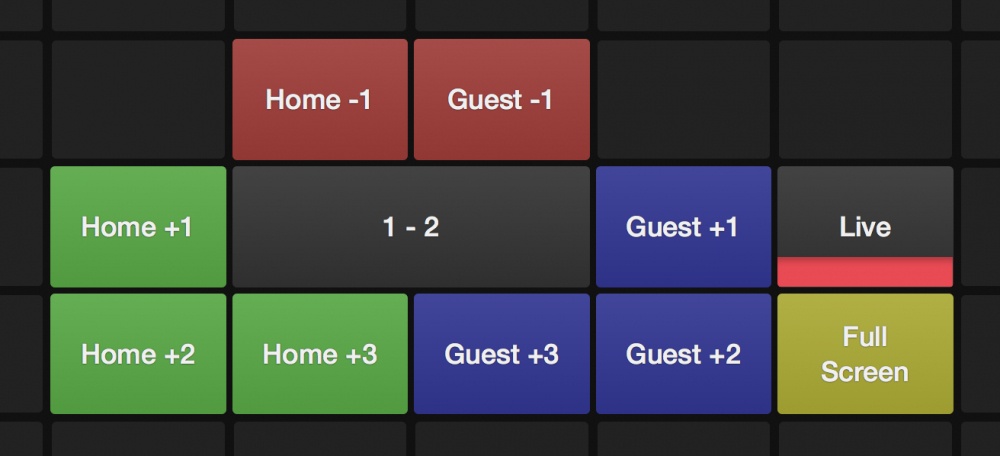
---
#### Sports Soccer Penalty
Source: https://mimolive.com/user-manual/live-editing/layers/sports/sports-graphics-overview/sports-graphic-layers/sports-soccer-penalty/
Last updated: 2026-08-19
> **Note:** Sports Graphics Pack comes bundled with mimoLive® Studio and mimoLive® Broadcast licenses.
>
> If you have a mimoLive Non-Profit license, you can purchase this add-on through the [mimoLive Online Shop](https://mimolive.com/store/addon/)
In soccer, there are three stages of penalty a player can get: Yellow, yellow/red or red card. With this layer, all those penalties can be visualized.
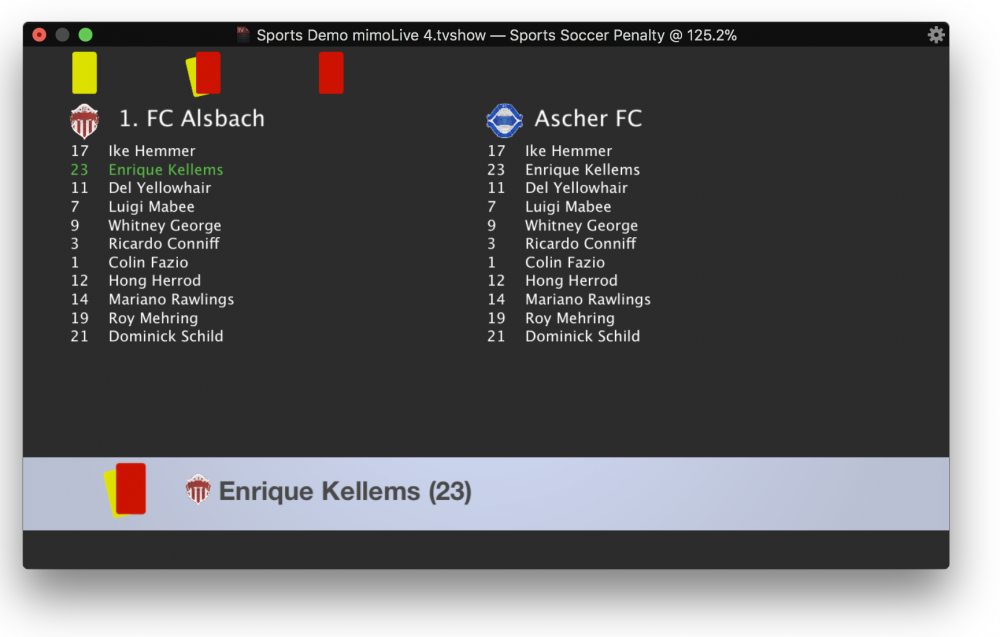
#### Configuring The Data Source
The actual player data is coming from the current live [Sports Game Data layer](https://mimolive.com/user-manual/sports-game-data), which in turn gets its data from the [Sports Team Data](https://mimolive.com/user-manual/sports-team-data) sources that are selected in the Sports Game Data layer itself.
#### Configuring The Appearance
There are a lot of parameters to adjust the look and animation of your design. They are pretty much the same as for the [Lower Third layer](https://mimolive.com/user-manual/lower-third).
Additionally you can exchange the penalty type graphics with your own images.
The Player Format field specifies which columns from the Player List in the Sports Team Data source should be used for display. Use [ and ] to mark keys that you want to be replaced by the player’s data.

#### Selecting The Player, The Penalty Type And Presenting it
The easiest way to select the player and the penalty type is to click on their names and the penalty images in the preview of the layer. Both teams are listed though that you don’t need to switch between them.
The layers preview is small by default therefore it is hard to read the names. You can either make the layers preview column wider or you can detach the layers preview window by the button in the upper right corner of the layers preview column.
Alternatively, you can enter the player’s numbers in the appropriate input fields of the layer:
Once you selected the player and the penalty type you can switch the layer live.
---
#### Sports Soccer Run of Play
Source: https://mimolive.com/user-manual/live-editing/layers/sports/sports-graphics-overview/sports-graphic-layers/sports-soccer-run-of-play/
Last updated: 2026-08-19
> **Note:** Sports Graphics Pack comes bundled with mimoLive® Studio and mimoLive® Broadcast licenses.
>
> If you have a mimoLive Non-Profit license, you can purchase this add-on through the [mimoLive Online Shop](https://mimolive.com/store/addon/)
This specialized scorekeeper works for soccer. It can display the score, the time, overtime and penalty shoot-out situations.
#### Configuring The Data Source
The actual team information is coming from the current live [Sports Game Data layer](https://mimolive.com/user-manual/sports-game-data), which in turn gets its data from the [Sports Team Data](https://mimolive.com/user-manual/sports-team-data) sources that are selected in the Sports Game Data layer itself.
#### Configuring The Appearance
There are a lot of parameters to adjust the look and animation of your design.
Background Color 1 and background Color 2 are for the boxes of the layout. You can choose whether the team emblems should be visible or not. The text can be adjusted in font, size and color.
For the penalty shootout there are three graphics that can be customised:
In the Geometry parameter group, you have the options to change the size of the boxes, the gap between the boxes and the positioning on the screen.
#### Controlling The Time And Score
Usually, a soccer game consists of two periods lasting 45 minutes. In some cases (e.g. for children) this time frame can be shorter and you need to adjust the Period Duration parameter accordingly. The Over Time Period Duration is also adjustable.
If the referee starts the game you need to start the game clock too. In soccer, the game will not be stopped however there will be additional game time at the end of each period. This additional time can be entered in the Additional Duration field once it got announced by the officials. After each period you need to reset the clock and switch to the next period. The displayed clock will automatically start at the correct time for that period.
The score gets controlled by the buttons in the Control section. Please consider using the Remote Control defined below.
#### Controlling The Penalty Shootout
When the overtime didn’t help to find a winner then a Penalty Shootout will be performed.
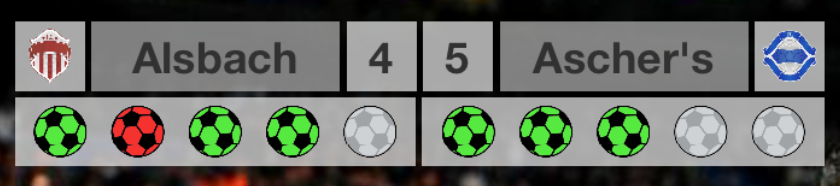
For each attempt, you click on the buttons to either hit or miss the goal for home and guest separately. The result will be filled in the text fields below. Here you can correct a mistake too.
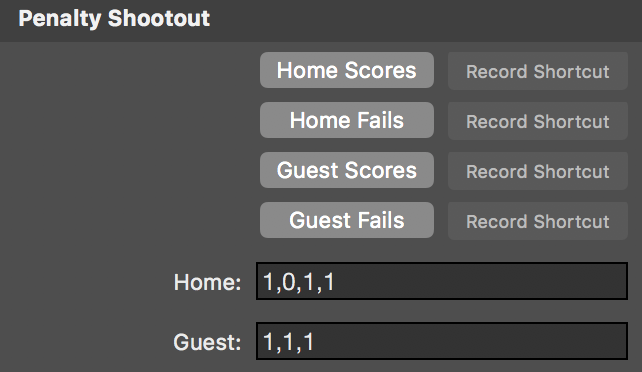
#### Using The Remote Control Surface
The Sports Soccer Run of Play layer has a rich predefined [Remote Control Surface](https://mimolive.com/user-manual/remote-control-surfaces). It contains all the UI elements you will need to control the time and score. Because the task of following the game scores is very intensive it is highly recommended to put it on a remote device and let another person do this job besides controlling mimoLive.
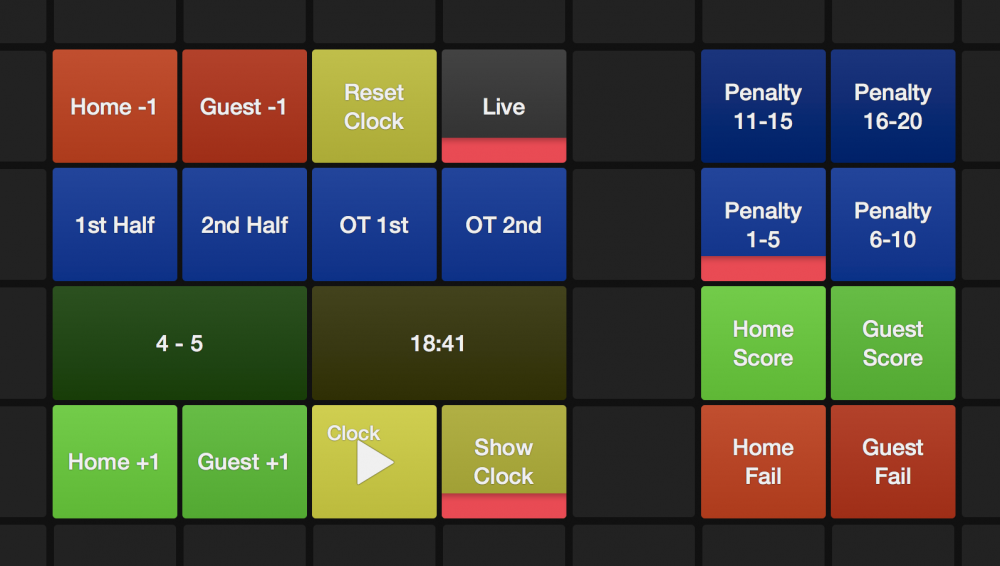
---
#### Sports Graphics - Data sources
Source: https://mimolive.com/user-manual/live-editing/layers/sports/sports-graphics-overview/data-sources/
Last updated: 2026-08-19
> **Note:** Sports Graphics Pack comes bundled with mimoLive® Studio and mimoLive® Broadcast licenses.
>
> If you have a mimoLive Non-Profit license, you can purchase this add-on through the [mimoLive Online Shop](https://mimolive.com/store/addon/)
Currently, there is only one Data Source for the Sports Graphics pack: [Sports Team Data](https://mimolive.com/user-manual/sports-team-data).
---
#### Sports Team Data
Source: https://mimolive.com/user-manual/live-editing/layers/sports/sports-graphics-overview/data-sources/sports-team-data/
Last updated: 2026-08-19
> **Note:** Sports Graphics Pack comes bundled with mimoLive® Studio and mimoLive® Broadcast licenses.
>
> If you have a mimoLive Non-Profit license, you can purchase this add-on through the [mimoLive Online Shop](https://mimolive.com/store/addon/)
The Sports Team Data source stores all kinds of information about a single team. You need to add one source per team to your [Sources Repository](https://mimolive.com/user-manual/sources-and-the-sources-repository).
To edit the data for a team click on the action button in the lower right of the source.
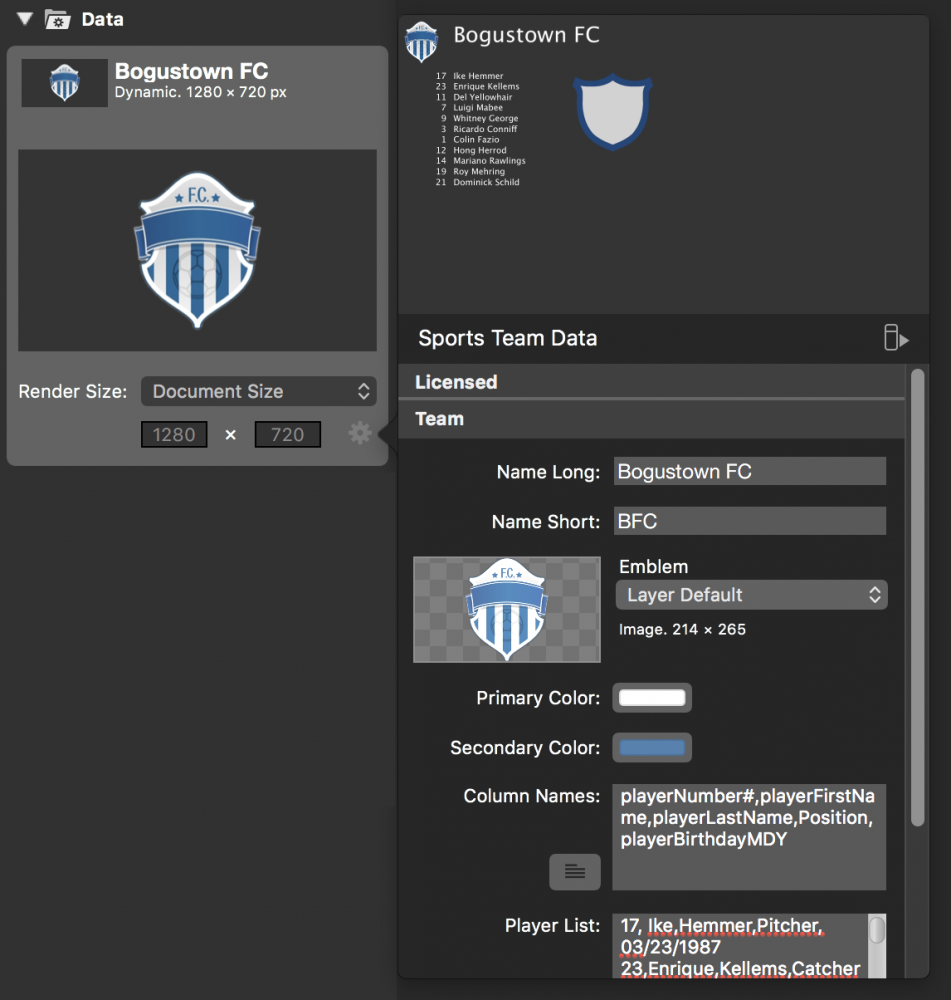
#### Team Data Fields
| Data | Purpose |
| --- | --- |
| Name Long | This is the full name of the team. It will be used in the layers wherever there is enough space. |
| Name Short | This is the short version of the team name. Usually, this is an abbreviation. It will be used in the layers wherever there is not enough space to display the full name of the team (e.g. in Sports Soccer Run of Play layer). If not entered it will fall back to the Name Long field. |
| Emblem | The emblem is the logo of the team. It will be displayed in several layers next to the players name of the team name. |
| Primary Color | The primary and secondary colors are used when drawing backgrounds (e.g. in Sports Game Title layer) or for the player shirts. |
| Secondary Color | See Primary Color. |
| Column Names | This is a list of keys (comma or tab separated) that will tell mimoLive what column holds which data. There are some predefined column names but you can add your own. (See “Specify The Data Columns” below) |
| Player List | This table (comma or tab separated) contains the data for each team member. (see “How To Enter Team Data” below) |
| Lineup | This is the short version of the team name. Usually, this is a abbreviation. It will be used in the layers wherever there is not enough space to display the full name of the team (e.g. in Sports Soccer Run of Play layer). If not entered it will fall back to the Name Long field. |
#### How To Enter Team Data
Usually, you have stored the team player list in some kind of spreadsheet application like Numbers by Apple or Excel by Microsoft. To copy the data from those apps you simply select the table's content, hit command-C, find the appropriate Sports Team Data source in mimoLive, open the Editor panel with the action gear and paste the content into the Player List data field with command-P.
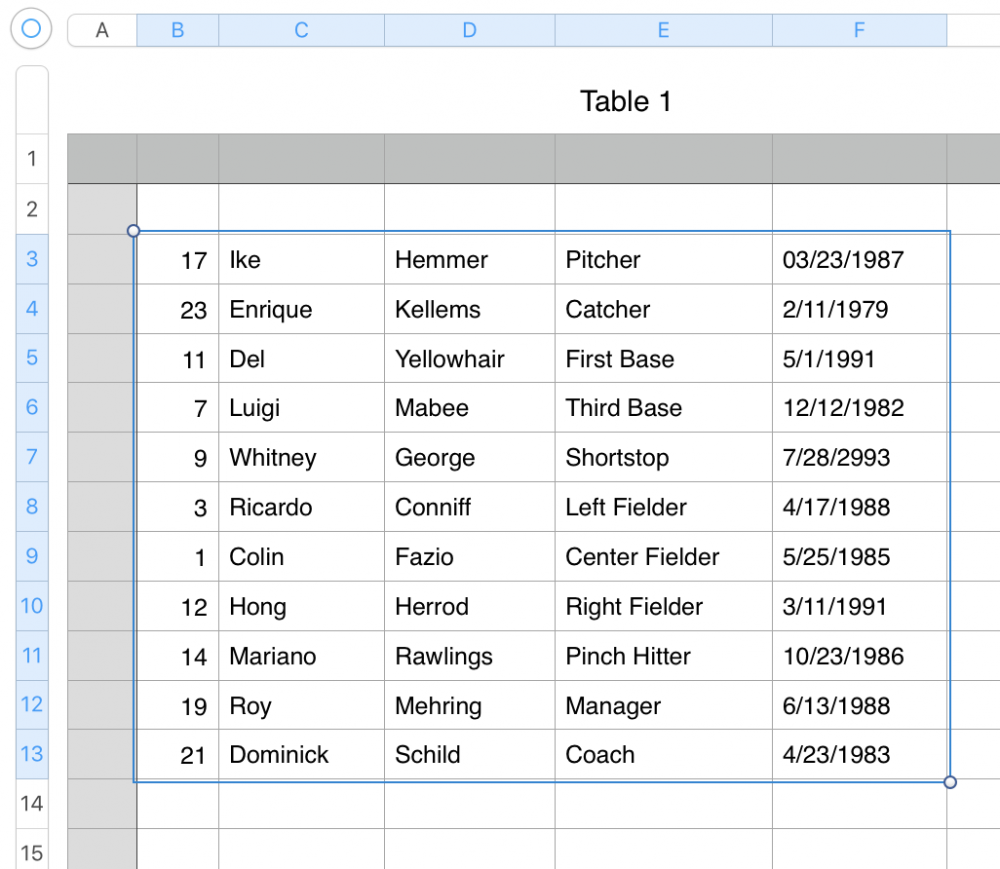
The multiline text input field is pretty small for all this data. Please click on the window button next to the Text field to get a large window that also can be resized.
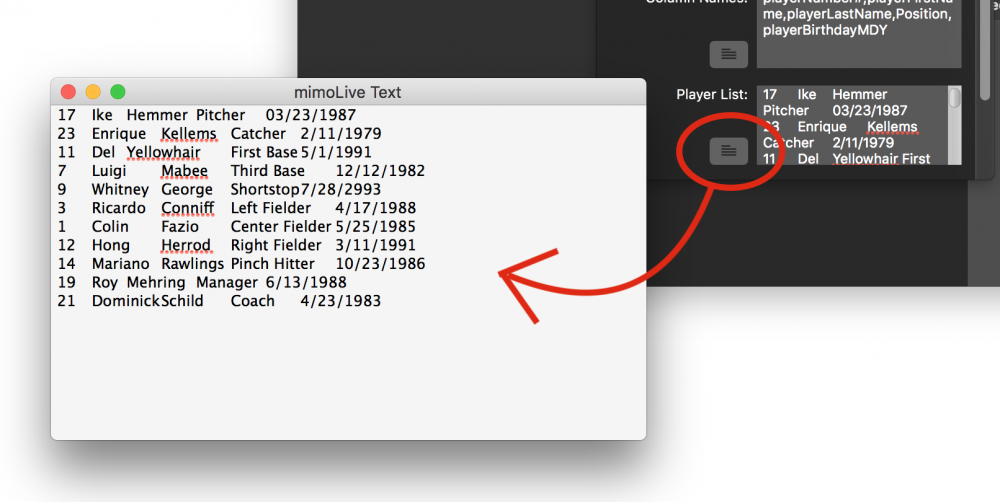
#### Specify The Data Columns
Don't forget to specify the columns of your data because mimoLive needs to know what they represent.
There are some predefined keywords to use, but you can also add your own keys.
Note that the "playerNumber" field is required.
| Keyword | Description |
| --- | --- |
| playerNumber ***(Required!)*** | The players number. It will be used in the Sports Lineup layer to extract the players names. |
| playerName | The full name of a player. If not present it will be filled with playerFirstName + playerLastName automatically. |
| playerFirstName | The first name of the player. |
| playerLastName | The last name of the player. |
| playerAge | The players age. If not present the age gets calculated from the birthday, see playerBirthdayMDY/playerBirthdayDMY |
| playerBirthdayMDY | If there is a birthday field then the playerAge gets calculated and available to the layers. the “MDY” ending means that this field is “month/day/year” formatted. |
| playerBirthdayDMY | If there is a birthday field then the playerAge gets calculated and available to the layers. the “DMY” ending means that this field is “day/month/year” formatted. |
| playerImage | If you have specified a local folder or a base download URL for player images then each player needs to specify the file name of their image. |
> **Note:** If your spreadsheet table contains more columns than you would need in mimoLive just copy them over too and specify dummy column names for them. This way you don’t need to alter your table data to fit mimoLive.
#### How To Define Player Shirt Images
The Team Data source will generate shirt images for each player number automatically. Those images are used in some of the Sports layers (E.g. the [Sports Lineup layer](https://mimolive.com/user-manual/sports-lineup) or [Sport Player Lower Third](https://mimolive.com/user-manual/sports-player-lower-third)) ) The shirts will be rendered in the primary and secondary colors of the team. Each shirt will have the player's number written on it. You can choose to form a variety of shirts:
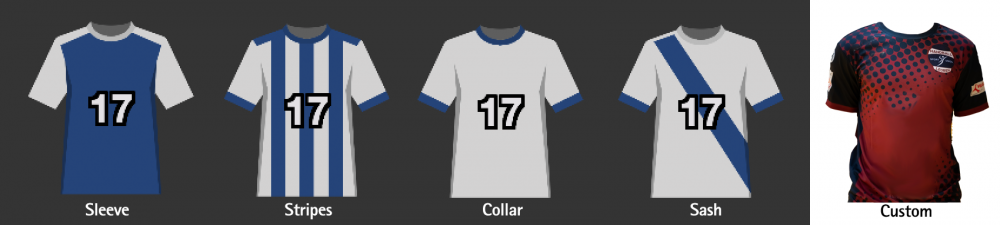
The custom shirt option lets you use your own shirt design. It makes sense to use a transparent PNG file.
There are several options to define the look of the number on the shirt itself:
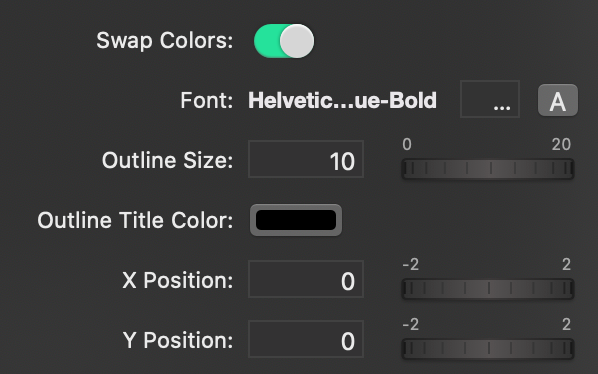
- Swap Colors: If the primary color and secondary color are used the wrong way, you can swap them here without the need of changing the original setting of the Team Data source.
- Font: Change the font face and font size, as well as the font color of the numbers on the shirts.
- Outline Size and Color: Change the border size and color of the font outline.
- X/ and Y Position: If the number doesn’t appear at the right spot on the shirt you can adjust the position with those two values.
#### How To Specify Individual Player Images
You can change this behavior to load individual images for each player.
There are two options available:
- Load the images from a local file storage
- Download the Image from a webserver
In case for local file storage, you need to specify the folder from which the images need to be loaded.
In case the images should be loaded from a webserver you need to set up the base URL where to find the images.
In both cases, you need to extend the Player List for another column called playerImage. This value will hold the individual file name for the image of each player.
Use the Update button to reload the images once you changed the URL or the folder.
> **Note:** The playerImage name can contain also folder information or the complete URL
>
> Because the image folder or the download base URL are just added in front of the playerImage value you can put parts for the complete path into an image into the playerImage value or even specify the complete path in this column leaving the download baseURL or file path empty.
---
### Weather
Source: https://mimolive.com/user-manual/live-editing/layers/weather/
Last updated: 2025-11-19
**Weather Layers** in mimoLive provide tools for creating clear, engaging, and broadcast-ready weather segments. These layers make it easy to present meteorological data—such as forecasts, temperatures, icons, and live weather conditions—in a visually appealing and easy-to-understand format. Whether you’re producing a full weather report or adding a brief update to your show, Weather Layers offer the flexibility and control needed for professional results.
With support for custom graphics, animated transitions, map overlays, and data-driven content, these layers help you deliver informative weather presentations that match the look and style of your production.
---
#### Weather Forecast Layer
Source: https://mimolive.com/user-manual/live-editing/layers/weather/weather-forecast/
Last updated: 2025-06-16
### Overview
The Weather Forecast layer enables you to display a multi-day weather forecast in a visually appealing layout. This layer is perfect for broadcasting upcoming weather conditions, with support for customizable icons, temperatures, and probabilities of precipitation.
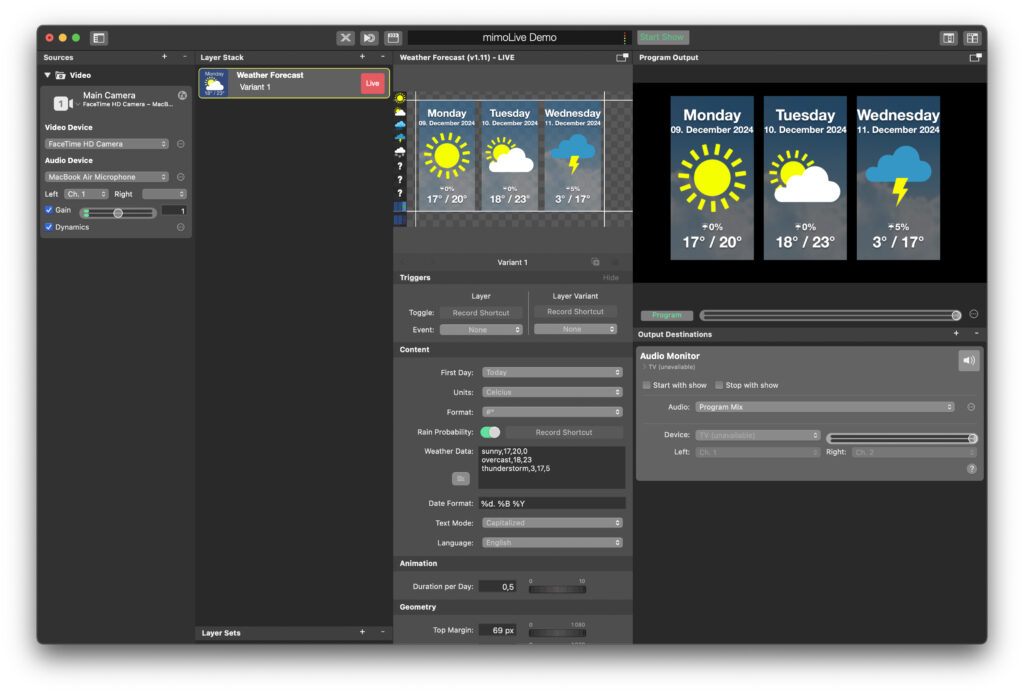
### Key Features
The layer allows you to show weather conditions for multiple consecutive days. You can manually enter or import data for daily weather details, including temperature, precipitation probability, and weather type (e.g., sunny, cloudy, thunderstorms). Dates can be displayed in various formats to suit your audience’s preferences, and you can customize how the forecast appears on-screen with per-day animation settings.
### Layer Controls
**Content**
- First Day: Select the starting day of the forecast (e.g., Today, Tomorrow).
- Units: Choose between Celsius or Fahrenheit for temperature display.
- Rain Probability: Toggle the display of rain probability percentages.
- Weather Data: Enter weather details manually or via an input string. For example:
```
sunny,17,20,0
overcast,18,23,5
thunderstorm,3,17,5
```
### Content
Each line includes weather type, minimum temperature, maximum temperature, and precipitation percentage.
• Date Format: Customize the display of the dates using formats such as %d. %B %Y.
• Text Mode: Select how text is displayed (e.g., Capitalized, Uppercase).
• Language: Set the language for the date and weather descriptions.
### Animation
• Duration per Day: Define how long each day is shown during transitions.
**Geometry**
• Top Margin: Adjust the vertical spacing of the layer on-screen.
### Workflow Example
Add the Weather Forecast layer to your Layer Stack and input the weather details for the days you wish to display. Customize the temperature units, date format, and text display settings. Use the preview section to refine the layout, adjusting animation duration and vertical alignment as needed. When satisfied, push the layer live for your audience.
### Tips
Use clear and intuitive weather icons to ensure easy understanding. Limit the forecast to 3-5 days to maintain clarity and avoid overwhelming the audience. Set smooth animation timing for a polished, professional broadcast.
The Weather Forecast layer helps you deliver a concise, visually engaging weather segment, tailored to the needs of your viewers.
---
#### Weather Map Layer
Source: https://mimolive.com/user-manual/live-editing/layers/weather/weather-map-layer/
Last updated: 2025-06-16
### Overview
The Weather Map layer for mimoLive allows you to display a map with weather symbols, temperatures, wind directions, and other meteorological data overlayed on top of your live video production. Typically, this layer is used to present a professional-looking weather forecast segment during a livestream, broadcast, or recorded show.
### Key Features
• **Flexible Data Integration:** Input weather data from various sources (e.g., CSV feeds, JSON APIs, manual input) to display current conditions, forecasts, and other meteorological parameters.
• **Customizable Map Graphics:** Use your own map image or select a pre-made background. You can highlight specific regions, color-code areas, and add graphics to better illustrate your weather narrative.
• **Graphical Weather Symbols:** Overlay conditions such as sunshine, clouds, rain, and snowflakes. Additional elements like wind arrows, temperature markers, or precipitation icons can be arranged and animated.
• **Animation and Transitions:** Smoothly animate weather icons onto the map to create dynamic presentations. Control symbol duration, delay, and sorting order for a polished, TV-quality look.
• **Multiple Variants:** Easily switch between different looks, data sets, or localized forecasts with Layer Variants, making it quick to adapt the same layer for multiple segments.
**Layer Interface**
**Layer Stack**
• **Name & Status:**
At the top of the Layer Stack, the “Weather Map” layer name and version (e.g., Variant 1) are displayed. The status indicator (Live, Preview, or Off) shows whether the layer is currently visible in your program output.
• **Video & Audio Sources:**
Located to the left in the mimoLive interface, the Sources section allows you to route video input (e.g., FaceTime HD Camera) and select audio devices (e.g., MacBook Air Microphone). The Weather Map layer will sit atop these sources when active.
### Layer Controls
To configure the Weather Map layer, select the layer in the Layer Stack. On the right-hand side, you will find a variety of controls and options:
1. **Triggers Panel**
• **Toggle:** Assign a Record Shortcut or an Event trigger to quickly show/hide the layer.
• **Layer Variant:** Switch between predefined layer variants instantly. This is useful if you have multiple weather scenarios (e.g., a “Morning Forecast” variant and an “Evening Forecast” variant).
2. **Content Section**
• **Weather Data Field:** Input your weather data here. This can be a manually entered string of conditions, temperatures, and coordinates, or it may be linked to an external data source.
• **Map:** Choose a map image (e.g., a PNG or JPEG file) that serves as the geographical backdrop for your weather icons.
• **Units & Format:** Select how temperatures and other measurements are displayed (e.g., Celsius or Fahrenheit). Adjust formatting strings for temperatures, wind speeds, and other data points.
3. **Transition**
• **Duration:** Specify how long it takes for the layer to transition in and out of the Program output. Smoother, slower transitions can provide a more polished broadcast feel.
4. **Animation**
• **Symbol Duration:** Set how long weather icons remain visible on the map before changing or moving.
• **Symbol Delay:** Stagger the appearance of multiple symbols so they fade in one after another, rather than all at once.
• **Symbol Sorting:** Choose the order in which icons appear (e.g., Left To Right), enabling a guided narrative progression across your map.
5. **Geometry & Positioning**
• **Position & Scale:** Adjust the map’s size and position within the frame. You can also reposition individual icons, ensuring they precisely mark the location of a weather event (e.g., a rain symbol over a particular city).
• **Safe Zones:** Ensure crucial weather data stays within broadcast-safe margins, guaranteeing all viewers can see essential information.
6. **Output Destinations & Audio Monitor (if applicable)**
• **Audio Selection:** Typically, the Weather Map layer doesn’t produce audio, but you can manage the Audio Monitor settings here if needed. Adjust the Program Mix and routing as required.
### Workflow Example
1. **Add the Weather Map Layer:**
In mimoLive, click the “+” button in the lower-right corner of the Layer Stack panel and select the Weather Map layer from your available layers.
2. **Configure Map & Data:**
Load your chosen map image and input the weather data. For example, you might paste a comma-separated data string such as:
```
temperature,-0.4789,0.1922,24.4
sunny,0.2001,0.4454
winddirection,-0.3538,0.0182,21.6
overcast,0.3181,-0.3325
temperature,0.4671,-0.0394,20.0
```
3. **Refine Display:**
Select Celsius or Fahrenheit, adjust the symbol animations, and position icons precisely over corresponding regions on the map.
4. **Preview and Take Live:**
Use the built-in Preview monitor to ensure all symbols are correct and positioned properly. Once satisfied, click “Live” to push the Weather Map layer onto your Program output.
5. **Switch Variants:**
If you have multiple sets of data or different presentation styles (e.g., a future forecast variant), quickly switch by using the Layer Variant buttons, ensuring a seamless transition during your broadcast.
### Tips & Best Practices
• **Data Updates:** If connected to a live feed of weather data, refresh the layer regularly or automate data retrieval for real-time updates.
• **Branding:** Add your station logo or choose a distinctive color scheme for the map and icons to maintain consistent brand identity.
• **Maintain Clarity:** Don’t overload the map with too many symbols. Ensure that viewers can quickly understand the weather situation at a glance.
• **Use Transition Effects Wisely:** Small, subtle transitions between weather segments will give your show a professional polish without distracting from the information.
---
### Data Viz
Source: https://mimolive.com/user-manual/live-editing/layers/data-viz/
Last updated: 2025-11-19
**Data Viz Layers** in mimoLive provide tools for presenting real-time information in clear, engaging, and visually dynamic formats. These layers translate audio levels, playlist metadata, and numerical datasets into visual elements that enhance understanding and bring your content to life. Whether you are monitoring audio activity, showcasing playlist information, or visualizing complex data in 3D space, Data Viz Layers help you communicate information effectively and professionally.
These layers are ideal for music shows, presentations, dashboards, technical demos, or any production where data needs to be displayed in a way that is both informative and visually compelling.
---
#### Audio Source Meter Layer
Source: https://mimolive.com/user-manual/live-editing/layers/data-viz/audio-source-meter-layer/
Last updated: 2025-11-19
The Audio Source Meter Layer displays a live audio level meter for the selected audio source. It achieves this by blending two images in proportion to the measured input level and the maximum/minimum possible level. Two images are included for a vertical meter, from bottom to top, matching the design of the audio levels in the mimoLive Multiview. You can customise the look of the layer by creating your own images.
#### No Levels, Full Levels
This No Levels image shows the meter with no audio, the Full Level image shows the meter at full volume.
Provide those two images to create your own look. They should both have the exact same dimensions. For the best results, create the images at 100% of the intended size.
#### Direction
In addition to the default bottom-to-top direction, the meter can be set to go from left to right, top to bottom, or right to left by providing the necessary images.
#### Inset 0 dB, Inset ∞ dB, Split Left Right
Here is a graphic that explains how values determine the function of a layer. For horizontal meters, rotate the graphic 90° clockwise.
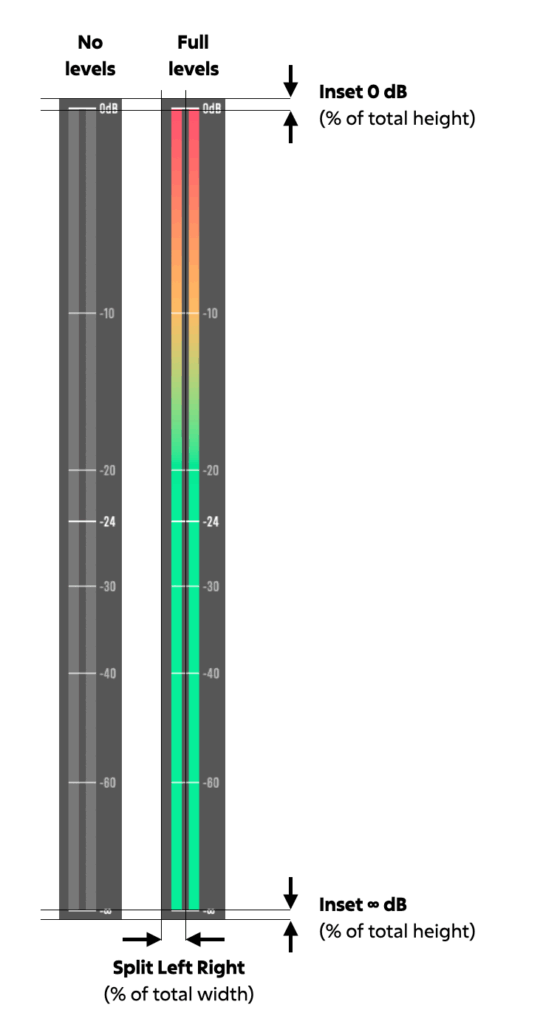
#### The **Cool Down**
The Cool Down parameter controls how quickly the meter level decreases after reaching an audio peak. This behavior helps make peaks more visible to the audience; without a cool-down effect, peak values would drop too quickly to be noticed.
A **Cool Down** value of **0%** causes the meter to follow the audio signal exactly, with no delayed falloff. A value of **100%**prevents the meter from falling at all, which can be useful for applications such as a *clap-o-meter*. At **50%**, the meter requires approximately **2 seconds** to return from a full peak to its baseline level.
---
#### Graph 3D Layer
Source: https://mimolive.com/user-manual/live-editing/layers/data-viz/graph-3d-layer/
Last updated: 2025-06-16
Applies to mimoLive: Layer 3D V1.24
The **Graph 3D layer** in mimoLive allows you to present data visually in three-dimensional space. This layer supports different graph types and customizable appearance options to suit various presentation needs.
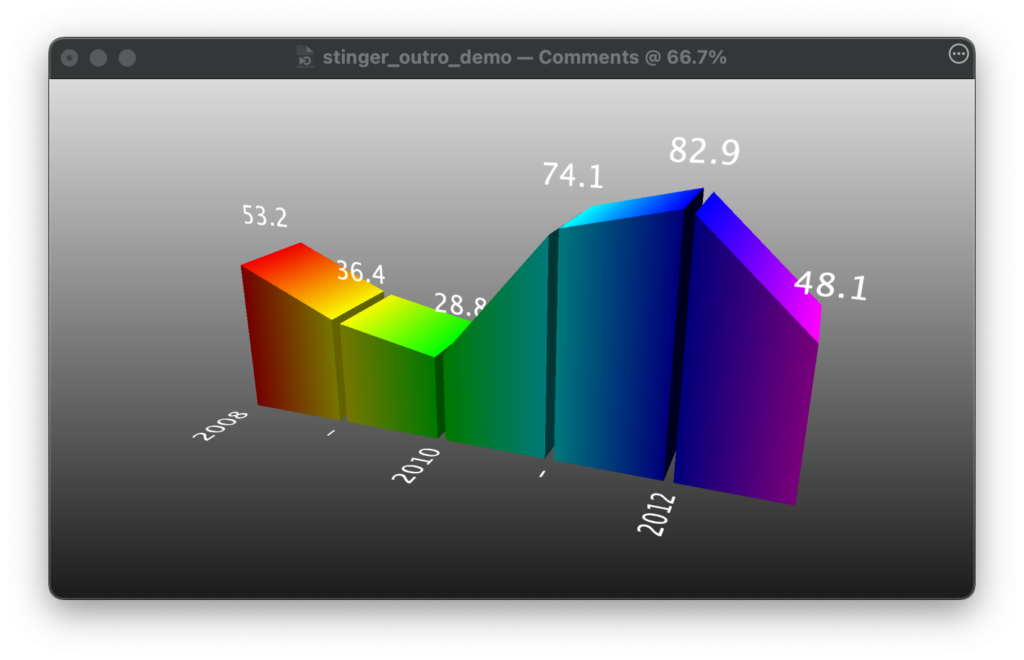
### Layer Variants
Layer variants allow you to create different settings for the same layer, such as unique data, colors, or animations. There’s no limit to the number of variants you can create, providing flexibility for live productions. Read more [about layer variants here](https://mimolive.com/user-manual/using-mimolive/layers-and-variants/).
#### User Interface Variants
- In the layer stack all existing variants are listed. You can expand or collapse this list by clicking the **up/down chevron** next to the layer name.
- In the layer stack, all existing **layer variants** are listed, with an indicator showing if the variant is currently live.
- **Left/right arrows** below the preview window let you navigate through different variants.
- In the **center**, the name of the currently selected variant is displayed.
- The **plus (+)** and **minus (-)** buttons on the right allow you to add or delete variants.
**Event:** You can link the layer’s activation to a specific event, which will automate the process of showing sponsor logos based on certain triggers during your broadcast.
### **Triggers**
#### Toogle Shortcut
You can assign keystrokes and events to toggle layers and layer variants. This let you control the appearance of the layer and / or the variants.
If a **keystroke** is assigned to a variant, the key will appear as a small gray indicator next to the Live button in the list of variants. This setup makes it easy to manage and switch between different versions of a layer during live broadcasts.
#### Events
You can also control a layer or variant by events. By the dropdown menu you can assign one of the following events:
- **None**
- **Live on Show Start**When you press the Start Sho**w** button the layer switches to LIVE.
- **Live on End Trigger**
The layer switches to LIVE when the StopShow button is pressed.
- **Off on End Trigger**
The layer switches to OFF when the StopShow button is pressed.
### Content Settings
- **Values**: Data points that define your graph. Example values: 36.4, 28.8, 74.1, etc.
- **Labels**: Text labels for categories or time periods (e.g., 2008, 2010).
- **Color Scheme**: Customizable. You can use a predefined color table or specify individual colors for each data point.
### Appearance
- **Graph Type**: Set to “Mountain” in this case, but can be changed to “Bars” for a bar graph.
- **Text**: Customize font and size for labels and values. Example: **LucidaGrande**, size **37**.
### Geometry Settings
- **Width, Height, Depth**: Adjust the dimensions of the graph.
- **Gap**: Adjust the space between data points (set as a percentage).
- **Position X, Y**: Controls the positioning of the graph.
- **Rotation X, Y, Z**: Allows rotation of the graph in 3D space. Example: Rotation Y is set to -21.12, and Rotation X to 20.56.
### Animations
- **Incoming & Outgoing**: Define how the graph animates when entering or exiting the screen.
- **Duration**: Set the animation length (e.g., 2 seconds).
- **Background Duration**: Set the animation length, default 0.5 s.
### **Background**
- **Background Type**: Choose a background type for the graph (e.g., gradient). Example: Gradient from **Top to Bottom (Gradient T to B)**.
---
#### Playlist Visualizer Layer
Source: https://mimolive.com/user-manual/live-editing/layers/data-viz/playlist-visualizer/
Last updated: 2025-11-19
The **Playlist Visualizer Layer** displays information about the currently playing track from an active playlist source. It’s ideal for adding professional-looking song titles, artist names, and cover art to your live broadcasts.
### Key Features
**Active Playlist Integration**
This layer requires an active playlist source in mimoLive. It dynamically updates to show information about the track currently playing.
**Customizable Visuals**
You can fully customize the appearance of the track title, artist name, cover art, and background to match the branding and style of your broadcast.
**Dynamic Animation**
The Playlist Visualizer Layer supports animations for showing and hiding the track information, providing a smooth and professional display.
**Fallback Cover Art**
When no cover art is available for the track, the layer can display a fallback image to ensure the visual remains polished.
### User Interface
#### Control Section
• **Text Type**: Choose how the text is displayed:
• Show Now
• Hide After Duration (set duration for the text to remain visible).
• **Text Duration**: Control how long the information stays on screen.
**Content Section**
• **Playlist Source**: Select the active playlist source feeding the layer. The track information, such as the title and artist, will be dynamically pulled from this source.
**Animation Section**
• **Incoming/Outgoing Animations**: Select the transition effect (e.g., Push, Dissolve) for showing or hiding the playlist information.
• **Text Delay**: Add a delay before the animation begins.
#### Appearance Section
• **Font Title and Subtitle**: Customize the font, size, kerning, and shadow effects for the title and subtitle text.
• **Fallback Cover Art**: Choose an image to display when no track-specific cover art is available.
#### Geometry Section
• Adjust the **Title Baseline**, **Subtitle Baseline**, and other layout parameters to position text and visuals as needed.
• **Background Animation**: Add animation effects to the background, including opacity changes, translation, or rotation.
**Visual Content Section**
• Enable or disable additional visuals.
• Adjust the **X Inset**, **Y Inset**, and **Max Width/Height** of the visual content to fit your broadcast layout.
### Example Uses
**Live Radio Shows**
Display the currently playing track in real-time, giving viewers clear information about the music.
**Music Streams**
Add a polished look to music streams by showcasing track titles, artist names, and album art.
**Events and Performances**
Enhance live performances or DJ sets by visualizing the playlist and giving audiences context for the music being played.
The **Playlist Visualizer Layer** ensures that your live stream or event is professional and engaging, giving viewers a seamless way to follow along with your audio content.
---
### Effects
Source: https://mimolive.com/user-manual/live-editing/layers/effects/
Last updated: 2025-11-19
**Effects Layers** in mimoLive provide tools for enhancing your live production with interactive visual effects that help guide viewer attention, highlight important details, or magnify specific areas of the screen. These layers go beyond simple graphics—they offer hands-on, real-time interaction for presentations, tutorials, sports analysis, training sessions, and any production where visual emphasis is key.
Whether you need to annotate the screen, spotlight a crucial detail, or zoom in on a region of interest, Effects Layers give you the flexibility to create clear, engaging, and professional-looking explanations. They can be controlled live via mouse or tablet input, making them especially useful for dynamic broadcasts.
---
#### Spotlight Layer (Mouseposé Effect)
Source: https://mimolive.com/user-manual/live-editing/layers/effects/addon-spotlight-layer/
Last updated: 2026-08-19
The Spotlight layer in mimoLive allows you to highlight specific parts of an image or video. You can adjust the opacity, color, size, and blur of the spotlight effect to optimize it for your content and adapt it to your brand's visual identity. This layer is an effective tool for drawing attention to key elements in your productions.
> **Note:** The Spotlight layer is a free mimoLive add-on
>
> Please visit [mimoLive Store](https://mimolive.com/store/addon/) to download this add-on for free
[Video on YouTube](https://www.youtube-nocookie.com/embed/i-03e0rVs54?rel=0)
---
#### Magnifying Glass (Magnifier, Loupe) Layer
Source: https://mimolive.com/user-manual/live-editing/layers/effects/magnifying-glass/
Last updated: 2026-08-19
The Magnifying Glass layer lets you put the focus on a certain spot in your Video Production. It is a Magnifier for region of interest and can be moved freely with the mouse cursor.
> **Note:** The Magnifying Glass layer is a free mimoLive add-on.
>
> Please visit [mimoLive Store](https://mimolive.com/store/addon/) to download this add-on for free
Watch a demo video of the Magnifying Glass Layer.
[Video on YouTube](https://www.youtube-nocookie.com/embed/cRout6xZ_-M?rel=0)
#### Setting up the Magnifying Glass Layer

To control the animation speed of how fast the magnifier should appear you can set up a Popup Duration in the Transition section.
The magnifier will appear at a certain point on the video. You can either drag the magnifier in the preview of the layer to the desired position or you can manually specify the pixel coordinates in the Start Position section.
In the Appearance section, you have control over the size of the glass, the zoom factor and the degree of lens distortion.
Additionally, you can have a border with a custom color and a drop shadow to make the magnifier glass pop out from the video content.
---
#### Painter Layer / Telestrator (optional Addon)
Source: https://mimolive.com/user-manual/live-editing/layers/effects/painter-layer-telestrator-optional-addon/
Last updated: 2026-08-19
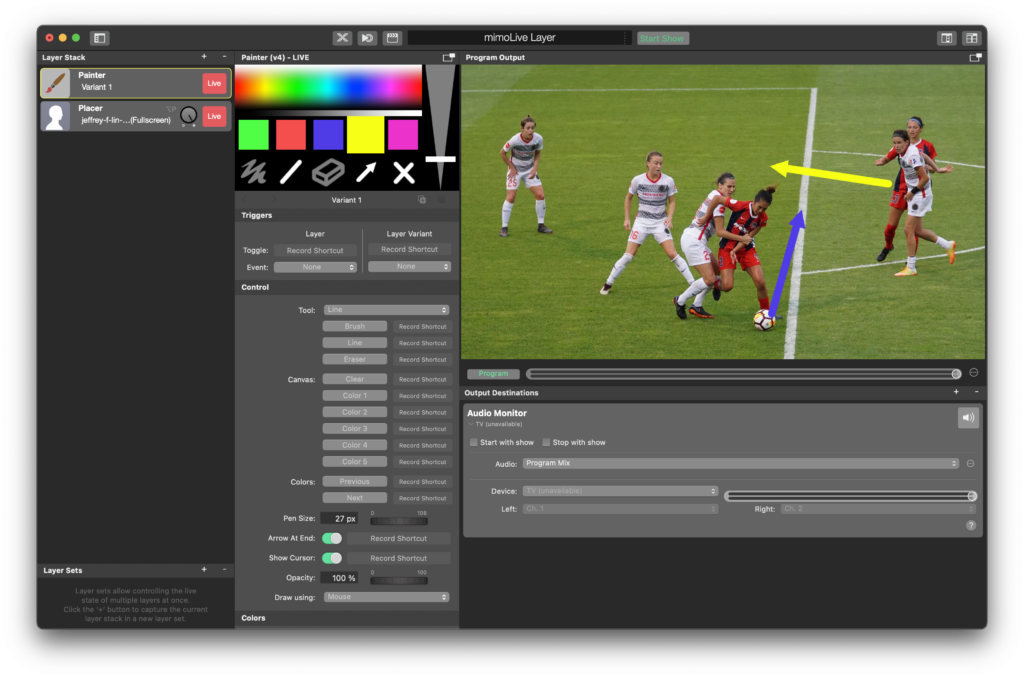
The Painter layer in mimoLive, also known as a telestrator, enables you to add annotations, draw on top of your video, and highlight areas of interest in real-time. It's a powerful tool for live sports and news productions, educational videos, and live streaming events. With the Painter layer, you can add visual aids to your live video to emphasize key points or illustrate complex ideas, making it easier for your audience to understand and engage with your content. Let's take a closer look at how you can use the Painter layer in your next live production.
> **Important:** The Painter Layer brings the Telestrator-Feature into mimoLive.
>
> It is a free optional addon which can be downloaded from the [mimoLive Addon Store](https://mimolive.com/store/addon/)
In sports broadcasting, the box for drawing on the Program Output to highlight something is called a [Telestrator](https://en.wikipedia.org/wiki/Telestrator).
> **Note:** Option: Using an iPad and Video Pencil app
>
> You can send your program output from mimoLive to Video Pencil on your iPad. The Video Pencil app sends back your drawing as a video with alpha channel so that you can super-impose it with a Placer layer on top of your layer stack. [Read more](https://mimolive.com/user-manual/special-topics/telestration-using-an-ipad-with-video-pencil/)
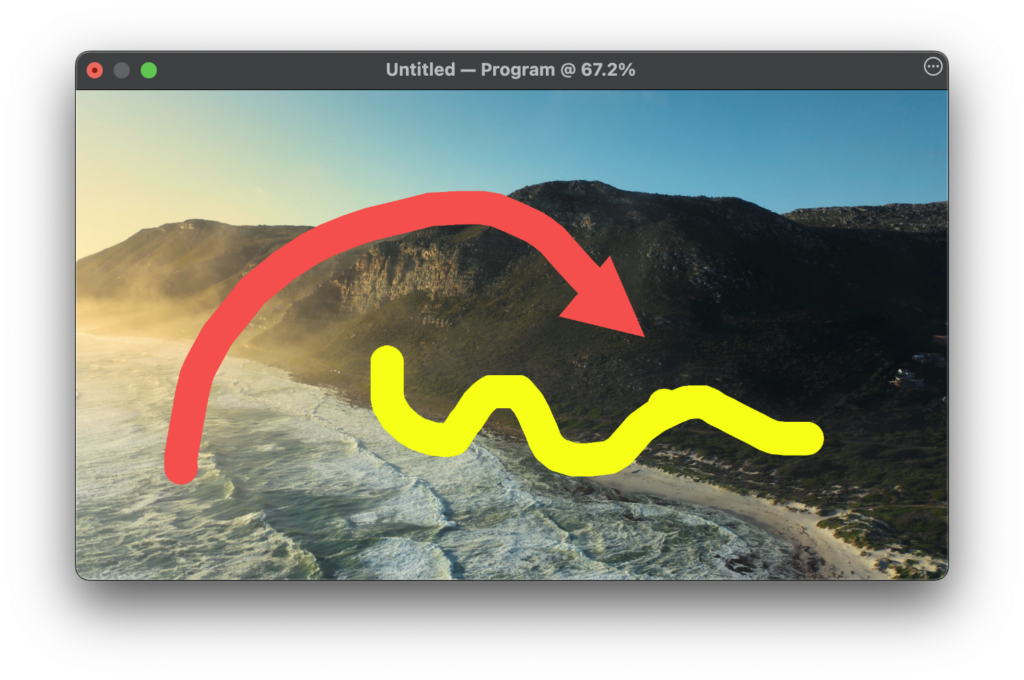
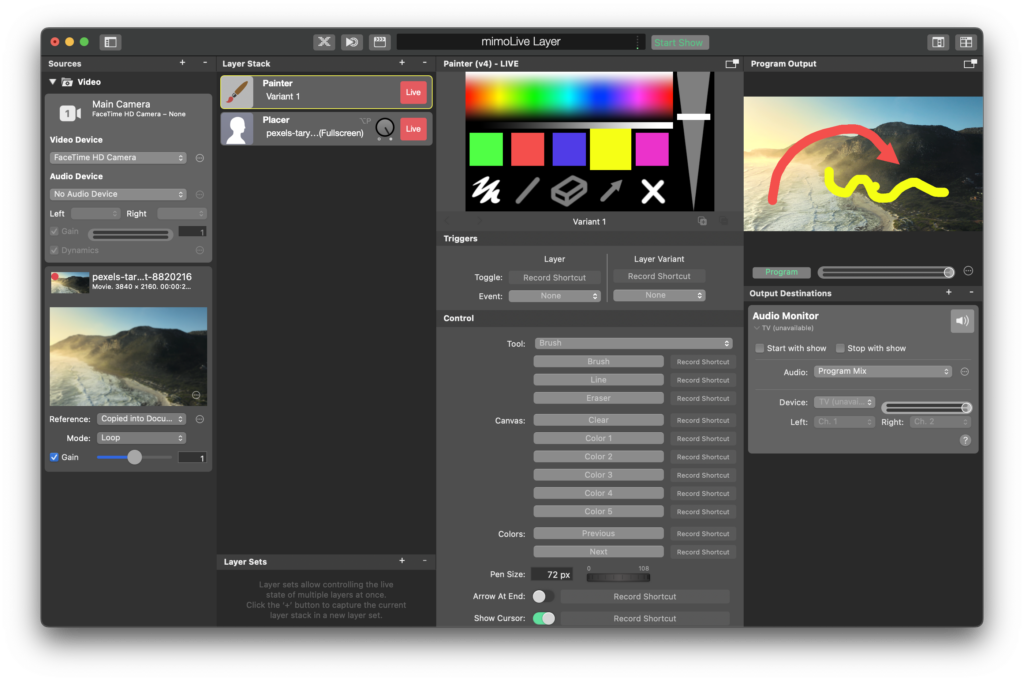
#### Demo Video of mimoLive's Painter Layer
https://www.youtube.com/watch?v=Lzqz5itqxBw
---
### Portrait
Source: https://mimolive.com/user-manual/live-editing/layers/portrait/
Last updated: 2025-11-19
**Portrait Layers** in mimoLive are designed specifically for working with vertical video formats. As portrait-oriented content becomes increasingly common on mobile-first platforms and social media, these layers help you present vertical video in a clean, professional, and visually optimized way—whether displayed on a widescreen canvas or within a portrait-formatted output.
While many other layers in mimoLive can also adapt to vertical aspect ratios, the Portrait Layers are **purpose-built** to work perfectly with portrait video. They provide layout behaviors, scaling options, and visual arrangements that are tailored to 9:16 and similar vertical formats, ensuring the best possible presentation without compromise.
Portrait Layers are ideal for creating vertical interviews, mobile-optimized presentations, social media broadcasts, or mixed-format productions where landscape and portrait footage must work together seamlessly.
---
#### Portrait Presenter Layer
Source: https://mimolive.com/user-manual/live-editing/layers/portrait/portrait-presenter-layer/
Last updated: 2025-06-16
The **Portrait Presenter Layer** is designed to present video content in a portrait orientation. This layer is ideal for creating professional-looking presentations, interviews, or visual content specifically for platforms or devices with vertical video formats.
### Key Features
**Dual Source Display**
The Portrait Presenter Layer allows you to combine two video sources in a stacked portrait format. This is great for showcasing a presenter alongside supporting content or multiple individuals in one frame.
**Dynamic Transitions**
Smoothly switch between Source A and Source B with customizable transitions and durations.
**Motion Detection**
Enable **Motion Detection** to automatically adjust focus between the two sources, ensuring a seamless presentation.
**Aspect Ratio Control**
Easily adjust the aspect ratio of the displayed content to **Crop to Match** or fit within the defined frame.
### User Interface
**Control Section**
- **A B Transition**: Choose the transition type (e.g., Dissolve) for switching between Source A and Source B.
- **Transition Duration**: Set the duration of the transition in seconds.
- **Motion Detect**: Toggle to enable motion detection, automatically switching the display based on motion in the sources.
**Display**
- **A**: Show only Source A.
- **B**: Show only Source B.
- **A and B**: Display both sources simultaneously.
### Content Section
• **Source A and Source B**: Choose the video sources to display in the portrait format.
• Playback controls allow you to preview and adjust each source.
**Appearance Section**
• **Adjust Aspect Ratio**: Select how to fit the source within the portrait frame. Options include cropping or fitting the full image.
**Transition Section**
• Customize the **transition duration** between video sources for smooth visual changes.
### Example Uses
**Interviews**
Show two speakers in a split vertical frame during live or recorded interviews.
**Live Presentations**
Display a presenter and accompanying content (e.g., slides, graphics, or video) simultaneously in a portrait format.
**Social Media Content**
Prepare content optimized for vertical video platforms like Instagram Reels or TikTok.
The **Portrait Presenter Layer** is the perfect tool for creating polished vertical presentations, making it an essential part of your mimoLive workflow for portrait-oriented content.
---
#### Portrait Placer Layer
Source: https://mimolive.com/user-manual/live-editing/layers/portrait/portrait-placer-layer/
Last updated: 2025-06-16
### Introduction
The Portrait placer Layer in mimoLive is designed to handle videos with mismatched aspect ratios, such as a 9:16 portrait video being displayed on a wide 16:9 screen, or vice versa. This layer is especially useful for presenting vertical content (popular in mobile video formats) on more traditional horizontal screens or displaying horizontal videos on vertical displays. It applies a modern “letterboxing” effect, commonly used to fill the background with blurred or stylized content to avoid empty black bars around the video.
### Key Features of the Portrait placer Layer:
- **Aspect Ratio Flexibility**: Manages both portrait (9:16) and landscape (16:9) videos on screens with the opposite orientation.
- **Blurred Background**: Automatically fills the surrounding space with a blurred version of the video to maintain aesthetic consistency and prevent black bars.
- **Video Source Options**: Accepts a variety of video formats and sources, making it versatile for live streaming, recordings, and more.
### User Interface Overview:
In the screenshot provided, the user interface shows the following main components:
#### **Layer Stack**:
The “Portrait Placer” layer is added to the stack. This is where the magic happens, allowing you to place a portrait video within a wider frame and fill the rest of the space with a blurred background.
#### **Triggers**:
Set up triggers that can be toggled or activated to change between different variants of the Portrait placer Layer or switch between multiple sources. This can be useful in live broadcasts to change the presentation style without breaking the flow.
#### **Content Source**:
In the “Content” section, you can choose the source for your video. Here, the “Short Speaker\_6\_vert” video is being used, which has a resolution of 1080x1920 (a typical portrait video).
Playback controls allow you to preview the video, start, pause, or loop it while adjusting settings.
#### **Appearance (Blur Radius)**:
This controls how much the background (blurred video) is blurred. A slider allows adjustment of the blur radius from 0 (no blur) to 100 (maximum blur). A higher blur radius ensures the background doesn’t distract from the main video content.
#### **Output Destinations**:
Audio settings are shown here, allowing you to manage audio output from the video and the layers. You can choose which device to output the sound to and adjust the volume balance.
### How to Use the Portrait placer layer:
#### Adding the Layer:
To use the Portrait placer layer, navigate to the Layer Stack and add the “Portrait Placer” layer by clicking the + button and selecting it from the list.
#### Configuring the Video Source:
In the “Content” section, click on the source area to choose your video. If you are using a portrait video (9:16), it will automatically center the video in the frame and apply the blurred background around it. For landscape videos (16:9) displayed on portrait screens, the same process occurs in reverse.
#### Adjusting the Blur Effect:
Use the blur radius slider to soften the background. This effect helps keep the focus on the main video content, making the background less distracting.
#### Live Control:
You can use triggers or manual layer controls during live broadcasts to switch between different content or adjust the presentation style. For example, you can switch between portrait and landscape content seamlessly.
### Best Practices:
#### Check Aspect Ratio Compatibility:
Ensure that your source video is correctly sized. Portrait content (9:16) should be designed for display on platforms like TikTok, Instagram, or mobile screens, while landscape content (16:9) works well for YouTube or widescreen presentations.
#### **Blur Effect Balance:**
The blur effect should not be too strong or too weak. Aim for a balance where the background is indistinct but still complements the main video content.
#### **Use for Mobile Streaming:**
This layer is ideal for live streaming events to platforms where mobile users are the majority audience, as it ensures that portrait videos fit nicely on larger screens.
### Conclusion
The Portrait placer layer in mimoLive allows for a professional, clean presentation of mismatched aspect ratio content. It’s especially useful when streaming portrait-oriented videos on traditional widescreen displays or showing horizontal videos on vertical screens. By using the blur background effect, your content looks polished, and the viewer’s attention remains on the main subject without distracting black bars.
---
### Spherical
Source: https://mimolive.com/user-manual/live-editing/layers/spherical/
Last updated: 2025-11-19
**Spherical Layers** in mimoLive are designed for working with **360° video**, **VR environments**, and **equirectangular projections**. These layers allow you to place and manipulate 2D content within a full panoramic sphere so that graphics, text, and video elements appear correctly positioned when viewed in immersive or 360° playback environments.
Whether you're producing VR experiences, panoramic live streams, or adding informational graphics to 360° footage, Spherical Layers ensure that your elements conform naturally to the curvature and perspective of a spherical world. They allow precise control over orientation, rotation, and placement, making it easy to integrate overlays into immersive media without distortion.
---
#### 360 Placer Layer
Source: https://mimolive.com/user-manual/live-editing/layers/spherical/360-placer/
Last updated: 2025-11-19

The **360° Placer Layer** allows you to position 2D images, graphics, or video sources inside a **360° equirectangular projection**, making them appear correctly placed within a spherical virtual environment. This layer is essential for VR, immersive video, or panoramic productions where elements must visually conform to the curvature and perspective of a 360° scene.
By mapping flat content onto an equirectangular sphere, the 360° Placer Layer ensures that overlays, labels, logos, and other graphics maintain proper orientation and depth when viewed in a 360° player or VR headset. You can rotate, tilt, and zoom the placed object to position it precisely within the spherical space.

### Layer Parameters
##### **Blend Edges**
Controls how smoothly the edges of your placed content blend into the background sphere.
A higher value softens transitions and reduces harsh edges, making the graphic appear more naturally embedded in the environment.
##### **Yaw**
Rotates the element horizontally around the viewer (left–right).
Use this to place the graphic at a specific compass direction within the 360° scene.
##### **Pitch**
Rotates the element vertically (up–down).
This allows placement above or below the horizon line—useful for labeling the sky, ceiling, floor, or elevated objects.
##### **Zoom**
Adjusts the apparent size and distance of the element within the spherical environment.
Higher values bring it “closer” to the viewer; lower values push it farther away.
##### **Rotation X, Y, Z**
Rotates the 2D content on its own axes before it is mapped into 360° space.
These controls help align logos, text, or images so they appear correctly oriented after spherical placement.
- **Rotation X** – tilts the element forward or backward
- **Rotation Y** – spins it left or right
- **Rotation Z** – rotates it clockwise or counterclockwise
### **Usage Notes**
- Ideal for adding **titles, markers, graphics, UI elements, or logos** inside 360° video.
- Designed specifically for **equirectangular 360° projections** (2:1 aspect ratio).
- Ensures proper visual placement in VR-capable players, panoramas, and immersive video workflows.
---
### Tools
Source: https://mimolive.com/user-manual/live-editing/layers/tools/
Last updated: 2025-11-19
**Tools Layers** in mimoLive provide essential utilities that support the production process behind the scenes. Unlike visual or content-driven layers, these layers are designed to assist operators, streamline workflows, and facilitate communication or data exchange within a mimoLive document or between multiple systems.
Tools Layers can help with tasks such as organizing project information, managing auxiliary data, coordinating complex setups, and integrating mimoLive into larger production pipelines. They serve as practical helpers that make live production more efficient, more flexible, and easier to manage—without necessarily generating output for the viewer.
---
#### Notes Layer
Source: https://mimolive.com/user-manual/live-editing/layers/tools/notes/
Last updated: 2025-06-16
The Notes layer is useful to keep some notes about the document, the layers or any other textual information.
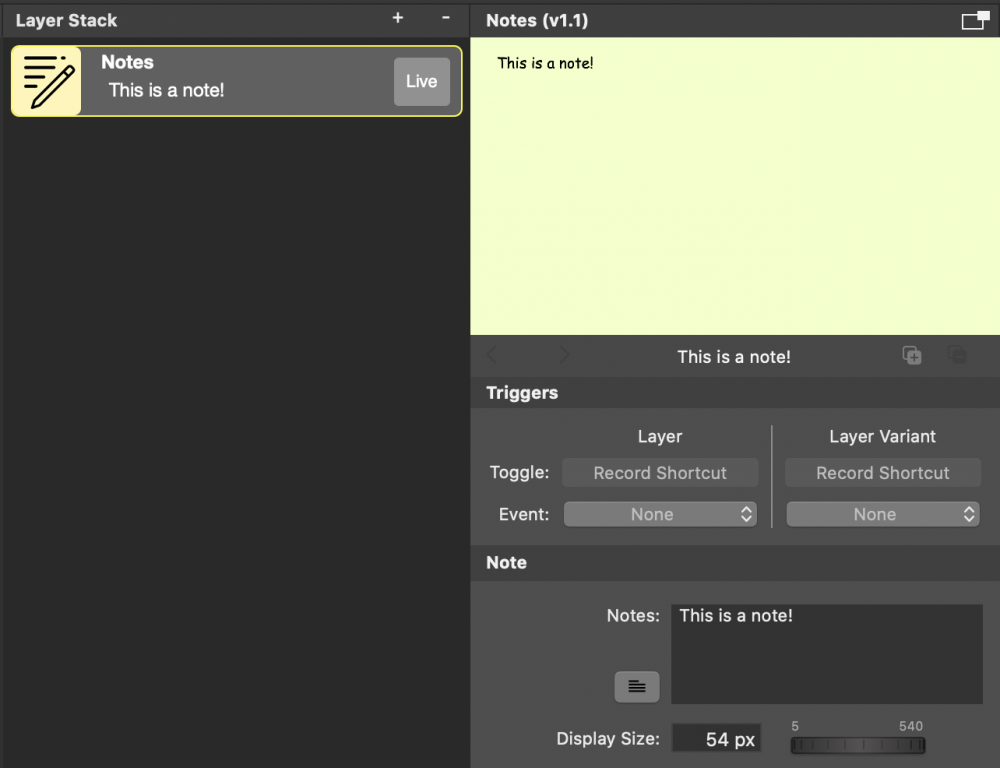
Please remember that the Notes layer also supports [Layer Variations](https://mimolive.com/user-manual/layers-and-variants) for whatever purpose you want to use it.
In the **Layer** menu, you can find a **Background** submenu where you can select a certain background color for the layer. This way you can highlight notes or bring them in another context. The same function can be reached by right-clicking on the layer revealing a context menu.
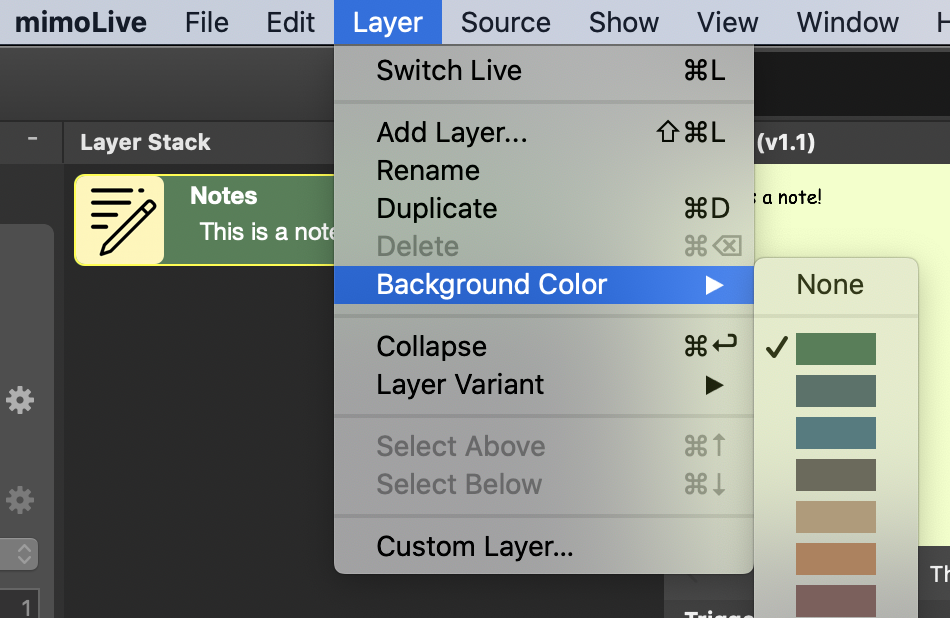
Switching the layer live has no effect.
---
#### Syphon Video Sender Layer
Source: https://mimolive.com/user-manual/live-editing/layers/tools/syphon-video-sender/
Last updated: 2025-06-16
The **Syphon Video Sender** and **[Syphon Video Receiver](https://mimolive.com/user-manual/sources-input/syphon-receiver/)** layers work together to **seamlessly** connect **two mimoLive instances** on the same Mac, allowing for efficient video sharing between them.
With mimoLive's Syphon Video Sender layer you can even do more. You can easily share your video frames with **other applications** on your Mac. This powerful tool makes it easy to integrate mimoLive with other video editing or graphics software, allowing you to use mimoLive as the central hub for all of your live streaming needs.
#### What is the benefit of using the Syphon Video Sender layer?
The benefit of using mimoLive's Syphon Video Sender layer is that it allows you to easily share your video frames with other applications on your Mac, streamlining your workflow and making it easier to incorporate mimoLive into your existing production setup.
By simply adding the Syphon Video Sender layer to your mimoLive document, you can quickly share your video frames with other applications in real time, making it easy to create dynamic and engaging content for your viewers. Whether you're a professional broadcaster, content creator, or just getting started with live streaming, the Syphon Video Sender layer is an essential tool for any Mac user.
Read all about it here: [Syphon Server](https://mimolive.com/user-manual/syphon).
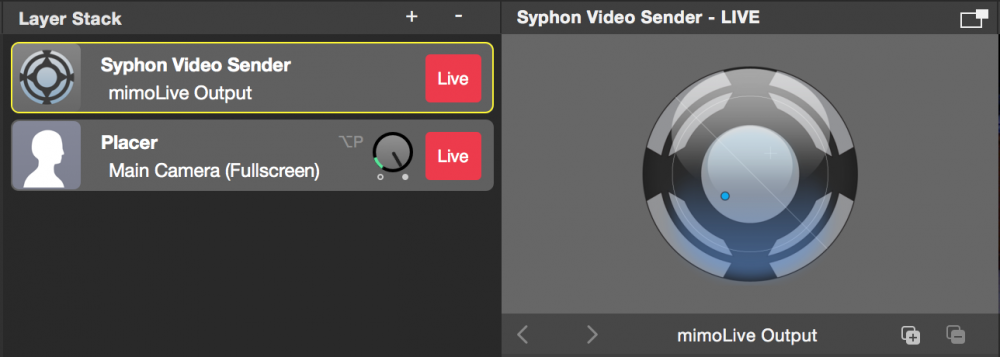
---
### Diagnostic
Source: https://mimolive.com/user-manual/live-editing/layers/diagnostic/
Last updated: 2025-11-19
**Diagnostic Layers** in mimoLive are designed to help you analyze, measure, and verify the technical aspects of your live production setup. These layers do not serve as visual elements for your audience but instead provide valuable feedback to operators, ensuring that video, audio, and output signals are configured correctly before and during a broadcast.
Diagnostic Layers assist with tasks such as checking synchronization between sources, validating video output quality, detecting latency issues, and confirming that all hardware and software components are functioning as expected. By offering real-time insight into your system’s performance, these layers help identify problems early and maintain a smooth, professional production workflow.
---
#### Audio Sync Meter Layer
Source: https://mimolive.com/user-manual/live-editing/layers/diagnostic/audio-sync-meter/
Last updated: 2025-06-16
https://www.youtube.com/watch?v=jQZXDXSPYHY
#### Why does audio and video sync matter in mimoLive?
The sync between audio and video is essential to any video production. Your audience will notice if the video signal and the audio signal aren’t played back at the same time at their playback device.
The problem of keeping audio and video in sync arises from the fact that those signals are processed individually in mimoLive because they may come in from different hardware sources with different signal delays. Video cameras tend to have more latency in the signal because of buffering and the complex compression process of the video signal. Where as audio signals usually are processed with low latency. So we need to make sure in mimoLive to sync back audio and video to accomplish the perfect experience for your audience.
There are two ways to fix this sync problem:
- You can feed your audio into the video camereas audio in port and lets travel the audio signal along with the video signal from the camera to mimoLive. Then they are in sync by default.
- You need to either delay the audio signal or (less common) delay the video signal in mimoLive.
#### Use the AV Sync Meter layer to measure the signal difference and get back in sync
We designed a layer called “AV Sync Meter” that will help you in figure out which signal either audio or video is delayed.
- Open the document in mimoLive which you use to produce your video.
- Find the “AV Sync Meter” layer in the Layer Repository and add it on top of your Layer Stack (see [Layers, Settings and Variants](https://mimolive.com/user-manual/layers-and-variants) to learn how to do this)
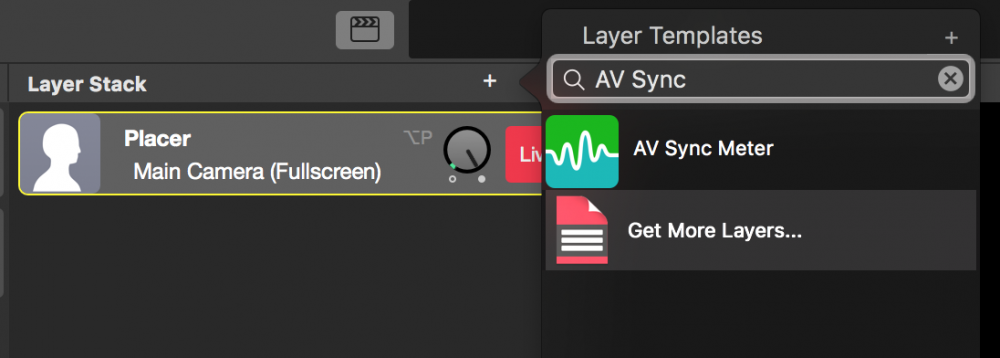
- Configure the newly added layer with your video source and your audio source you want to meter
- Switch the layer live
- [Download this video](https://boinx.com/software/mimolive/AV_Sync_Test_With_White_Noise.m4v) to a movie device in order to be able to play it back in front of the video camera. Make sure that the white noise sound is coming through the audio input you want to detect.
For your convenience scan this QR code on your mobile device to start the download of the video:
- Aim your camera on the mobile device so that the cross hair of the layer can detect the black and white switches in the movie.
- The layer should now display which signal is “to early” and for which time interval.
#### What to do if audio is to early and video is delayed?
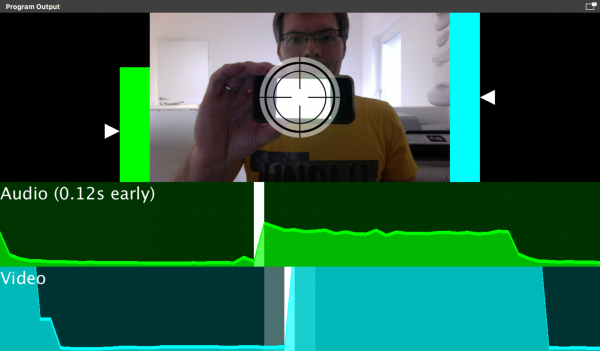
If the AV Sync Meter looks like this (“Audio to early” message appears) then you need to delay your audio source. This can be done in the settings panel of your audio source:
- Find the audio source you want to sync in the Source Repository and select it. The source should disclose its settings panel. (see [Sources and the Sources Repository](https://mimolive.com/user-manual/sources-and-the-sources-repository) )
- Select the gear icon right next to the audio device popup. The device settings for the chosen audio device should popup in a popover window.
- Find the “Delay” option at the bottom and add the meassured amount of the audio beeing to early to the current value.
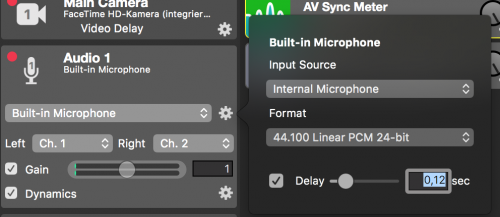
Now your audio should be in sync with the video. For verification do the measuring with the AV Sync Meter Layer again.
#### What to do if video is to early and audio is delayed?
Actually this should be rarely the case. However mimoLive has an option to delay a video as well.
- Find the video source in the source repository in the left column that is to early and select it by clicking on it.
- Click on the “fx” icon in the upper right corner of the source info box to reveal a list of video filters that can be applied to a video source.
- Find the [Video Delay filter](https://mimolive.com/user-manual/video-delay) and click on it in order to apply it to the video source.
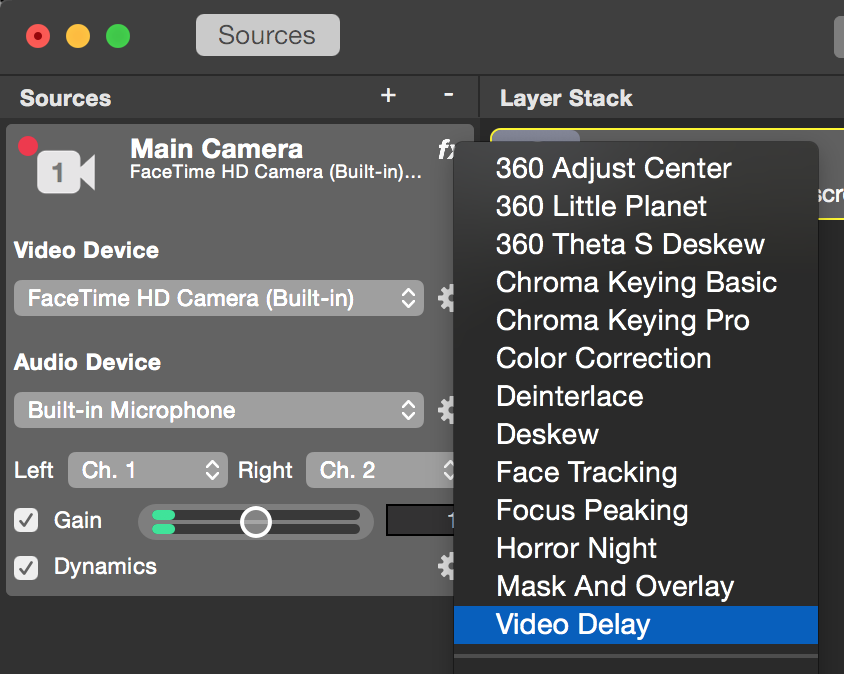
- To configure the needed delay, you need to calculate how many frames the video source should be delayed. (the delay only can happen in integers values on the base of the “frames per second” of the video source) E.g. if your video source is 0.5 seconds to early and it is running at 30 fps then your delay needs to be 15 frames.
- To enter the amount of delayed frames your video source needs click on the action gear button next to the Video Delay filter. A configuration sheet will popup showing the delayed frames.
- Enter the calculated amount of delayed frames and close the popup.

You may want to do your Audio Video Sync test again to make sure that the audio and video is in sync now.
---
#### Video Output Test Layer
Source: https://mimolive.com/user-manual/live-editing/layers/diagnostic/video-output-test/
Last updated: 2025-06-16
The **Video Output Test** layer in mimoLive is a utility that allows users to generate test signals to verify video output settings, color calibration, and screen dimensions. This is especially useful for checking broadcast equipment, monitor setups, or ensuring proper video signal routing before going live.
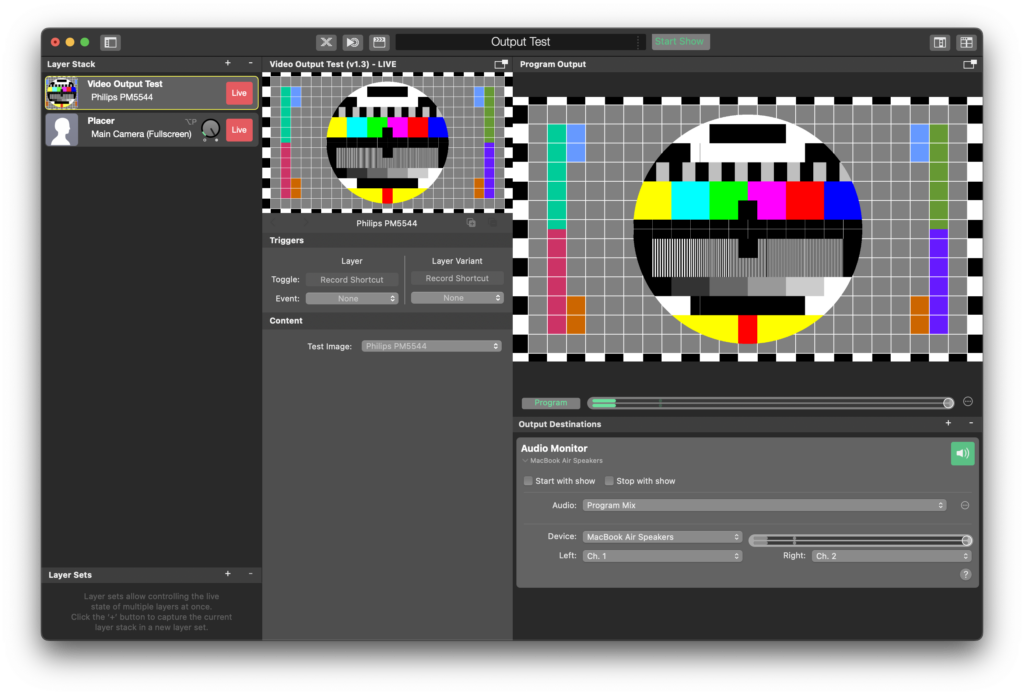
### Key Features
**Layer Trigger Control**: Assign keyboard shortcuts to toggle this layer or switch between layer variants during testing.
**Multiple Test Patterns**: Choose from various test patterns, such as:
- **Philips PM5544**: A classic test pattern for calibration.
- **SMPTE Color Bars**: Standard color bars for checking color accuracy.
- **Screen Dimensions**: A pattern to check the proper sizing and scaling of the video output.
- **Alpha Channel Test**: Used to verify transparency and alpha channel settings.
### User Interface Overview
1. **Test Image Selection**:
- The **Test Image** dropdown menu allows you to select the type of test signal to display.
- Available options:
- **Philips PM5544**: Useful for checking grayscale, color, and alignment.
- **SMPTE Color Bars**: Commonly used for color calibration in broadcast environments.
- **Screen Dimensions**: Use this to verify that your video output matches the expected screen resolution and dimensions.
- **Alpha Channel Test**: Checks transparency levels in your setup to ensure that alpha channels are being handled properly.
2. **Triggers**:
- **Toggle**: Assign a keyboard shortcut to toggle this layer on and off during your production.
- **Layer Variant**: You can assign different layer variants for quick switching between different test patterns during a live session.
### Using the Video Output Test Layer
1. **Adding the Layer**:
• In your **Layer Stack**, click on the “+” button and search for **Video Output Test**.
2. **Selecting a Test Pattern**:
• In the **Content** section, use the **Test Image** dropdown menu to choose the test signal that best suits your needs.
- **Philips PM5544** is ideal for general calibration.
- **SMPTE Color Bars** are perfect for color calibration tasks.
- **Screen Dimensions** will help ensure your video is being displayed in the correct aspect ratio or resolution.
- **Alpha Channel Test** is useful when working with transparent graphics or overlays.
3. **Triggering the Layer**:
• Use the **Toggle** section to assign a keyboard shortcut to quickly activate or deactivate the Video Output Test layer.
4. **Layer Variants**:
• Set up multiple variants with different test patterns for quick switching. This allows you to rapidly change between test signals without needing to reconfigure the layer each time.
### Practical Use Cases
- **Before a Live Broadcast**: Use the **SMPTE Color Bars** or **Philips PM5544** to verify that the color and contrast settings on your broadcast monitors are correct.
- **Testing Screen Resolutions**: Use the **Screen Dimensions** pattern to ensure that your video output is scaling properly across different display devices.
- **Checking Transparency**: The **Alpha Channel Test** is especially useful if you are working with transparent overlays or graphics. It will help you verify that transparency is being processed and displayed correctly.
### Conclusion
The **Video Output Test** layer is an essential tool for any broadcaster or video professional using mimoLive. With a range of test patterns to choose from, you can ensure that your video output is perfectly calibrated before going live. Whether you’re verifying color accuracy, checking screen dimensions, or testing alpha channels, this layer provides everything you need for a seamless production setup.
---
#### Video Sync Meter Layer
Source: https://mimolive.com/user-manual/live-editing/layers/diagnostic/video-sync-meter/
Last updated: 2025-06-16
##### Why does video sync matter in mimoLive?
If you use different hardware devices for video they may not be in sync in mimoLive because of the different latency of the video signals. The sync between video is essential to any video production. Your audience will notice if you switch from one video source to another if they are representing the same time.
The problem of different video delays arises from the fact that video camera models tend to have different latency in the signal because of buffering and the complex compression process of the video signal. Different video capture devices are also having different video latencies. We need to make sure in mimoLive to sync back video of different cameras to accomplish the perfect experience for your audience.
There are two ways to fix this sync problem:
- You can use the same hardware models and connections for all your video cameras. This usually results in a synchronized video because the latency for all devices is the same.
- You can delay the individual video signals with a video filter in mimoLive to the longest delay of all video sources.
##### Use the Video Sync Meter layer to measure the signal difference and get back in sync
We designed a layer called “Video Sync Meter” that will help you figure out which one of two video signals is earlier than another and needs added a delay.
- Open the document in mimoLive which you use to produce your video.
- Find the “Video Sync Meter” layer in the Layer Repository and add it on top of your Layer Stack (see [Layers, Settings and Variants](https://mimolive.com/user-manual/layers-and-variants) to learn how to do this)
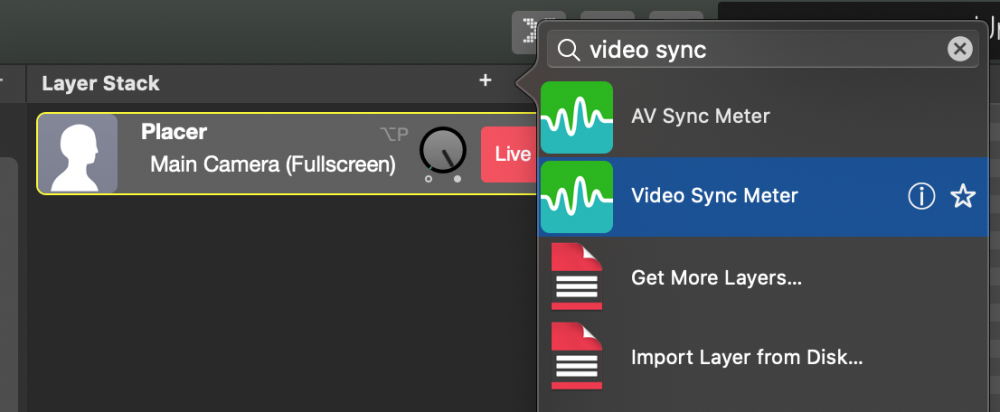
- Configure the newly added layer with two of the video sources you want to meter
- Switch the layer live
- [**Open this web page**](https://mimolive.com/avsync) on a mobile device. Point the camera at the blinking screen and hold the microphone close to the device.
For your convenience, scan this QR code using your mobile device to open the webpage:

- Aim your cameras on the mobile device so that the cross hair of the layer can detect the black and white switches in the movie.
- The layer should now display which signal is “to early” and for how many frames.
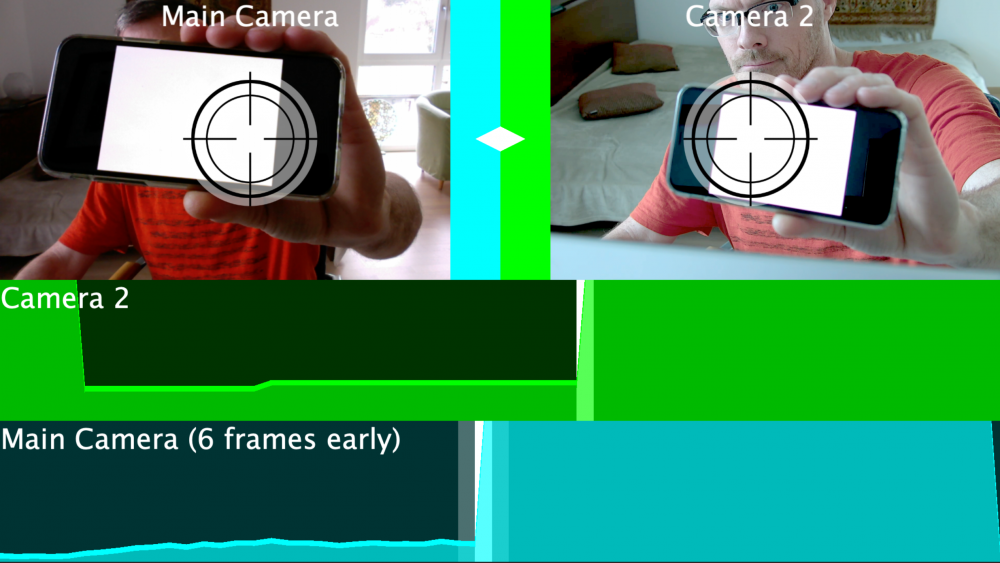
##### Compensate the Video Signal Difference
- Find the video source in the [Source Repository](https://mimolive.com/user-manual/sources-and-the-sources-repository) in the left column that is to early and select it by clicking on it.
- Click on the “fx” icon in the upper right corner of the source info box to reveal a list of video filters that can be applied to a video source.
- Find the [Video Delay filter](https://mimolive.com/user-manual/video-delay) and click on it in order to apply it to the video source.
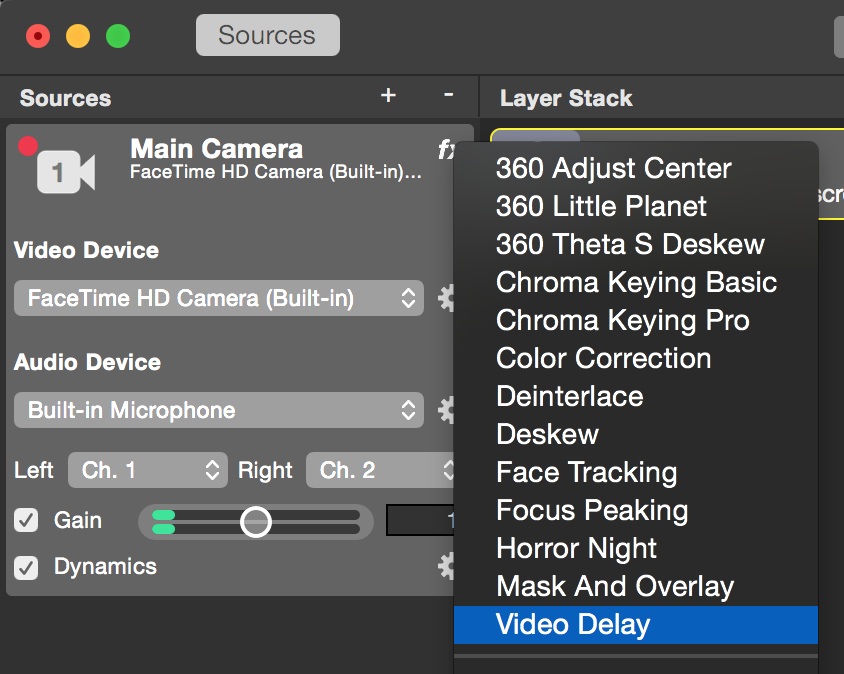
- To enter the number of delayed frames your video source needs to click on the action gear button next to the Video Delay filter. A configuration sheet will pop up showing the delayed frames.
- Enter the measured amount of delayed frames and close the popup.

You may want to do your Video Sync test again to make sure that both video sources are in sync now.
---
### Control
Source: https://mimolive.com/user-manual/live-editing/layers/control/
Last updated: 2025-11-19
**Control Layers** in mimoLive provide remote-control capabilities for external hardware such as switchers and PTZ cameras. These layers allow operators to integrate and manage external devices directly from within a mimoLive document, streamlining production workflows and reducing the need for separate control interfaces.
With Control Layers, you can adjust camera positions, trigger presets, operate hardware video switchers, and coordinate multiple devices over network or serial connections. This makes it possible to handle complex multi-camera productions, automated movements, and real-time device control—all from inside your live-production environment.
---
#### ATEM Controller Layer
Source: https://mimolive.com/user-manual/live-editing/layers/control/atem-controller/
Last updated: 2025-06-16
### ATEM Controller Support – Addon for mimoLive
This mimoLive Add-on brings support for the [ATEM Controller – Blackmagic Design](https://www.blackmagicdesign.com/).
Watch these Videos to get a quick overview on this topic!
[Video on YouTube](https://www.youtube-nocookie.com/embed/uu3rUDzT4bw?rel=0)
[Video on YouTube](https://www.youtube-nocookie.com/embed/D3UvzTE7upU?rel=0)
#### System Requirements:
- mimoLive 2.0 or newer
- [Blackmagic Design ATEM Switcher hardware](https://www.blackmagicdesign.com/products/atem)
- Software Blackmagic Design “ATEM Switchers” which is [available here](https://www.blackmagicdesign.com/support/family/atem-live-production-switchers).
- Optional: [Blackmagic Design UltraStudio Mini Recorder and Mini Monitor](https://www.blackmagicdesign.com/products/ultrastudiothunderbolt)
#### Installation
To purchase the mimolive ATEM Controller, please go to the [mimoLive Store](https://mimolive.com/store/addon) and purchase the **ATEM Controller Support – Addon for mimoLive**. You will receive an email containing a clickable link with your license key. This will unlock the mimoLive ATEM Controller layer.
*\****License required**
Please visit [mimoLive Store](https://mimolive.com/store/) to purchase the required license for this addon.
#### Using the ATEM Controller
Here is a quick recipe for getting started with the ATEM Controller layer:
- Make sure the **ATEM Switchers** software from Blackmagic Design is installed and the following file is on your system: /Library/Application Support/Blackmagic Design/Switchers/BMDSwitcherAPI.bundle
- Add the ATEM Switcher layer to your document.
- Find the **ATEM IP Adress** field in the Layer Settings column under **Connection** and enter the IP address of your ATEM Switcher and press Enter
- Switch the layer to “Live”
You should now be able to switch by clicking on the Cam 1 … Cam 8 buttons in the Layer Setting column in the **Control** section.
The following video explains how to set up and use the ATEM controller.
**BoinxTV vs. mimoLive**
The video was originally made for BoinxTV. The functionality of the ATEM Controller is the same in mimoLive.
#### Adding The ATEM Controller Layer To A Remote Control Surface
The ATEM Controller Layer brings a couple of Remote Control Representations with it. To use one of them in a [Remote Control Surfaces](https://mimolive.com/user-manual/remote-control-surfaces)
you need to configure it completely in mimoLive. Once you finished the configuration in the mimoLive document you can open the Remote Control Surface with a button in the toolbar. (Please read [Remote Control Surfaces](https://mimolive.com/user-manual/remote-control-surfaces) to learn more about how to create and design a Remote Control Surface for mimoLive).
On that Remote Control Surface, you click on the **+ Add Button** button. Look for the **ATEM Controller** layer in the left column and click on it. This will change the left column to the layer representations of this layer. There are several different layouts to choose from:
- 4 Sources
- 8 Sources In A Row
- 8 Sources Compact
- Mutiview + 4 Sources
- Multiview + 8 So
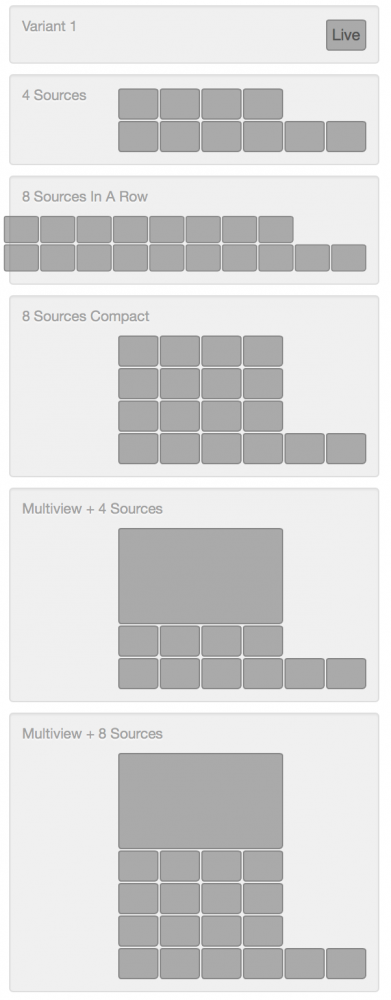
Because some layouts need a lot of space you may need to adjust the Remote Surface grid size before adding the layout to it.
*!*Please take into account that the live video preview is CPU intensive and costs render performance in mimoLive.
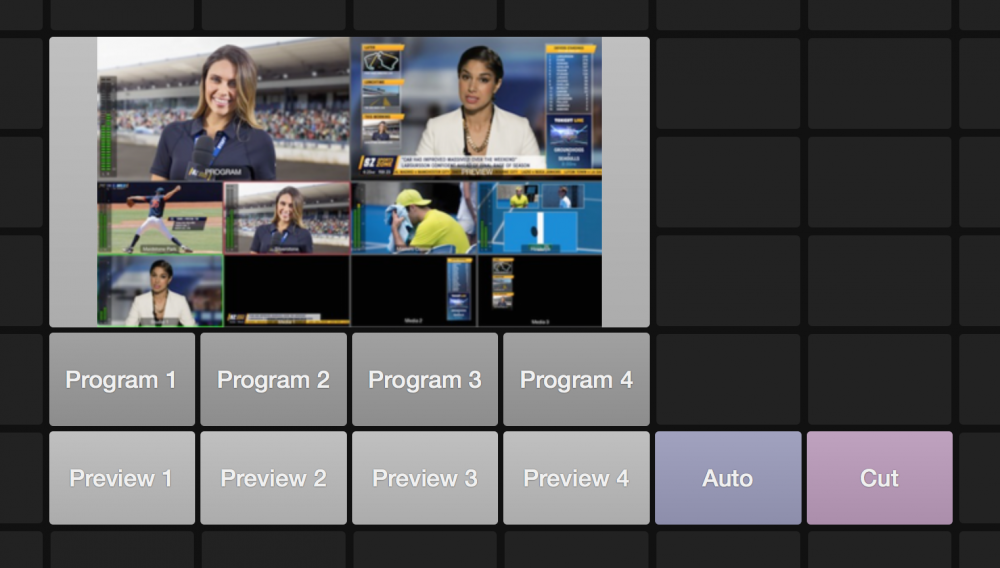
---
#### Axis® Controller Layer
Source: https://mimolive.com/user-manual/live-editing/layers/control/axis-controller/
Last updated: 2026-08-19
The Axis® Controller layer can be used to remote control [AXIS IP Cameras equipped with PTZ](http://www.axis.com/global/en/products/ptz-cameras) (Pan-Tilt-Zoom).
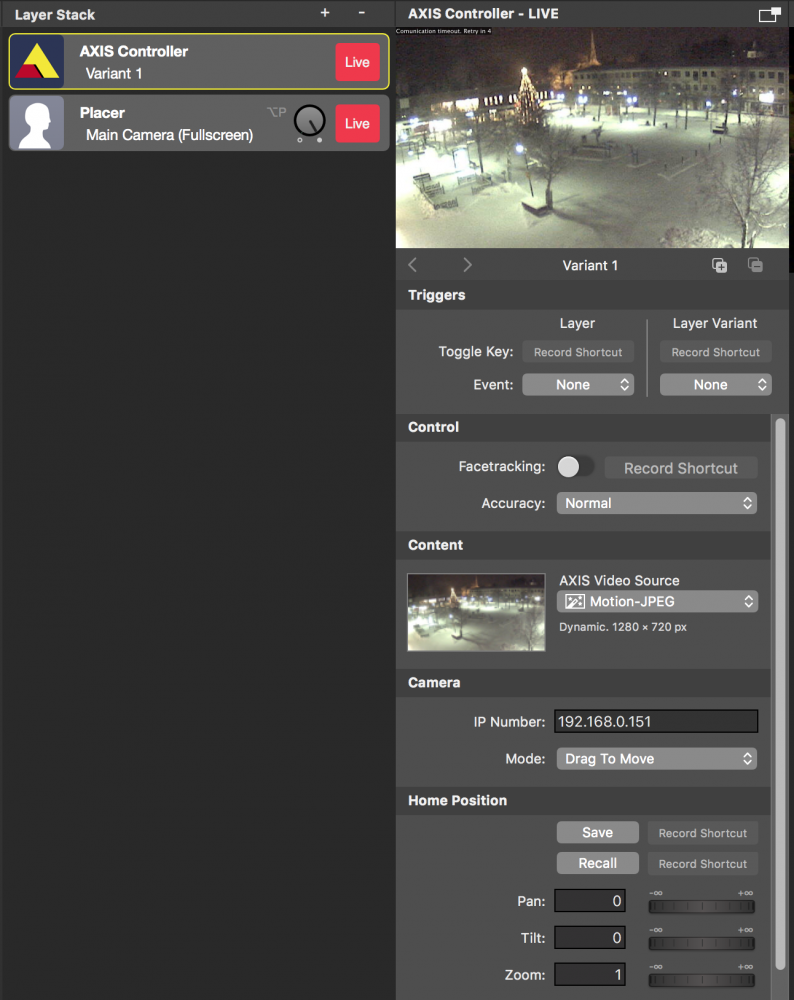
#### Setting Up The AXIS Controller Layer
In order to be able to control an AXIS IP camera you need to establish a TCP connection to it. Make sure that your mimoLive computer is connected to the internet (or the same LAN as you IP Camera) and the camera is reachable by an fixed IP number. You need to enter the IP number of your camera into the IP Number field in the Camera section in layer settings.
Once you switched the layer live the connection status will be displayed in the upper left corner of the layer preview.
For your connivence you can assign a video source (e.g. a [Motion-JPEG source](https://mimolive.com/user-manual/motion-jpeg)) to the layer. This video source will be displayed in the layers preview and is for reference use only.
> **Note:** The AXIS Controller layer don’t display the image of the camera in the program out!
>
> Because the AXIS Controller layer is only for controlling the PTZ features of the camera it doesn’t display the image of it in the program output. You will need to have another layer (e.g. a Placer layer) in order to incorporate the video image of the AXIS camera in your video production.
#### Controlling Pan-Tilt-Zoom
If you switched live the layer and a connection to the AXIS camera could be established you are able to control the camera in the layer preview with your mouse cursor. There are two modes available in the Camera section of the layer settings:
- Click To Center: If you click on the layer preview image the AXIS camera will recenter itself to the click point.
- Drag To Move: You need to click and hold down the mouse button to drag the AXIS camera to a new position. Please take in account that there may be a delay and you won’t see the movement of the camera in real time.
By holding down the alt key you can switch to the oppose mode. E.g. if you have setup the Mode to “Click To Center” then the alt key will change the mode to “Drag To Move” temporarily.
#### Save And Recall a Camera Position
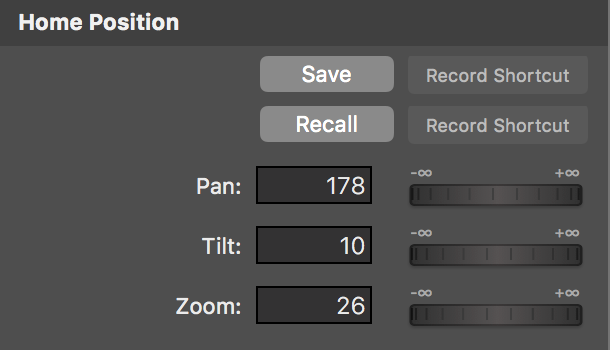
If you need to come back to a certain camera position often you can save this position in the layer setting with the “Save” button in the “Home Position” section of the layer settings. The “Recall” button let the camera come back to this position. You may also edit the values manually in the input fields below the buttons if you need adjust them.
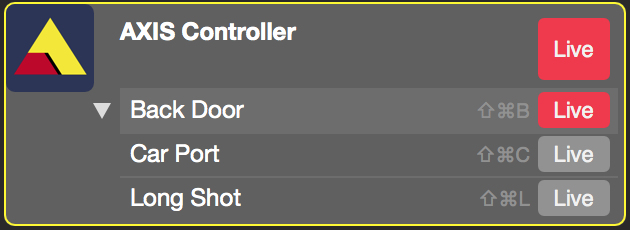
If you have multiple areas of interest you can create multiple layer variants for this AXIS Controller layer with different Home Positions each (see [Layers, Settings and Variants](https://mimolive.com/user-manual/layers-and-variants)). Now you can switch those layer variants in the layer stack (or assign different keyboard short cuts for each layer variant) which will let the camera move to the stored Home Position.
#### Face Tracking
The AXIS Controller layer is able to do face tracking for single faces. If you switched on the “Face Tracking” option in the layers setting the AXIS controller will follow a presenters face if it can find one in the provided video preview. Depending on the power of your computer you may switch the Accuracy option from “normal” to “high”. This will help if the face is smaller in the video.
> **Important:** Face Tracking
>
> The Face Tracking feature is implemented in mimoLive and it works even if the used AXIS camera is not capable of doing face tracking on its own.
---
#### PTZOptics Controller Layer
Source: https://mimolive.com/user-manual/live-editing/layers/control/ptzoptics-controller/
Last updated: 2026-08-19

The PTZOptics Controller layer can be used to remotely control [PTZ cameras by PTZOptics](http://ptzoptics.com).
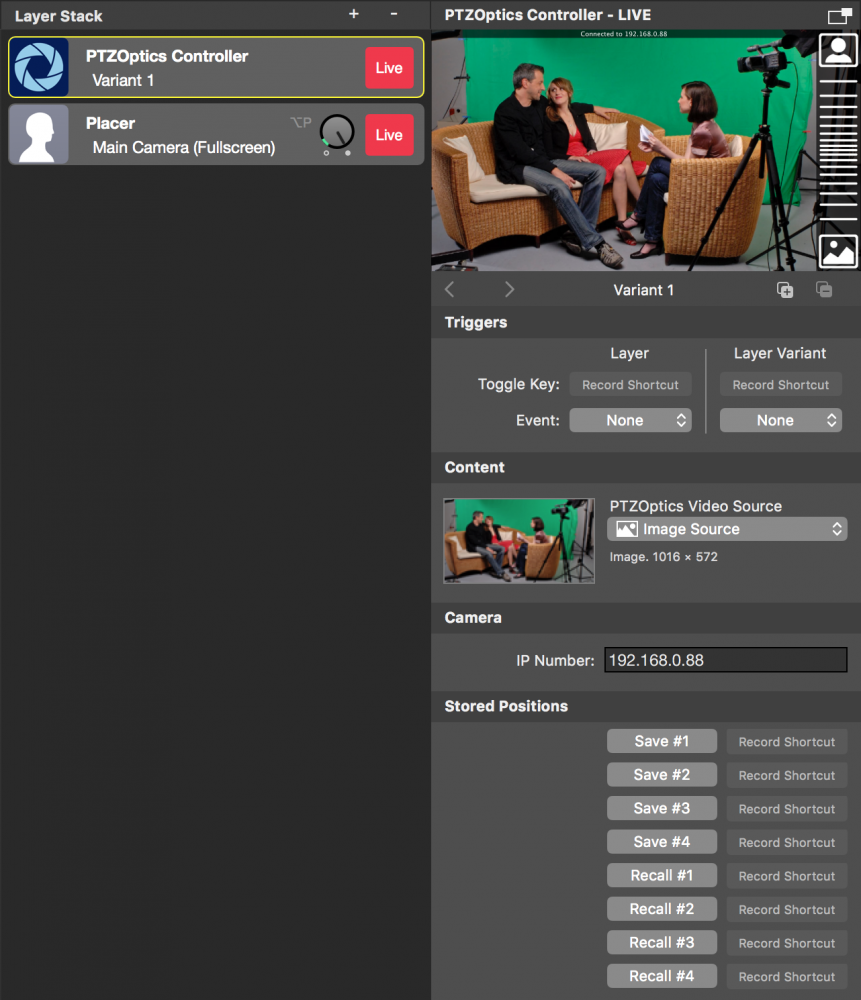
#### Setting Up The PTZOptics Controller Layer
In order to be able to control an PTZOptics IP camera you need to establish a TCP connection to it. Make sure that your mimoLive computer is connected to the internet (or the same LAN as you IP Camera) and the camera is reachable by a fixed IP number. You need to enter the IP number of your camera into the IP Number field in the Camera section in layer settings.
Once you switched the layer live the connection status will be displayed in the upper left corner of the layer preview.
There are two ways of controlling the camera configurable with the “Drag to Move” option:
- Drag to move the content: In this mode, the mouse cursor will guide the content
- Drag to move the camera: When this mode is selected the camera will follow the mouse cursor movements.
To gain fine control over the movement you can switch on the “Fine Control” option.
For your convenience, you can assign a video source to the layer. This video source will be displayed in the layer's preview and is for reference use only.
> **Note:** The PTZOptics Controller layer doesn’t display the image of the camera in the program out!
>
> Because the PTZOptics Controller layer is only for controlling the PTZ features of the camera, it doesn’t display the image in the program output. Add another layer (e.g. a Placer layer) in order to show the video image of the PTZOptics camera in your video production.
#### Controlling Pan-Tilt-Zoom
If you switched live the layer and a connection to the PTZOptics camera could be established you are able to control the camera in the layer preview with your mouse cursor. You need to click and hold down the mouse button to drag the PTZOptics camera to a new position. Please take in account that there may be a delay and you won’t see the movement of the camera in real-time.
The Zoom can be controlled with the bar on the right side of the preview.
#### Save And Recall Camera Positions
If you need to come back to a certain camera position often you can save this position in the camera. Eight positions can be saved with the “Save” buttons in the “Stored Positions” section of the layer settings. The eight “Recall” buttons let the camera come back to the stored positions.
Each position can be named with the text field above the Recall button. This name will be reflected in the Remote Control surface too:
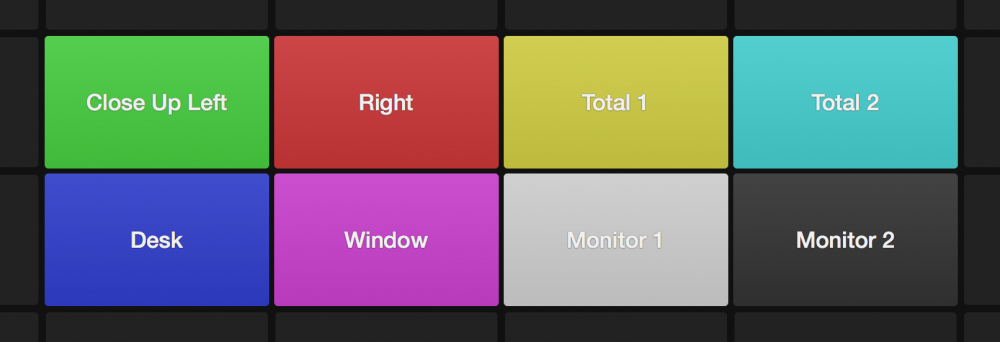
> **Note:** The camera positions are stored in the camera itself and not in the mimoLive document.
Here is a great tutorial by Jason Jenkins from DVEStore:
[Video on YouTube](https://www.youtube-nocookie.com/embed/9BBSuSsPafk?rel=0)
---
## Filters and Effects (fx)
Source: https://mimolive.com/user-manual/live-editing/filters/
Last updated: 2026-08-19
### Add filters to video sources
Filters can be applied to any video source and change the appearance of the source before it is processed by the Layer stack. mimoLive comes with a rich set of filters that are useful in video productions.
#### Access filter dropdown menu
To access the filter dropdown menu, navigate your mouse cursor into the sources section of mimoLive on the left side of the window. While moving your mouse cursor over a certain source, the **fx** icon appears which opens the dropdown menu.
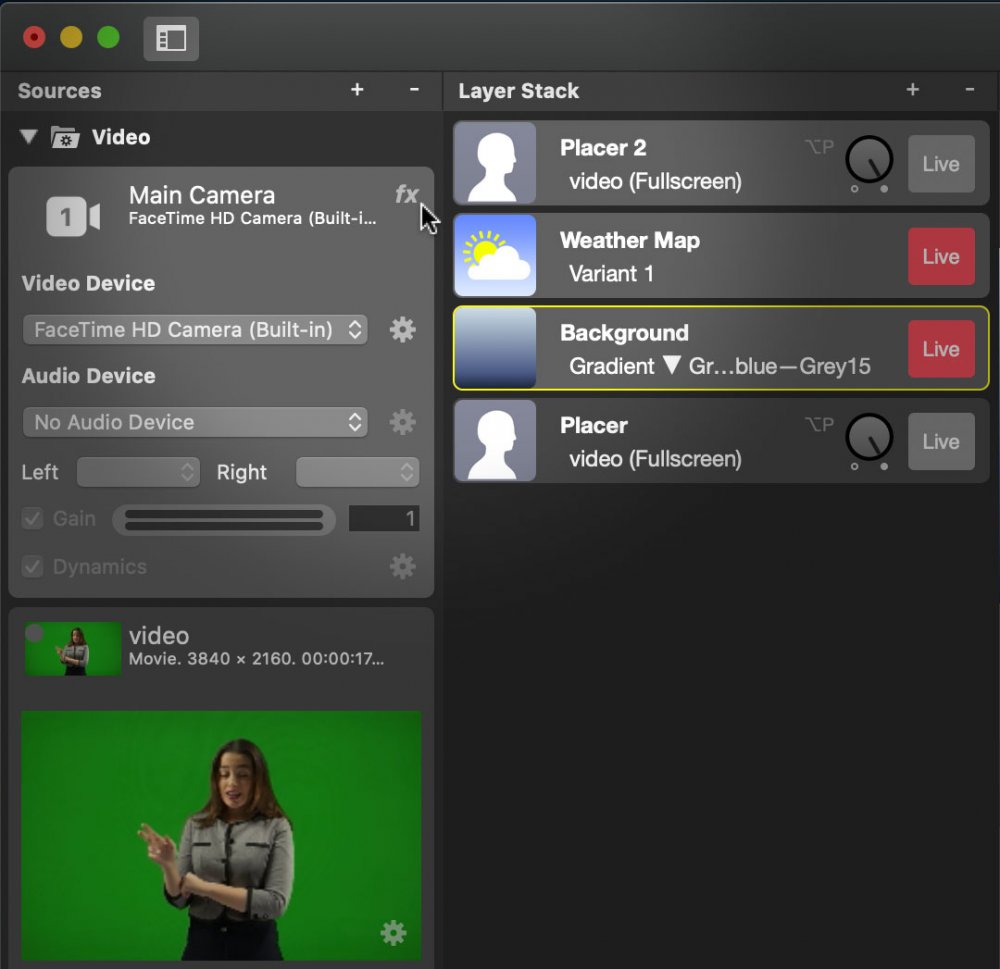
#### Choose the filter for the source
mimoLive comes with a variety of real-time video filters. Many filters will be self explained but refer to this page to learn more about filters.
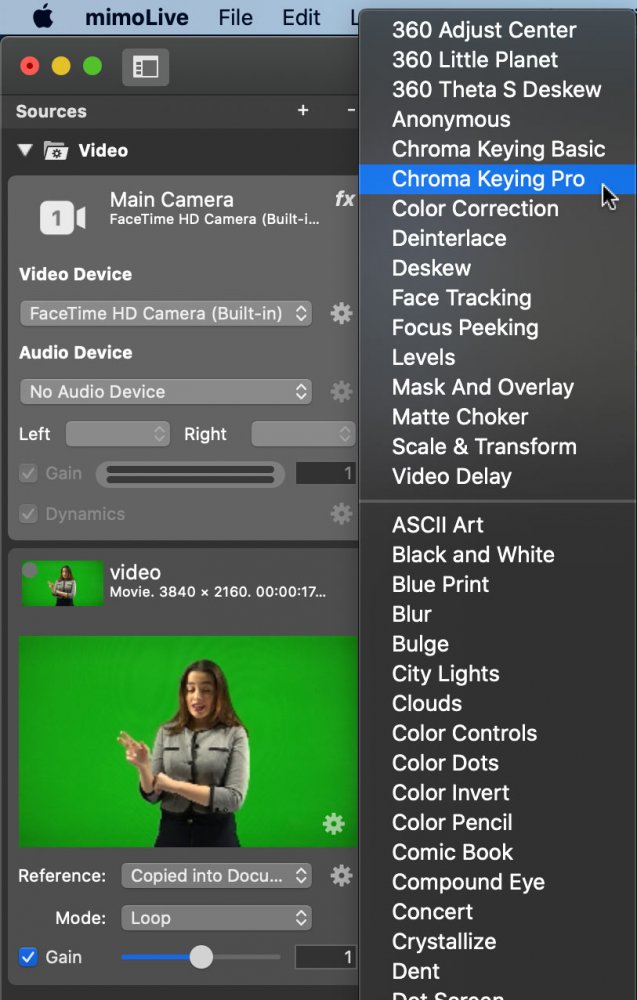
Here is a list of all filters which are available in mimoLive.
| Video Filter Name | Description |
| --- | --- |
| [360 Adjust Center](https://mimolive.com/user-manual/360-filters) | This filter is able to readjust the center of a equirectangular video frame used in 360° video productions. |
| [360 Little Planet](https://mimolive.com/user-manual/360-filters) | “[Little Planets](https://en.wikipedia.org/wiki/Stereographic_projection#Photography) “ are the results of a special distortion of equirectangular video frames. Its for the fun of it! :-) |
| [360 Theta S Deskew](https://mimolive.com/user-manual/360-filters) | If you use a [Theta S 360° camera by Ricoh](https://theta360.com/) you can use this filter to stitch the two half dome video images produced by this camera together. |
| [Chroma Keying Basic](https://mimolive.com/user-manual/chroma-keying-basic) | The Chroma Keying Basic is able to make a backdrop transparent, even if its not lit perfectly. |
| [Chroma Keying Pro](https://mimolive.com/user-manual/live-editing/filters/chroma-keying-pro/) | This Chroma Keying Pro filter gives a professional result if you have a even lit backdrop. |
| [Color Correction](https://mimolive.com/user-manual/color-correction) | Use this filter to correct colors if you can’t do it at the video hardware |
| [Deinterlace](https://mimolive.com/user-manual/deinterlace) | Some video sources still produce a deinterlaced video signal. Because mimoLive is running in progressive mode you need to deinterlace those video signals. |
| [Deskew](https://mimolive.com/user-manual/deskew) | If you capturing a shot clock in a gym but you can’t place the camera right in the front of the clock to avoid perspective fails you can deskew the clock to straight lines with this filter. |
| [Face Tracking](https://mimolive.com/user-manual/face-tracking) | This filter is very useful in combination with mimoCall: If your remote guest isn’t sitting still on their chair always moving out of your portrait capture area you can let mimoLive follow their face automatically. |
| [Focus Peeking](https://mimolive.com/user-manual/focus-peeking1) | To perfectly adjust the focus point for a video device you can enable this filter. It marks the sharp areas with a certain color. |
| [Mask and Overlay](https://mimolive.com/user-manual/mask-and-overlay) | If your video needs to be made transparent in a certain areas you can use this filter. Additionally this filter can add an overlay image. The default setting is meant for a Kiss Cam! ;-) |
| [Video Delay](https://mimolive.com/user-manual/video-delay) | BIf your audio is not in sync with your video you may need to delay your video. To learn more about it read the
[detailed description of the Audio Sync Meter layer](https://mimolive.com/user-manual/audio-sync-meter) |
> **Note:** Video Filters provided by macOS may not work
>
> There are many other [Core Image Filters](https://mimolive.com/user-manual/core-image-filters) that comes with macOS. Those video filters are not guaranteed to work in mimoLive correctly. Use on your own Risk!
#### Applying a Filter
To apply a filter to a video source in mimoLive follow the steps below:
- Select the video source in the [Sources Repository](https://mimolive.com/user-manual/sources-and-the-sources-repository) on the left in your mimoLive document window. The Source Inspector Panel will expand.
- Click on the “fx” button at the top right corner of the Source Inspector Panel. A list of all available video filters will be shown. If there is no “fx” button then you most likely didn’t select a source that has visual content to filter.
- Click on the Video Filter of your choice. It will be added to the Filters List of the selected video source.
- Most video filters has some parameter to adjust. By clicking on the Settings Wheel next to the video filter a configuration popover will be opened.
#### Applying Multiple Filters
In some cases it may be necessary to add multiple filters to a video source to achiev the desired result. You can add additional video filters if you click on the “fx” button again. New video filters will be added to the Filters List at the bottom. See Ordering Filters .
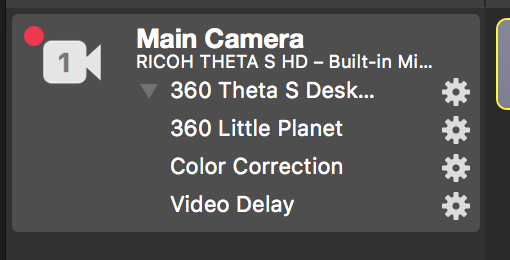
#### Changing a Filter’s Settings
Each filter comes with it’s own settings. Once you’ve applied a filter to a source, you can click the Settings Wheel to access a popover which contains the filter’s settings.
##### Compact And Expanded View
If you have multiple filters applied to your video source they can get in your way if you don’t need to adjust them anymore. You can switch to a more compact view by clicking on the little triangle at the top left of the filters list:
#### Removing a Filter
- To remove a filter, move the mouse over the name of the filter. An “x” appears next to the settings gear.
- Click the x to remove the filter.
#### Ordering Filters
- The order in which filters are applied is very important for what the output looks like.
- To change the order of filters, simply grab the filter and drag it to the position you want.
- The top most filter is applied first, the bottom most is applied last.
#### Creating Custom Filters
There is a certain effect you don’t find in the long list of available video filters? You can create and use your own custom video filters in mimoLive! Please read [Custom Layers](https://mimolive.com/user-manual/custom-layers) to learn more about how you can extend mimoLive.
---
### 360 filters
Source: https://mimolive.com/user-manual/live-editing/filters/360-filters/
Last updated: 2026-08-19
mimoLive provides 3 filters for use with 360° video:
| Video Filter Name | Description |
| --- | --- |
| 360 Adjust Center | This filter is able to readjust the center of an equirectangular video frame used in 360° video productions. |
| 360 Little Planet | “[Little Planets](https://en.wikipedia.org/wiki/Stereographic_projection#Photography) “ are the results of a special distortion of equirectangular video frames. It's for the fun of it! :-) |
| 360 Theta S Deskew | If you use
a [Theta S 360° camera by Ricoh](https://theta360.com/) you can use this filter to stitch the two half-dome video images produced by this camera together. |
#### Using the Theta S with YouTube 360 Live Streaming
This tutorial contains a complete overview of the filters used with the Ricoh Theta S to create a live, 360° video stream via YouTube live:
[Video on YouTube](https://www.youtube-nocookie.com/embed/nNQES53S2jc?rel=0)
#### 360 Adjust Center
When Producing 360° video there is always an area of interest you want your audience to focus on. This area should be in the center of your equirectangular video frame. If you can’t access the camera hardware to adjust the center by turning it to the right angle you can use this video filter to do so in mimoLive. The filter is also able to correct a misaligned horizon by rotating the 360° sphere around the specified center.
> **Note:** Equirectangular Video Frame Required
>
> Please note that this filter only works with [equirectangular Video Frames](https://en.wikipedia.org/wiki/Equirectangular_projection)
#### 360 Little Planet
This is a fun video filter: It projects an equirectangular video frame that way that it looks like a little planet. It works best if you are producing 360° video at an outside location and have a big sky above you.
> **Note:** Equirectangular Video Frame Required
>
> Please note that this filter only works with [equirectangular Video Frames](https://en.wikipedia.org/wiki/Equirectangular_projection)
#### 360 Theta S Deskew
The Ricoh Theta S is an affordable, consumer-grade 360° camera. It provides a live video image via USB or HDMI. With firmware update v01.21, both video ports provide an HD video signal. However, the **HDMI image** isn’t stitched and contains 2 half domes from the fish eye lenses and needs deskewing. This filter is for deskewing (stitching) the video signal.
#### USB vs HDMI
Why should I use the HDMI over the USB if the USB already provides a stitched and deskewed video? The USB video signal is more compressed than the HDMI one. It gets pixelated if there is a lot of motion in the image. The HDMI always produces the same quality. On the other hand, you will need to have HDMI capture hardware in order to bring the HDMI signal into mimoLive (e.g. Blackmagic Design UltraStudio Mini Recorder) and your computer will spend some CPU and GPU power on processing the image.
---
### Background Removal Filter
Source: https://mimolive.com/user-manual/live-editing/filters/background-removal/
Last updated: 2025-06-16
The Background Removal filter uses machine learning to separate people from the background without the need for a green screen.
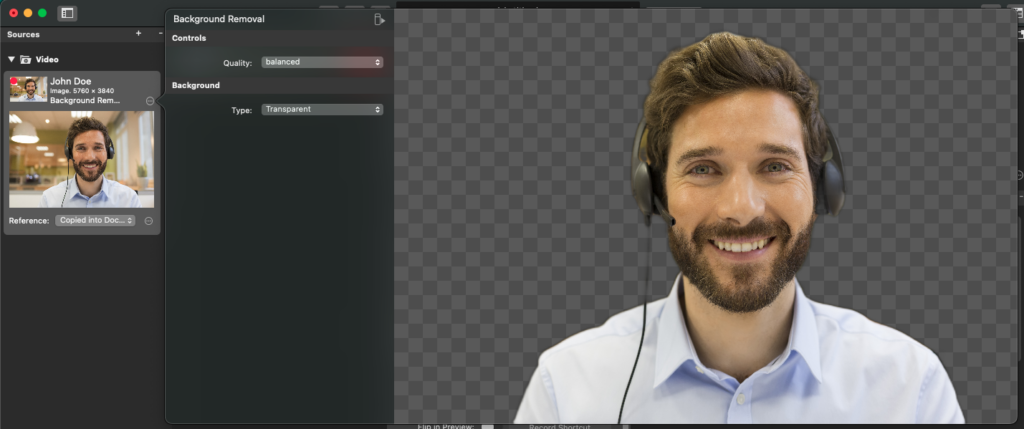
##### How to apply the Background Removal filter
Find the video source in the [Source Repository](https://mimolive.com/user-manual/sources-and-the-sources-repository) on the left. Click on the fx icon in the upper right corner of the source, and a list of available video filters will appear. Click on “Background Removal” to apply this filter to your video source.
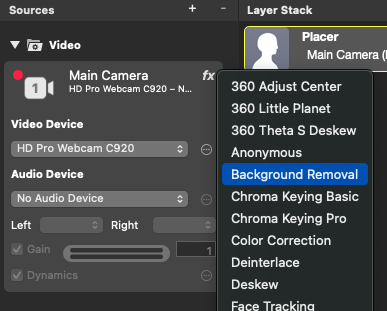
##### Quality
There are three options for the Quality level. As this filter is using machine learning, this is to tell it some preferences but does not have any sharp definitions:
- “accurate” – Prefers image quality over performance.
- “balanced” – Prefers processing that balances image quality and performance (Default).
- “fast” – Prefers performance over image quality.
Over time, with updates to hardware and MacOS, the quality and speed of this filter will certainly increase.
##### Background Types
In the Filter Settings, you have multiple options for the appearance of the removed background to choose from:
| Background Types | |
| --- | --- |
| Transparent | This leaves the background as transparent areas. This is useful if you already have a background in your Layer Stack. |
| Blurry Background | If you don’t want to reveal too much of your current location this is a good option. You can define the amount of blur applied to the background. |
| Single Color | The background will be replaced by a single color of your choice. |
| Gradient (Left to Right) | A horizontal gradient will be the new background. |
| Gradient (Top to Bottom) | A vertical gradient is generated and inserted as the new background. |
| Custom Image | This option gives you great flexibility to put anything in your background. |
---
### Chroma Keying Basic
Source: https://mimolive.com/user-manual/live-editing/filters/chroma-keying-basic/
Last updated: 2024-10-04
### Green Screen / Blue Screen
This page explains how to combine a video and background by adding transparency to the video using the **Chroma Keying Basic** Filter of mimoLive™.
To learn more about how to work and set up a Green Screen including correct lighting refer to [Chroma Keying](https://mimolive.com/user-manual/chroma-keying-green-screen2).
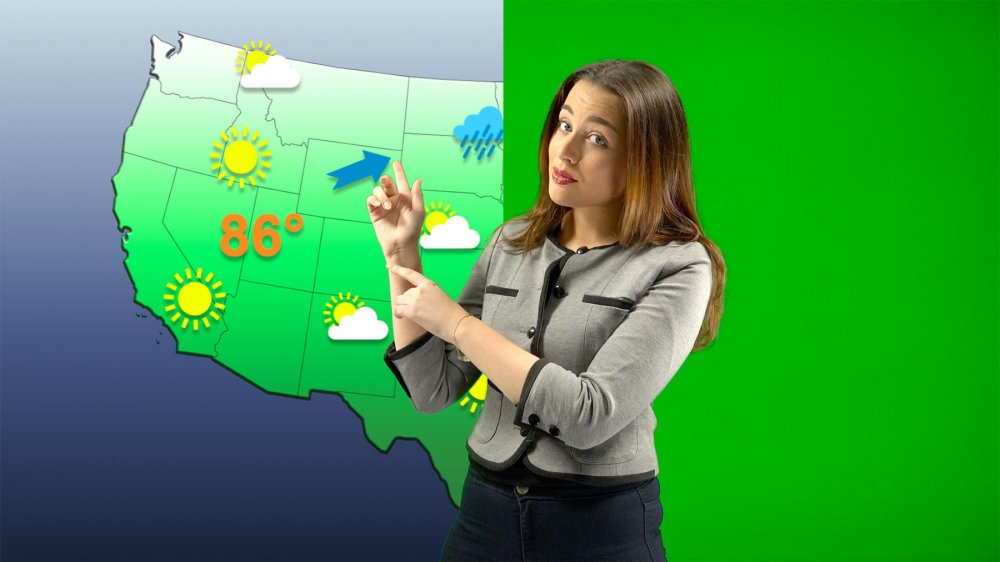
#### Activate the **Chroma Keying Basic** filter
Navigate to the **fx** dropdown menu and activate the **Chroma Keying Basic** filter.
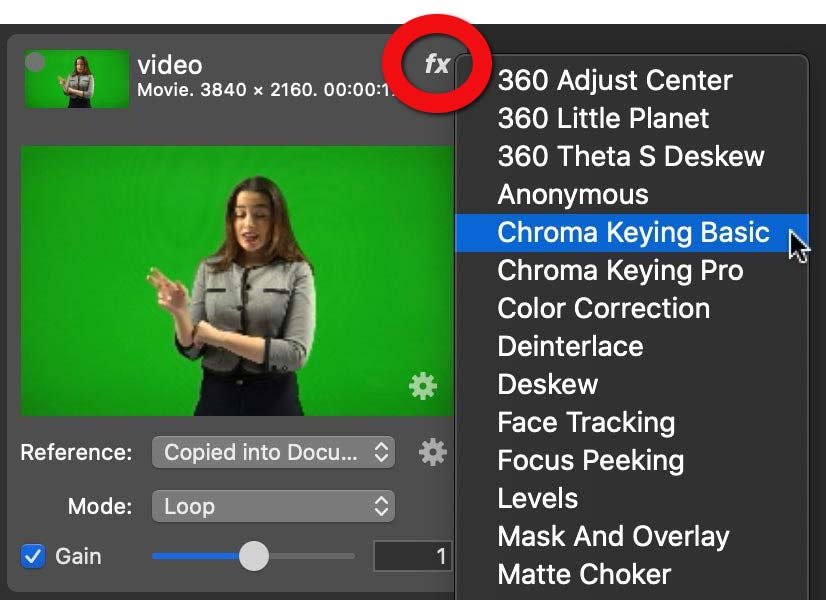
#### Setup: Auto Adjust
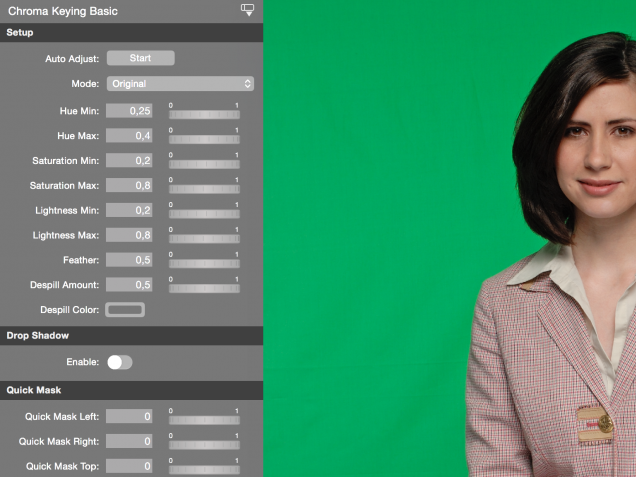

The **Chroma Keying Basic** Filter is a quick and easy solution. There is an Auto Adjust option available. By clicking on the “Start” button the filter will analyse the current video image and try to find optimal values for the current content. Later on you can fine adjust the values.
*\**In order to let the Auto Adjust work properly please step out of the green screen so that the video frame just shows the backdrop.
#### Manually Setup
This is a step by step procedure on how to setup the **Chroma Keying Basic** Filter:
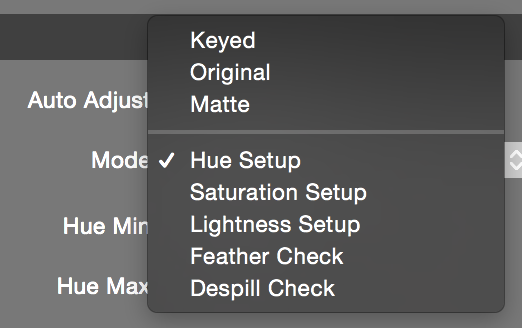
1. Switch to the “Hue Setup” view by selecting it in the “Mode” popup menu. A rainbow bar with a histogram should appear at the bottom of the filter preview area. The histogram tells you how much of a certain color is seen in the video. The maximum peak should be your backdrop color.
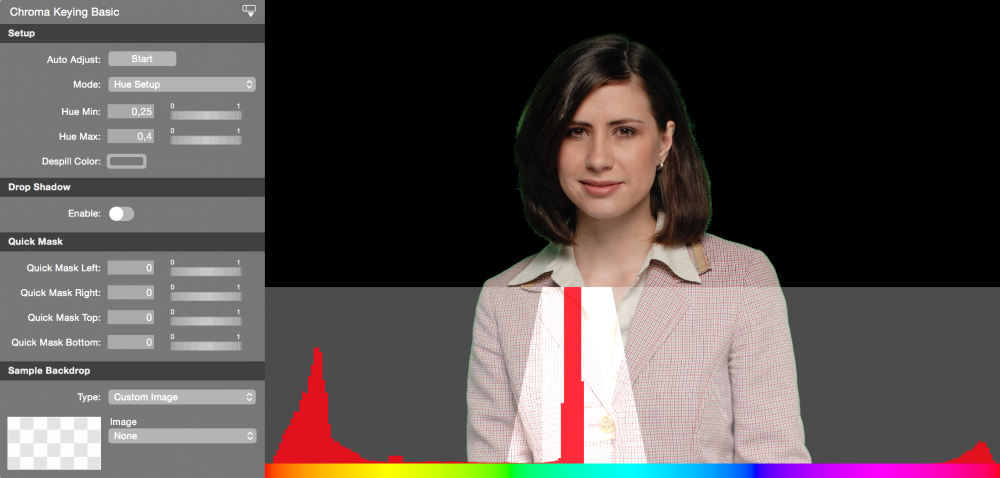
2. Now you can either click with the mouse cursor into the filter preview and select the backdrop color you want to key directly in the video or adjust the “Hue Min” and “Hue Max” values to select the backdrop color. You can do so either with the parameters or drag them in the histogram.
3. After you selected the hue of your backdrop color you need to specify the saturation. Please use the “Mode” popup menu to switch to the “Saturation Setup” view.
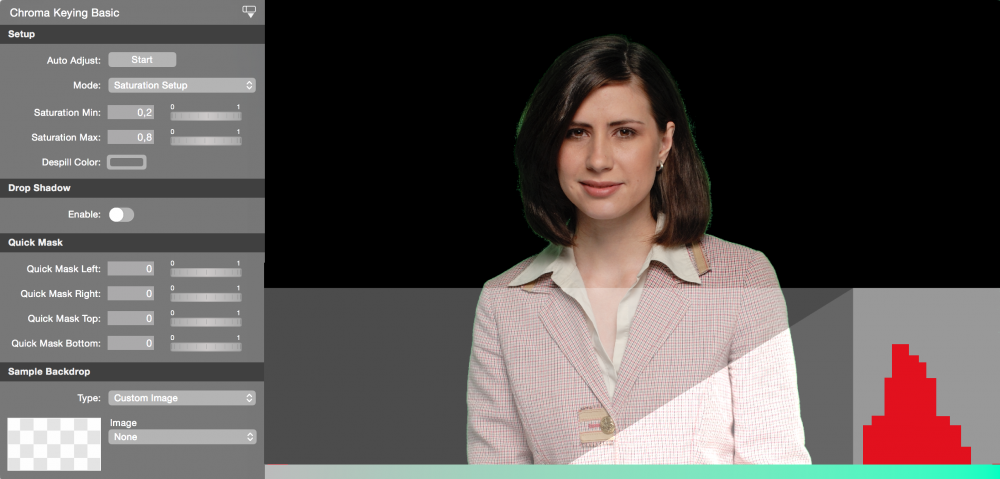
4. Use the “Saturation Min” and “Saturation Max” parameter to narrow down the selection of your color range. You can do so either with the parameters or drag them in the histogram.
5. The next step is to specify the lightness. Please use the “Mode” popup menu to switch to the “Lightness Setup” view and clamp the reds in the histogram like you did with the “Saturation”.
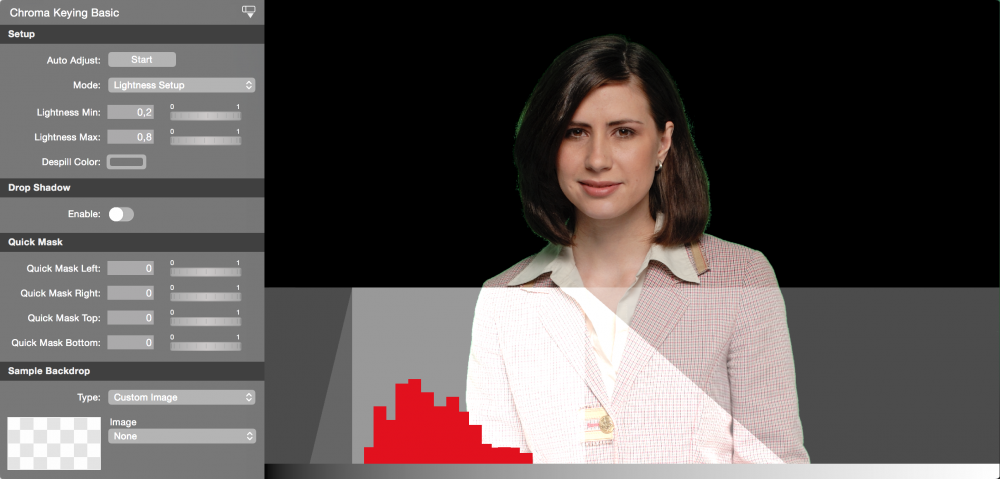
6. If you switch to the “Feather Check” view with the “Mode” popup you can see wether your key is good or has still pixels that aren’t keyed out correctly. The blinking red dots tells you that this particular pixel has some transparency with it. This may not be a bad thing because this is exactly what is desirable for hairs. If there are unwanted artefacts you need to go back to step 2 and refine your settings. The “Feather” value let you widen or shrink the feather area.

7. Finally you may switch to the “Despill Check” view with the “Mode” popup. This view shows you in a blinking manner where the backdrop spilled onto the actor and what the despill feature will change. You can setup the “Despill Amount” (how much the backdrop color should be changed) and the “Despill Color” (the color which is used to replace the spilled backdrop color). It makes sense to set the Despill Color to the same tone that the inserted background will look like in the final production.
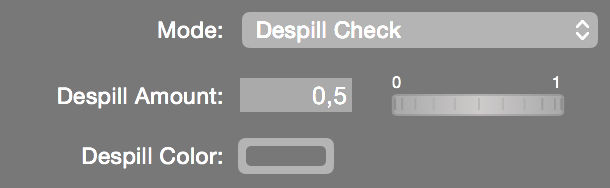
#### Adding A Drop Shadow To Create Illusion Of Depth
If your final background will be a wall of any kind (e.g. a weather map) you may want to have a drop shadow on this wall to create the illusion of depth. The “Drop Shadow” option will allow you to control the offset of the drop shadow in “X” and “Y” direction as well as the “Opacity” and the “Blur”.
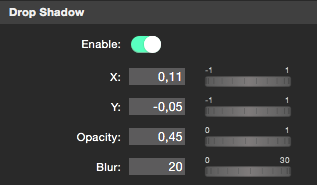

#### Applying A Quick Mask To Cover Unwanted Content
If your video image shows some unwanted pixels at the edges you can crop them away with the “Quick Mask” option. E.g. this is helpful if your chroma key backdrop is not wide enough to fill the complete video frame.
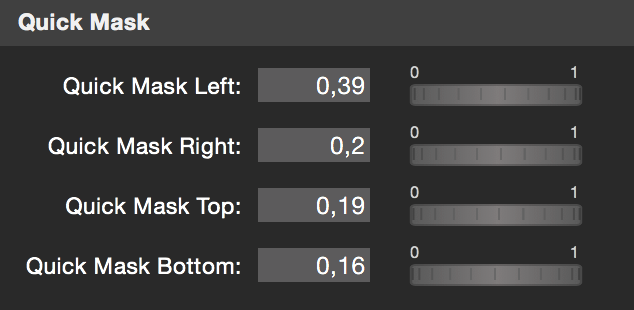
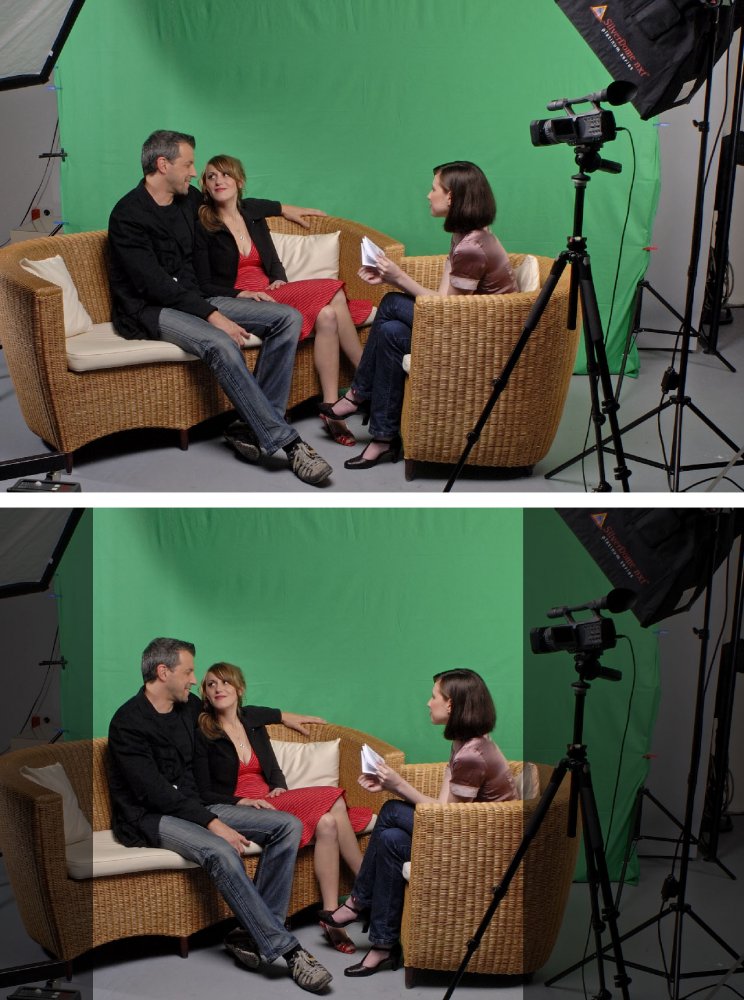
#### Checking The Result On A Sample Background
In the filter setup you have the option to add a sample background to check if your chromakey works well. Make sure to choose a background that matches the final background of your video production the most. You have the options to have
- No Background
- Custom Image
- White
- Black
- Custom Solid Color
#### Adjust the Color Of The Video Frame
Sometimes it may be necessary to apply some color corrections before the chroma keyer can do a proper job. In the “Color Correction” section you can adjust “Saturation”, “Brightness” and “Contrast”. However we recommend to fix the backdrop and your camera settings before using this option.
---
### Chroma Keying Pro
Source: https://mimolive.com/user-manual/live-editing/filters/chroma-keying-pro/
Last updated: 2024-10-04
This page explains how to combine a video and background by adding transparency to the video using the **Chroma Keying Pro** Filter of mimoLive™ also known as "green screening" or "blue screen".
To learn more about how to work and set up a Green Screen including correct lighting refer to [Chroma Keying](https://mimolive.com/user-manual/special-topics/chroma-keying-green-screen/).

#### Activate the **Chroma Keying Pro**
Navigate to the **fx** dropdown menu and activate the **Chroma Keying Pro** filter.
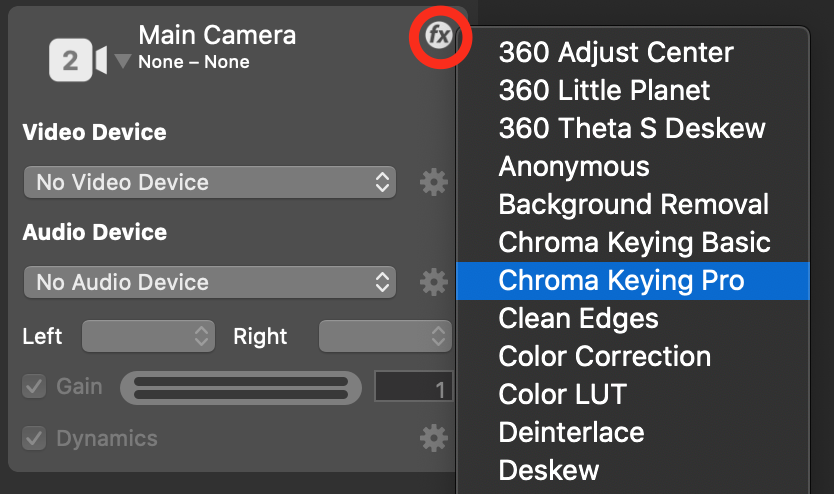
#### Set Up
This is a step by step procedure on how to setup the **Chroma Keying Pro** Filter:
1. Switch to the “Hue Setup” view by selecting it in the “Mode” popup menu. A rainbow bar with a histogram should appear at the bottom of the filter preview area. The histogram tells you how much of a certain color is seen in the video. The maximum peak should be your backdrop color.
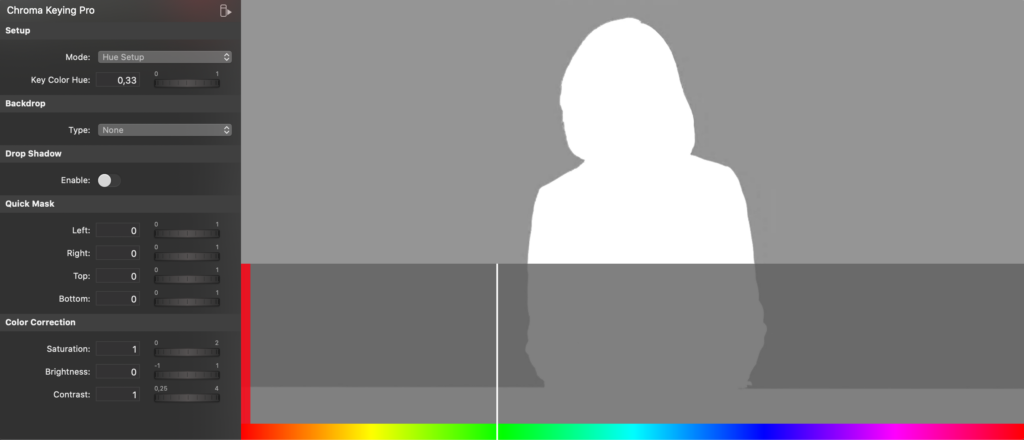
2. Now you can either click with the mouse cursor into the filter preview and select the backdrop color you want to key directly in the video or adjust the “Key Color Hue” value in the parameter list to select the backdrop color. You can also use the white line to fine adjust the color at the bottom.
3. After you selected the hue of your backdrop color you need to specify the cut off. Please use the “Mode” popup menu to switch to the “Cut Off Setup” view.
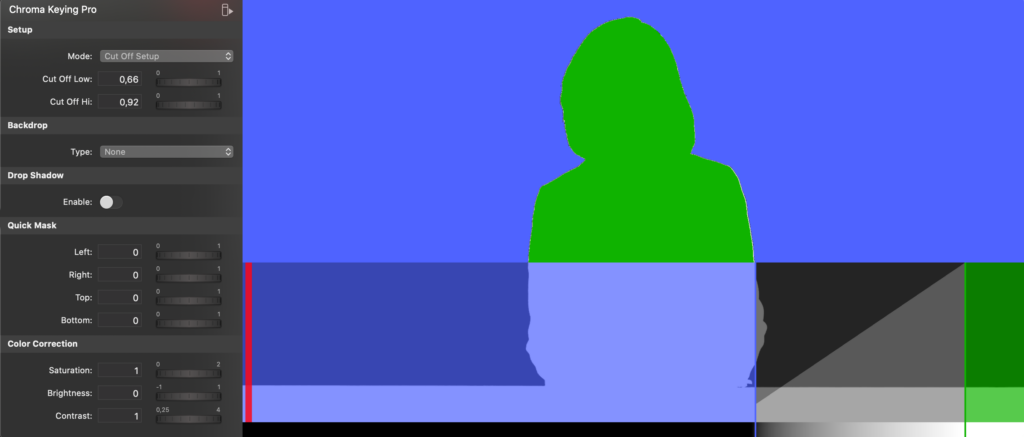
4. Use the “Cut Off Low” and “Cut Off Hi” parameters to narrow down the selection of your color range. You can do so either by adjusting the parameters or by dragging the left and right edges of the ramp in the histogram. Set the left end as close as possible to the brightness of the backdrop so that the background appears blue in the preview window. With the right end, you can cut off highlights. Keep in mind that the closer the left and right ends are together, the less feathering effect you will get (which is important for hair).
5. If you switch to the “Feather Check” view with the “Mode” popup you can see wether your key is good or has still pixels that aren’t keyed out correctly. The blinking red dots tells you that this particular pixel has some transparency with it. This may not be a bad thing because this is exactly what is desirable for hairs. If there are unwanted artefacts you need to go back to step 2 and refine your settings. The “Feather” value let you widen or shrink the feather area.
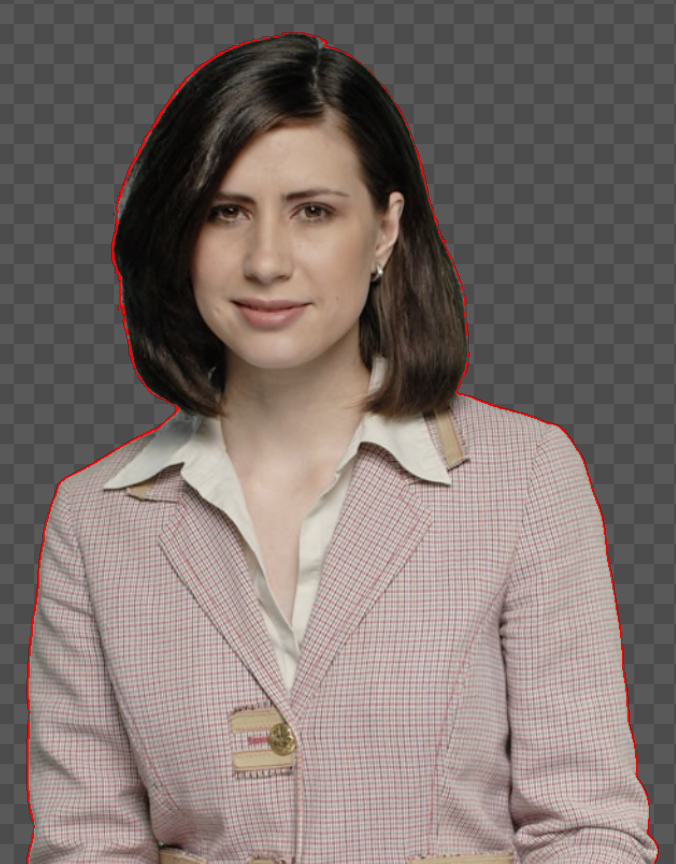
6. Finally you may switch to the “Despill Check” view with the “Mode” popup. This view shows you in a blinking manner where the backdrop spilled onto the actor and what the despill feature will change. You can setup the “Despill Amount” (how much the backdrop color should be changed) and the “Despill Color” (the color which is used to replace the spilled backdrop color). It makes sense to set the Despill Color to the same tone that the inserted background will look like in the final production.
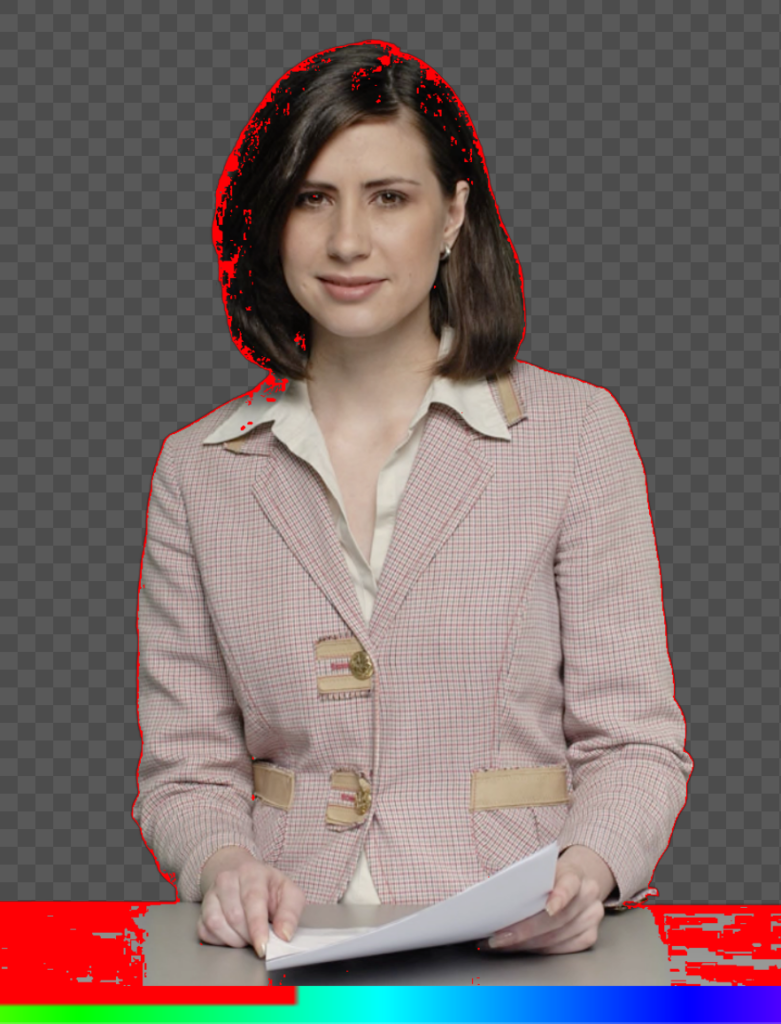
#### Adding A Drop Shadow To Create Illusion Of Depth
If your final background will be a wall of any kind (e.g. a weather map) you may want to have a drop shadow on this wall to create the illusion of depth. The “Drop Shadow” option will allow you to control the offset of the drop shadow in “X” and “Y” direction as well as the “Opacity” and the “Blur”.


#### Applying A Quick Mask To Cover Unwanted Content
If your video image shows some unwanted pixels at the edges you can crop them away with the “Quick Mask” option. E.g. this is helpful if your chroma key backdrop is not wide enough to fill the complete video frame.


#### Checking The Result On A Sample Background
In the filter setup you have the option to add a sample background to check if your chromakey works well. Make sure to choose a background that matches the final background of your video production the most. You have the options to have
- No Background
- Custom Image
- White
- Black
- Custom Solid Color
#### Adjust the Color Of The Video Frame
Sometimes it may be necessary to apply some color corrections before the chroma keyer can do a proper job. In the “Color Correction” section you can adjust “Saturation”, “Brightness” and “Contrast”. However we recommend to fix the backdrop and your camera settings before using this option.
---
### Color correction
Source: https://mimolive.com/user-manual/live-editing/filters/color-correction/
Last updated: 2023-07-03
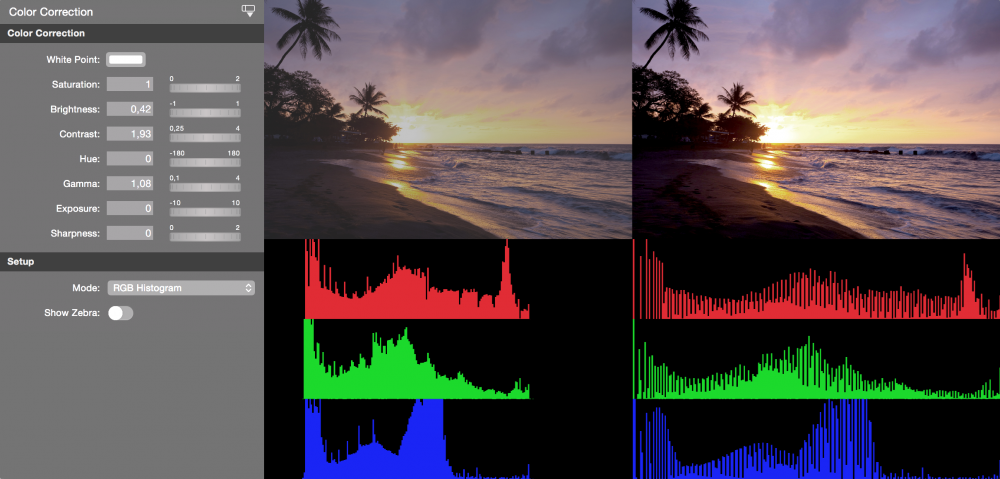
If a camera doesn’t matches another video source and you are unable to fix this by adjusting the parameters inside the camera you can use the Color Correction filter to fix the color metric of this source.
These are the parameters you can use to correct the image:
- White Point
- Saturation
- Contrast
- Hue
- Gamma
- Exposure
- Sharpness
For your convenience there are multiple preview modes to choose from:
- Original Image
- Corrected Image
- RGB Histogram, with original and corrected image side by side.
The Zebra option shows you where the image gets overexposed after correcting it.
---
### Color LUT - Color Look Up Table Filter
Source: https://mimolive.com/user-manual/live-editing/filters/color-lut-color-look-up-table/
Last updated: 2025-06-16
### What is a Color LUT?
With the use of LUTs (Lookup Tables), adding an invert effect to your images or videos has never been easier. A LUT is a small file that contains a set of color grading instructions, which can be applied to your media in a matter of seconds. By using a LUT, you can achieve professional-grade color grading results with just a few clicks of a button.
LUTs are the quickest way to grade your video footage. They can be understood as complex color filters or color grading effects. A LUT is a way to manipulate the entire color spectrum of the video footage. A LUT can be used to combine multiple color modifications in one step.
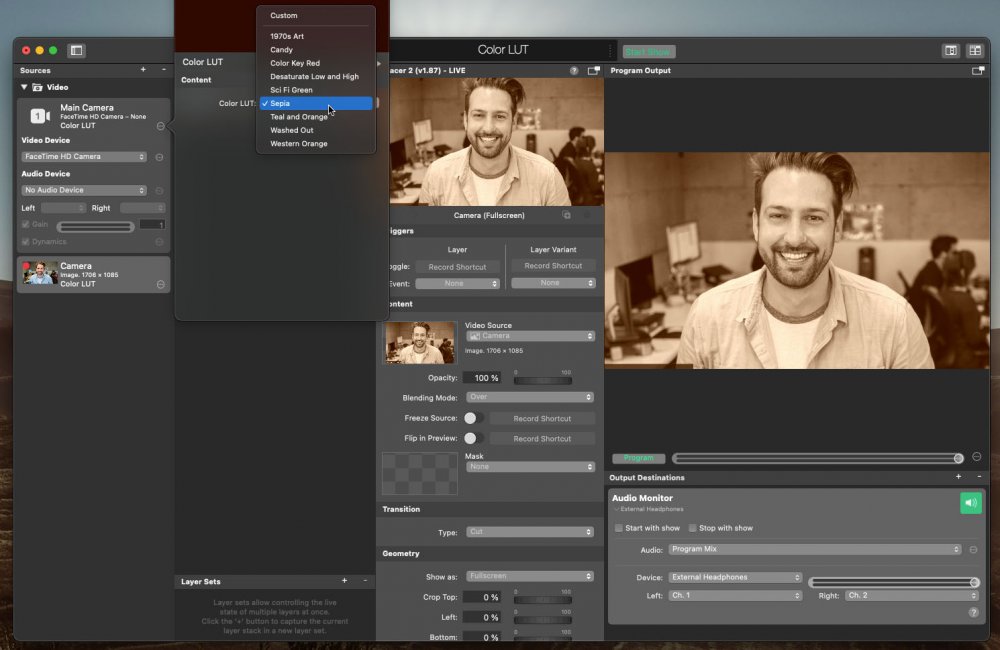
#### Color LUT Filter in mimoLive
In mimoLive® **Color LUT** is a video filter effect and be accessed via the **fx** button or via **right-click** on a video source.
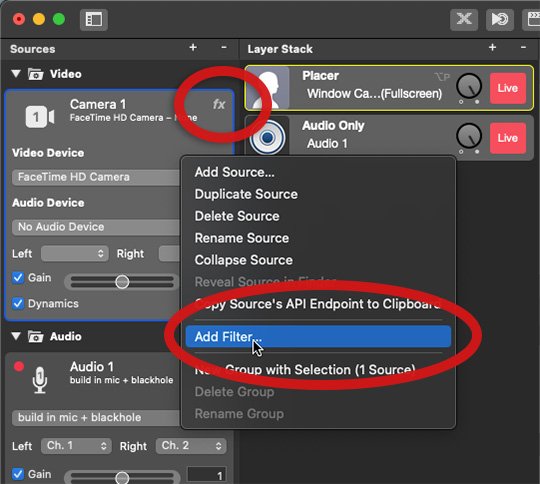
There are several LUTs already included in mimoLive to give direct access to some great looks. You can apply **several LUTs to the same video/image source**.
**LUTs included in mimoLive**
- 1970s Art
- Candy
- Color Key Red
- Desaturate Low and High
- Sci-Fi Green
- Sepia
- Teal and Orange
- Washed Out
- Western Orange
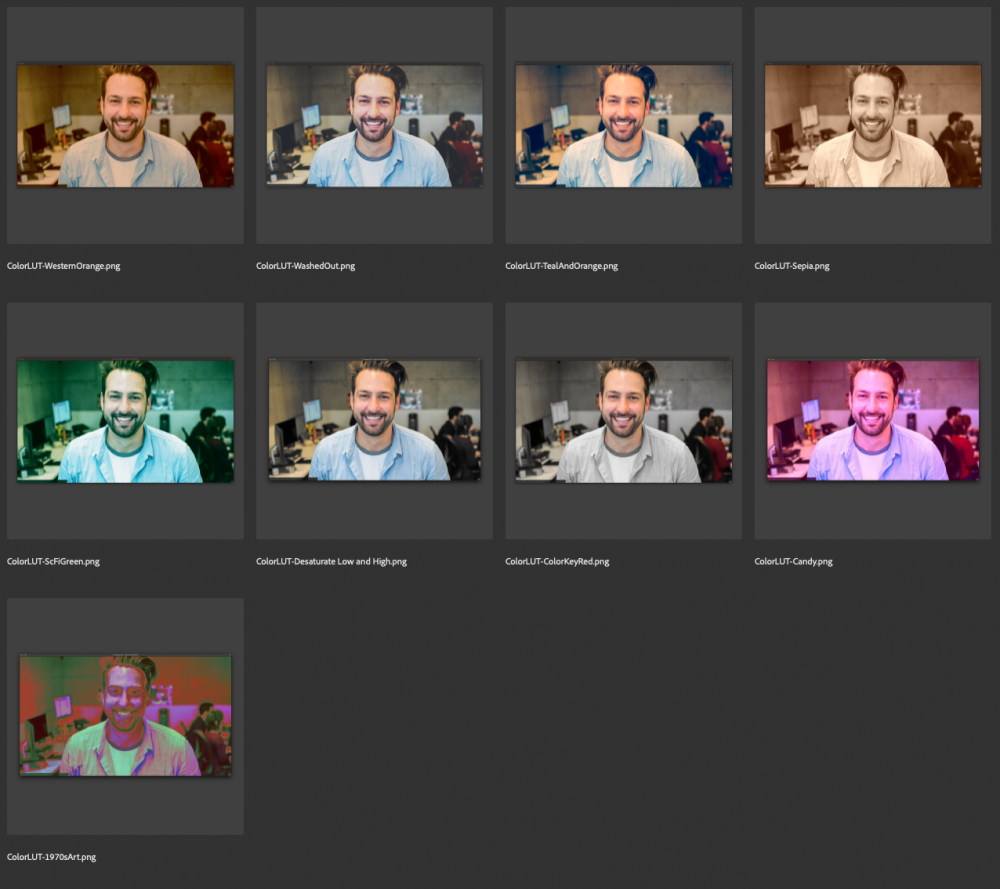
#### Using custom LUTs in mimoLive
Import your LUT PNG into your mimoLive document first. Navigate to the source which should get the LUT applied. Access the options menu with a right-click on the source and choose “Add filter…” and **Color LUT**.
Set the Color LUT dropdown menu to “Custom LUT” and choose your LUT PNG. The LUT should now be applied to your image/video source.
h3.Custom Color LUT Filter
mimoLive uses a 512 × 512 pixel-sized PNG file that represents the color lookup table. This is a common standard in some software applications.
**mimoLive does not support the direct import of CUBE or 3DL files but follow these few steps to create a LUT PNG for your CUBE or 3DL files.**
#### Create your custom LUT PNG for mimoLive
1. Download this Neutral LUT PNG image. [neutral-color-lut.png.zip](https://cdn.manula.com/user/15748/docs/neutral-color-lut-png.zip)
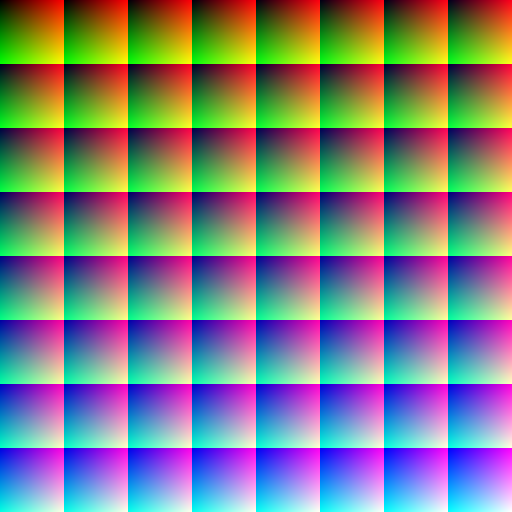
1. Open the Neutral LUT PNG image in an editor app.
2. Do the color manipulation as you like.
3. Save the file as an ordinary PNG file.
4. Load this LUT PNG file into the mimoLive document
5. Open the Color LUT filter settings and make sure to switch the Color LUT option to “Custom”
6. Select the newly imported PNG file as the Custom LUT image below the popup.
#### Create your custom LUT PNG from CUBE or 3DL files with Adobe® Photoshop®
1. Download this Neutral LUT PNG image. [neutral-color-lut.png.zip](https://cdn.manula.com/user/15748/docs/neutral-color-lut-png.zip)

1. Open the Neutral LUT PNG image in Photoshop®.
2. First select ‘Layer’ from the top menu, then ‘New Adjustment Layer’, and then finally select ‘Color Lookup…’. This should create a new layer above the neutral LUT layer.
3. Select the color lookup layer and go to properties. In the dropdown select ‘Load 3D LUT…”. Browse for the CUBE/3DL LUT file you wish to convert.
4. The neutral layer should now look different. The next step is to save the image as an uncompressed PNG. Save the file as if you were saving a standard Photoshop file, but instead of saving it as a PSD save it as a PNG.
5. You have now converted your CUBE/3DL LUT file to a PNG image. Follow our guide here to learn how to use the image LUT in mimoLive.
#### Example: Inverted Colours
An invert effect is a popular image or video effect that can help to create a unique and eye-catching look. It works by flipping the colors of an image or video, essentially turning all of the light colors into dark colors, and all of the dark colors into light colors. This effect can be used in a variety of ways, from creating a dramatic and edgy look for a music video, to giving a retro and nostalgic feel to a photograph.
Example of an invert effect with a LUT
To illustrate this point, let's take a look at an example of an invert effect with a LUT. In this example, we will use a LUT that is designed to create an edgy and dramatic look. First, we will apply the LUT to our video footage, and then we will adjust the brightness and contrast to create a more stylized look.
##### LUT Comparison
On the left-hand side, you can see the image with an inverted LUT applied, which has flipped the colors and created a dramatic and edgy look. On the right-hand side, you can see the same image with a standard LUT applied, which has a more traditional color grading and a natural look. The difference between the two images highlights the power of LUTs in achieving unique and striking looks in your media.
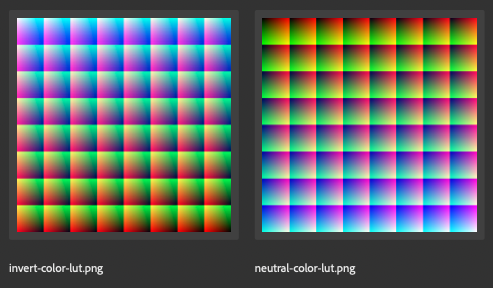
As you can see, the final result is a striking and dramatic look that is sure to grab the viewer's attention. With the use of LUTs, adding an invert effect to your images or videos has never been easier, allowing you to achieve professional-grade results in no time at all. Whether you're creating a music video, a short film, or a series of photographs, an invert effect with a LUT can help you to create a unique and eye-catching look that will stand out from the crowd.
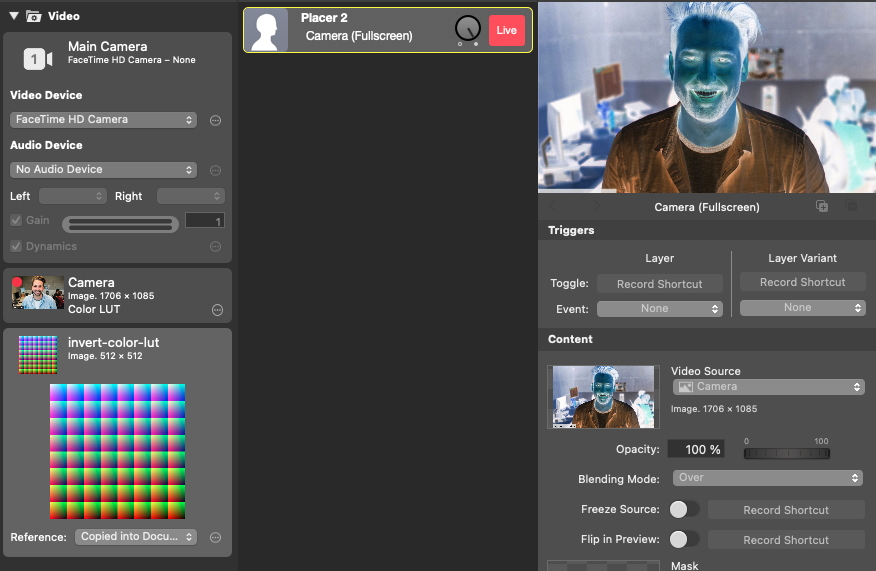
---
### Deinterlace
Source: https://mimolive.com/user-manual/live-editing/filters/deinterlace/
Last updated: 2026-08-19
### What is interlacing?
[Video interlacing](https://en.wikipedia.org/wiki/Interlaced_video) was a widely used technique to increase the frame rate of video signals without the need for additional bandwidth. Instead of transmitting all pixel information for each frame, interlacing would transmit every second pixel line of each video frame, but with double the frame count. While this technique was widely used in the past, many modern video processing systems, like mimoLive, are designed to work with full frames. This means that if you're working with a video source that uses interlacing, you may need to deinterlace the video to ensure that it is processed correctly.
#### What is Deinterlacing?
**Deinterlacing** is the process of reconstructing a full frame from an interlaced video signal, and can help to ensure that your video is processed correctly and looks as good as possible.
### How to handle interlaced video sources in mimoLive?
Because mimoLive is processing video in full frames you may need to deinterlace video sources if they only can provide an interlaced video signal.
Depending on the video content there are several options to deinterlace the video frame:
- Even Field: This option doubles the even field lines in each frame. This works for all content however it cost image information.
- Simple Blend: The even and the odd lines blend together. The result may look blurry but contains all the color information
- Smart Blend: The even and odd fields are only blended if the contrast suggests that there was movement between those frames. This option keeps the details but may fail for big movements.
Video frame before deinterlacing:
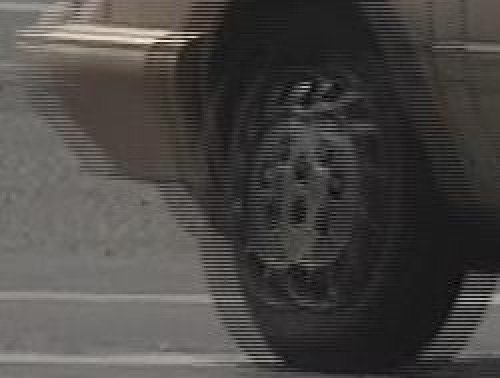
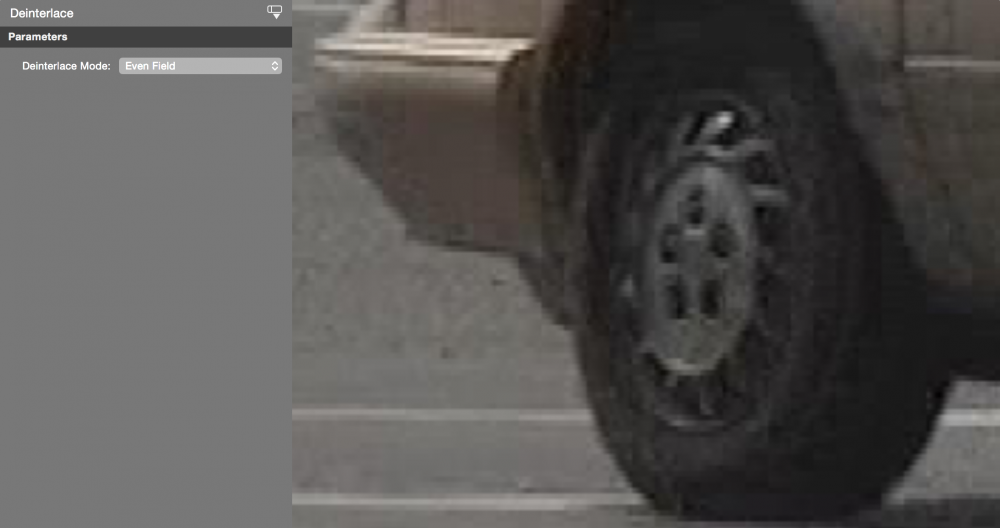
> **Note:** Because we are running the filter “one pass” only don’t expect high quality in the output. Also, the frame rate is half of the original video signal.
---
### Deskew Filter
Source: https://mimolive.com/user-manual/live-editing/filters/deskew/
Last updated: 2026-08-19
The Deskew filter could be used to straighten out an image when you are not able to place your camera exactly in front of the object. The best example is a scoreboard in a gym: You want to put the scoreboard into your video production but can’t bring the camera in a good position to capture it from the front. You apply the Deskew filter to the video source, move the 4 crosshairs to the corners of the scoreboard and you have a perfect straight view of it. Now you can put this video with a “Placer” layer anywhere on the screen.
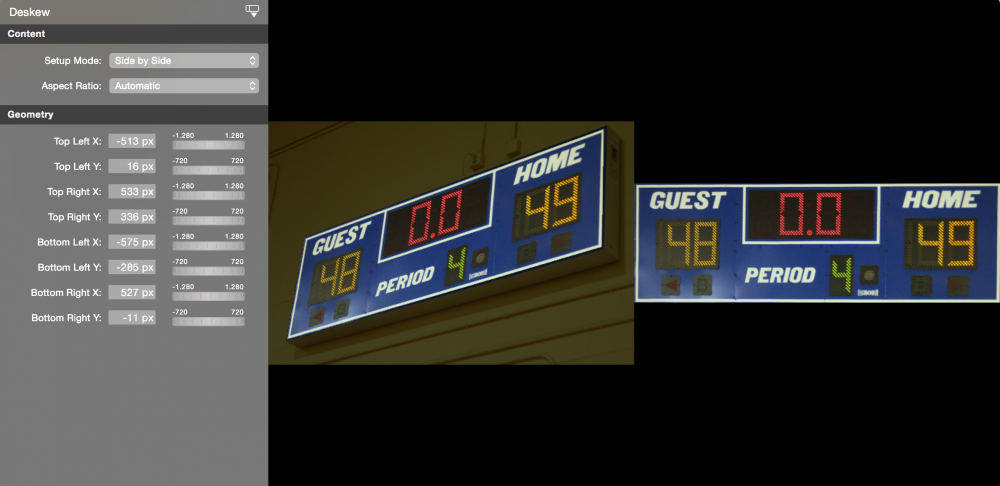
(Photo by [Ryan Johnson via Flickr.com](https://www.flickr.com/photos/northcharleston/6810081372) )
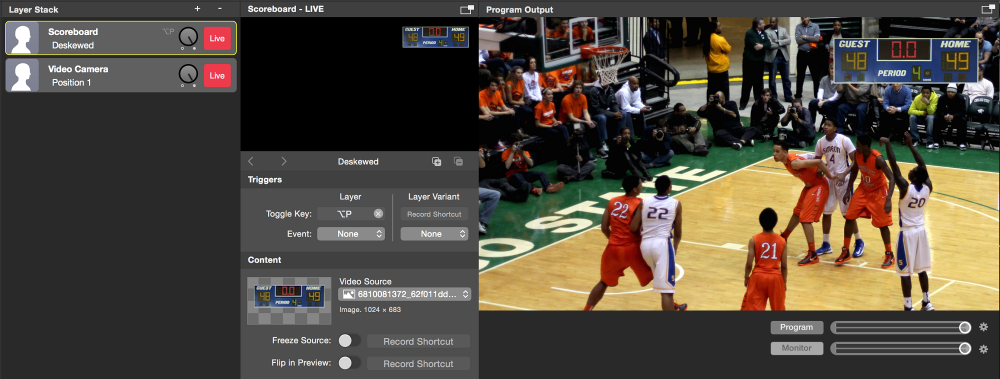
| Filter Setup Modes | |
| --- | --- |
| Side by Side | The original and the deskewed image are displayed side by side in order to show you the result of your settings immediately while you are dragging the crosshairs. |
| Original | In this mode, you have the full size of the original image so that you are able to position the crosshairs very accurately |
| Deskewed | This mode shows you the result of the filter. You can check on the transparent areas and the correct alignment in detail. |
| Aspect Ratio Modes | |
| --- | --- |
| Custom | If the automatically calculated aspect ratio of the result is not correct, you can enter your own aspect ratio here. if the resulting image isn’t in the same aspect ratio than the original one then the resulting image is scaled “fit to screen” giving transparent areas around it. |
| Automatic | mimoLive will calculate the aspect ratio of the deskewed area based on the positions of the cross hairs. This may fail if the perspective is too extreme. |
| 4:3 | Convenience Preset |
| 16:9 | Convenience Preset |
> **Important:** Avoid Extrem Perspectives When Capturing
>
> Even though the Deskew filter does a pretty good job of straightening out the image it can’t magically create missing image information. This means that if you capture the object from an extreme perspective the deskewed image may look blurry because there is information missing.
---
### Face Tracking Filter
Source: https://mimolive.com/user-manual/live-editing/filters/face-tracking/
Last updated: 2025-06-16
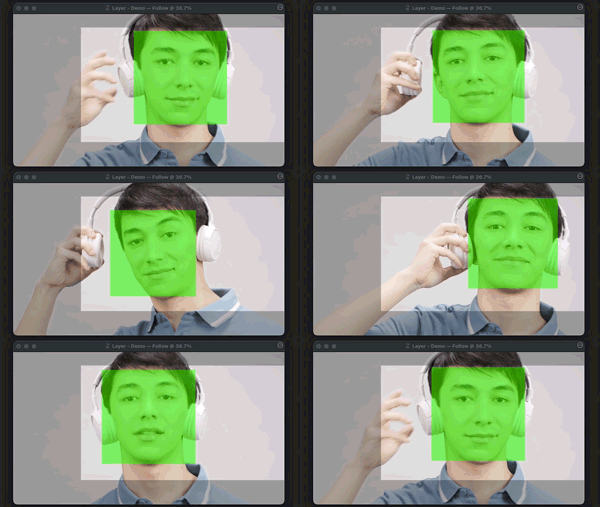
### Get Professional-Looking Video with mimoLive's Face Tracking Filter for Remote Guests
If you're using mimoCall to bring remote guests into your video production, you may encounter some challenges when it comes to capturing their video feed. Often, guests may move around or shift in their seat, causing them to move out of the frame of the camera. This can be distracting for viewers, and can make it difficult to maintain a professional-looking production. Fortunately, the Face Tracking filter can be a valuable tool to help solve this problem.
### How to Ensure Your Remote Guests are Always in View with mimoLive's Face Tracking Filter
By using the Face Tracking filter in combination with mimoCall, you can have mimoLive automatically follow the movements of your remote guest's face. This means that even if they move around or shift in their seat, the camera will stay focused on their face, ensuring that they remain in frame and visible to viewers. Additionally, any missing parts of the image on the left and right sides will be filled by stretching the sides, which is often unnoticeable to viewers in a portrait-style setup. Overall, the Face Tracking filter can be an invaluable tool for anyone looking to produce professional-looking video content with remote guests.
Before:

After:

---
### Focus peeking
Source: https://mimolive.com/user-manual/live-editing/filters/focus-peeking/
Last updated: 2026-08-19
### The challenge of finding the correct focus point with a small viewfinder
When using a camera device with an attached lens, it can sometimes be challenging to find the correct focus point, especially if the viewfinder on the camera is small. This is where the Focus Peeking filter comes in. The Focus Peeking filter is a useful tool that can help you find the correct focus point of your image. It works by highlighting areas of high contrast in the image with a green outline, indicating that these areas are in focus.
#### How the Focus Peeking filter can improve your image focus
By using the Focus Peeking filter, you can quickly and easily identify the sharp areas in your image, ensuring that your final product is in focus and looks professional. This can be especially useful when working with complex shots or in low-light conditions, where it can be challenging to determine the correct focus point by eye alone. Overall, the Focus Peeking filter is a powerful tool that can help you produce high-quality images with ease, even in challenging shooting conditions.
#### Example - Without Focus Peeking
#### Example - Focus Peeking filter applied
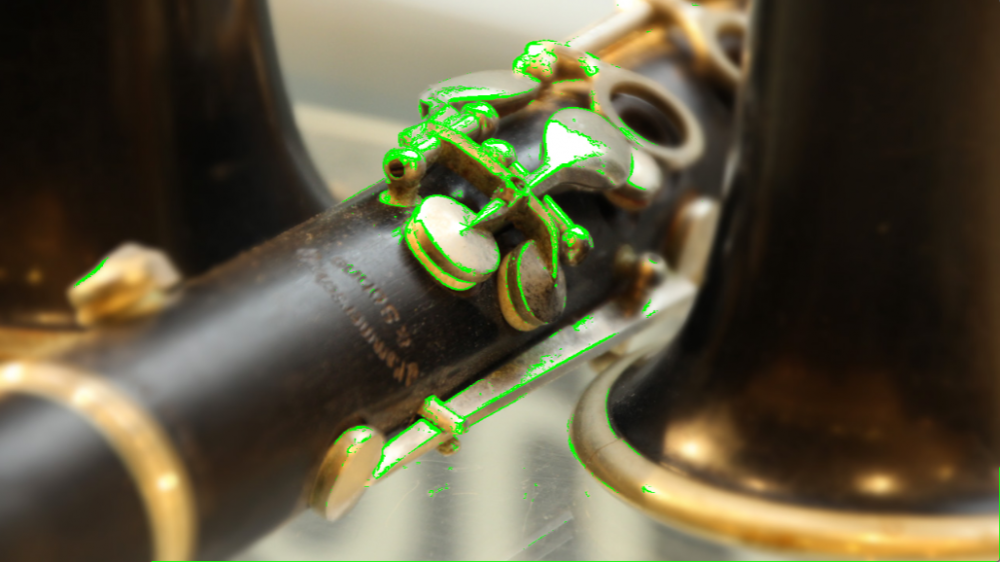
> **Important:** Remember to remove filter after use
>
> The filter is showing the focus in the output as well. So make sure to remove the filter from your video source in mimoLive once you have setup the focus point!
---
### Levels
Source: https://mimolive.com/user-manual/live-editing/filters/levels/
Last updated: 2023-07-03
The "Levels" filter is a fast and simple tool for modifying the white balance of a video source. By setting a black point, a white point, and a grey point, this filter can be used to improve the overall look of your footage, particularly if you are dealing with poor lighting or need to match the appearance of multiple cameras.
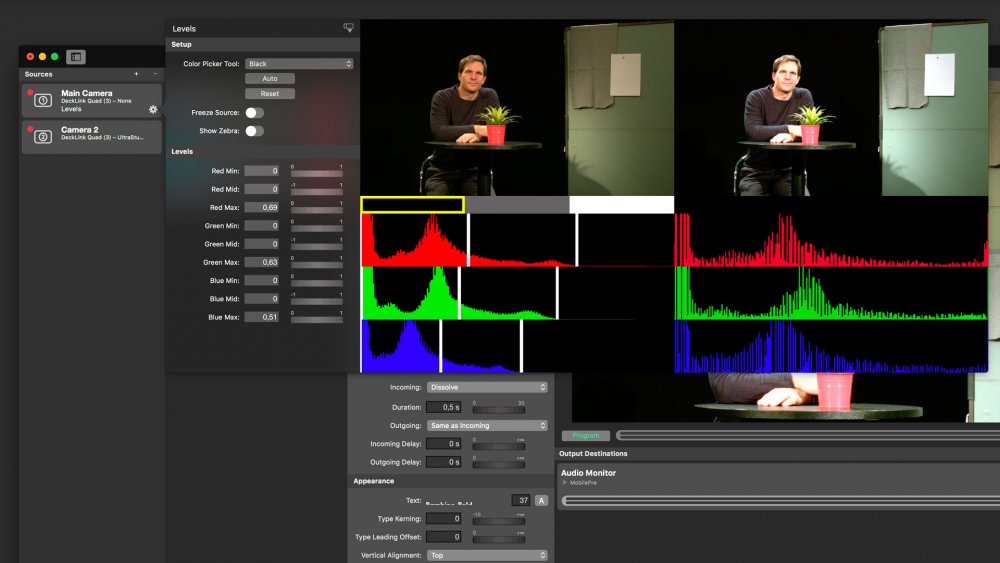
##### Adding the filter
Add the Levels filter to a source by clicking on the “fx” next to the source name and selecting the Levels filter from the popup.
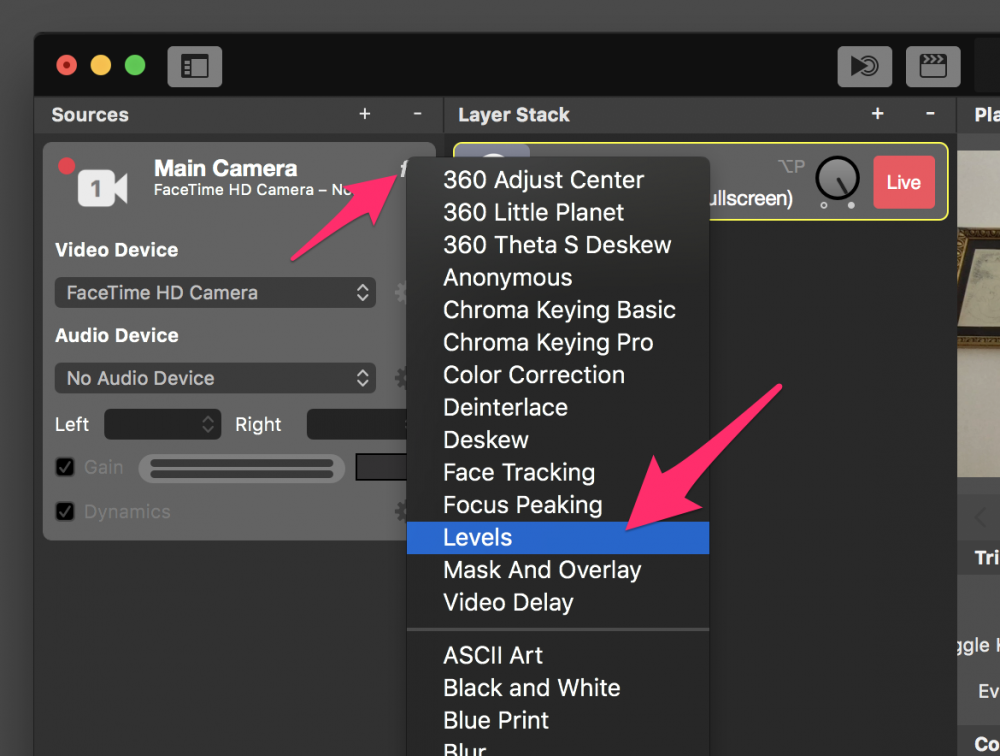
##### Configure the filter
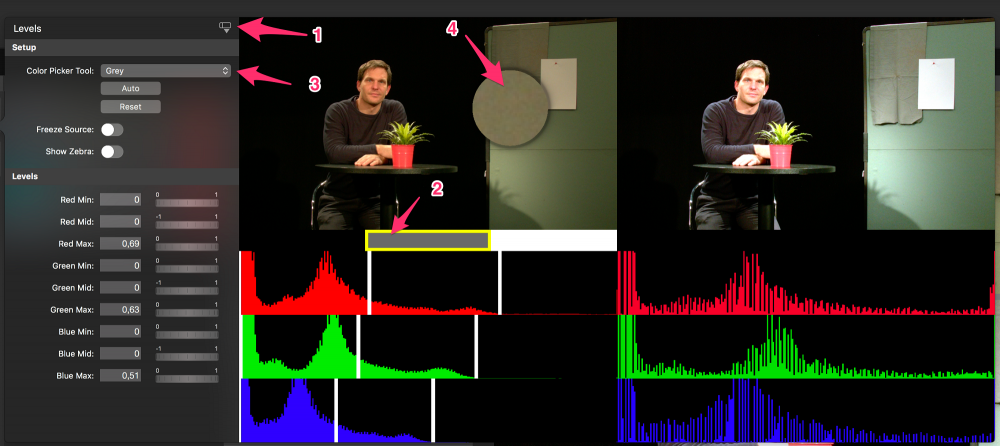
Follow this recipe to setup the filter:
- Click on the expander icon (1) to get a larger view of before and after.
- Select the Black color picker tool either by clicking on the bar below the source view (2) or selecting “black” from the Color Picker Tool popup menu (3).
- Use the loupe to find a suitable color spot in your image (4).
- Repeat for white and grey, in that order because picking black or white will reset grey to its default values.
You can see the result on the right hand side of the setup pane.
##### The Advantages of Using Grey Cards for Accurate Color Reproduction and Exposure Levels
Grey cards are a simple yet powerful tool used in photography and videography to achieve accurate color reproduction and exposure levels. They provide a standardized point of reference, which is critical when working with multiple cameras or when shooting in changing lighting conditions.
A grey card is typically a rectangular piece of cardboard or plastic that is neutral in color and reflects a specific amount of light, often around 18%. By photographing or filming a grey card under the same lighting conditions as the scene you are shooting, you can establish a baseline exposure level and color temperature for your camera.
Using a grey card can save a significant amount of time in post-production since you can correct color and exposure issues quickly and easily by using the grey card as a reference point. Additionally, grey cards are relatively inexpensive and easy to carry, making them a must-have tool for any serious photographer or videographer.
Overall, grey cards are a useful tool for achieving accurate color and exposure in your photography and videography work. They provide a standardized point of reference that ensures consistent results, and can save you time and effort in post-production.
---
### Mask and Overlay filter
Source: https://mimolive.com/user-manual/live-editing/filters/mask-and-overlay/
Last updated: 2023-07-03
The Mask and Overlay filter is a versatile tool that allows you to make certain areas of your video transparent, as well as add an overlay image. To define which parts of the resulting image should be transparent, the filter uses a Mask image: black represents full transparency, white means full opacity, and grey shades result in varying levels of transparency. The Overlay image is then placed on top of the masked video image, though it's important to note that this may further alter the transparency of the image.
#### The default setting is meant for a kiss cam.

---
### Video Delay Effect
Source: https://mimolive.com/user-manual/live-editing/filters/video-delay/
Last updated: 2026-08-19
### Sync Your Audio and Video with Ease: Using the Video Delay Filter in mimoLive
Synchronizing audio and video is critical for producing high-quality content, but there may be occasions where the audio and video are out of sync. In such cases, you can use the Video Delay filter to delay the video frames on a frame duration basis. The filter provides a preview of the current video frame on the left and the delayed video frame on the right, enabling you to easily adjust the delay time. Additionally, the filter displays a representation of all currently buffered video frames, giving you an overview of the delay's effect on the entire video.
> **Important:** Avoid a high Delayed Frame count
>
> All the frames that are in the buffer are stored in the graphics card. If your graphics card doesn’t have enough memory to store all the frames you requested those frames get transferred back to the RAM of your computer causing high impact to the CPU performance. Running out of video RAM may cause the app to crash.
To learn more about how to use this Video Delay filter in order to bring audio and video back in sync read the [detailed description of the Audio Sync Meter layer](https://mimolive.com/user-manual/audio-sync-meter).
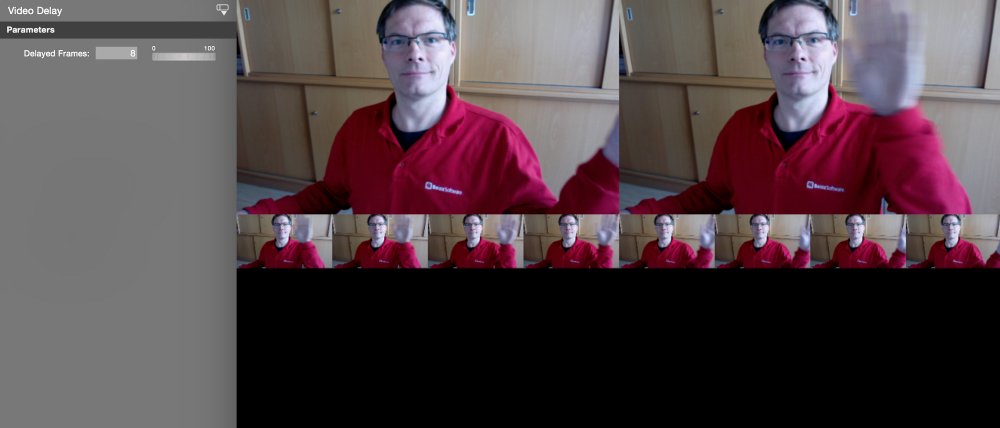
---
### Core image filters
Source: https://mimolive.com/user-manual/live-editing/filters/core-image-filters/
Last updated: 2026-08-19
If you're looking to add some extra flair to your video sources in mimoLive, you're in luck - mimoLive provides a vast collection of real-time filters that you can use to enhance your content. With a wide range of options available, you can easily find the perfect filter to suit your needs and make your videos stand out from the crowd.
Some of the filters that are currently available in mimoLive include:
1. Comic Book: This filter gives your video a cartoon-like appearance, with bold lines and bright colors.
2. Vintage: If you're looking for a more retro feel, the Vintage filter can add a touch of nostalgia to your footage, with a faded and aged look.
3. Black & White: For a classic and timeless look, the Black & White filter can turn your video into a monochrome masterpiece.
4. Sepia: Similar to the Vintage filter, the Sepia filter adds a warm, brownish tone to your video, reminiscent of old photographs.
5. Duo-Tone: This filter allows you to create a unique two-color look, with customizable hue and saturation options.
6. X-Ray: If you want to get creative and add an otherworldly feel to your video, the X-Ray filter can give your footage a translucent, skeletal appearance.
These real-time filters are just a few examples of the many options available in mimoLive, making it easy to find the perfect filter to suit your needs and give your videos a professional and polished look.
#### All available filters in mimoLive
mimoLive provides a large collection of real-time filters which can be added to video sources.
| ASCII Art | Compound Eye | Glow | Plastic Camera |
| --- | --- | --- | --- |
| Black and White | Concert | Image Resizer | Pointillize |
| Blue Print | Crystalize | Kaleidoscope | Posterize |
| Blur | Dent | Light Tunnel | Sepia |
| Bulge | Dot Screen | Line Overlay | Sharpen |
| City Lights | Earthrise | Line Screen | Squeeze |
| Clouds | Exposure Adjust | Mirror | Stretch |
| Color Controls | False Color | Monochrome | Thermal Camera |
| Color Dots | Film Stock | Motion Blur | Tracer |
| Color Invert | Fish Eye | Neon | Twirl |
| Color Pencil | Flip-Flop | Pinch | X-Ray |
| Comic Book | Gamma Adjust | Pixellate | Zoom Blur |
> **Important:** Use With Caution for performance
>
> Core Image filters have not always been designed with performance and stability in mind. It is fun to play around with them, but they may lead to dropped frames or application crashes.
---
## Add ons
Source: https://mimolive.com/user-manual/live-editing/add-ons/
Last updated: 2023-07-03
This section is a reference of add-ons available from the [Addons in the mimoLive Online Shop.](https://mimolive.com/store/addon/)
Currently documentation is available for the following add-on layer:
- [ATEM controller](https://mimolive.com/user-manual/live-editing/add-ons/atem-controller/)
- [Lower third pack 1](https://mimolive.com/user-manual/live-editing/add-ons/lower-third-pack-1/)
- [Sports Graphics Overview](https://mimolive.com/user-manual/live-editing/add-ons/sports-graphics-overview/)
- [Sports Graphics – Layers](https://mimolive.com/user-manual/live-editing/add-ons/sports-graphics-overview/sports-graphic-layers/)
- [Sports Game Data](https://mimolive.com/user-manual/live-editing/add-ons/sports-graphics-overview/sports-graphic-layers/sports-game-data/)
- [Sports Game Title](https://mimolive.com/user-manual/live-editing/add-ons/sports-graphics-overview/sports-graphic-layers/sports-game-title/)
- [Sports Lineup](https://mimolive.com/user-manual/live-editing/add-ons/sports-graphics-overview/sports-graphic-layers/sports-lineup/)
- [Sports Player Lower Third](https://mimolive.com/user-manual/live-editing/add-ons/sports-graphics-overview/sports-graphic-layers/sports-player-lower-third/)
- [Sports Player Substitution](https://mimolive.com/user-manual/live-editing/add-ons/sports-graphics-overview/sports-graphic-layers/sports-player-substitution/)
- [Sports Player Table](https://mimolive.com/user-manual/live-editing/add-ons/sports-graphics-overview/sports-graphic-layers/sports-player-table/)
- [Sports Score Keeper](https://mimolive.com/user-manual/live-editing/add-ons/sports-graphics-overview/sports-graphic-layers/sports-score-keeper/)
- [Sports Soccer Penalty](https://mimolive.com/user-manual/live-editing/add-ons/sports-graphics-overview/sports-graphic-layers/sports-soccer-penalty/)
- [Sports Soccer Run of Play](https://mimolive.com/user-manual/live-editing/add-ons/sports-graphics-overview/sports-graphic-layers/sports-soccer-run-of-play/)
- [Sports Graphics – Data sources](https://mimolive.com/user-manual/live-editing/add-ons/sports-graphics-overview/data-sources/)
- [Sports Team Data](https://mimolive.com/user-manual/live-editing/add-ons/sports-graphics-overview/data-sources/sports-team-data/)
- [Magnifying Glass (Magnifier, Loupe)](https://mimolive.com/user-manual/live-editing/add-ons/magnifying-glass/)
- [Music Title](https://mimolive.com/user-manual/live-editing/add-ons/musik-title/)
- [QR Code Source](https://mimolive.com/user-manual/live-editing/add-ons/qr-code-source/)
- [Twitter PTZ Controller](https://mimolive.com/user-manual/live-editing/add-ons/twitter-ptz-controller/)
- [LED Board Testing](https://mimolive.com/user-manual/live-editing/add-ons/led-board-testing/)
- [Spotlight Layer (Mouseposé Effect)](https://mimolive.com/user-manual/live-editing/add-ons/addon-spotlight-layer/)
- [Painter layer (Telestrator)](https://mimolive.com/user-manual/live-editing/add-ons/mimolive-addon-painter-layer/)
- [Background Pack 1](https://mimolive.com/user-manual/live-editing/add-ons/mimolive-addon-background-pack-1/)
- [Halloween Layer Pack](https://mimolive.com/user-manual/live-editing/add-ons/mimolive-addon-halloween-layer-pack/)
---
### Music Track Layer
Source: https://mimolive.com/user-manual/live-editing/add-ons/musik-title/
Last updated: 2026-08-19
The Music Title layer in mimoLive is a handy tool for radio stations to display the current song's artist, title, and album art. By querying a JSON file that contains the song's information, this layer automatically updates the display in real-time, allowing listeners to stay informed about the music they're listening to. With this layer, you can enhance your radio broadcast and provide your audience with a professional and engaging experience.
The Music Title layer queries a JSON file that contains the artist name, song title and a URL to the album art jpg.
> **Note:** Please visit [mimoLive Store](https://mimolive.com/store/addon/) to download this add-on for free
---
### Halloween Layer Pack
Source: https://mimolive.com/user-manual/live-editing/add-ons/mimolive-addon-halloween-layer-pack/
Last updated: 2026-08-19
The mimoLive Halloween Layer Pack is the perfect addition to any Halloween-themed virtual gathering. With three Zombie layers, a Mystic Fog layer, a Spider Web layer, Lightning Flashes, a Horror Night Filter, and a Halloween Template, you can create a spooky and fun atmosphere for your online meeting or event. Whether you want to prank your friends on Zoom, MS Teams Meeting, Skype-Call or a Google Hangout, the Halloween Layer Pack will bring your virtual space to life with creepy effects and haunting visuals. Get creative and have fun with this seasonal layer pack from mimoLive.
> **Note:** he Halloween Layer Pack is a free mimoLive add-on
>
> Please visit [mimoLive Store](https://mimolive.com/store/addon/) to download this add-on for free
Demo Video of mimoLive's Halloween Layer Pack:
[Video on YouTube](https://www.youtube-nocookie.com/embed/wMw2Lo0XGes?rel=0)
---
### LED Board Testing
Source: https://mimolive.com/user-manual/live-editing/add-ons/led-board-testing/
Last updated: 2026-08-19
If you are using mimoLive to drive a LED board you may want to test your LED board before the big show if it is working correctly and don’t have broken pixels.
> **Note:** he LED Board Testing layer is a free mimoLive add-on.
>
> Please visit [mimoLive Store](https://mimolive.com/store/addon/) to download this add-on for free
There are two interesting test cases which you can perform:
#### Pixel Resolution Test
A LED board usually has fewer pixels than a computer display and if you want to render the exact pixel dimensions as your LED board there is a way to test the video pipeline all the way to the LED board:
- Find out the native pixel dimensions of your LED board and set your rendering size to this in the [mimoLive document settings](https://mimolive.com/user-manual/show-settings).
- Add the [Video Output Test Layer](https://mimolive.com/user-manual/video-output-test) from the [Layer Library](https://mimolive.com/user-manual/layers) to your document and switch it live:
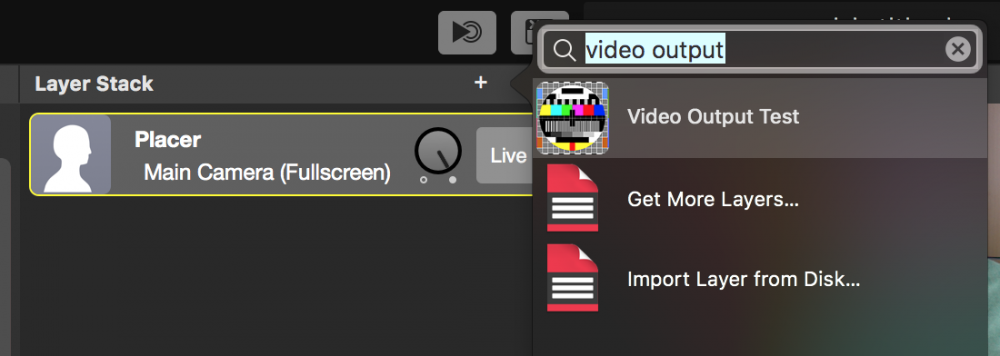
There are two interesting options for the test image in this layer: “Phillips PM5544” and “Screen Dimensions”
First, switch the option to “Screen Dimensions”. Now the pixel dimension is displayed and a one-pixel border is drawn in green. With this, you can check that the rendering dimensions in mimoLive match the pixel dimension of your LED board. The thin green line around will show on your LED Board if any border pixels get cut off.
As a second test select the “Phillips PM5544” option. The big circle will let you see immediately if the aspect ratio is correct: If it’s not a circle then the aspect ratio does not match. The vertical stripes in the middle will show if there is any pixel subsampling happening. Especially look at the square at the far right.
#### Peak Amps Test
Because a LED board power consumption is depending on the content it’s showing it is important to test what happens if the amperage is peaking from a minimum to a maximum. You can use the LED Board Test layer to test this:
- Switch off the “Show Labels” and “Highlight Tile” options. Now the screen should either be completely dark or have a single solid color.
- Use the “White” and “Black” buttons to switch back and forth between complete white and complete black on your LED board. (Note: The buttons are also available on the special Remote Control Surface for this layer)
While this happens you may observe the amps on your LED board power supply to see if everything is in the normal range.
#### Broken Pixels Test
If you want to make sure all the pixels on your LED board are correct then you can use the LED Board Test layer. Add the LED Board Test Layer from the [Layer Library](https://mimolive.com/user-manual/layers) to your document and switch it live:
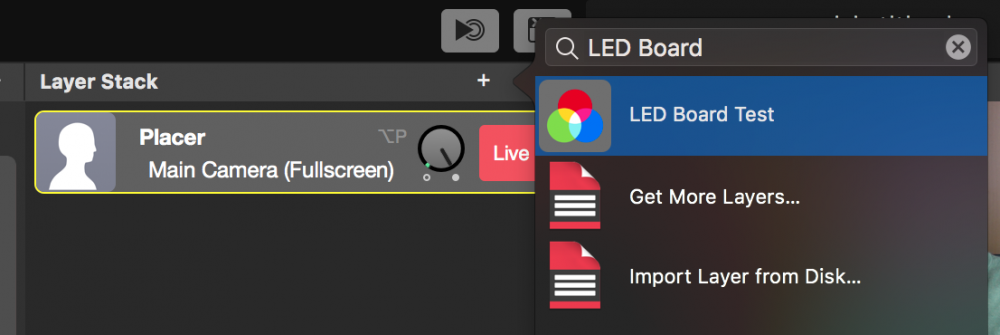
First of all, you need to set up the columns and rows count of the LED board segments in the Content section of the parameters of the layer.
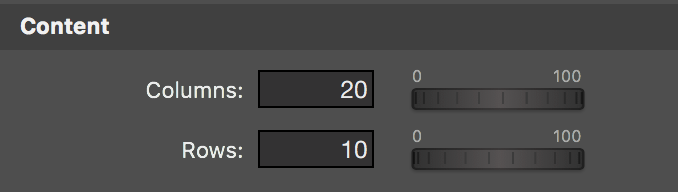
In the Labels section of the layers parameter, you can specify how the labels for each LED board segment are calculated. Set this up that way that it matches the labels on the segment of your LED board for easier reference.
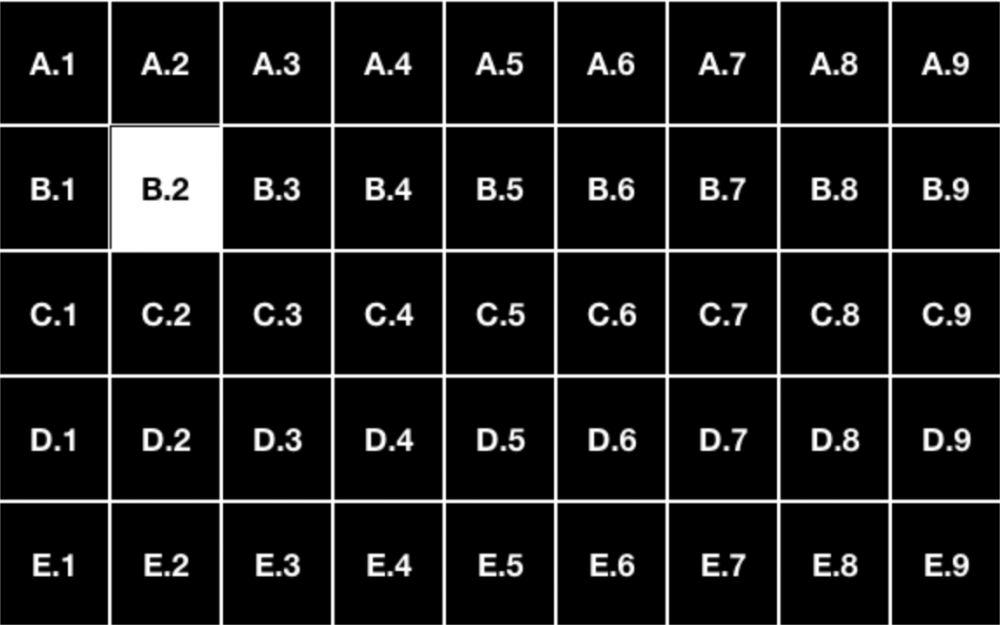
To perform the pixel test click on the buttons with the color names one by one. You will notice that defect pixels are easily visible if the corresponding color channel is illuminated only. If you found a broken pixel you can switch on the labels to determine which segment needs to be changed. You also can highlight a single LED board segment if you need to make detailed tests by either entering the column and row for it in the layers parameter or by clicking on the corresponding label in the Layer Preview or Program Out.
#### Remote Control Surface
There is a special [Remote Control Surface](https://mimolive.com/user-manual/remote-control-surfaces) for this LED Board Test layer that allows you to step in front of your LED board and perform the pixel test remotely.
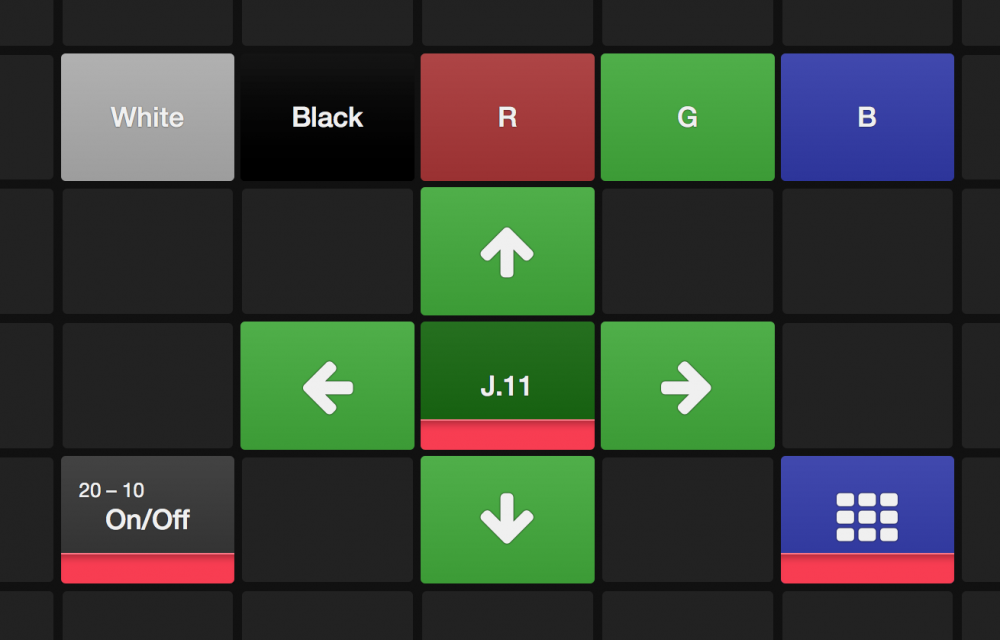
---
### Background Pack 1
Source: https://mimolive.com/user-manual/live-editing/add-ons/mimolive-addon-background-pack-1/
Last updated: 2026-08-19
The **Background Pack 1** provides fun backgrounds for mimoLive for use in lower thirds or as green screen backgrounds. The free Background Pack 1 contains “Computer Circuits”, “Disco Lights”, “Line Art”, “Night Sky”, “Snow” and “Starfield”.
> **Note:** The Background Pack 1 is a free mimoLive add-on
>
> Please visit [mimoLive Store](https://mimolive.com/store/addon/) to download this add-on for free
Demo Video of mimoLive's Background Pack 1
[Video on YouTube](https://www.youtube-nocookie.com/embed/CUpsFppMwB8?rel=0)
---
# Outputs & Distribution (Program Out)
Source: https://mimolive.com/user-manual/playout-output-destinations/
Last updated: 2025-06-16
mimoLive is a versatile live video production software that allows users to stream to multiple streaming destinations simultaneously, record source independently, send the video to other applications with a virtual camera or through the Syphon technology with direct memory access.
#### Simulcasting (Simultaneuous Streaming Destinations)
Users can easily configure additional Live Streaming Output Destinations, and depending on their Mac, they may be able to stream to various streaming services at the same time.
Some of the supported platforms for simulcasting with mimoLive include YouTube, Facebook, Twitch.tv, Periscope, Twitter, BoxCast, Screen9, Smashcast, and custom RTMP servers. If users are limited in bandwidth, they can use restream services like restream.io to improve their stream quality. Overall, simulcasting with mimoLive is a powerful tool for content creators and live video producers looking to reach their audience on multiple platforms simultaneously.
#### ISO Recording (Isolated Source Recording)
ISO recording is a feature that allows for the creation of isolated recordings of individual camera inputs in live video production. This feature enables users to record a clean and isolated video source from each camera, which provides them with greater flexibility in post-production when editing the final video output.
#### Virtual Camera
Using a virtual camera has several benefits for content creators and live video producers. Firstly, it allows them to integrate their live video production into other software and applications, such as video conferencing tools or virtual events platforms, making it easier to share their content with a wider audience. Secondly, virtual cameras allow for more creativity and flexibility in live video production by enabling the use of graphics, special effects, and transitions in real-time. Thirdly, virtual cameras can be used to record and broadcast live streams simultaneously, giving content creators the ability to create and distribute high-quality content more efficiently. Overall, the use of virtual cameras can greatly enhance the production value of live video content and improve its reach and impact.
#### Syphon Technology (inter application connection)
Syphon is an open-source technology that allows different video applications to share their video frames with each other in real-time on Mac computers. With Syphon, video producers can easily create workflows that seamlessly integrate various video software and hardware systems, allowing for maximum creativity and flexibility. When used with mimoLive, Syphon enables users to easily bring video sources from other applications into their live productions, providing access to a vast range of visual content that can be combined with mimoLive's powerful graphics and production tools. Overall, Syphon is a powerful tool for video producers looking to push the limits of their creativity and take their productions to the next level.
Syphon can be used to connect to mimoLive instances on the same computer without losses in performance. To do this, one mimoLive becomes the Syphon sender and the 2nd one uses and Syphon input source to receive the video feed for the 1st one.
#### mimoCall™ (remote mimoLive-to-mimoLive)
mimoCall is a proprietary feature of mimoLive that enables users to establish a high-quality, low-latency video connection with remote guests and interviewees and between mimoLive instances. To connect multiple mimoLive instances remotely the ability to send the output from one mimoLive to another makes remote collaborative work possible. Read how a video team uses this technology in Alaska, US to [broadcast an annual dog sled race](https://mimolive.com/how-to-livestream-from-remote-locations/).
---
## Output Options
Source: https://mimolive.com/user-manual/playout-output-destinations/output-options/
Last updated: 2026-08-19
### Output Destinations
mimoLive supports broadcasting the live video simultaneously to YouTube, Facebook, Twitch.tv, Periscope, Twitter, BoxCast, Screen9, Smashcast, and customer RTMP server. Additionally, mimoLive can record & playout to other several destinations.
#### Where to find the Output destinations?
In the most right column of your [mimoLive document window](https://mimolive.com/user-manual/user-interface-overview) you can configure the Output Destinations for the live video production.
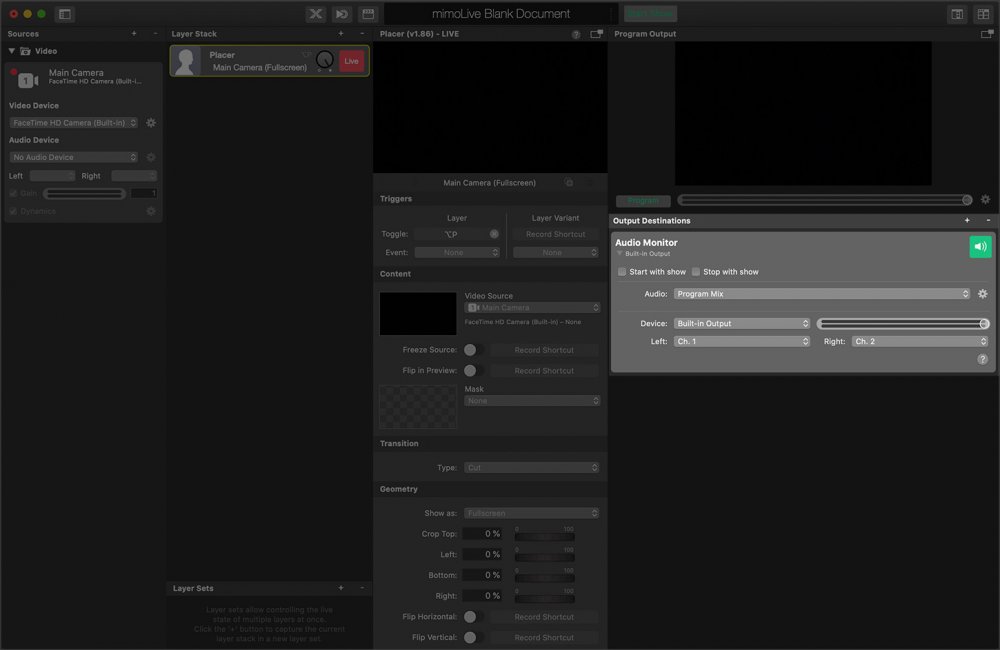
#### Output options
mimoLive has many options to output the final video product. You are able to set up those options in the rightmost column of the mimoLive document window:
Choose from these out destinations:
- [Audio Aux](https://mimolive.com/user-manual/audio-aux)
- [Full Screen Playout](https://mimolive.com/user-manual/full-screen-playout)
- [File Recording](https://mimolive.com/user-manual/recording-to-disk)
- [Live Streaming](https://mimolive.com/user-manual/live-streaming)
- [SDI Playout](https://mimolive.com/user-manual/sdi-playout)
- [NDI® Playout](https://mimolive.com/user-manual/nditm-playout)
- [Virtual Camera](https://mimolive.com/user-manual/virtual-camera) (Used for 3rd party software e.g. zoom.us)
- [mimoCall Output Destination](https://mimolive.com/user-manual/mimocall-webrtc-out)
- [Image Writer](https://mimolive.com/user-manual/playout-output-destinations/image-writer-output/)
- [Last Recording Uploader](https://mimolive.com/user-manual/playout-output-destinations/last-recording-uploader-output/)
- [Syphon Server](https://mimolive.com/user-manual/syphon) (This output option needs to be placed in the layer stack and doesn’t have a representation here.)
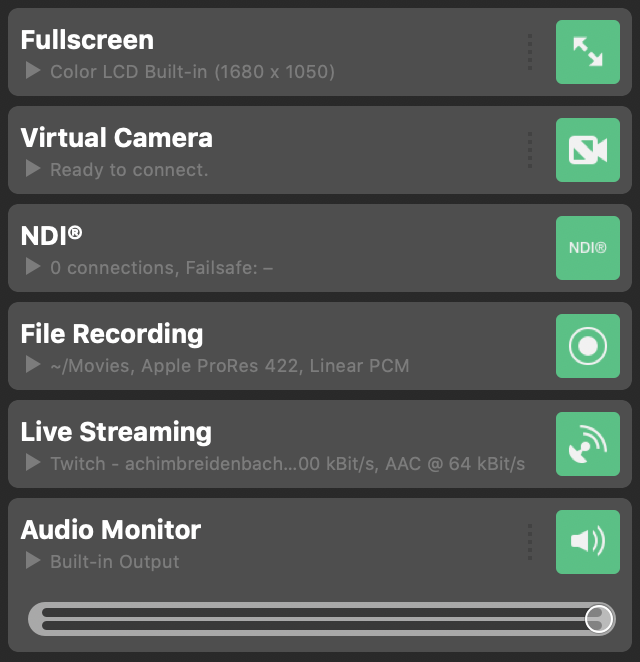
#### Adding An Output Destination
You can have multiple output destinations for your program out or other video sources. To add a new output destination click on the “+” button on the top of the output destinations list. A popover window will appear with all available output destinations:
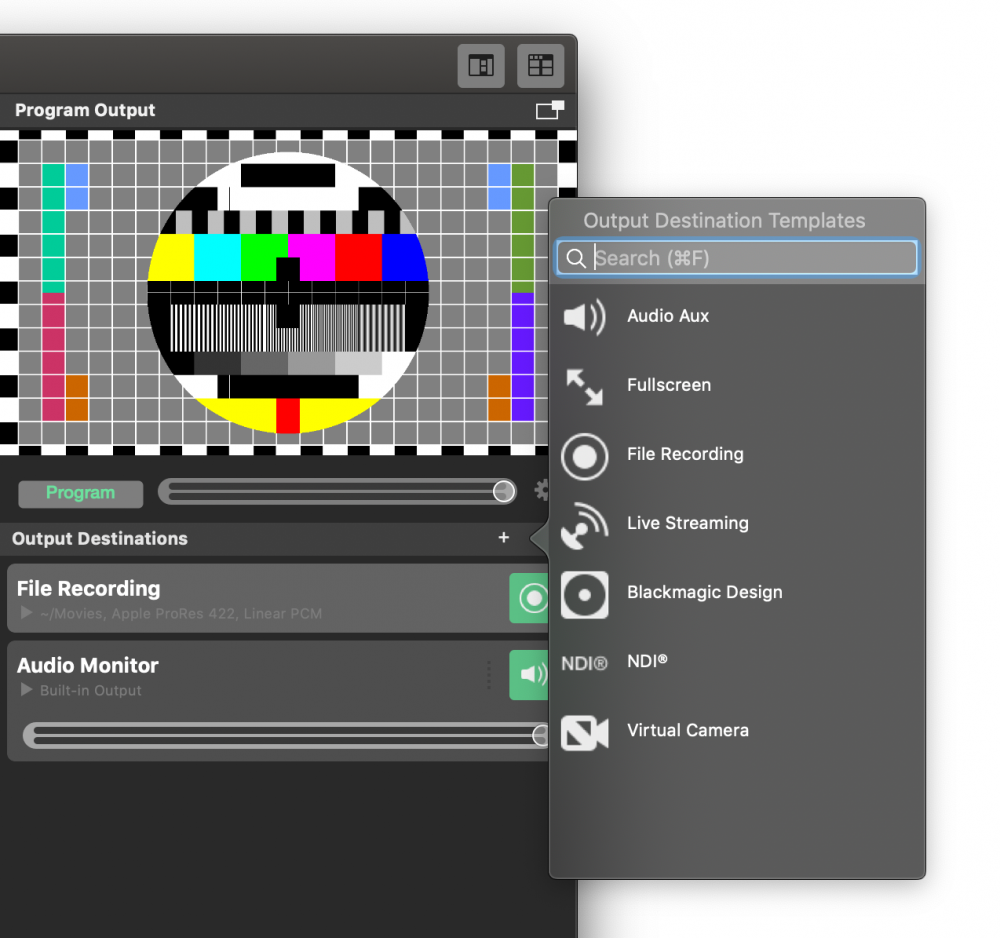
Either double click on the output destination you want to add or drag it to the Output Destinations list.
> **Important:** Output Destinations may be unavailable under certain circumstances
>
> Some output destinations may appear disabled in the popover window in certain situations. E.g. you only can have one Virtual Playout output destination per document since multiple macOS apps can connect to the sample Virtual Playout output destination at the same time. Please refer to the description of the Output Destination in question.
#### Output Live Button States
The live buttons of each output destination can appear in different colors that define different states:
| Colors | State |
| --- | --- |
| grey | This output isn’t configured and needs to be set up or is unavailable. |
| green | The output is correctly configured and ready for output. |
| red | The output is active and sending data to its destination. |
#### Automatic Triggering By The Show Start Button

Most of the output destinations can be triggered by the [Start/Stop Show Button](https://mimolive.com/user-manual/startstop-show-button) automatically. If the option “Start with show” is set for a certain output, this output will be activated when you click the Start Show Button. If the option “Stop with show” is set then the output will be deactivated when the show ended (this could be after a delay depending on your [Show Settings](https://mimolive.com/user-manual/show-settings)).
Which output options will be triggered by the Start/Stop Show button will be indicated by the little output icons in the button itself:
---
## Audio Aux Output
Source: https://mimolive.com/user-manual/playout-output-destinations/audio-aux/
Last updated: 2026-08-19
Send audio output to audio devices
New documents created with mimoLive automatically add an Audio Aux Output Destination, named **Audio Monitor**, that allows you to route audio mixes to a specific audio output device. You can add additional Audio Aux Output Destinations to route any desired audio mix to the same audio output device using a different channel selection or to other audio output devices.
#### Adding an Audio Aux Output Destination
Add a new Audio Aux Output Destination to your [Output Destinations list](https://mimolive.com/user-manual/output-destinations) by clicking the **+** button on top of the list in the right most column of your mimoLive document. A popover window will appear with all the Output Destination options available. After double clicking the Audio Aux Output Destination icon a new instance will appear in the Output Destination list.
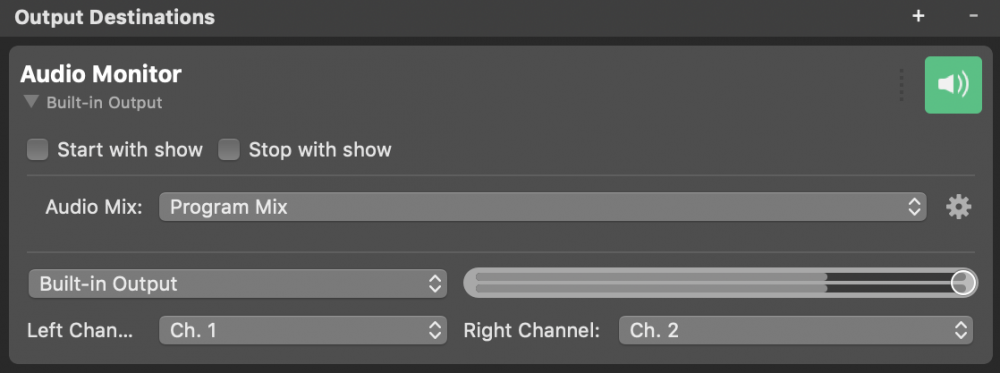
#### Setting up the Audio Aux Output Destination
The **Start with show** and **Stop with show** options control if the Output Destination should start and stop together with the [Start/Stop Show Button](https://mimolive.com/user-manual/startstop-show-button). Just remember that the Output Destination may always be activated and deactivated manually by clicking its activation button.
In the **Audio** drop down menu you can select which audio will be output by the Output Destination: Either the **Program Out Audio Mix**, a specific custom **Audio Mix** or any **audio source** that has an associated audio source with it. Please refer to [Audio Mix Panel](https://mimolive.com/user-manual/audio-mix-panel) to learn more about setting up audio mixes.
Clicking the action button to the right of the **Audio Mix** menu popup button reveals a context menu that lets you open the [Audio Mix Panel](https://mimolive.com/user-manual/audio-mix-panel) or rename and remove audio mixes.
The lower section of the settings view lets you select an audio output device from the list of available devices on your system, set the Output Destination’s output volume and select the physical output channels where the selected audio mix’s left and right channel should be played out.
#### The Output Volume
The volume slider in the Audio Aux Output Destination reflects the output volume that mimoLive applies to its audio output before it is handed over to macOS and its audio drivers for playback on the selected device. However, there are several volume stages involved in the audio output signal chain which sometimes can lead to confusion. In case you need to troubleshoot too soft or too loud, i.e. distorted, audio output please follow the signal flow in the given order and check each volume setting at the respective stage:
1. mimoLive: Audio Mix layer volumes and master volume
2. mimoLive: Audio Aux Output Destination volume
3. macOS: Audio Device master volume (check Audio-MIDI-Setup, for instance)
4. Physical device: Driver output volume (matrix, mixer) and physical output volume (knob)
#### Channel Selection
An Audio Aux Output Destination always allows the selection of any available channel of a device. However, in case a particular device is currently live in another Output Destination with one or more of the selected channels the Audio Aux Output Destination will not be allowed to start. In this case the activation button will become gray and the selected device will read **(busy)** or **(channel selection unavailable)** until the device and channel selection was changed or the other Output Destination stops.
#### **Downmixing Different Audio Aux Output Destinations**
Audio Aux Output Destinations do not downmix their device channels with each other. This means that physical device channels will only ever be allowed to output audio for one Audio Aux Output Destination at a time. Scenarios that require this capability should be solved by configuring an appropriate [Audio Mix](https://mimolive.com/user-manual/audio-mix-panel) instead.
While downmixing different Audio Aux Output Destinations to the same physical device channels is not allowed, downmixing both output channels of one particular Audio Aux Output Destination to the same physical device channel can easily be achieved by selecting the same device channel for both the **Left Channel** and the **Right Channel**. Unsurprisingly this configuration performs the standard mono summing “M = 0.5 \* L + 0.5 \* R” to avoid clipping.
#### *Using Bluetooth Headsets*
Whenever a Bluetooth headset connected to the Mac activates its microphone for input, macOS reduces the audio quality for the input and output routes and switches the headset’s audio formats from 2-channel to 1-channel. When this happens while the headset is live in an Audio Aux Output Destination, mimoLive automatically tries to recover from the configuration change by selecting the remaining, still available device channel for both output channels, which essentially degrades the stereo output signal to a mono signal. Please note, though, that when deactivating the headset’s microphone, mimoLive cannot automatically infer a better channel selection which therefore has to be done manually.
> **Note:** Bluetooth Audio I/O
>
> For audio quality reasons we recommend against using a Bluetooth headset for simultaneous input and output. Using it only for output should be fine as long as you can cope with the latency inherent to the Bluetooth protocol.
---
## Full Screen Playout
Source: https://mimolive.com/user-manual/playout-output-destinations/full-screen-playout/
Last updated: 2026-08-19
Present the program out or any video source on a separate display
Most Macs have a secondary display output, the recent models in form of an HDMI or Thunderbolt port. With macOS Big Sur you are able to [create a virtual secondary display on your Mac for an AirPlay enabled device](https://mimolive.com/user-manual/airplay) in your local network and use it in mimoLive.
mimoLive can play out full screen on this secondary display. This is useful for:
- Connecting to a projector for a live presentation
- Connecting to a jumbotron in a stadium
- Connecting to a hardware live streaming encoder
- Connecting to an external DVR
- Connecting to a second mimoLive installation on a second Mac
- Setting up a confidence monitor for an actor in front of a green screen
#### Prerequisite
The Full Screen Playout Output Destination shows the displays connected to your Mac and the arrangement as defined by the [macOS System Preferences](https://support.apple.com/en-us/HT202351) . Please make sure to use the **Extended Desktop Mode** so that your secondary screen does not mirror the main screen.
#### Adding a Full Screen Playout Output Destination
Add a new Full Screen Playout Output Destination to your [Output Destination list](https://mimolive.com/user-manual/user-interface-overview) by clicking the **+** button on top of the list in the right most column of your mimoLive document. A popover window will appear with all the Output Destination options available. After double clicking the Full Screen Playout Output Destination icon a new instance will appear in the Output Destination list.
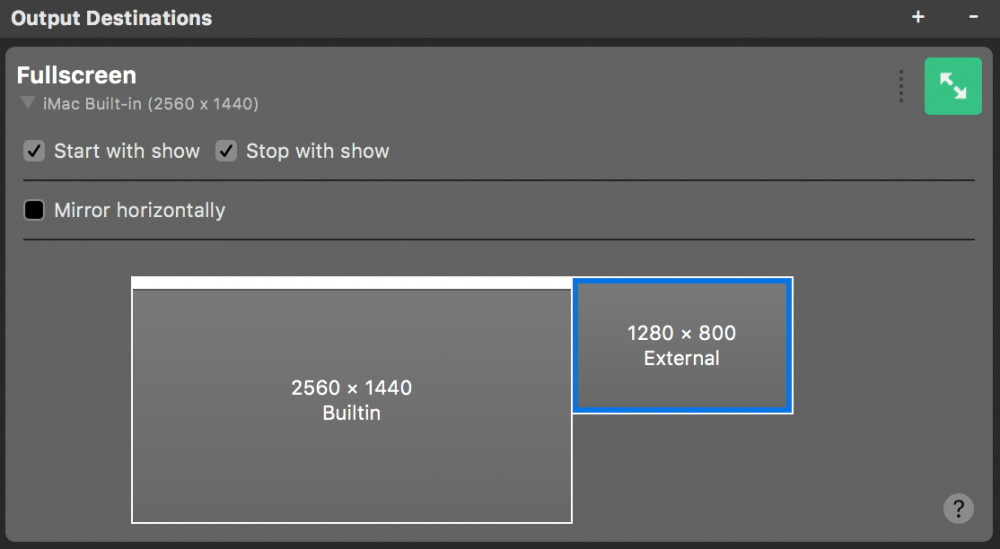
#### Setting up Full Screen Playout
The **Start with show** and **Stop with show** options define if the Fullscreen play Out should start and stop by the [Start/Stop Show Button](https://mimolive.com/user-manual/startstop-show-button).
The **Video** option let you choose which video source you want to use for output: You can select either the Program Out or any source that has video.
Below there is a diagram of you display setup. Select the display you want to use for full screen playout. The selected display is drawn with a blue border. To set up or change the display arrangement open the macOS system preferences and go to the **Displays** section.
> **Note:** Mirror Horizontally
>
> This feature is very useful if you’re setting up a confidence monitor. The mirrored video seems more natural to the actor and helps coordinate movements if, for example, pointing to a weather map. Please be aware that text will be mirrored too.
If a second display is connected and Full Screen Playout is configured, the Live button will be green to indicate that it is ready for use.
#### Starting Full Screen Playout
Click on the Live button of this output destination to start the play out on the external screen. The button will turn red to indicate that playout has started.
> **Important:** Exiting Full Screen Playout
>
> It is possible to select the display that also shows the mimoLive user interface for Full Screen Playout, obscuring the button that would let you turn it off. Press the ESC button on your keyboard to exit the Full Screen Playout in this case.
#### Hiding the "orange dot" (aka privacy indictor)
When using the Fullscreen Playout, you may see an "orange dot" on the HDMI output. This is a "privacy indicator" to alert the user that the camera is being used. To prevent spying by malicious software or websites, this dot can't be easily turned off. Apple has now released an official way to hide it for cases like using mimoLive. [Click here for the official instructions](https://support.apple.com/en-us/118449).
---
## File Recording to Disk (ISO Recording)
Source: https://mimolive.com/user-manual/playout-output-destinations/recording-to-disk/
Last updated: 2026-08-19
With the Recording to Disk feature, you can easily record your mimoLive productions to your local disk. This is especially useful for users who want to have a backup of their live streams, or for those who want to edit their videos later. You can choose between various output codecs such as h.264, multiple Apple ProRes variants and HEVC to adjust the quality settings to suit your needs. The feature allows you to start and stop recording at any time, making it easy to create clips for any purposes. Whether you're a professional broadcaster, a YouTuber, or just starting out, Recording to Disk gives you the flexibility you need to produce high-quality content and share it with your audience.
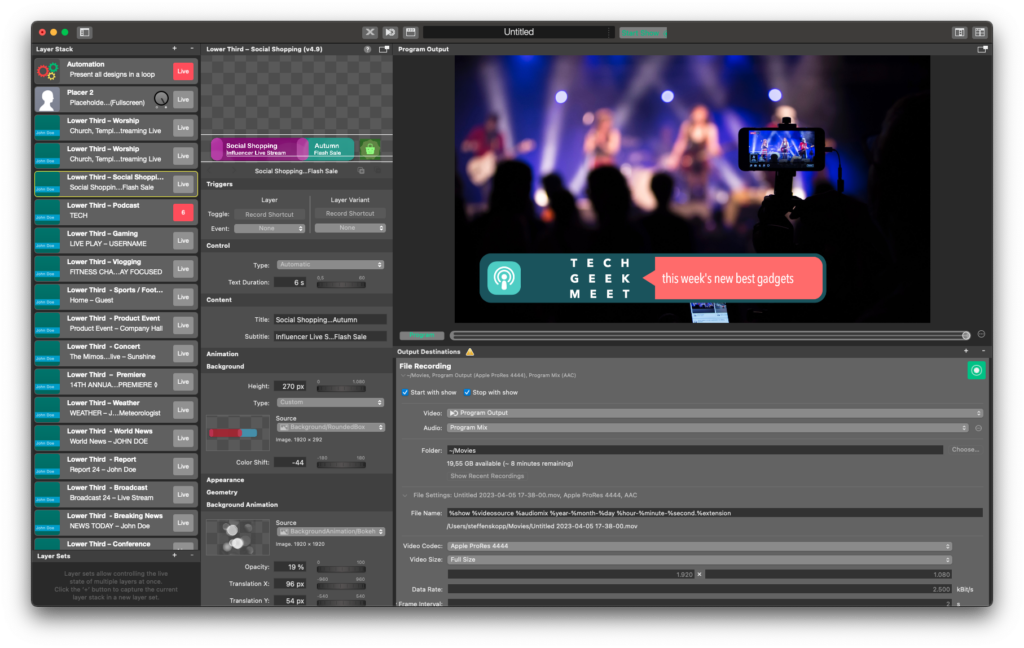
#### Recording the program out
mimoLive can be used to record the program output to disk. This is useful for example in the following use cases:
- Handing off to post production
- Re-encoding for upload to YouTube, Facebook or any other video platform
- Archiving a live stream in high quality
- Record clean video streams of your cameras
#### Recording various sources simultaneously (ISO Recording)
By enabling ISO Recording in mimoLive, you can capture each input source individually in its original quality. This feature allows you to record multiple sources at the same time, providing numerous benefits such as:
1. Convenience: Recording multiple sources simultaneously saves time and eliminates the need to record each source separately.
2. Increased flexibility: Recording multiple sources provides greater flexibility during post-production, as you have more options to choose from when editing the footage.
3. Better quality: Recording multiple sources can lead to better overall quality, as you can capture different angles, perspectives, and sound sources simultaneously.
4. Cost-effective: Recording multiple sources simultaneously can be cost-effective, as it reduces the need for additional equipment and crew to capture each source separately.
5. Improved workflow: Recording multiple sources simultaneously can streamline your workflow, as you can quickly review and edit footage from multiple sources at once.
#### Working with File Recording Output Destinations
Add a new File Recording Output Destination to your [Output Destination list](https://mimolive.com/user-manual/user-interface-overview) by clicking the **+** button on top of the list in the right most column of your mimoLive document. A popover window will appear with all the Output Destination options available. After double clicking the File Recording Output Destination icon a new instance will appear in the Output Destination list.
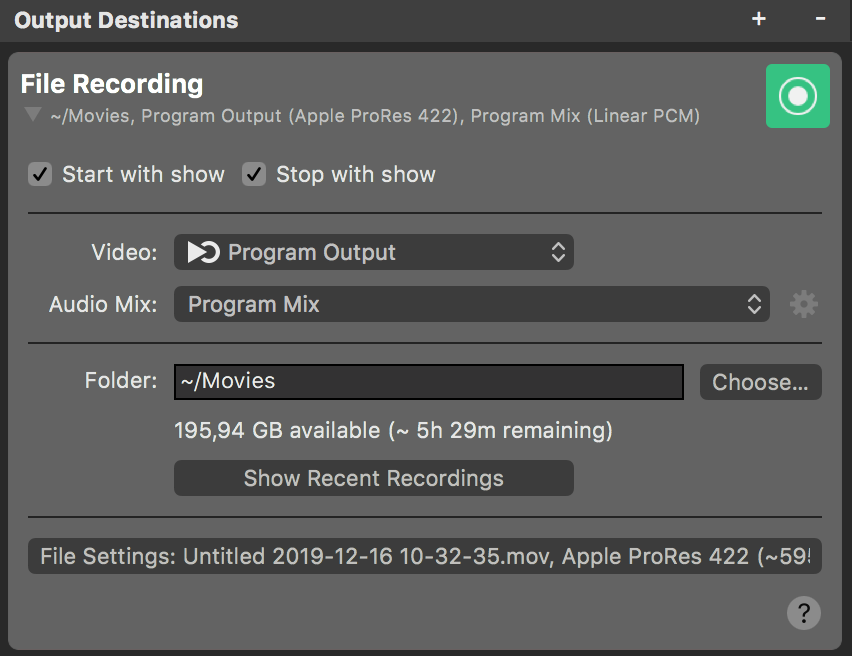
#### Setting up the File Recording Output Destination
The **Start with show** and **Stop with show** options control if the Output Destination should start and stop together with the [Start/Stop Show Button](https://mimolive.com/user-manual/startstop-show-button). Just remember that the Output Destination may always be activated and deactivated manually by clicking its activation button.
In the **Video** popup you can select wether you want to record the Program Output or a specific [Video Source from the Sources Repository](https://mimolive.com/user-manual/sources-and-the-sources-repository). By adding multiple File Recording output destinations you can record multiple cameras and the Program Output simultaneously.
> **Note:** ISO recording with mimoLive
>
> You can have multiple File Recording Output Destinations in mimoLive each of them recording a different video source. This way you can do ISO Recording (isolated recordings) of each input source in mimoLive.
In the **Audio** drop down menu you can select which audio will be will be recorded with your file: Either the **Program Out Audio Mix**, a specific custom **Audio Mix** or any **audio source** that has an associated audio source with it. Please refer to [Audio Mix Panel](https://mimolive.com/user-manual/audio-mix-panel) to learn more about setting up audio mixes.
The **Folder** text field specifies where a new file recording will be saved. For your convenience you can select the **Choose…** button to select a folder from a file dialog window.
Clicking the **Show Recent Recordings** button brings up the **Recent Recordings** window.
#### Advanced Settings
Clicking the **File Settings** button reveals the Advanced Settings section.
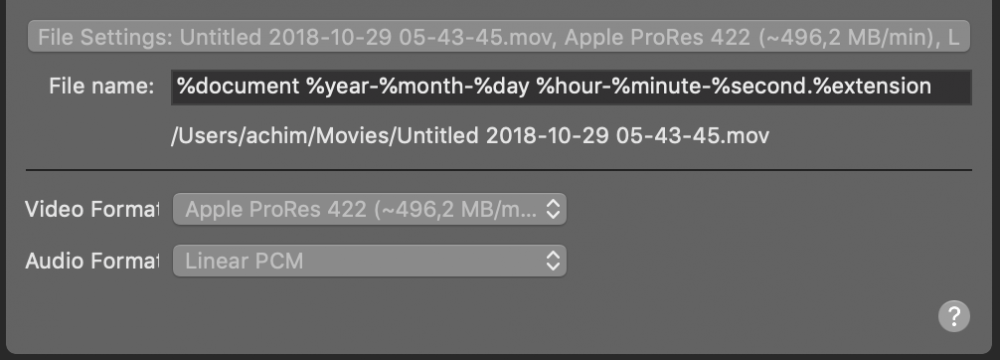
The **File Name** field defines the naming format for the automatically created recording files. The final path name with all tokens resolved is displayed below. The following values are available:
- %document
- %year
- %month
- %day
- %hour
- %minute
- %second
- %extension
> **Note:** Force the movie container format by specifying the extension!
>
> By default mimoLive will write a QuickTime file with .mov extension. You can force this file format by exchanging the %extension token by the hardcoded extension .mp4 . You also can use the file format M4V by using .m4v as the file extension.
The **Video Format** menu allows the selection of a video format for the file recording. The following formats are available:
- Apple ProRes 422
- Apple ProRes 4444 (includes alpha channel for transparency)
- Apple ProRes 422 HQ
- Apple ProRes 422 LT
- H.264
- HEVC (macOS 10.13 and newer)
The **Audio Format** menu allows the selection of an audio format for the file recording. The following formats are available:
- Linear PCM
- ACC
#### Monitoring File Recording Performance
Once the Output Destination was toggled live its settings view is replaced by a status view displaying performance data in realtime. Refer to [Monitoring Performance](https://mimolive.com/user-manual/diagnostics/performance-monitoring/file-recording-performance-monitor/) for details on performance monitoring in mimoLive.
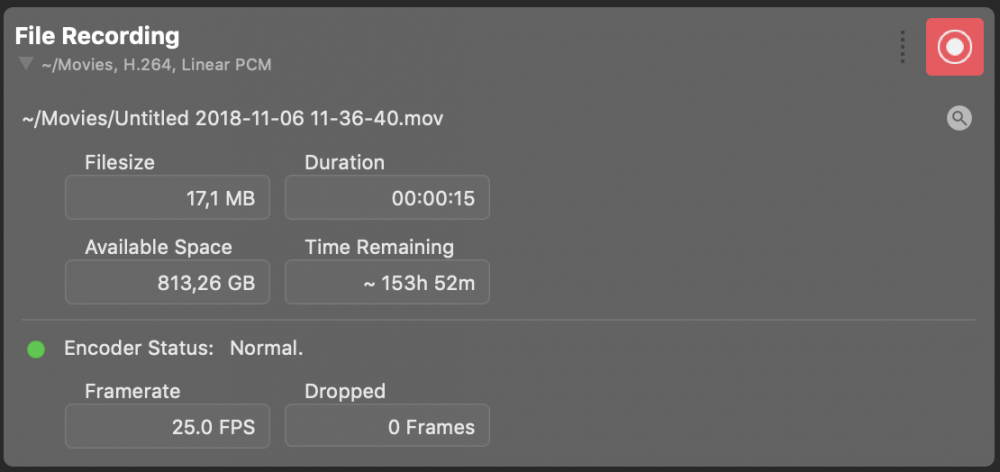
#### Revealing the Recorded File in Finder
Clicking the magnifier button in the upper right corner reveals the currently recorded file in the Finder.
---
## Live streaming
Source: https://mimolive.com/user-manual/playout-output-destinations/live-streaming/
Last updated: 2025-10-23
Stream the program live on the Internet
mimoLive lets you live stream to a great number of services that support the RTMP protocol.
#### Adding a Live Streaming Output Destination
Add a new Live Streaming Output Destination to your [Output Destination list](https://mimolive.com/user-manual/user-interface-overview) by clicking the **+** button on top of the list in the right most column of your mimoLive document. A popover window will appear with all the Output Destination options available. After double clicking the Live Streaming Output Destination icon a new instance will appear in the Output Destination list.
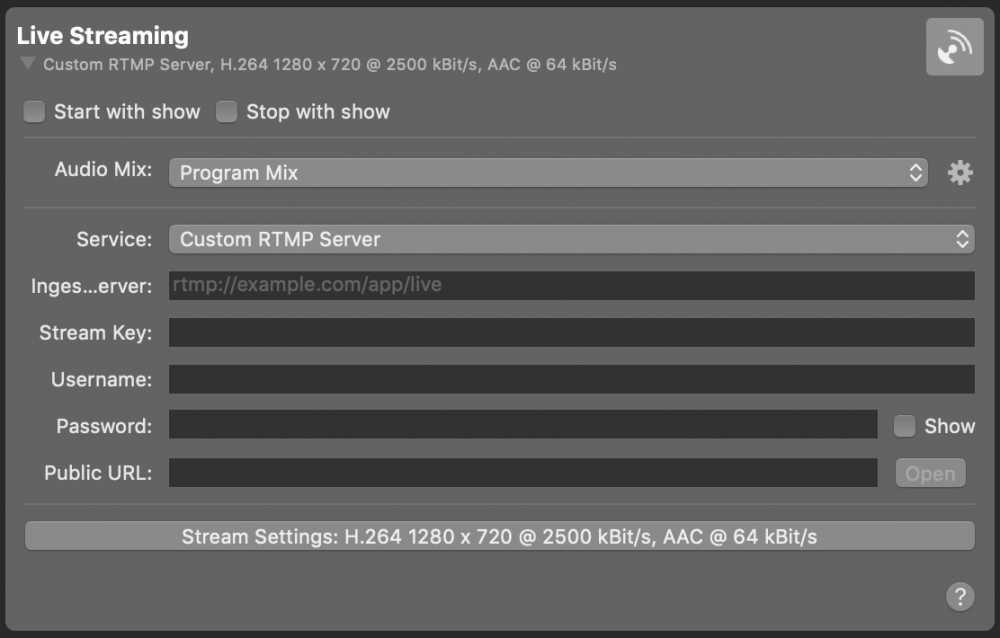
#### Setting up the Live Streaming Output Destination
The **Start with show** and **Stop with show** options control if the Output Destination should start and stop together with the [Start/Stop Show Button](https://mimolive.com/user-manual/startstop-show-button). Just remember that the Output Destination may always be activated and deactivated manually by clicking its activation button.
In the **Video** popup you can select wether you want to stream live the Program Output or a specific [Video Source from the Sources Repository](https://mimolive.com/user-manual/sources-and-the-sources-repository).
In the **Audio** drop down menu you can select which audio will be streamed live by the Output Destination.: Either the **Program Out Audio Mix**, a specific custom **Audio Mix** or any **audio source** that has an associated audio source with it. Please refer to [Audio Mix Panel](https://mimolive.com/user-manual/audio-mix-panel) to learn more about setting up audio mixes.
The activation button will remain disabled until the streaming service was properly configured.
#### Setting up a Service
A growing number of live streaming services are directly supported by mimoLive. This means you can use mimoLive as a client of those services by [logging in with your respective account credentials](https://mimolive.com/user-manual/accounts). When your account was successfully set up in mimoLive you simply select your service from the **Service** menu and start streaming.
- [Facebook Live](https://mimolive.com/user-manual/facebook-live)
- [LinkedIn Live](https://mimolive.com/user-manual/linkedin-live)
- [Livecoding.tv](https://mimolive.com/user-manual/livecodingtv)
- [Twitter](https://mimolive.com/user-manual/periscope)
- [Vimeo](https://mimolive.com/user-manual/vimeo)
- [YouTube Live](https://mimolive.com/user-manual/youtube-live)
- [YouTube 360° Live Streaming](https://mimolive.com/user-manual/youtube-360-live-streaming)
- [YouTube Gaming](https://mimolive.com/user-manual/youtube-gaming)
#### Setting up RTMP Streaming
If you want to stream to a service that is not directly supported, you can still do so if the service supports RTMP ingest. Select **Custom RTMP Server** from the **Service** menu and fill in the information that your service provided. Not all information may be needed to successfully stream to a service. Oftentimes the ingest server URL and stream key suffice.
#### Importing FMLE Configuration Files
Some streaming service platforms provide FMLE Configuration Files to avoid the complexities of configuring the stream encoding software. These files are supported by mimoLive.
#### Simulcasting
mimoLive allows to stream to multiple streaming destinations simultaneously (simulcasting). Simply configure additional Live Streaming Output Destinations. Depending on your Mac, you may be able to stream to up to 6 streaming services at the same time.
#### Advanced Settings
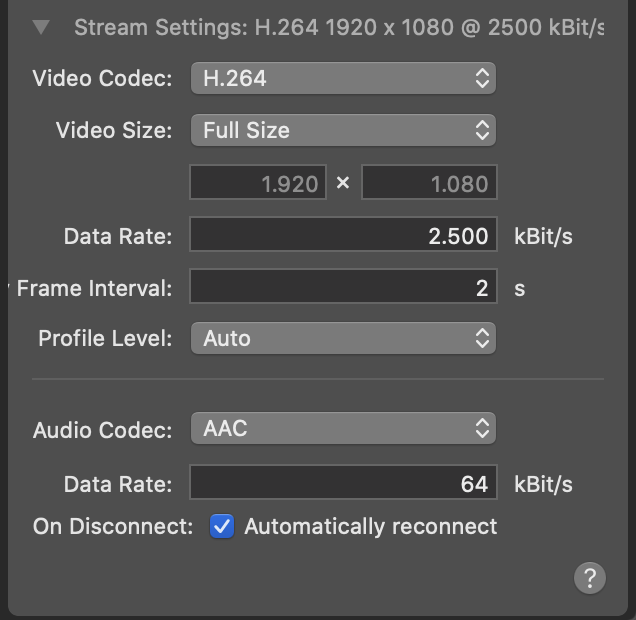
- **Video Codec:**
Selects the compression format for the video stream.
Common choice is **H.264**, which provides high quality at efficient bitrates and is widely supported by streaming platforms.
- **Video Size:**
Defines the resolution of the output video.
- **Full Size** uses the document’s full output resolution (e.g., 1920 × 1080).
- **Half Size** devides widht and height by two.
- **Custom** lets you define your own pixel dimensions.
- Note: You can choose smaller sizes to reduce bandwidth usage.
- **Data Rate:**
Sets the target bitrate for the video stream in kilobits per second (kBit/s).
Higher values improve quality but require more upload bandwidth.
Example: **2500 kBit/s** is suitable for 1080p streaming under typical conditions.
- **Key Frame Interval:**
Defines the keyframe interval (distance between full frames) in seconds.
Example: **2 seconds** means a new keyframe is sent every two seconds — a good balance between quality and efficiency.
- **Profile Level:**
Sets the H.264 profile and level, determining compression complexity and compatibility.
**Auto** lets mimoLive choose the best settings for your target platform.
- **Audio Codec:**
Specifies the compression format for audio.
**AAC** is recommended for streaming due to its excellent quality at low bitrates and universal compatibility.
- **Data Rate:**
Sets the audio bitrate in kilobits per second (kBit/s).
Example: **64 kBit/s** provides good speech quality with minimal bandwidth use.
- **On Disconnect:**
When **Automatically reconnect** is enabled, mimoLive will attempt to re-establish the streaming connection if it drops unexpectedly — ensuring minimal interruption during live broadcasts.
#### Monitoring Live Streaming Performance
The [Live Streaming Performance Monitor](https://mimolive.com/user-manual/diagnostics/performance-monitoring/live-streaming-performance-monitor/) provides real-time insight into your stream’s quality and stability, helping you ensure smooth delivery and quickly identify potential network or encoding issues.
---
### Castr
Source: https://mimolive.com/user-manual/playout-output-destinations/live-streaming/castr/
Last updated: 2025-03-01
Castr is a cloud-based live re-streaming platform that allows users to stream content to multiple destinations simultaneously. It supports streaming to platforms like YouTube, Facebook, Twitch, LinkedIn, and other RTMP destinations.
It is useful for mimoLive users if there isn't enough bandwidth to stream to more than one streaming destination or to offload processing from the Mac running mimoLive.
#### How to set up mimoLive with the Castr RTMP settings
https://youtu.be/aeNFITmQMoI
---
### YouTube live
Source: https://mimolive.com/user-manual/playout-output-destinations/live-streaming/youtube-live/
Last updated: 2026-08-19
> **Important:** YouTube is constantly changing, The information in this document is valid as of April 2021.
**If you notice a change, please let is know in the [forum](https://forum.boinx.com).**
In order to live stream to YouTube, you need to comply with the [live streaming requirements](https://support.google.com/youtube/answer/2853834?hl=en).
Once you’ve made sure your channel allows live streaming, follow the procedure below to [schedule up a live stream in YouTube Studio](https://mimolive.com/user-manual/youtube-live#schedule), [set up a Live Streaming destination in mimoLive](https://mimolive.com/user-manual/youtube-live#setupmimolive) and [start your stream](https://mimolive.com/user-manual/youtube-live#startthestream).
Please note there are special steps you need to take to [stop the stream](https://mimolive.com/user-manual/youtube-live#stopthestream) again.
### Scheduling a live stream on YouTube
To get started, log in to YouTube and go to the Studio. Then, click on the Go Live button:
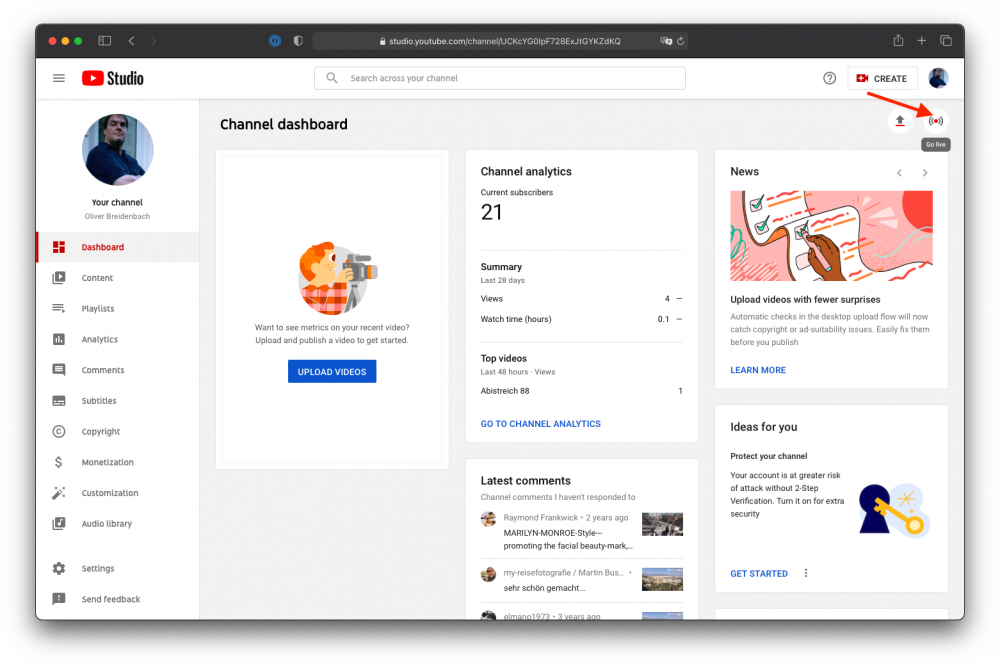
This will take you to your stream page.
Look for the “Manage” button on the left and click it:
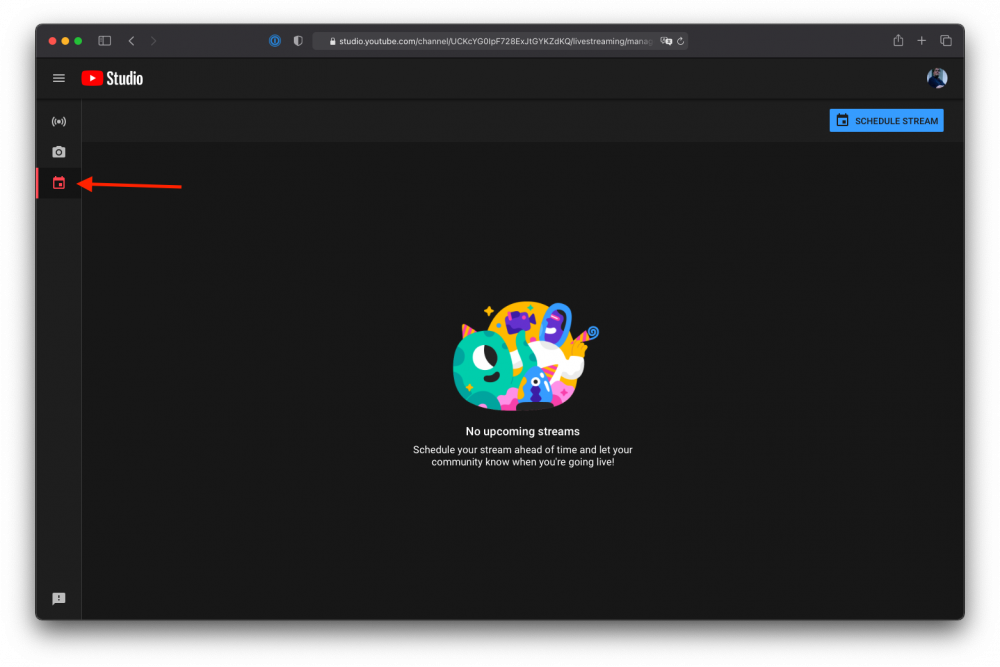
Now, find the Schedule Stream button on the right:
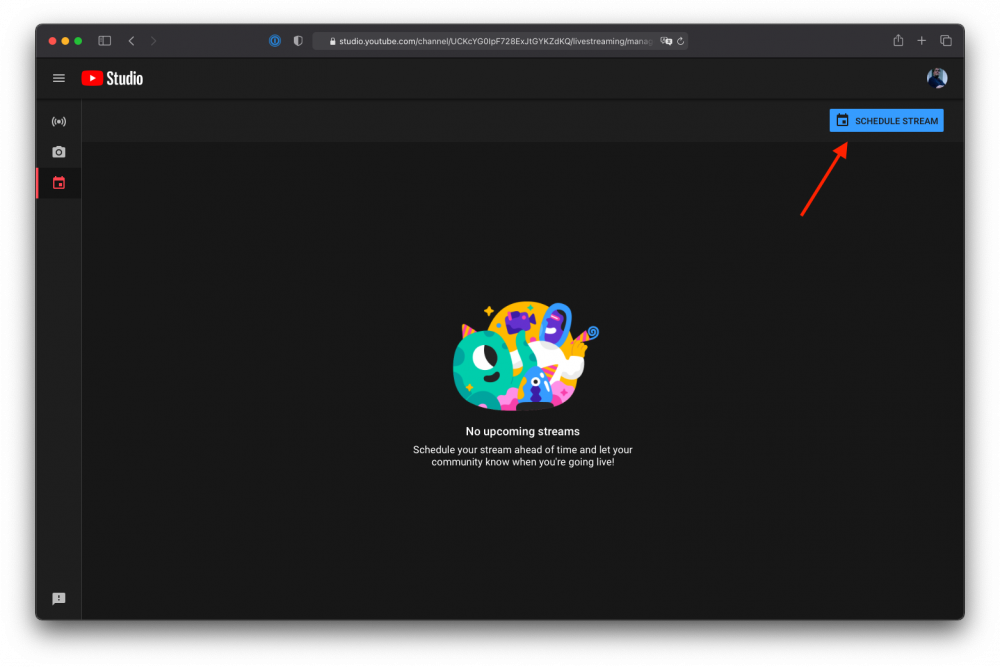
If you’ve set up a stream before, you will be asked if you want to use that as a template. If you get this message, click on Create New:
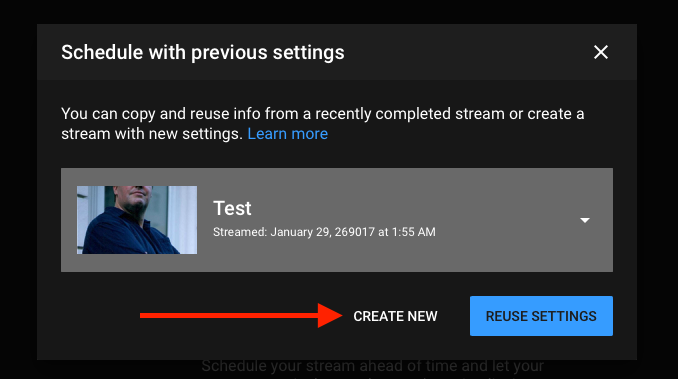
Enter the Title (and remember it because you will later use it in mimoLive to identify where you stream to), choose the visibility, enter a descrioption and make sure you select the proper “Made for kids” setting. Then click Create Stream:
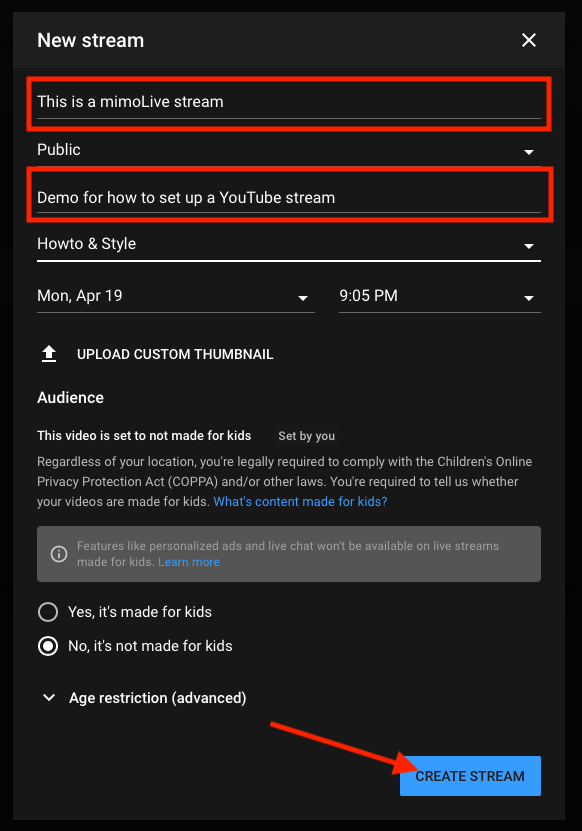
At the time of this writing, YouTube Studio will take you then directly to the detail view of the stream where you can set additional parameters.
> **Note:** This is where you can reduce the latency for your stream to improve interaction. Low Latency means, your audience will only have a short delay in the stream between you doing or saying something and the viewers seeing it. Normal latency means up to 30 seconds. Reducing the latency also reduces the compression quality of the stream.
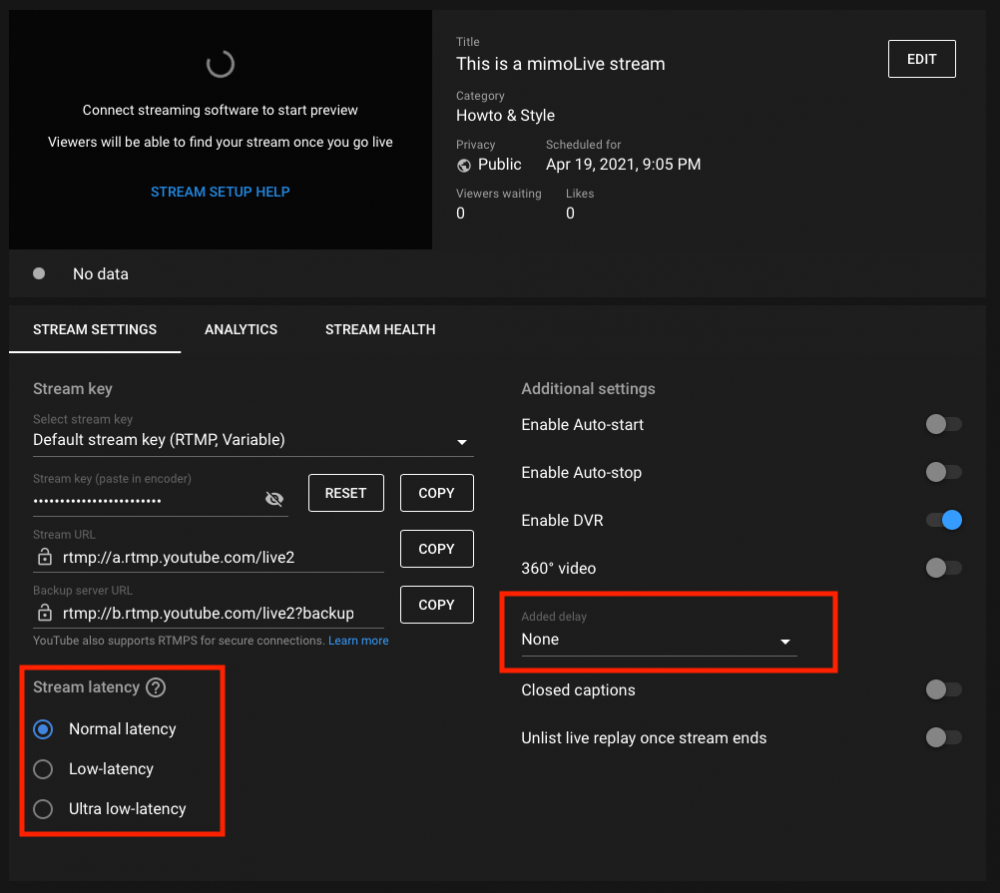
*!*Here you can also add a longer delay to comply with government regulations in some countries.
If you schedule a stream for the future and want to come back later, once you enter the YouTube Studio, find the Manage button again and select the scheduled stream from the list to get back to the stream details.
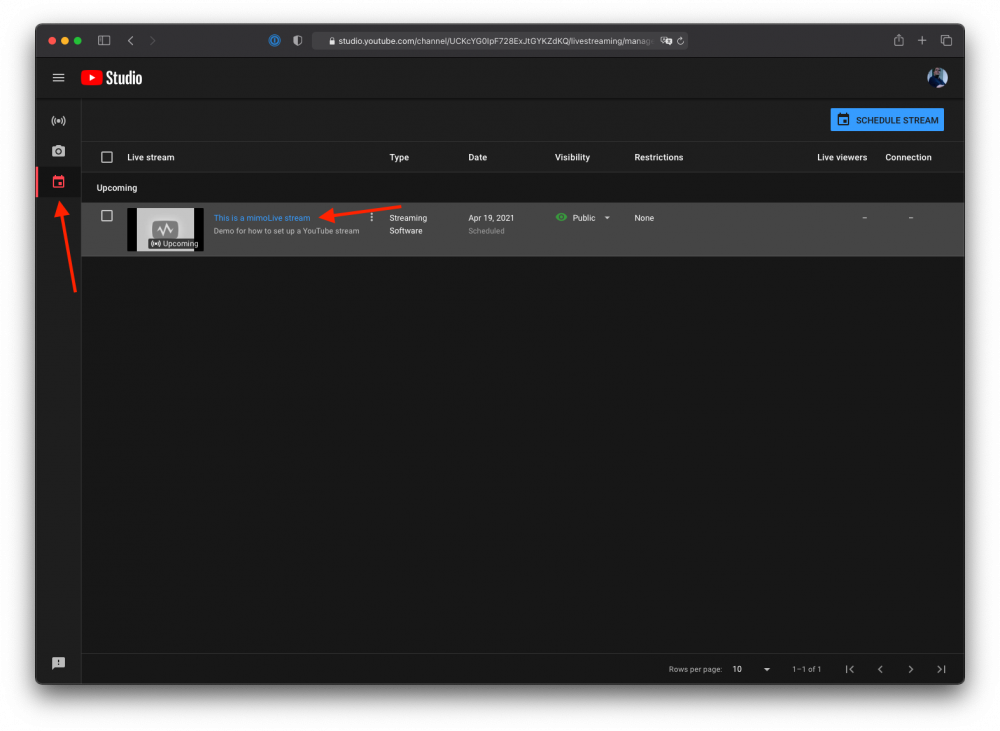
### Setting up the Live Streaming output destination in mimoLive
In mimoLive, first make sure that you log into YouTube from the Account panel in the mimoLive Preferences. Click on “YouTube” in the right panel to be sent to the login page of YouTube:
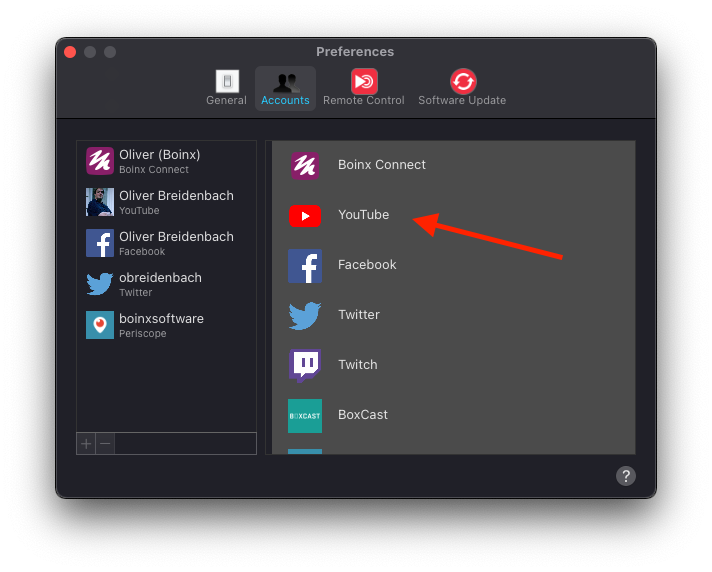
When you’ve logged in with your YouTube account, your account will be added to the list on the left:
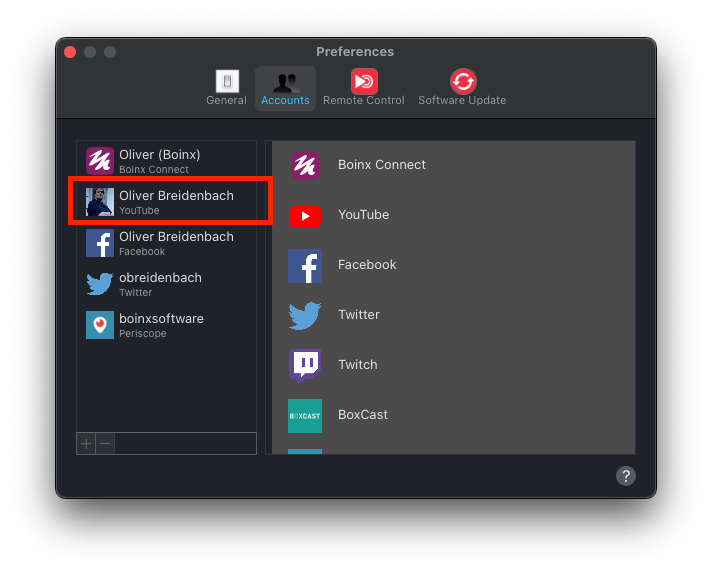
Now, go to the Output Destinations panel and add a Live Streaming destination:
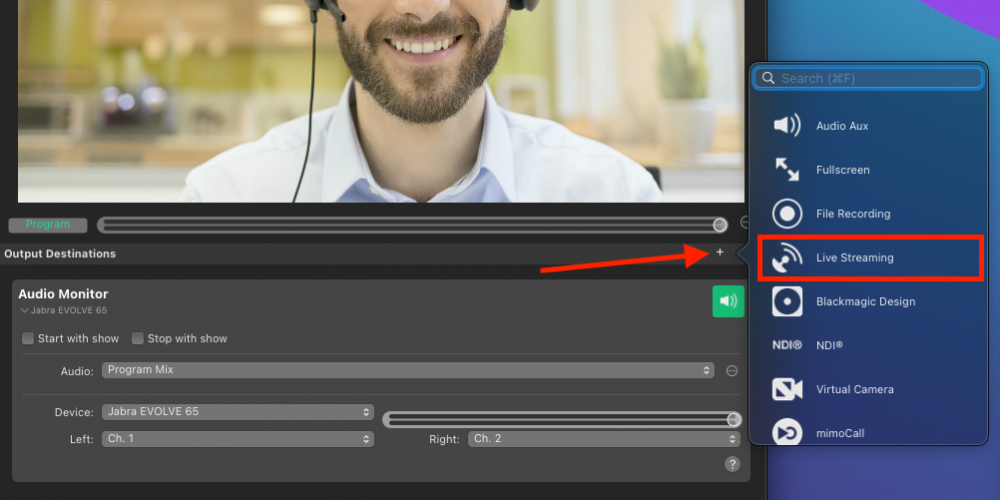
Select your YouTube Account from the “Services” popup and the stream you created earlier from the “Broadcast” popup:
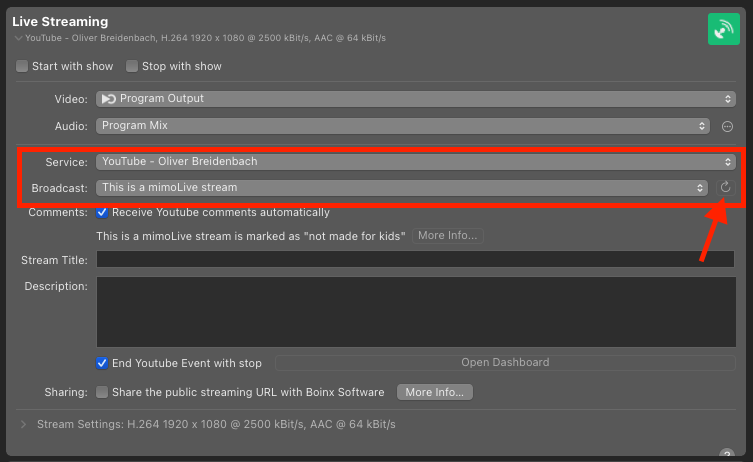
> **Important:** If the stream doesn’t show up on the Broadcast popup, try reloading the list of Broadcasts using the reload button to the right of the popup menu.
There are various options you can set regarding your stream:
- If you want to use comments in the stream, select “Receive YouTube comments automatically”.
- You can overwrite the Stream Title and Description of you need to.
- If you want to end the live stream from mimoLive, select “End YouTube Event with stop
- If you want to let us see what you’re streaming, you can choose to share the public streaming URL with Boinx Software
#### Changing streaming format
You can set a lot of parameters for the stream if you click on the disclosure triangle next to “Stream Settings”. For example, you can change:
- Codec
- Video Size (mimoLive can stream in a different resolution than your document)
- Data Rate
and more.
> **Important:** Only change the settings if you know what you’re doing.
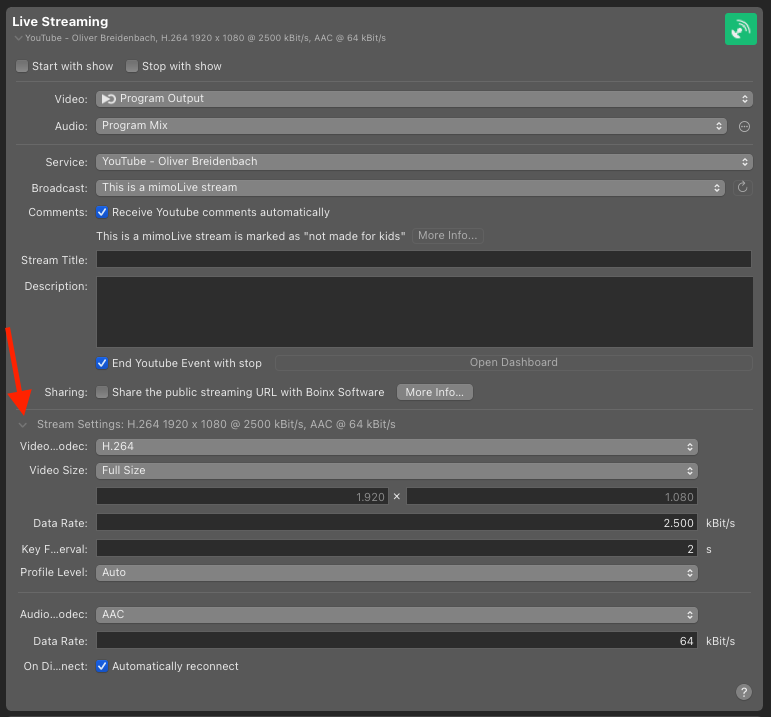
### Starting the stream
Once you’ve set up eveything, the live button will turn green and you can start sending data to YouTube by pressing the live button. It will turn red and start displaying statistical data:
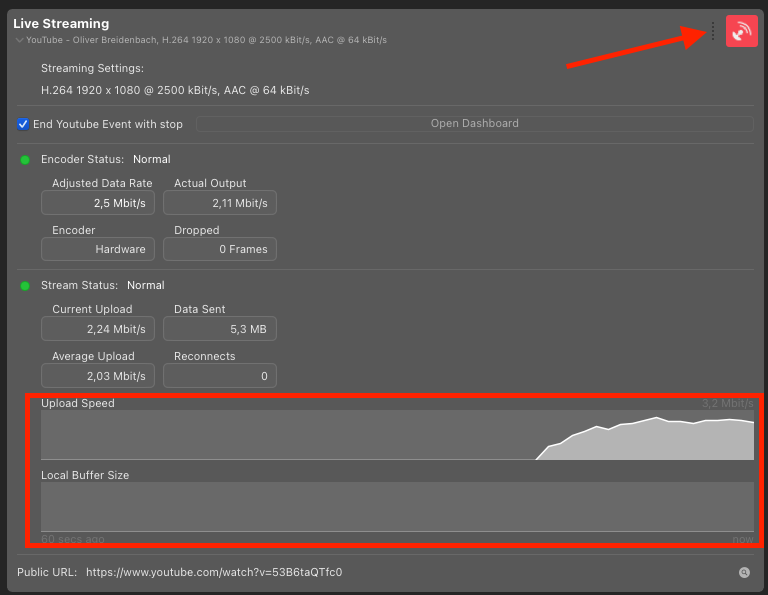
> **Note:** You can see that your internet speed is good if there is nothing in the Local Buffer Size graph.
> **Important:** You will now have to start the stream in the YouTube Studio for your audience to be able to watch it!
Go to YouTube studio. You will now see your stream coming in and YouTube will tell you if it is receiving the expected data.
Find the blue button labelled “Go Live” to start your stream:
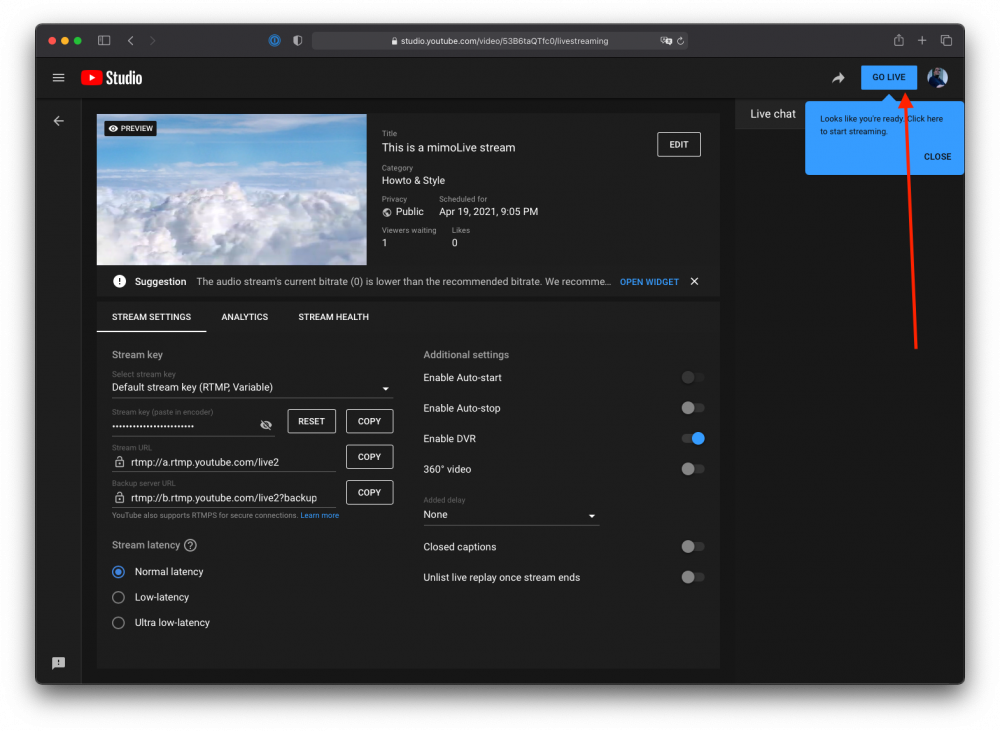
Congratulations, you’re now live.
### Ending the stream
> **Important:** If you have clicked the “End YouTube Event with stop” option in mimoLive, stopping the stream in mimoLive will also end the stream on YouTube.
If you have not set the option, you will have to end the stream manually in YouTube Studio:
---
### Stream Live to Instagram : A Step-by-Step Guide
Source: https://mimolive.com/user-manual/playout-output-destinations/live-streaming/instagram/
Last updated: 2026-08-19
Welcome to the comprehensive guide for streaming live to Instagram using mimoLive. This guide is designed for users with an Instagram Business or Creator account. Follow these simple steps to set up your live stream with ease.
#### **Setting Up Your Document in mimoLive**
1. **Select the Correct Format:**
- Open mimoLive and create a new document.
- Choose **Portrait** as the document format to align with Instagram's 9:16 format requirement.
- [Instagram recommends the resolution](https://about.instagram.com/blog/tips-and-tricks/instagram-live-producer): 720x1280
- Change the frame rate to 30 fps
- Video bitrate range: 2,250–6,000 Kbps
- Audio Sample rate: 44.1 KHz
- Audio Channel layout: Stereo
- Audio Bit rate: up to 256 Kbps
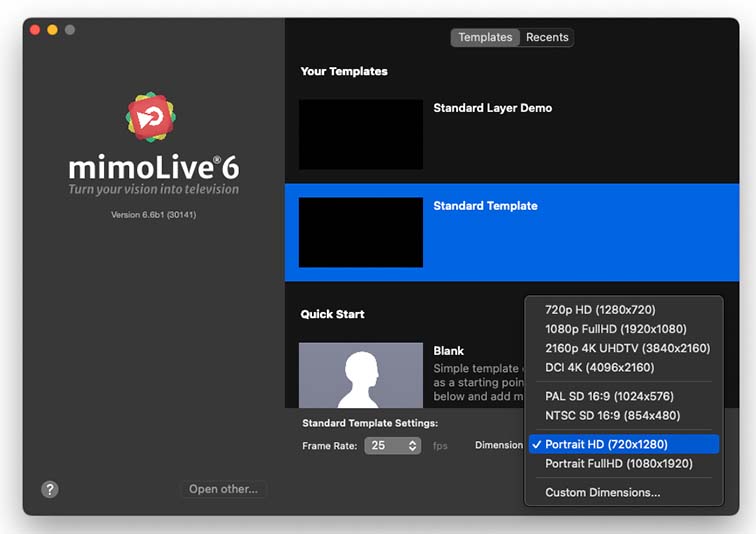
**1. Choose **Portrait HD (720x1280)**as the document format in mimoLive**
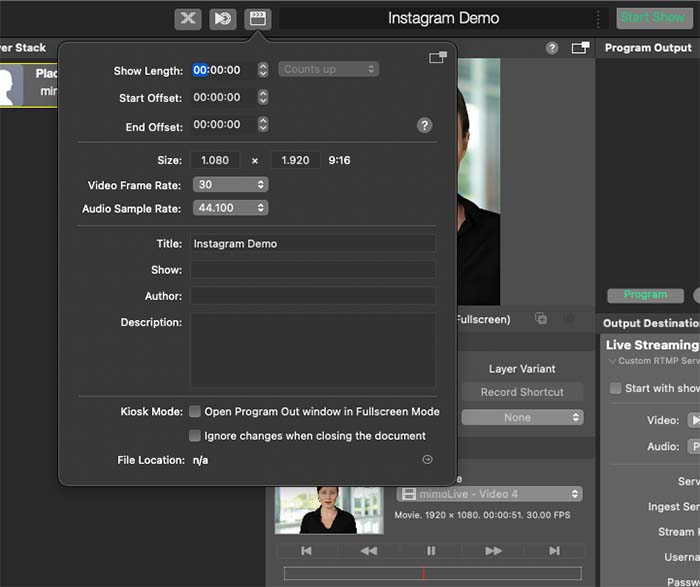
**Change the frame rate to **30 fps**, audio sample rate **44.1 kHz** as recommended**
1. Add a **Live Streaming**Destination:
- In your mimoLive document, navigate to the output options. Add a **Live Streaming** output destination. This will enable you to stream your content live on Instagram.
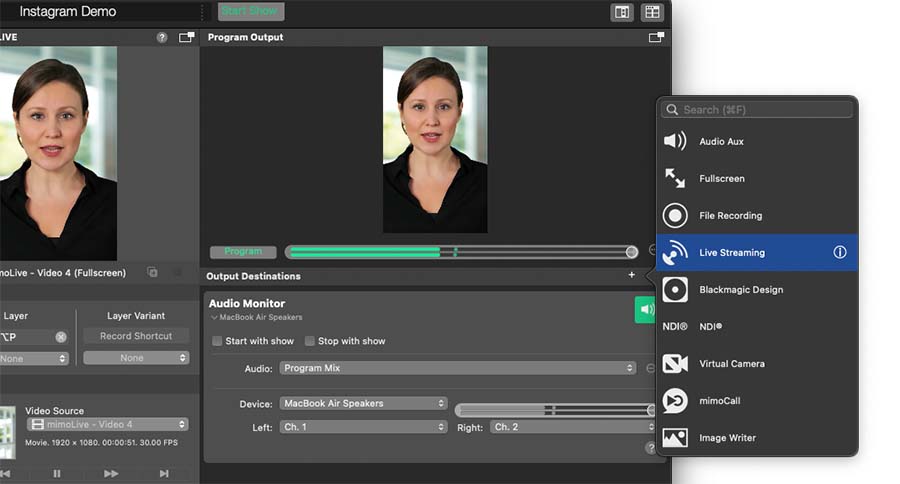
**2. Add a **Live Streaming**Destination to mimoLive**
### Obtaining Your RTMP Stream URL and Key from Instagram
1. **Accessing the Live Video Setup:**
- Log in to your Instagram account.
- Click on the **+ Create** button and select**Live Video** from the menu.
2. **Setting Up Your Live Stream:**
- Enter a title for your live stream.
- Choose your audience, either **Public** for everyone to see or**Practice** for testing your setup.
3. **Copying the Stream Details:**
- On the next screen, Instagram will provide you with the**Stream URL** and **Stream Key**.
- Copy the **Stream URL** into the **Ingest Server** field in mimoLive.
- Copy the **Stream Key** into the **Stream Key** field in mimoLive.
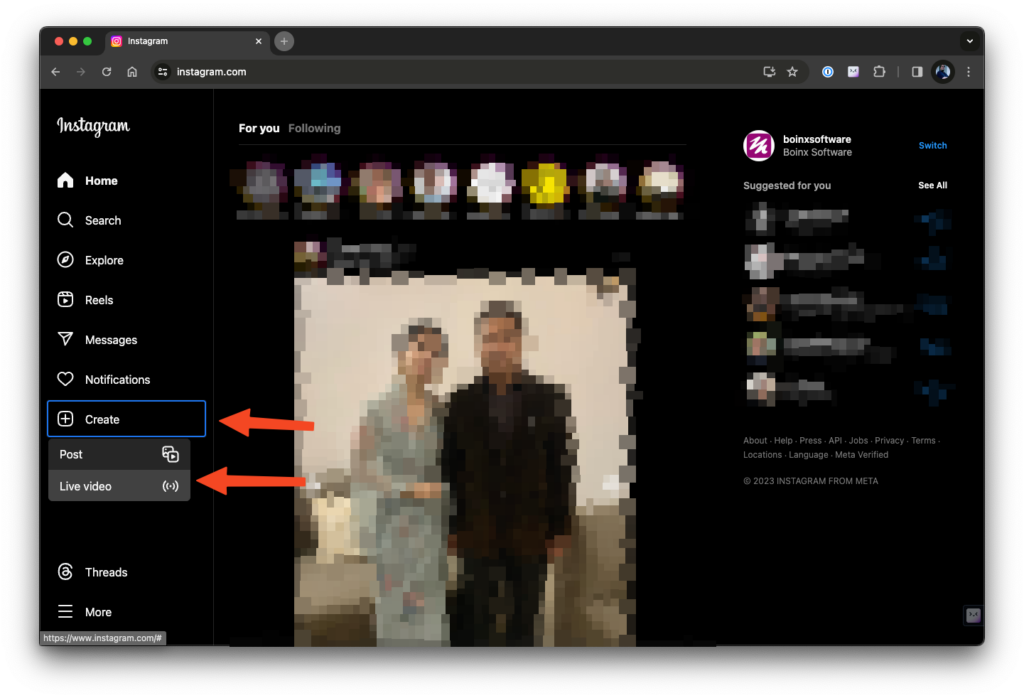
**Go to instagram.com with a desktop browser. Choose **Create** -> **Live Video****
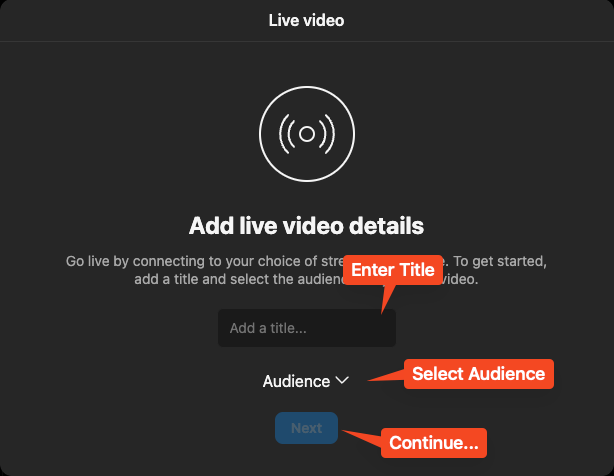
**Add a **title**, select the **Audience****
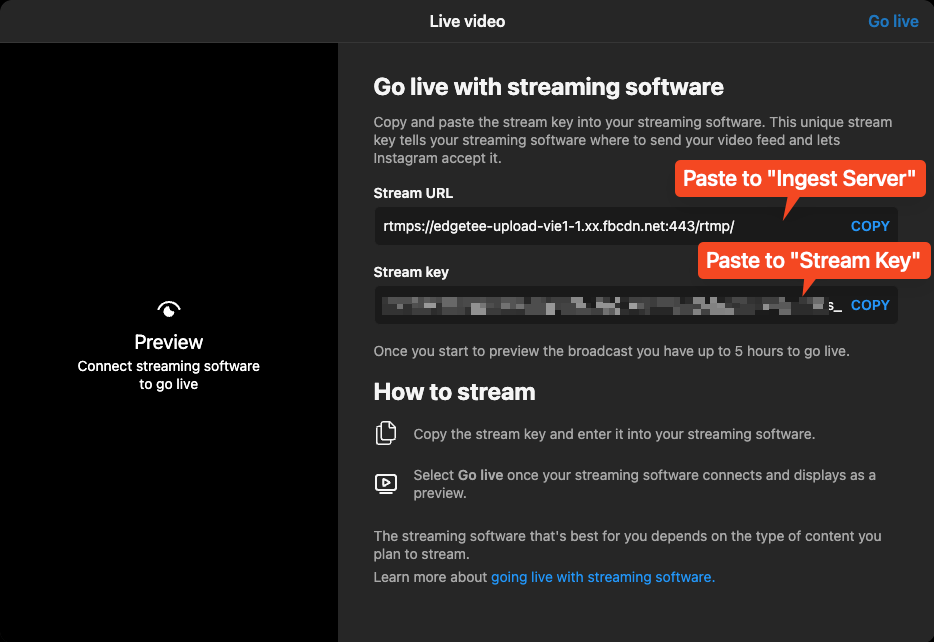
> **Important:** Instagram Requirement for Streaming (Dez. 2023)
>
> You can stream to Instagram if you have an Instagram Business or Creator Account.
### **Launching Your Live Stream on Instagram**
1. **Previewing Your Stream in mimoLive:**
- Before going live, switch your live streaming output in mimoLive to **Live**.
- This will send your stream to Instagram, where you can preview it.
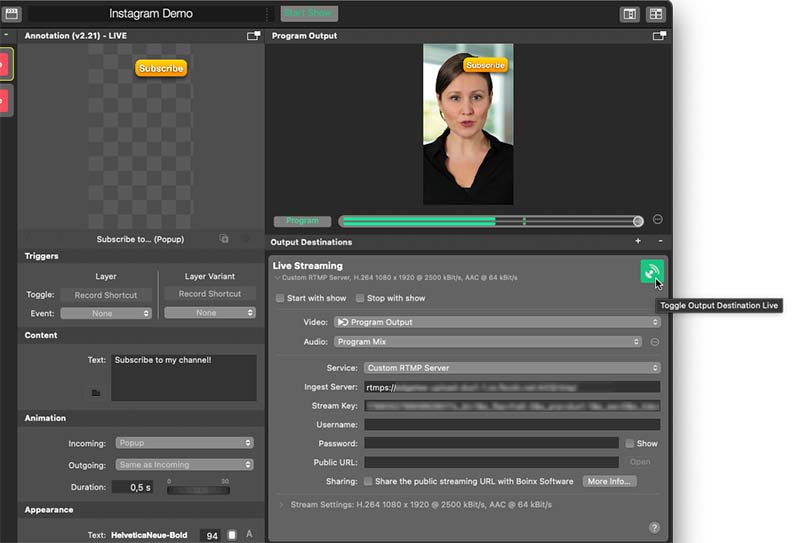
**Switch the streaming destination to **Live****
1. **Going Live:**
- Once you are satisfied with the preview, click on the **Toogle Output Destination Live** button in the top right corner of the Live Streaming setup window or the **Start Show** button at the top.
- You are now live streaming on Instagram!
#### **Conclusion**
Congratulations! You’ve successfully set up your live stream on Instagram using mimoLive. Engage with your audience and enjoy a seamless streaming experience.
---
### Livecoding.tv
Source: https://mimolive.com/user-manual/playout-output-destinations/live-streaming/livecodingtv/
Last updated: 2026-08-19
Livecoding.tv is a live streaming platform that aims to educate viewers through live tutorials.

#### Preparing Your livecoding.tv Account
- First, you have to sign up at LiveCoding.tv. There are several options to choose from. As you want to stream to LiveCoding you need to sign up for a Broadcaster account.
- In the upper right corner find the menu for setting up you channel. Select the “Settings” menu item. This will bring you to a page where you preconfigure the behavior of your broadcasting.
- You need to copy the FMS URL from the “Streaming key” section and bring it over to the Streaming Setup panel in mimoLive (see instructions below where to put it).
- After that copy the Streaming Key by clicking on the “Click to display” button in the “Streaming Key” section and bring it over to mimoLive as well.
> **Important:** Important: Keep the Streaming Key secret!
#### Preparing mimoLive
Here you can see mimoLive running with two active visual layers.
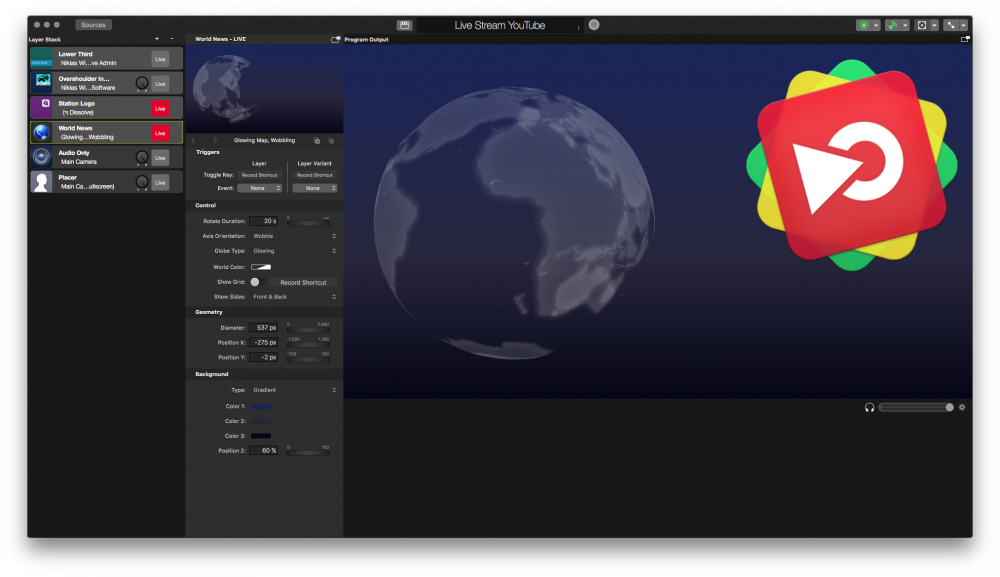
- Click on the little check-button right to the streaming button. This will openup the Streaming Settings panel.
- Paste your copied FMS URL and the Streaming Key (provided by LiveCoding.tv)
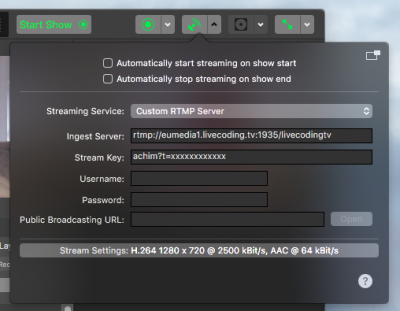
#### Going Live
- Click on the livestream button so it turns red:
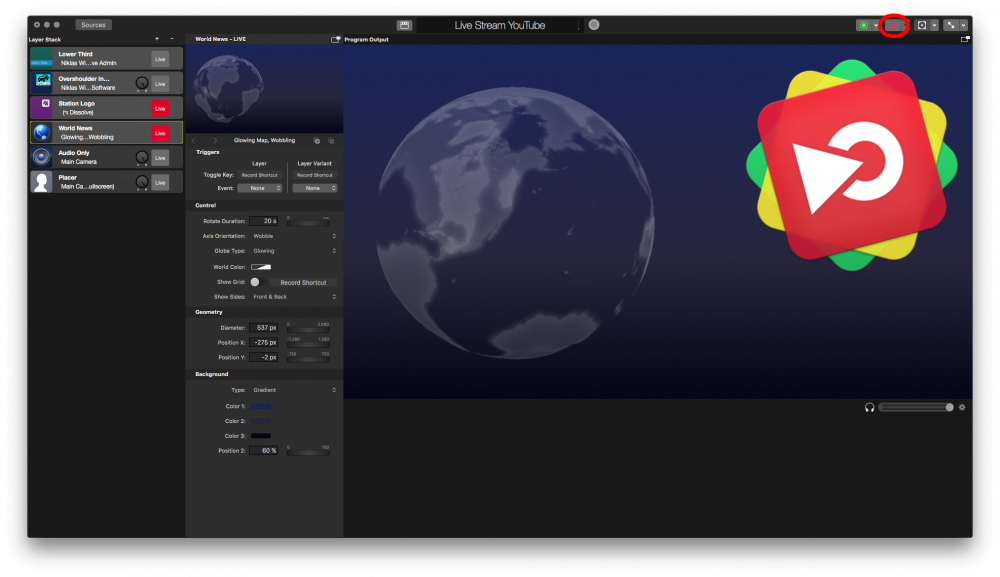
- Head back to the LiveCoding web page and select the “My Channel” menu item in the upper right corners drop down menu. Now you should see your video production in the browser window.
#### Useful Things to Consider
As you are streaming to LiveCoding.tv you want to show your desktop to the audience. To do so you need to create either a “Screen Capture” source or a “Window Capture” source depending on what you are going to show.
> **Note:** The “Window Capture” source doesn’t show the mouse cursor or any other visual items on your desktop.
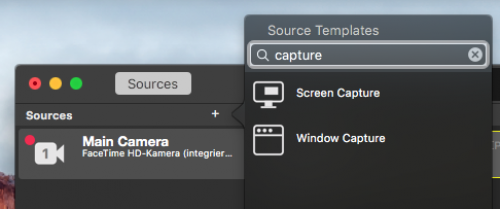
- It is a good idea to have a two display setup. On one display you run mimoLive and on the other you run your programming show. with this nothing from mimoLive will distract your broadcasting.
- Use the PIP layer in mimoLive to also include a face cam in your video stream. People love to see who is behind all this!
- If you want to play back some royalty free music you can download some tracks from joshwoodward.com and put them into a “Playlist Source” to let them run in a loop. Please make sure that you meet the license requirements of giving Josh Woodward credits for the music in your show. You can easily use the Playlist Visualizer Layer layer to do so.
- If you are developing for iOS and test run your app on an actual iOS device you may want to use a iOS Device Video Source to bring in the screen of the iOS device. The perfect layer for presenting your hard work are the iOS Device Demo and iOS Device Demo 3D layers that comes with mimoLive:
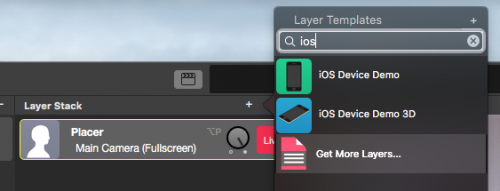
---
### Facebook live
Source: https://mimolive.com/user-manual/playout-output-destinations/live-streaming/facebook-live/
Last updated: 2026-08-19
[Video on YouTube](https://www.youtube-nocookie.com/embed/hkPn67lV96k?rel=0)
> **Important:** Streaming to Facebook Groups
>
> As of April 2024, Facebook has removed all third party access to Facebook Groups. Use the [RTMP Fallback](https://mimolive.com/user-manual/playout-output-destinations/live-streaming/facebook-rtmp-fallback/) method instead.
> **Note:** New Requirements
>
> In June 2024, Facebook has [implemented new requirements](https://www.facebook.com/help/1636872026560015) that accounts, pages and professional profiles must meet for live streaming.
mimoLive can stream directly to Facebook without needing to configure any technical details.
This guide describes:
1. How to sign into Facebook with mimoLive
2. How to set up a live streaming destination
3. How to go live
#### Facebook Live Video Specs
Using the default audio and video settings when streaming to Facebook is fine. When customizing the settings, refer to [Facebook Live Video Specification](https://www.facebook.com/help/publisher/162540111070395?helpref=page_content) for compatible values.
#### Signing in to Facebook
- Open the mimoLive preferences by selecting the menu **mimoLive** → **Preferences…**. You will get a new window showing the preferences for mimoLive.
- Go to the **Accounts** tab. A list of already created accounts will appear. This list is empty by default.
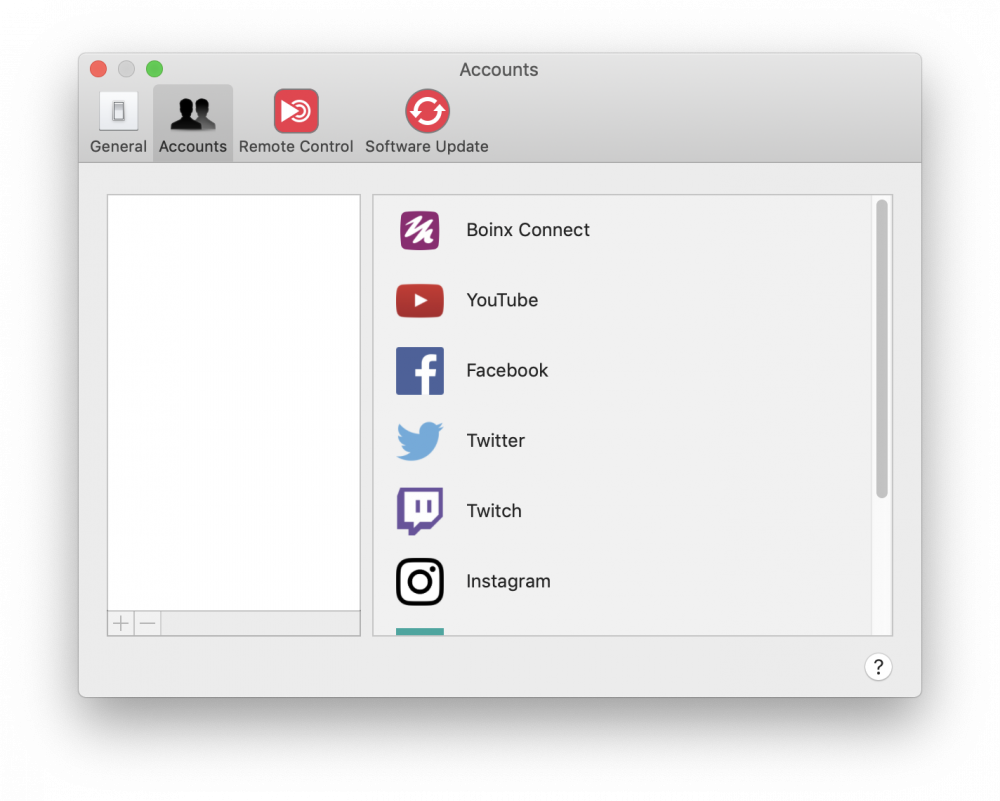
- Click on the **+** button at the bottom of the left column to reveal all possible accounts in the right column.
- Click **Facebook** and follow the instruction on screen to enable mimoLive to access your Facebook account.
- If you want to be able to publish a live stream on a page you manage, you need to give mimoLive the appropriate permission (this is optional).
- Define who will be able to see your live streams.
*\****Make sure you reach everybody**
Choose “Public” as this is the broadest audience you want to reach. You can set a narrower audience later, but not a broader one.
- If you choose “Friends” here, you will only ever be able to stream to your friends.
- If you choose “Public”, you can specify that you only want your friends to be able to see your stream later on just before you actually start a stream.
You’re now logged in and ready to start streaming.
#### Setting up the Livestream
- Switch to the mimoLive document window.
- Create a [Live Streaming Output Destination](https://mimolive.com/user-manual/output-destinations)
- In the streaming service popup, select your Facebook account
##### Live Stream Options
The live stream has multiple configurable properties:
- “Stream Title” and “Description”: Will be visible on Facebook and should express the intention and contents of your stream.
- “Audience”: See next section.
- “Ambient”: This stream type is for 24/7 live streams. Facebook will not announce those streams to your friends and followers. The stream will not be recorded by Facebook and will not be available for On-Demand viewing **This option was revoked by Facebook in March 2020.**
- “360°”: Stream will be shown as a 360° video.
- “Privacy”: Only available when streaming to your new feed, see next section.
##### Destination Audience
Depending on your use case, you can stream to difference audiences.
Destinations supported by mimoLive as of November 2018 are:
- User:
- News Feed: The live video will be shown on your news feed. You can control who can see the video by using the “Privacy” setting.
- Scheduled Live Videos: When there are scheduled live videos, mimoLive can use them.
- Pages:
- News Feed: The live video will be shown on the page’s news feed.
- Scheduled Live Videos: When there are scheduled live videos, mimoLive can use them.
- Eve
*\****Privacy when streaming to News Feed**
While you can choose “Public” from the “Privacy” popup menu, if you selected a narrower audience when signing in to Facebook with mimoLive, your stream will only be available to that narrower audience.
To change the privacy settings, you’ll have to log into Facebook using a web browser, go to your account settings -> “Business Integrations”, find “mimoLive”, and adjust the privacy settings to allow for a broader audience.
When Streaming to a Group, Page, or Event, the privacy will always be public.
*\****Permissions**
Since Facebook sometimes changes its permission model, not all destinations may be reachable from mimoLive at all times. Even though we try to react to such changes as fast as possible, we generally have to wait until mimoLive went through app review.
When mimoLive gains new permissions, these only apply to users logged in after the permission has become available. So if you don’t see a destination you would like to stream to that falls into one of the categories listed above, try removing your Facebook account from mimoLive and sign in again.
#### Streaming to Groups
In order to stream to groups, you first need to add mimoLive™ to the list of apps with access to the group.
For information on adding mimoLive to your group, please refer to the [Facebook documentation](https://www.facebook.com/help/261149227954100) .
#### Going Live
If everything is set up, the Streaming button turns green. To start your stream, click the Streaming button which will turn red when it’s streaming. Optional you can check the **Start with Show** option to go live with the [Start/Stop Show Button](https://mimolive.com/user-manual/startstop-show-button).
---
### Facebook RTMP fallback
Source: https://mimolive.com/user-manual/playout-output-destinations/live-streaming/facebook-rtmp-fallback/
Last updated: 2026-08-19
> **Note:** When to use this fallback
>
> mimoLive makes your life easier by letting you stream to Facebook through the Facebook API. If you authorise mimoLive to stream to Facebook through your account, you can simply choose your options from the Live Streaming Output Destination.
However, there are some circumstances when you might want to use this fallback:
- Your client doesn’t want to give you access to their account.
- mimoLive can’t log in to your account for some reason.
- You want to stream to a Group which is currently not supported by the Facebook API.
In order to stream to Facebook when you can’t log in via the mimoLive Accounts panel, you need to find out the RTMP streaming server URL and the stream key of your Facebook live stream destination and set up the mimoLive [Live Streaming Output Destination](https://mimolive.com/user-manual/live-streaming) to use the “Custom RTMP Server” setup. You do this in the Facebook Live Producer.
*\**The Facebook Live Producer now offers many options like scheduling live streams, backup streams and testing options. Facebook adds new features all the time. This workaround uses the fastest way for you to go online NOW, because that is usually needed when the standard method doesn’t work.
##### Getting the Facebook RTMP info
- Log into the Facebook account from a internet browser.
- Navigate to the place that you want to stream to. It could be your personal page, a page you manage or a group you are an administrator of.
- Find the “Live Video” button. Here is an example:
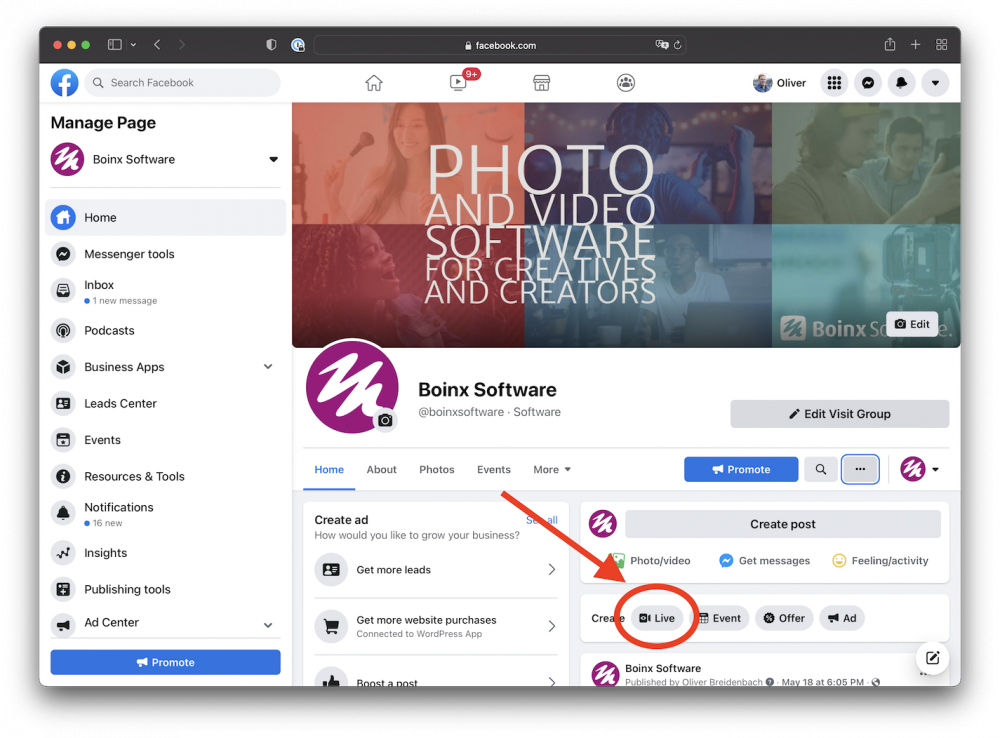
- Clicking on the button brings you to the Facebook Live Producer:
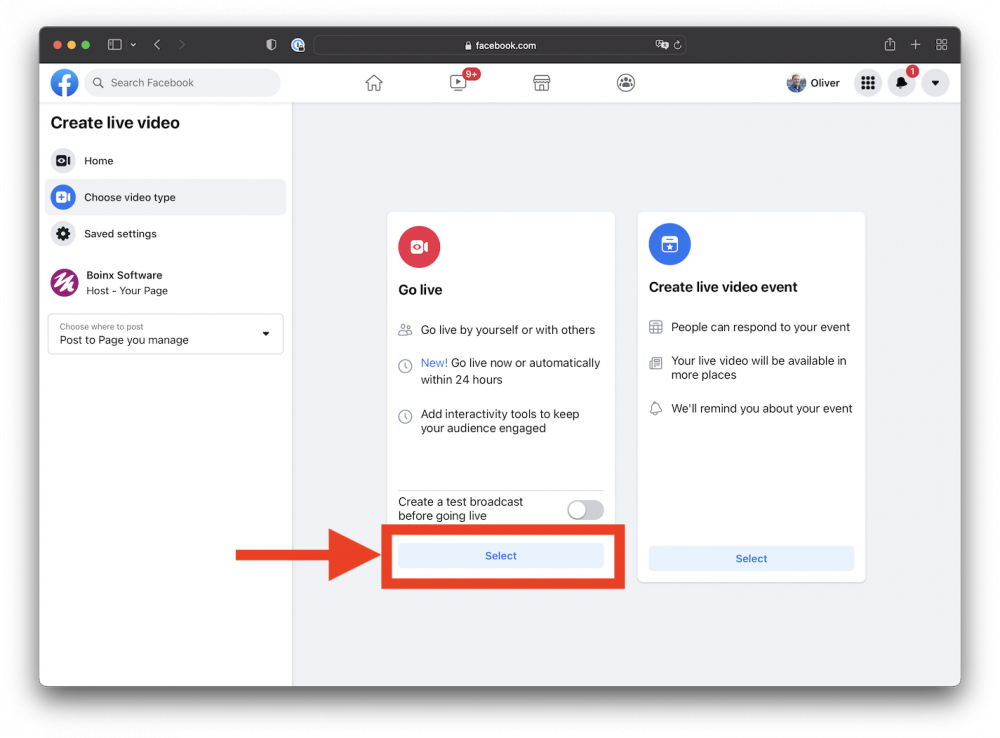
If you want, you can now schedule a live event for later. The process is very similar so for now, we are going to choose to go live immediately.
- Select the Go Live option. This takes you to the “Create Live Video” page.
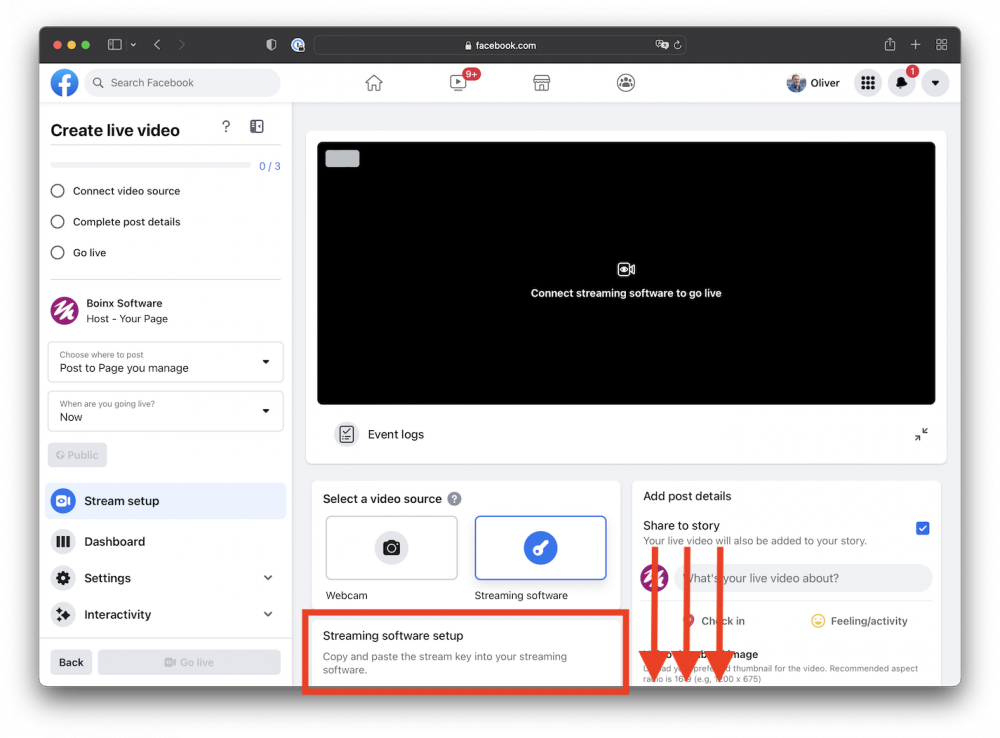
- Look in the second to left column and scroll down to reveal the “Streaming Software Setup” box completely and open the Advanced Settings:
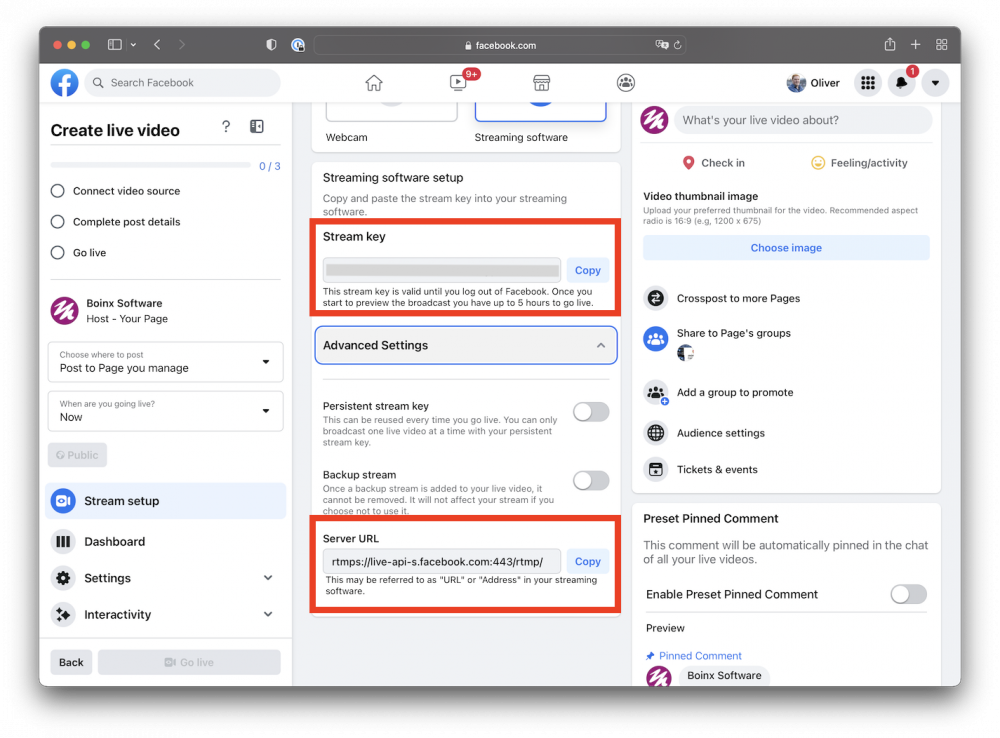
- You’ll need the RTMP Stream Key (obfuscated in this image) and Server URL for the next steps.
- Set up the Live Streaming Output Destination in mimoLive by copying the Server URL and the Stream Key into the Ingest-Server and Streamkey fields:
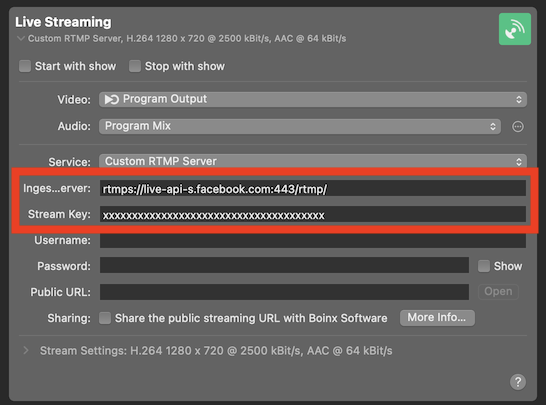
Only use the **Ingest Server** and **Stream Key** fields. Leave the **Username** and **Password** empty.
##### Going Live
- To start broadcasting from mimoLive, start the Live Streaming Output Destination in mimoLive. You will now see a preview in Facebook.
- In order to start the live stream, click on Go Live in the Facebook Live Producer.
> **Note:** In order to go live, you need to find and click the “Go Live” button in the Facebook Live Producer!
---
### Linkedin live
Source: https://mimolive.com/user-manual/playout-output-destinations/live-streaming/linkedin-live/
Last updated: 2026-08-19
mimoLive can be used to stream to LinkedIn Live using the RTMP ingest URL and stream key.
> **Note:** Note: Restricted access to LindedIn Live
>
> As of July 2021, in order to be able to use LinkedIn Live, you need to request access by filling out this form at [https://www.linkedin.com/help/linkedin/ask/lv-app](https://www.linkedin.com/help/linkedin/ask/lv-app)
#### LinkedIn Live Settings
As of July 2021, the [recommended settings](https://www.linkedin.com/help/linkedin/answer/128955) are as follows:
| Resolution: | 1280×720 or 1920×1080 |
| --- | --- |
| Frame Rate: | 30fps |
| Key Frame Intervall: | 2s |
| Video Bitrate: | 3500-6000 kbps (You can also send less than 3500kbps if you have a slow connection to the ingest servers) |
#### Setting up a LinkedIn Live
When you are accepted as a LinkedIn Live Broadcaster, you will receive an email with information on how to access the LinkedIn Live control center. Once there, you have the option of going live immediately or scheduling a live stream for later.
> **Important:** As of July 2021, If you schedule a live stream, you will be able to access the stream settings no earlier than 1 hour before the live stream.
For now, we will select “Go live now”:
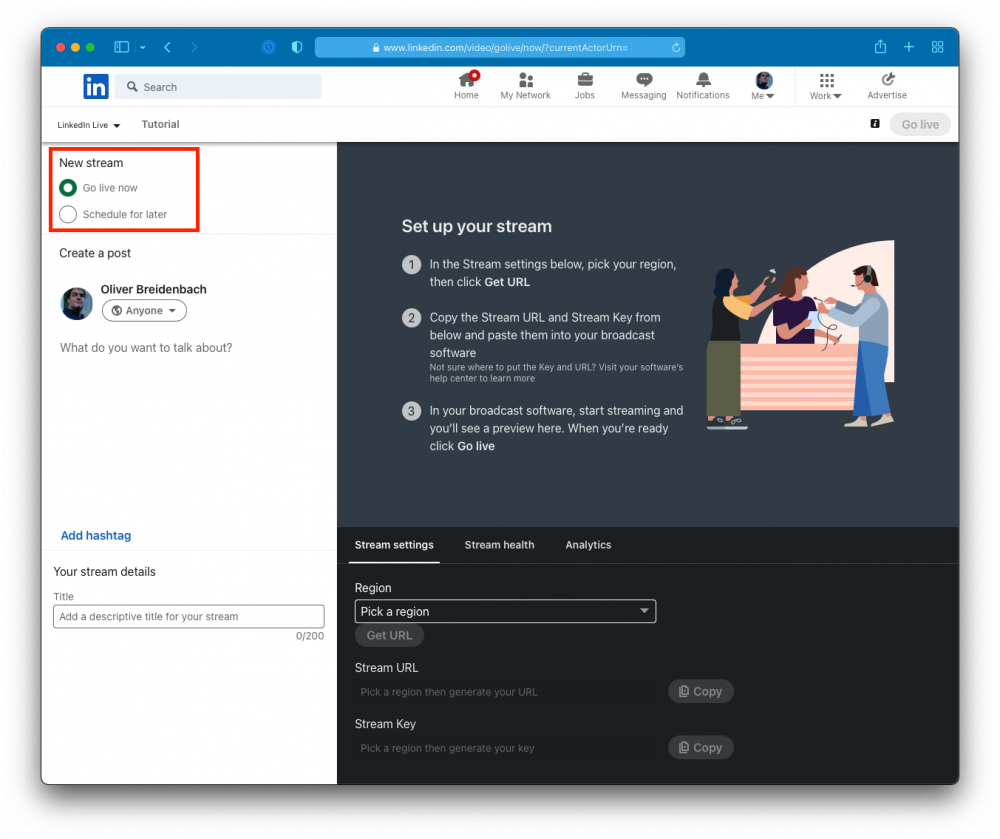
You can now pick which ingest server you’ll be using based on where you are located. Choose the appropriate location from the Region popup:
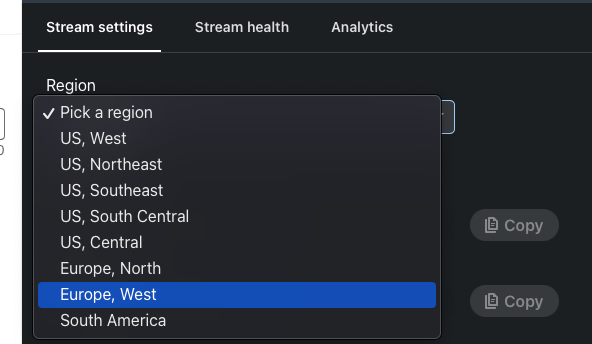
Press the “Get URL” button to have LinkedIn generate RTMP Server URL and Stream Key:
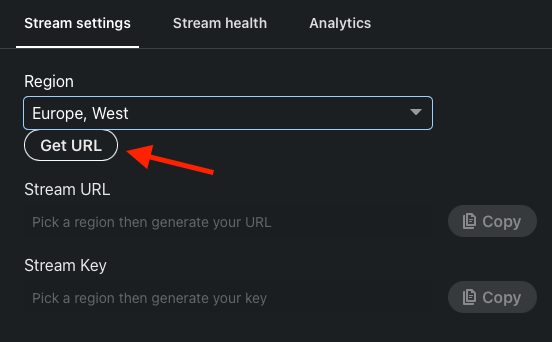
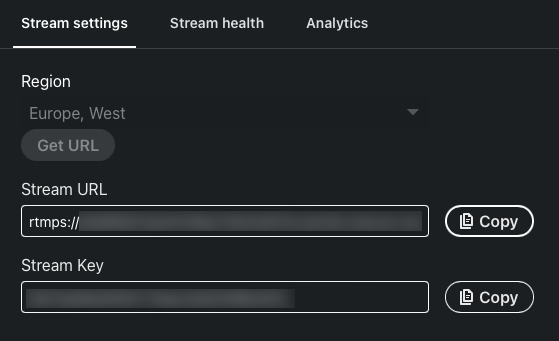
In mimoLIve, add a [Live Streaming Output Destination](https://mimolive.com/user-manual/live-streaming) to your document:
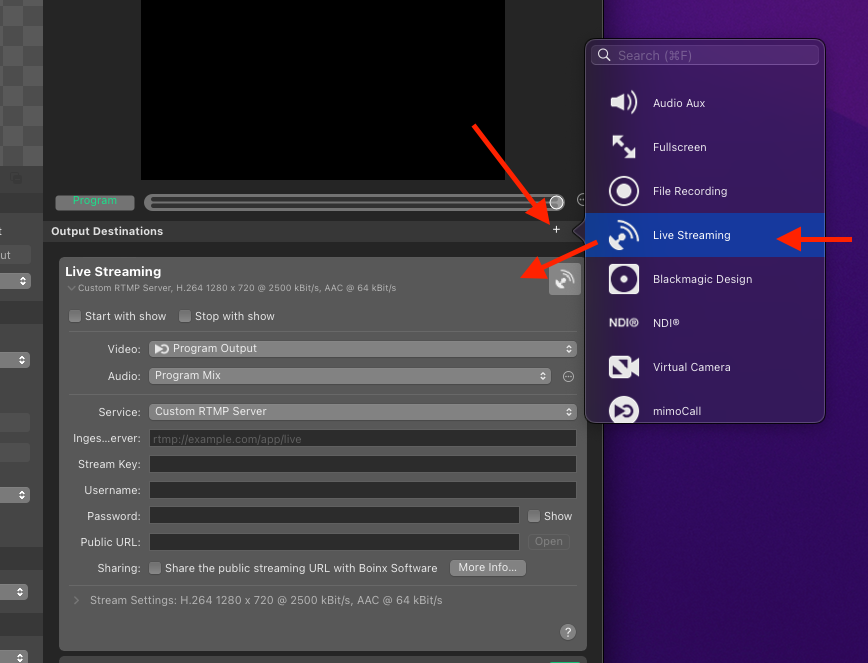
Then, copy the “Stream URL” from LinkedIn into the “Ingest Server” field in mimoLIve and copy the Stream Key into the same field in mimoLive.
*!*The Username and Password fields remain empty.
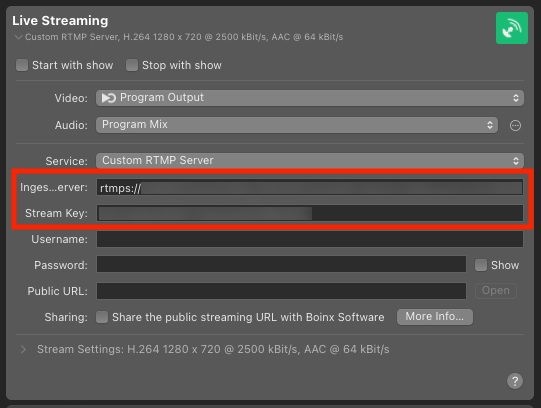
### Starting the Live Stream
Click on the Live button in the mimoLive Live Streaming Output Destination to start sending data to LinkedIn. When the button is red, the connection is established and LinkedIn is receiving data:
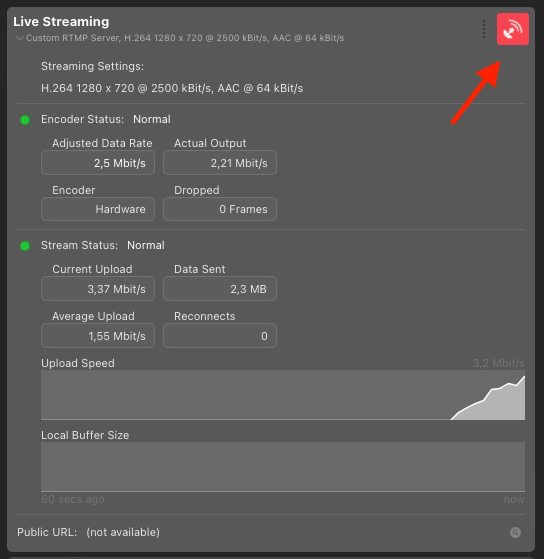
You will now see a Preview in LinkedIn and can check the Stream Health. To start broadcasting to your followers, you need to press the “Go live” button in the top right hand corner:
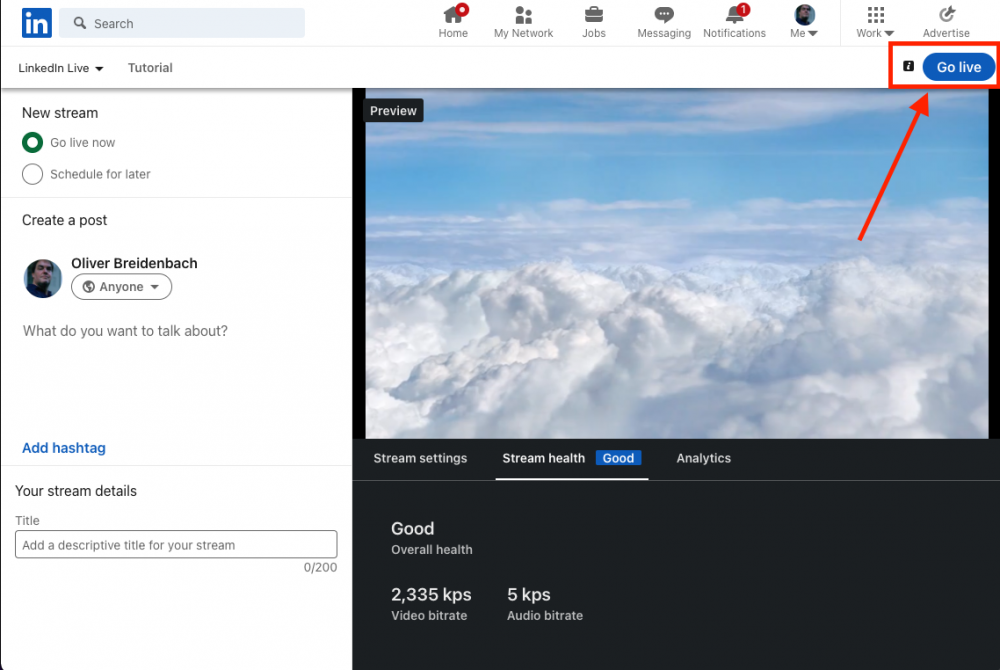
### Ending the live stream
To end the live stream, click the “End stream” button on the LinkedIn page. Then stop the mimoLive Live Stream Output Destination.
---
### Periscope - discontinued
Source: https://mimolive.com/user-manual/playout-output-destinations/live-streaming/periscope/
Last updated: 2026-08-19
> **Important:** As of November 2021, Twitter has discontinued Periscope. You now need to use Twitter to stream live to Twitter.
We’re working on integrating with the Twitter API to start live broadcasts on Twitter. Meanwhile, go to the Twitter Media Studio and use the [RTMP Streaming Output Destination](https://mimolive.com/user-manual/live-streaming) to stream to Twitter from mimoLive.
---
### Twitch RTMP fallback
Source: https://mimolive.com/user-manual/playout-output-destinations/live-streaming/twitch-rtmp-fallback/
Last updated: 2023-07-03
In case the built-in Twitch streaming doesn’t work, there is always the option to use an RTMP fallback.
### How to configure RTMP for Twitch
1. Add a Live Streaming output destination to your mimoLive document.
2. Select “Custom RTMP Server”.
3. Set the “Ingest Server” field to **rtmp://live.twitch.tv/app/**.
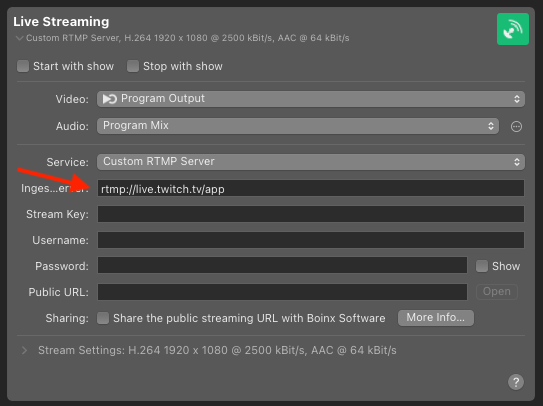
1. Log on to the Twitch web site and navigate to the “Creator Dashboard” using your personal menu on the right hand side.
1. In the Creator Dashboard, select “Settings” and then “Stream”. This brings you to the page with your “Primary Stream Key”.
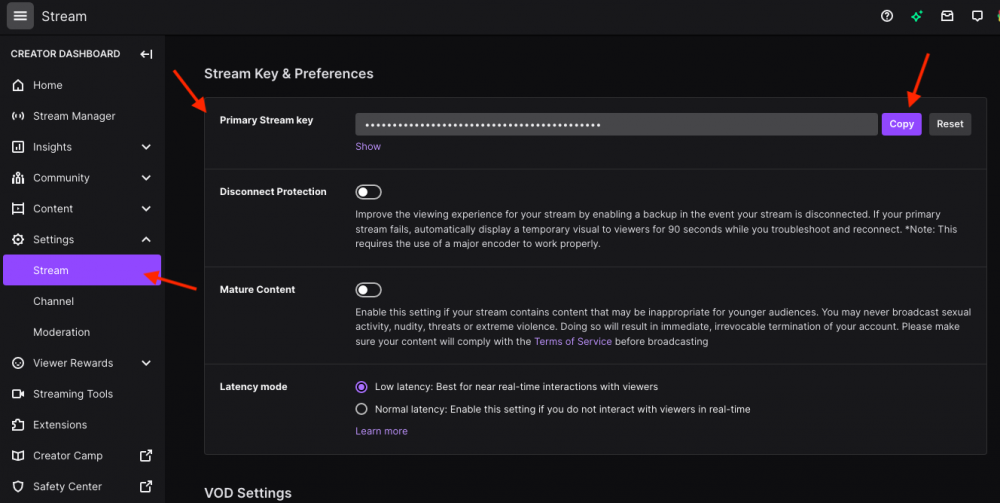
1. Copy the Primary Stream Key and paste it into the Stream Key field in mimoLive. The Live Streaming Output Destination should now show the green state.
2. Press the Live button of the Output Destination to start the stream. The Twitch stream will be online immediately.
---
### Youtube 360 Live Streaming
Source: https://mimolive.com/user-manual/playout-output-destinations/live-streaming/youtube-360-live-streaming/
Last updated: 2023-07-03
As of version 2.3, mimoLive supports 360° Live Streaming on YouTube.
Currently, we support the Ricoh THETA S camera connected either through USB or HDMI.
Watch this video to learn about the features of mimoLive for 360° Live Streaming:
[Video on YouTube](https://www.youtube-nocookie.com/embed/nNQES53S2jc?rel=0)
---
### Vimeo
Source: https://mimolive.com/user-manual/playout-output-destinations/live-streaming/vimeo/
Last updated: 2023-07-03
Recently. Vimeo has started to offer live streaming to Premium customers. Here is a quick recipe of how to stream live to Vimeo.
#### Create a Live Stream on Vimeo
Log into your Vimeo account and click on “Upload”. If you have a Premium account, you will now see a “Live” section to the right of the upload area. Once you click that, you will be presented with a screen that allows you to set up a live event.
Click on the “Next” button to get to the RTMP settings for this event.
#### Setting up mimoLive to Stream to Vimeo
In mimoLive, add an Live Streaming item to the Output Destinations.
- Click on “+” to access the popup menu
- Select “Live Streaming” from the popup menu
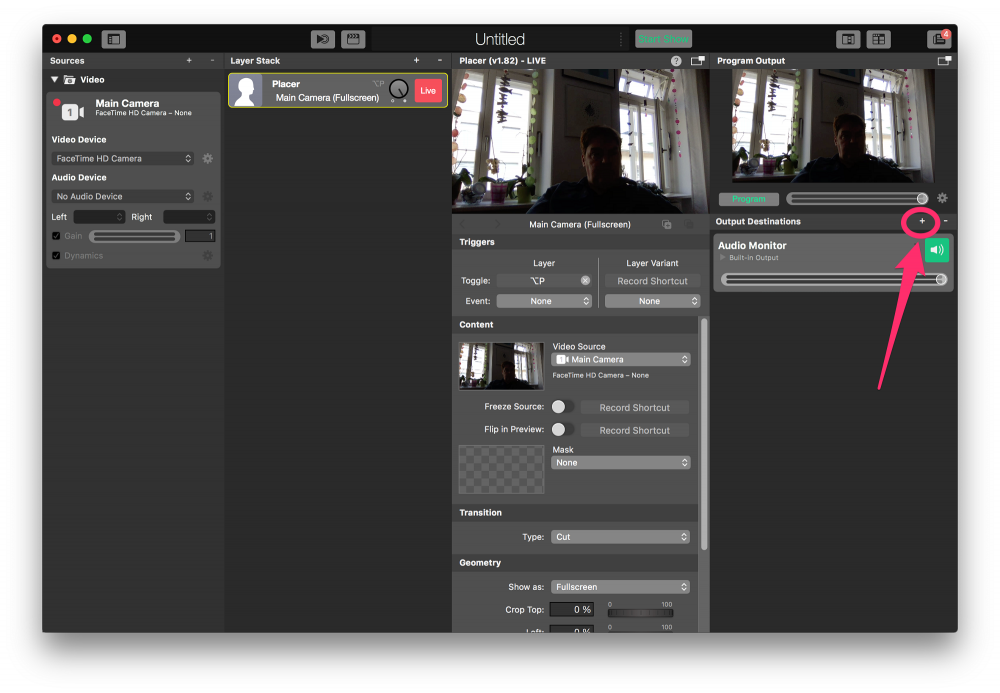
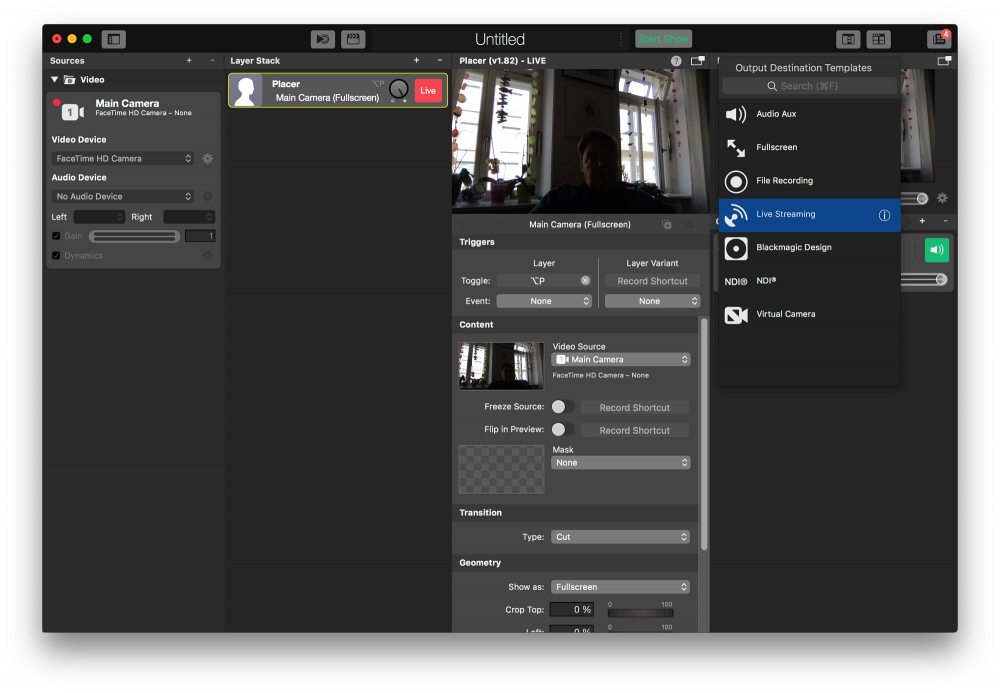
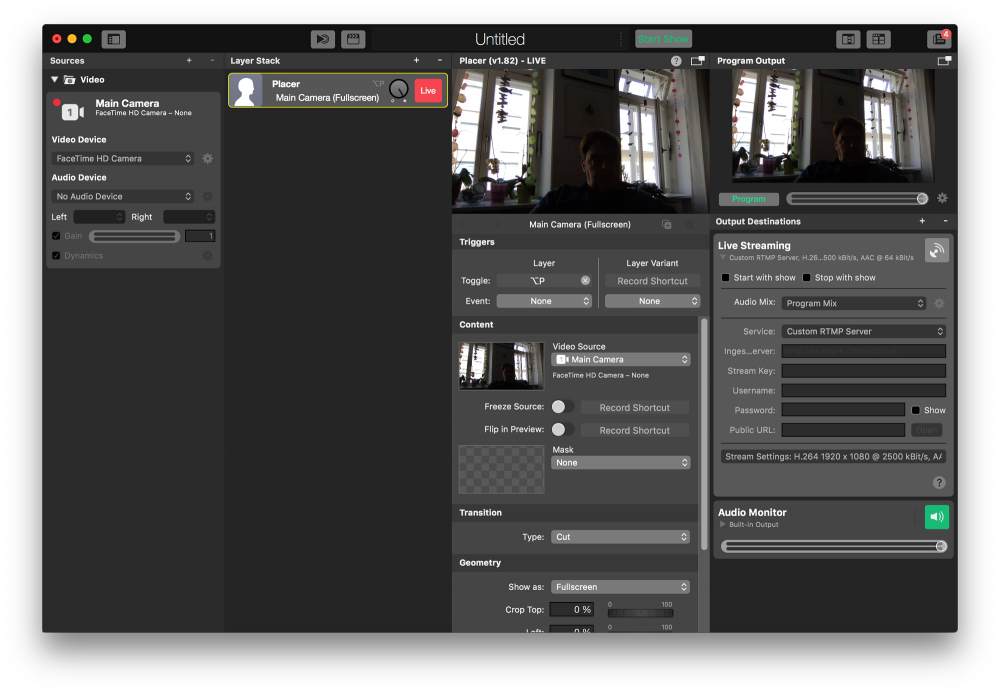
Now, get the **RTMP URL** and the **Stream Key** from Vimeo and paste it into mimoLive into the **Ingest Server** and **Stream Key** fields:
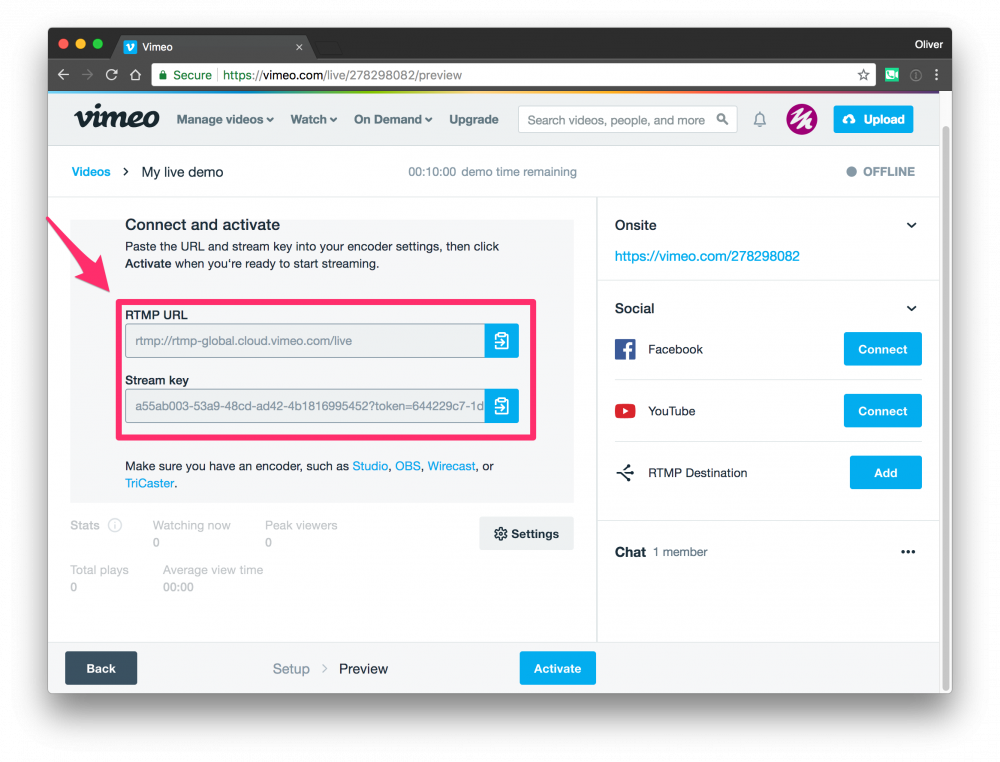
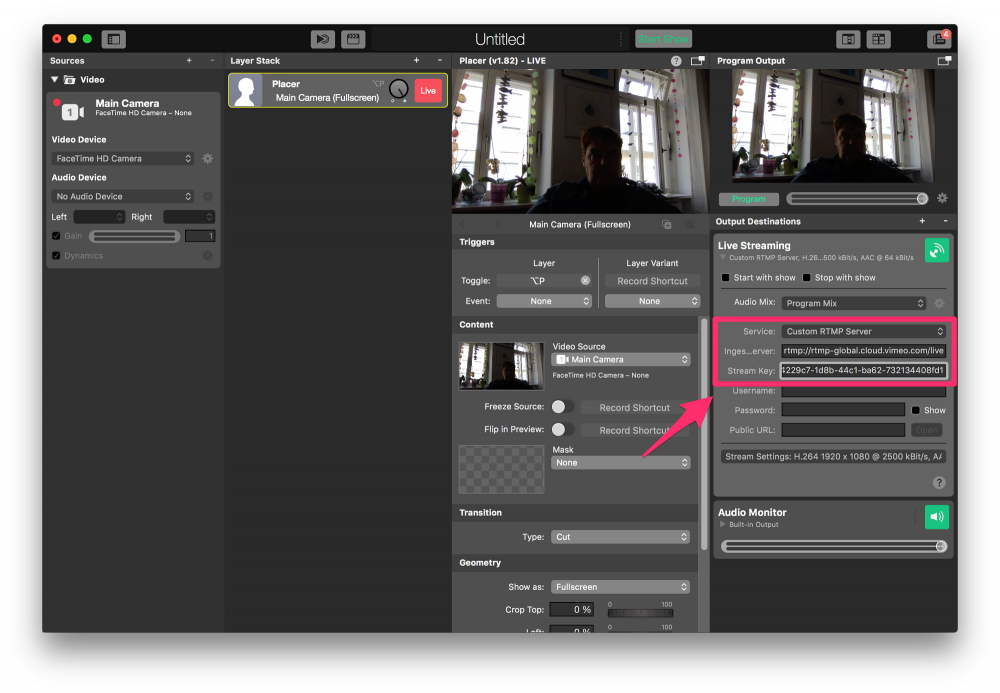
The Live button in the top right hand corner of the Live Streaming Output Destination has now turned green, which means it’s ready to go.
#### Starting The Live Stream
Once you’ve set up mimoLive, you need to go back to Vimeo and click on the “Activate” Button.
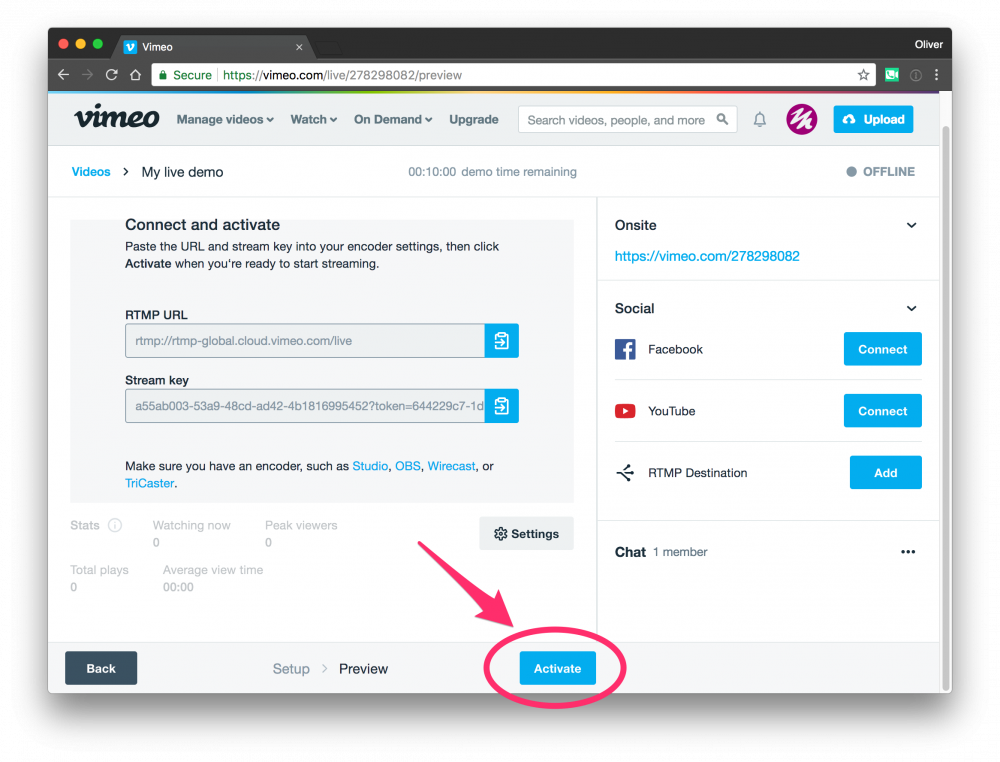
This takes you to the stream monitoring screen.
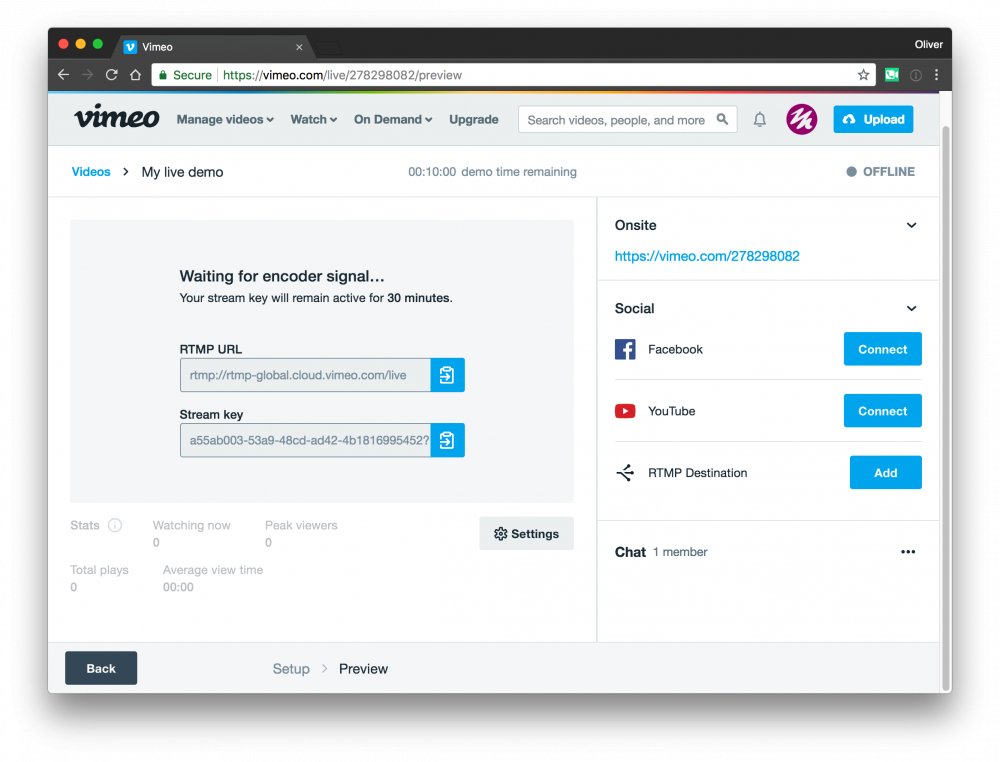
In mimoLive, you can now activate the live stream by clicking on the Live button next to the Output Destination. It will turn yellow while it’s opening the connection to Vimeo and red when it’s streaming.
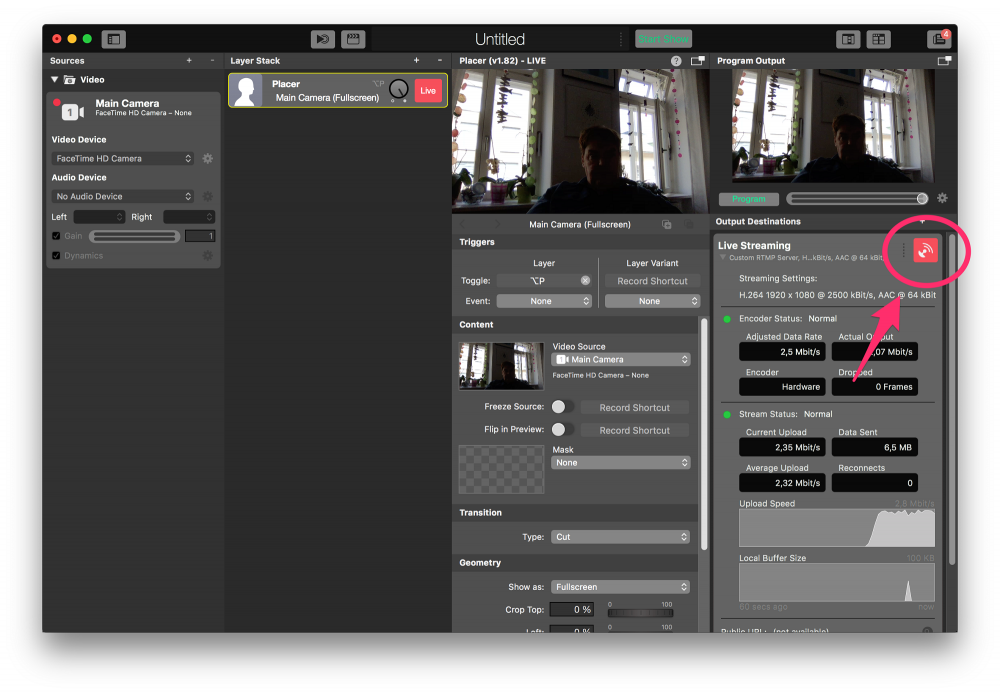
Aaand – We’re live on Vimeo!
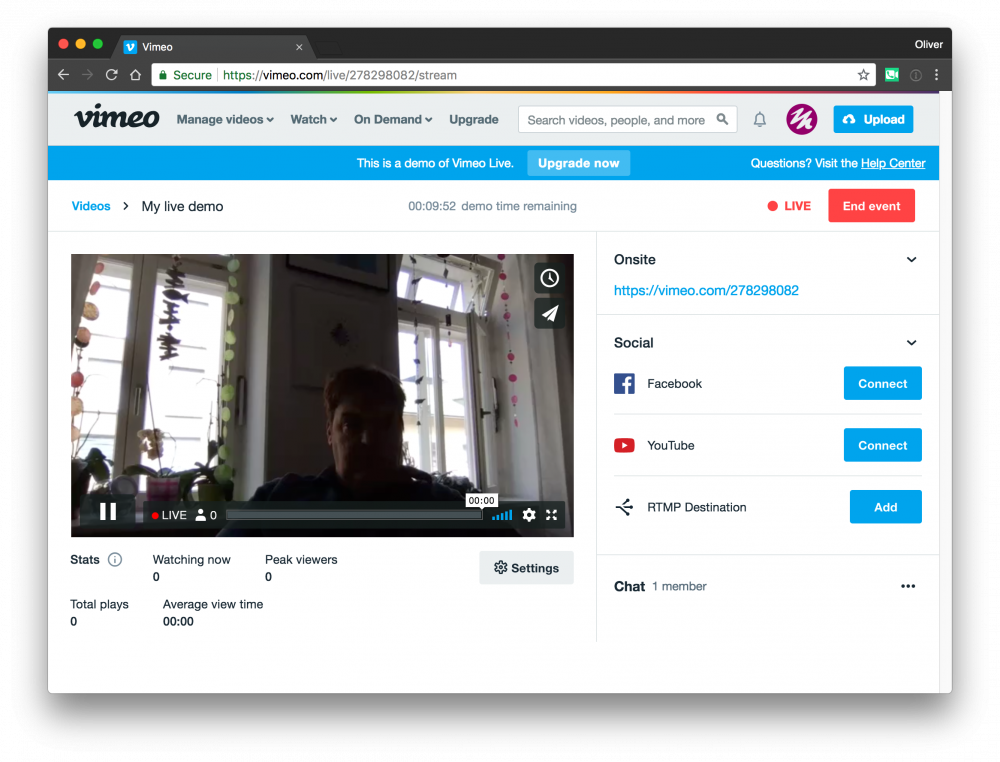
---
### Youtube RTMP fallback
Source: https://mimolive.com/user-manual/playout-output-destinations/live-streaming/youtube-rtmp-fallback/
Last updated: 2026-08-19
#### When to use this fallback
mimoLive makes your life easier by letting you stream to YouTube through the YouTube API. If you authorise mimoLive to stream to YouTube through your account, you can simply choose your options from the Live Streaming Output Destination.
However, there are some circumstances when you might want to use this fallback:
- Your client doesn’t want to give you access to their account.
- mimoLive can’t log in to your account for some reason.
In order to stream to YouTube when you can’t log in via the mimoLive Accounts panel, you need to find out the RTMP streaming server URL and the stream key of your YouTube page and set up the mimoLive [Live Streaming Output Destination](doc:live-streaming) to use the “Custom RTMP Server” setup.
#### Getting the YouTube RTMP Info
- Go to [https://www.youtube.com/livestreaming/](https://www.youtube.com/livestreaming/) and log in with your account.
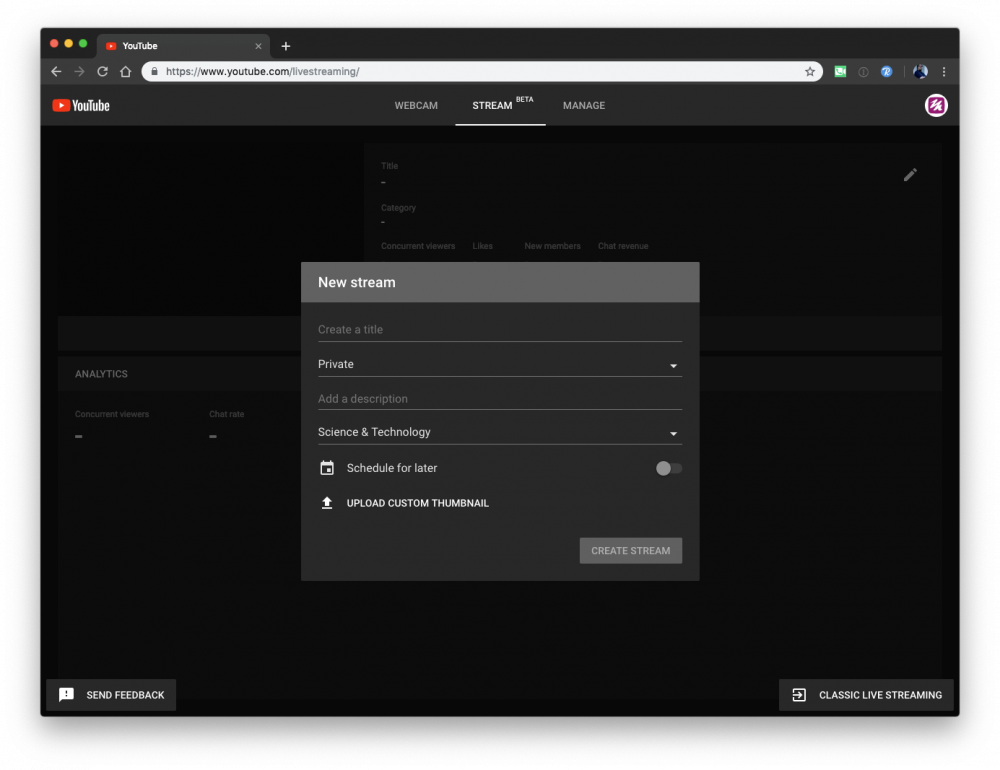
- Set up a stream by filling out the required fields and click “Create Stream”:
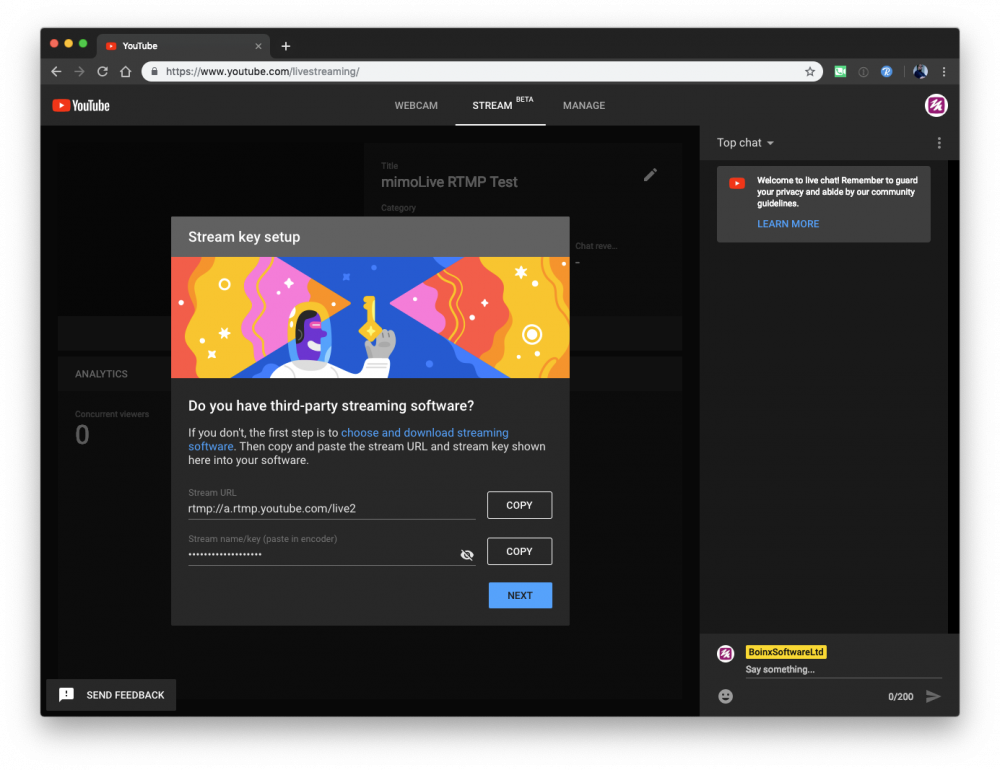
- Copy the Information from the Stream URL and Stream key to mimoLive into the field of the Live Streaming Output Destination:
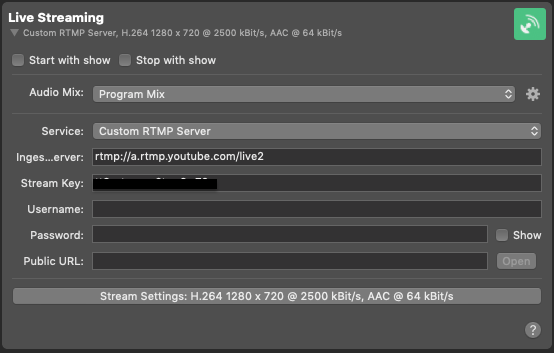
#### Going Live
- Start the Live Streaming destination in mimoLive.
- Go back to the browser and click “Next” on the YouTube Live Stream Setup screen. A preview of your live stream from mimoLive will appear:
> **Important:** Very important - Start the stream
>
> In order for your live stream to become active on YouTube, you have to press the “Go Live” button in the bottom right hand corner of the Stream Preview popup in your browser!
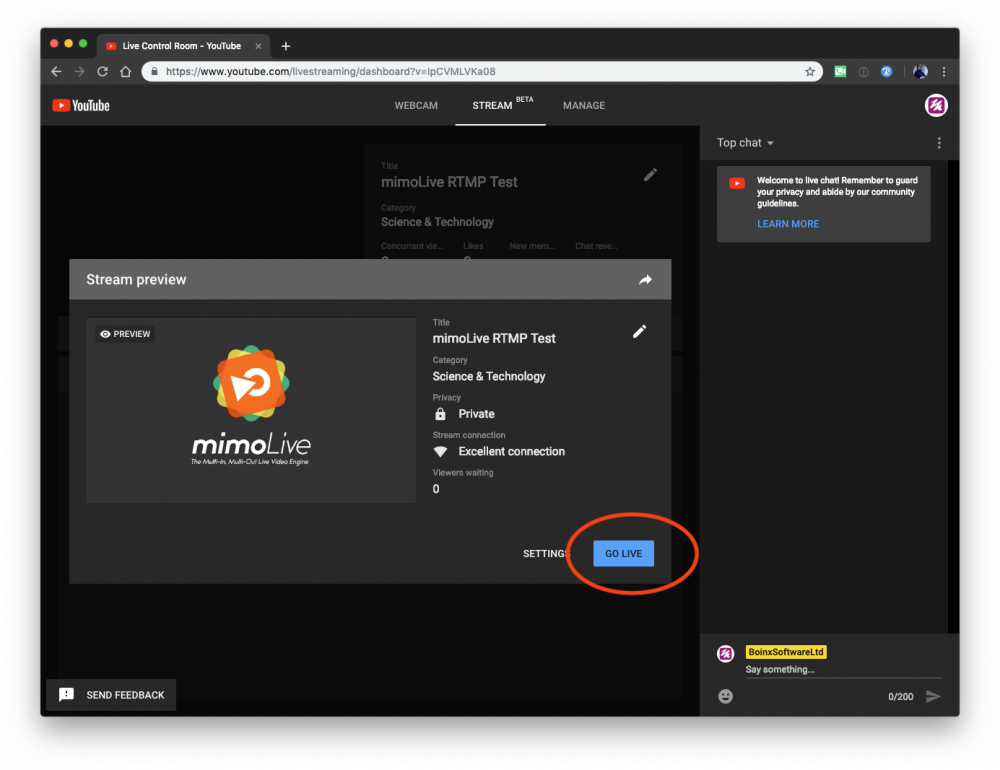
---
### YouTube Gaming
Source: https://mimolive.com/user-manual/playout-output-destinations/live-streaming/youtube-gaming/
Last updated: 2023-07-03
mimoLive is a versatile live video production software that enables users to create high-quality live streams with advanced features such as multi-layer mixing, built-in graphics, replay and instant replay, green screen and advanced video effects.
One of the many supported platforms for live streaming with mimoLive is YouTube, and the software is particularly well-suited for game streaming. mimoLive's advanced features allow game streamers to easily switch between cameras, overlay game graphics, add lower thirds, and incorporate other elements to enhance their streams.
With mimoLive and YouTube, game streamers can create engaging content and connect with their audience in real-time.
https://www.youtube.com/watch?v=m_n1dw3kock
---
## Blackmagic Design SDI Playout
Source: https://mimolive.com/user-manual/playout-output-destinations/sdi-playout/
Last updated: 2026-08-19
Play out to SDI or HDMI.
mimoLive implements the Blackmagic Design API for playing out to SDI or HDMI via Blackmagic Design hardware like [Blackmagic Design DeckLink series](https://www.blackmagicdesign.com/products/decklink) .
#### Adding an Blackmagic Design Output Destination
Add a new Blackmagic Design Playout Output Destination to your [Output Destination list](https://mimolive.com/user-manual/user-interface-overview) by clicking the **+** button on top of the list in the right most column of your mimoLive document. A popover window will appear with all the Output Destination options available. After double clicking the Blackmagic Design Playout Output Destination icon a new instance will appear in the Output Destination list.
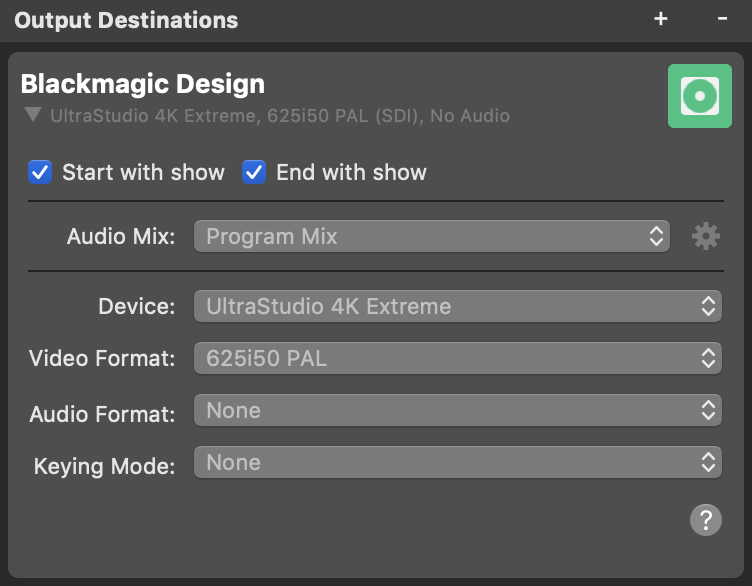
#### Setting Up the Blackmagic Design Play Out
The **Start with show** and **Stop with show** options define if the Blackmagic Design play out should start and stop by the [Start/Stop Show Button](https://mimolive.com/user-manual/startstop-show-button).
The **Video** option let you choose which video source you want to use for output: You can select either the Program Out or any source that has video.
In the **Audio** drop down menu you can select which audio will be output by the Output Destination: Either the **Program Out Audio Mix**, a specific custom **Audio Mix** or any **audio source** that has an associated audio source with it. Please refer to [Audio Mix Panel](https://mimolive.com/user-manual/audio-mix-panel) to learn more about setting up audio mixes.
Select the Blackmagic Design device you want to use for output from the **Device** popup.
The **Video Format** popup now shows all the available resolutions. Those options are depending on the connected Blackmagic Design hardware.
The **Audio Format** all available audio options. Those options are depending on the connected Blackmagic Design hardware.
#### Keying Mode
- For devices with only one playout channel, the Keying Mode is non-functional.
- For mimoLive Commercial or Broadcast license holders, it is possible to play out graphics and overlays including an alpha channel, so called key and fill signals, with the appropriate hardware. With this it is possible to supply an external switcher (with a built in keyer) with two signals and superimpose this over the program including transparencies. For this to work, use a dual channel device like the Blackmagic Design UltraStudio 4K (or better), or a Blackmagic Design Decklink 4K Extreme (or better) and select **External** as the keying mode. This will send two signals on the two SDI outputs: One for fill, one for key.
> **Important:** Using Multiple Single Channel Devices
>
> Using multiple devices such as the Blackmagic Design DeckLink Mini Monitors to play out key and fill signals will not work as their clocks are not synchronized. A multi-channel output device is required. See list below.
> **Note:** Using UltraStudio 4K in 1080i Mode
>
> Make sure to disable the “Remove Field Jitter on Pause” option in the Blackmagic Design Desktop Video Utility.
> **Note:** “Clip and Gain” vs. “Pre Multiplied Key”
>
> mimoLive Key/Fill playout is optimized for Pre Multiplied Key operation. Some mixers/switcher will not support this but use the more traditional “Clip and Gain” mode. This will lead to slightly different results when the key and fill is applied to the video. In order to calibrate the Clip and Gain settings in your video mixer to achieve the desired results, use the Alpha Channel Test pattern in the [Video Output Test](https://mimolive.com/user-manual/video-output-test)
#### Playing Interlaced Video
mimoLive generally creates progressive video. If you want to play out interlaced video, make sure you follow this recipe:
- Set up the mimoLive document to play the same frame rate your interlaced signal will be. For example use 50 fps if you want to play out 1080i50 or 60fps for 1080i60.
- Set up the Output Destination to play out the format you want.
- Make sure that you select “Display fill frame on video output” in the “When paused:” section of the video output setting in the “Blackmagic Desktop Video Setup”:
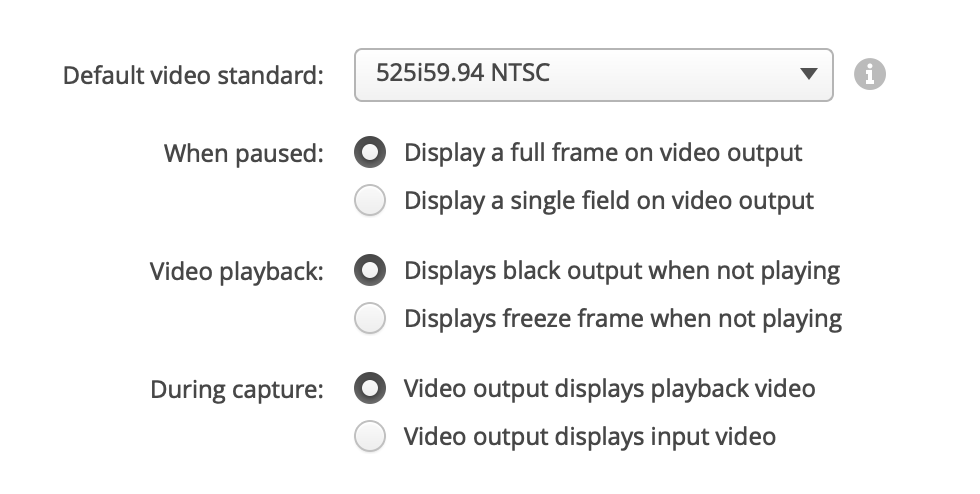
#### Supported Devices For SDI Playout
The following table shows the Blackmagic Devices supporting SDI playout with key and fill and the maximum video dimensions for keying (as per official Blackmagic Design SDK manual, March 2020):
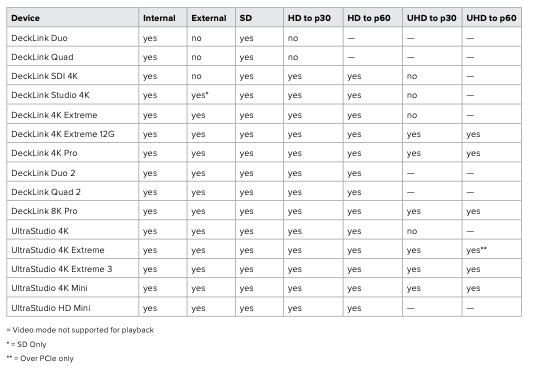
These Blackmagic Design devices only play out single channel (Fill only):
- DeckLink Mini Monitor
- UltraStudio Mini Monitor
- UltraStudio Express
This list may not be comprehensive. Please [contact Boinx Support](https://boinx.com/contact) for information on unlisted devices.
#### Monitoring Live Performance
Once the Output Destination was toggled live its settings view is replaced by a status view displaying performance data in realtime. Refer to [Monitoring Performance](https://mimolive.com/user-manual/performance-monitoring) for details on performance monitoring in mimoLive.
---
## NDI® Output
Source: https://mimolive.com/user-manual/playout-output-destinations/nditm-playout/
Last updated: 2026-08-19
> **Note:** NDI® is a product of NewTek, Inc.

The NDI® Output Destination sends video data to any NDI® receiver on your local network. NDI® also transports the alpha channel which gives you the opportunity to use mimoLive as a graphics generator in NDI® enabled environments.
#### Adding a NDI® Output Destination
Add a new NDI® Output Destination to your [Output Destination list](https://mimolive.com/user-manual/user-interface-overview) by clicking the **+** button on top of the list in the right most column of your mimoLive document. A popover window will appear with all the Output Destination options available. After double clicking the NDI® Output Destination icon a new instance will appear in the Output Destination list.
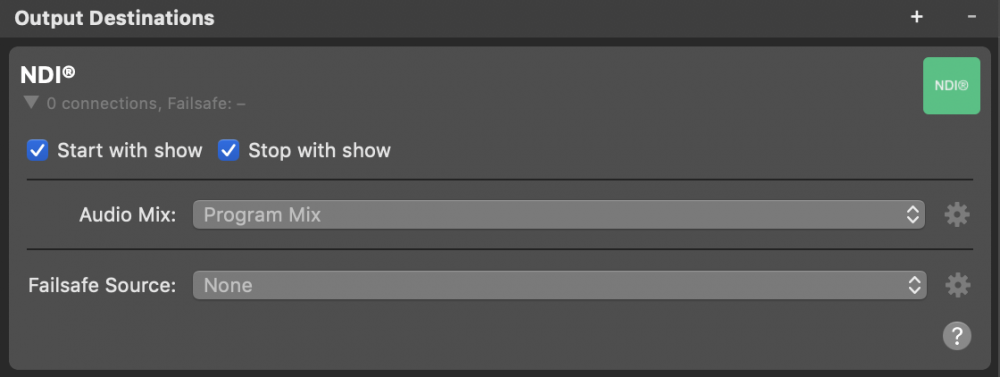
> **Note:** Discoverability and Connection
>
> Creating an NDI® Output Destination suffices to let NDI® receivers on the network discover the mimoLive sender as “mimoLive – “ and connect to it. However, mimoLive program output will only be transmitted after the Output Destination has been activated.
#### Setting up the NDI® Output Destination
The **Start with show** and **Stop with show** options define if the NDI® Output Destination should start and stop by the [Start/Stop Show Button](https://mimolive.com/user-manual/startstop-show-button).
In the **Video** option you can select which video you want to output via the NDI® Output Destination: Either the Program Output or a specific [Video Source from the Sources Repository](https://mimolive.com/user-manual/sources-and-the-sources-repository).
In the **Audio** drop down menu you can select which audio should go with the NDI® video signal: Either the **Program Out Audio Mix**, a specific custom **Audio Mix** or any **audio source** that has an associated audio source with it. Please refer to [Audio Mix Panel](https://mimolive.com/user-manual/audio-mix-panel) to learn more about setting up audio mixes.
Select a **Failsafe Source** that takes over your NDI® output in case the sender disappears from the network unexpectedly. **Failsafe Source** can also be changed while the NDI® Output Destination is live. This setting is optional.
> **Note:** Receiving Failsafe Sources
>
> Failsafe sources may or may not be recognized by NDI® receivers depending on their respective implementation. Make sure your receiver handles failsafe sources as expected if you depend on this feature. You can easily test the receiver’s behaviour by removing an active NDI® Output Destination with failsafe source from the document. The receiver should switch to the failsafe in a matter of seconds. Note: mimoLive can set failsafe sources but does not receive them at this time.
#### Monitoring Live Performance
When activating the NDI® Output Destination the mimoLive program output can be received by NDI® enabled devices or applications on the network. Also, the settings panel is replaced by a status panel that allows monitoring the connection and encoder performance.
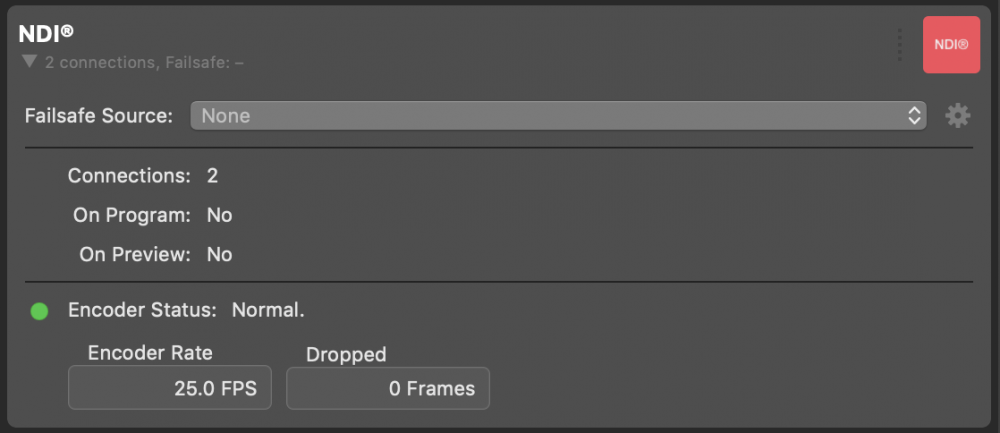
| Value | Meaning |
| --- | --- |
| Connections | How many NDI® connections are receiving the mimoLive program out? |
| On Program | Is the mimoLive video signal displayed in the program out of any connected NDI® receiver? |
| On Preview | Is the mimoLive video signal displayed in the preview of any connected NDI® receiver? |
| Encoder Status | How is the NDI® video encoder doing? |
| Encoder Rate | What FPS is the NDI® encoder running at? |
| Dropped Frames | Did mimoLive drop frames because the NDI® video encoder did not perform as required by the document’s frame rate? |
---
## Virtual Camera
Source: https://mimolive.com/user-manual/playout-output-destinations/virtual-camera/
Last updated: 2026-08-19
### Download Virtual Camera Plugin Installer
> **Note:** Download
>
> Get the latest Virtual Camera Installer here: [Download Plugin Installer Version 1.4](https://apps.boinx.com/web/appcast/latest_downloadfile.lasso?app=VirtualPlayout)
> (For mimoLive version 2.3 through version 2.7 use the [Plugin Installer Version 1.1](https://cdn.boinx.com/software/mimolive/Boinx_mimoLive_2.3-21973.mimoLive_Virtual_Playout.pkg.zip) )
Are you looking to enhance your video conferencing and meeting experience? Look no further than mimoLive’s virtual camera plugin. With this special application of the virtual camera, you can take advantage of external cameras, switch between multiple cameras, and even add graphic layers like logos and lower-thirds for a professional touch.
The benefits don’t stop there - mimoLive’s virtual camera plugin also allows for picture-in-picture video, pre-recorded video playback, screen and window sharing, stinger videos, and even a timer. And the best part? This plugin can be used with popular video conferencing software like Zoom, MS Teams, GoToMeeting/GoToWebinar, Jitsi, Webex, and more.
Upgrade your virtual meetings with mimoLive’s virtual camera plugin and take your video conferencing game to the next level.
> **Note:** Note:
>
> Some software may require the use of the web client in Chrome to access the virtual camera feature
### What is a virtual camera plugin?
The Virtual Camera Plugin is a powerful feature of mimoLive that enables users to simulate the existence of a webcam and use any input as a source, including pictures, pre-recorded videos, or edited live videos from cameras. With this plugin, users can easily create professional-looking live streams or video content by incorporating various media into their broadcasts. The Virtual Camera Plugin can be used with popular video conferencing and live streaming platforms, making it an essential tool for content creators, educators, and businesses who want to take their video production to the next level. Whether you're looking to add a new dimension to your presentations or want to create engaging video content, the Virtual Camera Plugin is the perfect solution.
#### How to add a logo to my video call with the virtual camera plugin?
1. Use mimoLive to add a logo layer to your webcam video and use the virtual camera plugin as the video output.
2. Change the video source of the conference software to the virtual camera and this will send the modified video to the video call.
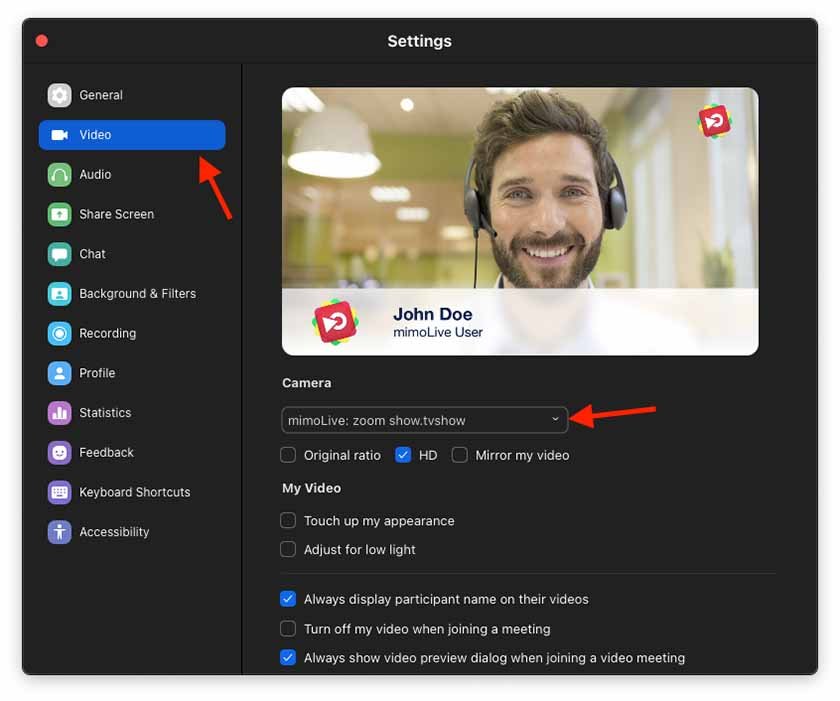
Using **mimoLive’s virtual camera plugin** with video conferencing software gives you a lot of advantages:
- Use external cameras
- Switch between several cameras
- Picture in picture video
- Add graphic layers such as logos and lower-thirds for visual improvements
- Show pre-recorded videos
- Screen and Window Sharing
- Display stinger videos
- Display a timer
**mimoLive’s Virtual Camera Plugin** can be used for any video conferencing software like:
- zoom.us
- Skype
- MS Teams (Virtual Camera is not supported by the MS Teams App and works only in the web browser version)
- remo.co
- Jitsi Meet
- or any other application which accepts a video camera as an input device.
#### Tutorial for Video Conferencing
See [Video Conferencing Software](https://mimolive.com/user-manual/video-conferencing-software) for a tutorial on how to do this.
#### Installing the Virtual Camera Plugin
mimoLive needs a running Virtual Camera plugin which you can install in a few steps.
- Run the installer. Please note that you will be prompted for your administrator password.
- Restart your Mac for the plugins to be loaded into macOS.
#### Adding a Virtual Camera Output Destination
Add a Virtual Camera Output Destination to your [Output Destination list](https://mimolive.com/user-manual/user-interface-overview) by clicking the **+** button on top of the list in the rightmost column of your mimoLive document. A popover window will appear with all the Output Destination options available. After double-clicking the Virtual Camera Output Destination icon a new instance will appear in the Output Destination list. The info box will tell you the status of the plugin and where it is located on your disc.
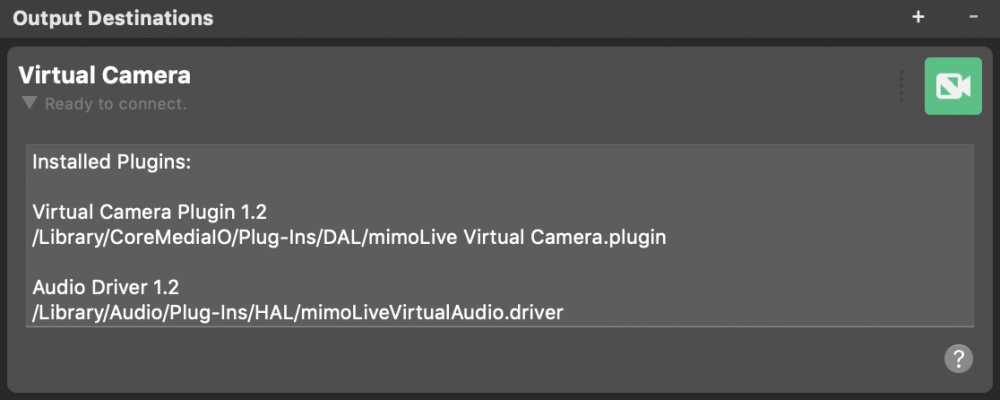
#### Using the Virtual Camera
- Open a mimoLive document and add a virtual camera to the output destinations
- Set up the **Video** and **Audio** options to select which video and audio should be used.
- Open the third-party software of your choice
- Configure the video and/or audio input of the third-party software to use the device named **mimoLive:**
- Once mimoLive is streaming video to another application the Virtual Camera Live button turns red
> **Note:** The Virtual Camera Output Destination goes live automatically
>
> There is no need to switch the Virtual Camera Output destination live because it will switch on automatically if it is used by another application.

In the **Video** option you can select which video you want to output via the Virtual Camera: Either the Program Output or a specific [Video Source from the Sources Repository](https://mimolive.com/user-manual/sources-and-the-sources-repository).
In the **Audio** drop down menu you can select which audio should be used in the Virtual Camera: Either the **Program Out Audio Mix**, a specific custom **Audio Mix** or any **audio source** that has an associated audio source with it. Please refer to [Audio Mix Panel](https://mimolive.com/user-manual/audio-mix-panel) to learn more about setting up audio mixes.
> **Important:** Launch sequence matters
>
> First, create and open the mimoLive document with the Virtual Camera Output Destination. Second open the third-party app after creating the mimoLive document! This often helps third-party apps to see the mimoLive Virtual Camera right away in their video setups.
> **Important:** Usage restrictions
>
> - mimoLive Virtual Camera does not work in apps that are based on QuickTime.
> - The Virtual Audio output can only be used by a single app at a time. (The System Preferences audio pane also counts as an app.)
#### Uninstalling the Virtual Camera Plugin of mimoLive
If you want to uninstall the Virtual Camera Plugin for mimoLive you need to remove two files from your macOS. Please follow these steps:
- Select the “Go To Folder…” item in the “Go” menu of macOS Finder. A new window will pop up asking you for a folder path.
- Enter this path and hit “Go”.
```
/Library/CoreMediaIO/Plug-Ins/DAL/
```
- In the current Finder window the content of the DAL folder should show up.
- Find the “mimoLive Virtual Camera.plugin” file and move it to the trash. You may be prompted to enter an administrator password for your machine.
- Again select the “Go To Folder…” item in the “Go” menu.
- This time enter the following path:
```
/Library/Audio/Plug-Ins/HAL
```
- In the current Finder window the content of the HAL folder should show up.
- Find the “mimoLiveVirtualAudio.driver” file and move it to the trash. You may be prompted to enter an administrator password for your machine.
- Restart your Mac.
---
### Installing and Activating Virtual Camera Extension
Source: https://mimolive.com/user-manual/playout-output-destinations/virtual-camera/installing-and-activating-virtual-camera-extension/
Last updated: 2026-08-19
Starting with [mimoLive 6.6](https://mimolive.com/download), mimoLive comes with a new Virtual Camera Extension. This new extension works with MacOS Sonoma 14.1 (and newer) without changing the security settings and can be installed without a separate download. It also works in more apps than the legacy Virtual Camera Plugin, including FaceTime, Microsoft Teams, Whatsapp and many more.
### **Installing the Virtual Camera Extension**
> **Important:** Move mimoLive to the Applications folder prior to installing the Virtual Camera Extension.
>
> Apple now requires the apps that install extensions to be in the Applications folder ("/Applications"). If mimoLive isn't in that folder, an error message appears when you try to install the Virtual Camera Extension.
**Step 1:** Go to mimoLive -> Settings... -> Extensions and click on "Install".
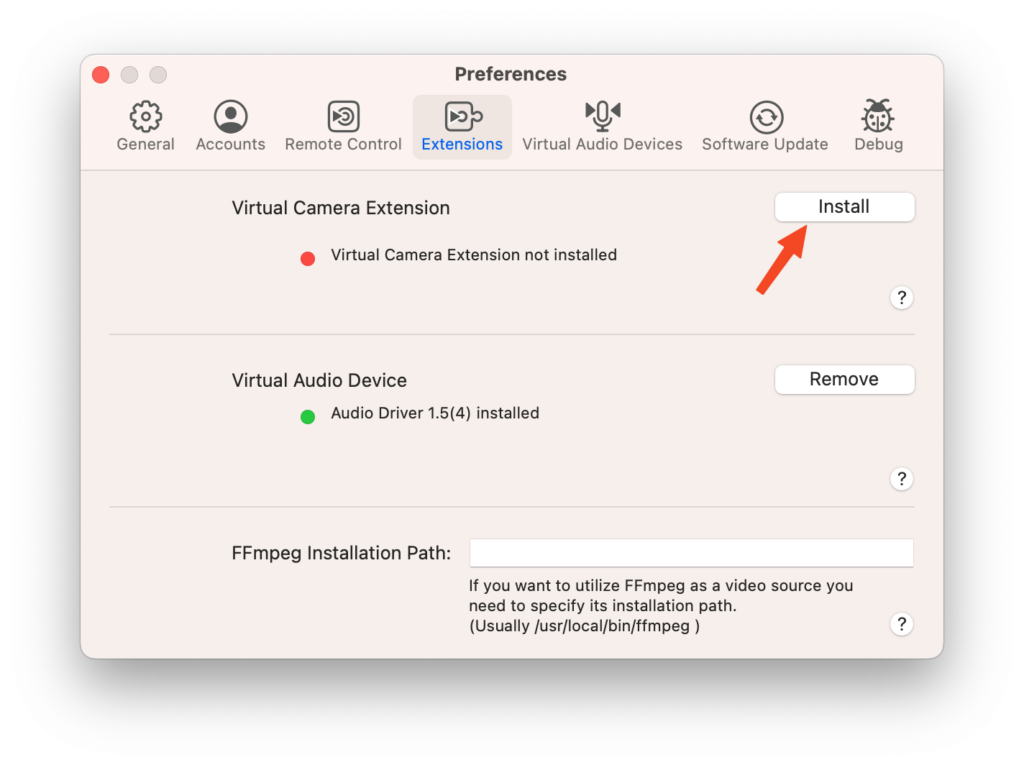
**Step 2:** The Virtual Camera Extension will be installed. MacOS will block the Extension from loading until you give it permission to load the extension:
In macOS 15 Sequoia or later:
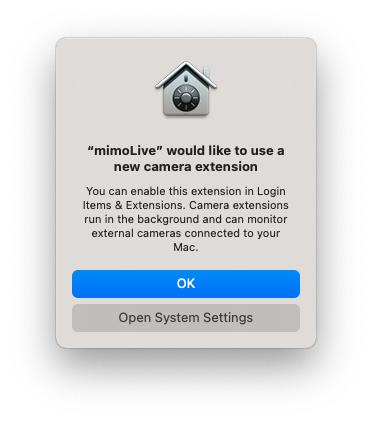
Prior macOS 15 Sequoia:
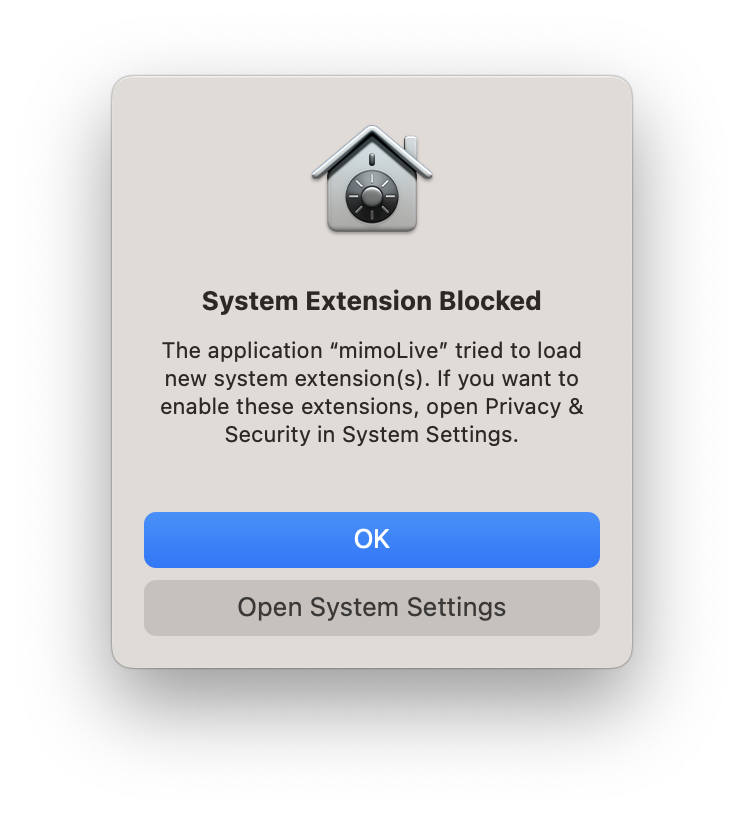
**Step 3:**In macOS 15 Sequoia or later: Go to "System Settings" -> "General" -> "Login Items & Extensions":
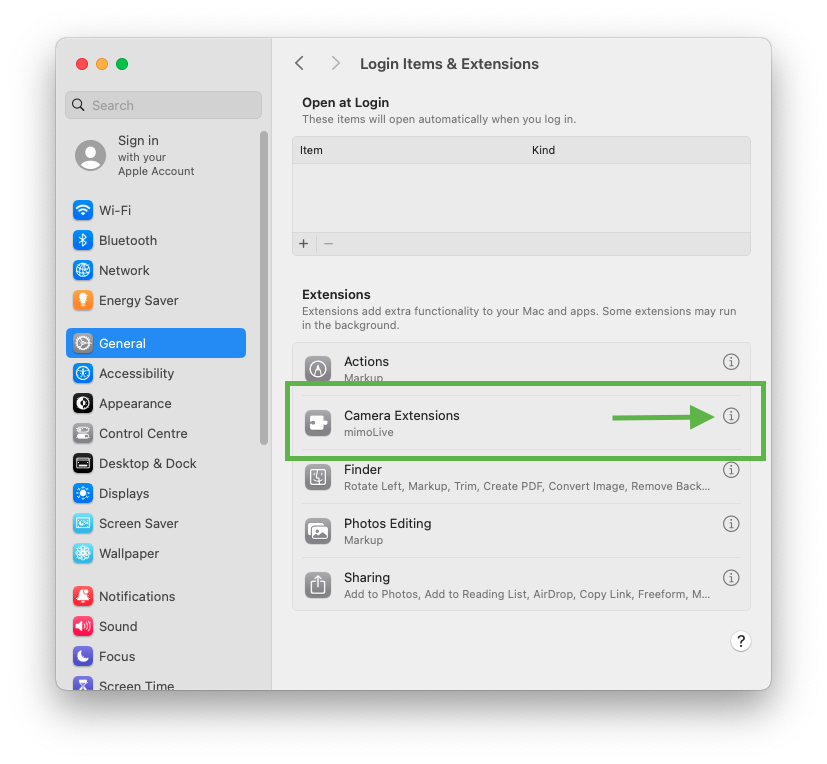
Allow the use of the Virtual Camera Extension for other applications by switching it on:
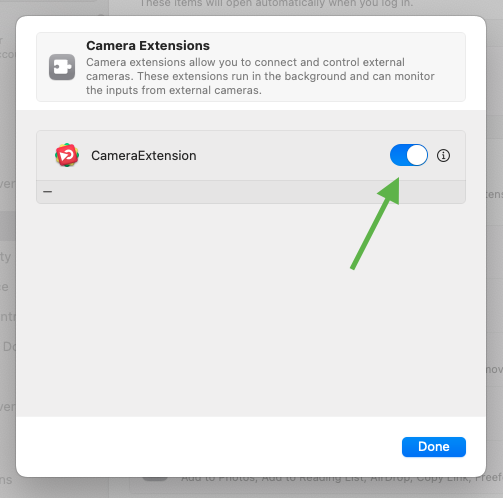
Prior macOS 15 Sequoia: Go to "System Settings" -> "Privacy & Security" and scroll down until you find the following section:
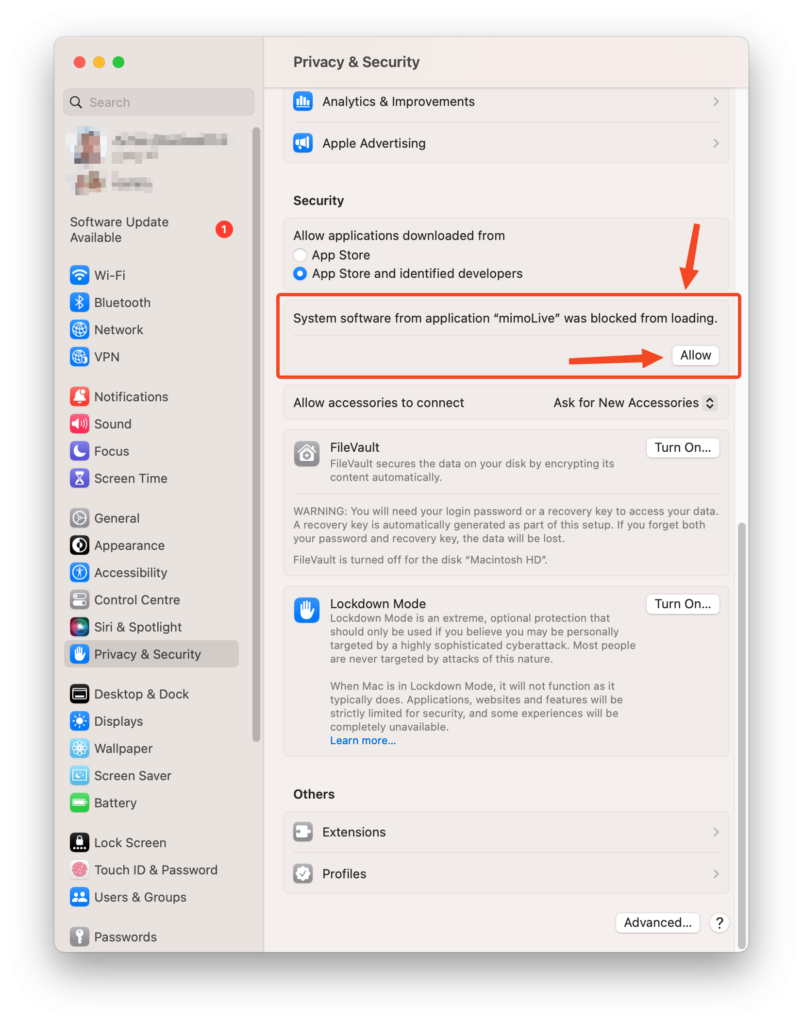
**Step 4:**Click on "Allow" and authorize the changes to the system settings to enable the Virtual Camera Extension:
**Step 5:** Relaunch mimoLive to make the new Virtual Camera Extension available to the other apps.
### Further Reading
To get audio from mimoLive into Zoom, MS Teams and others, install the [Virtual Audio Device](https://mimolive.com/user-manual/using-mimolive/virtual-audio-device/) as well.
To make use of the Virtual Camera Extension you need to [add a Virtual Camera Output Destination](https://mimolive.com/user-manual/playout-output-destinations/virtual-camera/) to your mimoLive document.
---
### Video Conferencing Software
Source: https://mimolive.com/user-manual/playout-output-destinations/virtual-camera/video-conferencing-software/
Last updated: 2023-07-03
Using mimoLive’s virtual camera plugin with video conferencing software gives you a lot of advantages:
Benefits of using mimoLive’s virtual camera plugin:
- Use external cameras
- Switch between several cameras
- Picture in picture video
- Add graphic layers such as logos and lower-thirds for visual improvements
- Show pre-recorded videos
- Screen and Window Sharing
- Display stinger videos
- Display a timer
In large parts, this document can be applied to zoom.us, MS Teams, GoToMeeting/GoToWebinar, Jitsi, Webex and more. (In some cases, you will have to use the web client in Chrome to be able to use the Virtual Camera).
This section has two sub-sections:
- [Sending Audio and Video to Zoom](https://mimolive.com/user-manual/sending-audio-and-video-to-zoom) – Enrich your camera signal with impressive graphics, add a presentation (so that your video and the presentation isn’t separated), play videos and audio effects to dazzle your audience.
- [Capturing Audio and Video from Zoom](https://mimolive.com/user-manual/using-audio-and-video-from-zoom-in-mimolive) – Use Zoom like an additional camera in your live video production, for example in order to interview people or create a hybrid event with some participants in Zoom and some on location.
---
## mimoCall WebRTC out
Source: https://mimolive.com/user-manual/playout-output-destinations/mimocall-webrtc-out/
Last updated: 2026-08-19
[mimoCall](https://mimolive.com/user-manual/mimocall) is a easy way to get live video feeds from web browsers or iOS devices from any place in the internet. The mimoCall Output Destination adds to the list and makes it possible to transfer the Program Out video signal to another mimoLive installation anywhere.
#### Adding a mimoCall Output Destination
Add a new mimoCall Output Destination to your [Output Destination list](https://mimolive.com/user-manual/user-interface-overview) by clicking the **+** button on top of the list in the right most column of your mimoLive document. A popover window will appear with all the Output Destination options available. After double clicking the mimoCall Output Destination icon a new instance will appear in the Output Destination list.
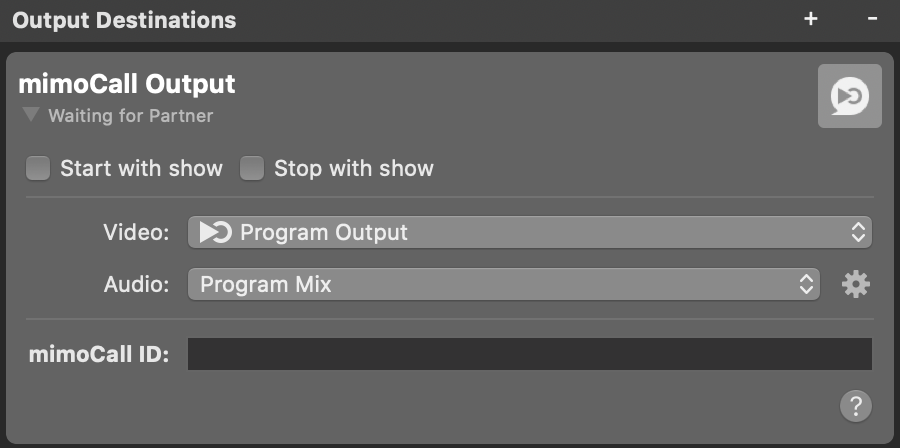
#### Setting up the miomCall Output Destination
The **Start with show** and **Stop with show** options control if the Output Destination should start and stop together with the [Start/Stop Show Button](https://mimolive.com/user-manual/startstop-show-button). Just remember that the Output Destination may always be activated and deactivated manually by clicking its activation button.
In the **Video** popup you can select wether you want to send the Program Output or a specific [Video Source from the Sources Repository](https://mimolive.com/user-manual/sources-and-the-sources-repository).
In the **Audio** drop down menu you can select which audio will be transmitted via mimoCall: Either the **Program Out Audio Mix**, a specific custom **Audio Mix** or any **audio source** that has an associated audio source with it. Please refer to [Audio Mix Panel](https://mimolive.com/user-manual/audio-mix-panel) to learn more about setting up audio mixes.
To connect to mimoLive instances you will need to create a [mimoCall Source](https://mimolive.com/user-manual/mimocall) in the receiving mimoLive. Copy the invitation link from this source and put i into the mimoCall ID field. Now the mimoCall button in the upper right corner should turn green to indicate that the connection between both of the mimoLives has been established.
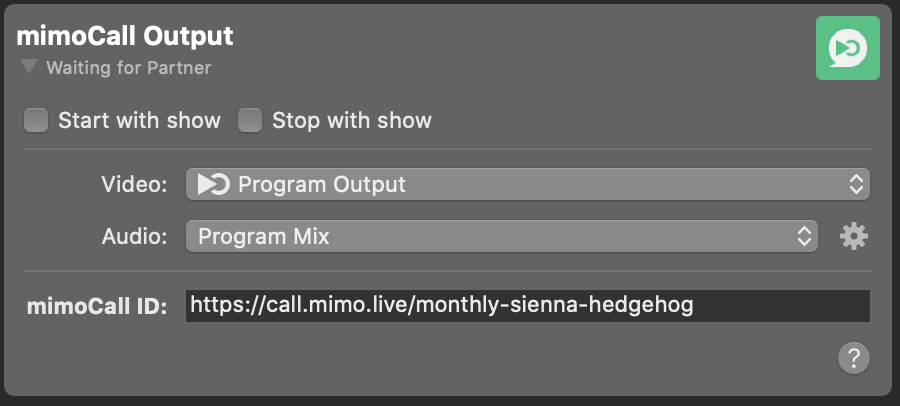
#### Start The mimoCall Output Destination
To start the transmission of the video feed click on the mimoCall button in the upper right corner. It will turn from green to red. Also the user interface of the mimoCall Output Destination will change: You will see some statistics about the transmission.
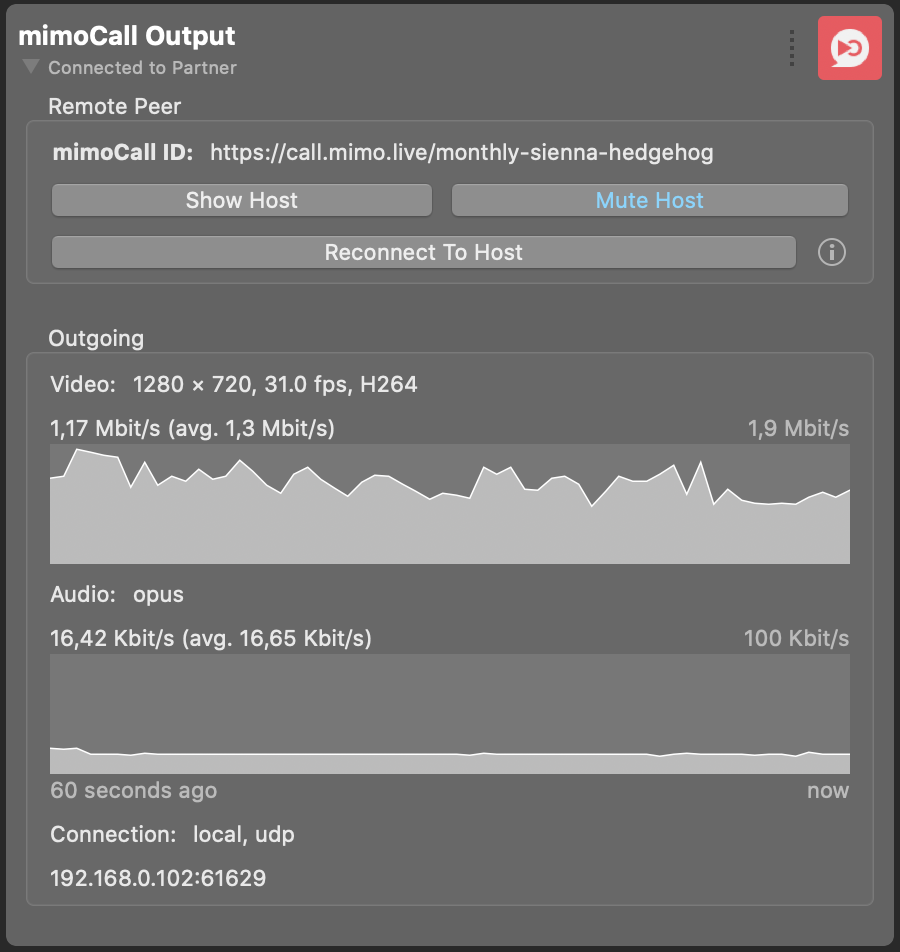
#### Monitoring The mimoCall Performance
While the mimoCall Output Destination is live it shows two graphs that tells about the transmitted data. Here you can see if something is wrong with the transmission.
If for some reason the connection is not stable you may need to perform a reconnect to the host. You can do so by clicking on the button with the very name.
The “Show Host” button will open up a new window to see the program out of the receiving mimoLive instants. The host can switch the video and audio feedback to any other source if necessary.
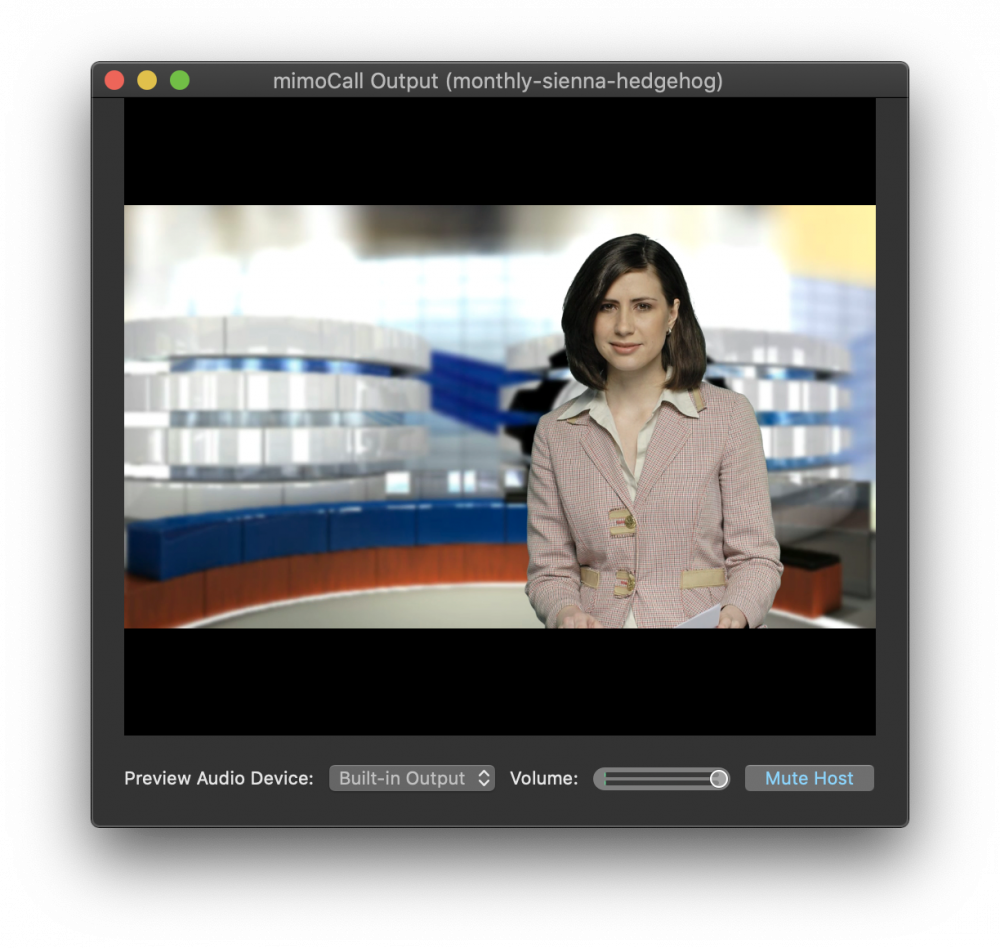
In this window you are able to choose a monitoring audio device for play out. The volume slider let you adjust the volume for the audio output.
If you don’t need to hear the program out of the receiving mimoLive you can mute it with the appropriate button. If the button is blue then the audio is muted.
> **Note:** mimoCall Output Destination is not a source
>
> Because you will generate some feedback loops the Program Out video and audio from the receiving mimoLive instants is not available as sources for the sending mimoLive.
---
## Image Writer Output
Source: https://mimolive.com/user-manual/playout-output-destinations/image-writer-output/
Last updated: 2023-07-03
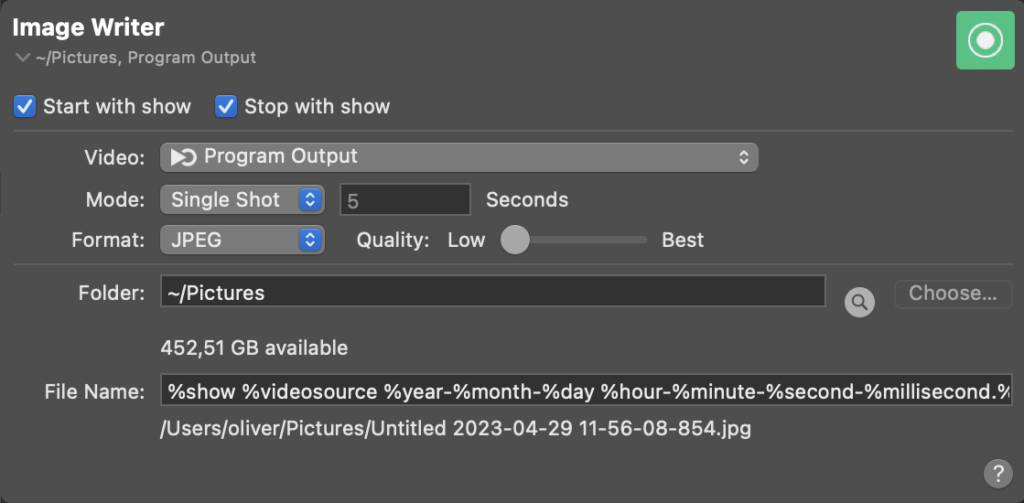
The Image Writer output in mimoLive can be quite useful in various situations during live video production. By allowing users to save single images or sequences of images from the program output as JPEG or PNG files, it offers several benefits:
- Promotional material: Users can capture high-quality still images from live video feeds, which can be used for marketing, social media, or promotional purposes. This can help generate interest and engagement for the live event or production.
- Highlight reels on the fly: By selecting a specific folder as the output destination for captured images, users can create an ever-updating repository of highlights. These images can then be fed into the Slideshow source within mimoLive, which automatically updates with new images added to the designated folder. This real-time updating allows producers to create dynamic highlight reels during live video productions, showcasing key moments and visuals without any additional post-production editing. This streamlined process not only saves time but also adds an interactive and engaging element to live events, keeping the audience captivated and entertained throughout the production..
- Thumbnails and previews: Images saved from the live video can be used as thumbnails for on-demand video platforms like YouTube or Vimeo. These images can also be used for previews or teasers, giving potential viewers an idea of what to expect from the video content.
- Documentation and archiving: Capturing still images from live video can help create a visual record of the event, which can be used for reference, archiving, or future content creation. This can be especially helpful for educational or training purposes, where specific moments or visuals may need to be highlighted.
- Analyzing and improving production quality: By saving image sequences, production teams can review and analyze their work to identify areas for improvement or to replicate successful techniques. This can contribute to the overall quality and consistency of future live productions.
- Visual storytelling: Saving images from live video production can also aid in creating visual stories for print or digital publications, blog posts, or other content formats. These images can be easily shared and help to enhance the storytelling aspect of the production.
- Post-production editing: If a sequence of images is captured, users can create time-lapse videos, stop-motion animations, or simply edit specific frames to create unique visual effects in post-production.
### Video
Select the source for the Image Writer output. You can select the Program Out or any Source in mimoLive directly.
### Mode
The Image Writer output can be set to either write a single image when it is turned on, or to write a sequence of images at a specified interval in seconds. The interval can also be a number with decimal places.
### Format
The Image Writer output supports writing images in JPEG and PNG formats.
If the video has an alpha channel and you use the PNG format with the Image Writer output, the resulting PNG will be properly transparent.
### Folder
Select the folder where you want to save the images. A neat trick is to use this folder with the Slideshow Source, so you can easily create a highlight reel, because files added to the folder will automatically be added to the Slideshow Source creating an instant highlights reel.
---
## Last Recording Uploader Output
Source: https://mimolive.com/user-manual/playout-output-destinations/last-recording-uploader-output/
Last updated: 2026-08-19
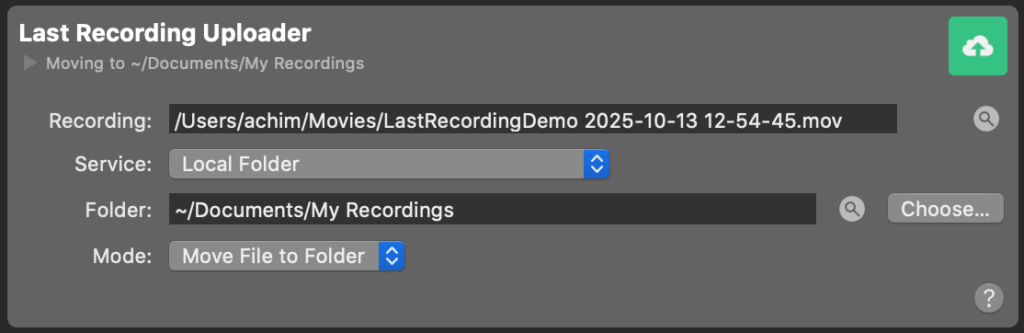
The **Last Recording Uploader** automatically transfers the most recently finished recording created by a [File Recording Output Destination](https://mimolive.com/user-manual/playout-output-destinations/recording-to-disk/) to a specified location — either a local folder or a remote server via SSH.
This feature is useful for automating post-production workflows, backups, or external file delivery.
Please note there is also a [Last Recording Video Source](https://mimolive.com/user-manual/sources-input/media-sources/last-recording-source/) that is independ from this Last Recording Output Destination.
### Fields
#### Recording
Displays the full file path of the most recent recording. A **circle** shows the upload progress while the file gets uploaded to its destination. The **magnifier button** next to the field reveals the file in Finder, allowing quick access.
#### Service
Defines where the file will be uploaded or moved to.
Available options are:
- **rsync via SSH** – Uploads the recording to a remote server using SSH and rsync.
- **Local Folder** – Moves or copies the recording to a folder on your local Mac.
### Uploading a recording to a remote server via SSH using rsync
When “rsanc via ssh” is selected the following fields appear:
- **Server** – The address of the remote server (for example, `example.com` or `192.168.1.10`).
- **User Name** – The user account used for the SSH connection.
- **Folder Path** – The target directory on the remote server where the recording should be uploaded.
> **Important:** To use SSH, a shared SSH key must be installed on the remote server.
>
> Password-based authentication is not supported. Ensure that the public ssh key from the mimoLive host system is added to the authorized keys file of the remote server user.
### Storing a recording on the local system
When “Local Folder” is selected the following options are available:
- **Folder** – Displays the destination folder path.
- The **magnifier button** opens the folder in Finder.
- The **Choose…** button allows selecting a different folder.
- **Mode** – Determines how the recording file is handled:
- **Move File to Folder** – Moves the recording file to the target folder (removing it from its original location).
- **Make a Copy** – Copies the recording file to the target folder while keeping the original file.
> **Note:** Make use of Network Volumes with “Local Folder”
>
> The Local Folder option also works seamlessly with mounted network volumes (such as SMB, AFP, or NFS shares). This makes it easy to store recordings directly on a file server in your local network — for example, on a shared storage system used by your production team. Ensure the network volume is mounted and accessible before the recording upload begins. If the volume is disconnected, the upload will fail silently.
> **Important:** Upload must be triggered manually
>
> The Last Recording Uploader does not start automatically after a recording finishes. To begin the upload process, you must manually trigger it by clicking the Live button on the output destination. This allows you to review the recording before uploading it, giving you full control over when the file transfer begins.
---
## Syphon
Source: https://mimolive.com/user-manual/playout-output-destinations/syphon/
Last updated: 2026-08-19
[Syphon](http://syphon.v002.info/) is an open source macOS technology that allows applications to share frames – full frame rate video or stills – with one another in realtime.

You can insert a Syphon Video Sender layer anywhere in your layer stack and transfer the image that has been composited by the layers below to another application.
This is useful for a number of cases:
- Record a clean signal (e.g. without a Station Logo layer or other graphic overlays by placing it below those layers in the layer stack)
- Divert video to a projector before adding branding
- Send video to any of the many other Syphon client apps (e.g. the [Syphon Recorder](http://syphon.v002.info/recorder/) , even within mimoLive using the [Syphon Video Receiver Source](https://mimolive.com/user-manual/syphon-receiver)
- Provide a confidence monitor for a performer before a greenscreen
To set it up, simply [add a Syphon Video Sender layer](https://mimolive.com/user-manual/layers-and-variants) to the position in the layer stack that you’d like to send to the external application.
In the Syphon Client app, a Syphon Server will appear with a certain name.
#### Giving the Syphon Server a Name
If you happen to have multiple Syphon Servers running it is helpful to give each Syphon Server a meaningful name. You can setup a name in the layers settings:
#### Using Syphon to Record a Clean Signal
One use case of the Syphon Sender layer is to record a clean signal. You might want to record a signal that does not contain any overlays or information that is only relevant to live stream viewers or the live audience.
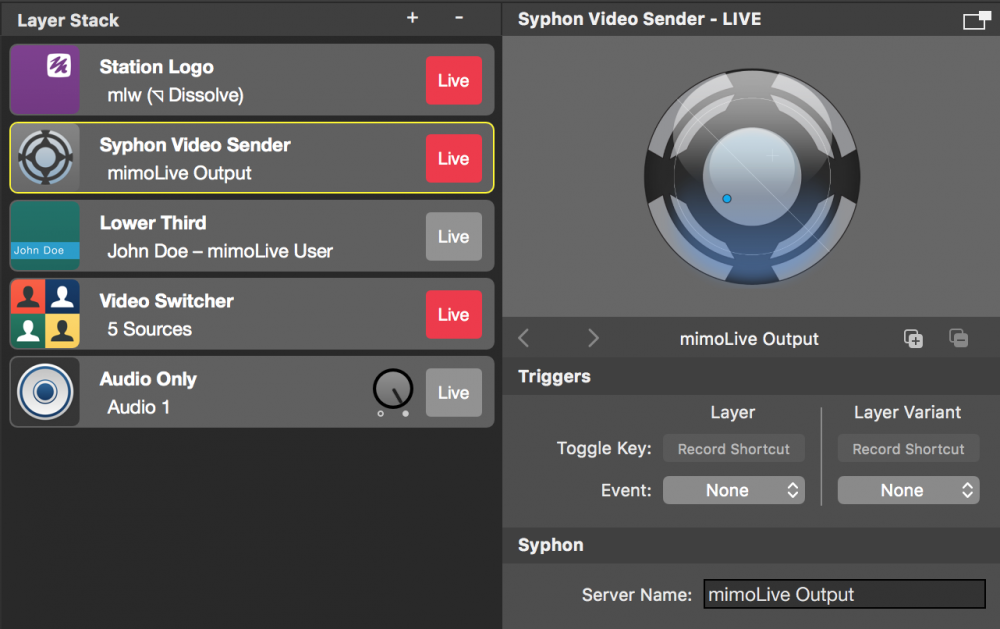
To do this:
- Use the Syphon Sender layer in your layer stack at the appropriate level.
- Open a second mimoLive document.
- Set up the Syphon Source, place it in a layer and record this.
> **Note:** Syphon only transmits the video frames but not the audio
---
## AirPlay Output
Source: https://mimolive.com/user-manual/playout-output-destinations/airplay/
Last updated: 2026-08-19
Using AirPlay with mimoLive provides an easy and effective solution for playing out to a Smart TV or an Apple TV. Even though mimoLive doesn't directly support AirPlay, you can add an AirPlay compatible display device as an external monitor in the Display Settings on MacOS Monterey. Once added, you can use [mimoLive's Full Screen Playout](https://mimolive.com/user-manual/full-screen-playout) to stream content to your Smart TV or Apple TV with remarkably low latency, even over WiFi. With the AirPlay Output layer, you can enjoy your mimoLive productions on the big screen with ease.
#### Connect the AirPlay Display as an additional monitor
- Go to System Preferences -> Displays
- Add the AirPlay Display (Apple TV or SmartTV) as an additional monitor.
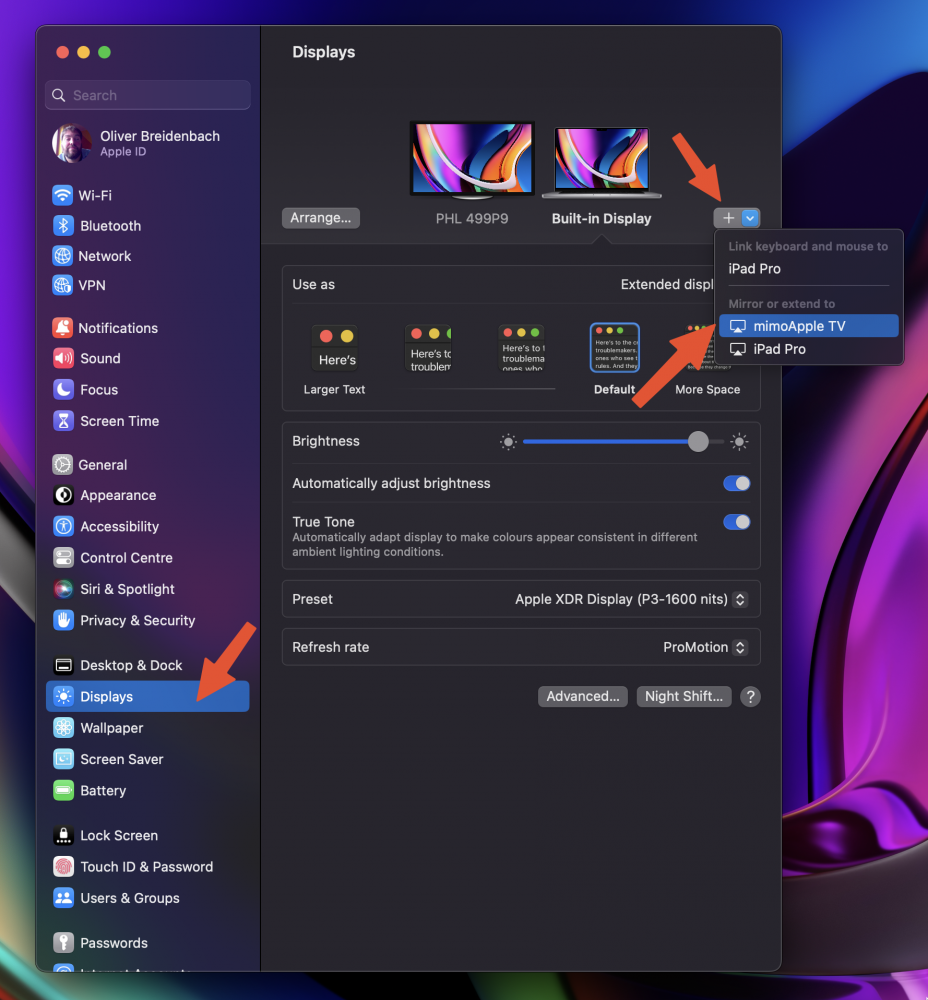
- You can now check and set the resolution by clicking on the newly added display:
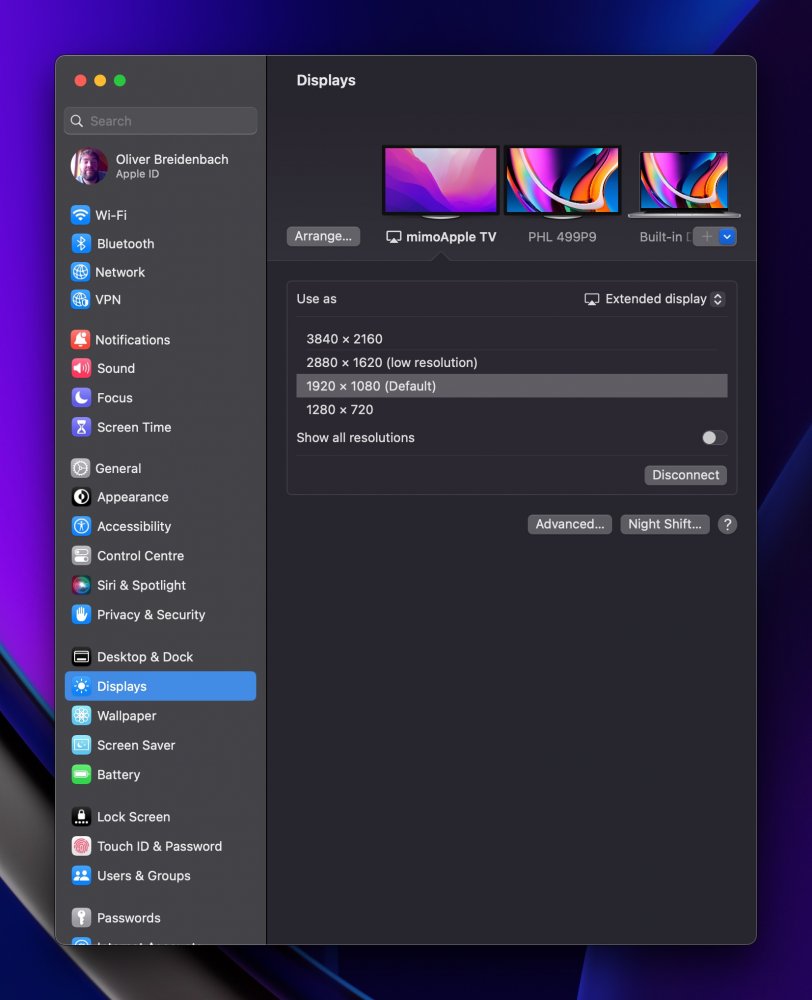
> **Note:** This screenshot is taken from MacOS Ventura, but this also works on MacOS Monterey.
#### Add Full Screen Playout Destination
In mimoLive, now add a [Full Screen Playout](https://mimolive.com/user-manual/full-screen-playout) destination:
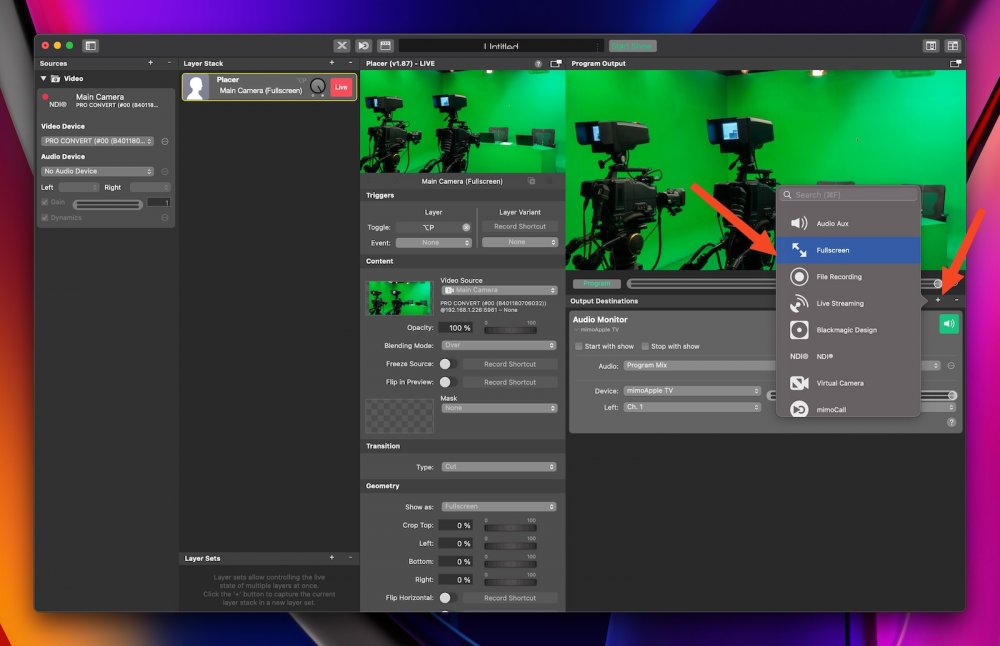
- Select the new external monitor and switch it live.
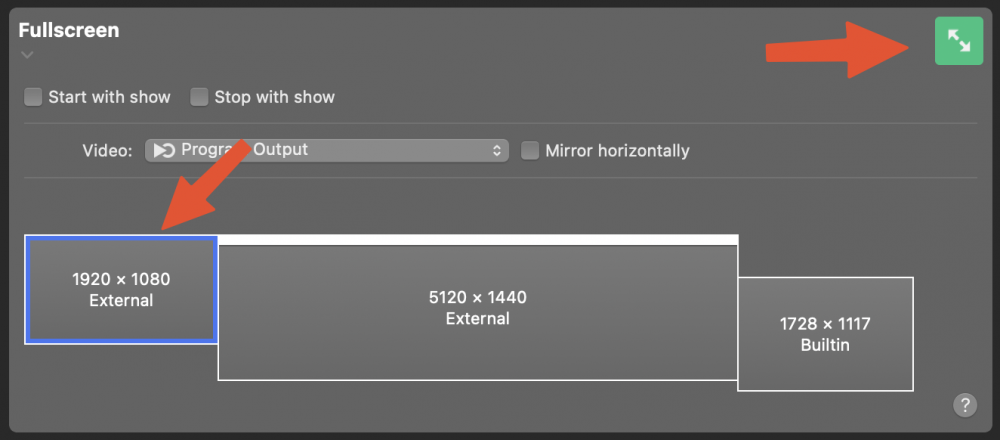
---
## Audio Streaming with SHOUTcat or Icecast via butt
Source: https://mimolive.com/user-manual/playout-output-destinations/audio-streaming-with-shoutcast-or-icecast-via-butt/
Last updated: 2023-07-03
The two protocols most often used for audio only streaming are SHOUTcast and Icecast. While mimoLive doesn’t support those natively, it is pretty easy to set up a connection from mimoLive to the free tool “butt” which supports both those protocols.
- Download and install the [Mac version of butt](http://danielnoethen.de/butt/) ("broadcast using this tool").
- Setup a virtual audio device using [Loopback](https://rogueamoeba.com/loopback/) or [Blackhole](https://github.com/ExistentialAudio/BlackHole).
- Setup an Audio Aux output with the Audio mix you want to stream and select the virtual audio device from last step as the audio device.
- Don’t forget to turn it live.
- Launch “butt” and select the virtual audio device as the microphone.
- Enter your live streaming server info and start streaming!
That’s it. Now you can produce a live video and a separate live audio stream. Or just use mimoLive and mimoCall to produce your live audio stream with guests.
---
# Remote Control & Automation
Source: https://mimolive.com/user-manual/remote-control-automation/
Last updated: 2025-06-16
_This page has no body text; it groups the pages below._
---
## mimoLive® Remote Control
Source: https://mimolive.com/user-manual/remote-control-automation/remote-control-surfaces/
Last updated: 2026-08-19
mimoLive offers unparalleled flexibility and control through its browser-based Remote Control feature. This powerful tool allows you to manage your live broadcasts from any device, anywhere in the world, using a web browser.
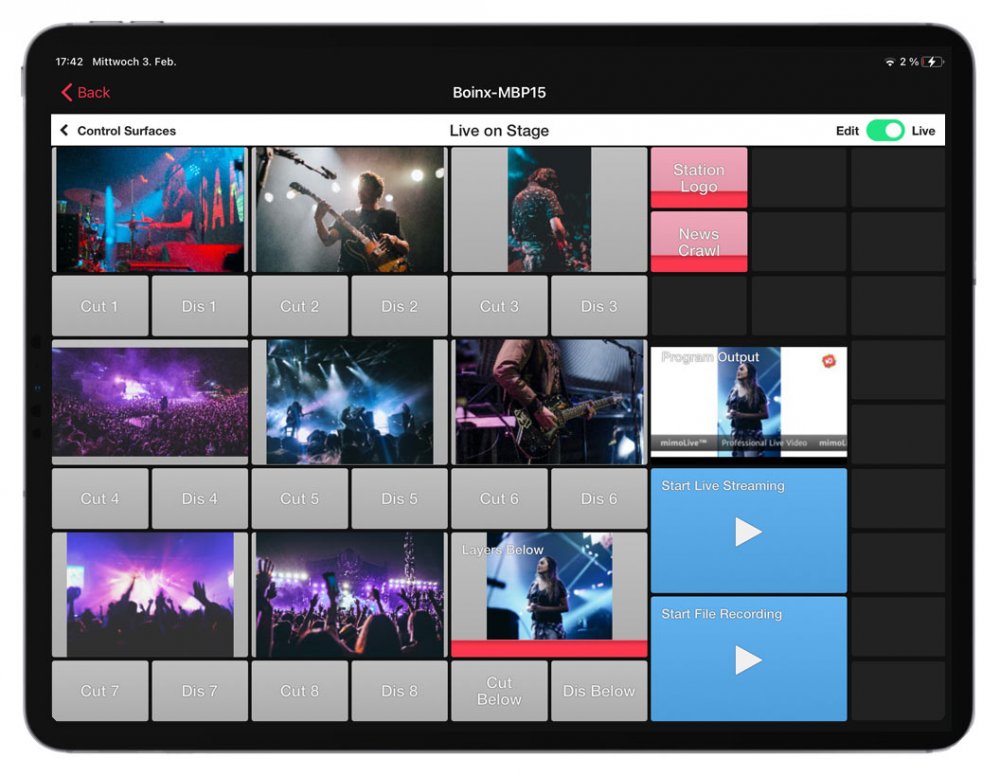
### Key Benefits and Capabilities
With mimoLive’s browser-based Remote Control, you gain the flexibility and power to direct high-quality live video productions from anywhere, enhancing your broadcasting capabilities and efficiency.
**Versatile Control Options**: mimoLive can be operated via mouse cursor, customized keystrokes, [automation scripts](https://mimolive.com/user-manual/live-editing/layers/automation/), and, most conveniently, through browser-based Remote Control. Buttons from mimoLive Remote Control Surfaces can indicate the status of a layer, show a video feed, or display the state of animations.
**Customizable Remote Control Surfaces:**Create multiple Remote Control Surfaces tailored to different roles and tasks. For instance, set up a surface for the editor in the studio to switch video sources and another for the social media manager to add news headlines remotely. This ensures maximum freedom and efficiency in directing your live video production.
**Multi-User Accessibility**: Each Remote Control Surface can be used simultaneously by different team members, enhancing collaboration and workflow. Whether you’re in the studio or on a workation, everyone can contribute seamlessly.
**Global Access:** Access your Remote Control Surfaces from any device within your local network. With the help of a secure network tunnel, you can also control your broadcasts from your home office or any remote location worldwide.
**Comprehensive Control:** Manage every aspect of your mimoLive project remotely, including camera switching, operating lower thirds, and keeping scores in sports live streams. Everything you need is at your fingertips.
**Real-Time Feedback:** Receive visual feedback on the status of layers and even monitor the final program output directly on your Remote Control Surface. This ensures you have complete oversight and control over your live broadcast at all times.
### mimoLive Tutorial: Remote Control Surfaces
Watch this tutorial to learn how to use it:
https://www.youtube.com/watch?v=XJrWneCkCw8
### Getting Started
#### Setup mimoLive for Remote Control
To use a **Remote Control Surface** with mimoLive, you first need to enable the feature. This activates a built-in web server that serves control interfaces exclusively for mimoLive.
Follow these steps to get started:
1. Open mimoLive and go to the **main menu**.
2. Choose **“Settings…”** to open the Settings window.
3. Switch to the **Remote Control** tab.
4. Enable the option **“Allow Remote Control Access.”**
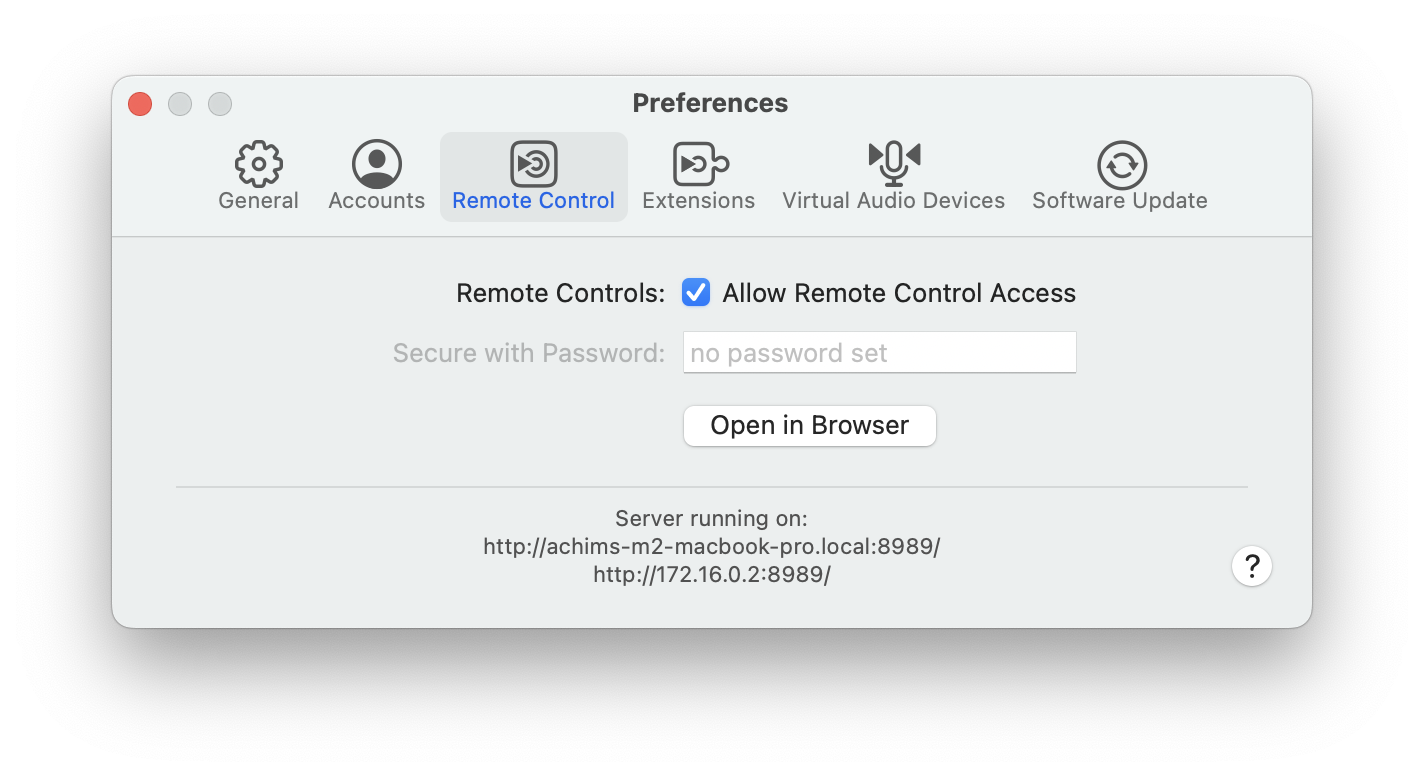
Once enabled, mimoLive is ready to be controlled remotely.
You can now proceed to **create your first Remote Control Surface** via a web browser.
#### Accessing the mimoLive Remote Control Surface
To access the **mimoLive Remote Control Surface** on the same machine:
- Click **“Open in Browser”** in the **Remote Control** tab of the Preferences window,or
- Click the **Remote Control toolbar button** in the window of the mimoLive document you want to control.

After the Remote Control Surface opens in your preferred web browser, you'll be prompted to select which **mimoLive document** you wish to control.
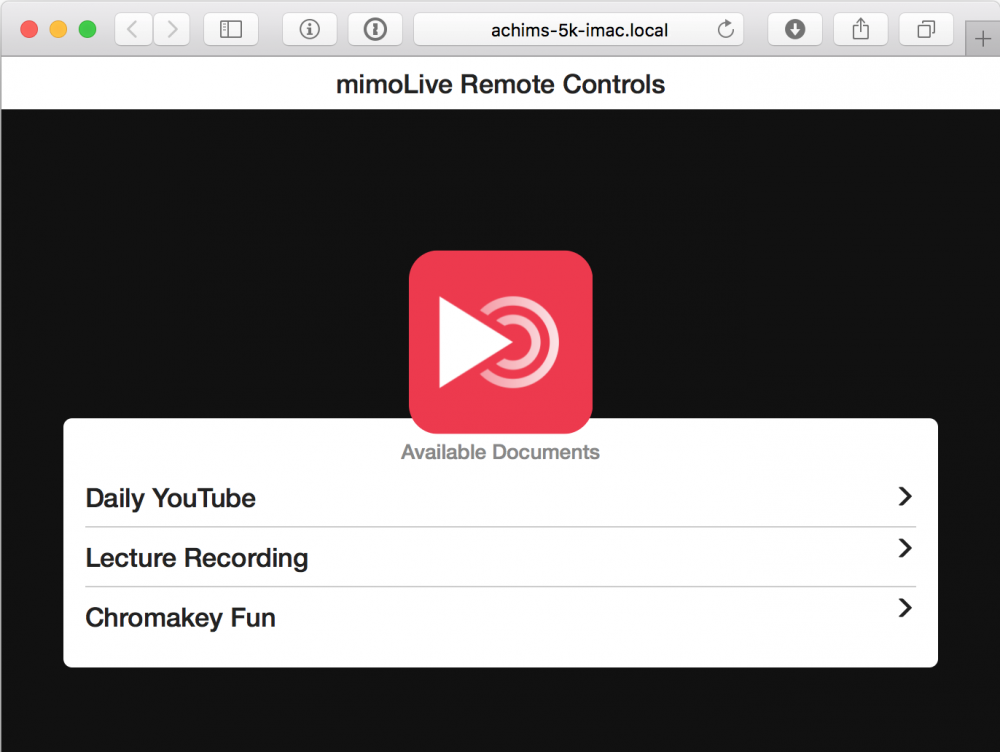
### Creating a new Remote Control Surface
When you open the **Remote Control Interface** for a specific mimoLive document **for the first time**, you'll be prompted to **create a new control surface**.
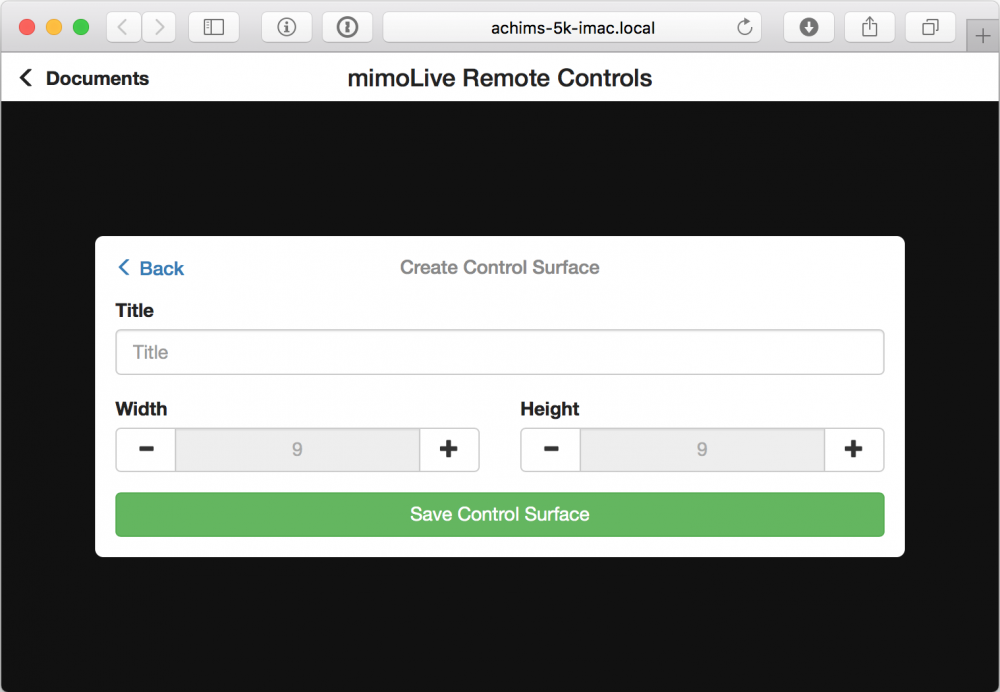
> **Note:** Customizing Grid Size
>
> When creating a new surface, mimoLive suggests a button grid size based on your device. You can adjust this immediately or modify it later in the Remote Control Surface settings.
You can create **multiple Remote Control Surfaces** for the same mimoLive document. This allows you to design different layouts tailored to specific roles or tasks—such as one surface for switching cameras, another for controlling audio, and a third for managing graphics. Each surface can be opened independently in a web browser, making it ideal for collaborative productions or multi-device setups.
After the creation of a control surface, you are presented with an empty grid which you can use to create your personal layout of buttons:
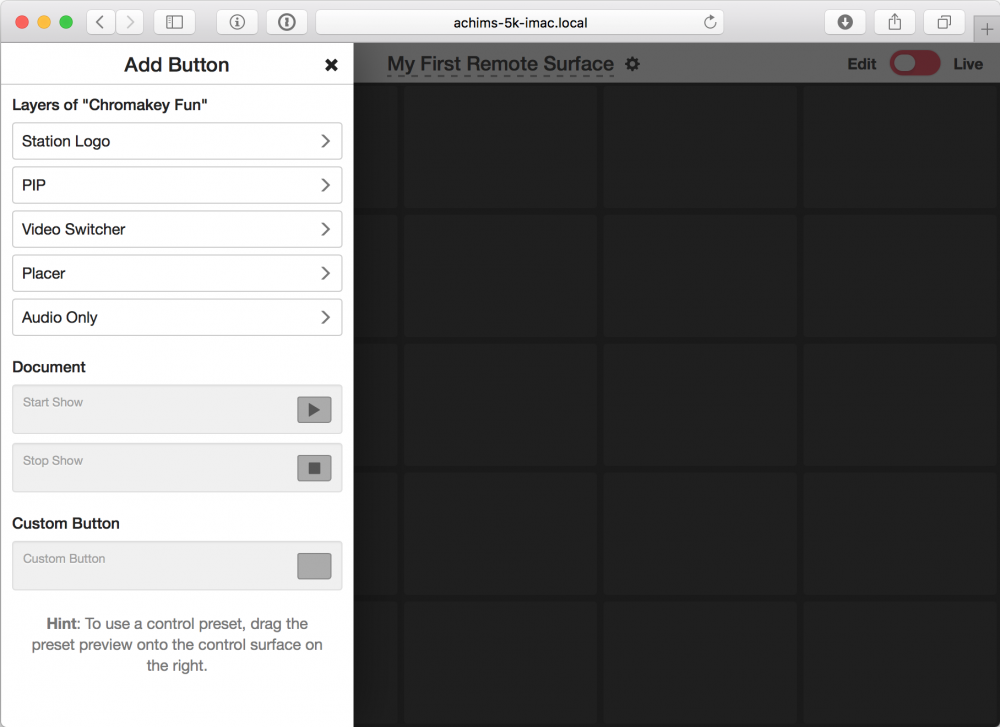
#### Adding a Button
In the **Add Button** column on the left, choose a layer from your document for which you want to add control buttons to your Remote Control Surface. As an example, we chose the [Video Switcher Layer](https://mimolive.com/user-manual/live-editing/layers/video-switcher/). Now you will see different layouts this specific layer provides:
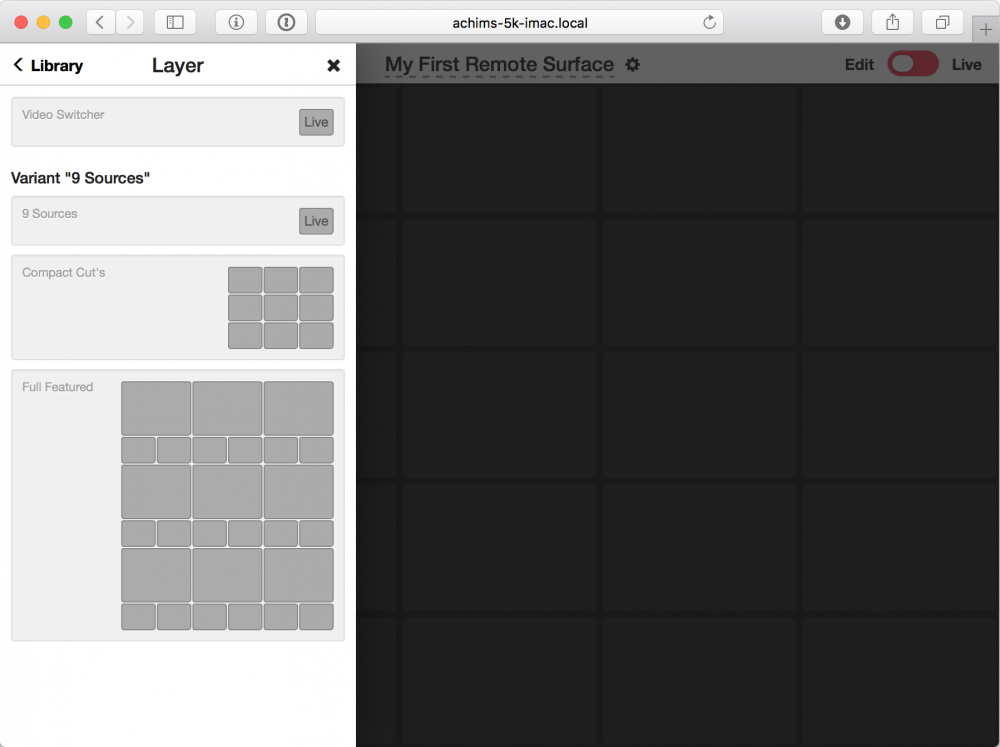
> **Note:** The suggested layouts for each layer may vary depending on the settings you made in the mimoLive document. It is important to finalise the mimoLive document before you design the Remote Control surface.
Drag a layout of your choice from left to right onto the Remote Control Surface:
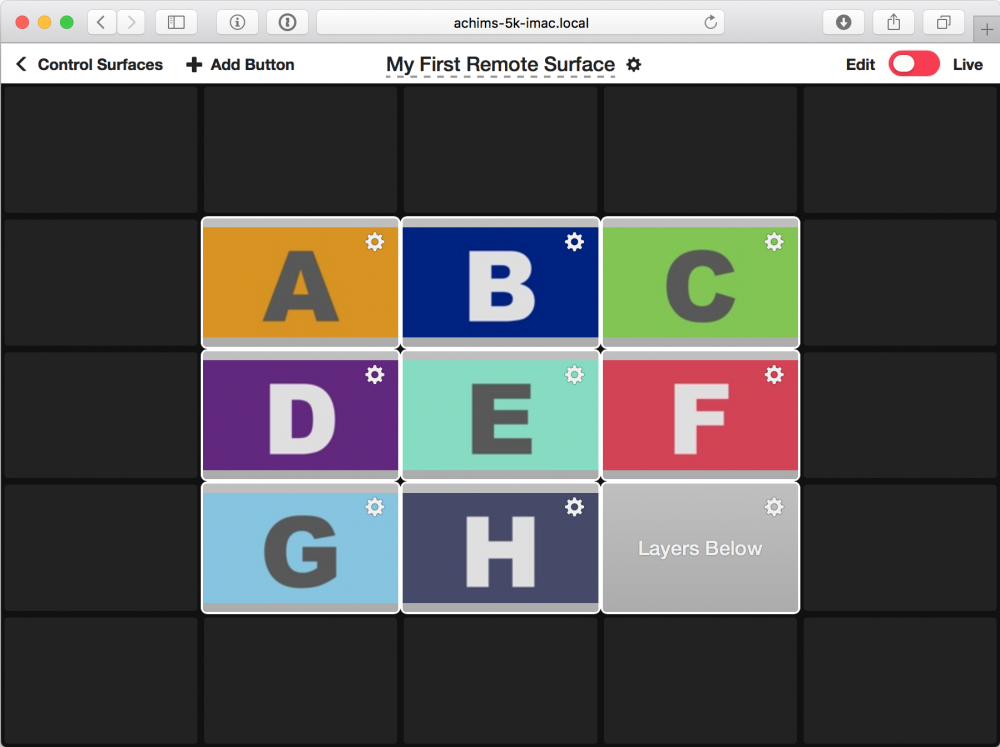
You can add more buttons to the surface with the “+ Add Button” menu in the top left corner.
> **Important:** Don’t Forget to Save!
>
> The configuration of your Remote Control Surfaces is stored inside the mimoLive document. To ensure your surfaces and any changes you’ve made are preserved, always save the document after creating or editing a control surface—otherwise, your changes will be lost.
#### Editing a Button
To change properties of each button you need to switch to the edit mode in the upper right corner first. Now your can select the action gear icon on that specific button to bring up the Edit Action Button panel:
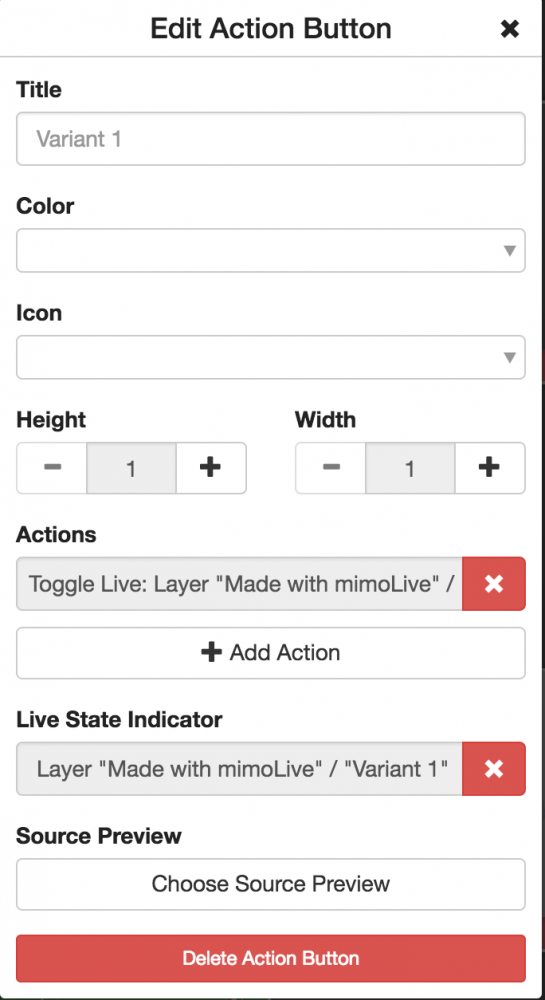
To make the button easier to recognise, you can now give it a title, choose the background color and add an icon.
If you want to make it bigger, you can set the Height and Width of the button.
The Actions list lets you choose the actions the button will perform when pressed.
The Live State Indicator let you select a layer or video source to show the live state.
With Source Preview, you can select a video source of the mimoLive document to display a thumbnail from. Please note that this option affects the overall performance of mimoLive!
#### Setting up a Button to Trigger Multiple Actions
The most powerful feature of the Remote Control Surface is the ability to have a button trigger multiple actions, for example, to turn on a specific lower third each time you switch to a certain camera in the switcher or to turn off several layers and turn on other layers when ending a show.
To add an additional action, click on Add Action in the Edit Action Button panel seen above. To remove an action you no longer need, press the “x” next to it.
#### Deleting a Button
To delete a button you need to click the action gear icon of that button to reveal the Edit Button Action panel. At the bottom of this panel, you’ll find the delete button. To keep you from accidentally deleting a button, you have to confirm the deletion a second time.
### Using the Remote Control Surface
After you have modified the control surface to your convenience, you can enter Live Mode on the top right of the screen.
> **Note:** Performance Tip for Source Previews
>
> Some layers — like the Video Switcher — display live source previews directly in your browser. While useful, these previews can place a significant load on your remote control device and on the Mac running mimoLive. If you experience performance issues, consider reducing the number of buttons that show live previews.
#### Using Multiple Remote Control Surfaces
You can use more than one Remote Control Surface at the same time for one document. This allows you to distribute tasks among a team of editors. In a school, for example, you could have one student control the switcher, one the audio, one the graphics and lower thirds.
You can also use the same Remote Control Surface on multiple devices at the same time. Changes to one instance of the Remote Control Surfaces will automatically and instantly be propagated over all instances. This is especially useful for updating the Remote Control Surface when the layer stack in the mimoLive document is changed.
#### Adjusting the Remote Control Surface
If you want to change the appearance of the Remote Control Surface you need to switch to edit mode and click on the action gear next to the title of it at the top. You will get an overlay window with several options to adjust the title, size and font size of the Remote Control Surface.
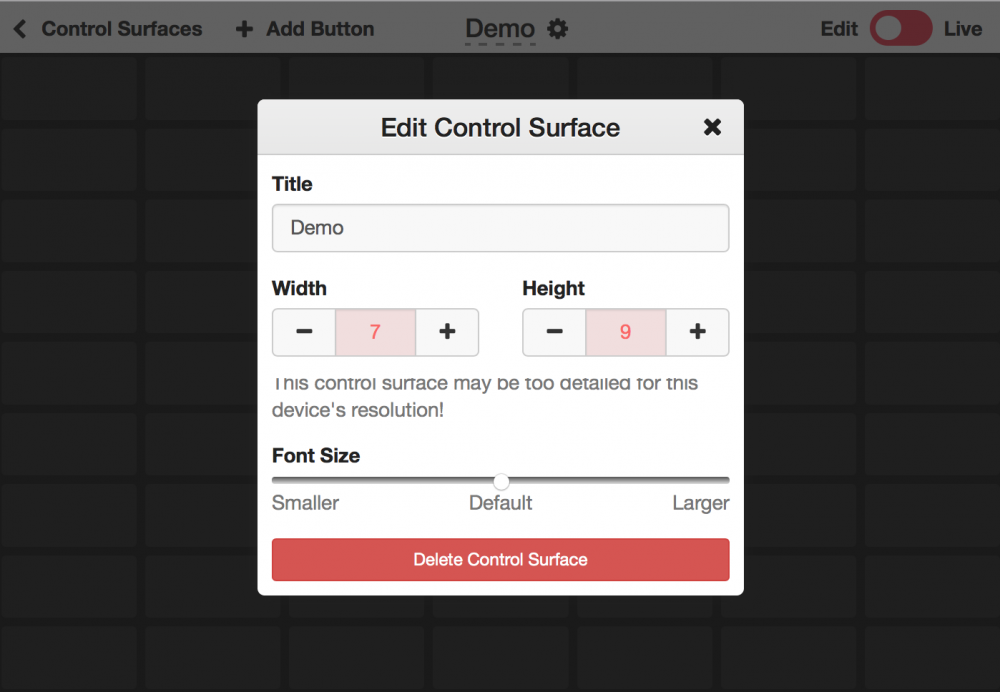
##### Renaming a Remote Control Surface
If you want to have a nice name for your Remote Control Surface you can rename it in edit mode by clicking on the action gear next to the title at the top. You will get an overlay window where you can change the title.
##### Changing the Size of a Remote Control Surface
If you need more space for even more buttons on your Remote Control Surface you can change the size of it by clicking on the action gear next to the title of your surface on top (please make sure you are in edit mode). You will get an overlay window which gives you the option to resize the Remote Control Surface by clicking on the + and – buttons. Please note that you can’t make it smaller if there is a button in the area. Please delete those buttons first.
##### Deleting a Remote Control Surface
To delete a Remote Control Surface you need to switch into edit mode, click on the action gear next to the title at the top and click twice on “Delete Control Surface” in the appearing window.
### Remote Control App on iOS
If you want to use the Remote Control Surfaces on iOS devices, there are two ways:
1. Open the URL in Safari or Chrome as described above (this will work for Android based mobile devices as well)
2. Use the **mimoLive Remote App** from the App Store
#### mimoLive Remote App for iOS

[Download the mimoLive Remote App](https://itunes.apple.com/app/mimolive-remote/id1193996868) from the App Store.
#### Using the mimoLive Remote App
When you start the mimoLive Remote App, it will look for running instances of mimoLive on the same network as your iOS device:
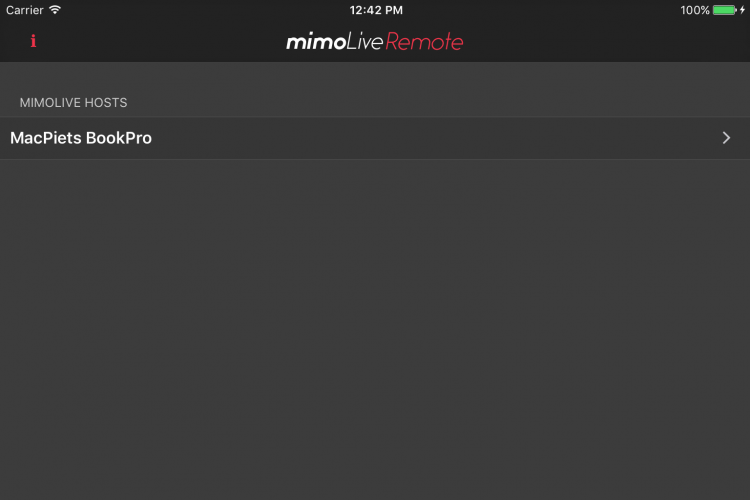
Select the mimoLive instance you want to control. After that, the app behaves just like the web-based remote control app.
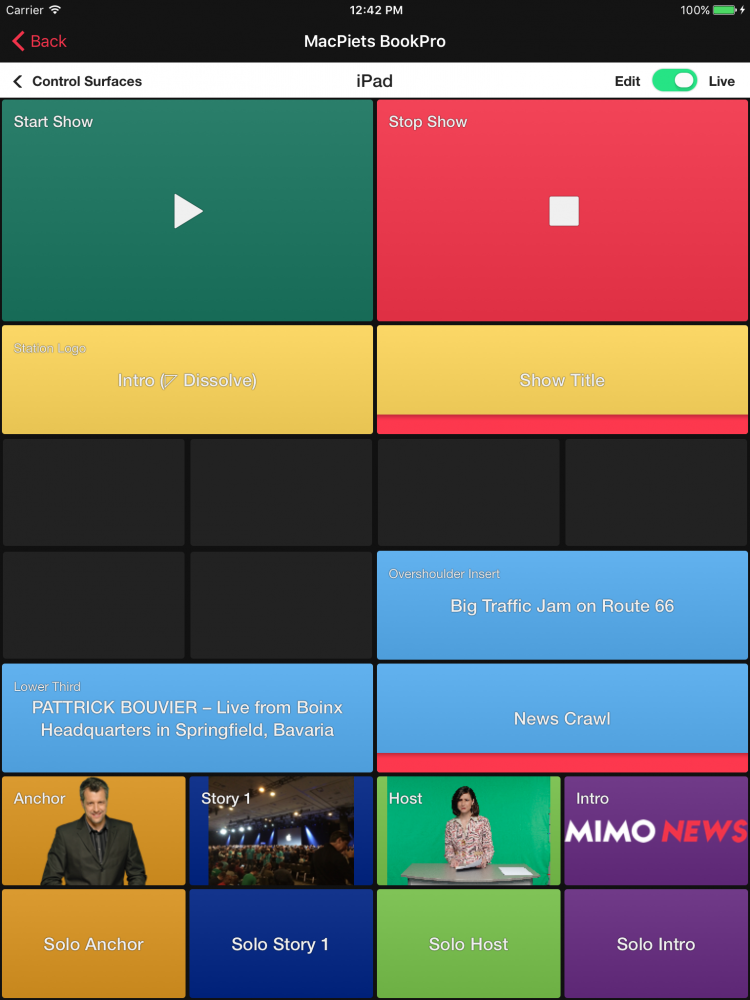
### Remote Access via Internet
As the Remote Control Surfaces are enabled by a webserver built into mimoLive, remote access to mimoLive from anywhere on the Internet could be enabled by giving the mimoLive computer a public IP number. For security reasons, however, this is a very bad idea. A better way to use the Remote Control Surface via public network is to [establish a secure tunnel to your mimoLive host computer using ngrok](https://mimolive.com/user-manual/access-remote-control-surfaces-and-http-api-remotely).
---
## Automation Layer
Source: https://mimolive.com/user-manual/remote-control-automation/automation/
Last updated: 2026-08-19
### Streamline Your Production with mimoLive's Automation Layer
https://www.youtube.com/watch?v=Co46ikxjU3E
The mimoLive Automation Layer was originally developed as a proof of concept but has since proven to be an incredibly useful tool for users. This layer can be used to automate the switching on and off of layers in a specific sequence or at predetermined times, fetch data from remote sources via HTTP and push processed information to layer input fields, start and stop [Output Destinations](https://mimolive.com/user-manual/using-mimolive/output-destinations/), and so much more!
> **Important:** Automation Scripts in mimoLive Do Not Run in Real Time
>
> Please note that the timing of automation scripts in mimoLive may be not accurate due to the asynchronous nature of HTTP requests called by the video rendering engine. Some script commands send HTTP requests to the mimoLive API and the length of these requests cannot be accurately determined, resulting in potential timing discrepancies. Keep this in mind when using automation scripts in your production workflow.
### Prerequisite
In order to make this layer work you need to switch on the HTTP Server in mimoLive to enable the Remote Control API. Go to **mimoLive** > **Preferences** > **Remote Controls**: Check the “**Allow Remote Control Access**” option. (Currently Automation layer in mimoLive only works without a password)
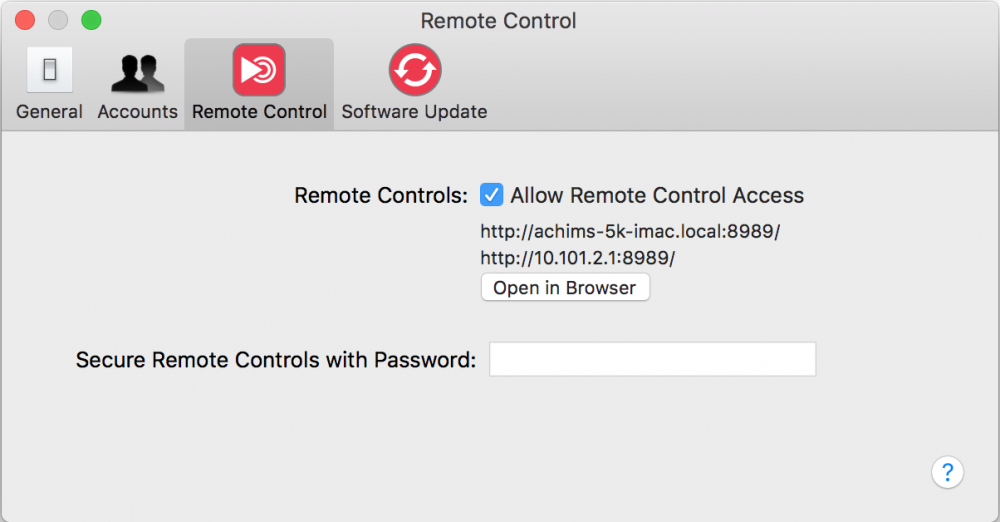
### Set up the Automation Layer
There are two options on how the layer should behave after switched live:
| **Option** | **Behavior** |
| --- | --- |
| Switch layer off automatically | This option is single as applied once the script has finished running, the layer will automatically switch itself off. Use this option when a script should be executed only once. |
| Switch layer off manually (e.g. by the operator) | In this mode, three scripts are available:
• **On Live** – Runs once when the layer is switched live.
• **While Live** – Runs continuously as an endless loop after the On Live script finishes.
• **Turned Off** – Runs once when the layer is switched off.
When the layer is switched off, the While Live script is terminated before Turned Off script is executed.
If the layer is switched on again, you can relive in previous state. |
### Source Code Comments
To remember the purpose and functionality of your script, we recommend adding comments inside the code. Begin each comment line with //.
```
// First sleep for 5 seconds...
sleep(5)
// ...then start the Stop Watch layer:
layerOn("7C4665C4-0E17-4F63-BCFF-B59D68D75956")
```
### Scripting Commands
The scripting language is proprietary and includes several commands. These commands are listed in a cheat sheet in the layer preview on the right. If this list is difficult to read, you can expand the preview by clicking the button located above and to the right of the preview area.
#### layerOn()
Switches on a layer or a layer variant by its ID or API Endpoint URL, or by variable.
```
// switching on a layer by its id
layerOn("4E38A868-DCB5-4E9C-AC75-231764229BFA")
// switching on a layer variant by its id
layerOn("4E38A868-DCB5-4E9C-AC75-231764229BFA/variants/5F18C566-F59F-45B4-8D40-27EF289D47B1")
// switching on a layer by its long API Endpoint URL
layerOn("/api/v1/documents/863743527/layers/4E38A868-DCB5-4E9C-AC75-231764229BFA")
// switching on a layer with a defined variable
setVariable($myLayerID, "4E38A868-DCB5-4E9C-AC75-231764229BFA")
layerOn($myLayerID)
```
#### layerOff(****)
Switches off a layer or a layer variant by its ID or API Endpoint URL, or by variable.
```
// switching off a layer by its id
layerOff("4E38A868-DCB5-4E9C-AC75-231764229BFA")
// switching off a layer variant by its id
layerOff("4E38A868-DCB5-4E9C-AC75-231764229BFA/variants/5F18C566-F59F-45B4-8D40-27EF289D47B1")
// switching off a layer by its long API Endpoint URL
layerOff("/api/v1/documents/863743527/layers/4E38A868-DCB5-4E9C-AC75-231764229BFA")
// switching off a layer with a defined variable
setVariable($myLayerID, "4E38A868-DCB5-4E9C-AC75-231764229BFA")
layerOff($myLayerID)
```
#### layerSetRecall(<*API Layer Set ID as String Expression*>)
Triggers the recall for a certain Layer Set.
```
// recall a Layer Set by its id
layerSetRecall("E6950B7A-7457-44C5-81F7-972D9B04DBC3")
// recall a Layer Set by its long API Endpoint URL
layerSetRecall("/api/v1/documents/863743527/layer-sets/E6950B7A-7457-44C5-81F7-972D9B04DBC3")
// recall a Layer Set with a defined variable
setVariable($myLayerSetID, "E6950B7A-7457-44C5-81F7-972D9B04DBC3")
layerSetRecall($myLayerSetID)
```
#### outputOn(<*API Output Destination ID as String Expression*>)
Turns on an Output Destination.
`// start an Output Destination by its idoutputOn("1953186E-4176-4849-A8ED-5B47EE1627BD")`
`// start an Output Destination by its long API Endpoint URLoutputOn("/api/v1/documents/1677022440/output-destinations/1953186E-4176-4849-A8ED-5B47EE1627BD")`
`// start an Output Destination with a defined variablesetVariable($myOutputDestinationtID, "1953186E-4176-4849-A8ED-5B47EE1627BD")outputOn($myOutputDestinationtID)`
#### outputOff(<*API Output Destination ID as String Expression*>)
Turns off an Output Destination.
`// stop an Output Destination by its idoutputOff("1953186E-4176-4849-A8ED-5B47EE1627BD")`
`// stop an Output Destination by its long API Endpoint URLoutputOff("/api/v1/documents/1677022440/output-destinations/1953186E-4176-4849-A8ED-5B47EE1627BD")`
`// stop an Output Destination with a defined variablesetVariable($myOutputDestinationtID, "1953186E-4176-4849-A8ED-5B47EE1627BD")outputOff($myOutputDestinationtID)`
#### getLayerData(*$resultVariableName*, , )
Retrieves layer data by key path.
This command combines multiple commands in one script step: It retrieves the layer information from the HTTP server and stores a specific data field from the JSON response into a variable. You need the exact path to the value you want to read. For the input parameter of layers, this path usually starts with ‘data.attributes.input-values’.
```
// set up useful variables
setVariable($myScoreboardLayerID, "36FA76B4-11FE-4879-8DE1-307222512712")
setVariable($pathToHomeScore, "data.attributes.input-values.tvGroup_Control__Score_Home")
// read the score for the home team from the Basketball layer
getLayerData($currentHomeScore, $myScoreboardLayerID, $pathToHomeScore)
// The variable $currentHomeScore now contains the Home Score input value of the Basketball Score layer
```
#### getObjectIDByName(*$resultVariableName*,