From the user’s perspective, this video source works exactly like the Video source, but uses a Blackmagic Design device via the Blackmagic Desktop Video SDK. This means it has very low latency, high video quality and a small performance footprint. It is perfect for capturing video from HDMI or SDI cameras and devices.
It is available automatically if mimoLive detects a Blackmagic Design device connected to your system.
Using the Blackmagic Desktop Video Setup
If you are using a Blackmagic DeckLink capture card, you will want to make sure that it is properly configured. To do this, download and install the Desktop Video Setup application. Most cards like the DeckLink Quad are preconfigured to use their 8 channels as 4 channels, each with a separate throughput. (e.g. channel 1 uses connectors 1 and 2) This can be useful to capture 4 HD-SDI signals while sending the signals to another device.
The more common use would be to use all 8 channels as separate inputs or outputs.
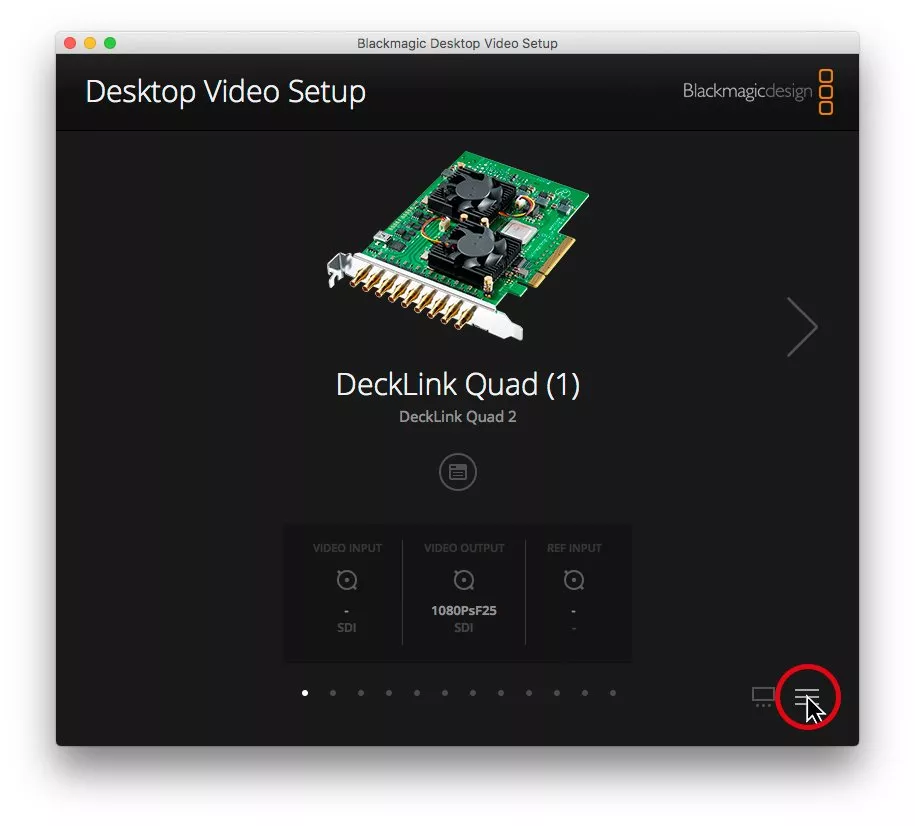
Step 1: Click on the menu button to show an overview of all connected BMD devices.
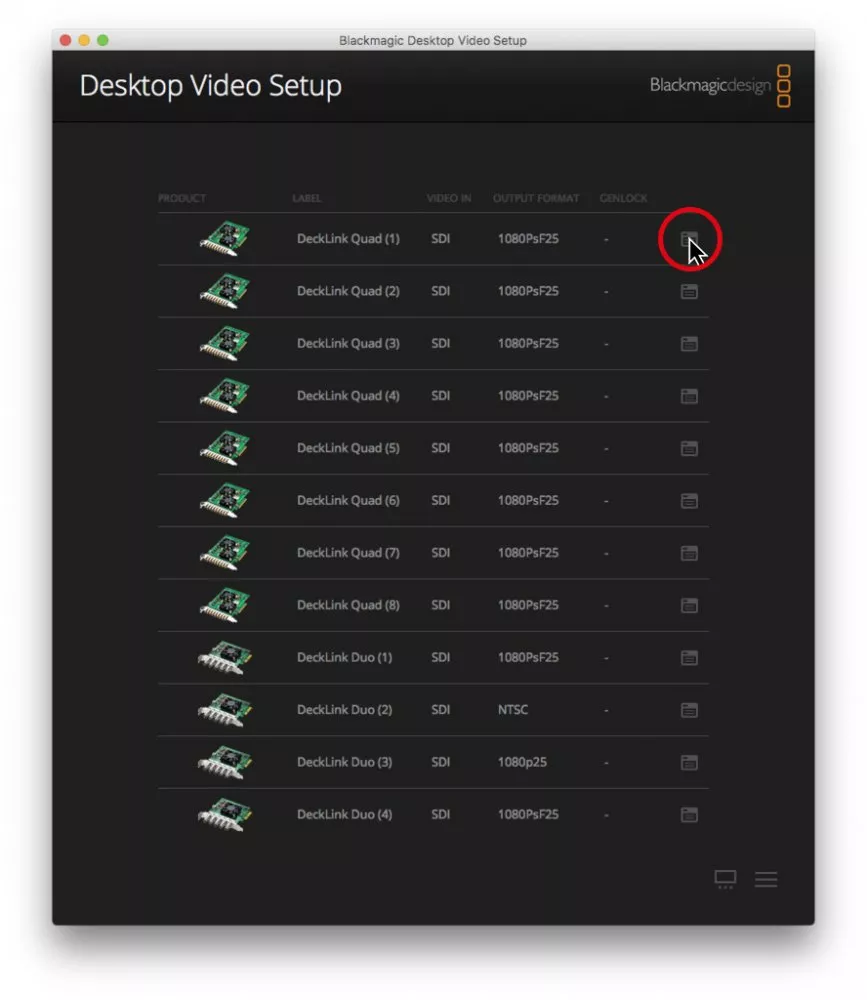
Step 2: Click on the options button behind the channel you want to adjust.
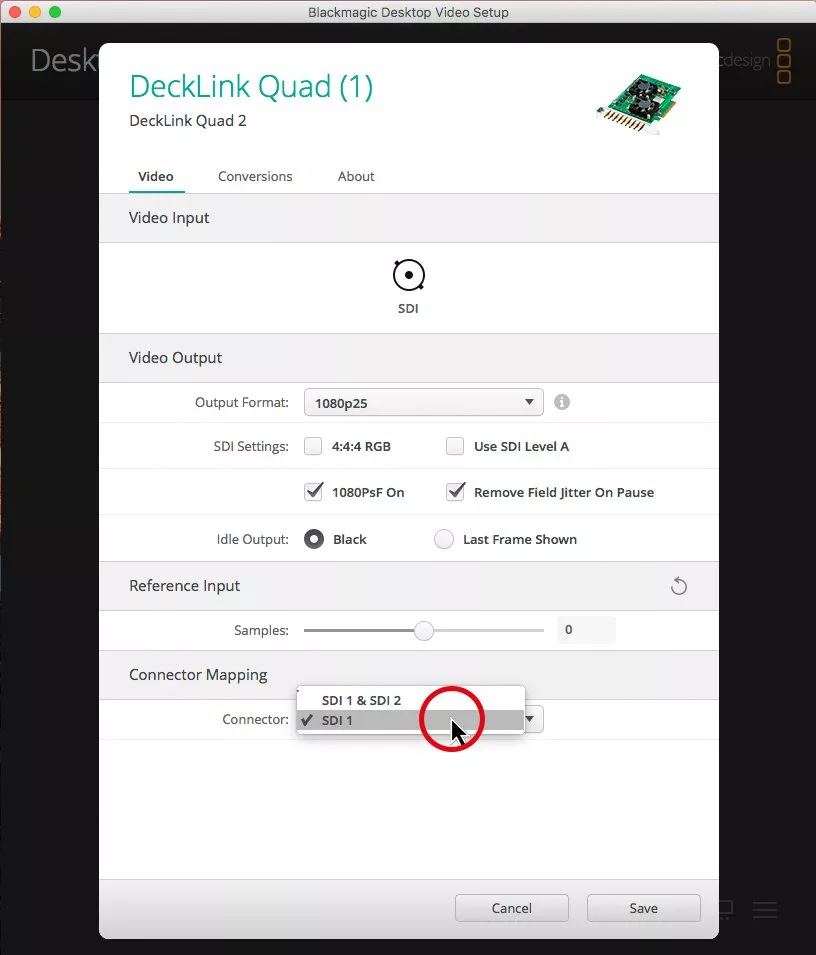
Step 3: Select the single channel from the drop-down menu.
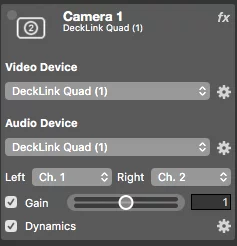
Step 4: After selecting `Blackmagic Design Video` in the sources section of mimoLive, you are able to assign each channel separately.
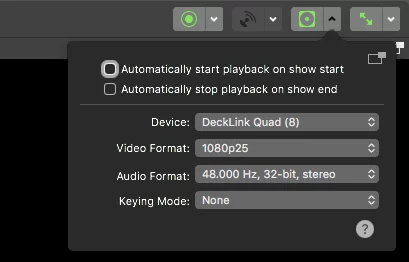
Step 5: If you want to use the DeckLink card for HD-SDI playback, you can assign a channel in the playback menu.
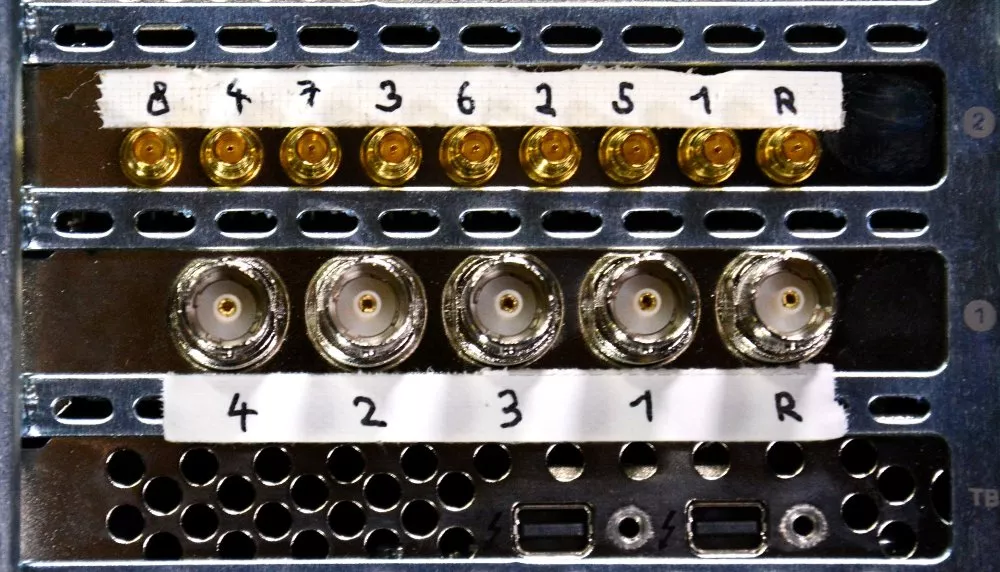
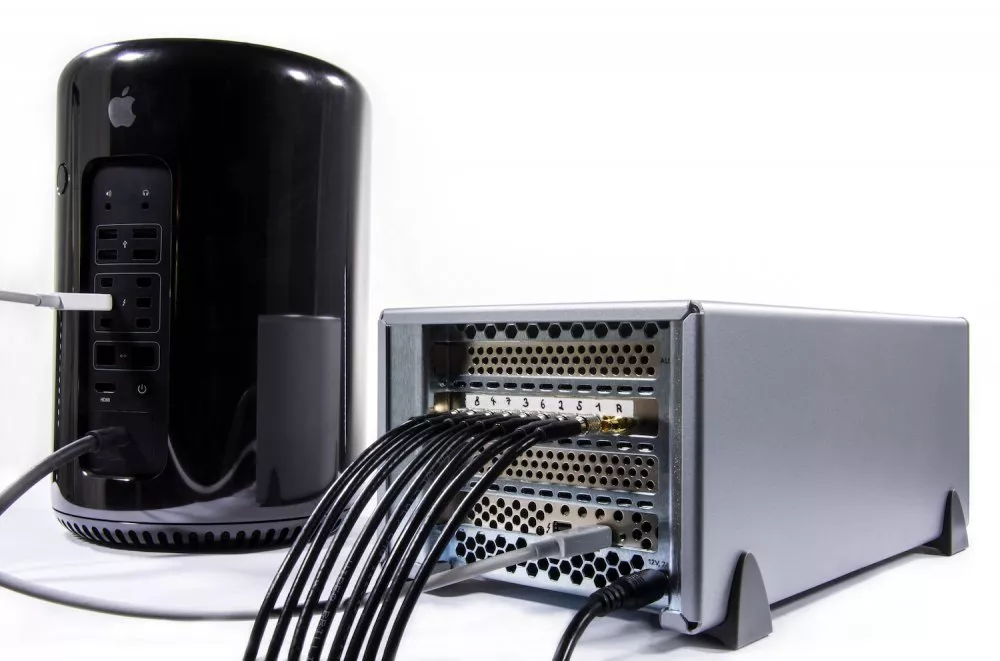
The connectors are mapped alternately. The rightmost one is for reference.
In this setup we are using 8 HD SDI Sources with a Blackmagic Quad 2 card in a Sonnet Technologies Echo Express box: