
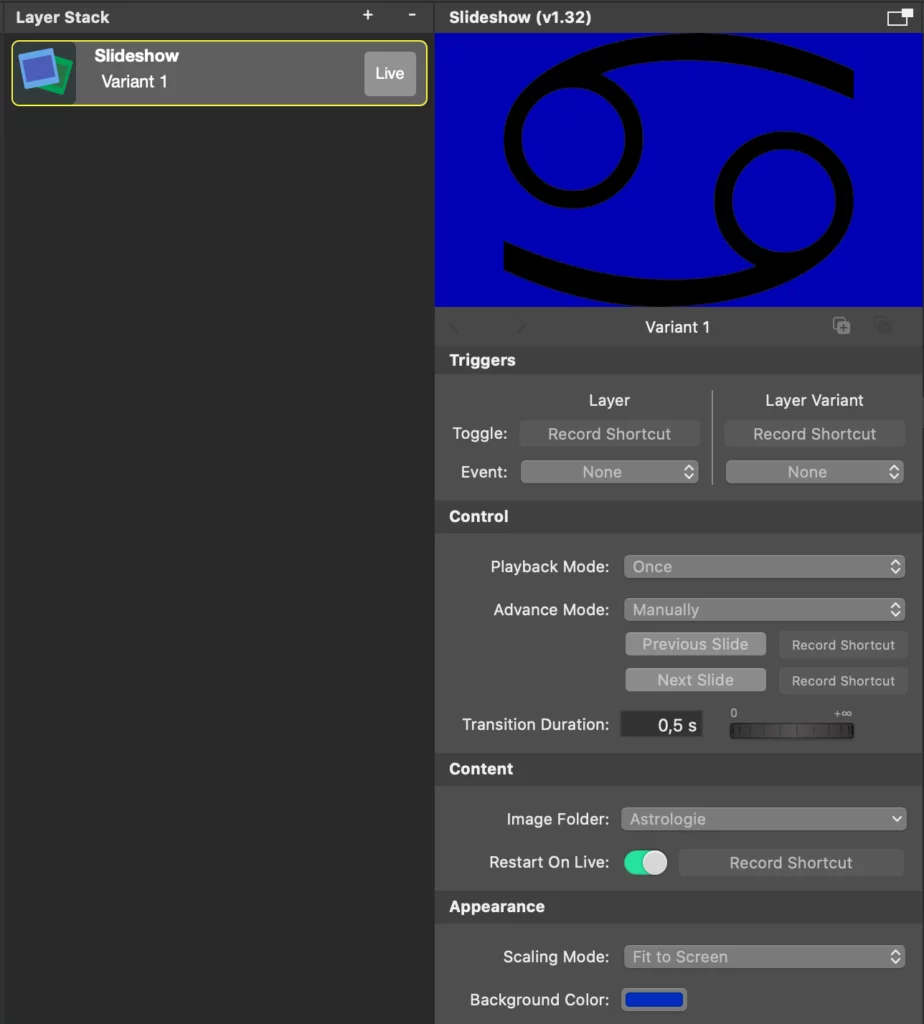
The Slideshow Layer allows you to display a series of images as a slideshow in your live production. It is perfect for showcasing photo albums, event highlights, or background visuals.
Control
Playback Mode
- Once: Plays through the images one time and then stops.
- Loop: Continuously cycles through the images in the selected folder.
Advance Mode
- Time Interval: Automatically advances to the next image after a set duration.
- Manual: Allows manual control of slide advancement. When selected, two new buttons appear:
Previous Slide
Go back to the previous image.
Next Slide
Advance to the next image.
Transition Duration
Defines the duration of the crossfade between slides. Adjustable via a time field and slider (e.g., 0.5 s).
Slide Duration
Sets how long each image is shown before advancing (e.g., 6 s). Only relevant in Time Interval mode.
Content
Image Folder
Selects the folder containing the images for the slideshow.
- Choose Folder…: Opens a dialog to select a new folder.
- Reveal in Finder: Opens the current folder in Finder for quick access or file management.
Restart On Live
When enabled, the slideshow resets to the beginning every time the layer goes live.
Appearance
Scaling Mode
- Fit to Screen: Displays the entire image, scaling it to fit within the layer bounds. Empty areas are filled with the background color.
- Fill Screen: Scales the image to cover the entire screen. This may crop parts of the image to maintain aspect ratio.
Background Color
Sets the background color used in Fit to Screen mode where images do not fill the full layer area or the images are transparent.