
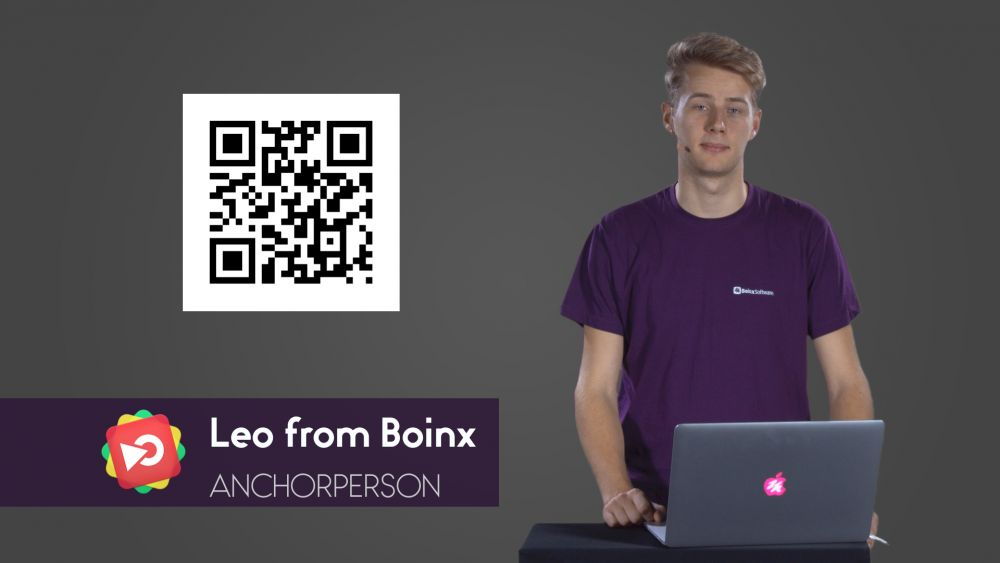
The QR Code generator layer in mimoLive allows you to easily create QR codes as a source element. This feature is useful for various applications such as marketing campaigns, product packaging, or event promotions. With the QR code generator layer, you can quickly create and display QR codes in your live streams or video productions, making it easy for your audience to access and interact with your content.
The QR Codes can be used to trigger certain actions:
- Open a web page
- Send an email
- Call a phone number
- Add a contact to the address book
- Send a text SMS
- Open a map on a certain location
Encoding Data
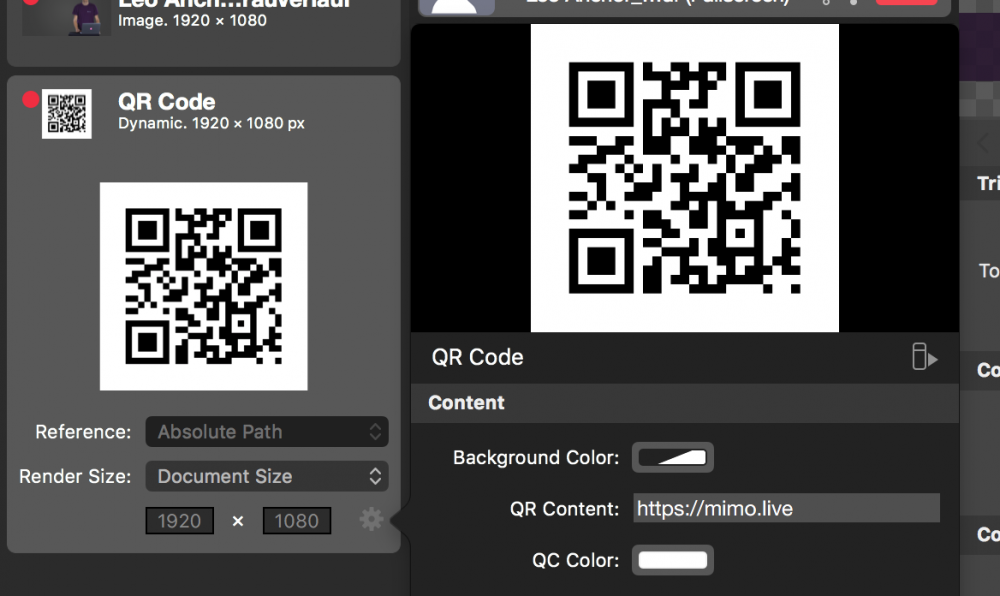
- To create a QR Code, add an instance of the QR Code Source to your Sources.
- Click on the setting cogwheel at the right-hand bottom of the source to bring up the settings panel.
- Enter the string you want to encode in the field “QR Content”.
Their smartphone can be made to perform various tasks when viewers point their cameras at the QR Code. Here is a list of some of those tasks:
(This information is based on “Barcode Contents” by Sean Owen )
| QR Code Action | “QR Content” Example |
|---|---|
| Open a Web Page | https://mimo.live |
| Send an Email | sendto:support@boinx.com |
| Call a Phone Number | tel:+49-89-8400550 |
| Add Contact to Address Book | MECARD:N:Boinx%20Software;ADR:Industriestr.%209,82110%20Germering,Germany;TEL:+49898400550;EMAIL:support@boinx.com;; |
| Send a Text | sms:+49-89-8400550:Hi%20there |
| Open a Location on Map | geo:48.133884,11.359026,540 |
Displaying the QR Code in Your Stream
To display the QR Code in your video, you can use the source in any layer. We recommend using the PiP Layer because that layer automatically masks the entire area of the QR Code.