
How the Zoom Meeting Source in mimoLive is Changing the Game
The Zoom Meeting Source in mimoLive can be used for a variety of live video production use cases, such as:
- Webinars: You can use the Zoom Meeting Source to host webinars and incorporate the audio and video of up to six participants into your live stream, allowing you to create a more engaging and interactive experience for your viewers.
- Remote Interviews: The Zoom Meeting Source can be used to conduct remote interviews with guests who are not physically present in the studio. By integrating Zoom into your live production workflow, you can bring remote guests onto your show and interact with them in real-time.
- Remote Meetings: You can also use the Zoom Meeting Source to host remote meetings and incorporate the audio and video of all participants into your live stream, making it easier to collaborate and work with remote team members.
- Live Events: The Zoom Meeting Source can be used to incorporate live feeds from remote cameras, allowing you to capture and broadcast multiple angles of an event, such as a concert or sporting event.
Overall, the Zoom Meeting Source in mimoLive provides a convenient and flexible way to integrate remote participants into your live production workflow, allowing you to create a more engaging and dynamic experience for your audience.
Get Zoom Audio and Video for Up to 6 Participants in 1080p Resolution
Join a Zoom Meeting with mimoLive and receive individual audio and video for up to 6 participants in up to 1080p resolution (Zoom High Bandwidth Mode). Use the individual audio and video provided by this source to create great looking layouts using mimoLive layers.
How mimoLive integrates with Zoom
Zoom Virtual Production

Create a visually compelling and engaging live program using meeting participants as external cameras. Shown here is the Video Carousel layer.
Zoom Hybrid Production

Send video and audio from participants to a studio or stage and integrate with live action to create a live broadcast.
Zoom ISO Recording

Record ISO video and audio from meeting participants to h.264, h.265 or ProRes video files.
Zoom ISO Playout

Send ISO audio and video feeds from to other video production equipment using SDI, NDI or RTMP.
Sending mimoLive output to Zoom (Virtual Camera)

How to get started with the Zoom Meeting Source
mimoLive User
When you join a Zoom meeting using mimoLive, it appears to the meeting participants that a new user has joined the meeting. We will refer to this user as the mimoLive user.
Authenticating with Zoom
Some Zoom Meetings require authentication to prevent uninvited guests from joining. To authenticate with Zoom, go to the mimoLive settings, select Accounts, find “Zoom” in the table on the right, and click on it:
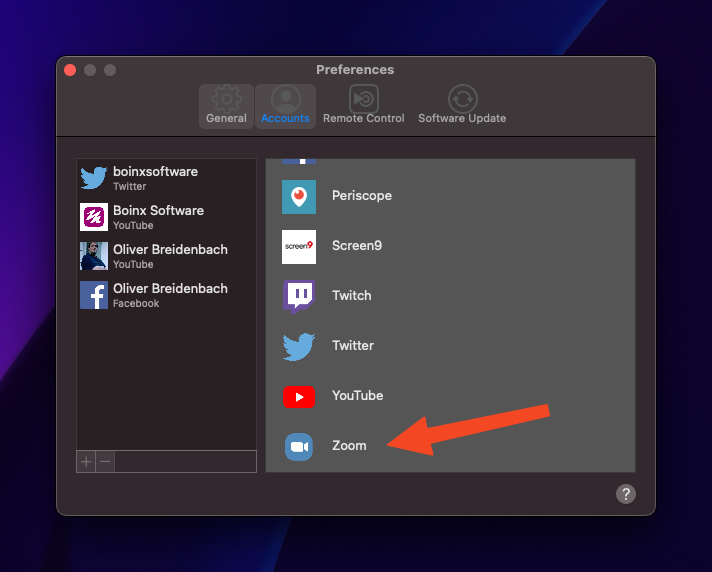
The process will take you to your web browser and the Zoom website. Log in using your Zoom credentials.
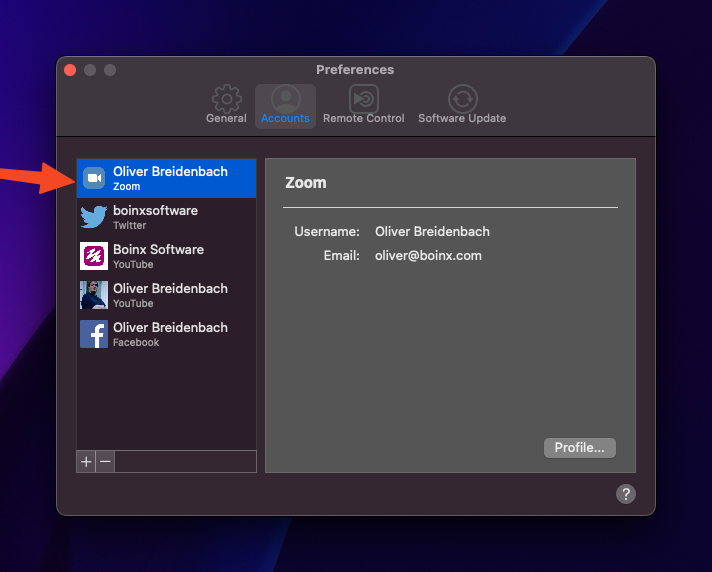
You are now logged in to Zoom using mimoLive. This will be the persona of the mimoLive user that is joining the meeting when you use mimoLive to join the meeting.
Joining a Zoom Meeting
You can use mimoLive to join an existing meeting on Zoom. mimoLive will appear as a regular user on the meeting called “mimoLive Recorder”.
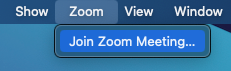
Select “Join Zoom Meeting” from the Zoom menu:
Enter the meeting ID and passcode:
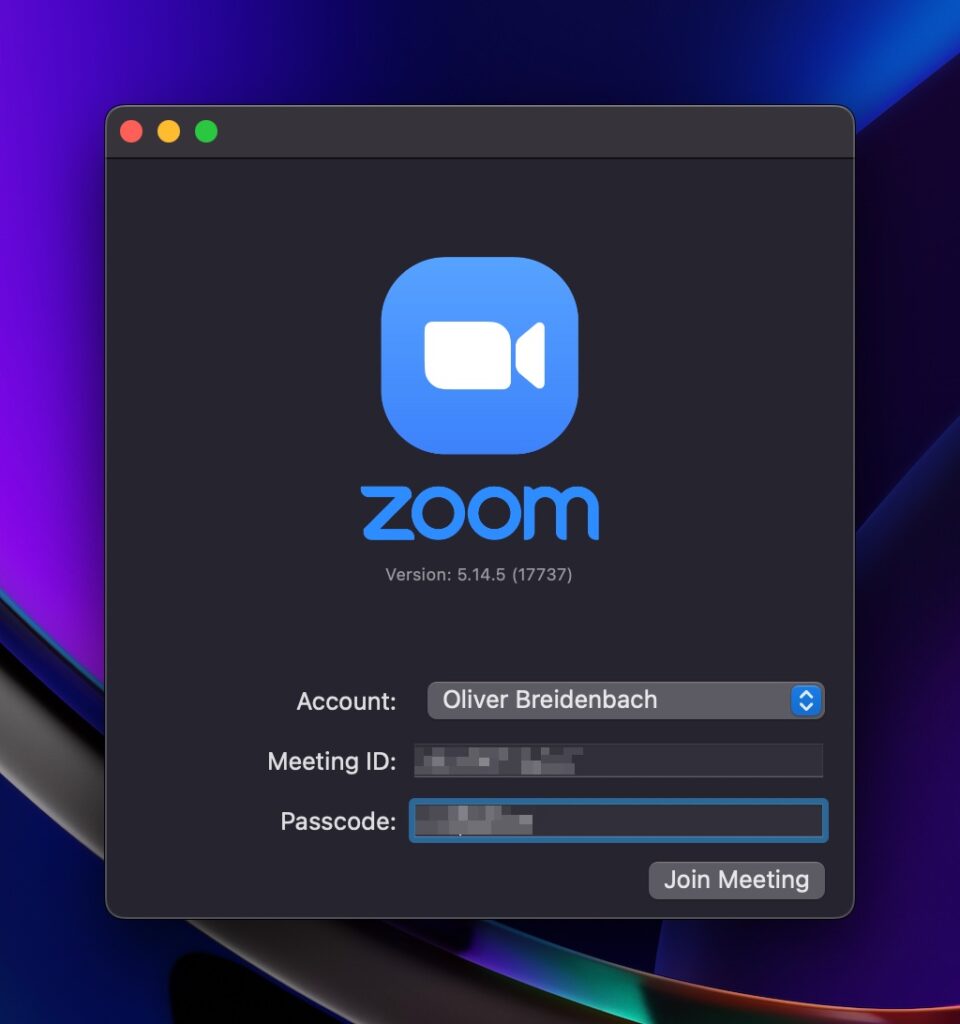
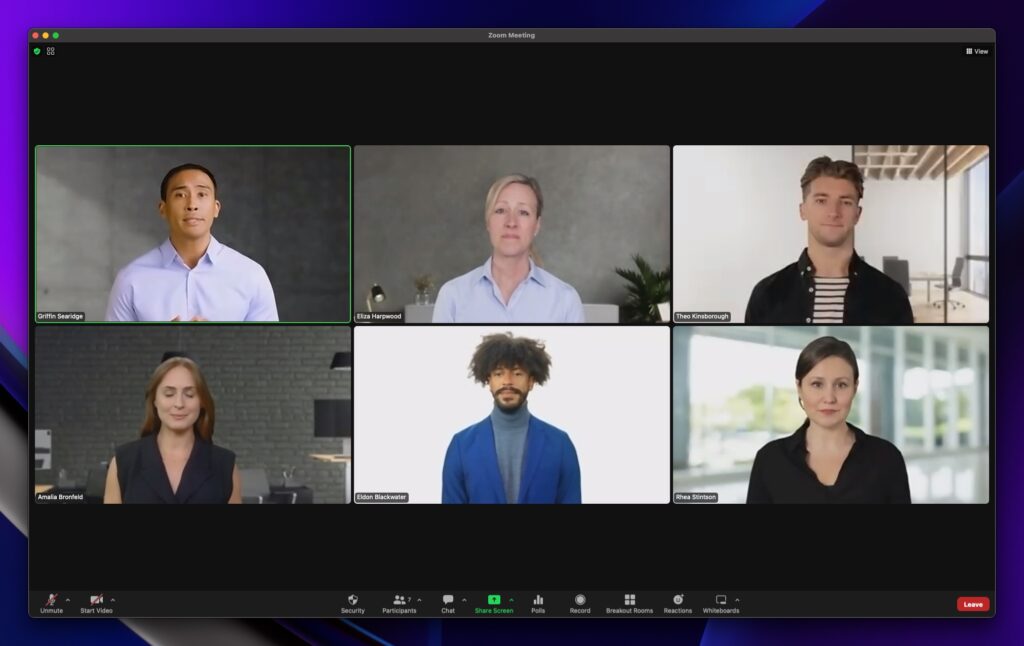
After you click Join Meeting, the Zoom window opens. It looks and works just like the Zoom client:
Changing Meeting Settings
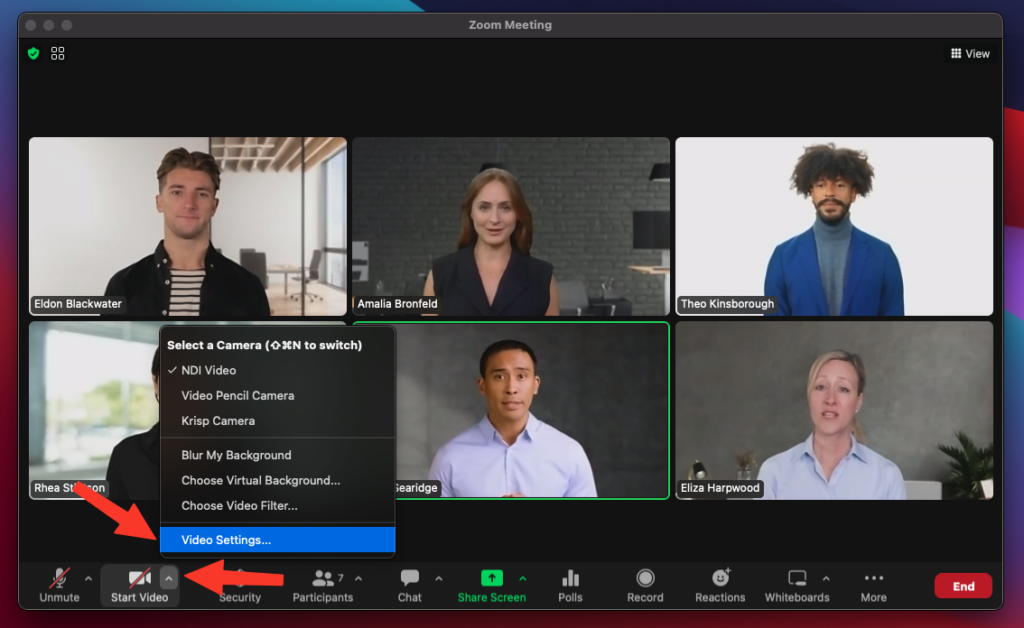
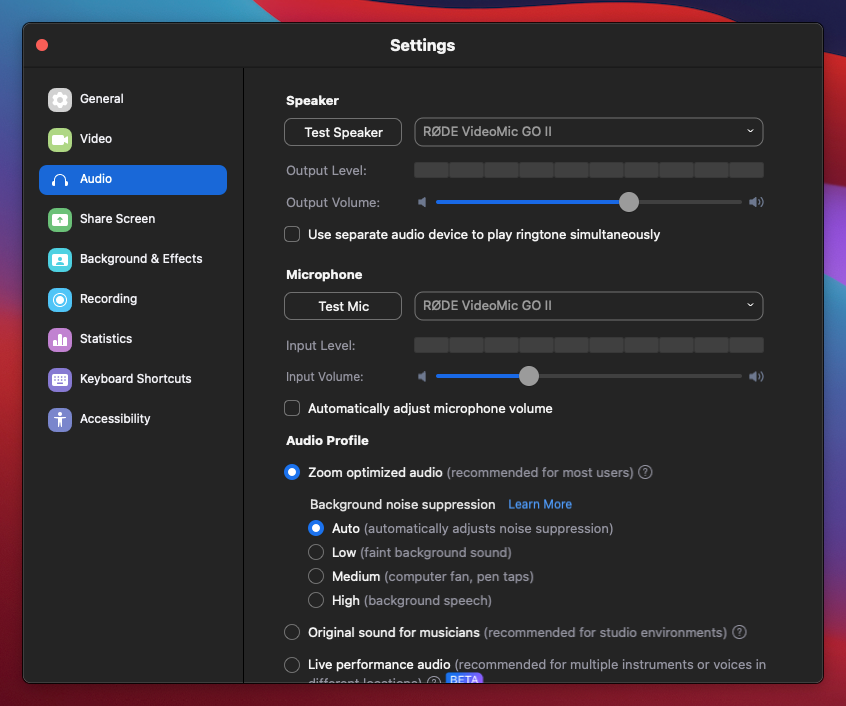
The Zoom Meeting window is a true Zoom client. You can set up a video camera and microphone for the return feed, as well as most other Zoom Meeting settings.
To access the settings, select the Audio or Video pop-up menu in the lower left corner of the Zoom Meeting window:
This will open the standard Zoom Settings window:
Receiving Audio and Video
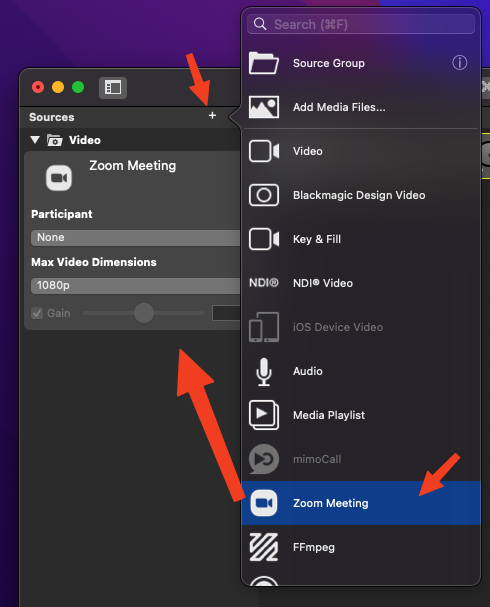
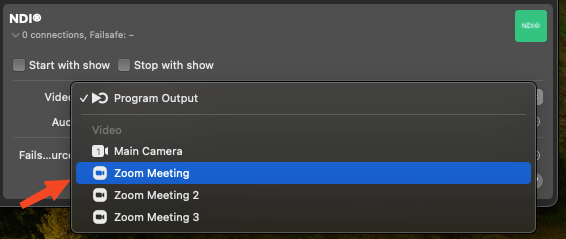
To receive audio and video, add a Zoom Meeting source in the Sources column for each participant you want to add to your production:
Select Zoom Participant
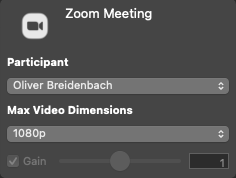
You can select a specific Zoom meeting participant directly from the pop-up menu:
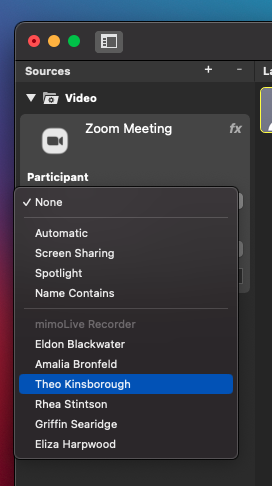
There are a couple of “special” participants:
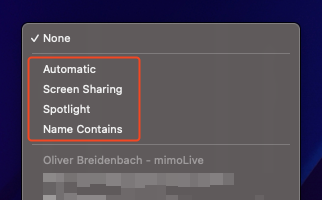
Automatic
A Zoom Meeting source of this type automatically follows the active speaker as determined by Zoom, receiving their video and the mixed audio from the meeting. This is especially useful for open discussions or Q&A sessions, where you want the video to follow whoever is currently speaking.
When you choose this option, an additional setting appears: “Ignore users in other Zoom sources.”
If you enable this setting, mimoLive will check all other Zoom sources in your project whenever the active speaker changes.
- If the new active speaker is already shown in another Zoom source (for example, you have a dedicated Zoom source showing the host at all times), mimoLive will not switch to that speaker.
- This allows you to set up one (or more) fixed Zoom sources for specific participants (like the hosts), while the automatic Zoom source cycles through all other participants without ever replacing those fixed hosts.
This gives you a flexible setup: your hosts remain visible at all times in their dedicated sources, and the automatic source dynamically highlights other speakers during the meeting.
Screen Sharing
If a participant shares their screen, the Zoom Meeting source with “Screen Sharing” selected will receive the video from the screen share.
A Zoom Meeting Source for Screen Sharing does not include audio.
Spotlight
A Zoom Meeting source with “Spotlight” selected will receive video and audio from the participant that a host or co-host has “spotlighted”.
This feature can be used to give an outside person control over who appears in the video production. An example of this would be a town hall meeting where the town clerk can select which citizen is given the right to speak.
Name Contains
When you select this option, a new field appears for you to enter a portion of the Zoom Meeting participant’s name that will be automatically matched when the person joins the meeting:
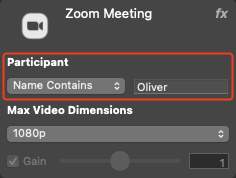
This can be used to assign sources to specific people in preparation for a meeting.
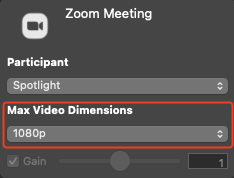
Video Dimensions
The Zoom Meeting source supports receiving video with up to 1080p resolution, depending on the bandwidth of your connection to Zoom and the power of your computer to decode video streams. To preserve bandwidth, you can choose an upper limit for the video resolution by setting the Video Dimensions in the Zoom Meeting source panel:
Chat
Messages that attendees send to the meeting chat are added to the mimoLive Comments window and can be used with the comment layers to display in your video production. You can find the Comments window in the “Window” menu.
Return Feed
mimoLive can send the program out and program audio mix back into the Zoom meeting as a return feed. To do this, there are special audio and video devices available that can be activated by using the HTTP API (see below) to join the meeting.
Starting with mimoLive 6.5, you will be able to use the mimoLive Virtual Camera Extension to send a return feed to the meeting.
ISO Recording and Playout
By using the File Recording output destination, you can record each source from the Zoom Meeting individually for later editing in an NLE video editing program such as Final Cut Pro, DaVinci Resolve, or Adobe Premiere.
The Fullscreen Playout output destination can be used to display a specific participant on a studio monitor or teleprompter for interaction with a live audience.
Status Messages
The mimoLive Zoom source displays status messages:
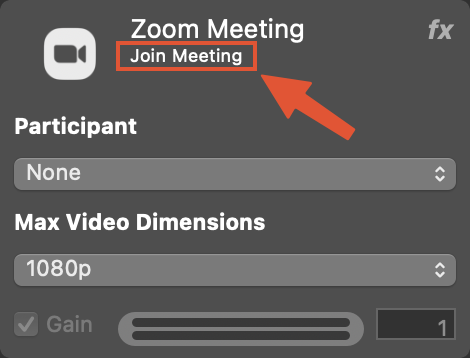
Join Meeting
This message appears if you haven’t joined a meeting yet.
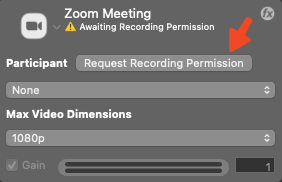
Awaiting Recording Permission
This message appears if you have joined a meeting but don’t have recording permissions. Request permission from a host or co-host in the meeting using the “Request Recording Permission” button:
Waiting for Zoom participant
This message appears when the source is trying to capture a meeting participant who hasn’t joined the meeting yet.
[Video Resolution] – [Participant name]
If everything is working correctly, the status message will show the video resolution being received and the name of the participant.
API Support
The Zoom Meeting Source also supports changing parameters via the HTTP API to enable automation. The Zoom Meeting Source has the following properties that can be read and set:
| zoom-userid | select a specific Zoom User by their ID (sets the “zoom-userselectiontype” automatically) |
| zoom-username-containing | select a user by their literal name (first match) (sets the “zoom-userselectiontype” automatically) |
| zoom-username | set a specific Zoom User by their literal name (sets the “zoom-userselectiontype” automatically) |
| zoom-userselectiontype | switch the user selection mode (0=none selected, 1=by User ID, 2=automatically by Zoom, 3=because pinned in Zoom, 4=because spotlighted in Zoom, 5=by matching contained text, 6=because screen sharing is active, 7=because computer audio sharing is active) |
| zoom-videoresolution | zoom-videoresolution (0= 90p, 1=180P, 2=360P, 3=720P, 4=1080P, 100=reserved) |
| zoom-automatic-mode-exclude-other-zoom-sources | when the automatic mode is active, then don’t switch to users that a re present in other Zoom sources (0=no, 1=yes) |
API Calls
Several HTTP API endpoints and calls are available for controlling a Zoom meeting. Please refer to this article for more information about the Zoom Meeting API.
Using the command line to call the API:
The API can also be called from the Mac command line using the applications URL scheme. Here are two examples:
open -a "mimoLive" "mimolive2://api/v1/zoom/join?meetingid=xxxxxxxx&displayname=mimo%20rocks&passcode=yyyyyyyyyyyyyyyyyyyyy&zoomaccountname=zzzzzzzz&virtualcamera=true"open -a "mimoLive" "mimolive2://api/v1/zoom/leave"
Using the Automation Layer to control the Zoom Meeting
Another way to control the Zoom meeting would be an set of Automation layers that will send an http request to the mimoLive API. This way you can easily add some buttons to the mimoLive Remote Control Surface to control the Zoom meeting:
httpRequest("http://127.0.01:8989/api/v1/zoom/meetingaction?command=lowerAllHands")

httpRequest("http://127.0.01:8989/api/v1/zoom/end")