
mimoLive

Sports Game Data

Table of Contents

*

Sports Graphics Pack​ comes bundled with mimoLive® Studio and mimoLive® Broadcast licenses.

If you have a mimoLive Non-Profit license, you can purchase this add-on through the mimoLive Online Shop

Specify The Game And Teams

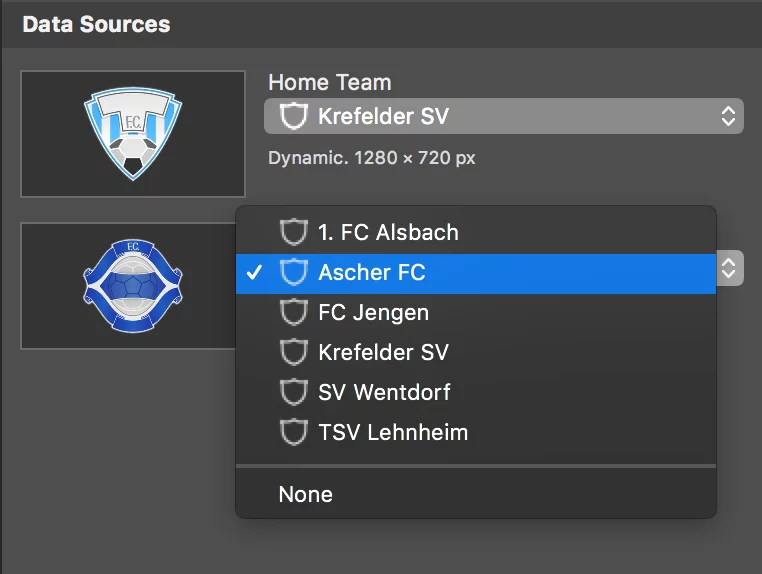
The Sports Game Data layer combines two Sports Team Data sources into one game. To specify which teams should be in a game you can either drag&drop the teams from the Sources Repository to the Sports Game Data layer or you can select them in the Home Team and Guest Team popups:
f1e13c79 eb32 4c31 b5f2 b60eb2fc540d

Make sure to select the correct sports type! The Sports Lineup layer uses it to choose the right game floor.

*

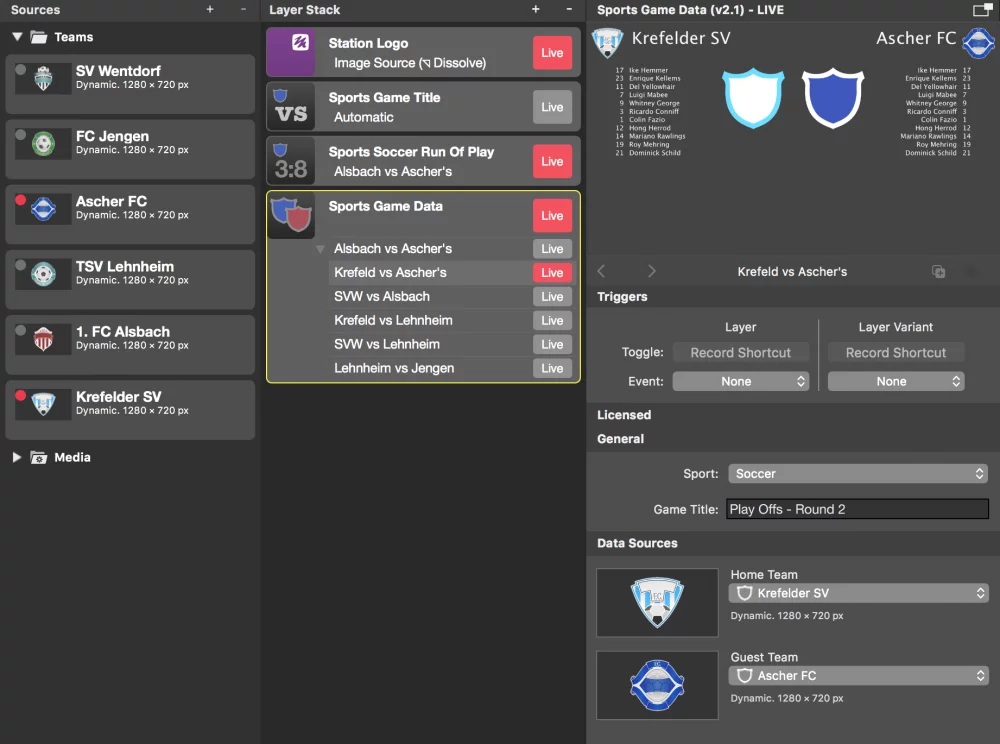
All the Sports Graphics layers in the layer stack above will take the current game data as their data source. It is important to switch the layer live!

Make Use Of Layer Variants

For a tournament, you will add multiple layer variants to the Sports Game Data layer so that you can switch to the current game by just setting the appropriate layer variant live easily.
765f5663 433d 434a ac24 2c4e3d916d64

Your Feedback

How would you rate your experience with this feature of mimoLive®?

User Manual: Recent Updates

Placer Layer

When starting with mimoLive®, the first tool you should familiarize yourself with is the Placer Layer. This basic yet pivotal layer is the cornerstone of creating visually engaging and professionally structured broadcasts. In this guide, we will explore why the Placer Layer is foundational, its capabilities, and how it enhances your video production process. The Placer Layer is the most basic representation of your footage in the layer stack. It enables you to perform basic edits to the appearance.

Read More »