
Output destinations send video and audio out of mimoLive: to a file, a streaming service, the network, another app or a display. A document can have any number of output destinations, and they can all run at the same time, for example a recording and two live streams.
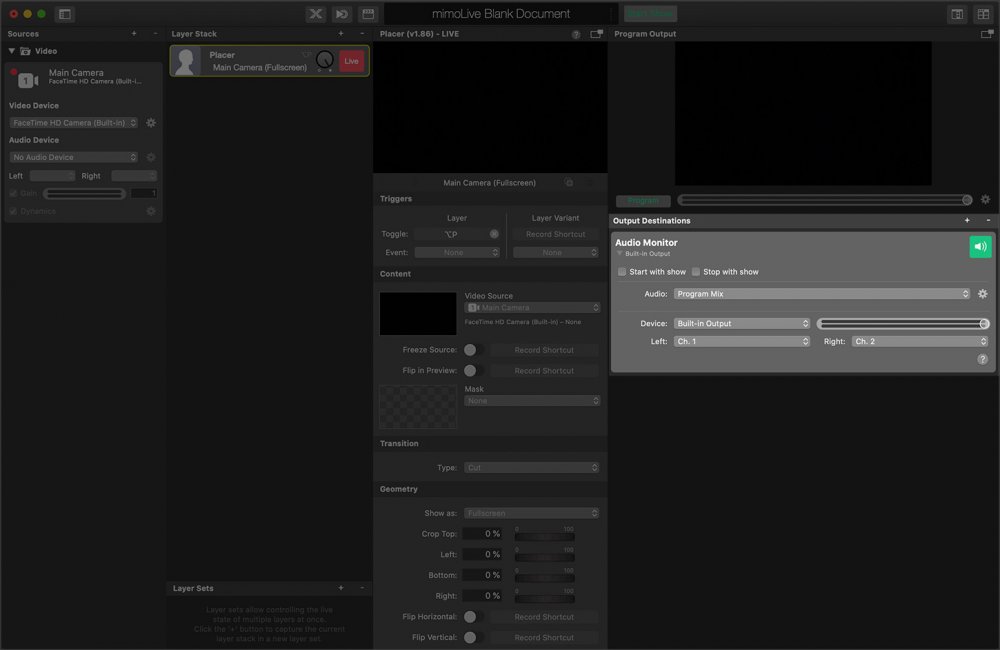
You manage them in the Output Destinations list in the lower part of the right column of the document window.
Types of Output Destinations
| Output Destination | What It Does |
|---|---|
| File Recording | Records a program output or a source to a movie file on disk. |
| Live Streaming | Streams to a streaming service or an RTMP server. |
| NDI® Output | Sends video (with alpha channel) and audio to NDI® receivers on the local network. |
| Virtual Camera | Appears as a camera in other apps, for example video conferencing software. |
| Full Screen Playout | Shows the video on a separate display. |
| Blackmagic Design Playout | Plays out via SDI or HDMI on Blackmagic Design hardware. |
| Audio Aux Output | Sends audio to an audio device. |
| mimoCall Output | Sends the video to a mimoLive on another Mac over the internet. |
| Image Writer | Saves single images or image sequences as JPEG or PNG files. |
| Last Recording Uploader | Copies the most recent recording to a folder or to a server via SSH. |
Other Ways to Get Video Out of mimoLive
| Method | What It Does |
|---|---|
| Syphon | Shares video with other apps on the same Mac. It is set up as a layer in the Layer Stack, not as an output destination. |
| AirPlay | Plays out to an Apple TV or a smart TV that macOS uses as an external display. |
| SHOUTcast or Icecast | Audio-only streaming with the free tool butt. |
Adding and Removing Output Destinations
Click the + button at the top of the Output Destinations list, or choose Destination > Add Output Destination…. In the popover, double-click an output destination or drag it to the list.
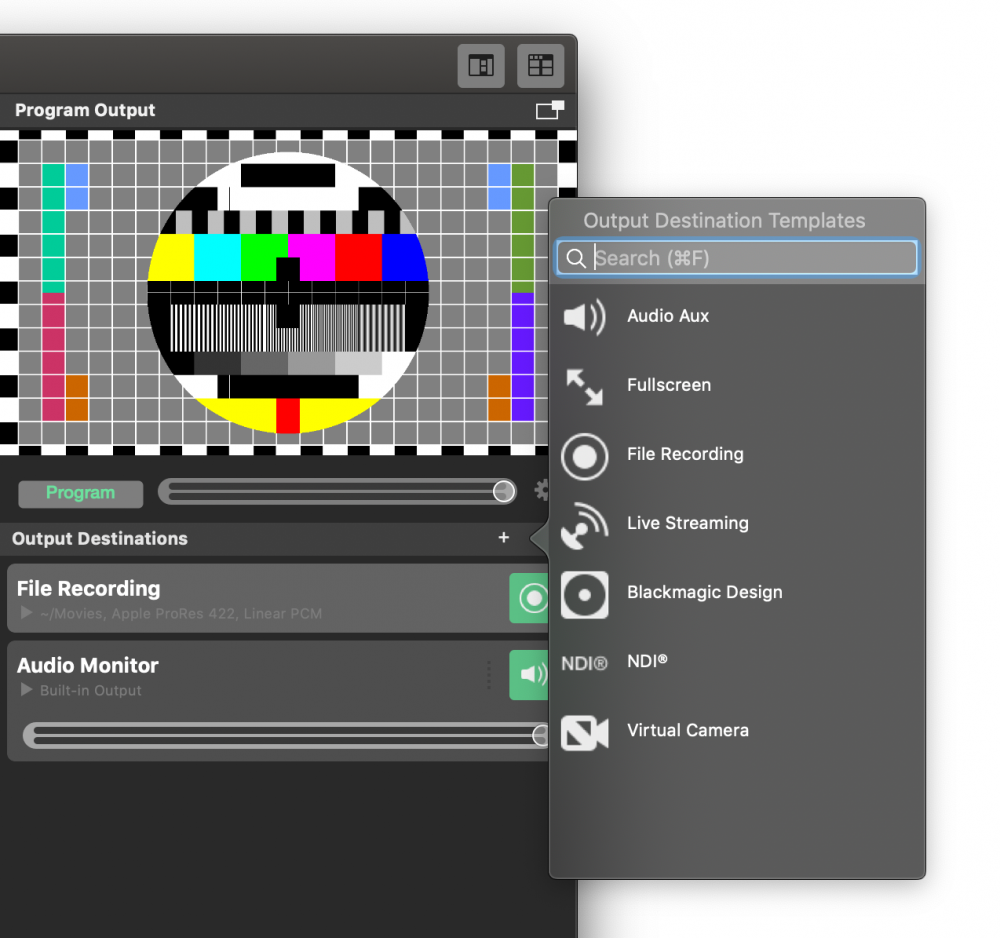
To remove an output destination, select it and click the – button at the top of the list, or choose Destination > Delete. The Destination menu also has commands to rename and duplicate the selected output destination.
Choosing Video and Audio
Most output destinations have these settings:
| Setting | Meaning |
|---|---|
| Video | The video to send: a program output (each program output of the document is listed) or a video source from the Sources Repository. |
| Audio | The audio to send: the program mix, a custom audio mix from the Audio Mix Panel, or an audio source. |
| Video Size | Some output destinations, such as File Recording, Live Streaming and NDI®, have this setting. “Same as Video Source” uses the size of the selected video. “Same As Program Output” uses the size of the main program output. “Custom” lets you enter a size. |
The settings that are specific to one output destination are described on its page.
Going Live
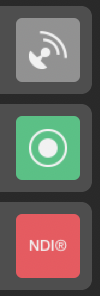
Click the live button of an output destination to start or stop it. Its color shows the state:
| Color | State |
|---|---|
| Grey | The output destination isn’t set up yet or isn’t available. |
| Green | The output destination is set up and ready. |
| Red | The output destination is live and sending. |
While an output destination is live, many of them show status information instead of their settings. Some have a performance monitor that shows how well they keep up.
Starting and Stopping with the Show

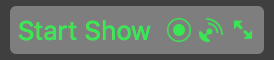
Select Start with show to start an output destination when you click the Start Show button, and Stop with show to stop it when the show ends. Depending on the Show Settings, the show can end some time after you click the Stop Show button.
Small icons in the Start/Stop Show button show which output destinations it starts and stops:
Controlling Output Destinations Remotely
Output destinations can be started, stopped and configured with the HTTP API, the Automation Layer (outputOn and outputOff) and the MCP tools for AI agents.