
The Audio Source Meter Layer displays a live audio level meter for the selected audio source. It achieves this by blending two images in proportion to the measured input level and the maximum/minimum possible level. Two images are included for a vertical meter, from bottom to top, matching the design of the audio levels in the mimoLive Multiview. You can customise the look of the layer by creating your own images.
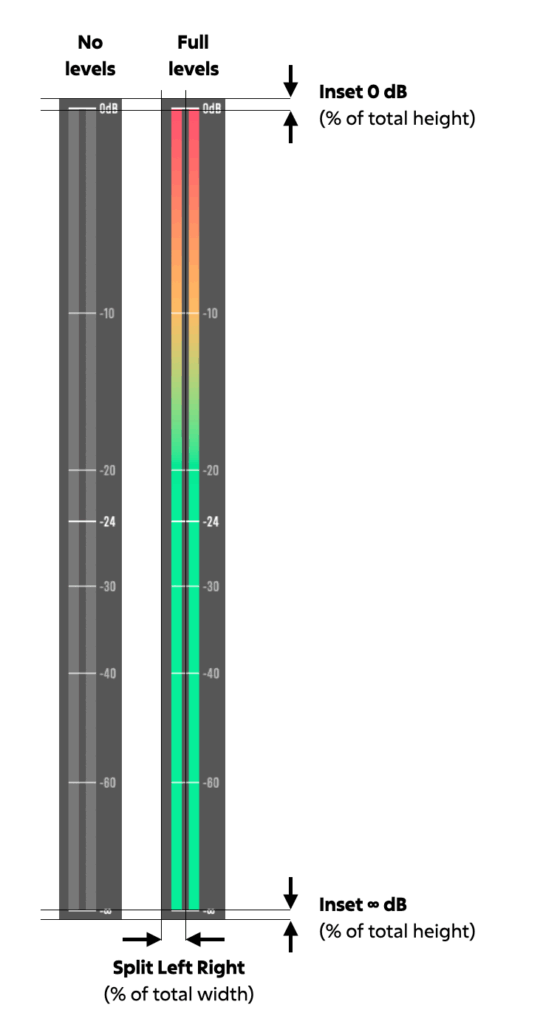
No Levels, Full Levels
This No Levels image shows the meter with no audio, the Full Level image shows the meter at full volume.
Provide those two images to create your own look. They should both have the exact same dimensions. For the best results, create the images at 100% of the intended size.
Direction
In addition to the default bottom-to-top direction, the meter can be set to go from left to right, top to bottom, or right to left by providing the necessary images.
Inset 0 dB, Inset ∞ dB, Split Left Right
Here is a graphic that explains how values determine the function of a layer. For horizontal meters, rotate the graphic 90° clockwise.
The Cool Down
The Cool Down parameter controls how quickly the meter level decreases after reaching an audio peak. This behavior helps make peaks more visible to the audience; without a cool-down effect, peak values would drop too quickly to be noticed.
A Cool Down value of 0% causes the meter to follow the audio signal exactly, with no delayed falloff. A value of 100%prevents the meter from falling at all, which can be useful for applications such as a clap-o-meter. At 50%, the meter requires approximately 2 seconds to return from a full peak to its baseline level.